
6. How to Filter and Search Clients
Efficiently managing your client base requires both pinpoint searches and flexible filtering. In the Clients tab, the built-in Search field lets you instantly find individual records by ID, name, email or phone, while the Filter panel enables you to segment your list by attributes like creation date, action timeline, manager assignment, or verification status. By combining these two tools, you can rapidly locate a single client or drill down into custom cohorts—whether you’re handling onboarding, compliance reviews, or performance reporting.
You can search for clients in two ways:
- Search input: Using their full name, email, or phone number (by '_id', 'firstName', 'lastName', 'email', 'phone').
- Filtering: Using broader parameters, such as the creation date.
Use Cases
-
Quickly Finding a Specific Client: Enter a client’s email or partial address (e.g., “gmail”) in the Search field for instant results.
-
Filtering Clients by Creation Date: Use the Created Date filter to select a date range and review recently onboarded clients.
-
Viewing Clients by Manager Assignment: Apply the Manager filter to display clients managed by a specific employee.
-
Identifying Unverified Clients: Use the Verification Status filter to show only unverified clients for compliance checks.
To find a client using the Search input
The Search input is located above the client table and is always visible.
Type the client's email or name in the Search field at the top of the Clients tab.
Type any of:
- Full or partial email (e.g. “gmail”)
- First name or last name
- Phone number
- Internal _id value
Results filter instantly as you type.
Special Characters in Search
The Search field treats all entered characters as literal text.
Special characters such as ?, %, _, *, +, -, (, ), @, and # are not interpreted as wildcards or regular expression symbols.
For example:
Searching for Anna? will return only clients whose name literally contains Anna?.
This ensures consistent and predictable filtering behavior across all environments.
Search Placement & Behavior
The Search input is permanently displayed above the client table, next to the table controls.
It is independent from Fast Filters and always visible without opening any panels.
Search operates across predefined client fields, including:
-
_id
-
firstName
-
lastName
-
email
-
phone
Search:
-
Filters results instantly as you type
-
Resets pagination to the first page
-
Can be combined with any structured Fast Filters
-
Does not modify or become part of saved Fast Filter views
Saved Fast Filter configurations do not store search terms.
Search input operates separately and does not affect saved filter presets.
To find clients using Fast Filters
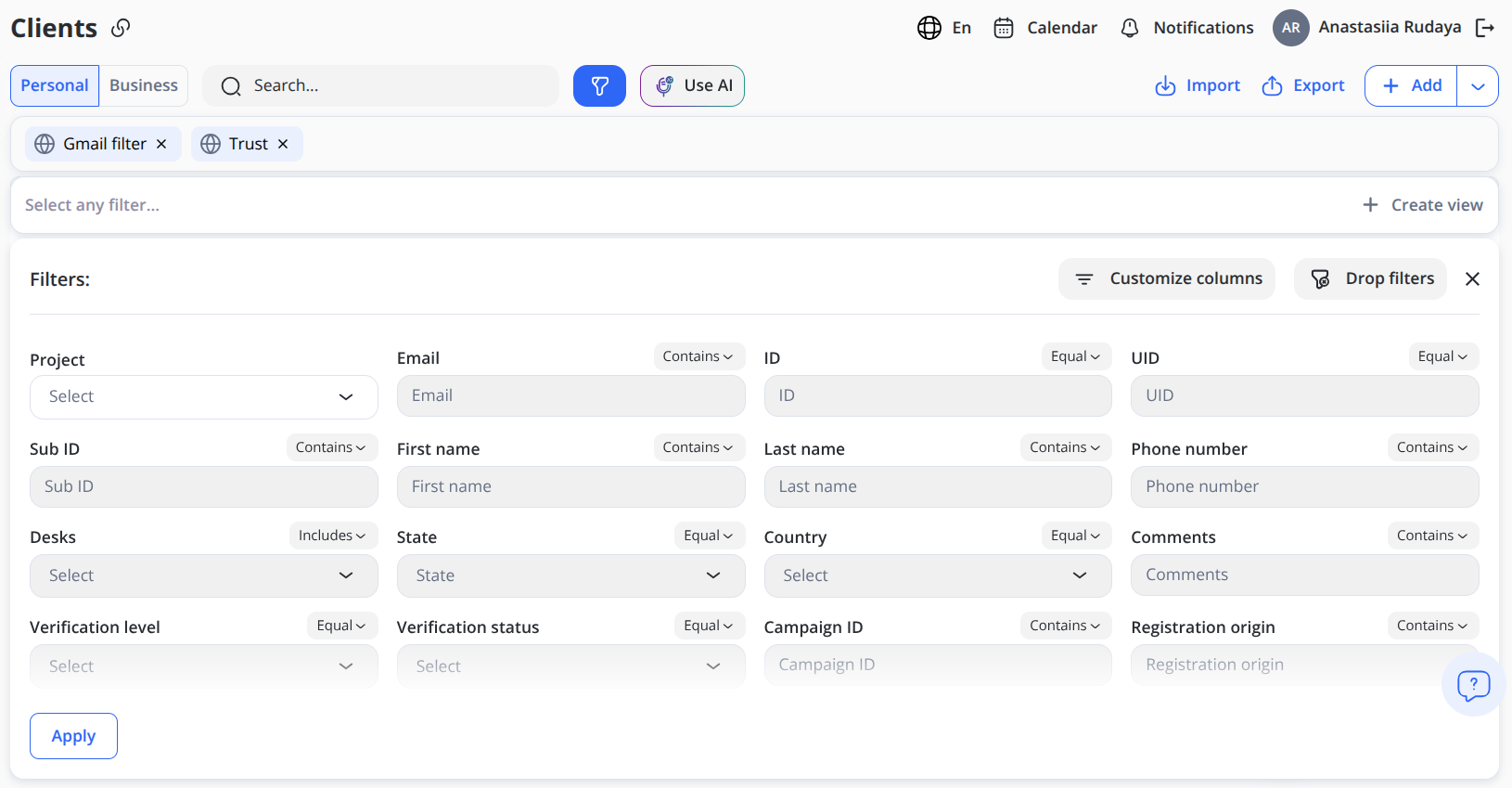
In the Clients module, both Personal and Business client lists support the Fast Filters panel. It allows you to segment and review clients using structured filtering criteria without opening additional windows.
Fast Filters panel overview
The Fast Filters section is displayed directly below the main toolbar and includes the following elements:
-
Personal / Business tabs – switch between personal and business client lists.
-
Total counter – shows the total number of clients currently displayed.
-
Filter dropdowns – pre-set structured fields that let you narrow results by key attributes (e.g., country, verification status, manager, date ranges, etc.).
-
Apply button – executes the selected filters and updates the table view.
-
Drop filters – clears all active filters at once.
-
Create view – saves the current set of applied filters and layout preferences for later use.
-
Customize columns – adjusts which data columns are visible in the client list.
The “Actions exist” column can be enabled or disabled via Customize columns. Filtering by “Has actions” works even if the column is hidden.
How to use Fast Filters
-
Select whether you want to view Personal or Business clients.
-
Use one or more dropdown filters to refine the results. Common options include:
Country – filters by the client’s country of registration or residence.Project – displays clients associated with the selected project.
Manager – displays clients assigned to a specific manager.
Verification level – filters by KYC tier (Email, Video, In-person, etc.).
Verification status – displays only Pending, Approved, or Rejected clients.
Created date – select a specific date range using the calendar picker.
Last login date – filter clients by their most recent login within a selected date range.
Last action date – filter clients by the date of their most recent completed action.
Future action date – filter clients by scheduled upcoming actions within a selected date range.
The list of available filters is updated regularly.
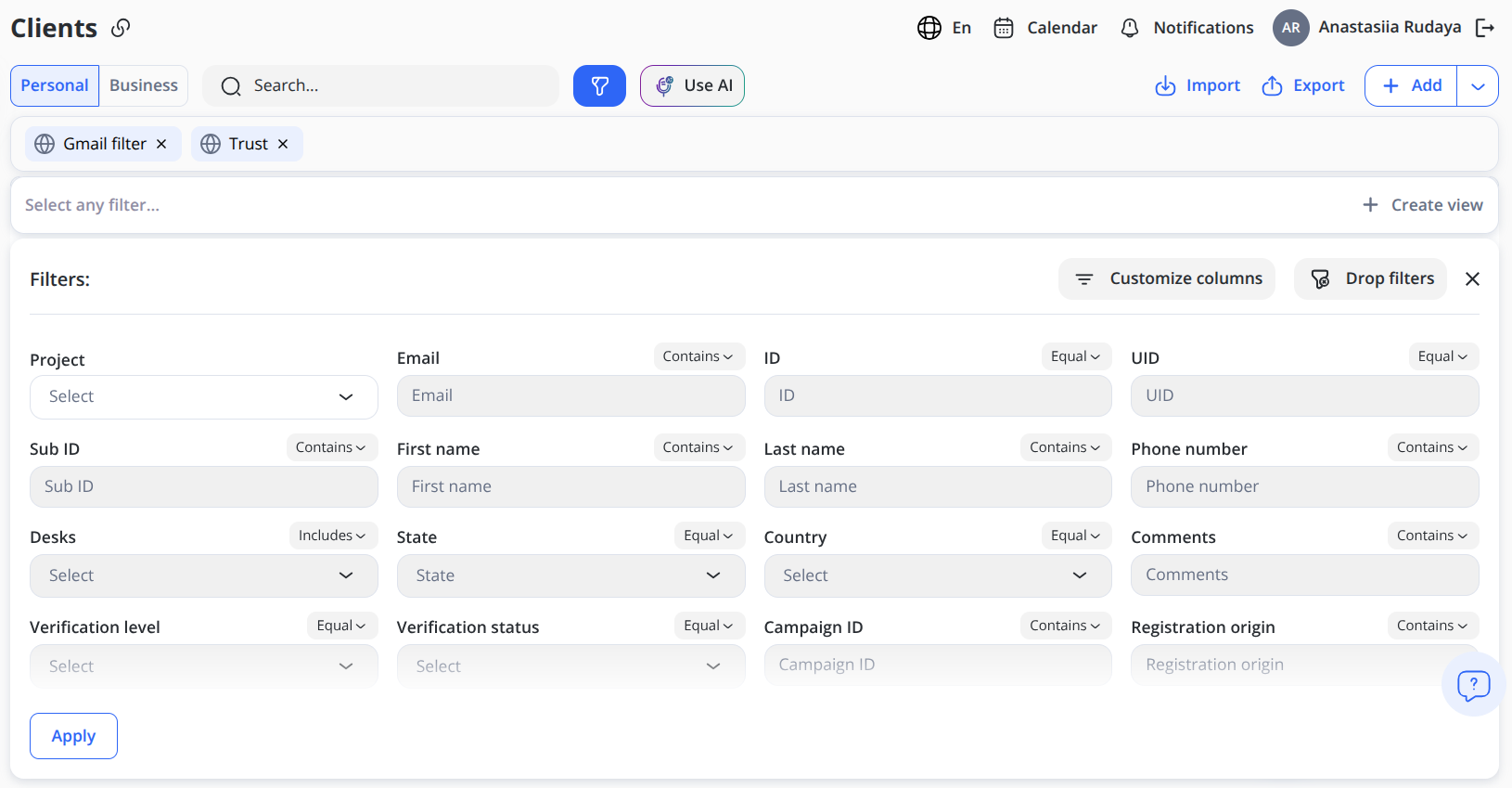
Please note: When using the date-related filters, you can select a ready-made period. The system will automatically apply the selected range, such as Today, Last 7 days, This week, or This month, and others. Manual date selection is also available.
-
Click Apply to confirm your selection.
-
To remove all active filters, click Drop filters.
-
If you frequently use a specific combination of filters, click Create view to save it for quick access.
Filtering by Actions Presence
The Clients module also supports filtering based on whether a client has any Actions created in the system.
Has actions – Boolean filter
This filter allows you to segment clients based on the existence of at least one related Action record.
Options:
- Has actions → Shows only clients with one or more Actions
- No actions → Shows only clients with zero Actions
This filter works together with all other structured filters and can be combined with Manager, Status, Country, date ranges, and timeline filters.
How it works
The filter is powered by a persistent system flag stored on the Client record (isActionsExist).
The value updates automatically:
- When the first Action is created for a client → the flag becomes true
- When the last remaining Action is deleted → the flag becomes false
This ensures:
- Instant filtering performance
- No recalculation on each table load
- Accurate and reliable results
Visual Indicator in the Table
The Clients table includes a column:
Actions exist
Displayed as:
✅ – Client has one or more Actions
❌ – Client has no Actions
The column supports sorting and works independently of whether it is visible.
Removing a Single Fast Filter
Active fast filters appear as tags below the main toolbar.
You can remove a single filter in two ways:
-
Click the × icon directly on the filter tag in the toolbar.
-
Open the Other filters popover and click the × icon next to the specific filter.
Removing a filter updates the results immediately without affecting other active filters.
Special Characters in Filters
All text-based filters (First Name, Last Name, Email, Comments, External ID, Phone, etc.) treat special characters as literal values.
Filters using “Contains”, “Starts with”, or “Ends with” do not interpret special characters as pattern operators.Example:
Filtering by First Name → Contains →John?will return records where the first name literally includesJohn?.Fast Filters provide immediate visual feedback: as you select criteria, the list refreshes dynamically, the list refreshes dynamically, ensuring that both personal and business client segments can be reviewed with minimal navigation.
Other Filters Popover
When multiple fast filters are applied, they are grouped inside the Other filters dropdown.
This popover:
-
Displays all active fast filters in one compact view
-
Shows the number of applied filters (e.g., Other filters (3))
-
Allows quick removal of individual filters
-
Keeps the toolbar clean and organized
The Other filters view is now available across all modules that support Fast Filters (Clients, Actions, Transactions, etc.), ensuring consistent filtering behavior throughout the platform.
Putting It All Together
- Enter a search term in the top Search input (optional).
- Set one or more structured filters in the Fast Filters panel (optional).
- Click Apply in the Filters panel.
- You’ll see only the clients that meet all your selected criteria.
- If needed, drop filters to broaden the list again.
This approach lets you combine search and filter parameters for maximum flexibility—whether you need a quick lookup by email or a detailed query spanning dates, desks, managers, or verification statuses.
Filtering by Action Timeline
In addition to registration and login dates, the Clients module supports operational timeline filtering:
- Last action date – shows clients whose most recent completed action falls within the selected date range.
- Future action date – shows clients with scheduled upcoming actions within the selected date range.
Both filters use an inclusive date range picker (From / To) and can be combined with other filters such as Manager, Status, Country, or Verification status.
These filters help business users manage follow-ups, monitor overdue activities, and plan upcoming workload.
No Comments