
3. Filters in Pages Post
The Filters in Pages Post section in Wifox Business Content Solution provides users with advanced filtering options to locate specific pages quickly. This functionality enhances navigation and helps streamline the management of pages by narrowing down search results based on specific criteria.
Key Features of Filters in Pages Post
1. Search Bar
How to Use:

- Click the search icon (magnifying glass) to activate the search bar.
- Enter keywords or details relevant to the page you want to find.
- Results matching the search criteria will appear instantly.
Reset Search:

To return to the full list of pages, click the restore icon (next to the search bar).
2. Category Filter
How to Use:
Click the Categories dropdown to view available categories, such as "About Us" or "Static."

Select one or more categories to filter pages accordingly.
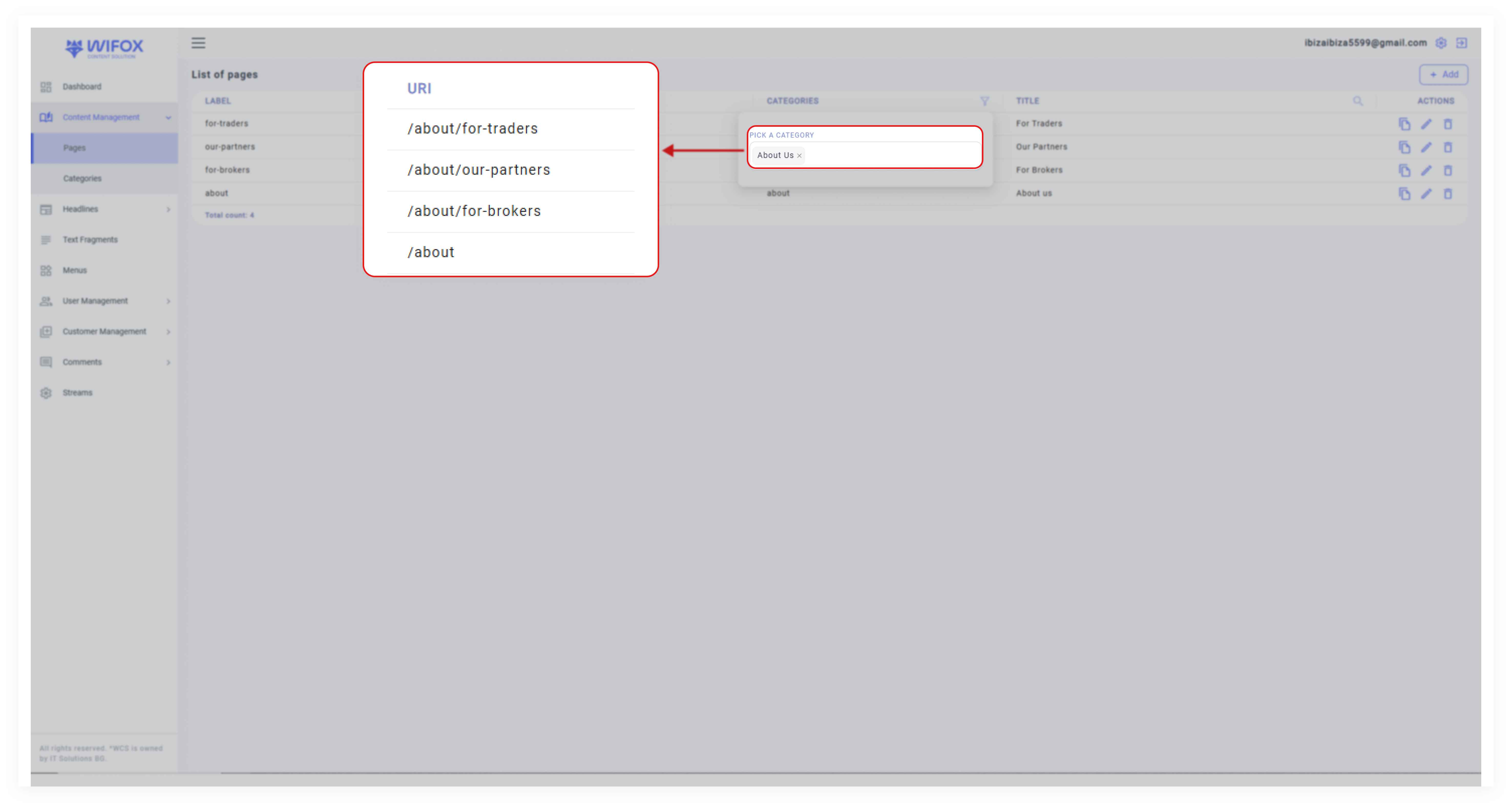

To clear selected categories, remove them from the field using the dropdown.

Benefit: This filter allows users to locate pages tied to specific categories, making it easier to manage grouped content.
3. Title Filter
How to Use:
- Use the Title filter by typing part or all of a page’s title in the dedicated search bar with the magnifying glass icon.

- The system will display pages matching the entered title.
Benefits of Filters in Pages Post
- Precision Search: Users can quickly locate specific pages by entering relevant details in the search bar.
- Flexible Filtering: Supports both single and multi-category selection for more refined search results.
- Time-Saving Navigation: The reset feature and targeted filters save time when working with extensive page lists.