
Calendar Overview
The Calendar allows users to schedule and manage events efficiently. It supports different event types, reminders, and notifications to ensure users never miss important actions.
With this feature, users can:
- Create and manage events for specific dates and times.
- Set notifications to receive reminders before an event.
- Schedule client-related calls directly within the system.
- Use different views such as daily, weekly, or monthly for better planning.
Use Cases
- Scheduling Client Calls
Create a Call event linked to a client with a reminder. The event appears in the calendar and the client’s profile, allowing sales managers to efficiently manage follow-up calls. - Setting Personal Reminders
Create a Reminder event with a notification. The system sends alerts before the task is due, helping users stay on top of internal tasks. - Managing Weekly Team Meetings
Add a weekly Reminder event for recurring team meetings. The calendar tracks these meetings, ensuring consistency and better team coordination.
1. Accessing the Calendar
Note: You will not see client actions such as "Call" in the Calendar if you do not have the required permission. Specifically, the "Call" action will be hidden if the permission clients.submodulesRO.actions is set to false.
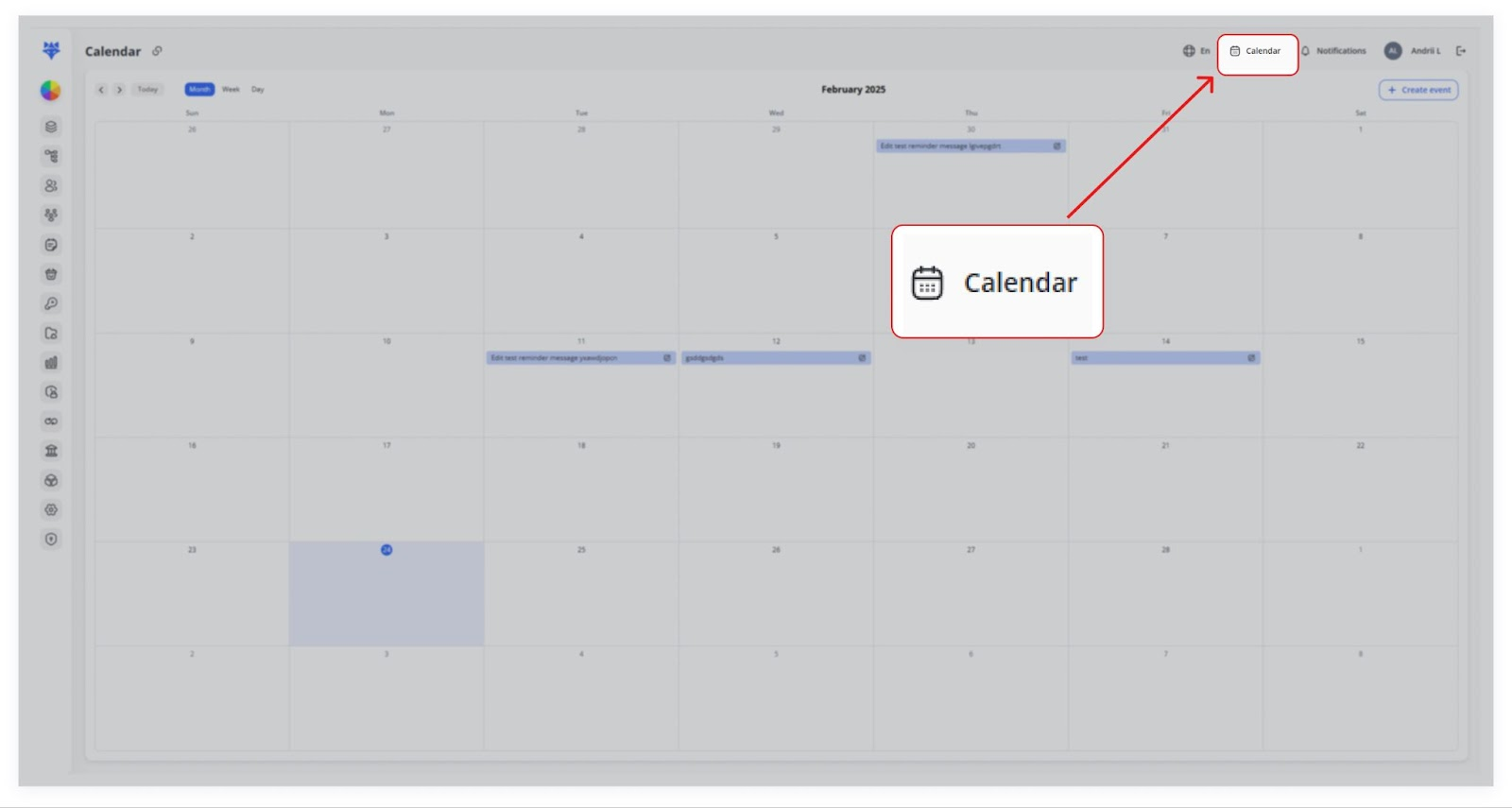
To open the calendar, navigate to the Calendar section in the system. The default view displays a monthly layout, but users can switch between daily, weekly, and monthly views for better organization.
2. Creating an Event
To schedule an event, select a date on the calendar. A form will open where users can enter the event details.
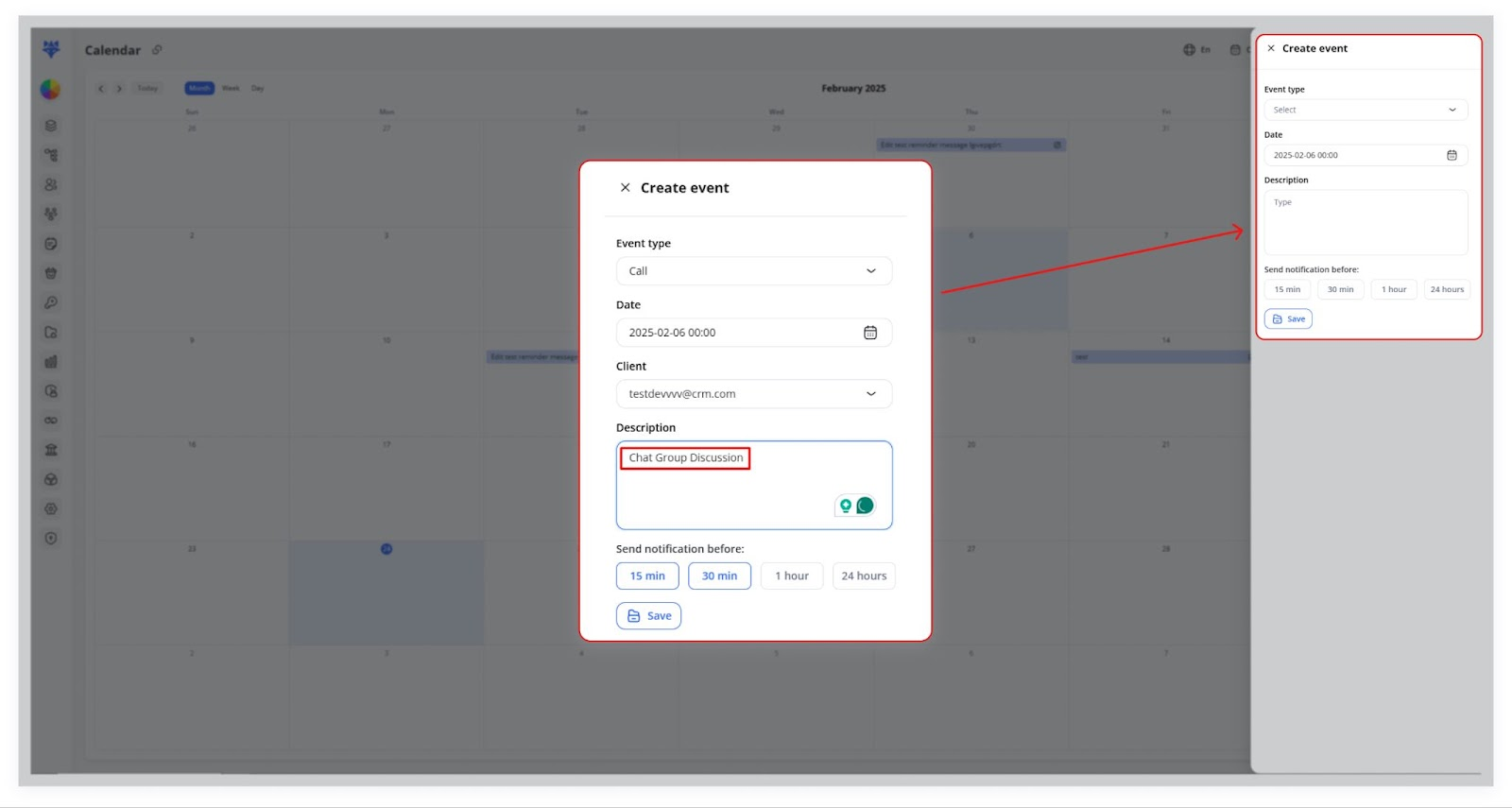
Steps to Create an Event:
- Click on the desired date.
- Select the event type from the available options (e.g., Call, Reminder).
- Choose the date and time for the event.
- Enter a description for better context.
- If applicable, select the client associated with the event.
- Set a notification reminder (e.g., 15 minutes, 30 minutes, 1 hour, or 24 hours before the event).
- Click Save to confirm the event.
Once saved, the event will be visible on the calendar and stored in the system.
3. Managing Event Types
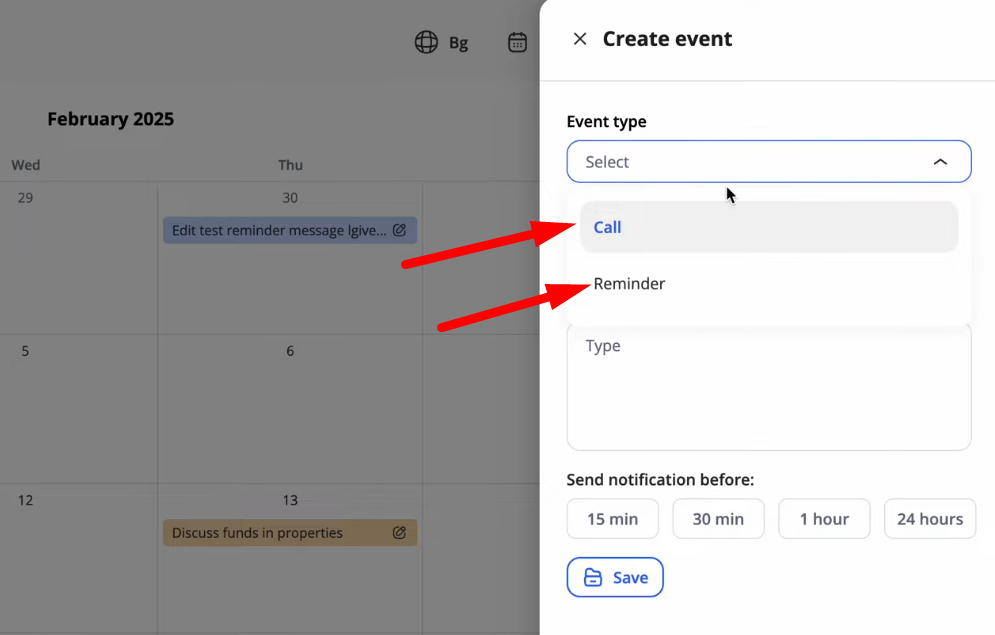
There are two primary event types:
- Call – This event is directly linked to a client. Users can select a client, specify a meeting time, and add relevant details.
- Reminder – This is a personal reminder that is not linked to a client. It can be used for any general task.
Users can choose the appropriate event type when creating an event.
4. Setting Event Notifications
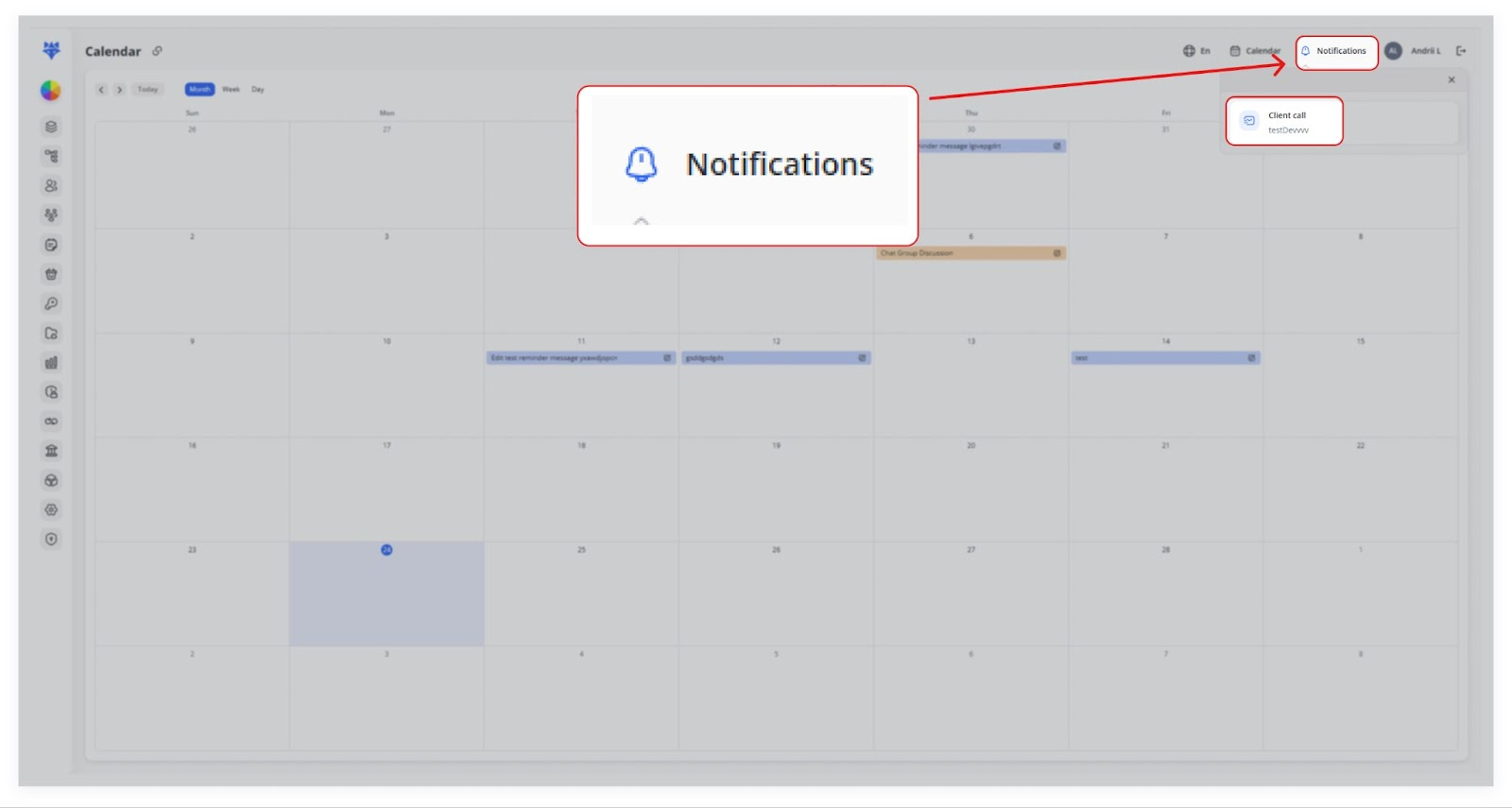
Notifications can be configured to remind users about upcoming events. Options include reminders at different intervals:
- 15 minutes before
- 30 minutes before
- 1 hour before
- 24 hours before
Notifications appear in the Notifications panel to alert users in time.
5. Viewing and Editing Events
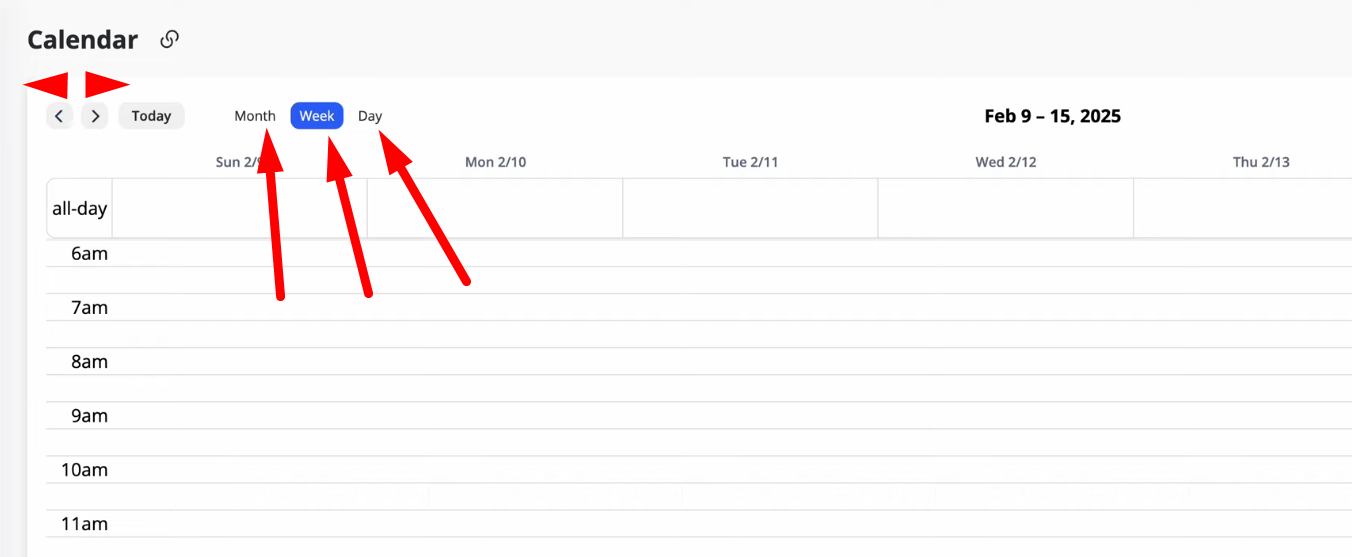
After creating an event, users can:
- View it in the calendar on the selected date.
- Click on it to edit details or reschedule.
- Change the reminder time if needed.
Any modifications will be updated in real time across the system.
6. Managing Events from Client Profiles
Events, especially calls, can also be managed directly from the Clients section. Users can:
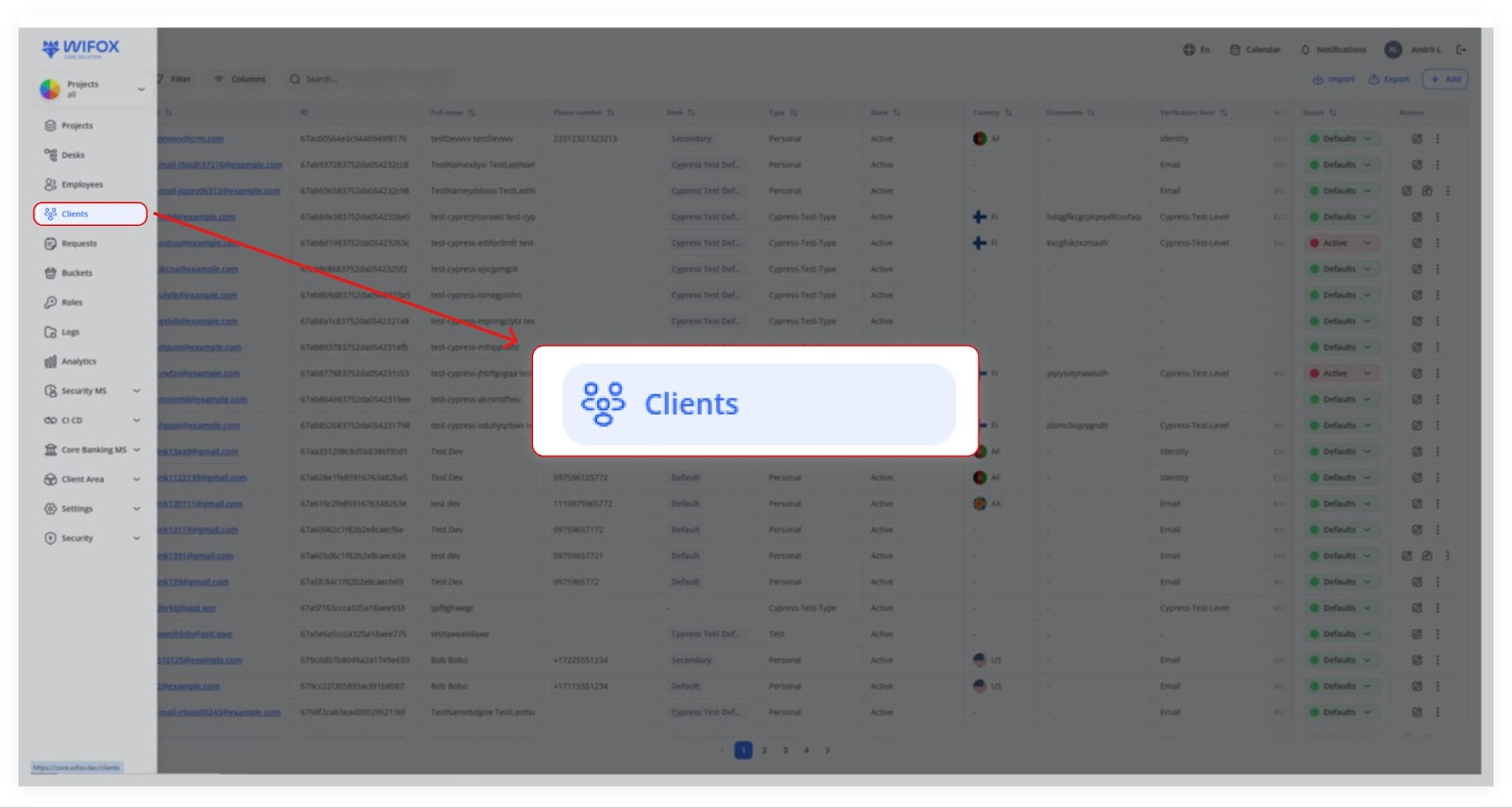
1. Open a client’s profile.
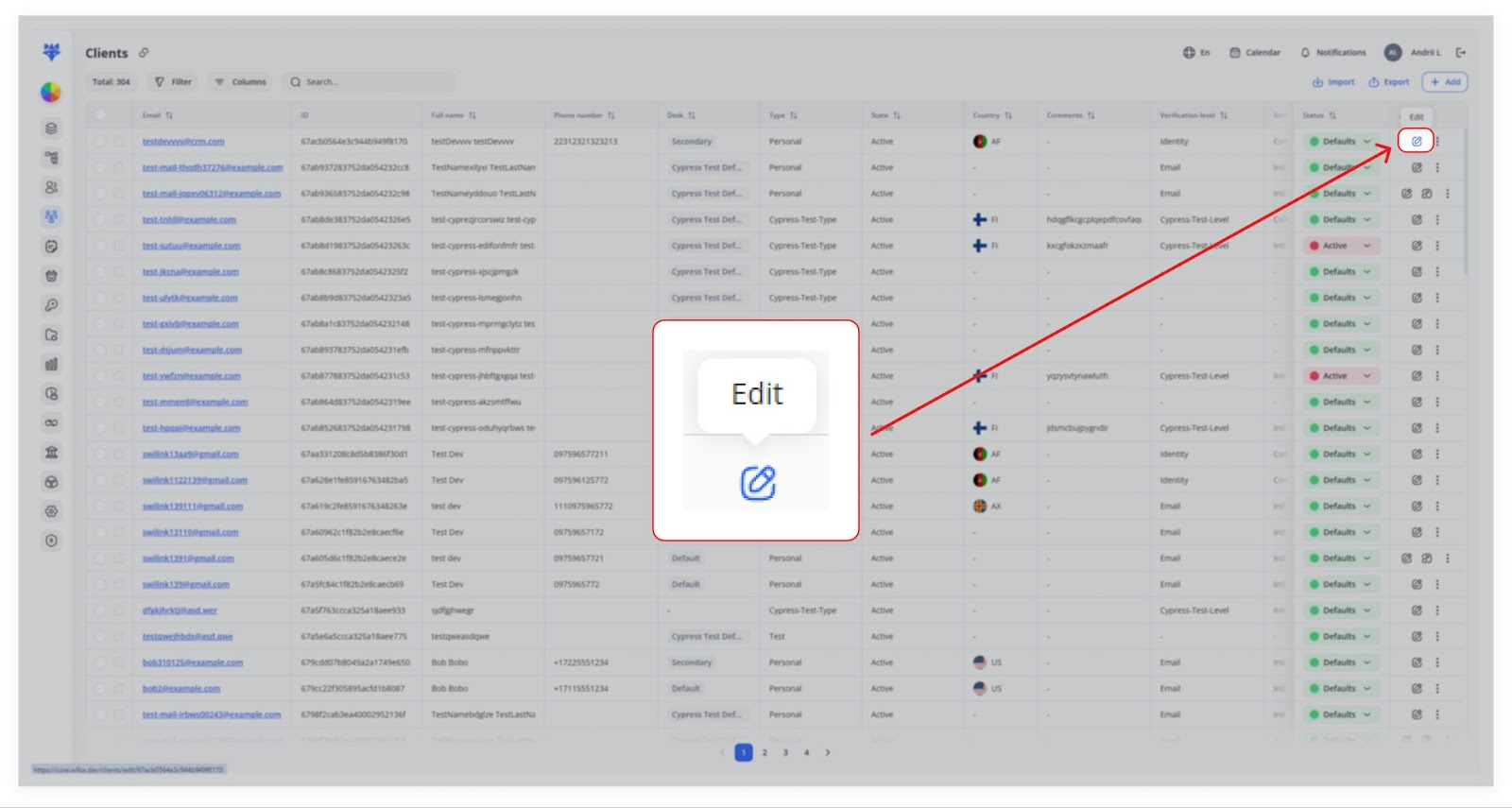
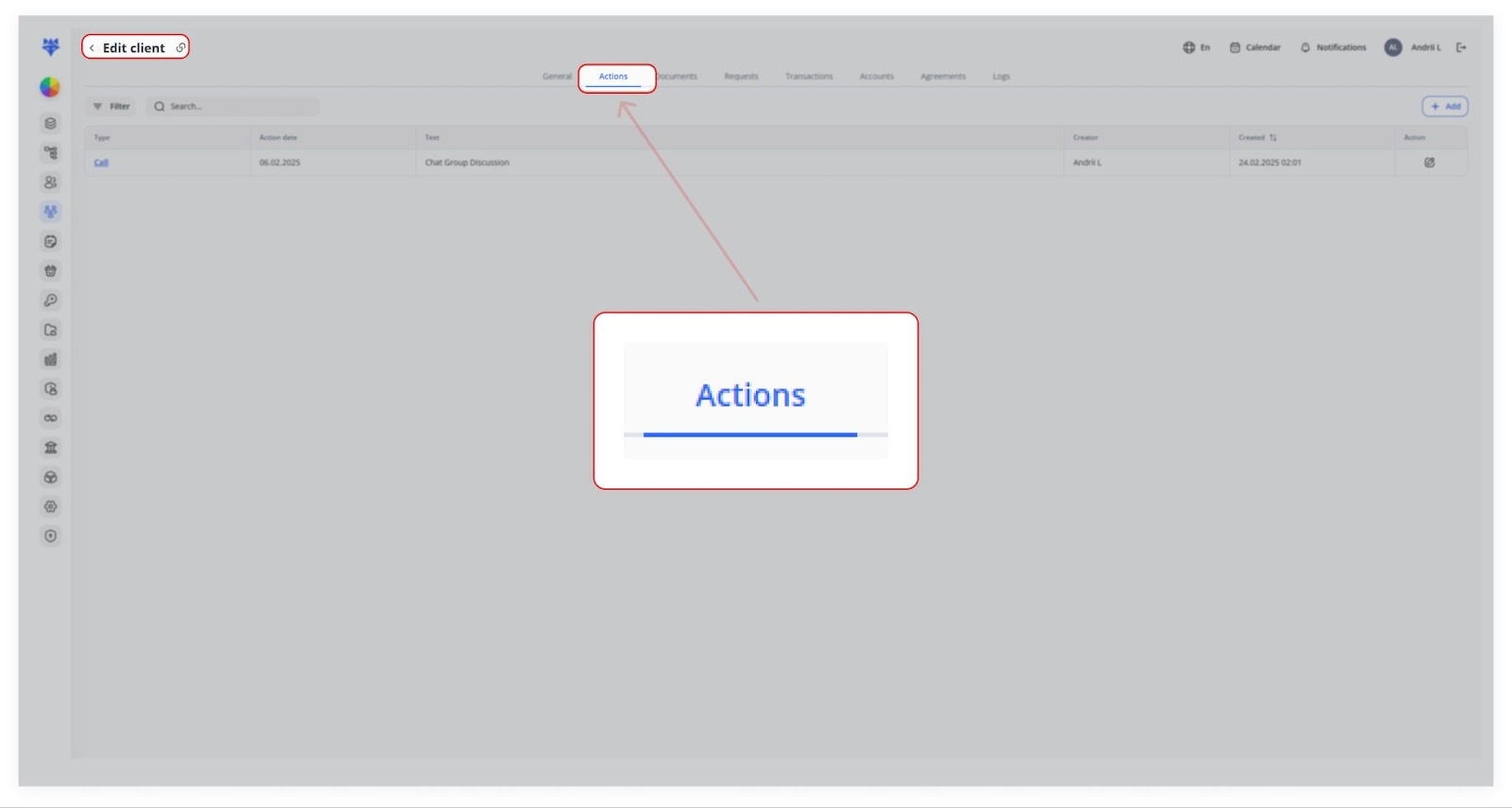
3. Create a Call event from there.
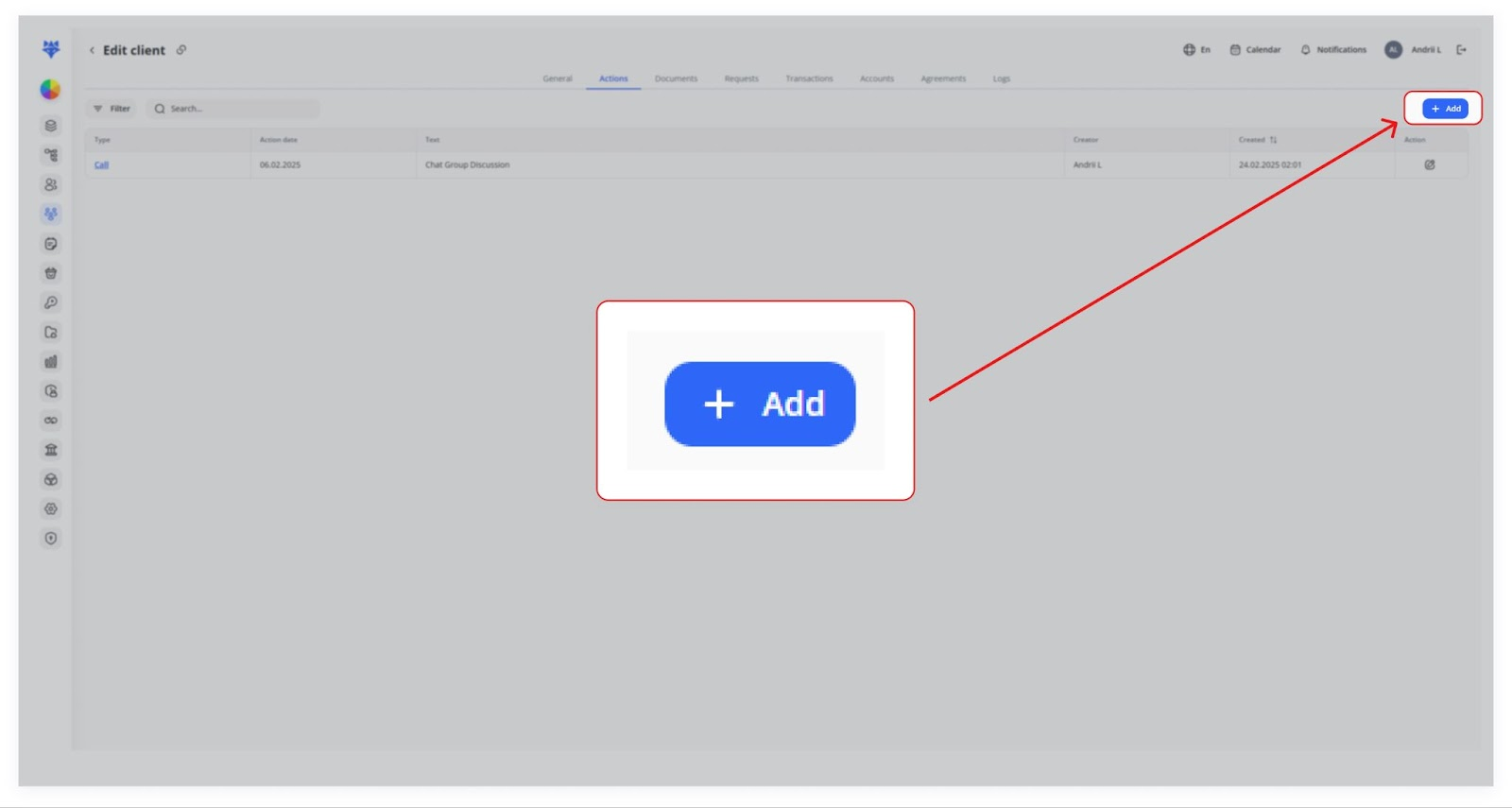

4. Once saved, the event will automatically appear in the calendar.
7. Key Points to Remember
- Different event types ensure flexibility for scheduling client-related or personal reminders.
- Notifications help keep track of upcoming events.
- Direct integration with Clients allows efficient planning for calls and meetings.
- Multiple calendar views help users organize their schedules efficiently.
By effectively using the Calendar, users can streamline their workflow, improve scheduling efficiency, and stay on top of important tasks.