
8. How to Export Clients
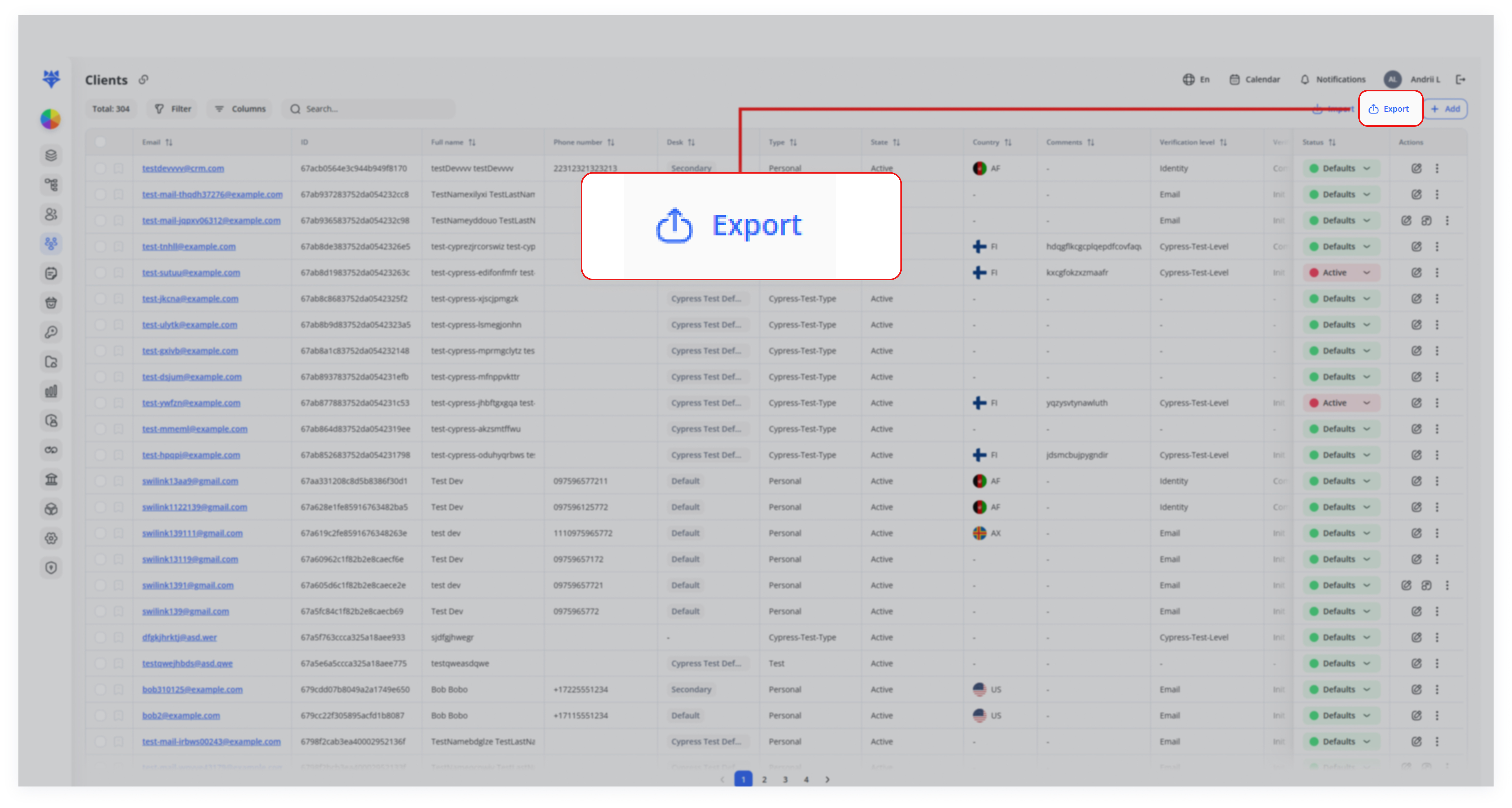
The Export feature offers a simple and efficient way to manage and retrieve large volumes of client data. With just a few clicks, you can export client records in a CSV format for offline analysis, reporting, backups, or seamless data migration. The export functionality is designed to support both complete data exports and customized exports by applying filters based on your business needs. This flexibility ensures that you can access the exact data you need for various operational purposes—whether it's regular backups, analyzing client trends, or preparing data for integration with other systems.
Use Cases
-
Regular Data Backup
Export all client records in CSV format regularly for secure offline storage, ensuring compliance and quick recovery in case of system issues. -
Custom Data Analysis
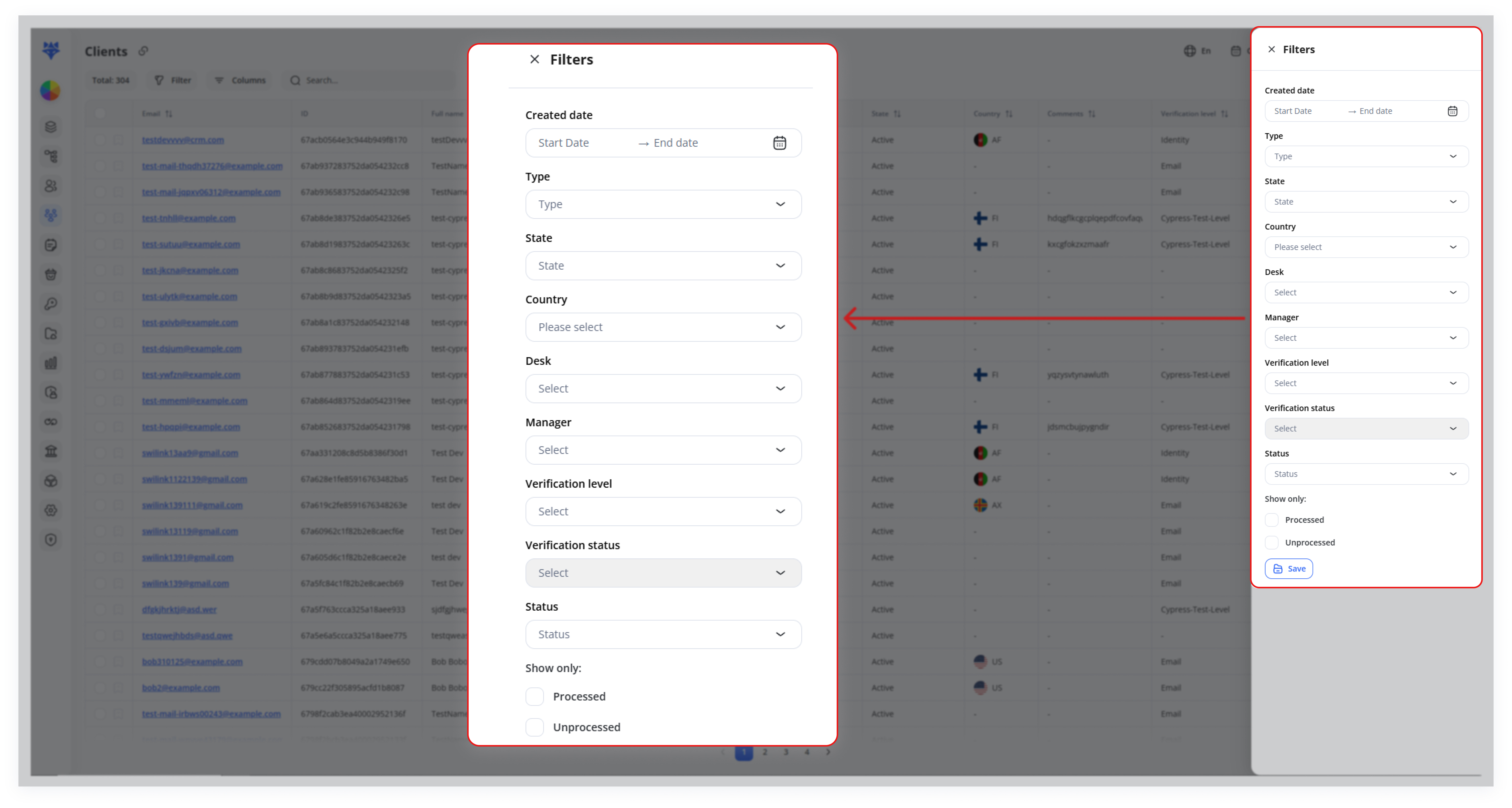
Export filtered data (e.g., by date range, verification status) for offline analysis and tailored reporting. -
Data Migration to Other Systems
Export client records for seamless migration or integration with otherCRMplatforms, preserving client information structure.
1. Filter (Optional)
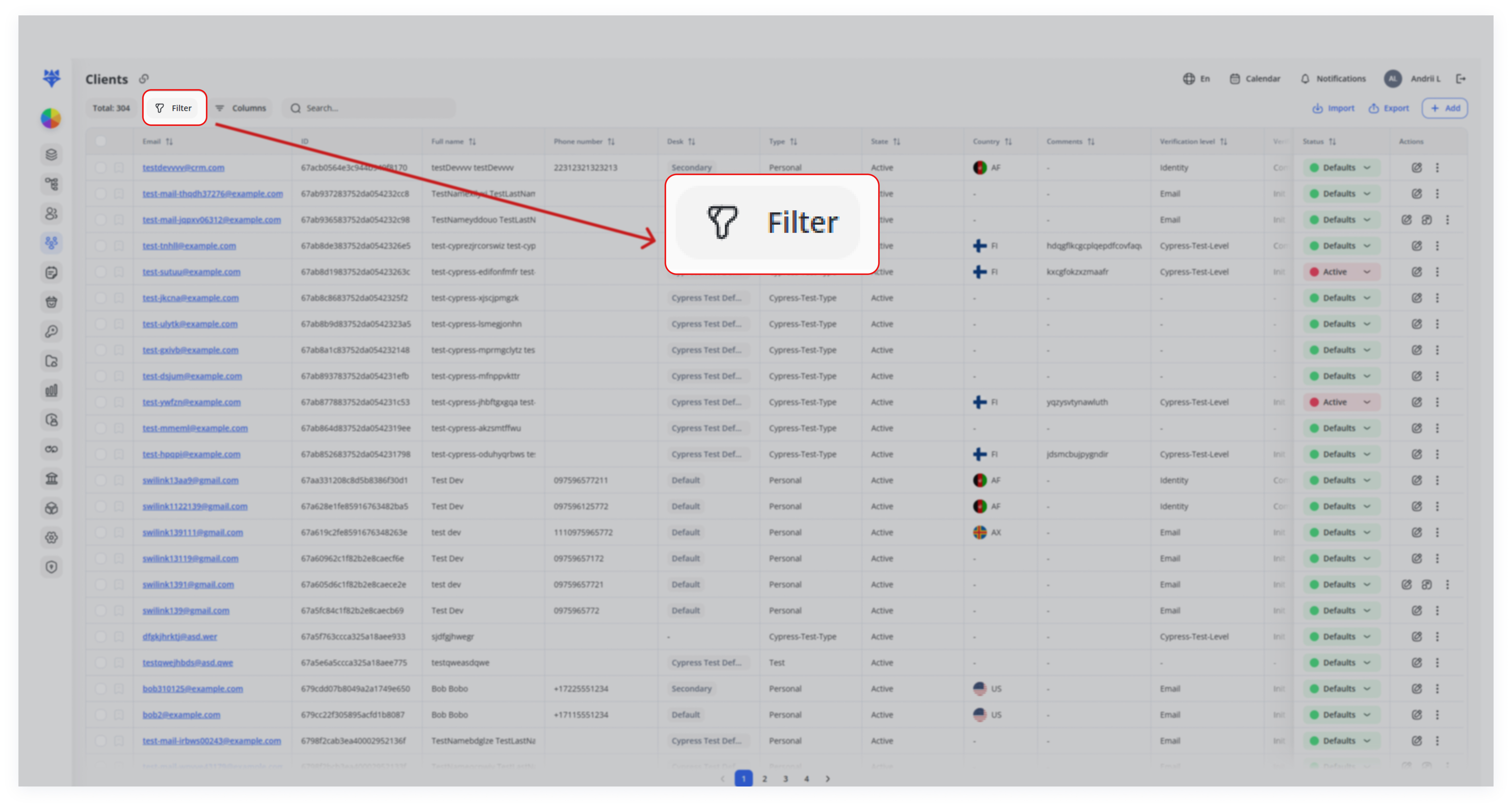
If you wish to export only a subset of clients, first use the Filter button at the top.
Adjust filters (e.g., by date range, verification status, manager) as needed.
2. Click “Export”
Once the list of clients is narrowed down (or if you want all clients), click Export.
3. Download the CSV
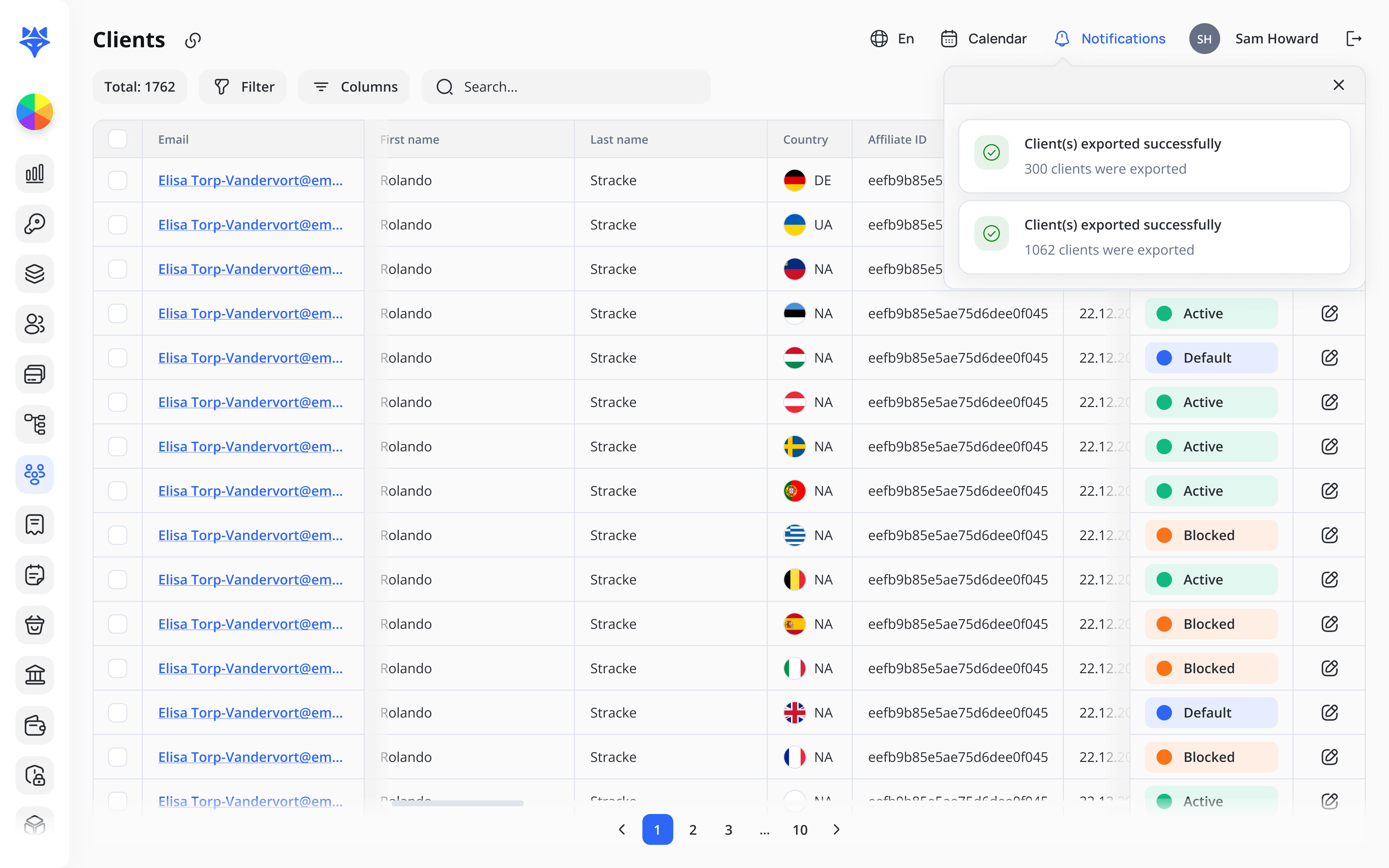
The CRMsystem immediately starts preparing the file.
Note: A CSV file (containing whichever records match your filters) will download to your computer.