
9. Configurations: Verification Documents
In Configurations,Configurations, the Verification Documents section allows administrators to define the required documents for client verification. These documents serve as proof of identity, financial information, or residency, ensuring compliance with KYC (Know Your Customer) policies.policies.
With this function, businesses can:
- Set mandatory and optional verification documents for different client types.
- Modify document requirements dynamically as business policies evolve.
- Ensure compliance by enforcing document submission before account activation.
Use Cases
- Enforcing KYC Compliance
Clients must submit documents (e.g., Passport,Passport, Utility Bill)Bill) before account activation by selecting required documents in Configurations → Documents,Documents, ensuring compliance with regulatory policies.
- Updating Requirements by Client Type
Enable Source of Funds for business clients in Configurations → Documents,Documents, applying the new requirement to future verifications while existing clients remain unaffected unless manually updated.
- Reviewing & Approving Client Documents
Admins verify pending client documents by navigating to Clients → Profile → Documents,Documents, reviewing submissions, and approving or rejecting them, ensuring clients meet verification requirements before proceeding.
1. Accessing Verification Documents
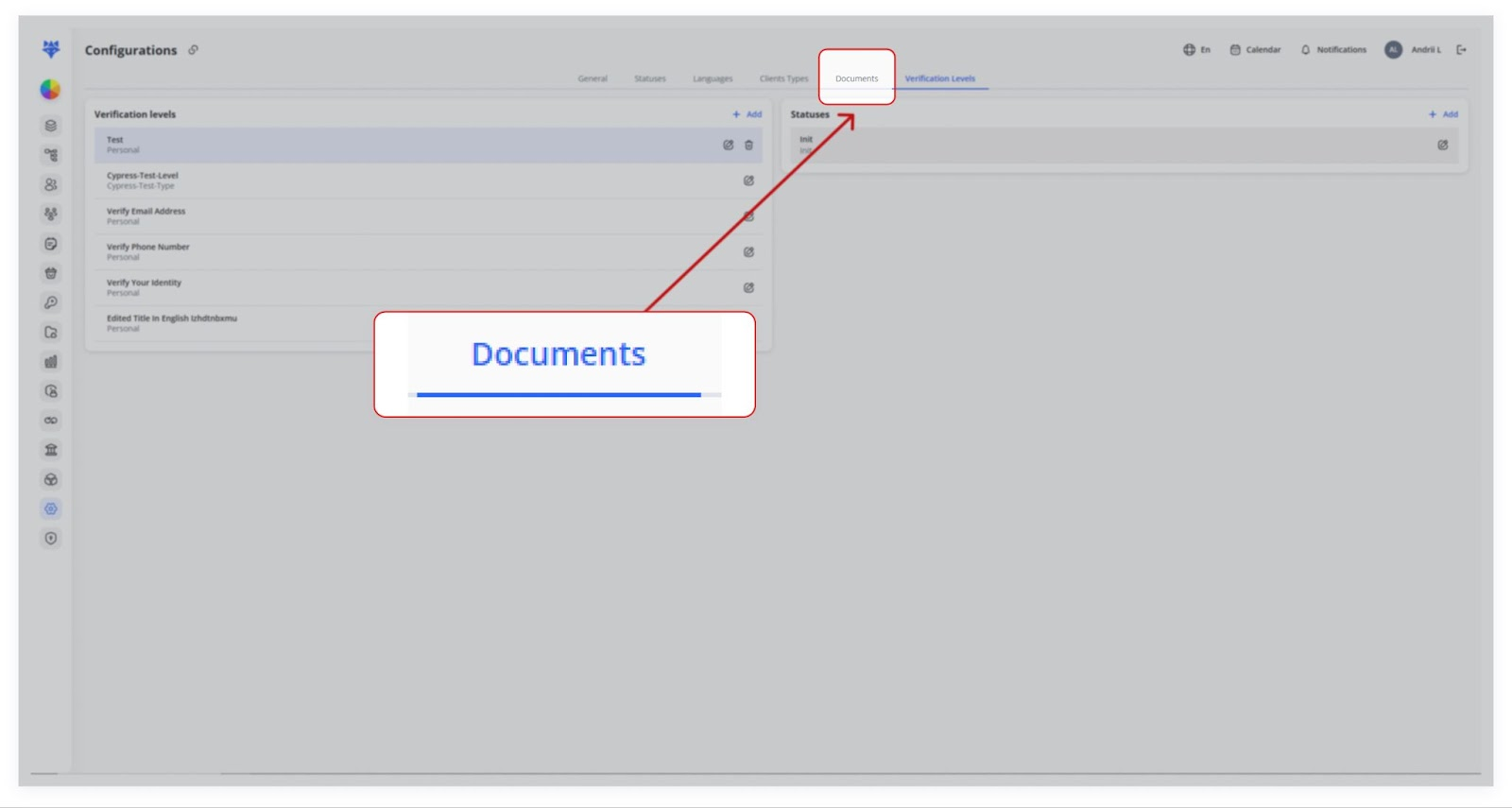
ClickTo onmanage which documents clients must upload during verification, open the Documents tab atin the top.Configurations area:
1. Click Configurations in the sidebar (⚙️ icon).
2. Along the top, select Documents.
2. Selecting Required Verification Documents
Once insideInside the Documents section,panel you willyou’ll see a listchecklist of all available verification documents.document These typically include options such as:types:
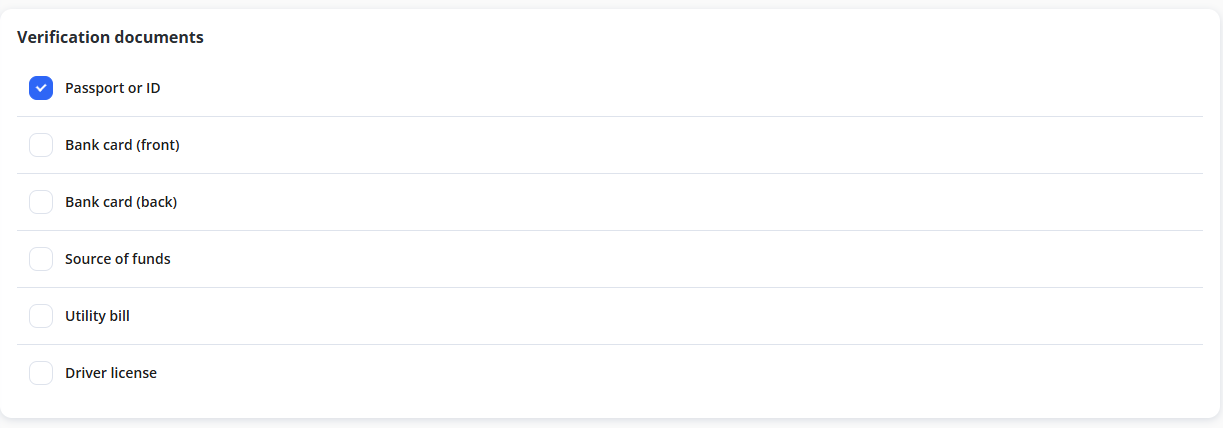
Typical options include:
-
Passport or ID
-
Bank card (front)
-
Bank card (back)
-
Source of funds
-
Utility bill
-
Driver license
Note:Tip:IfToyourequireneedatodocument,addcheckanyitsadditionalbox.documents,Athisbluecancheckmarkbemeansdoneclientsbymustusuploaduponthatrequest.document. Unchecked items become optional (or hidden).
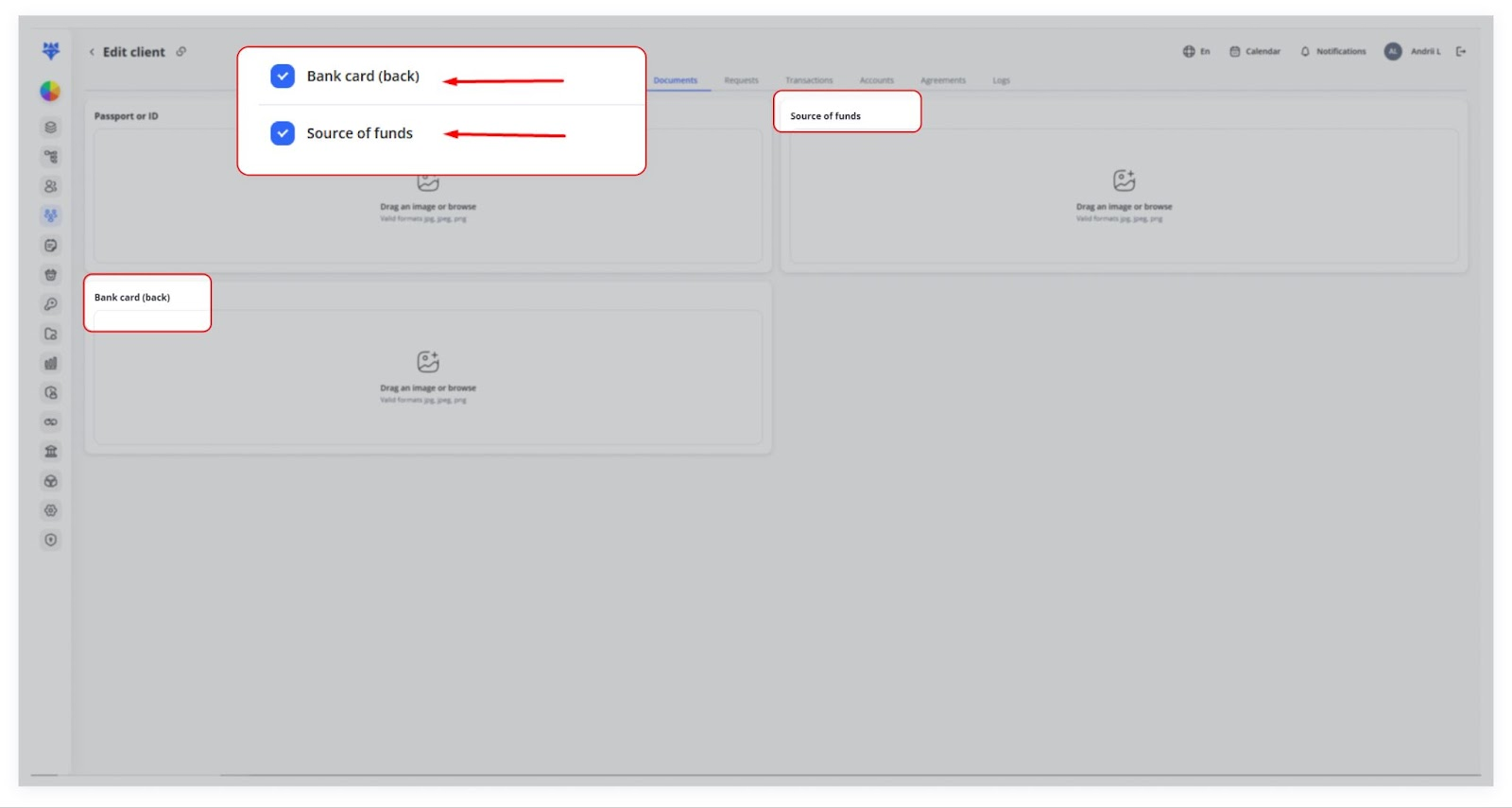
For example, enabling Bank card (back) and Source of funds will make those two documents mandatory:
Click SaveTo enable a document for verification, simply select it from the list. Once selected, this document will become a mandatory part of the verification process for all clients. If a document is deselected, it will no longer be required..
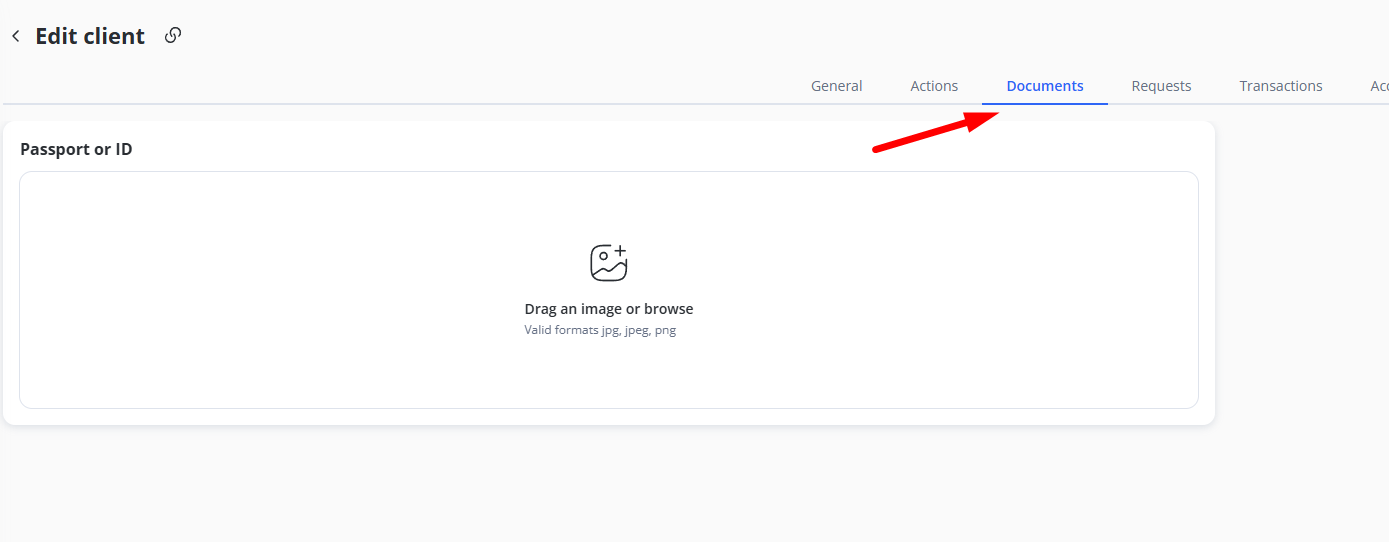
3. Editing a Client’s Verification Documents
AfterOnce settingyou’ve updefined required verificationwhich documents inare Configurations,required, they will automatically besurface appliedin toevery client profiles.
To review or modify amatching client’s verificationprofile.
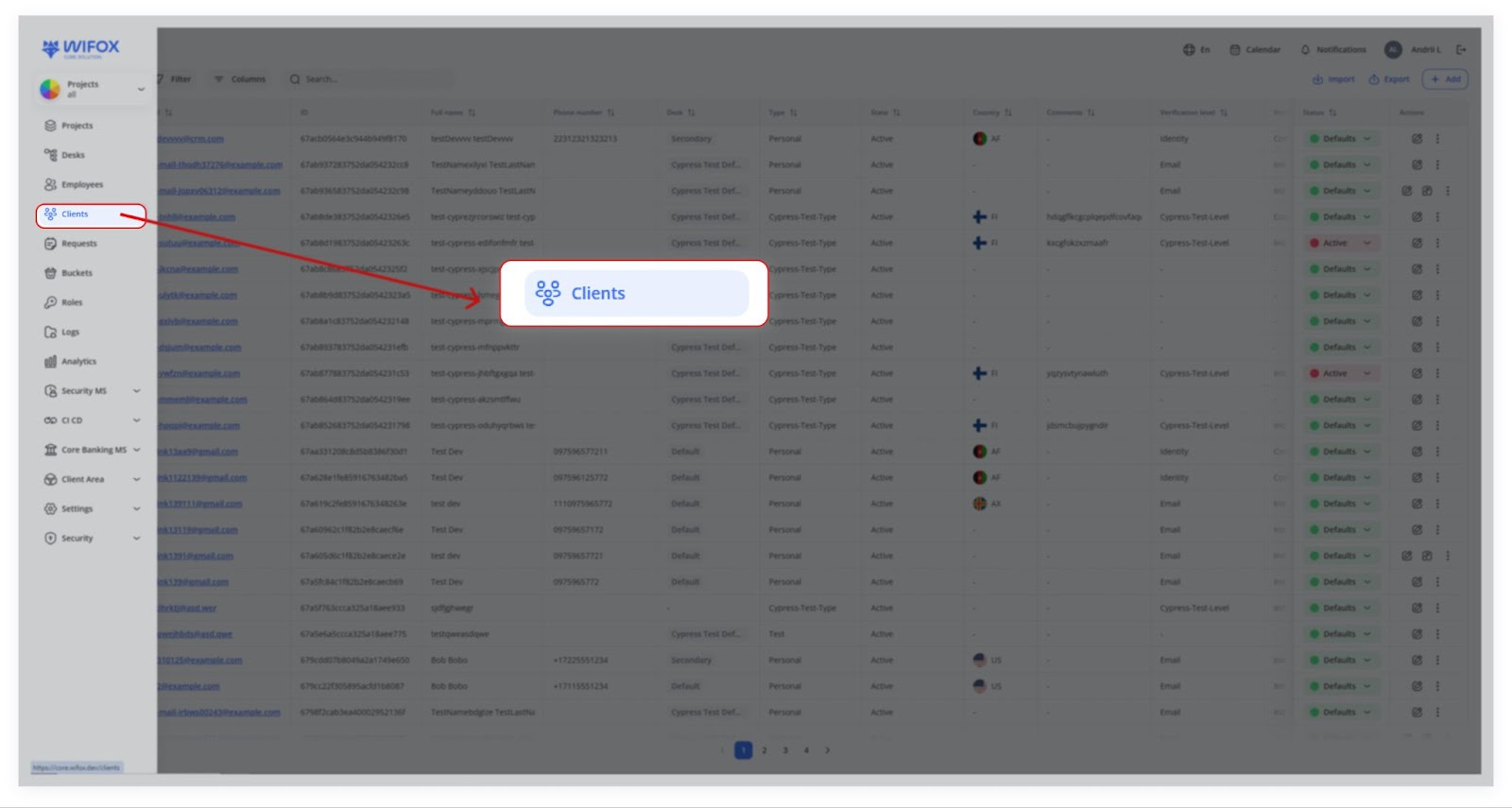
1.2. NavigateOpen the Edit Drawer
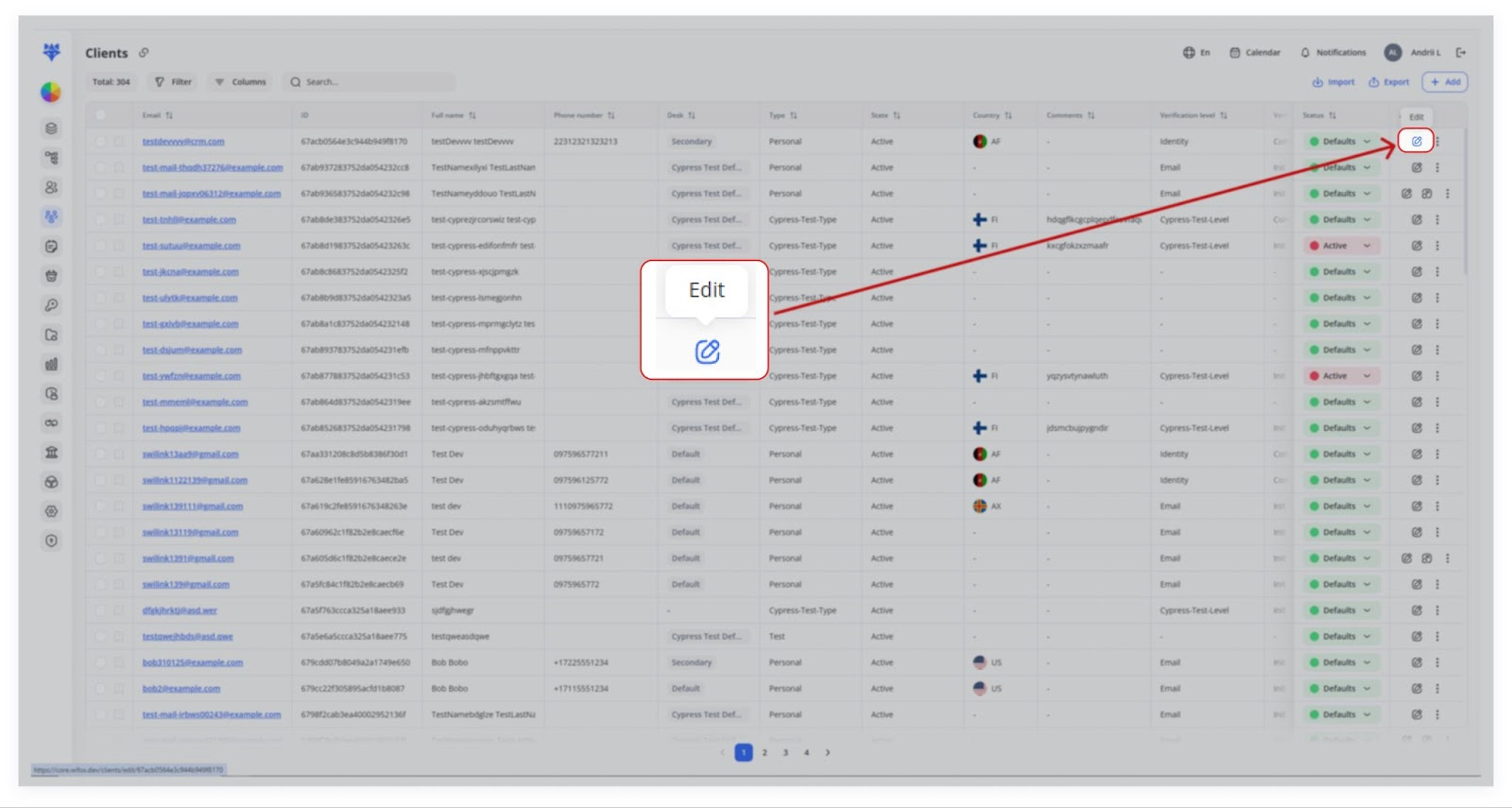
In the clients table, click the pencil (Edit) icon for the client you want.
3. Switch to the ClientsDocuments section.Tab
2.There Locateyou’ll see one upload area for each required document. Clients or admins can drag-and-drop or browse to attach files. Uploaded items remain linked to the client whoserecord verificationfor documents need to be checkedaudit or updated.
3. Open their profile and go to the Documents section.
4. The required documents will be displayed based on the settings configured earlier.
If a document is required for verification, the client must upload it. Administrators can review uploaded files and ensure that all necessary documents are submitted before progressing with verification.review.
4. Adding or Removing Required Documents
If verification policies change, you can modify document requirements at any time.
Adding a New Required Document
To1. addGo ato Configurations → Documents.
2. Check the box next to the new document requirement:
1.(e.g., OpenBank the Configurations section.
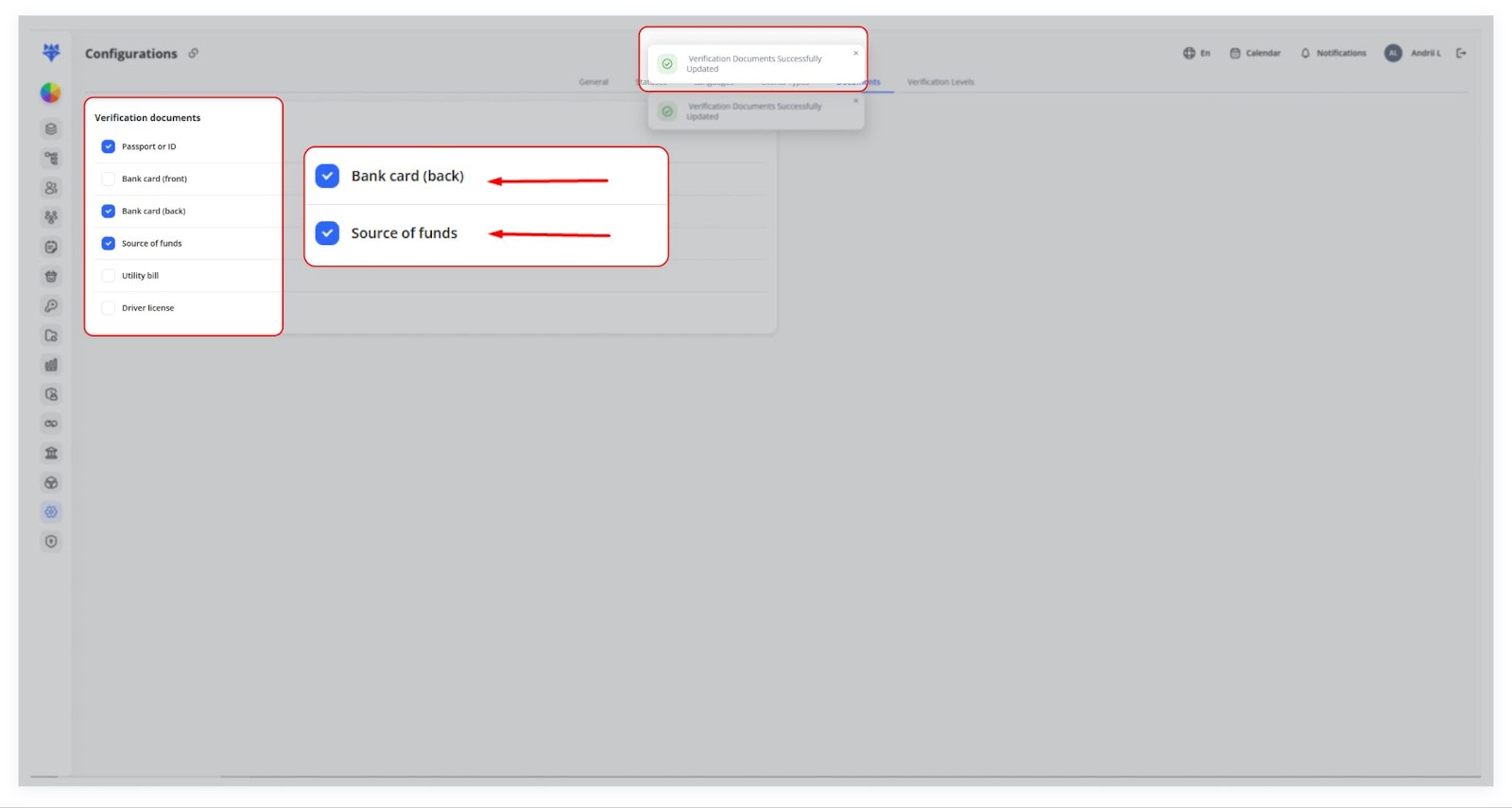
3. Select the document you want to require for verification.
4. Save the changes.
3. Click Save and watch for the “Successfully Updated” message.
4. New verifications now require that document.
Once added, the new document will be required for all future client verifications. Clients who have already completed verification will not be affected unless an administrator updates their profile manually.
Removing a Required Document
To1. removeGo ato documentConfigurations requirement:→ Documents.
1.2. OpenUncheck the Configurationsbox section.
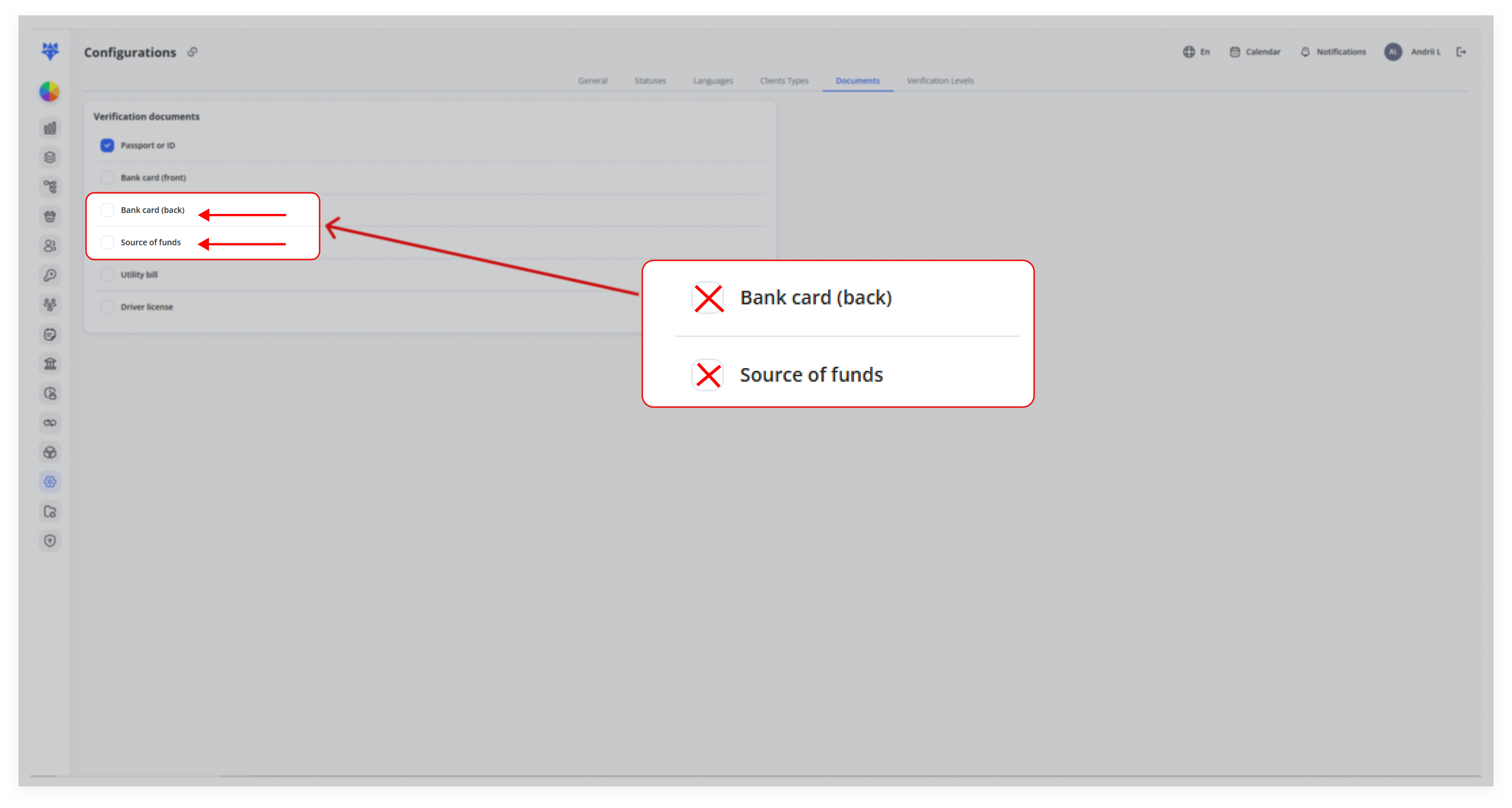
3. DeselectClick theSave.
4. Future verifications will not prompt for that isdocument—though noexisting longeruploads needed.stay accessible.
4. Save the changes.
Once removed, that document will no longer be required for new verifications. However, previously uploaded documents will still be available for reference in client profiles.
5. Key Points to Remember
- Flexibility in Requirements – Administrators can adjust document requirements at any time.
- Client-Specific Settings – Different client types may have different document verification requirements.
- Real-Time Updates – Any modification in document settings is applied instantly to new and existing clients.
- API Integration – Documents can also be managed and uploaded via API for automated verification workflows.
By properly managing Verification Documents,Documents, businesses can ensure a secure, compliant, and efficient verification process tailored to their needs.