
8. View & Manage the Employee’s Calendar
The Employee form now includes two distinct tabs—General and Calendar—so you can both manage a team member’s profile and schedule their events from one screen.
Prerequisites
-
You must have Create or Edit rights on the Employees module.
-
Your role’s permissions must include access to view and modify employee events.
Accessing the Employee Form
In the left-hand menu, go to Employees.
Locate the person whose calendar you wish to inspect or update.
Click the Edit (✏️) icon in the Actions column.
Switching Between Tabs
At the top of the side-panel form, you’ll see two tabs:
-
General – The employee’s core details (name, email, role, desk, etc.).
-
Calendar – A built-in scheduler displaying that employee’s events.
By default, you land on General. Click Calendar to view or add events.
Navigating the Calendar
Once in the Calendar tab, you have full calendar controls:
‹ › arrows move backward/forward by your current view (day, week, month).
Today jumps back to today’s date.
- View Modes
Month, Week, or Day buttons toggle your calendar granularity.
- Current View Indicator
At all times, you’ll see which date range you’re looking at—e.g. “May 2025” or “May 10–16, 2025.”
Scheduling a New Event
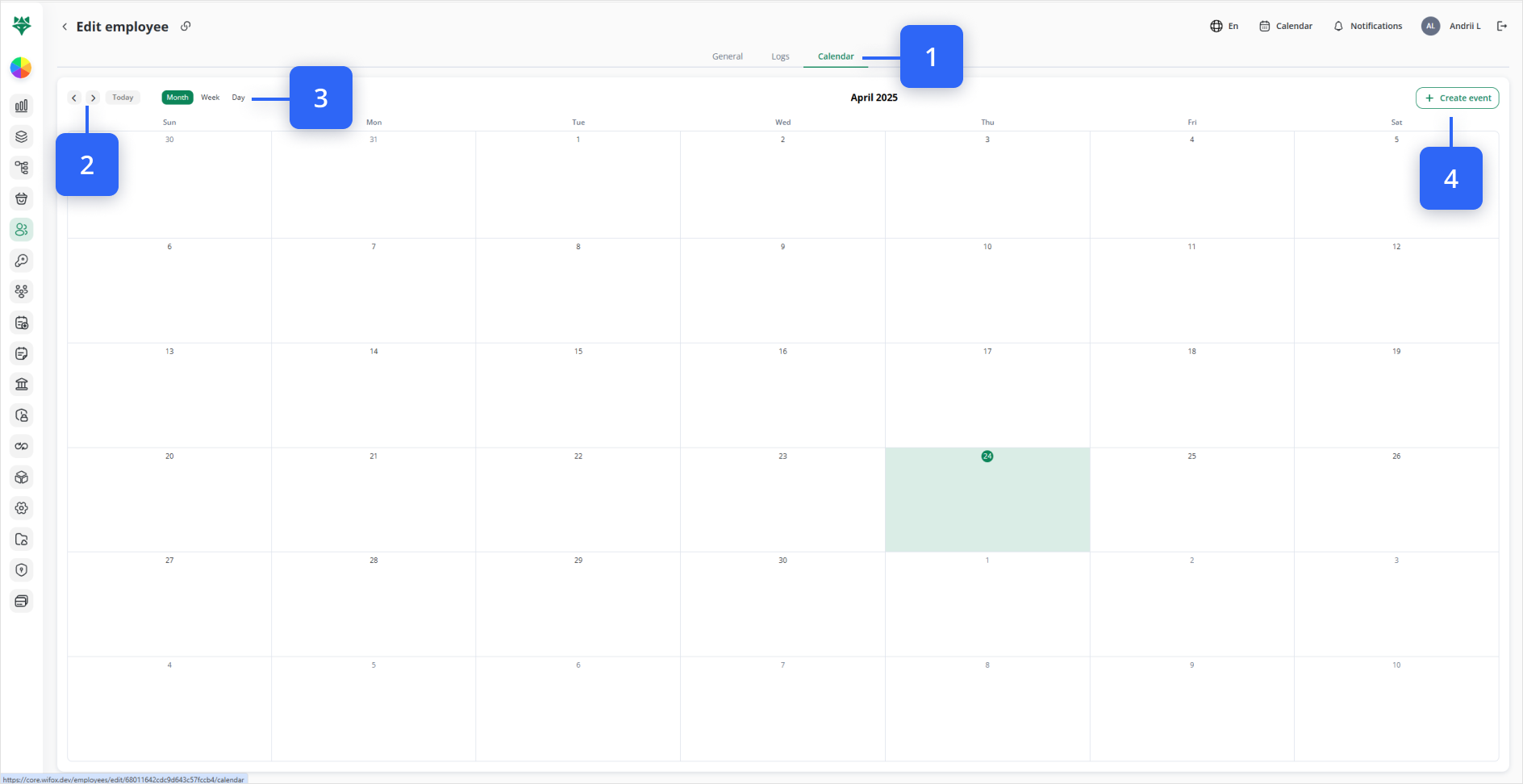
To add a shift, meeting, or time-off entry for this employee:
Click the Calendar tab at the top of the Edit Employee screen (Step #1).
Switch between Month, Week, or Day views (Step #3).
Click + Create event (Step #4) to open the event form—enter title, date/time, description, then save.
Viewing & Editing Existing Events
Click any event block on the calendar to open its detail panel.
Event details include Client & Exact Time
When you click an event, the detail panel header shows the Client’s name and the exact start → end time (e.g. “Acme Corp • 2:00 PM – 3:30 PM”), so you can instantly see who the meeting is with and its full duration.
Edit date, time, or description, then Save.
Delete the event via the trash icon if it’s no longer needed.
After scheduling or reviewing events, you can switch back to the General tab at any time to update name, contact details, permissions, or other profile fields.