
7. Roles Ranking
Roles are arranged by rank to control who can create or assign roles at different privilege levels. A user can only manage (create/edit/assign) roles with a rank equal to or below their own. Higher‐ranking roles appear at the top of the list (with lower rank numbers, such as 1), while lower‐ranking roles appear below.
Use Cases
- Secure Role Assignments
Managers can only assign roles equal to or lower than their rank, preventing unauthorized access to higher privileges.
- Controlled Role Visibility
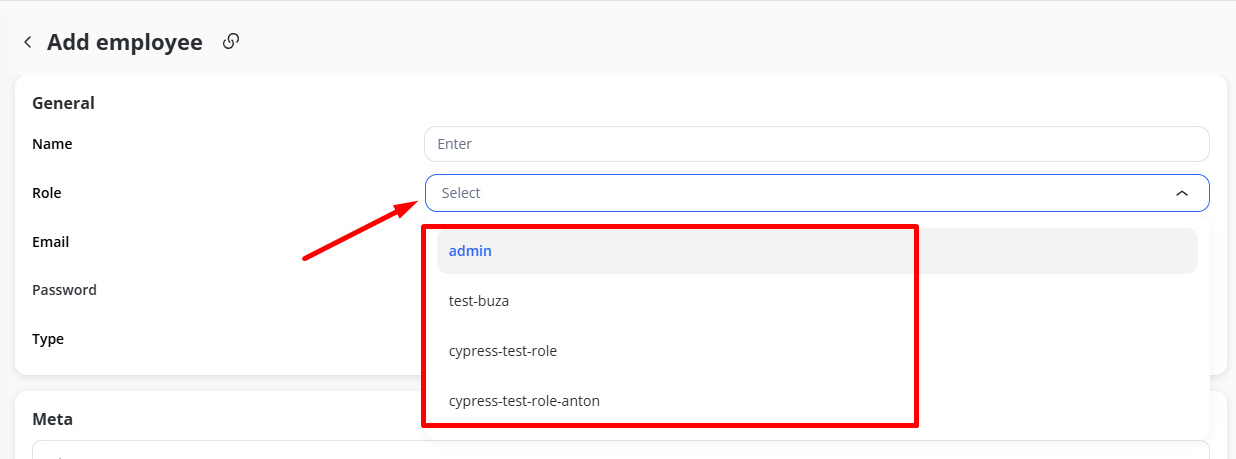
Users see only roles at or below their rank during employee creation, ensuring appropriate permission levels.
- Efficient Role Reordering
Admins can drag and drop roles to adjust the hierarchy, aligning role privileges with organizational needs.
1. Viewing the Roles Table
You’ll see a table of existing roles.
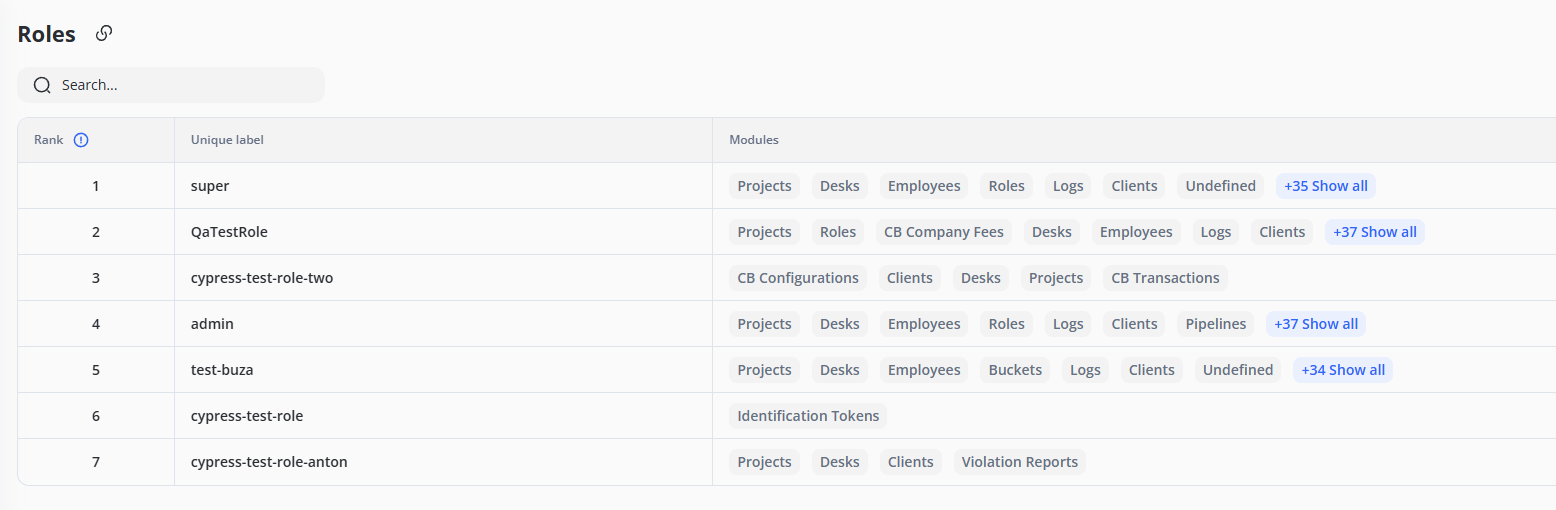
Each row shows:
- Rank (the order from highest to lowest privilege)
- Unique label (the role’s name)
- Modules the role can access (e.g., Projects, Desks, Clients)
Actions Icons
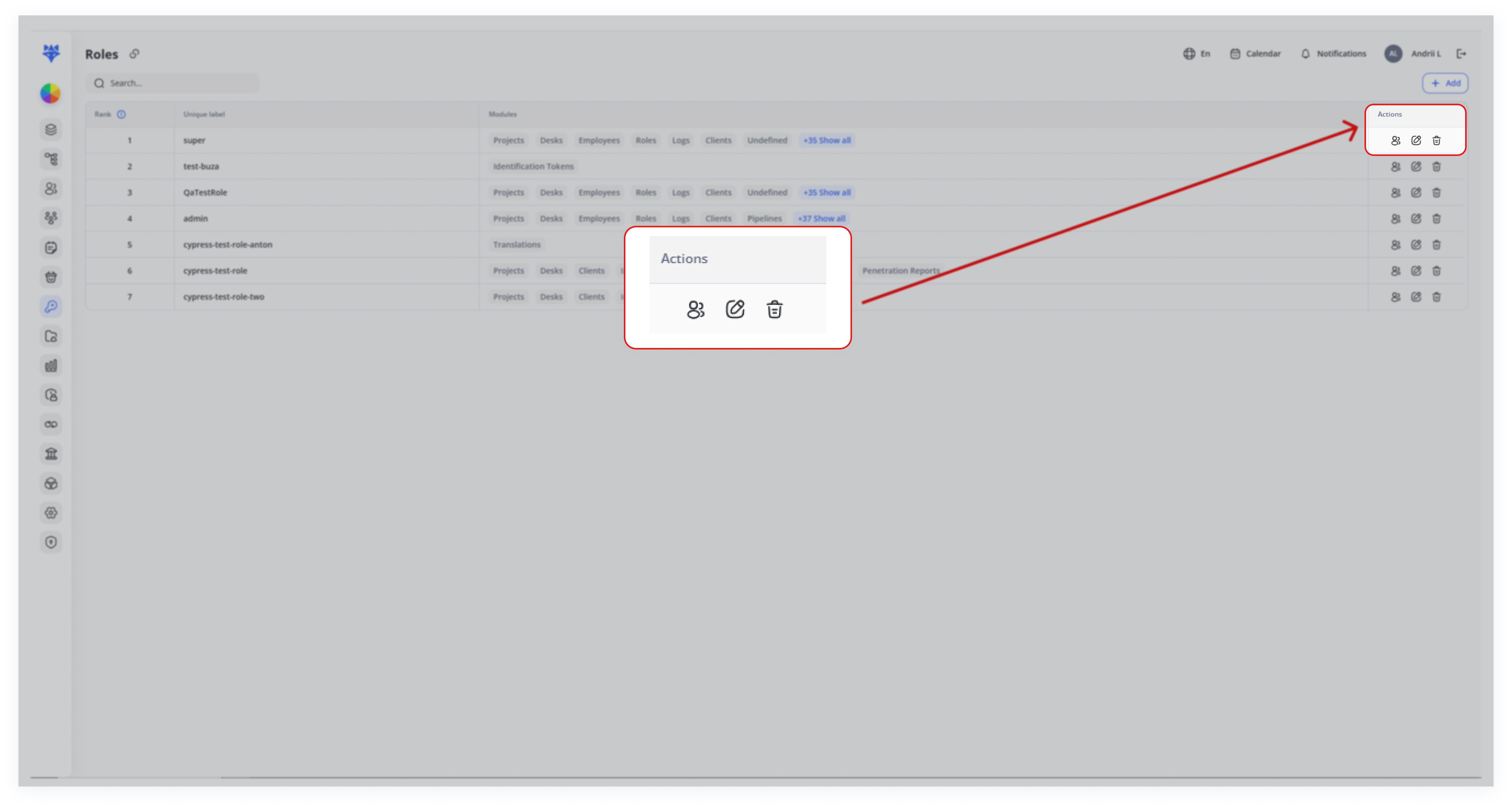
To the right, under Actions, there are three icons:
-
Users: Assign employees to this role.
-
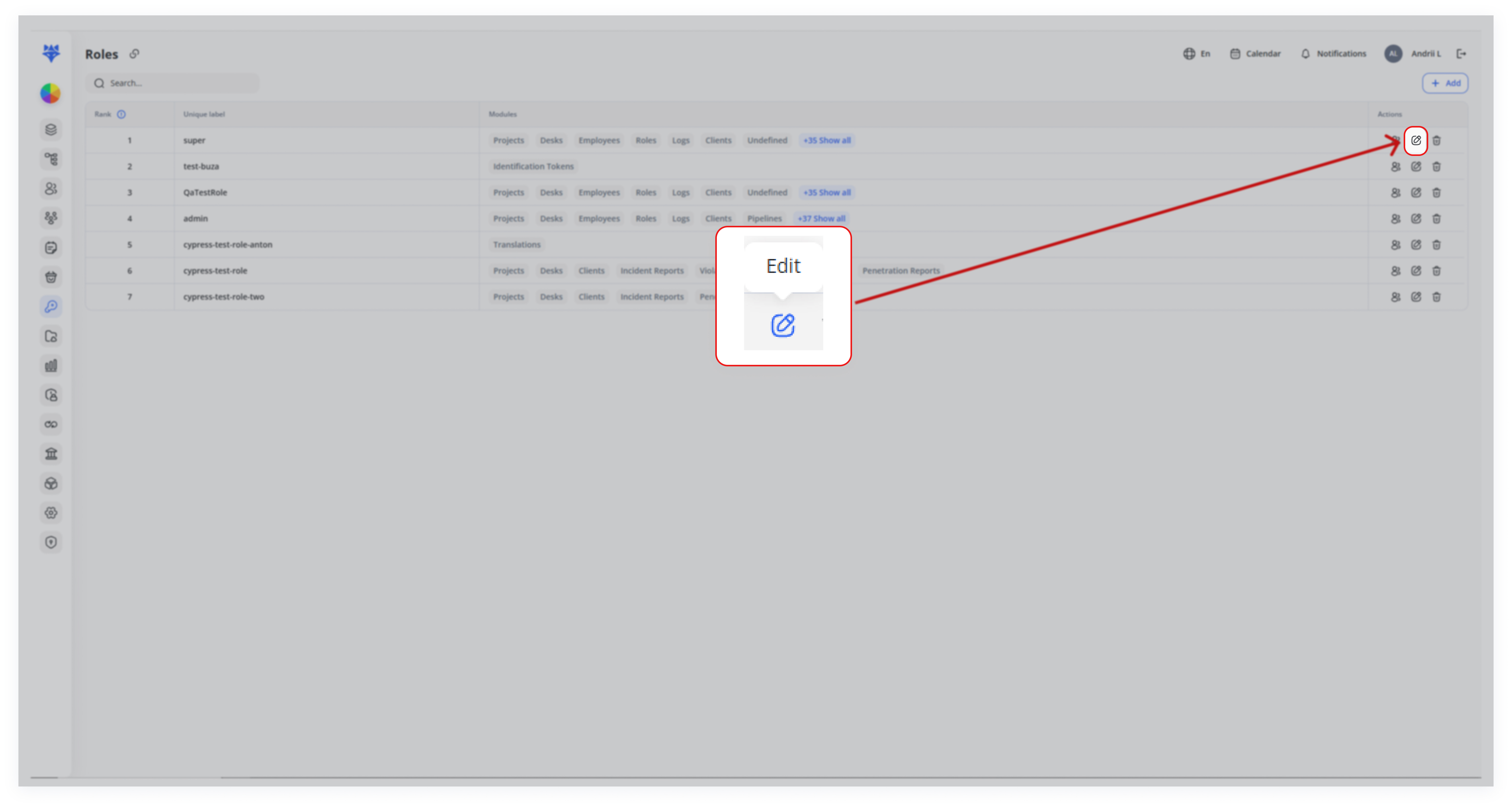
Edit (pencil): Adjust the role’s permissions and name.
-
Delete (trash bin): Remove the role entirely.
2. Editing a Role
Click the Edit Icon
3. Changing Role Rank (Drag‐and‐Drop)
- Locate the Drag Handle
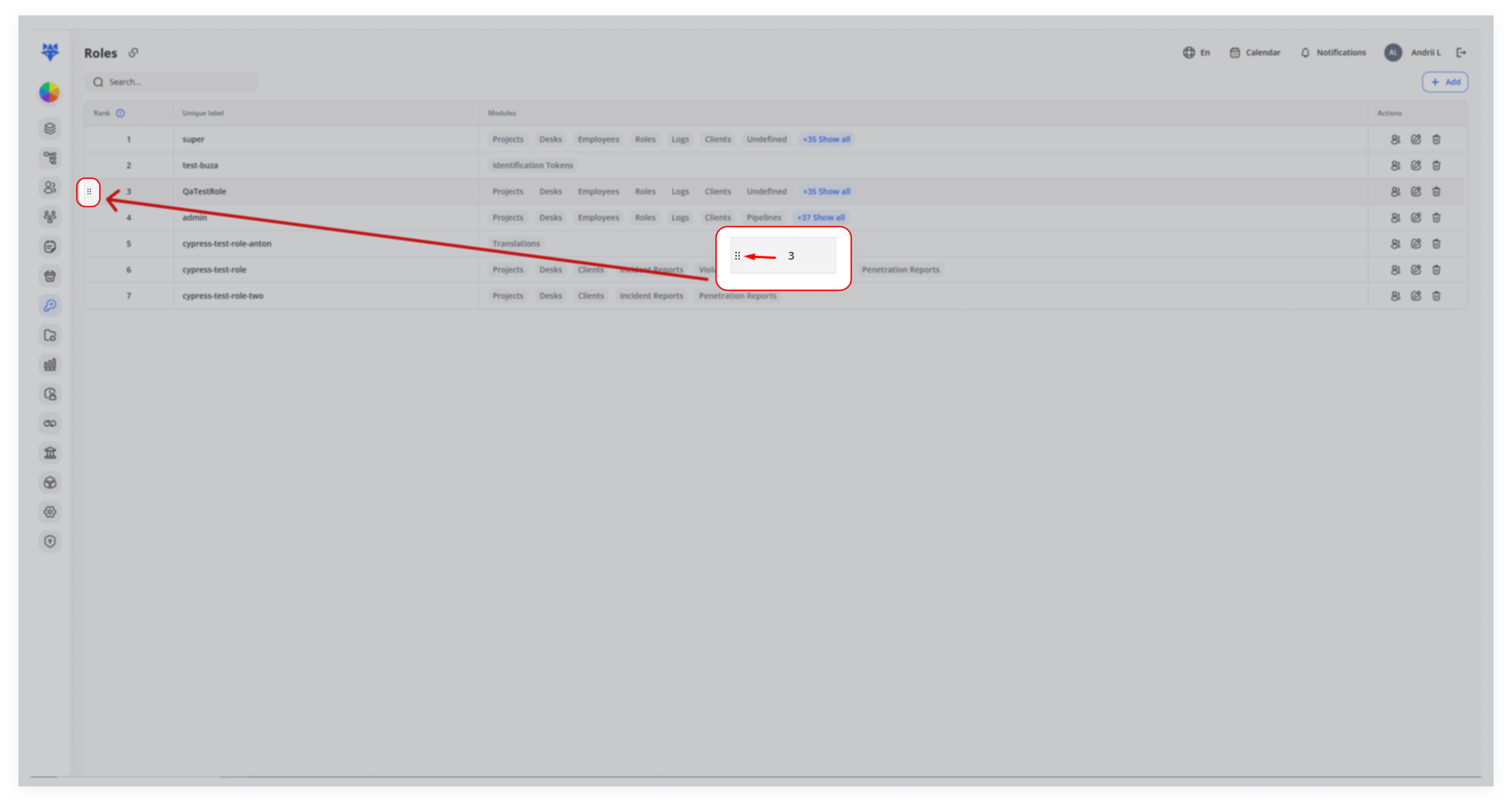
In the Rank column, a dotted handle appears next to the row.
-
Move the Role Up/Down
Click and hold the handle, then drag the role to a different position.
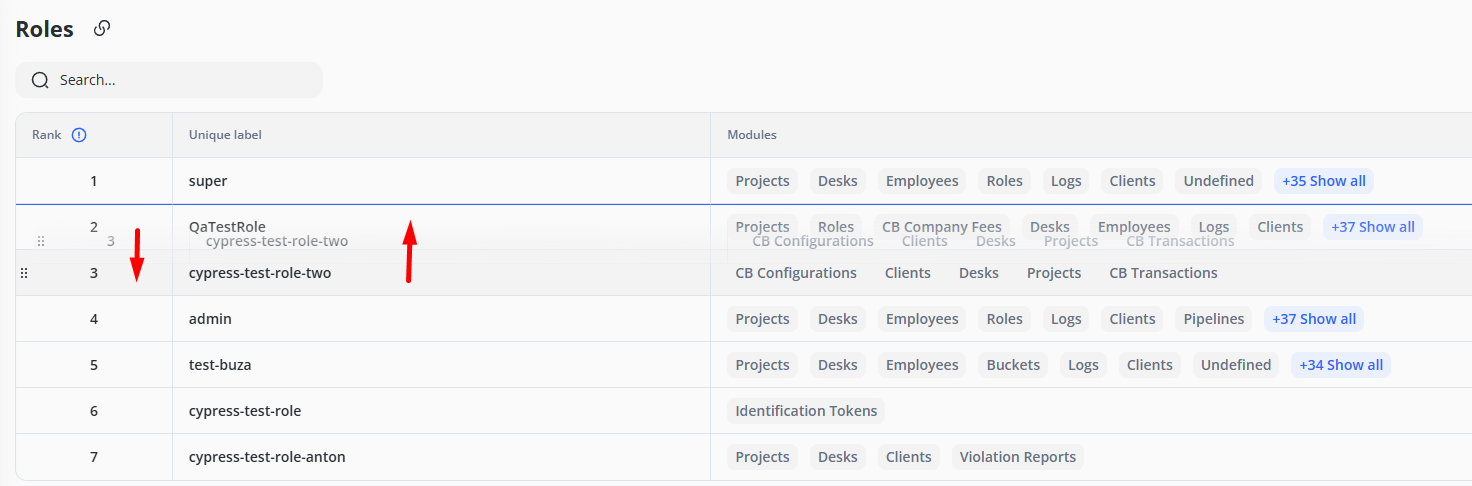
The role’s Rank automatically updates to reflect its new position. For example, if you move a role above another that had a lower rank number, the dragged role now has a higher privilege (lower rank number).
-
Effect on Visibility
If you move a role above your own rank, you can no longer see or assign that role when creating employees or identification tokens.
This prevents “rank‐4” users from giving themselves or others a “rank‐3” (or higher) role.
4. Assigning Roles to Employees or Tokens
-
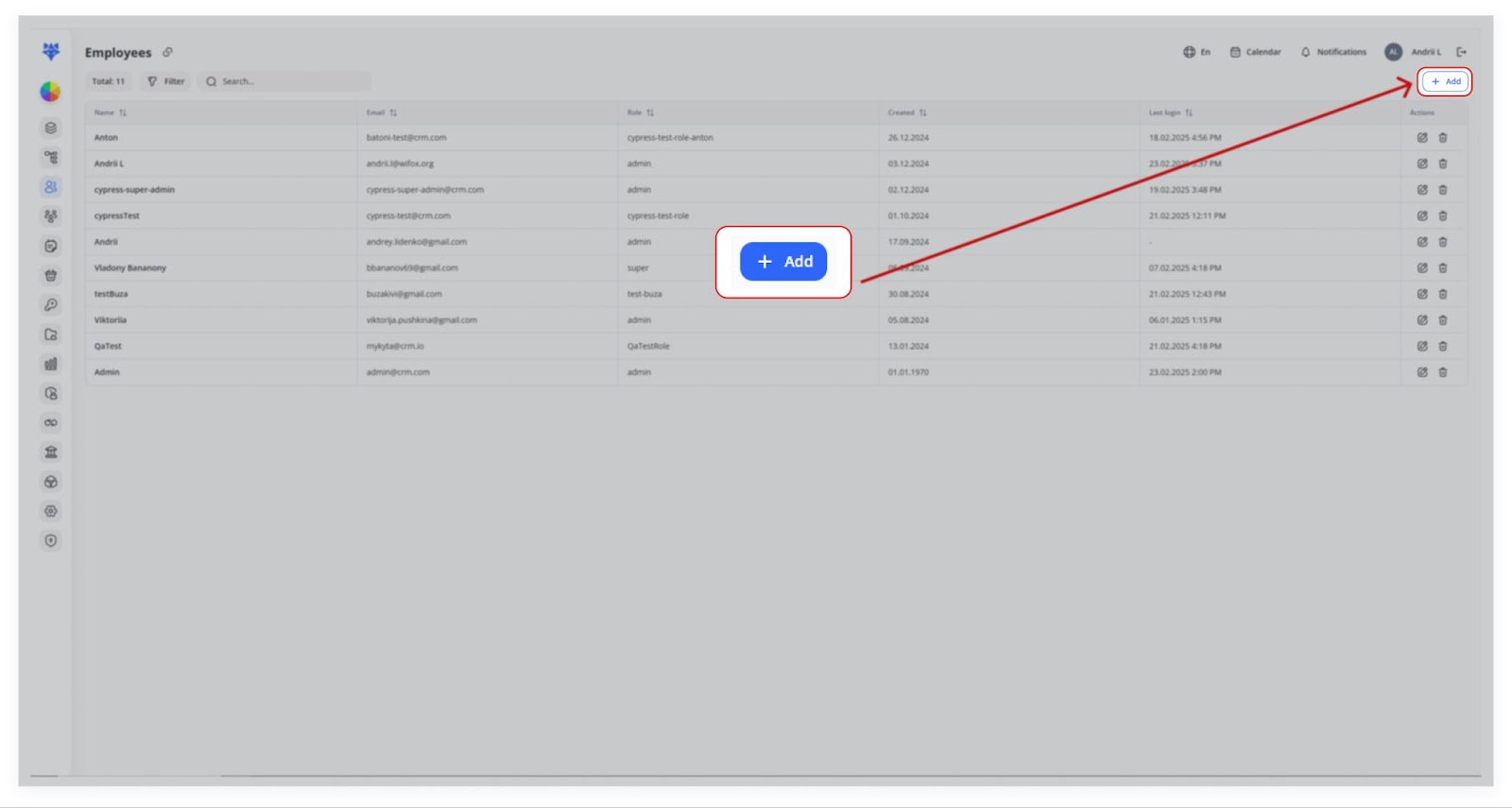
Add Employee
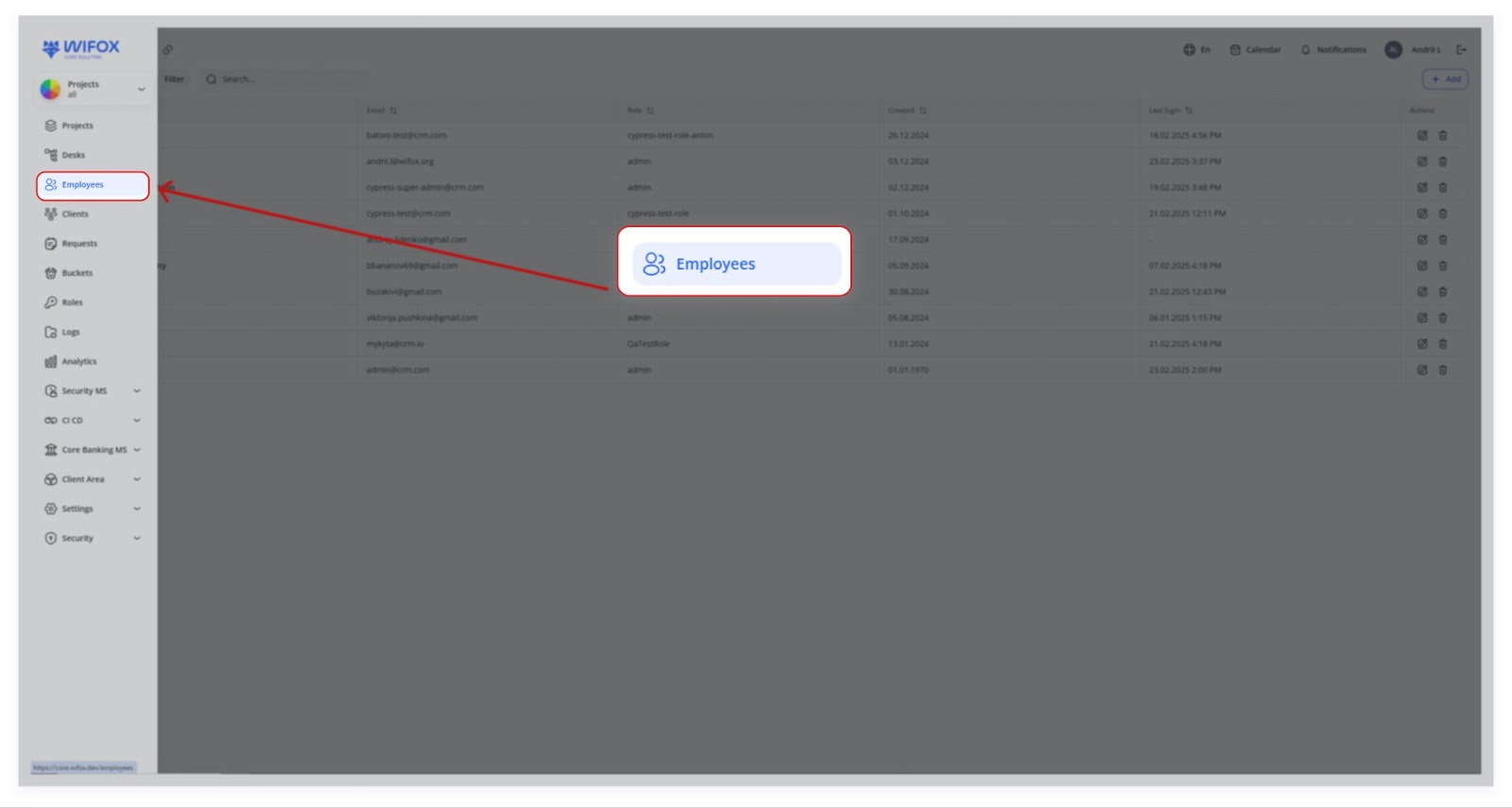
Go to Employees → + Add.
In the Role dropdown, you’ll only see roles that are at or below your current rank.
-
Create Identification Token
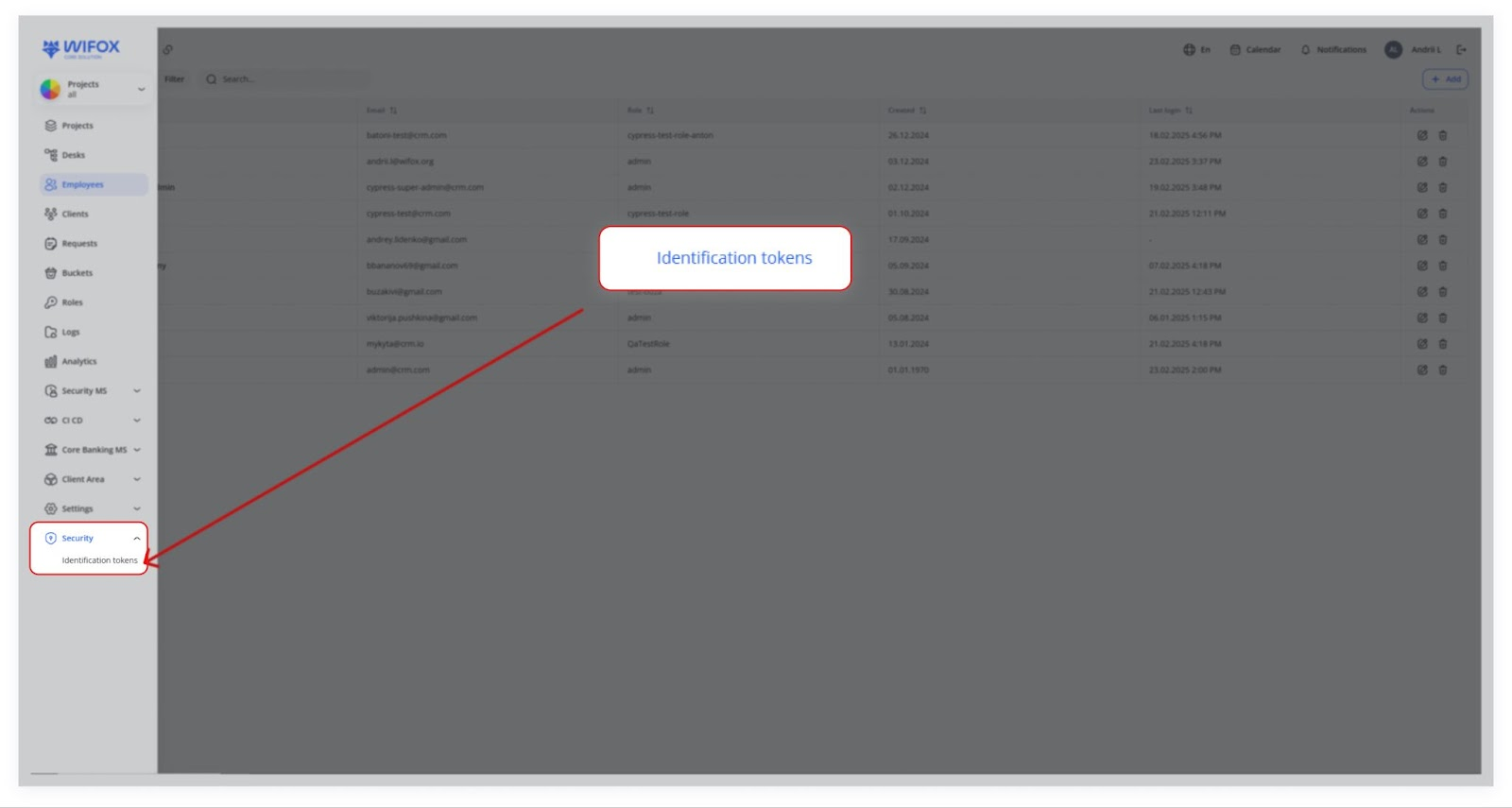
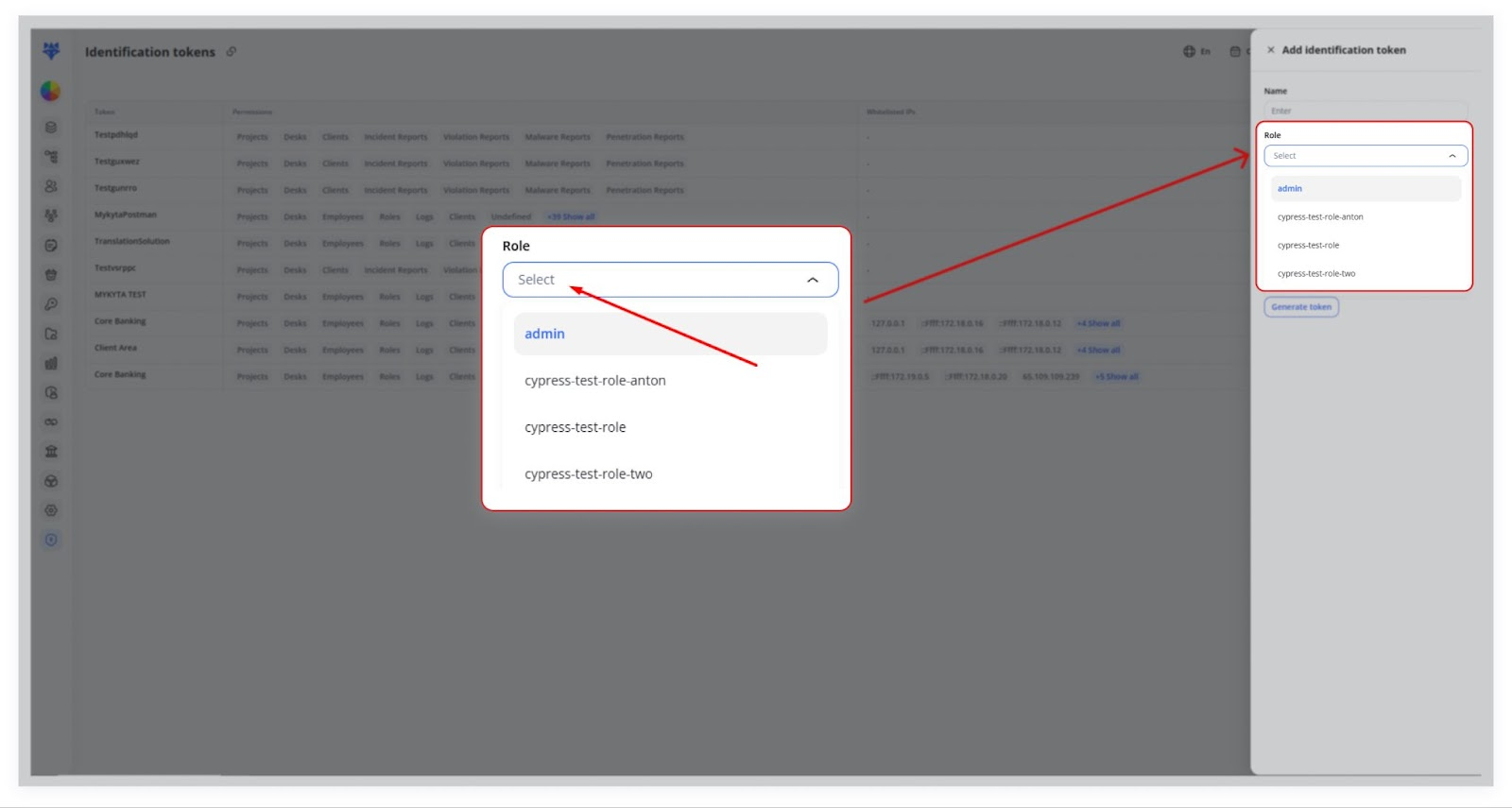
Similarly, in Identification tokens → + Add, the Role dropdown is limited by rank.
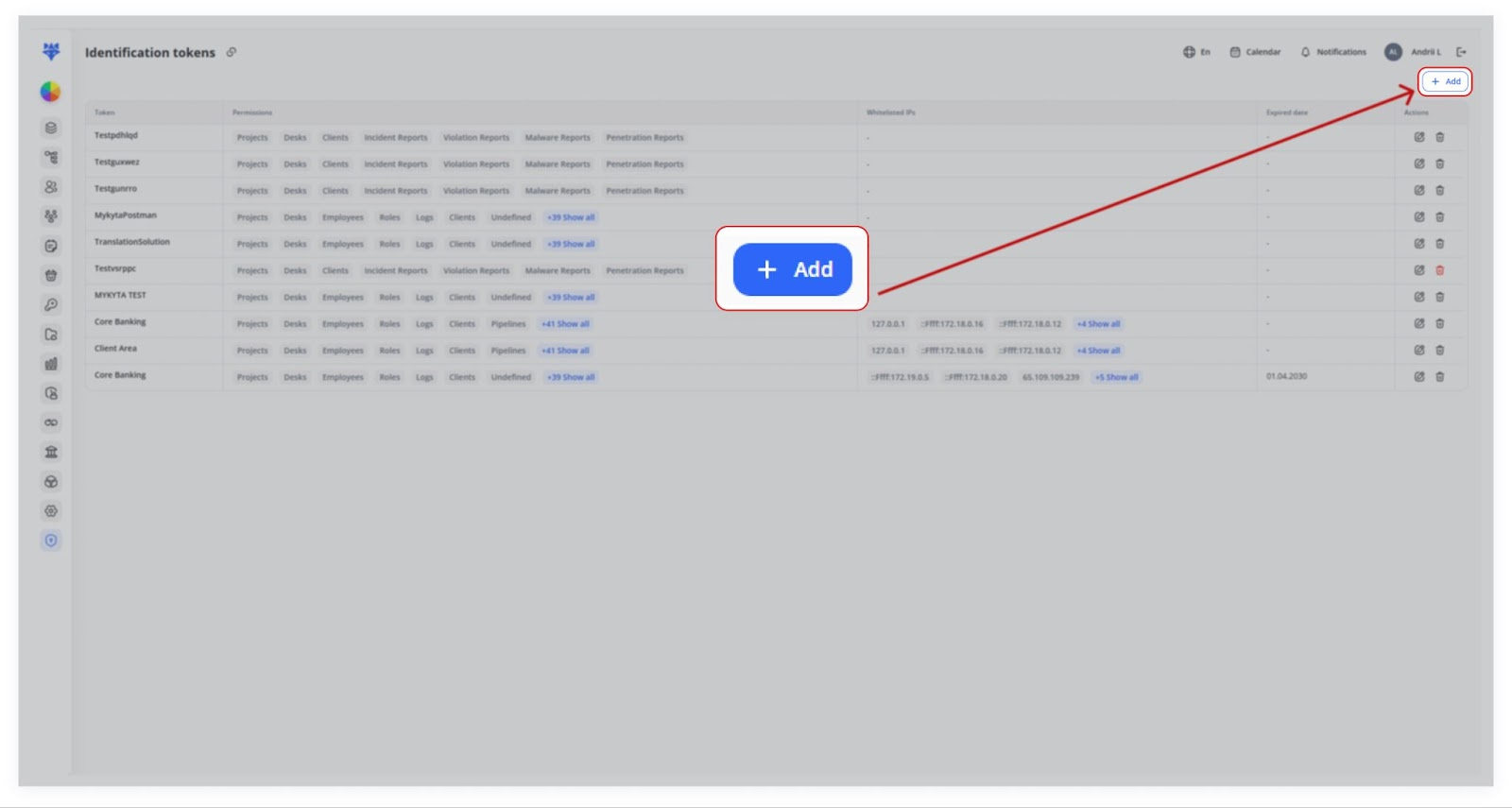
For instance, if your user is rank 4, you’ll only see rank 4, 5, 6… roles listed—rank 3 or above won’t appear.
Why Role Ranking Matters
-
Security: Prevents unauthorized privilege escalation (e.g., a mid‐level user granting themselves “super admin” powers).
-
Project Scope: Ensures a manager who only oversees one project can’t create or assign roles that exceed their scope.
-
Consistency: Keeps the system organized, with each user limited to assigning roles matching their authority level.
Example Scenario
-
Admin Role at Rank 4
The “admin” user sees and can assign roles at rank 4, 5, 6, etc.
-
QATestRole at Rank 5
Admin at rank 4 can't drag roles above it's own rank order(4).
This ensures Admin doesn’t accidentally (or intentionally) grant privileges beyond their own.
In short, Role Ranking is a fundamental security feature. It keeps your CRM environment safe by ensuring users can only create, assign, or manage roles at or below their rank, preventing privilege escalation and maintaining clear permission boundaries across the platform.