8. How to Manage Documents
The Documents section islets designed toyou store documentsand youcontrol postdownloadable files on your website,site—PDFs, suchlicenses, aswhitepapers, licenses.etc. You can add, search, edit, and delete documents from a single table interface.
You can perform the following actions with documents:
Add
Search
Edit
Delete
To add a document:
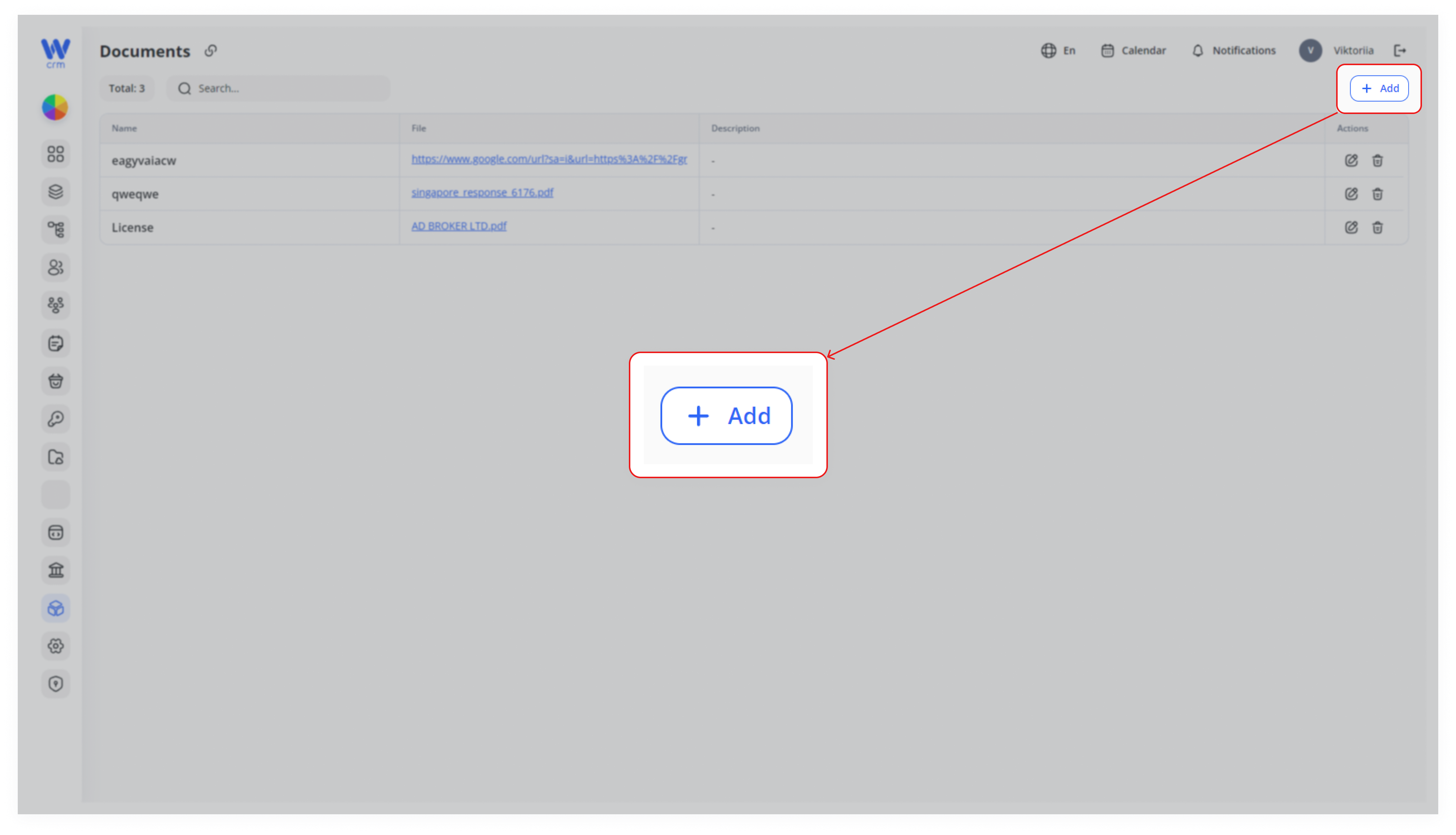
1. Open the Add Panel
1. Click the + Add button in the upperupper-right right-handcorner corner.of the Documents page.
2. Fill in the General Info
- Name: Enter a unique identifier (e.g. “License Agreement 2025”).
- Active: Check this box if you want the document immediately available on your site.
Name3. Provide the File
- Paste the Link: If your file is hosted externally, paste its full URL (must begin with
http://orhttps://). - Attach a File: Drag a PDF into the drop zone or click to browse your computer. Only .pdf is accepted.
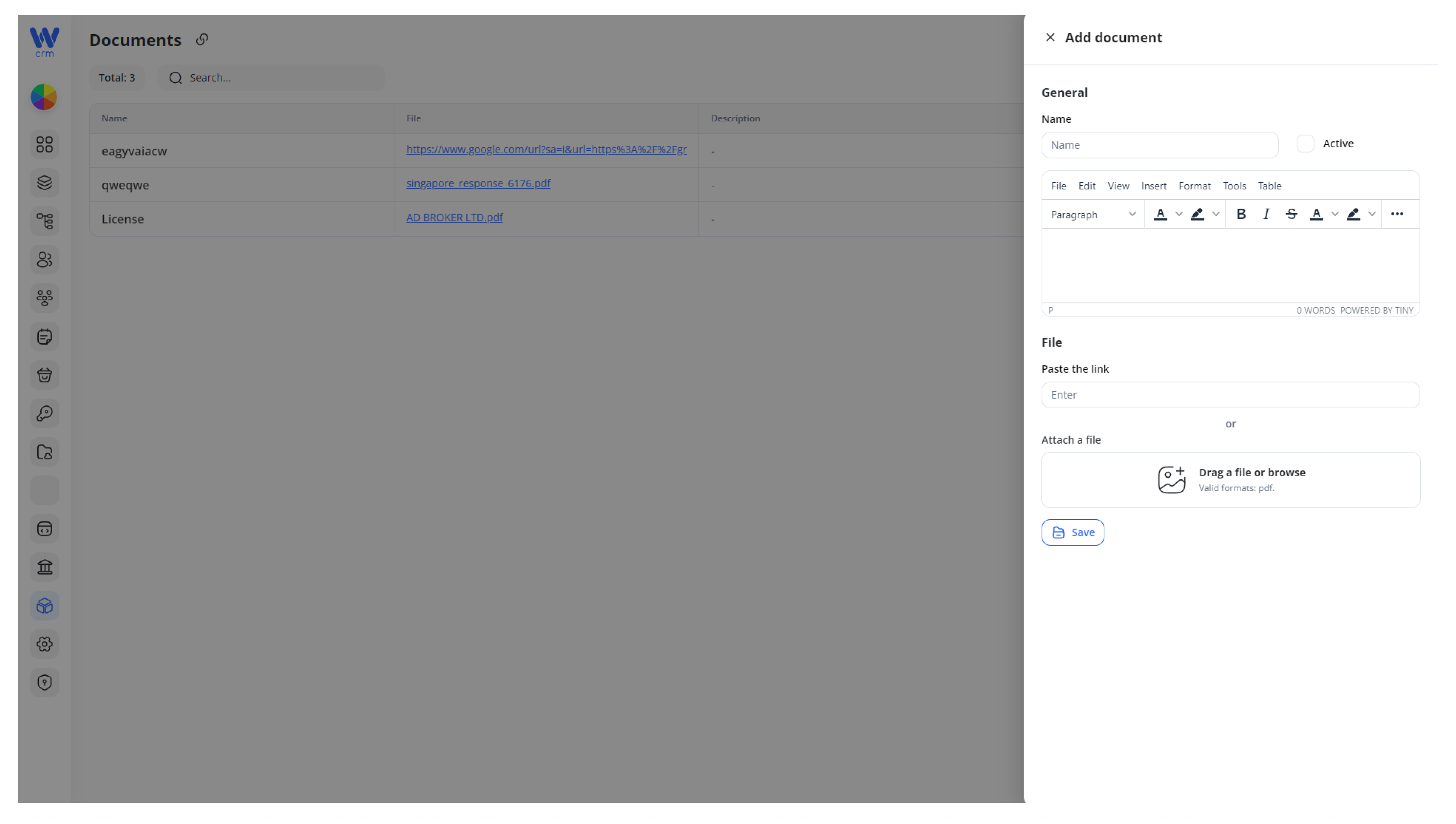
3.4. EnterSave
Click contentSave ofto upload and register the document in the fieldlist.
Name.Tip:
YouUsecanclear,alsoconsistentprovidenaminga(e.g.linkTerms-of-Service-2025.pdf) so it’s easy tothefinddocument or attach a file.later.
4.
5. Click Save to add the document.
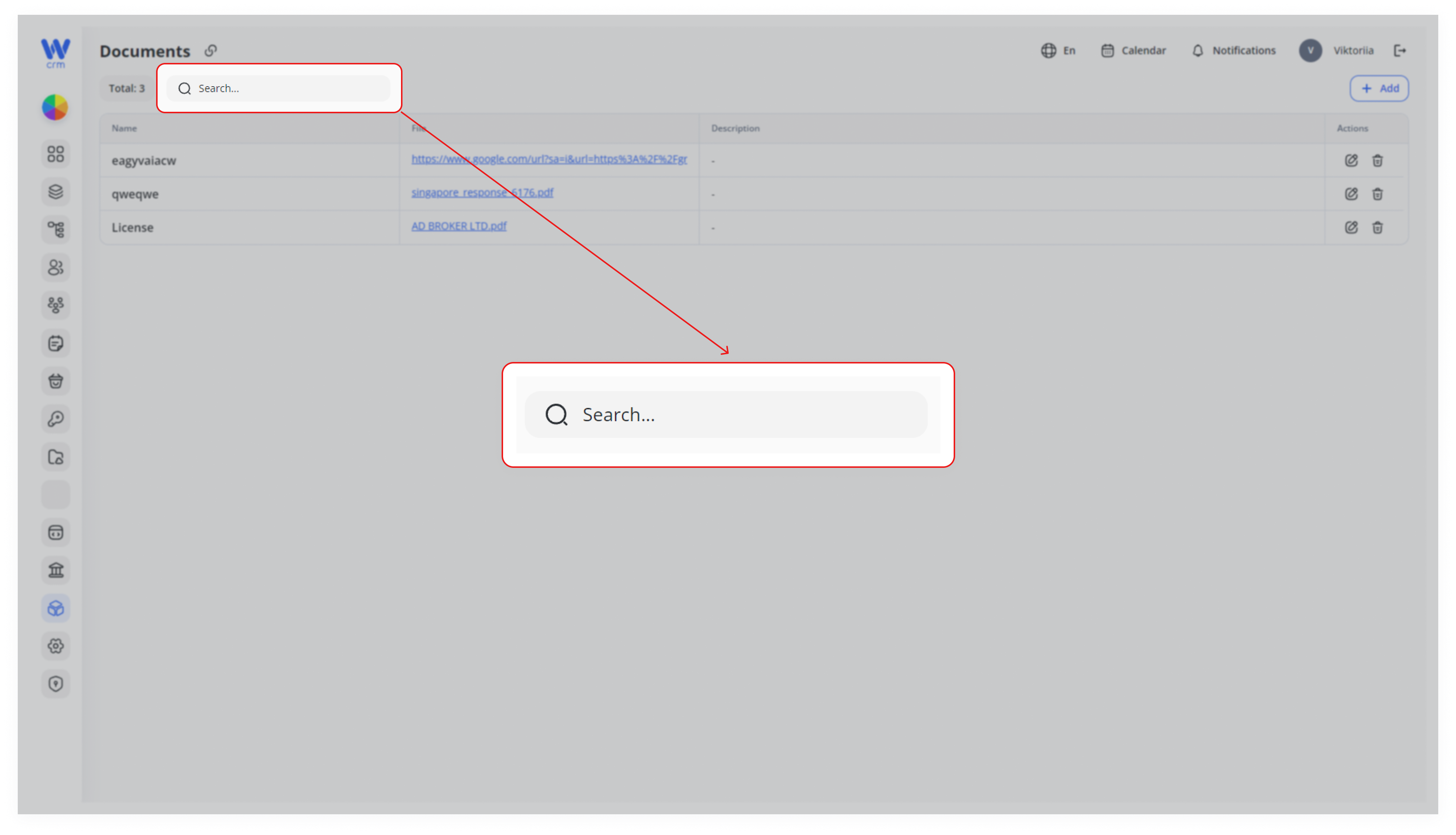
To search for a document:
- Quick
- Filter
Start typing
field at the top.itsanynamepart of the document’s Name in theSearchSearch…field:
This instantly narrows the table to matching entries.
To edit a document:
1. Open the Edit Panel
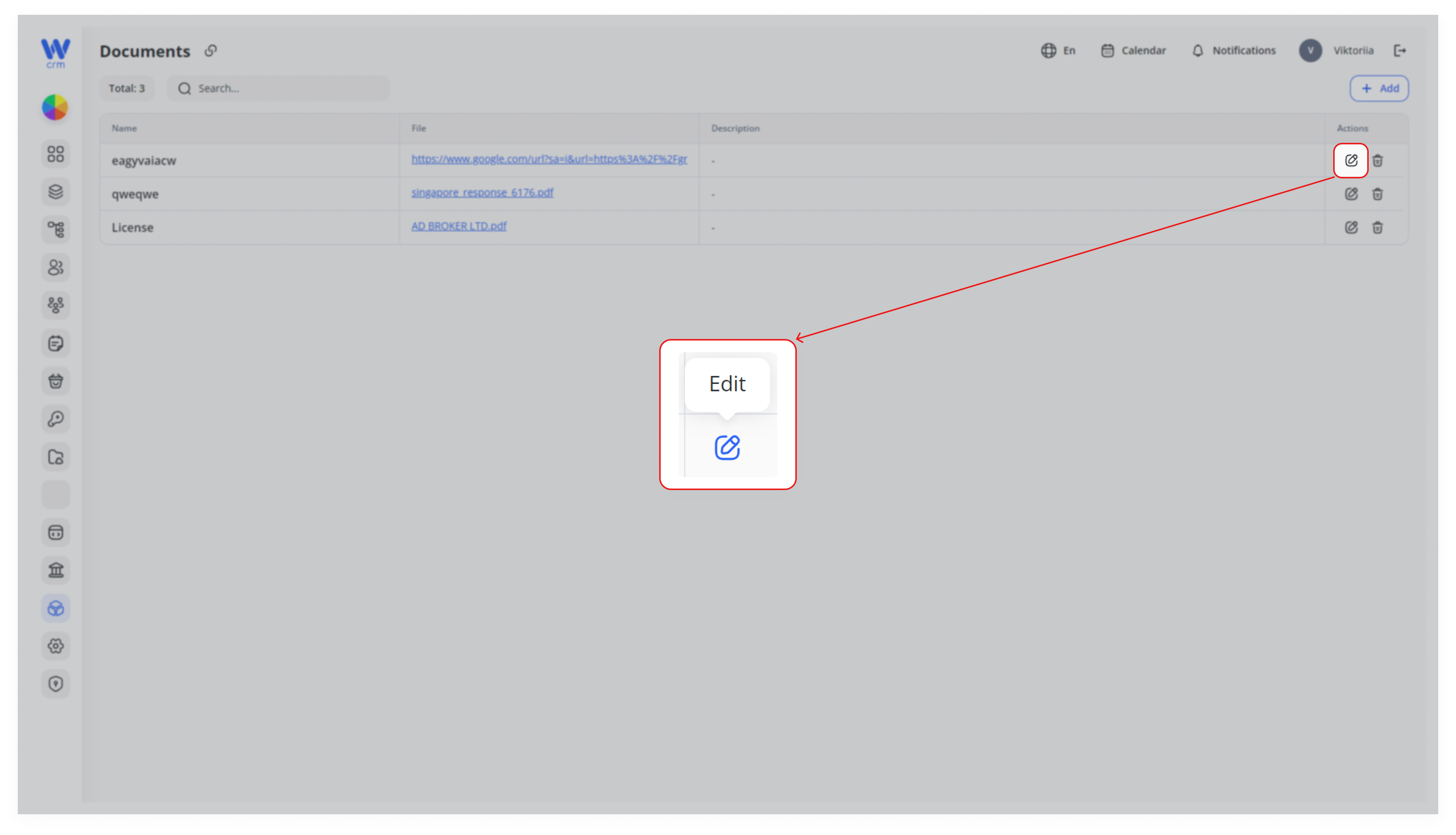
1. Click the Edit (✎) icon in the Actions column next to the correspondingdocument document.you want to update.
2. Make Your Changes
-
Rename: Update the
necessaryNamechangesfield(e.g.,asuploadneeded. -
Swap File: Paste a new
versionlinkofor drag in a new PDF. -
Active Toggle: Enable or disable visibility on your site.
-
Description/Content: Use the
document).rich-text editor under Name to add or modify any explanatory text.
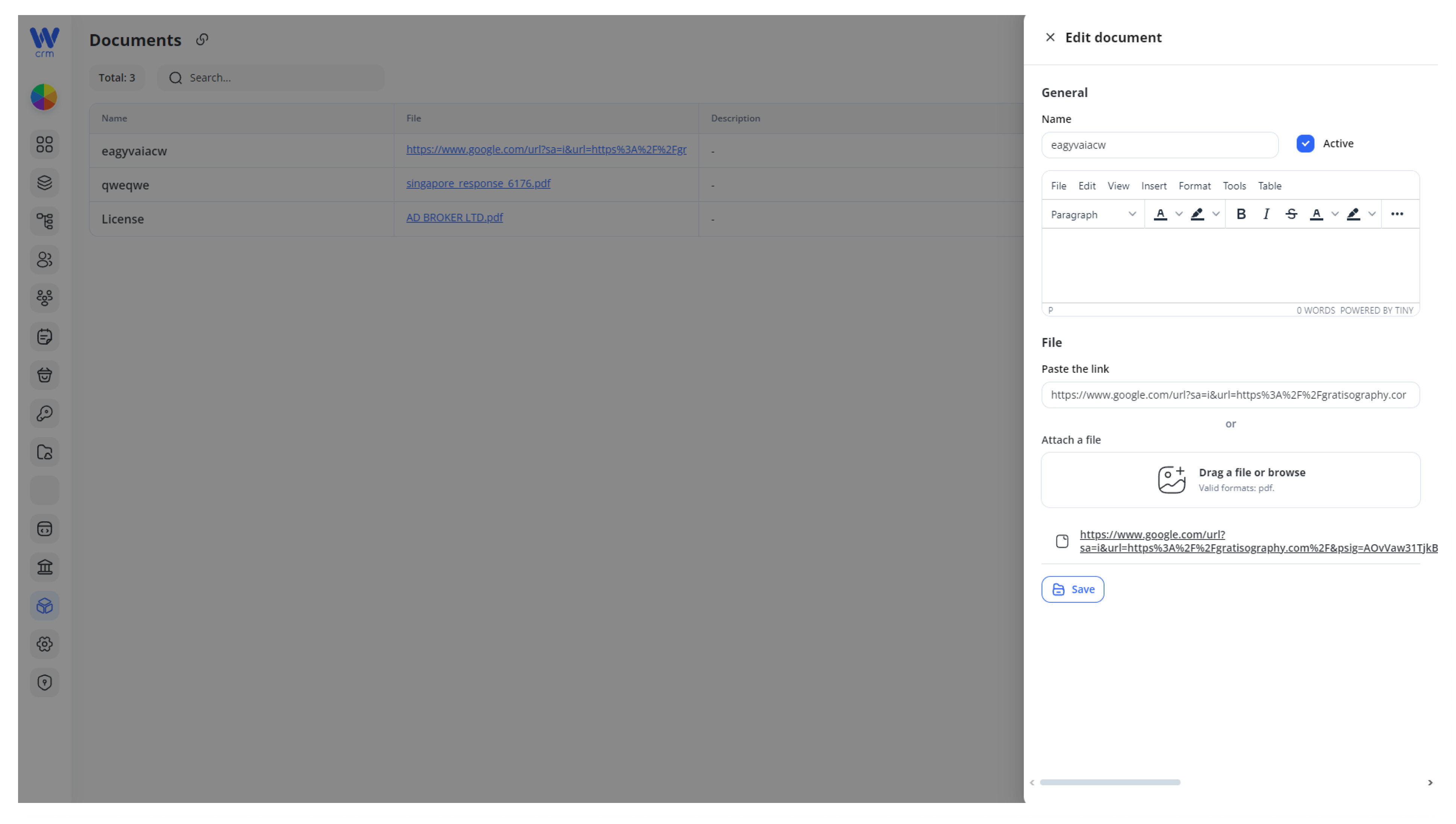
3. Click Save to apply your edits. The table will refresh showing the changes.updated link or status.
Version Control: When uploading a new PDF version, consider appending a date or version number to the file name so users and developers can track changes (e.g.
Product-Guide-v2.pdf).
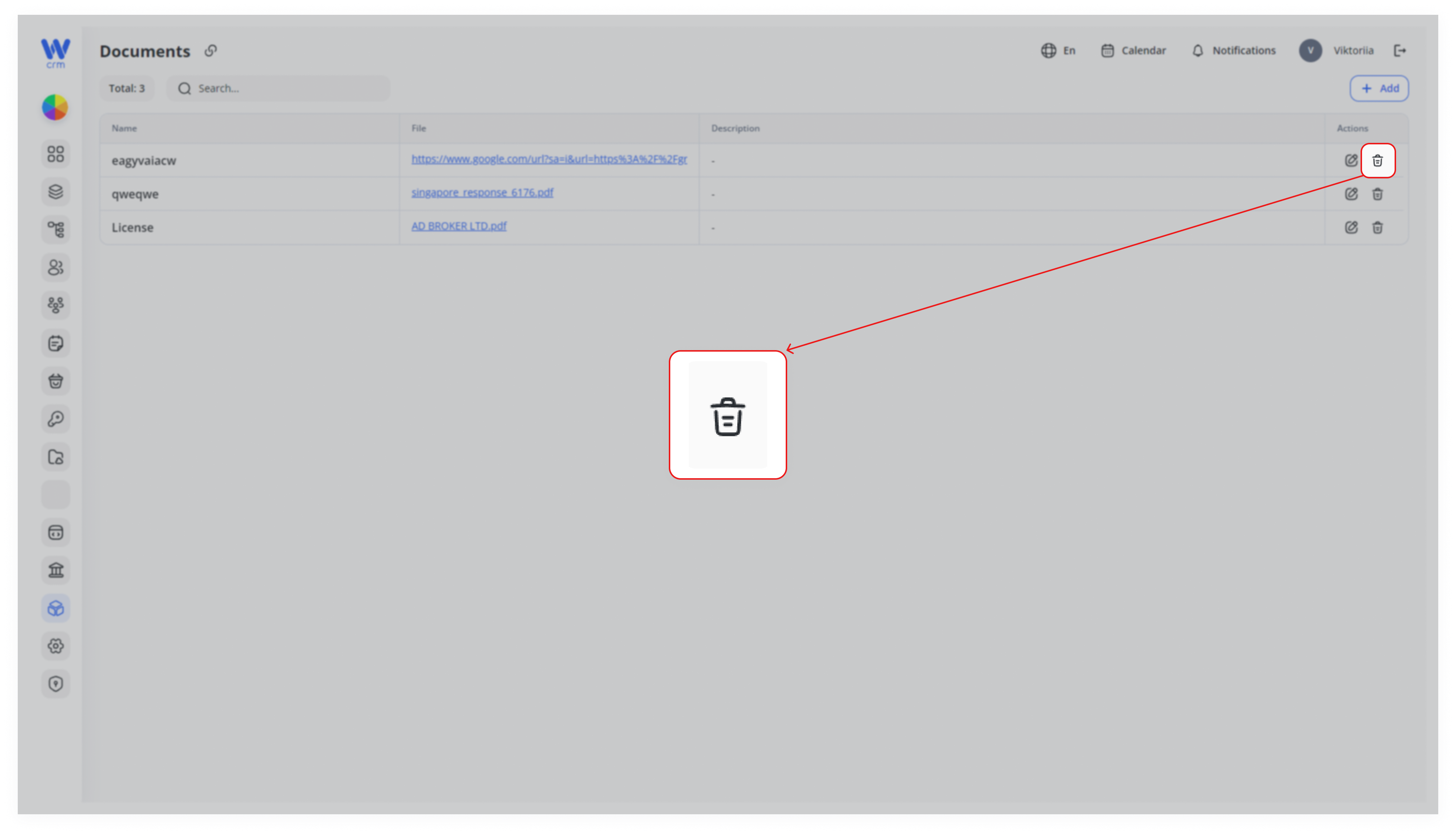
To delete a document:
-
Ensure Inactive
You cannot accidentally delete a file still marked Active—first uncheck the Active box in the Edit panel and save.
-
Remove
Click the Delete (🗑️) icon next to the
correspondingdocument.document.Confirm the prompt to permanently remove it from the system.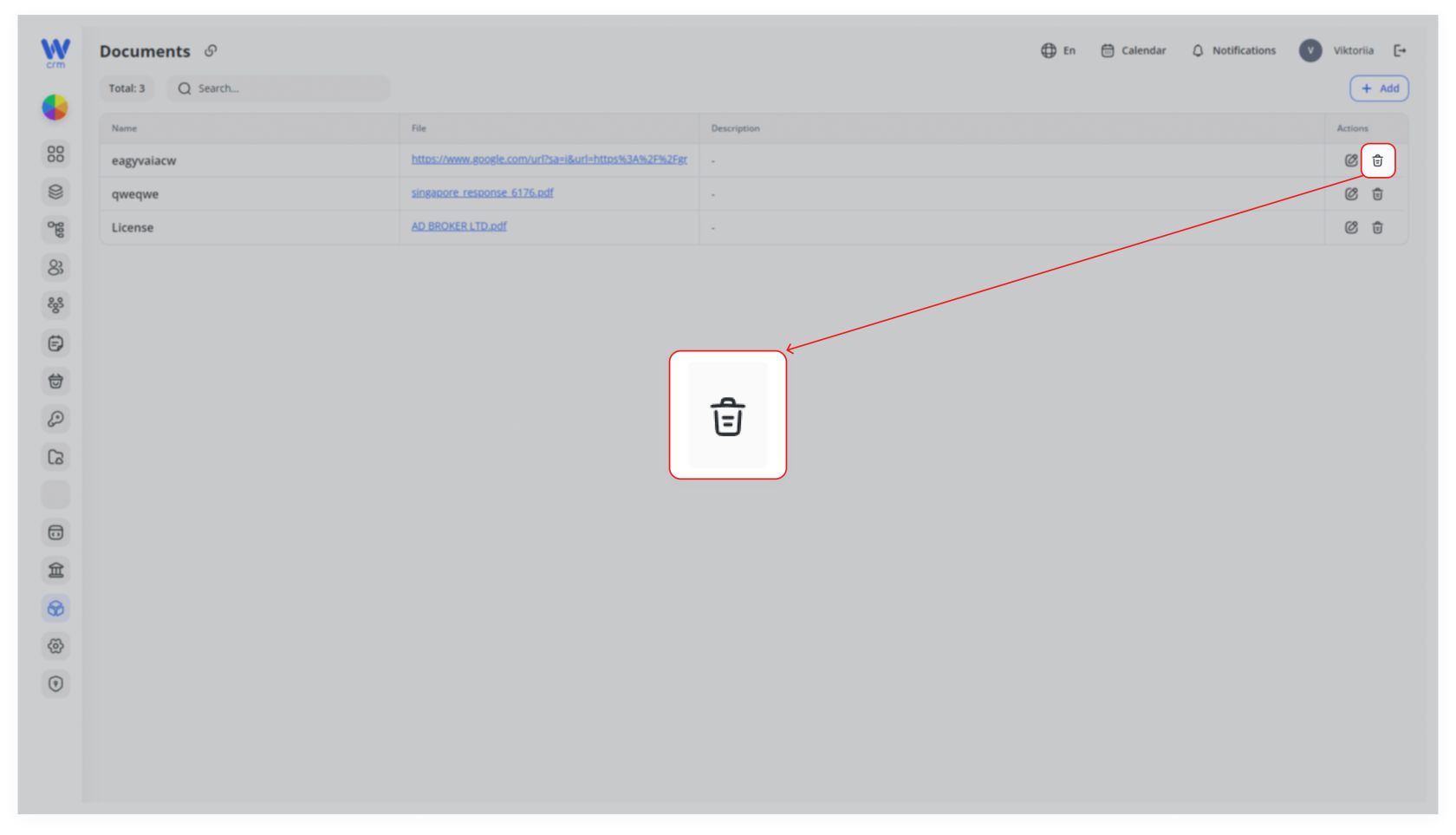
Warning: Deleted documents cannot be recovered from the UI. Always keep a local backup if you might need to restore it later.
Best Practices & Tips
-
File Size & Performance
Keep PDFs under 5 MB when possible. Large files can slow page load and frustrate users.
-
-
Consistent Naming
Adopt a clear naming scheme:<Category>-<Year>-<Version>.pdf(e.g.,Privacy-Policy-2025-v1.pdf). -
Clear Descriptions
Use the rich-text Description field to summarize the content or add important notes (e.g., “Supplier contract—effective Feb 2025”). -
Audit Regularly
Periodically review your Documents list to remove outdated or superseded files—this avoids confusion and broken links. -
Access Control
Only users with appropriate permissions should be able to add or delete documents. Coordinate with your development or admin team if needed.