
8. How to Manage Documents
The Documents section lets you store and control downloadable files on your site—PDFs, licenses, whitepapers, etc. You can add, search, edit, and delete documents from a single table interface.
You can perform the following actions with documents:
- Add
- Search
- Edit
- Delete
To add a document:
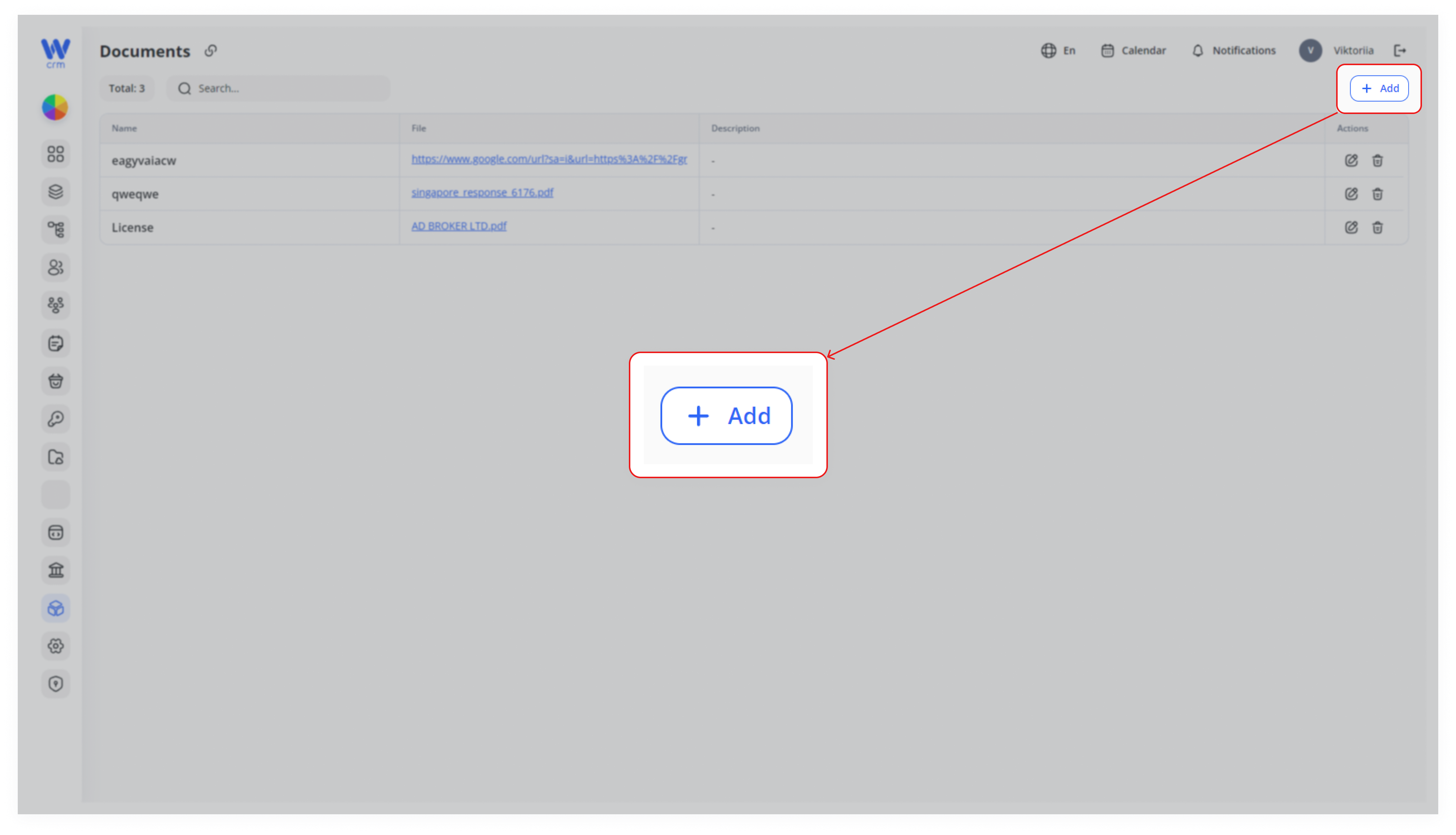
1. Open the Add Panel
Click the + Add button in the upper-right corner of the Documents page.
2. Fill in the General Info
- Name: Enter a unique identifier (e.g. “License Agreement 2025”).
- Active: Check this box if you want the document immediately available on your site.
3. Provide the File
- Paste the Link: If your file is hosted externally, paste its full URL (must begin with
http://orhttps://). - Attach a File: Drag a PDF into the drop zone or click to browse your computer. Only .pdf is accepted.
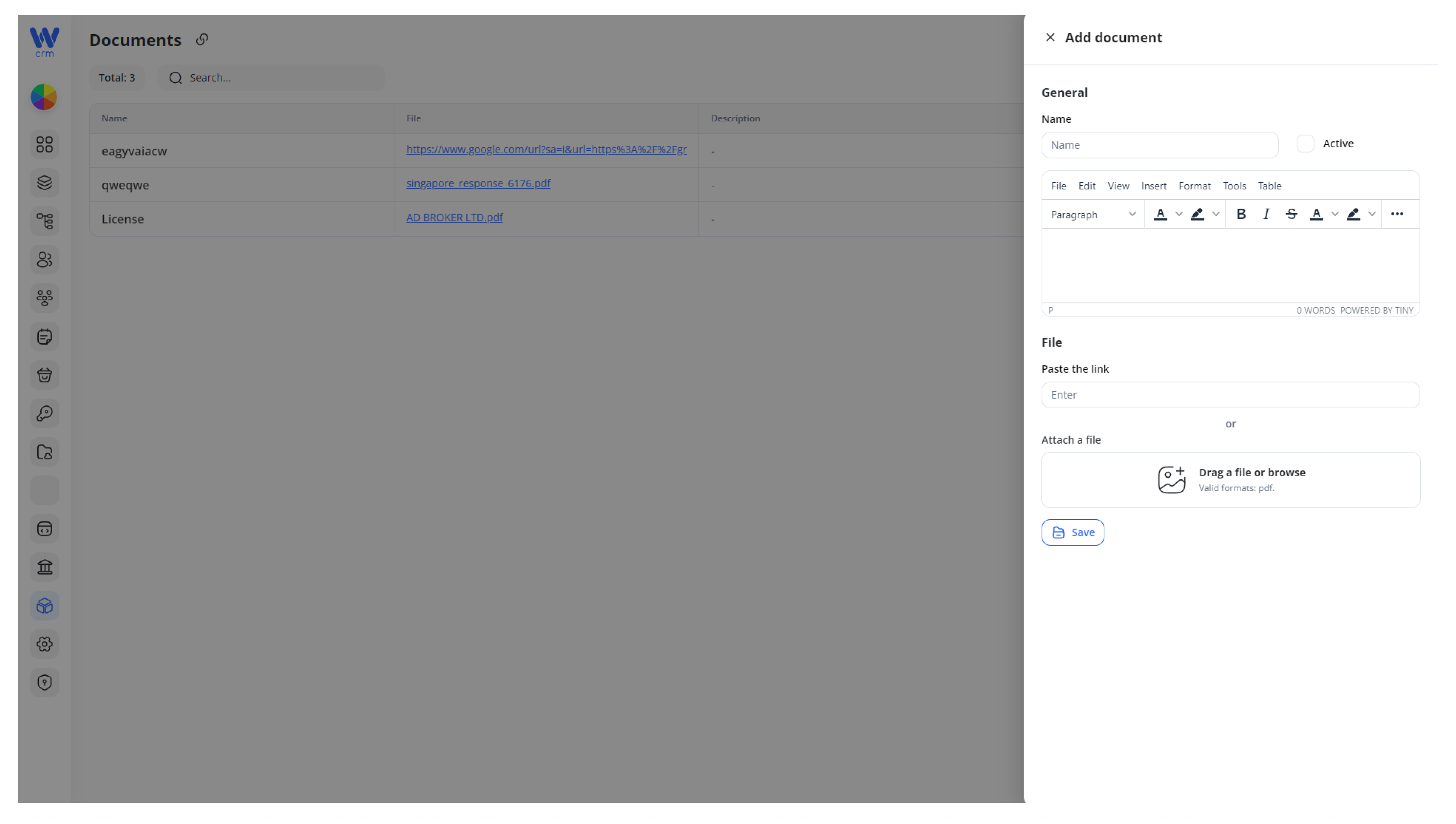
4. Save
Click Save to upload and register the document in the list.
Tip: Use clear, consistent naming (e.g.
Terms-of-Service-2025.pdf) so it’s easy to find later.
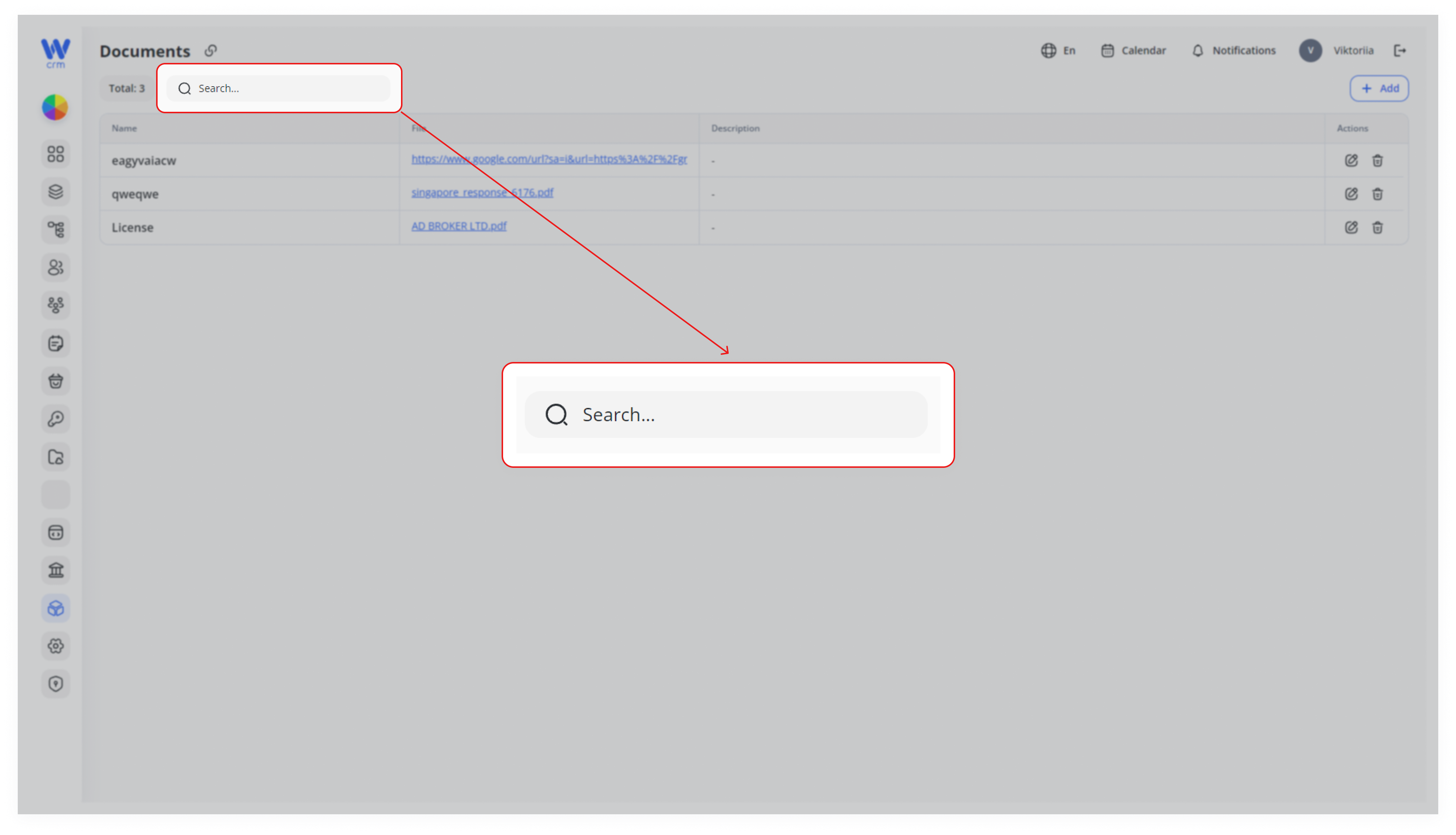
To search for a document:
- Quick Filter: Start typing any part of the document’s Name in the Search… field at the top.
This instantly narrows the table to matching entries.
To edit a document:
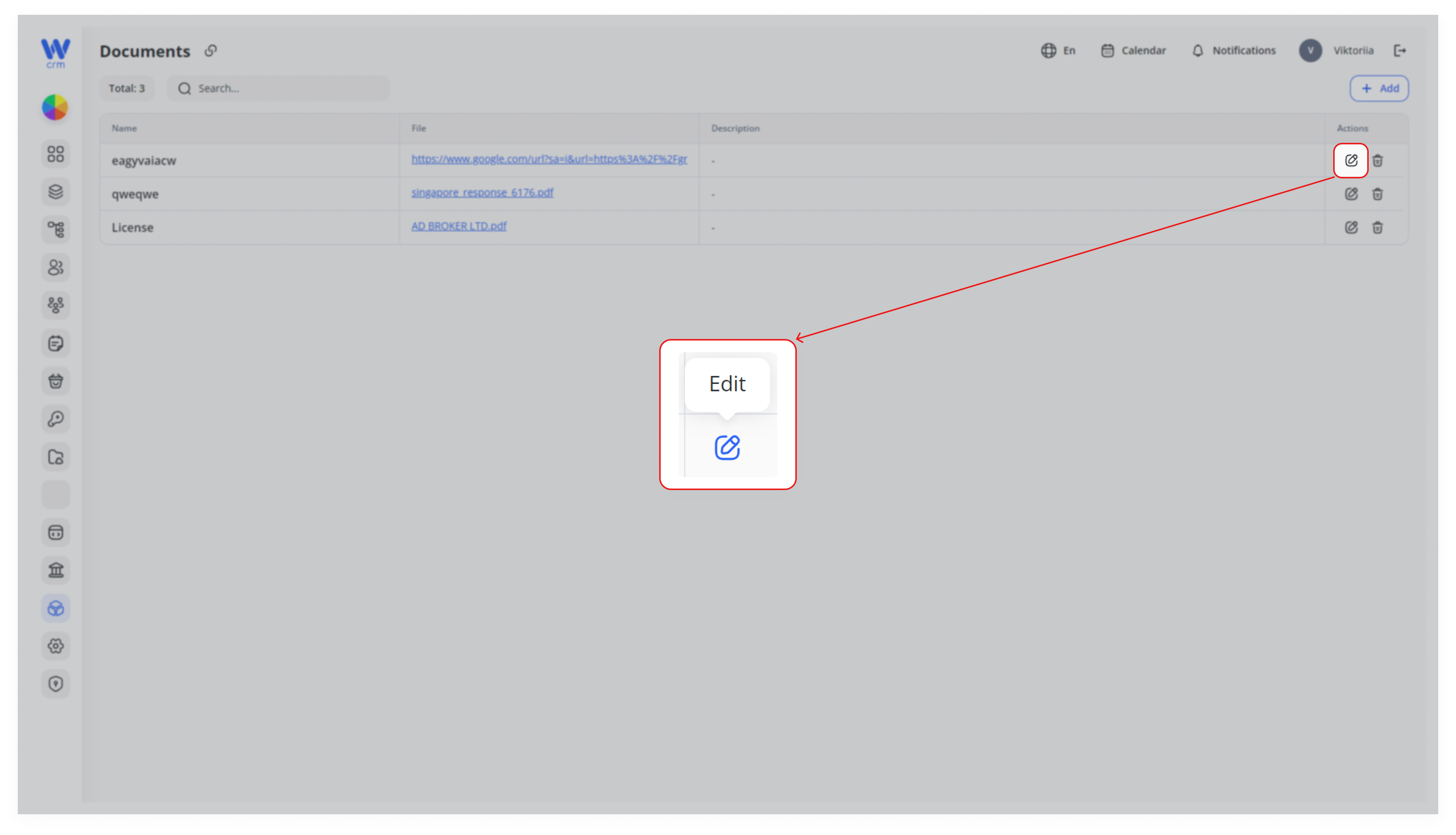
1. Open the Edit Panel
Click the Edit (✎) icon in the Actions column next to the document you want to update.
2. Make Your Changes
-
Rename: Update the Name field as needed.
-
Swap File: Paste a new link or drag in a new PDF.
-
Active Toggle: Enable or disable visibility on your site.
-
Description/Content: Use the rich-text editor under Name to add or modify any explanatory text.
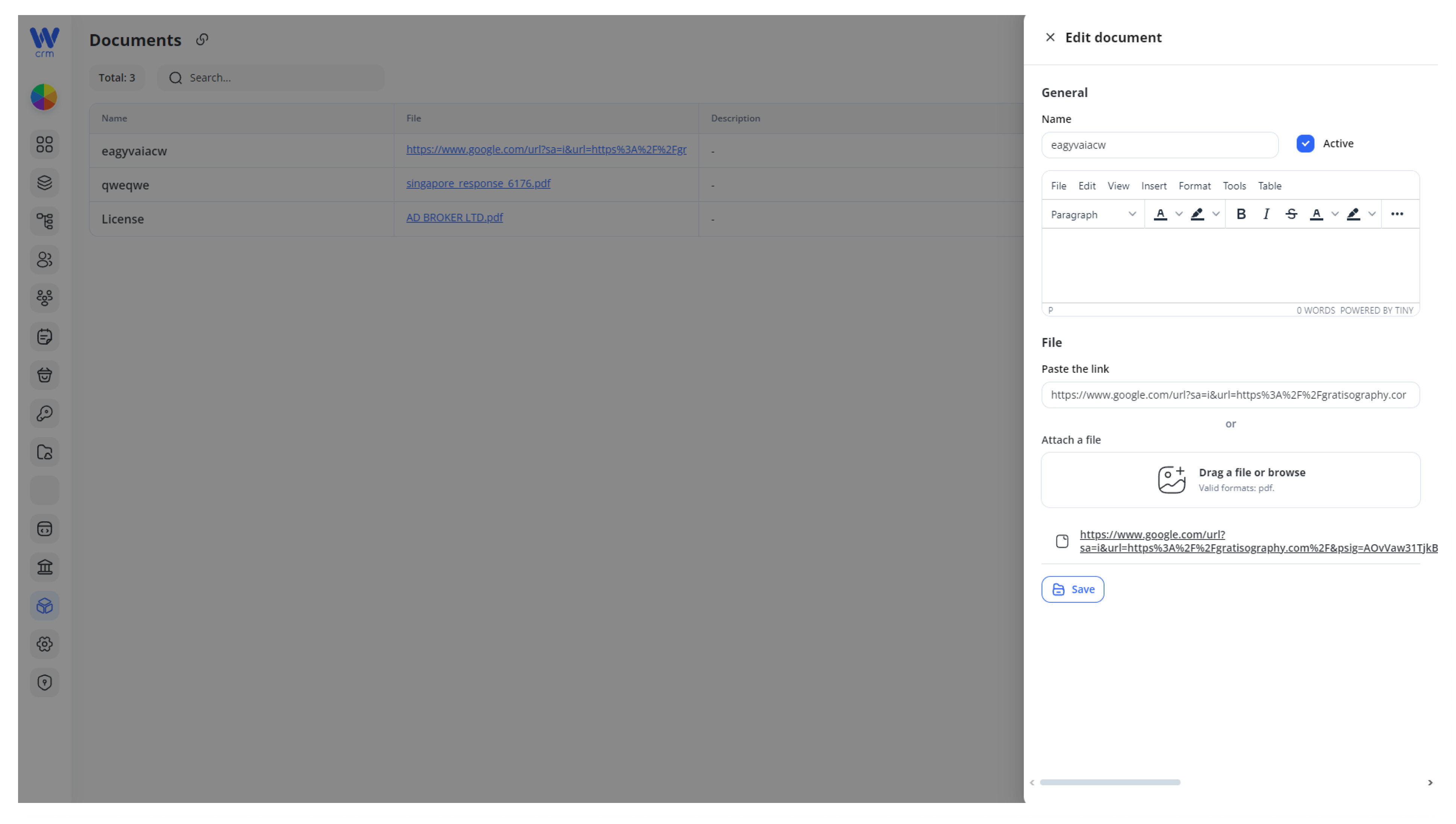
3. Click Save to apply your edits. The table will refresh showing the updated link or status.
Version Control: When uploading a new PDF version, consider appending a date or version number to the file name so users and developers can track changes (e.g.
Product-Guide-v2.pdf).
To delete a document:
-
Ensure Inactive
You cannot accidentally delete a file still marked Active—first uncheck the Active box in the Edit panel and save.
-
Remove
Click the Delete (🗑️) icon next to the document. Confirm the prompt to permanently remove it from the system.
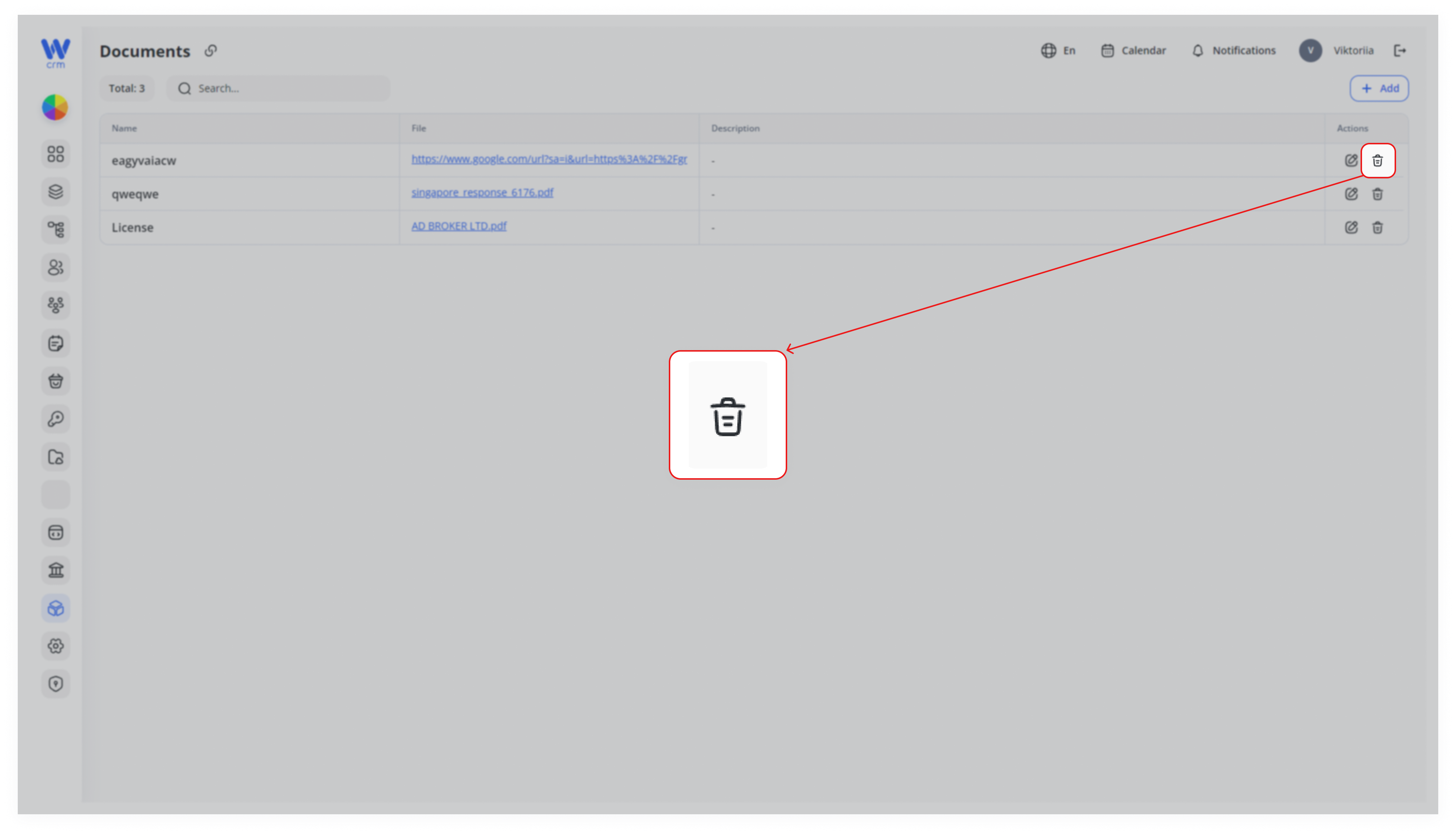
Warning: Deleted documents cannot be recovered from the UI. Always keep a local backup if you might need to restore it later.
Best Practices & Tips
-
File Size & Performance
Keep PDFs under 5 MB when possible. Large files can slow page load and frustrate users. -
Consistent Naming
Adopt a clear naming scheme:<Category>-<Year>-<Version>.pdf(e.g.,Privacy-Policy-2025-v1.pdf). -
Clear Descriptions
Use the rich-text Description field to summarize the content or add important notes (e.g., “Supplier contract—effective Feb 2025”). -
Audit Regularly
Periodically review your Documents list to remove outdated or superseded files—this avoids confusion and broken links. -
Access Control
Only users with appropriate permissions should be able to add or delete documents. Coordinate with your development or admin team if needed.
By following these steps and best practices, you’ll maintain a tidy, up-to-date library of downloadable content that’s easy for both admins and end-users to navigate.