7. How to Manage Documents
The Documents section is designed to store documents you post on your website, such as licenses.
You can perform the following actions with documents:
-
-
Add
-
Search
-
Edit
-
Delete
-
To add a document:
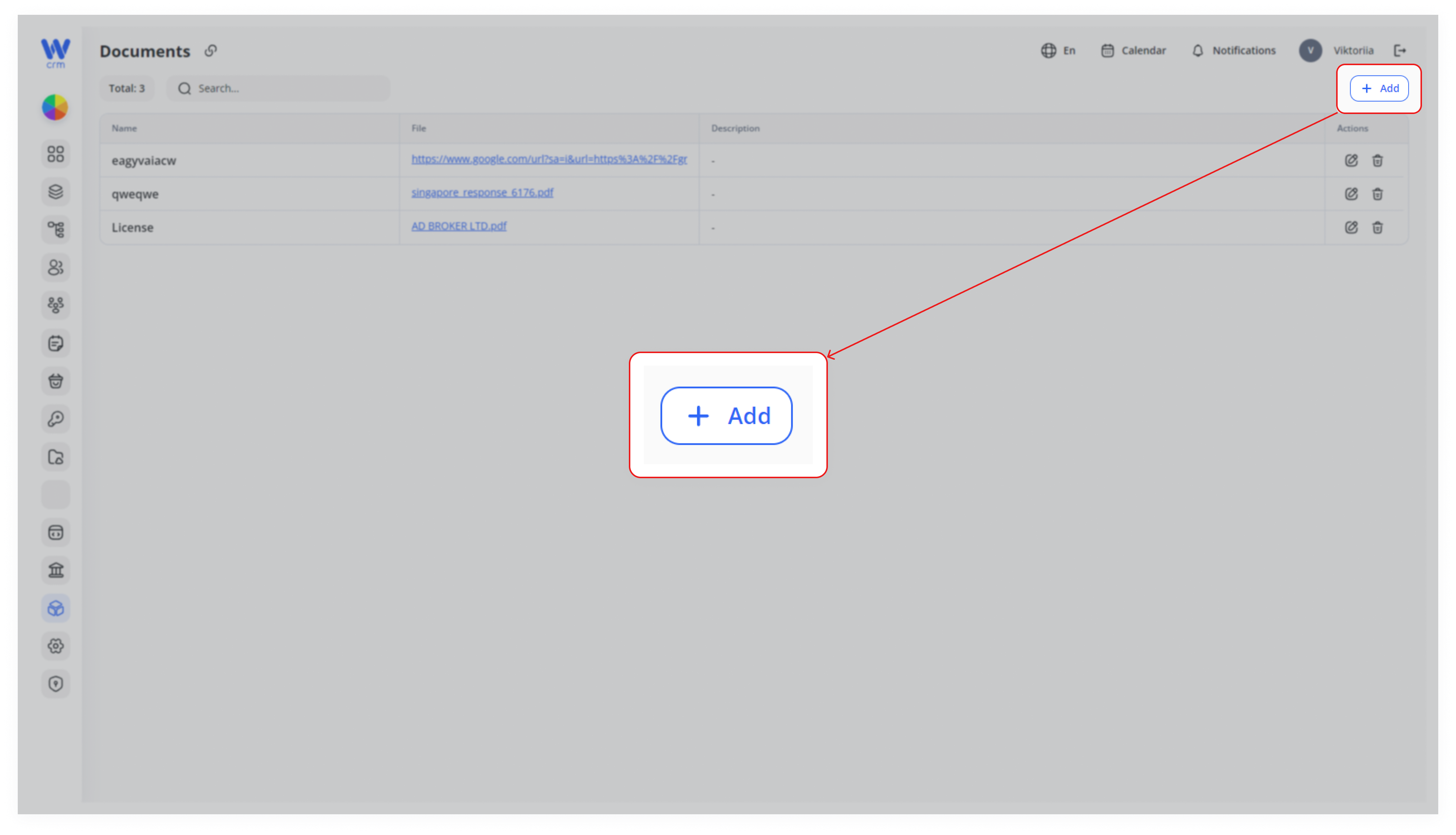
1. Click the Add button in the upper right-hand corner.
2. Enter the Name.
3. Enter the content of the document in the field below Name. You can also provide a link to the document or attach a file.
4. To make the document active after creation, check the Active checkbox.
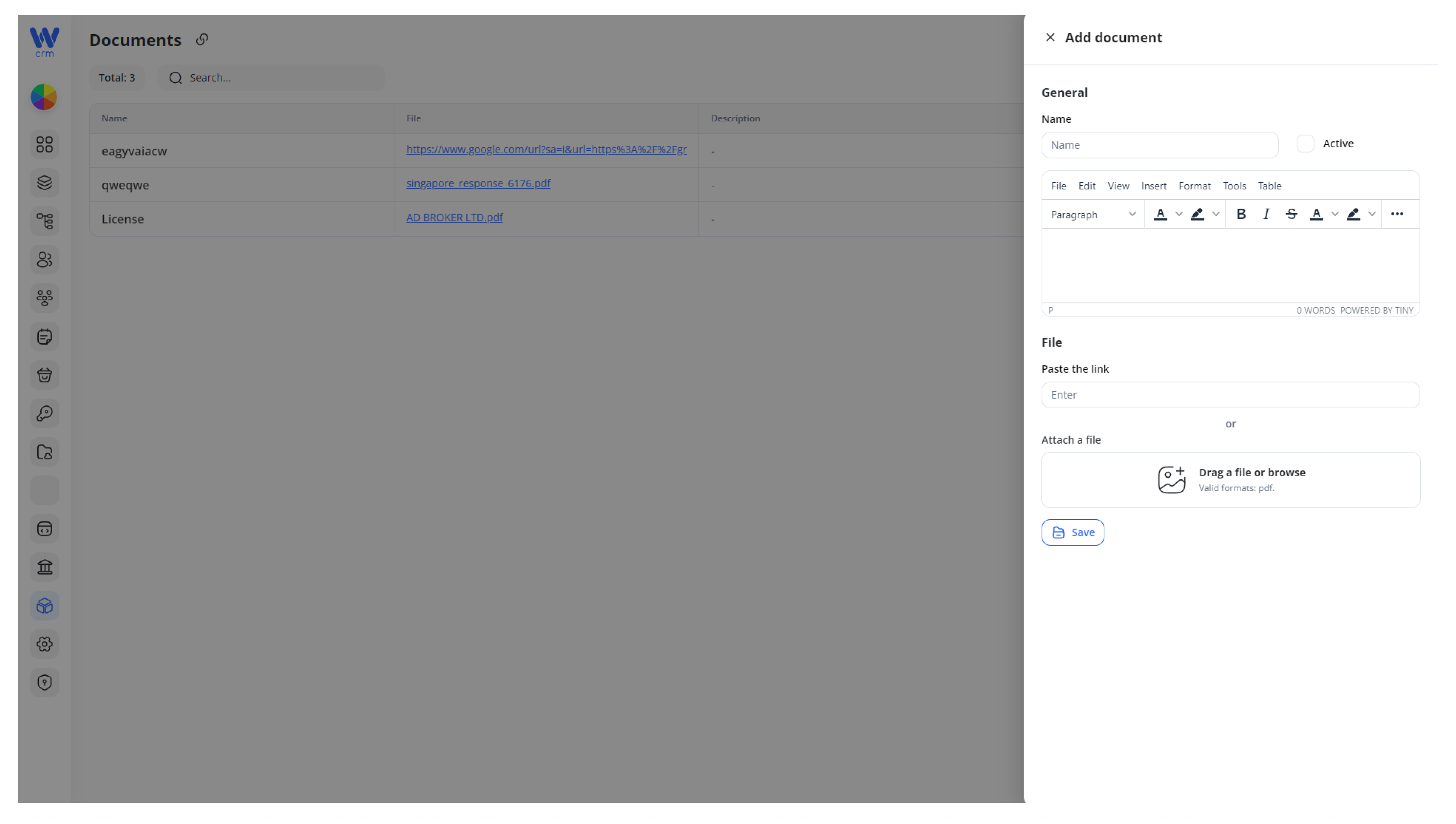
5. Click Save to add the document.
To search for a document:
-
-
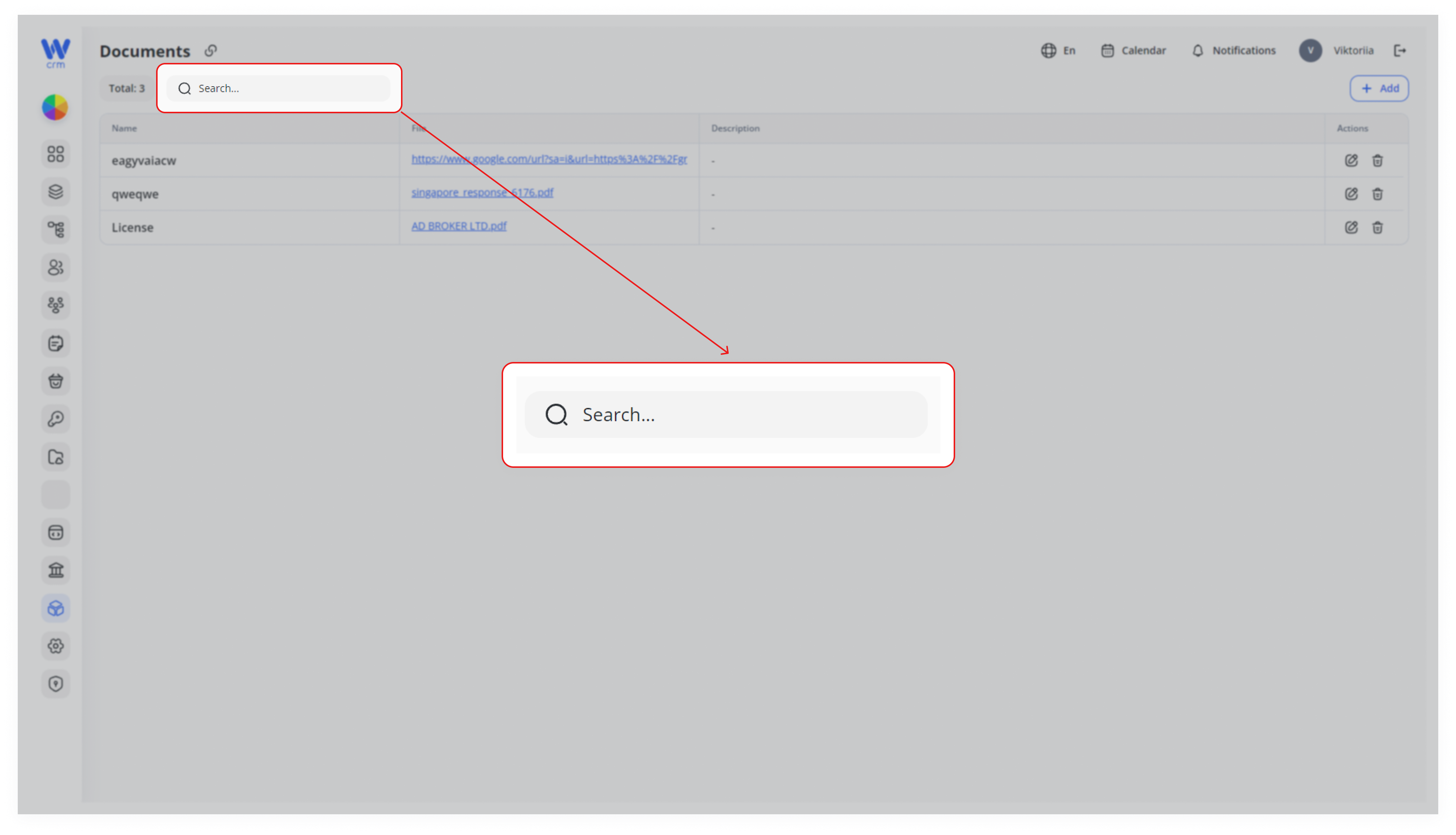
Start typing its name in the Search field:
-
To edit a document:
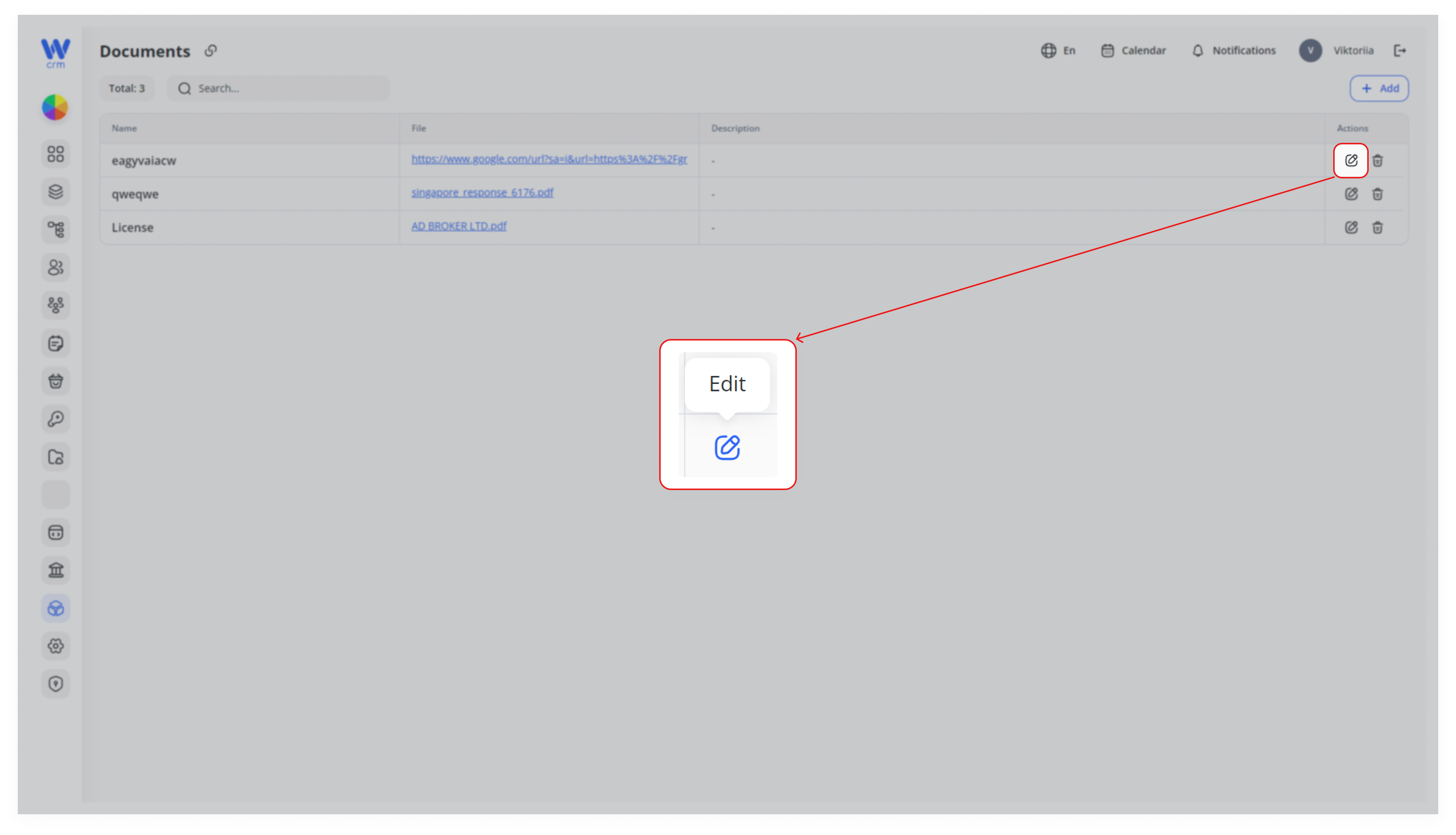
1. Click the Edit icon next to the corresponding document.
2. Make the necessary changes (e.g., upload a new version of the document).
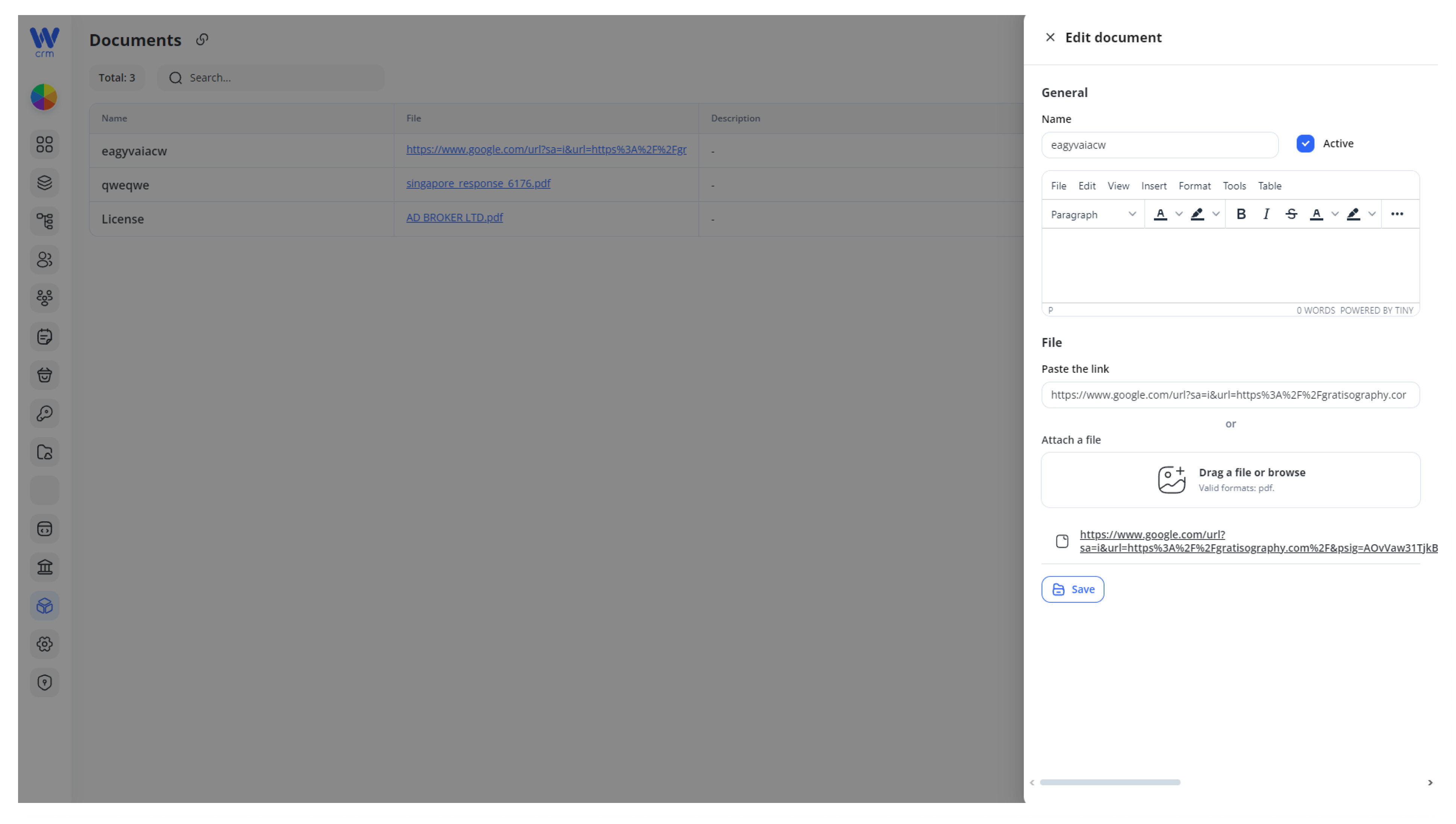
3. Click Save to apply the changes.
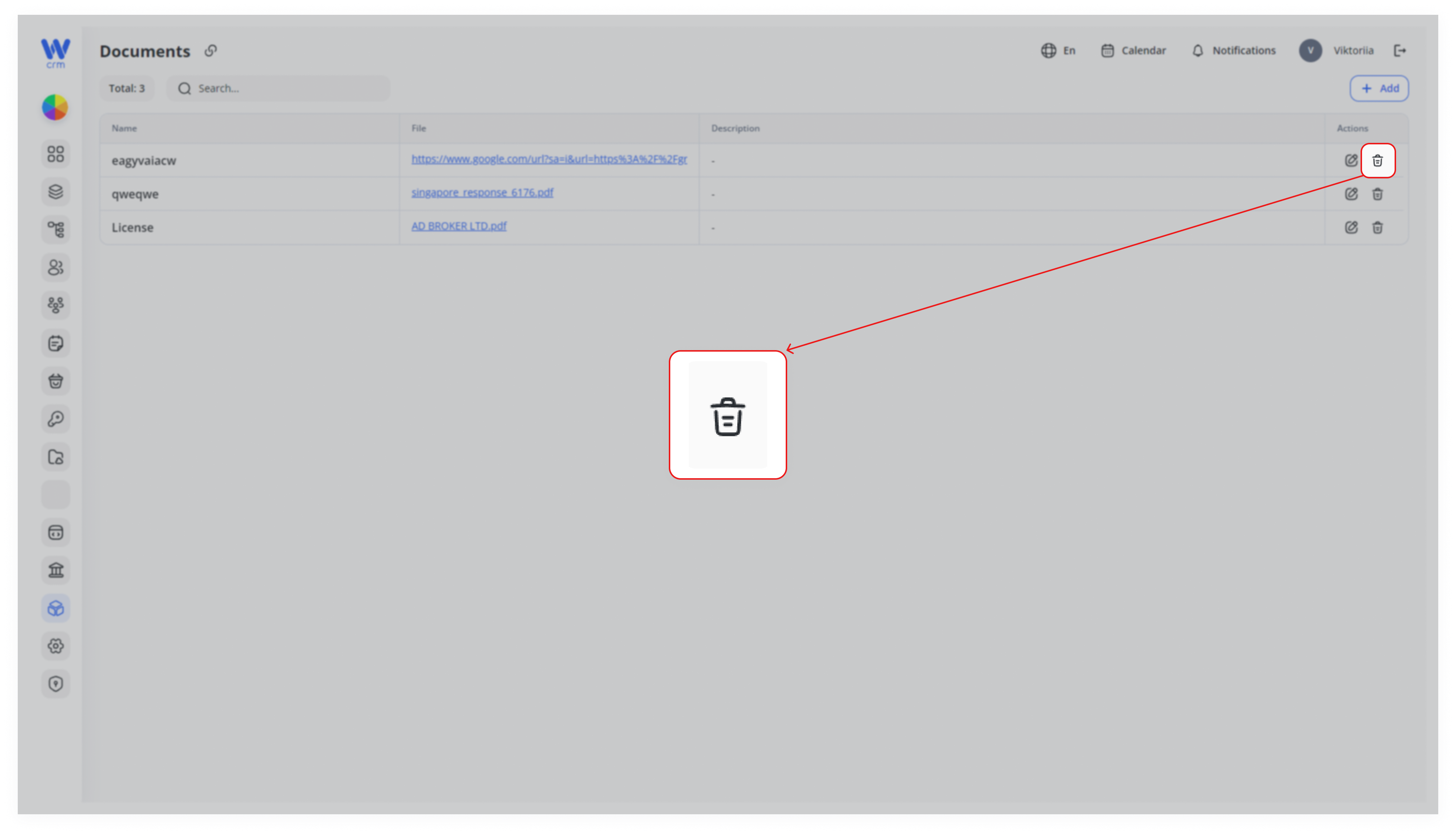
To delete a document:
-
- Click the Delete icon next to the corresponding document.