
8. How to Manage Assets
The Assets module provides centralized management of all assets in the system. It allows you to:
-
View a list of all assets (for visible clients) and check their balances.
-
Activate and deactivate assets.
-
Filter and search for specific assets.
-
View transactions for assets.
-
Make deposits and withdrawals.
Note: If you want to add an asset to an account, you need to do it through the Accounts module.
Use Cases
-
Segregation of Funds
Real money and promotional credits remain clearly separated, ensuring transparent financial tracking. -
Flexible Promotions
Companies can create custom bonus programs—such as first deposit bonuses, loyalty rewards, or marketing campaign incentives. -
Enhanced User Engagement
Users can explore platform features with bonus funds before committing their real money, increasing retention and activity.
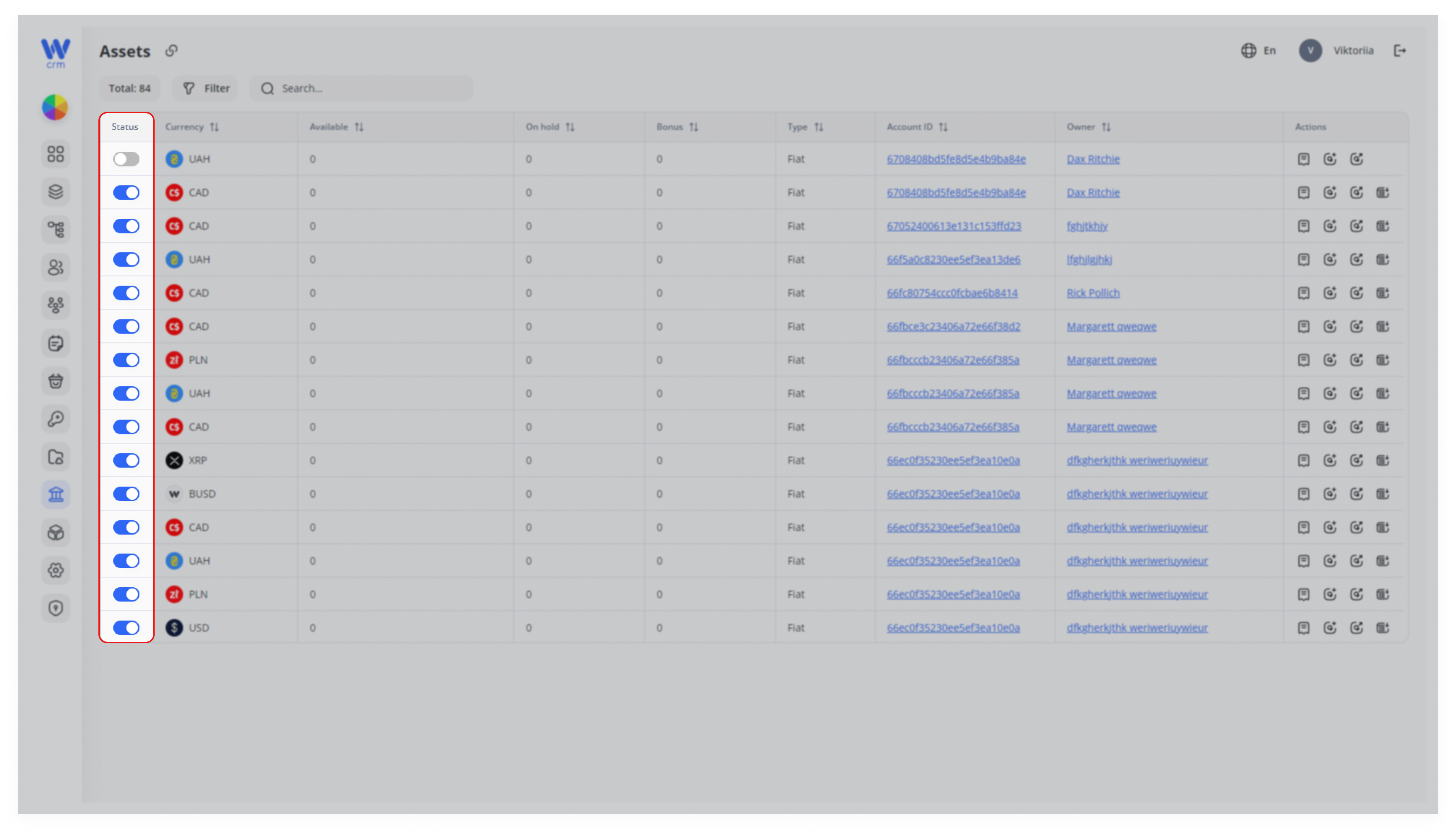
To view all assets in the system, go to the main page of the Assets module. In the Status column, you will find a toggle to:
- Activate the asset by clicking the toggle (it will turn blue).
- Deactivate the asset by clicking the toggle again (it will turn gray).
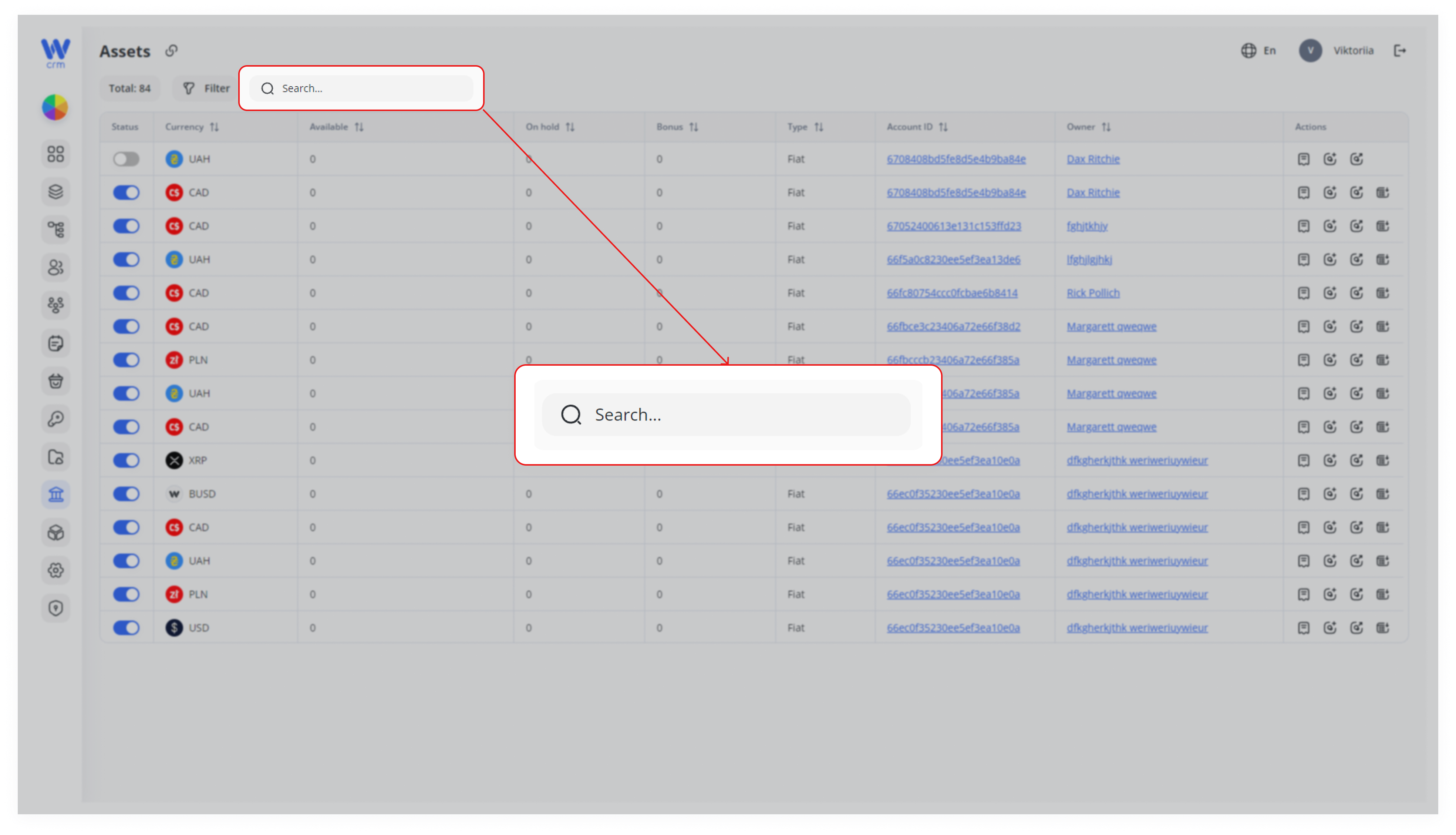
To search for an asset:
-
- Enter the ID of the account to which the asset is assigned in the Search field. You can also use for the search Asset ID, first or last name of owner, and its email.
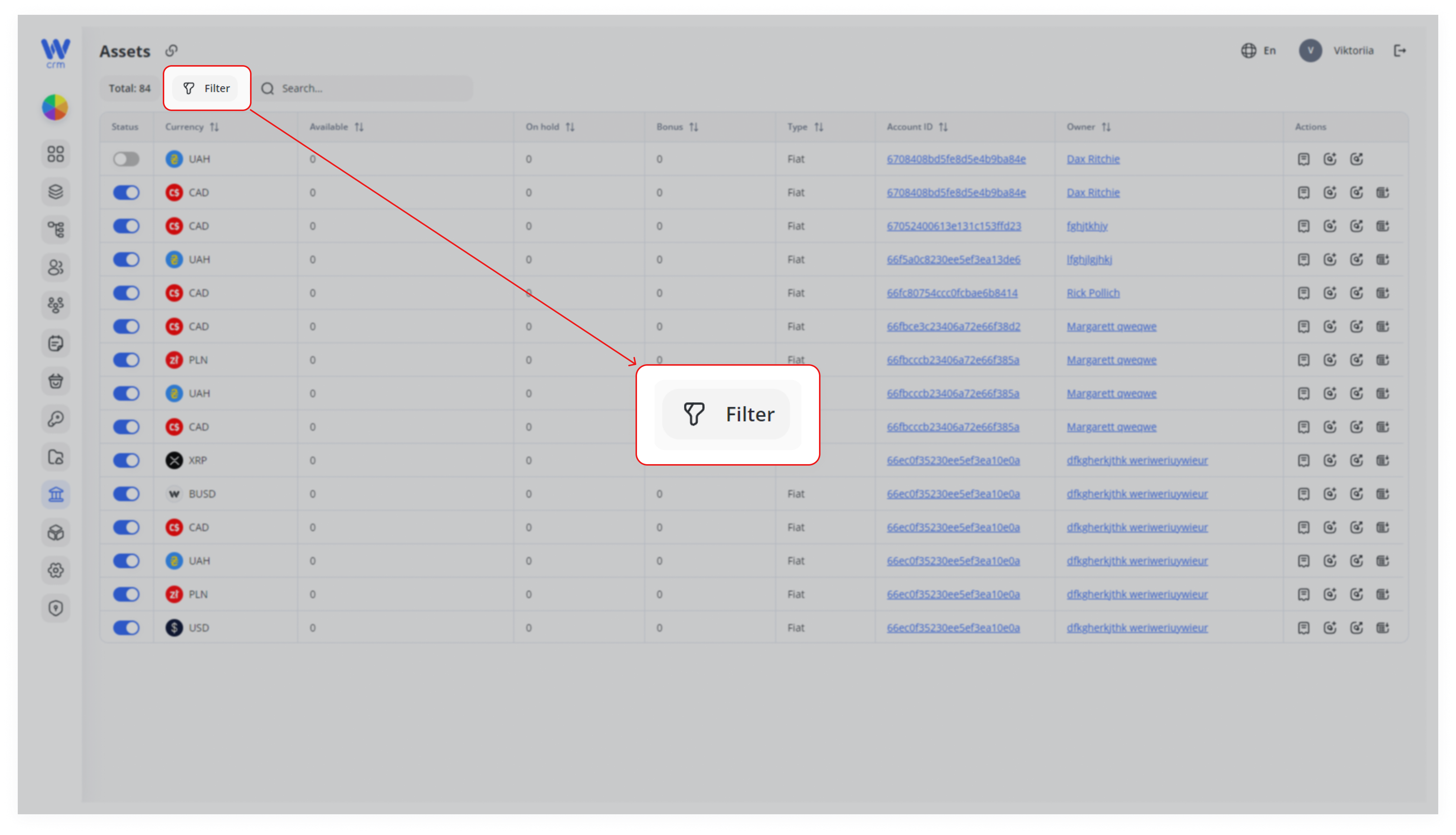
To filter assets:
1. Click the Filter button:
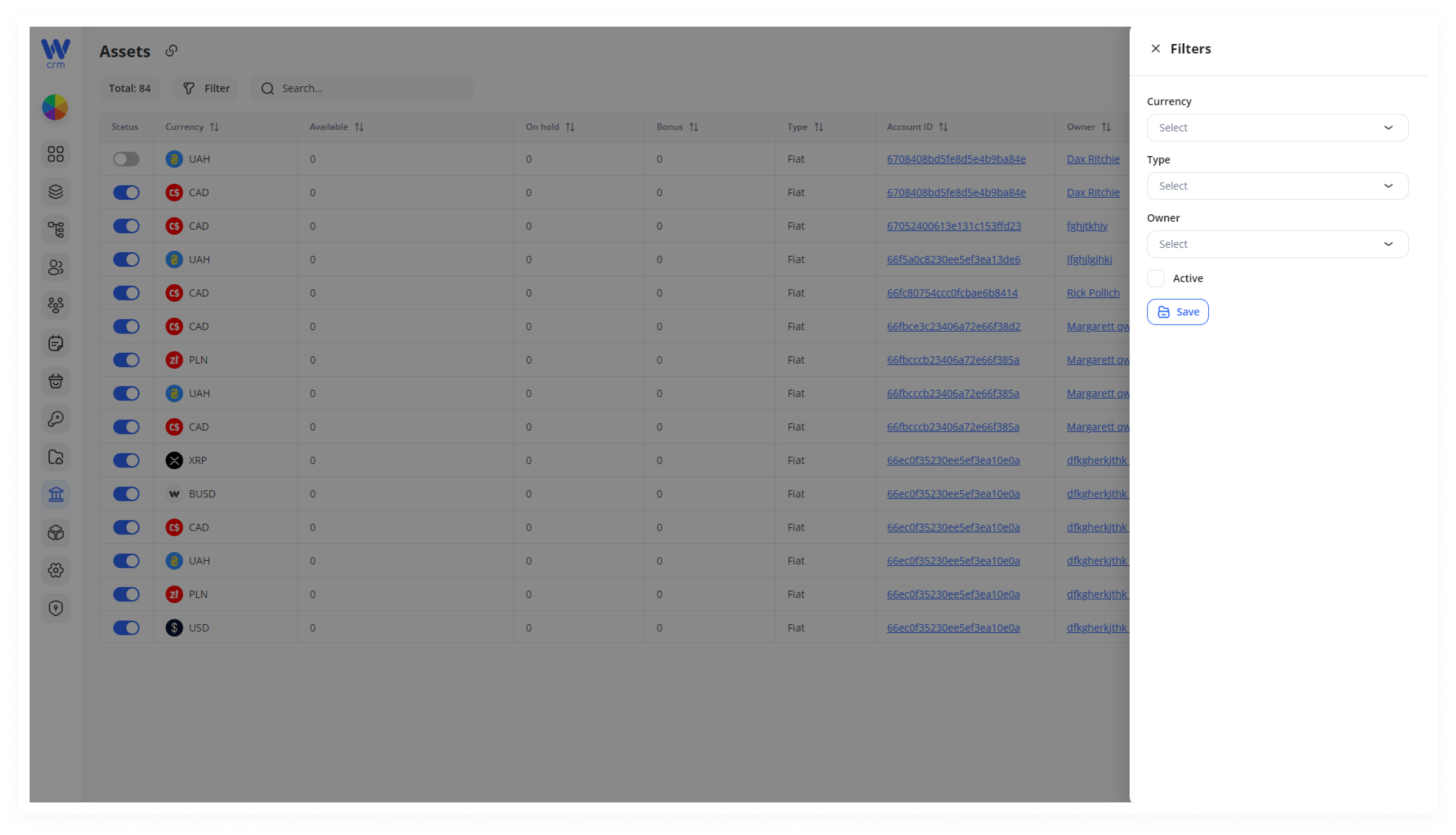
2. Select one or more filtering parameters:
-
-
-
Currency
-
Type
-
Owner
-
Active/Inactive (checkbox)
-
-
To delete a specific filter, hover over the field and click the x icon.
3. Click Save to apply the filters.
In the Actions column, you can manage the selected asset:
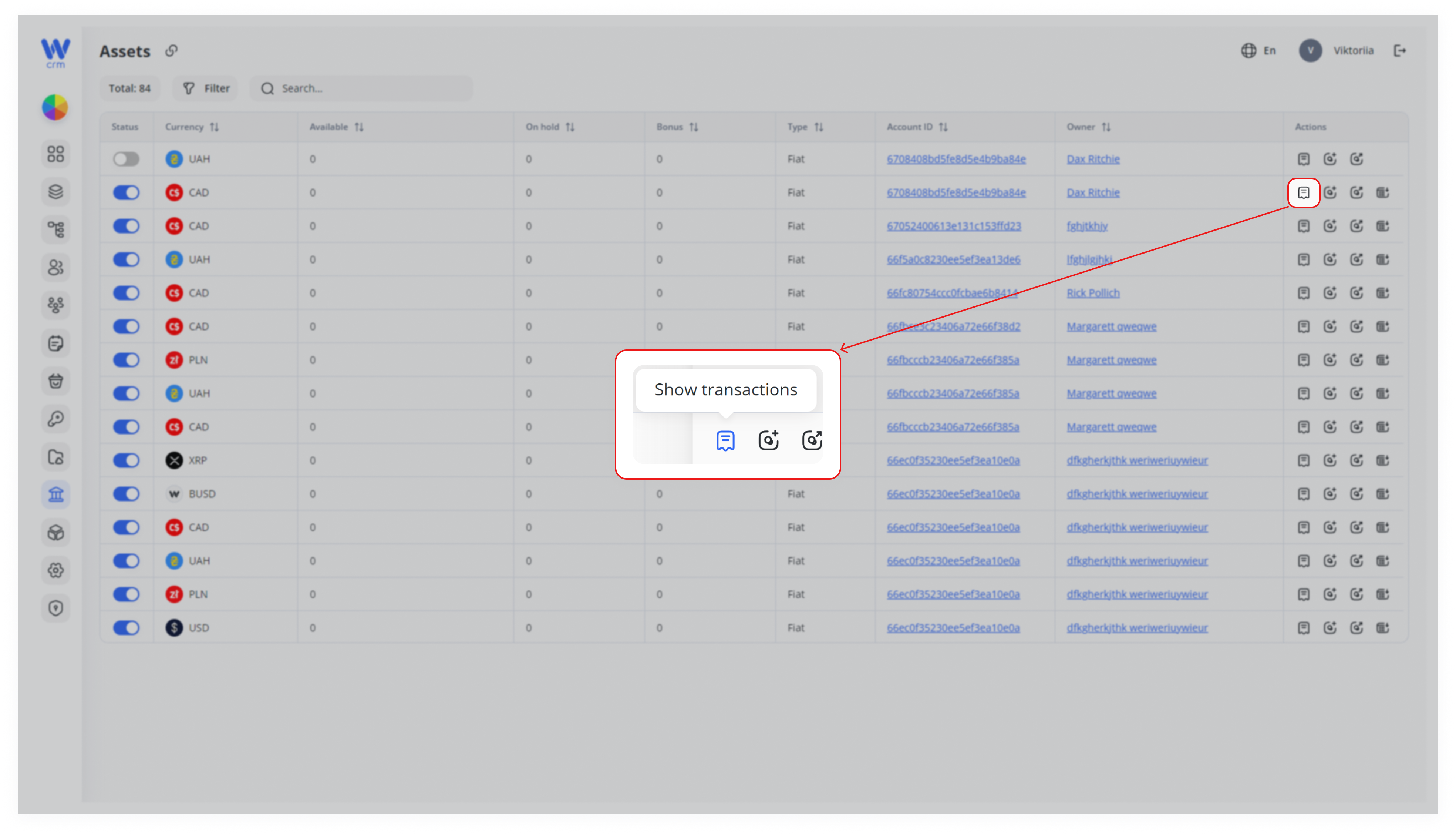
1. Show transactions:
Click the Show Transactions icon to view all transactions for the asset.
In the opened window, you can:
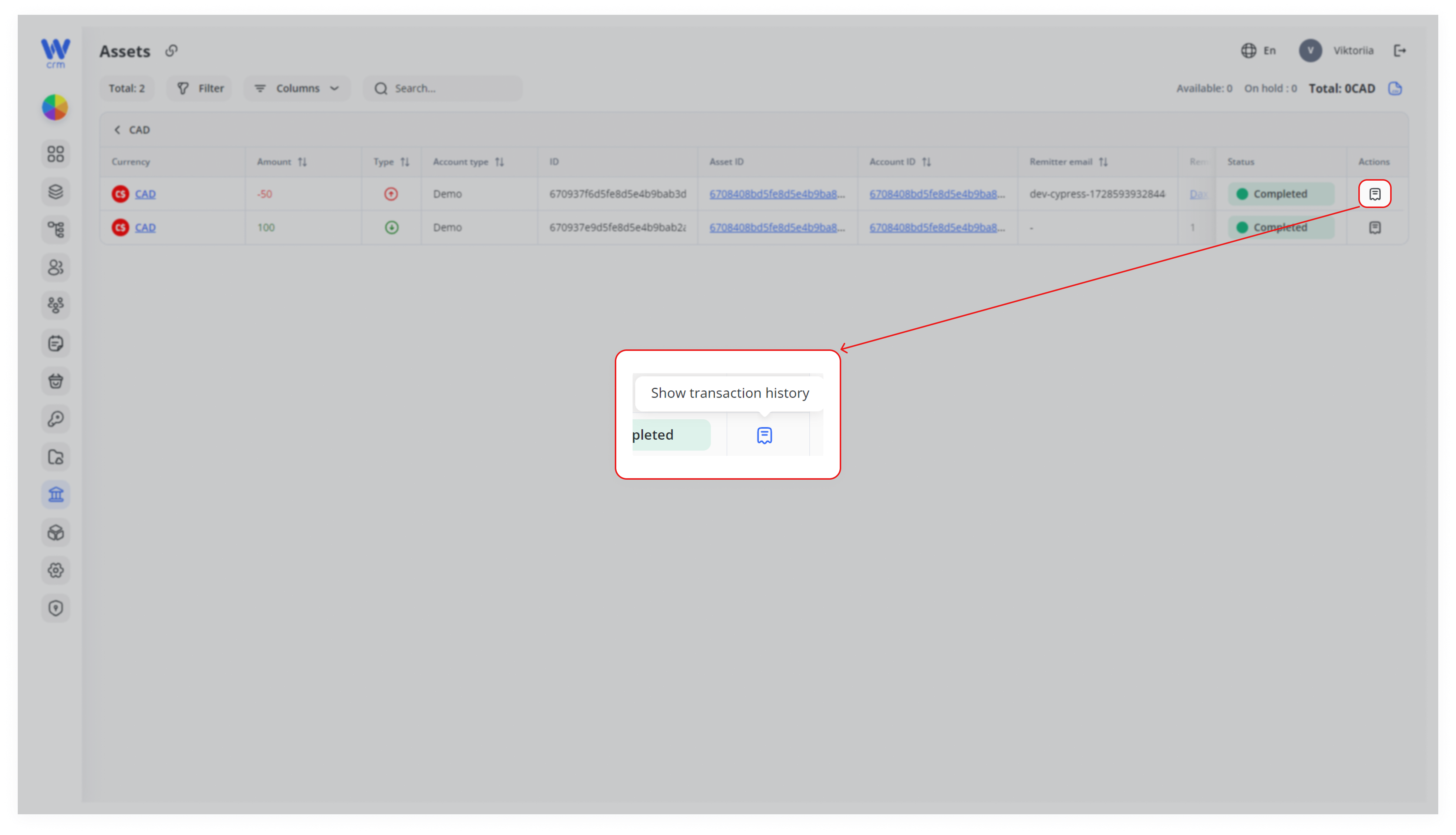
- View the logs of any transaction from inception to completion (who took what actions, how and when) by clicking the Show Transaction History icon in the Actions column.
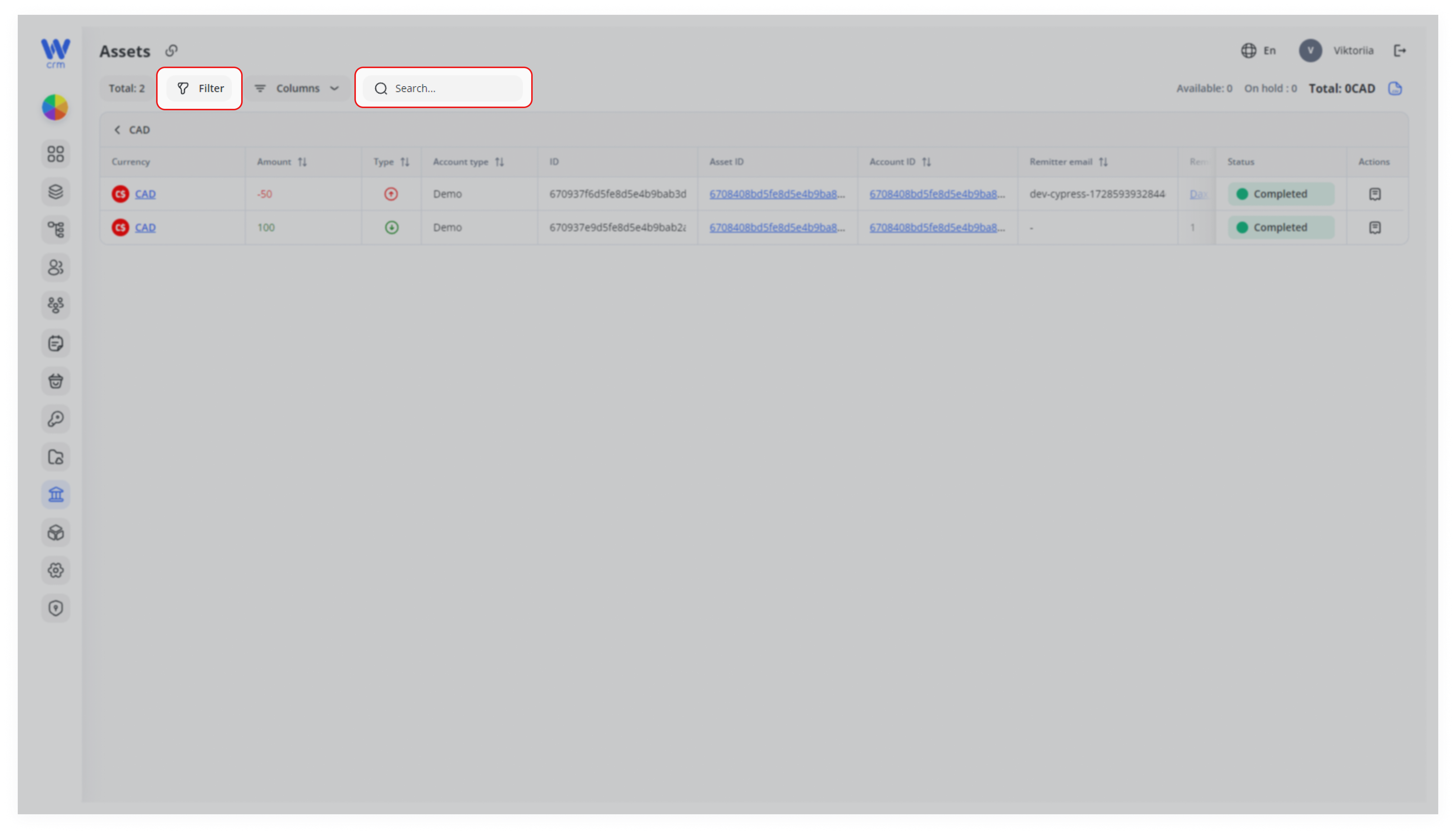
- Search transactions by Transaction ID, Asset ID, or Account ID.
- Filter transactions by Owner, Created Date, Account Type, Status, Transaction Type, and Sub-Type.
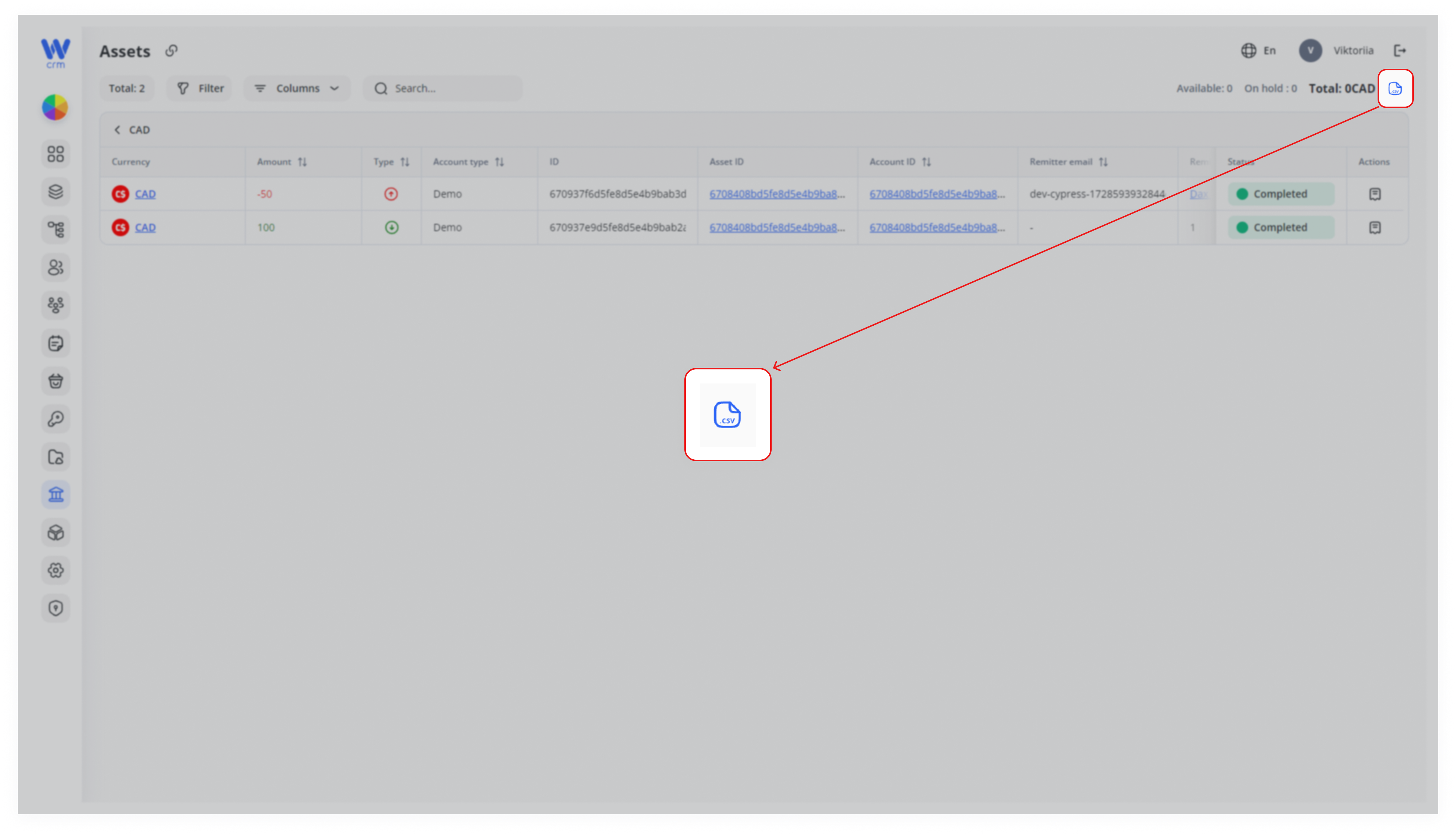
- Export transactions in CSV format by clicking the CSV icon in the upper-right corner.
Note: For more detailed transaction management, refer to the Transactions module.
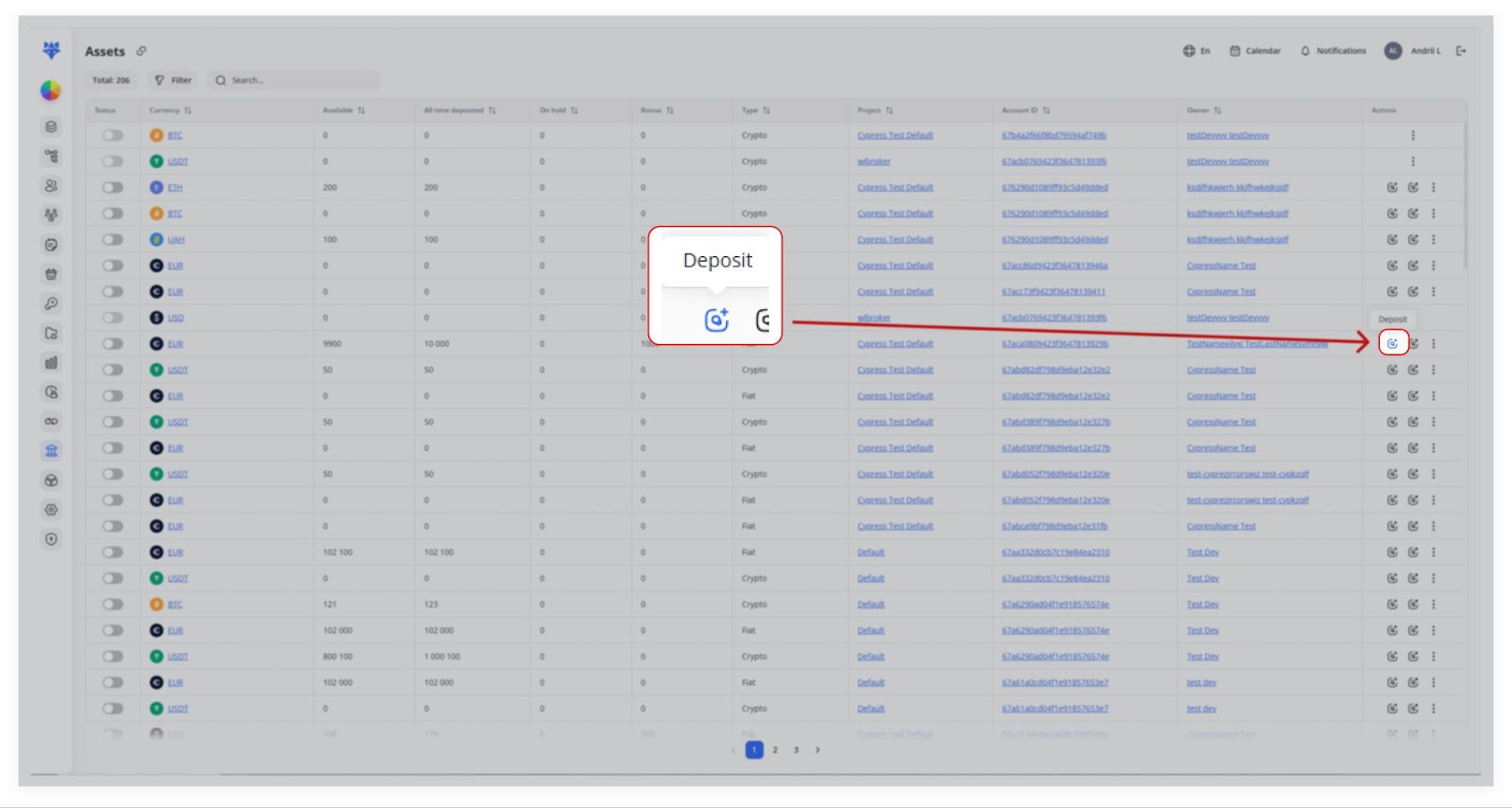
2. Make deposit:
Click the Deposit icon.
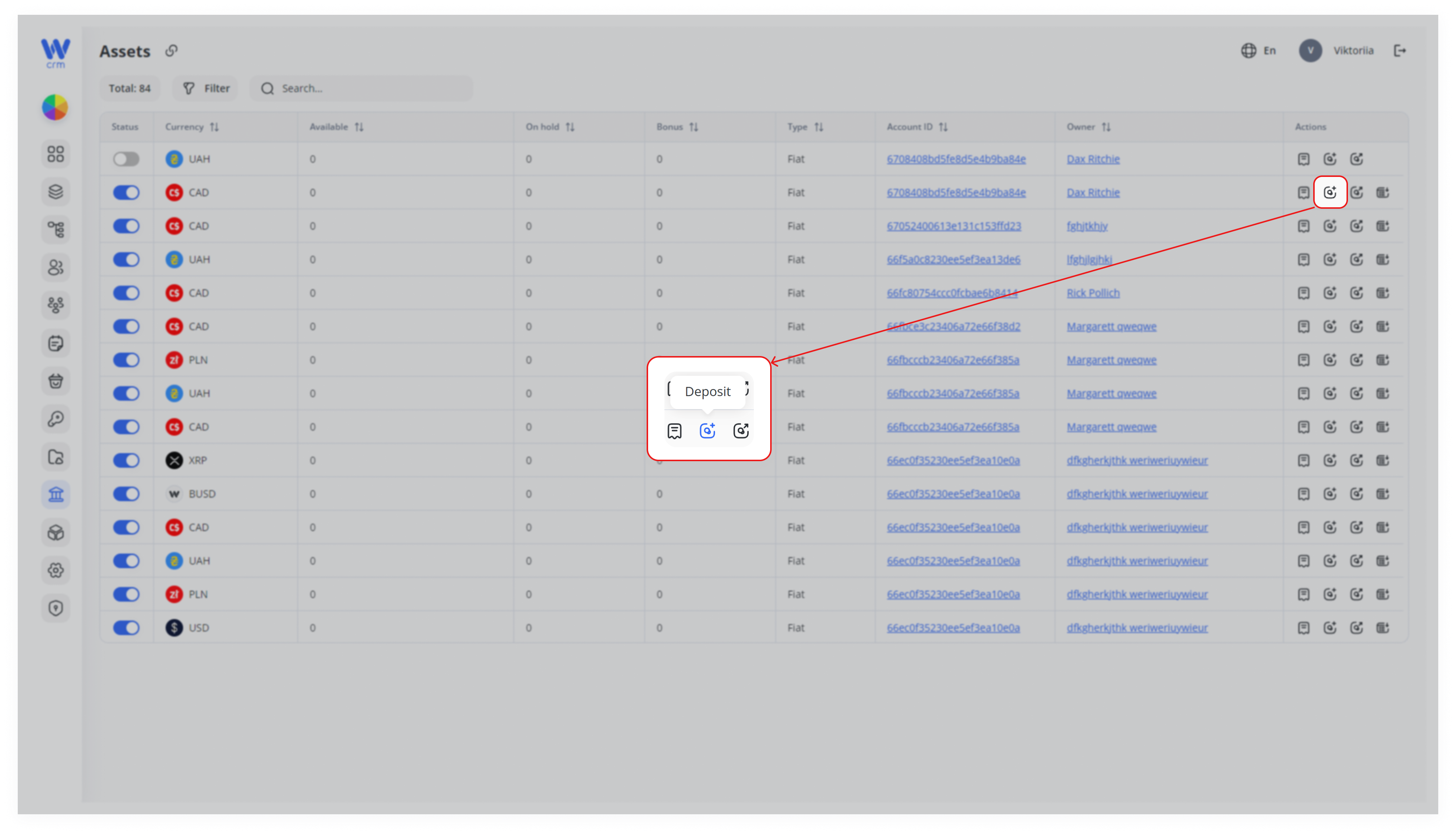
In the window that opens, you will see the current balance and fields to add an amount. Enter:
- Amount: Deposit amount.
- Description: Any text description. For example, the purpose of the transaction, etc.
- Source: The source where the money came from. Can be a general description (e.g. “company”) or specific details such as IBAN or wallet.
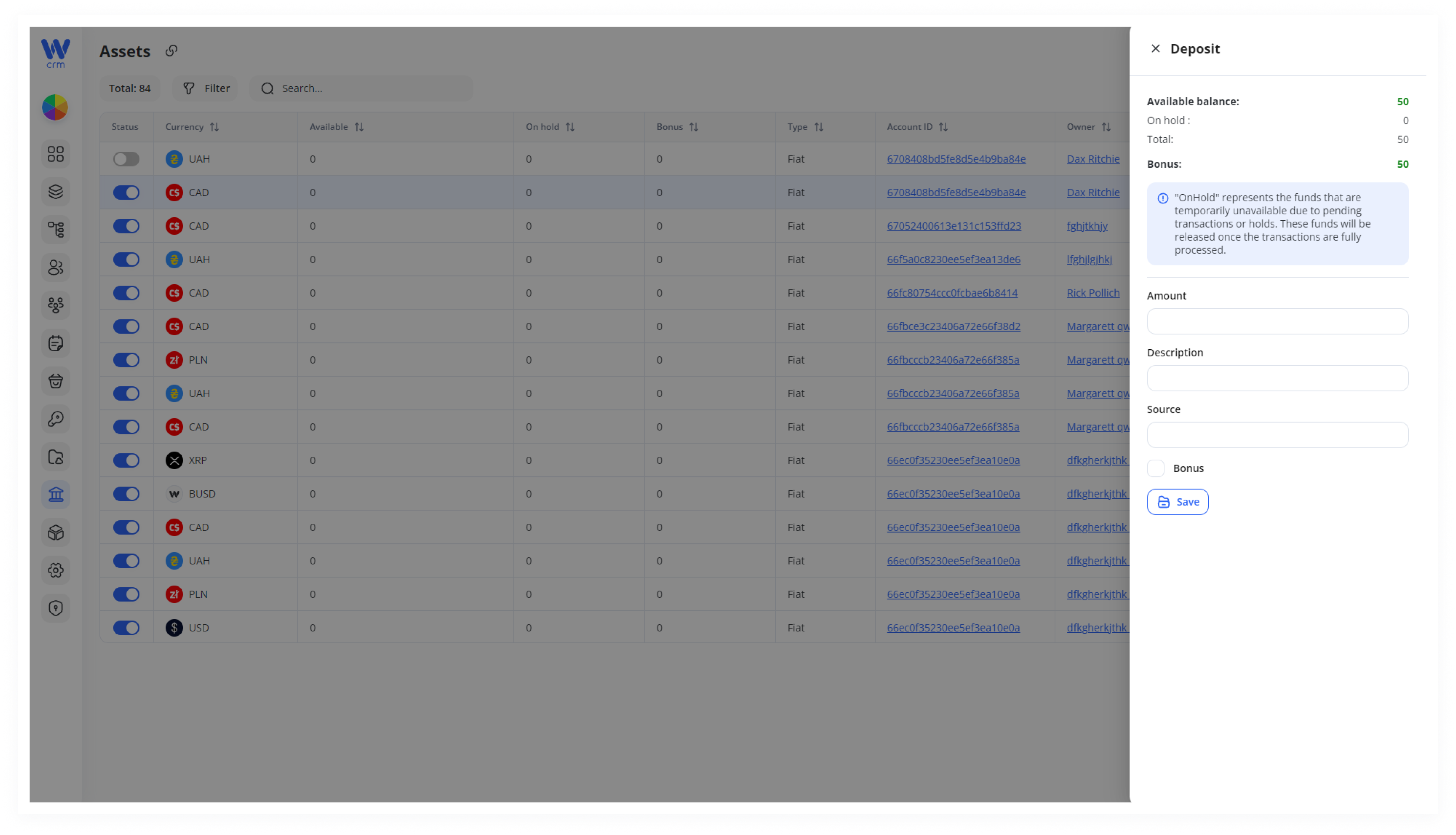
Click Save to apply the changes. When you save, a transaction will automatically be created.
3. Make withdrawal:
Click the Withdrawal icon.
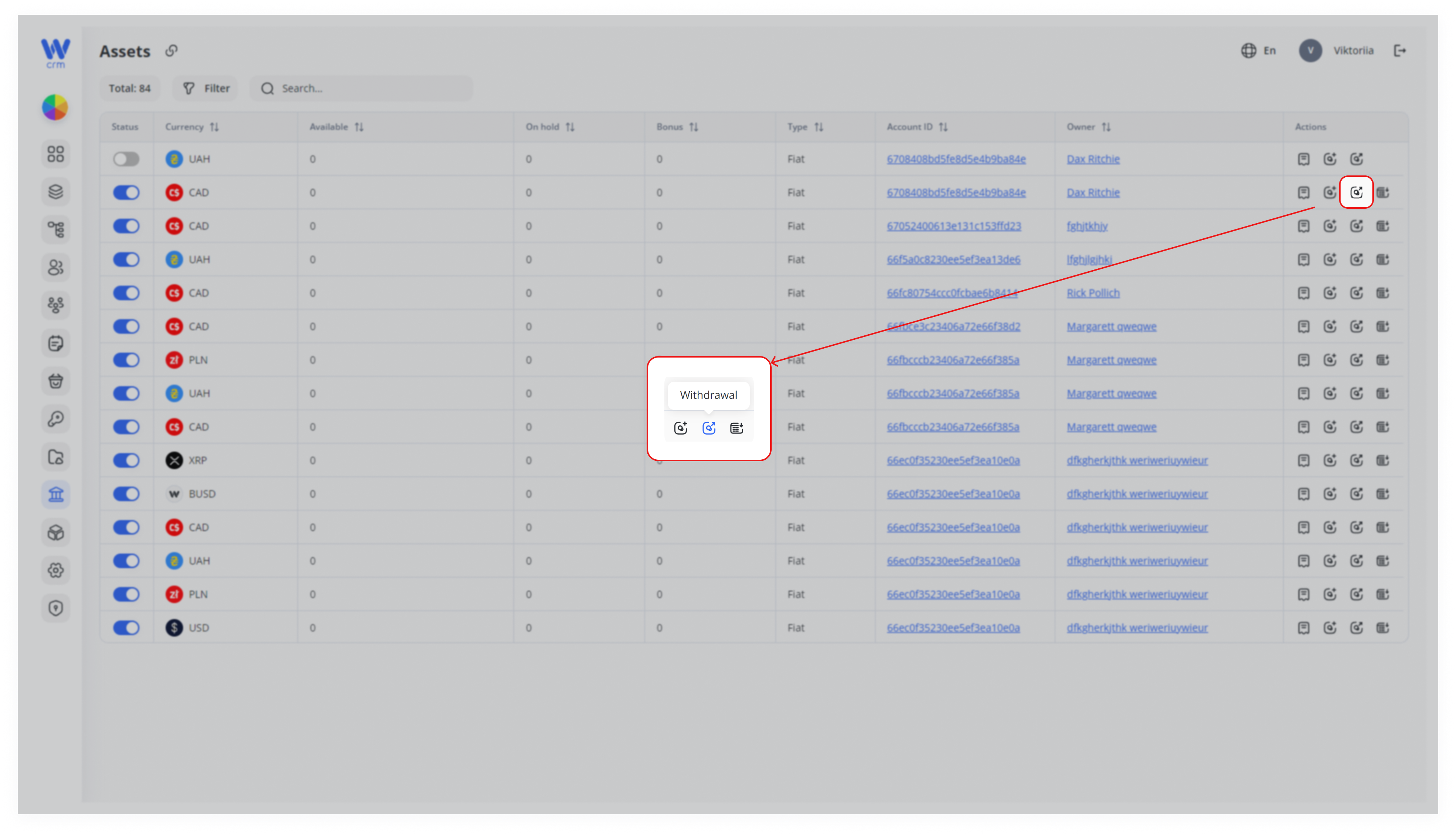
In the window that opens, you will see the current balance and fields to withdraw an amount. Enter:
- Amount: Withdrawal amount.
- Description: Any text description. For example, the purpose of the transaction, etc.
- Destination: The destination where the money went. Can be a general description (e.g. “company”) or specific details such as IBAN or wallet.
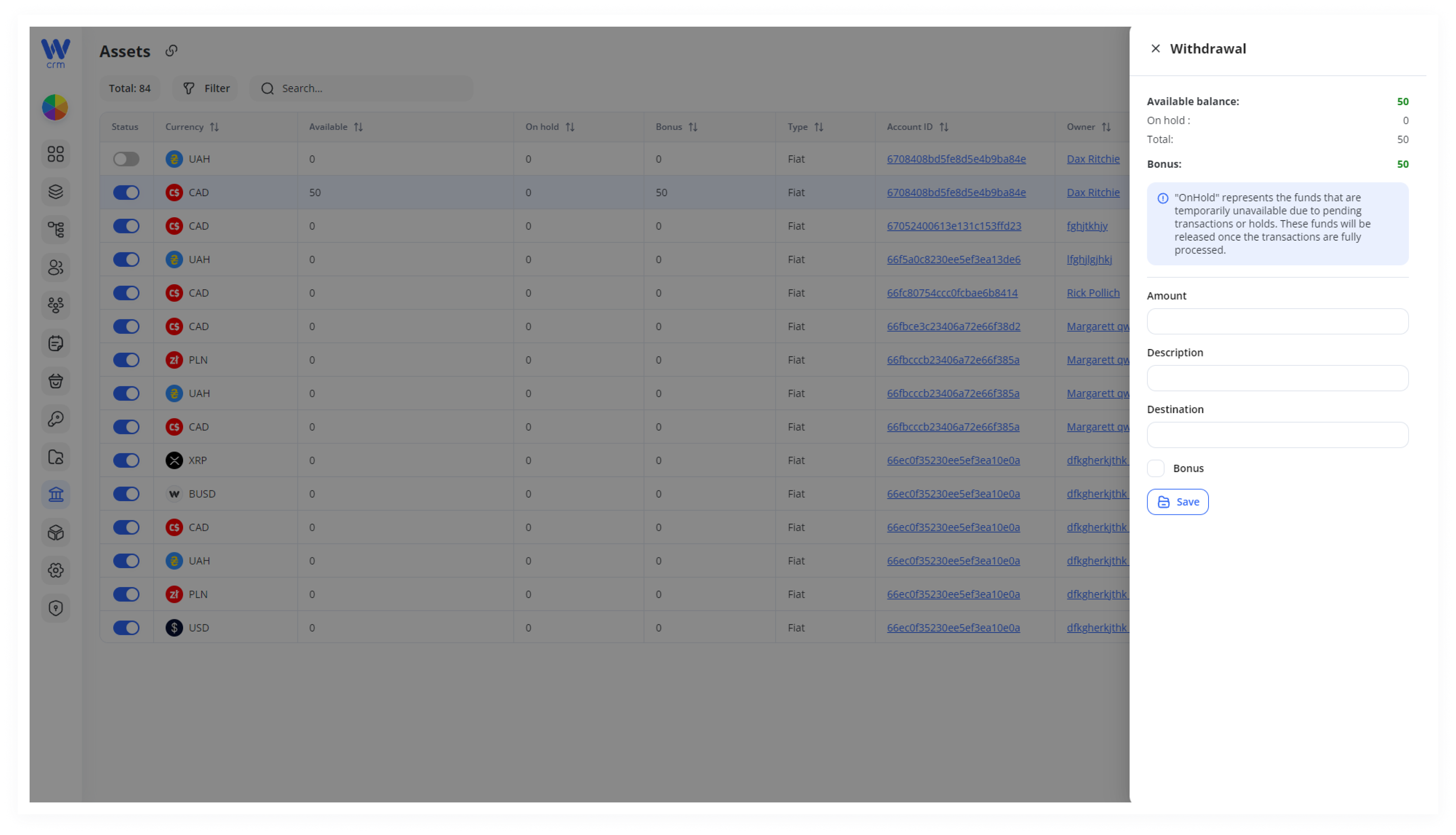
Click Save to apply the changes. When you save, a transaction will automatically be created.
4. View balance:
For assets integrated with external platforms, click the Balance button to retrieve and display the current balance from the external server.
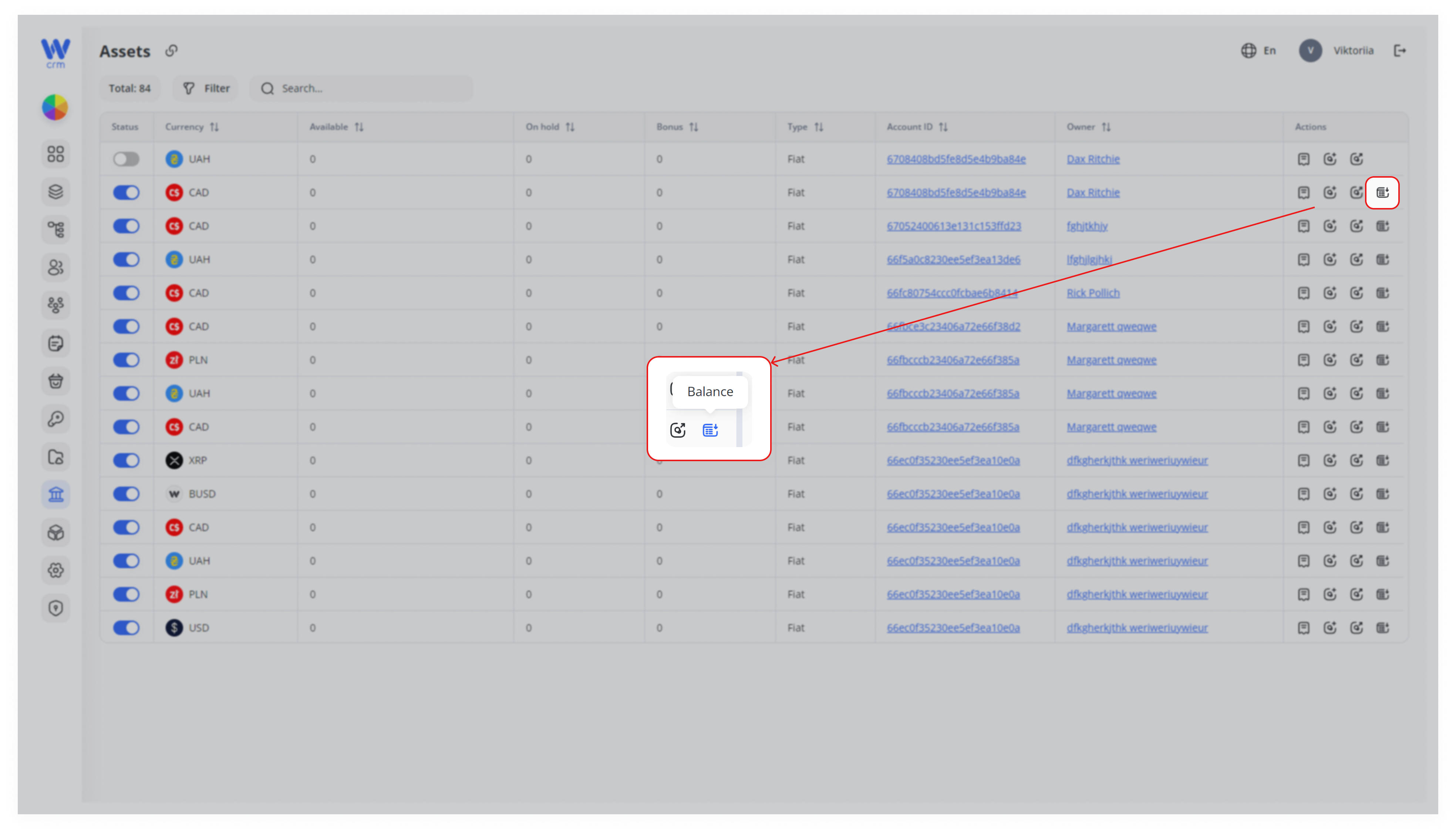
Note: You can learn more about platform customization in the Platforms section.
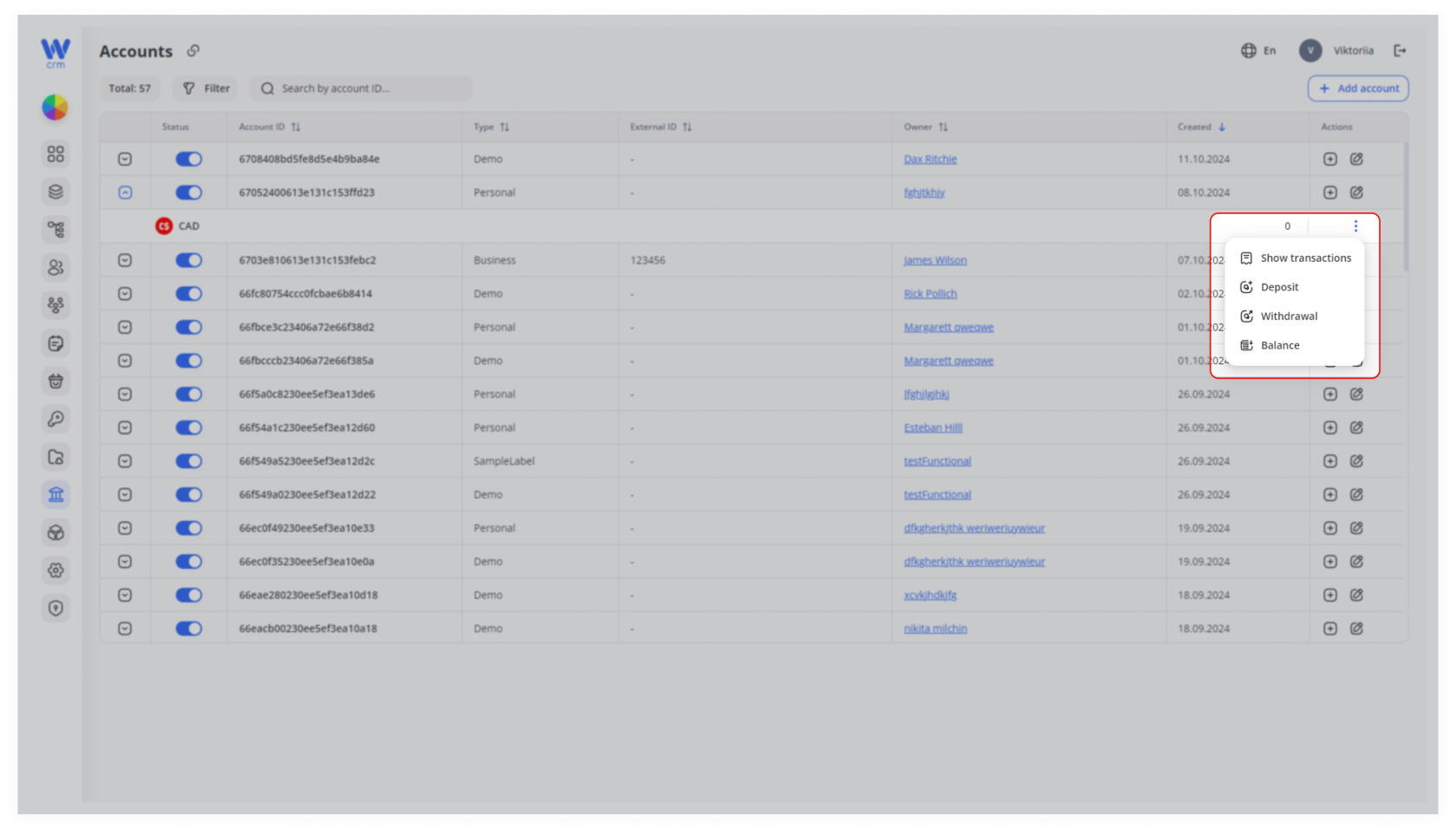
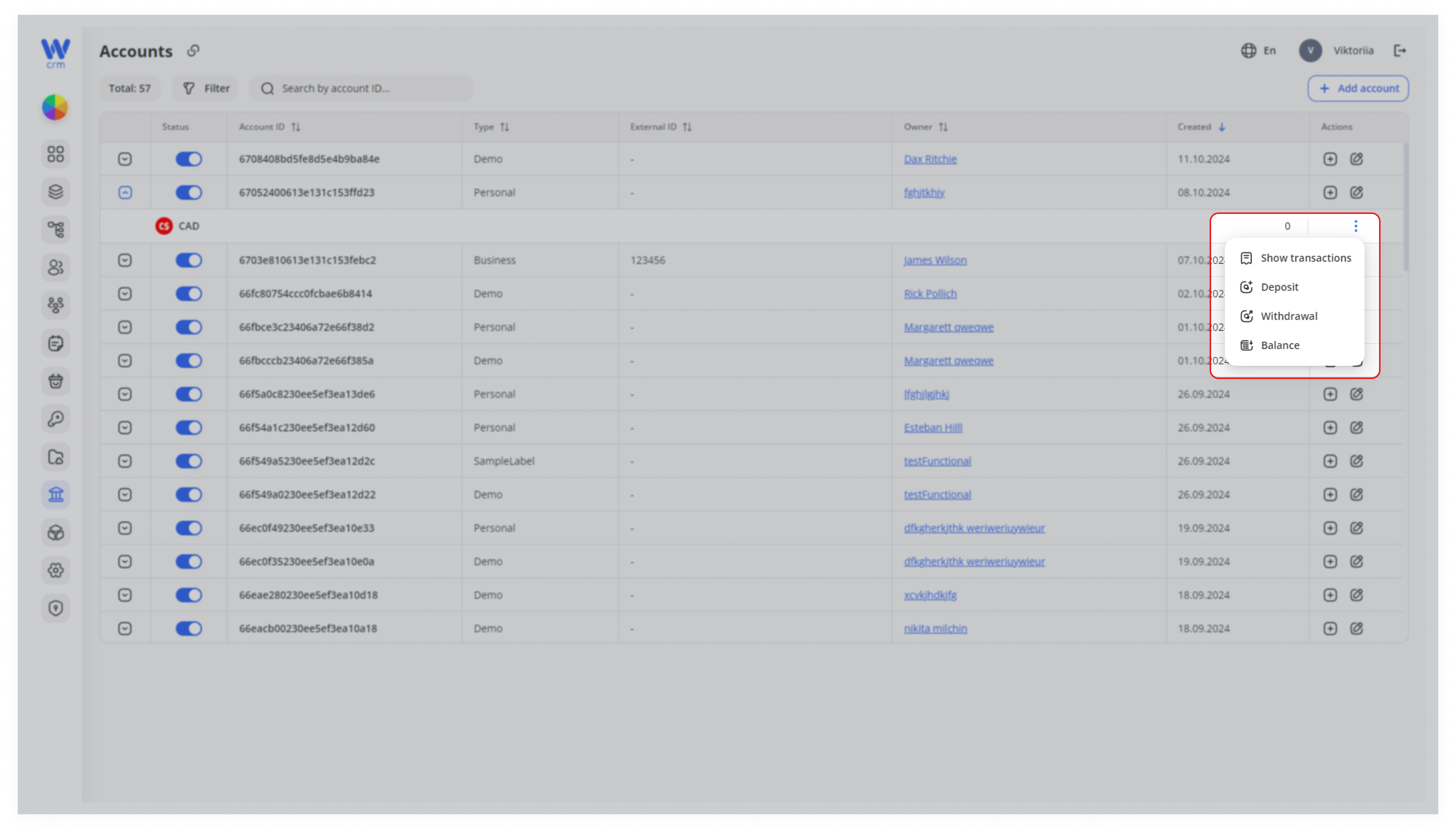
The functionalities for Show Transactions, Deposit, Withdrawal, and View Balance are also available within the Accounts module. To access these, click the triple-dot icon in the corresponding asset row.
 Assets with Available and Bonus Balances
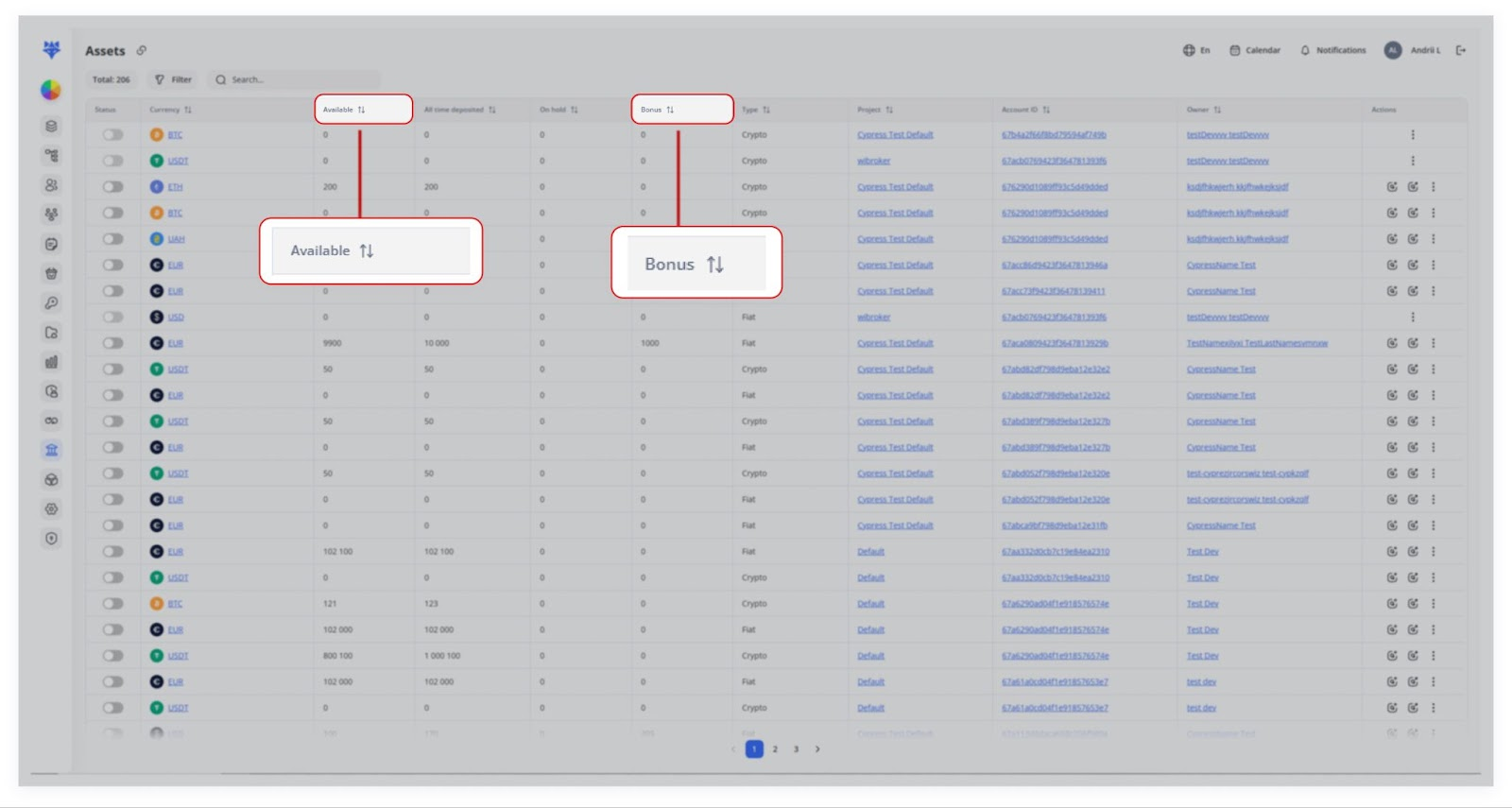
In Core Banking, each asset in a user’s wallet can have two separate balances:
1. Available Balance
Represents the user’s real, spendable funds.
Deposits or withdrawals of actual money (e.g., via a payment system or direct bank transfer) increase or decrease this amount.
2. Bonus Balance
Represents promotional or virtual credit, often used to let users try features or test the platform.
Funds may be non-withdrawable under typical conditions—users might need to meet additional requirements (e.g., reaching a specific trading volume or making a minimum deposit) before withdrawal is possible.
Note: Our system does not regulate this functionality; its usage is entirely up to you.
You can see these two fields on the Assets page for each currency (e.g., USD, EUR, USDT). There’s a column for Available and another column for Bonus.
Example: Awarding a Bonus
1. Standard Deposit
-
Initial state:
-
Available = 9 900, Bonus = 0
-
-
User deposits 100 EUR via payment system.
-
Result:
-
Available → 10 000 (9 900 + 100)
-
Bonus remains 0
-
2. Bonus Deposit
-
User makes a 200 EUR deposit and qualifies for “Deposit 200 → +200 EUR bonus.”
-
The real deposit adds to Available; the promotional credit goes into Bonus.
-
Result:
-
Available → 10 200 (10 000 + 200)
-
Bonus → 200
-
Note: “All time deposited” now reads 300 (100 + 200), while “On hold” remains unchanged.
Core Banking Assets Bonus functionality distinguishes real, withdrawable funds (Available balance) from promotional or test credits (Bonus balance). This structure gives businesses the flexibility to offer promotions, demo credits, or loyalty rewards while maintaining separate tracking, ensuring clarity for both the company and the end user.