7. How to Manage Banners
The Banners section lets you upload, localize, and control the display of your website’s header graphics across multiple screen resolutions and languages.
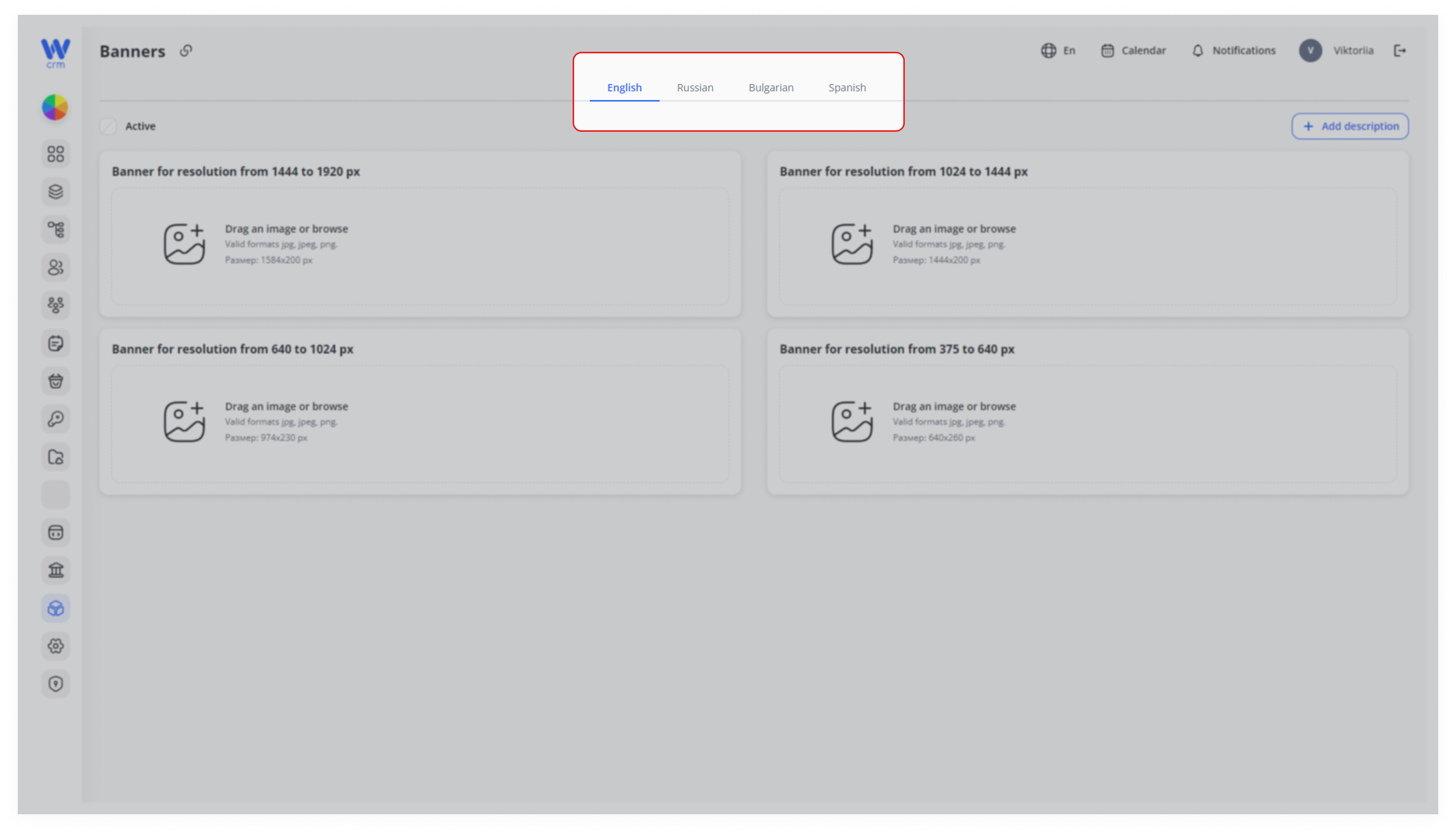
At the top of the page,
selectclick the language tab (English, Russian, Bulgarian, Spanish, etc.) to switch to the version oftheyour siteforyou’rewhichediting.
(e.g.,you“English”areisuploadinghighlightedthewhenbanner.active)
1.
2. Drag the image or click to view the images on your computer in the block with the appropriate resolution. The available resolutions are:
1444 to 1920 px
1024 to 1444 px
640 to 1024 px
375 to 640 px
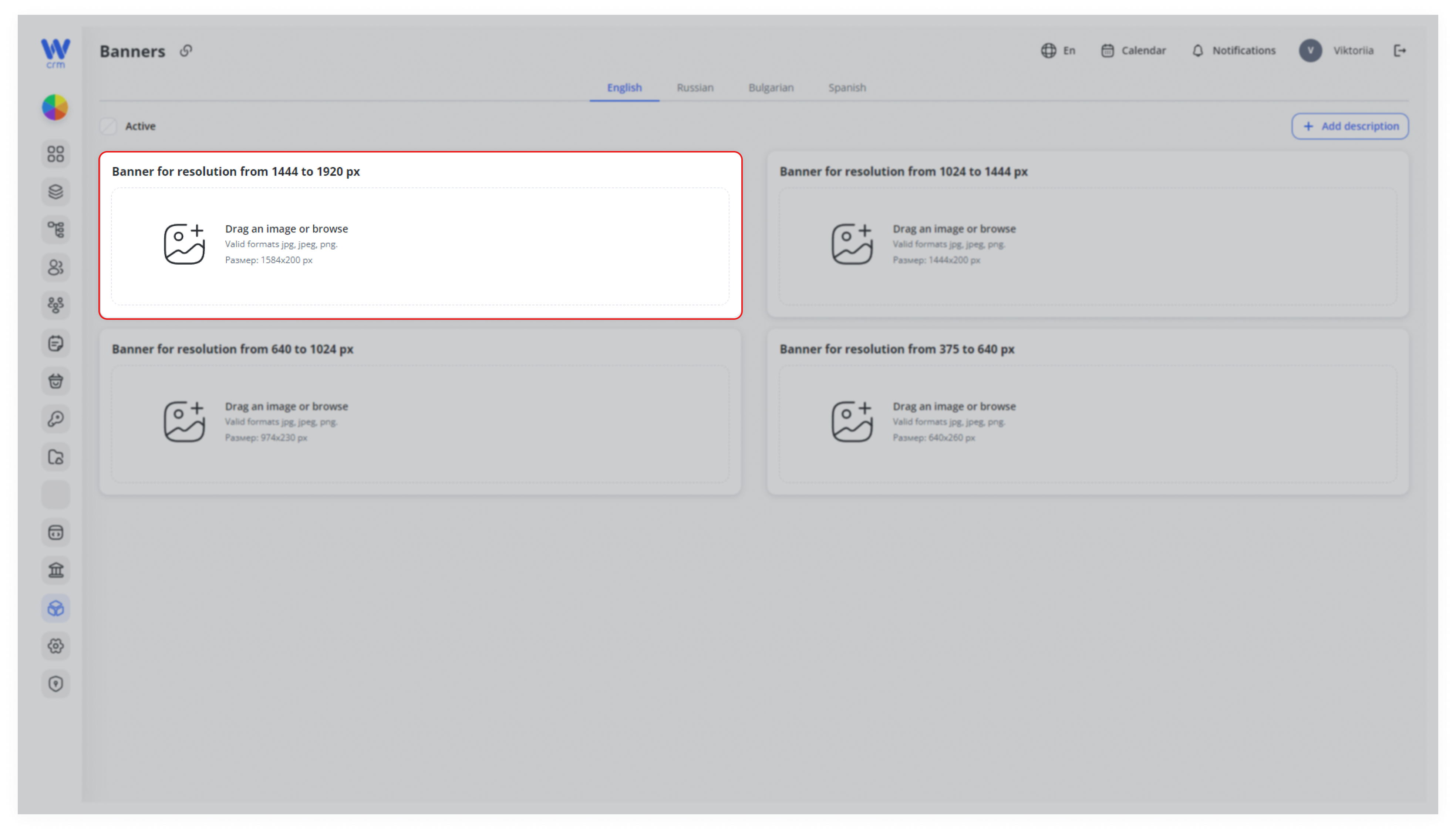
3. Upload images for all resolutions.
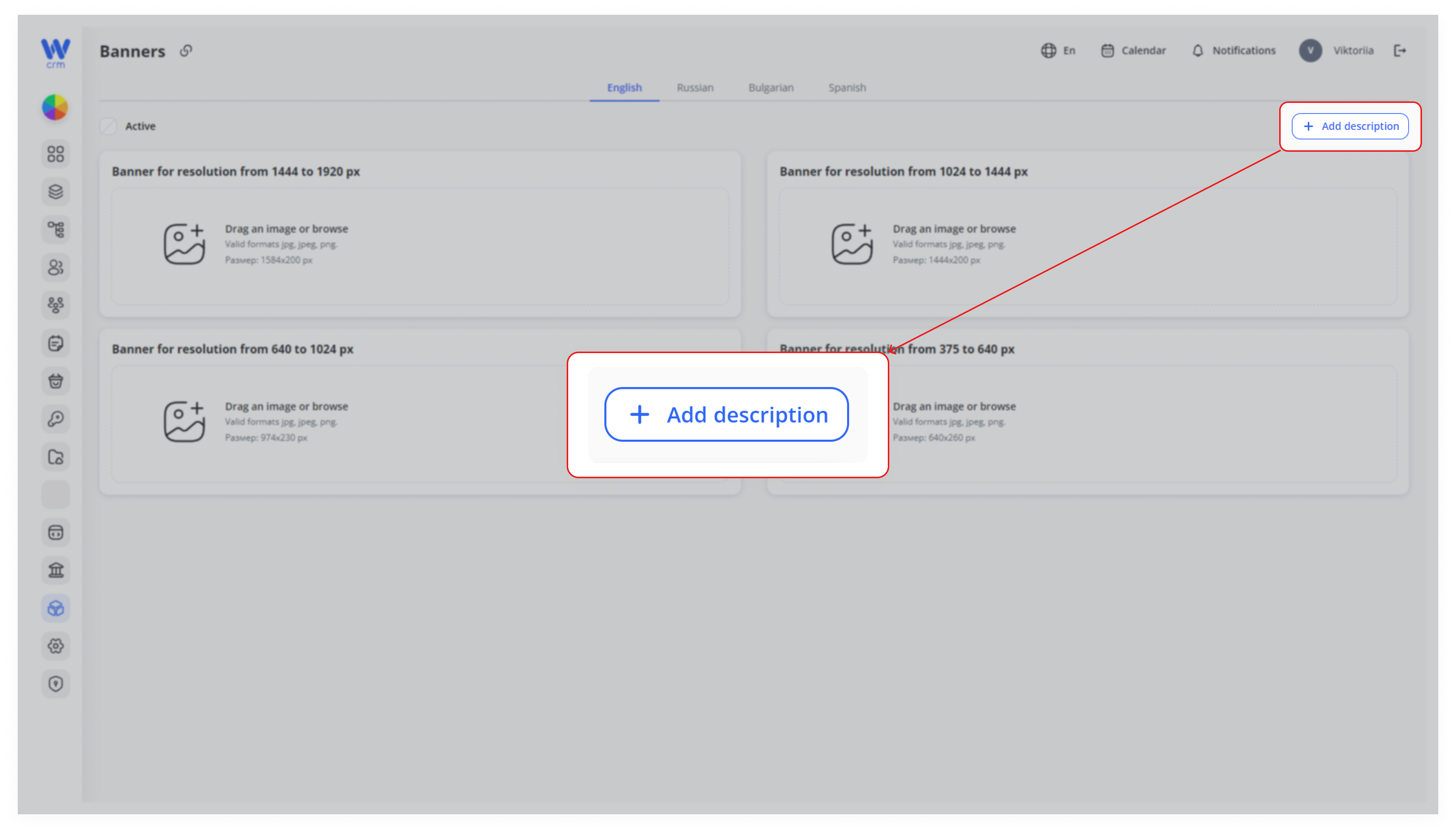
If necessary,you addneed aalt-text descriptionor forcontextual thenotes:
-
clickingClick the + Add
Descriptiondescription button in theupper right-handtop-right corner. -
A description field appears under each banner slot—enter your text (e.g., “Homepage hero for summer campaign”).
-
Descriptions are per‐language, so switch tabs to localize.
-
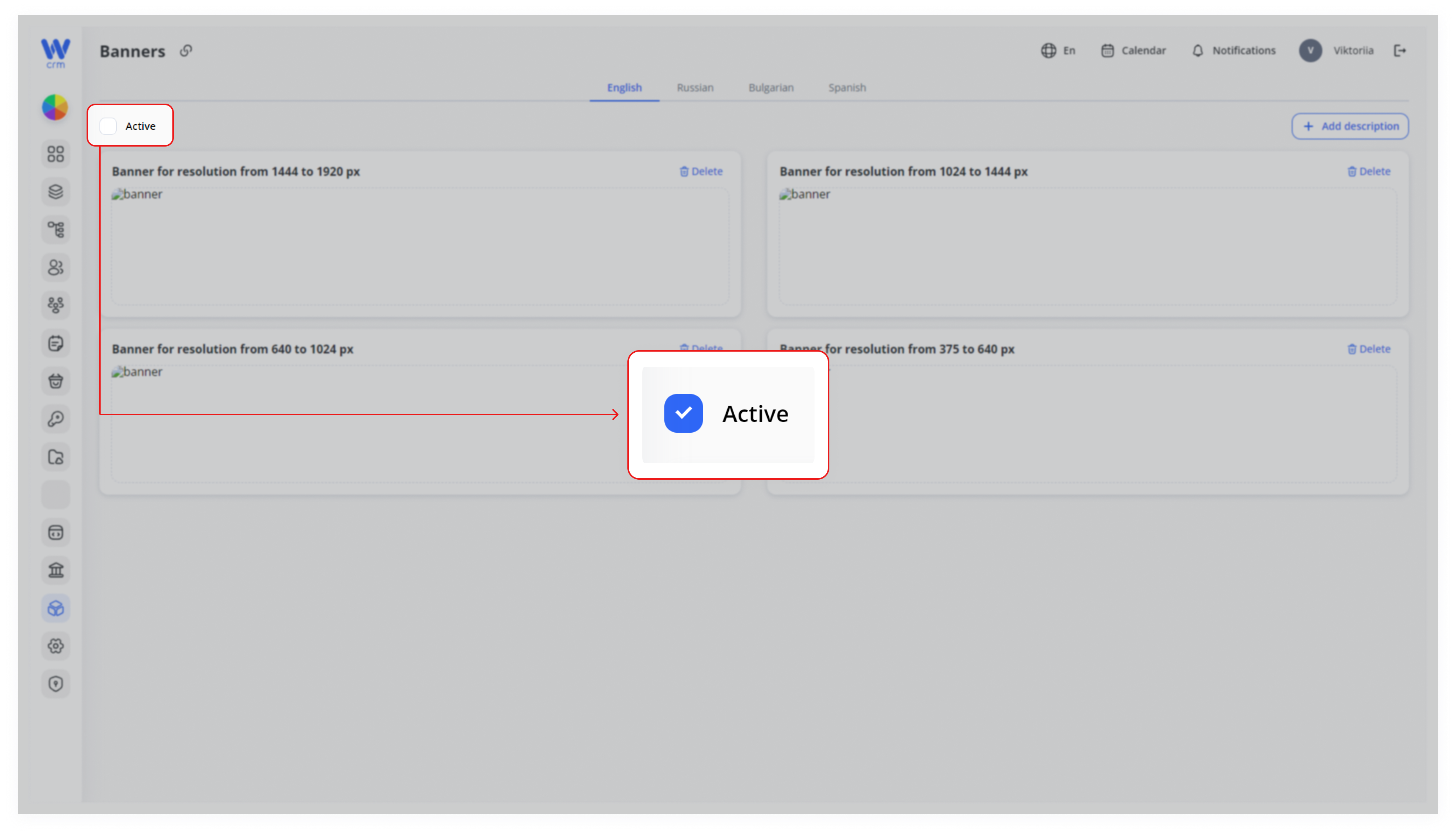
ToActivatemakethebannersentireactive,setcheckby checking the Activecheckbox.toggleTo deactivate them, uncheckin thebox.upper-left. -
Deactivate by unchecking it—this hides all banners for that language until you’re ready to go live.
To update one resolution:
-
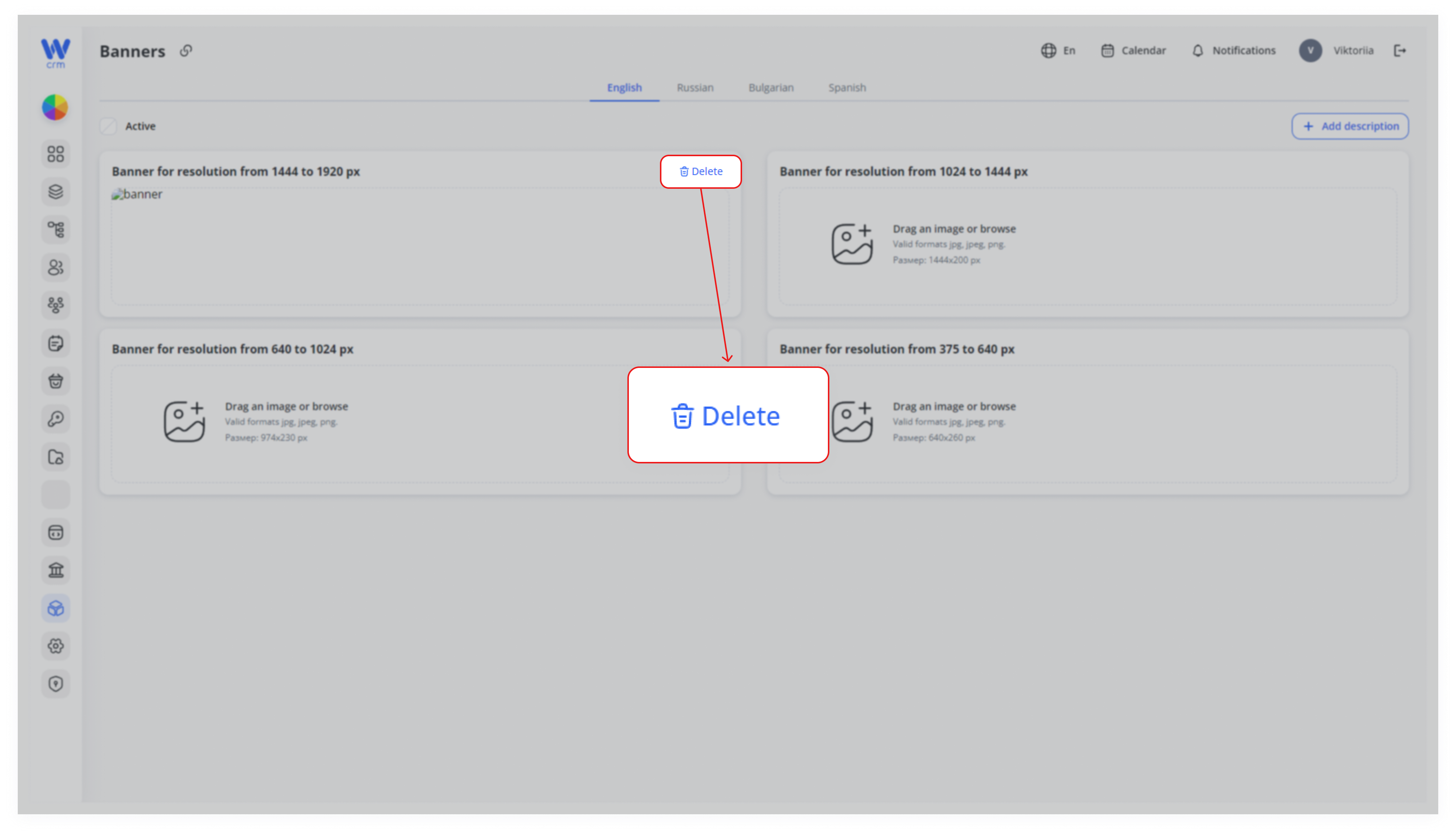
Hover over the banner slot and click Delete (🗑️) in its top-right.
-
Upload a new image into the now-empty drop zone.
You can delete aany banner,single toslot uploadindependently awithout newtouching bannerthe instead.others.
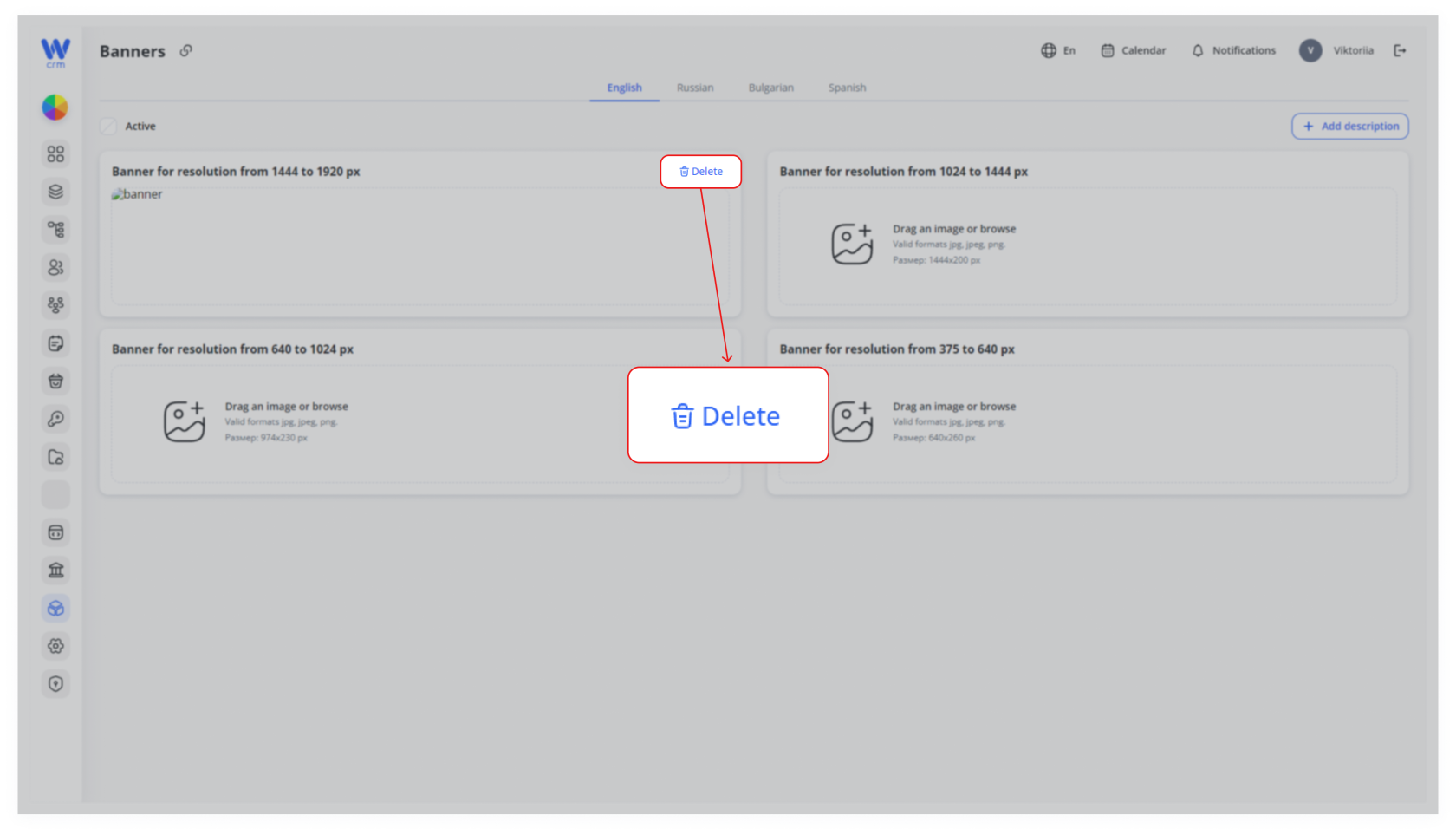
ToBest deletePractices a& banner:Tips
-
Consistent Styling: Use a single design template cropped to each resolution, rather than entirely different visuals—this preserves brand style across devices.
ClickOptimize File Size: Compress images to balance quality and load speed (aim for ≤ 150 KB per banner).
-
Test Viewports: After uploading, preview in different browser widths to confirm the correct banner is served.
-
DeleteLanguage Checks:iconAlways switch tabs and proof your descriptions and any embedded text on the banners themselves. -
Version Control: When replacing assets, keep old files archived locally in
thecaseupperyourightneedcornertoofrollthe corresponding banner block.