
7. How to Delete a Role
When a role is no longer needed—perhaps because you’ve reorganized teams or replaced it with a more accurate permission set—you can permanently remove it from your system. Deleting a role is irreversible, so it’s important to ensure that no active employees rely on it before you proceed.
Warning: You cannot restore deleted roles.
Step-by-Step Guide
To1. deleteVerify aRole roleAssignment:
1.Before attempting deletion, confirm that the role isn’t currently assigned to any users. If it is, you’ll need to reassign those employees to another appropriate role first—otherwise, the system will prevent deletion.
2. Locate the Role
In the Roles list, scroll (or use the search bar) to find the role you want to delete.
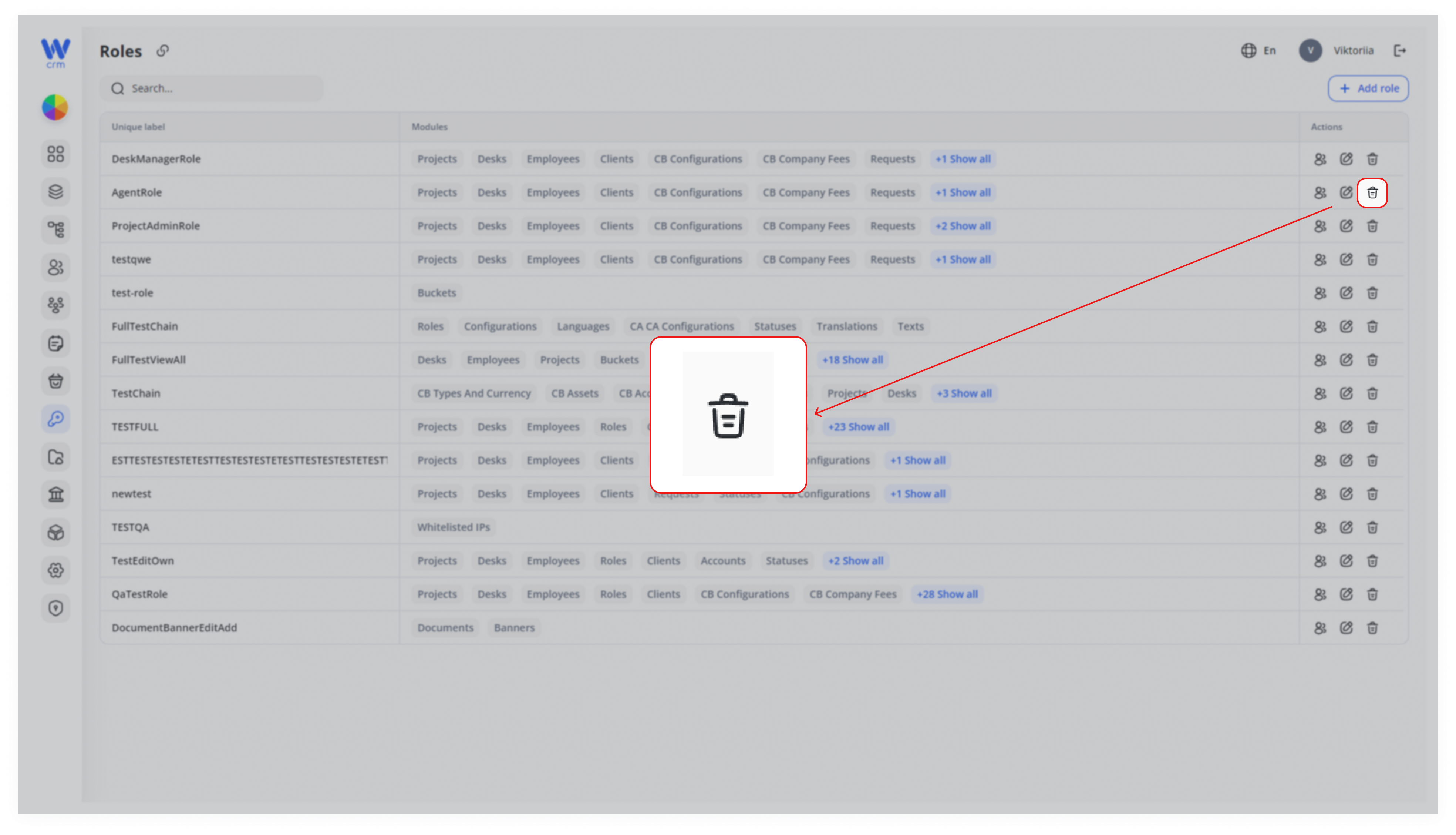
3. Click the Delete Icon
In that role’s DeleteActions iconcolumn, inclick the Actionstrash-can columnicon. ofThis theimmediately role’striggers row:
a confirmation prompt.
2.A small pop-up asks, “Are you sure?”
Click Delete to confirmpermanently remove the action.role, or Cancel to abort the operation.
Note: You cannot delete a role if it is assigned to anyone.
Warnings & Best Practices
-
Irreversible: Once deleted, a role (and its custom permissions) cannot be recovered.
-
Unassign First: The system will block deletion if any employee still holds the role—always reassign or remove it from every user beforehand.
-
Audit Trail: Consider exporting a list of your roles or documenting their permissions before deletion for future reference or compliance audits.
Deleting unused or outdated roles helps keep your permission structure clean and reduces administrative overhead. By following the steps above—and ensuring no employees remain tied to the role—you can safely remove roles you no longer need, keeping your security model lean and accurate.