
6. How to Deactivate an Employee
YouDeactivating canan eitheremployee deletesuspends their access without removing their record; this preserves audit history and any associations (tickets, notes, etc.) while preventing further logins or deactivateassignments. anIf employee.you Here’s the difference:
useDeactivation:The employee's account remains in the system, but is not active. Other employees cannot see them, assign themneed toprojectspermanentlyorremovedesks,someone,etc.Deletion:DeleteTheinstead—butemployeenoteisthatremoveddeletedfromaccountsthecannotsystem.be restored.
Warning: Deleted employees cannot be restored.
ToDifference deactivateBetween anDeactivate employee:vs. Delete
-
Deactivate
Account remains in the system (with all history intact)
1.User Gocannot log in, receive notifications, or be assigned to the Projects/Desks
Ideal for long-term leaves or contractors between engagements
-
Delete
Permanently removes the user record and all associated data
Cannot be undone—use only when you’re sure the account is no longer needed
Step-by-Step Deactivation
Step 1. Open the Employees List
Step 2. Enter Edit Mode
-
In that employee’s row, click the ✏️ Edit
tab.icon in the Actions column (Step #2). -
The Edit employee form appears, showing their current settings.
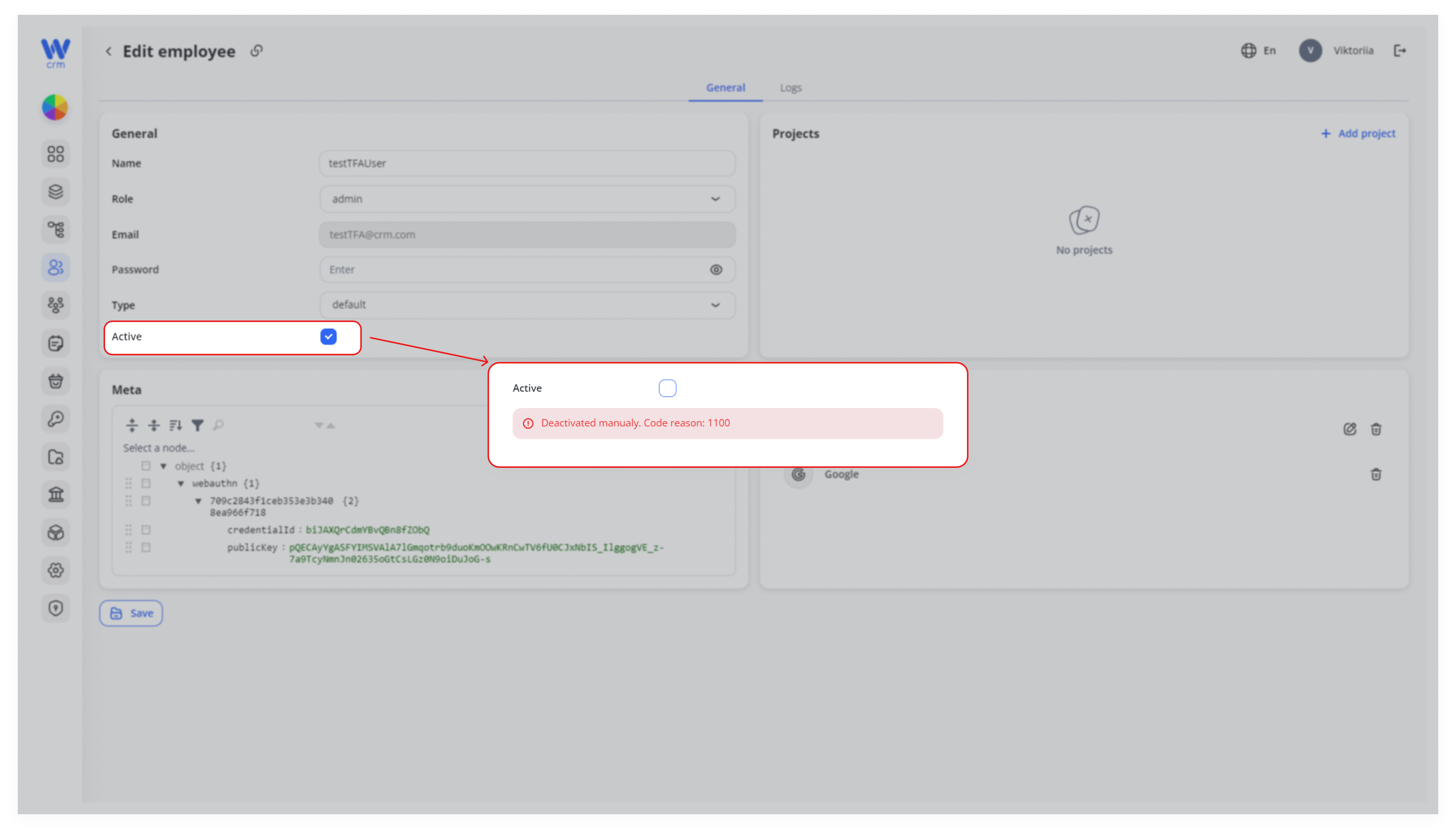
Step 3. Uncheck “Active”
2.
-
Under the General section, find the Active
checkbox:
checkbox (Step #3). -
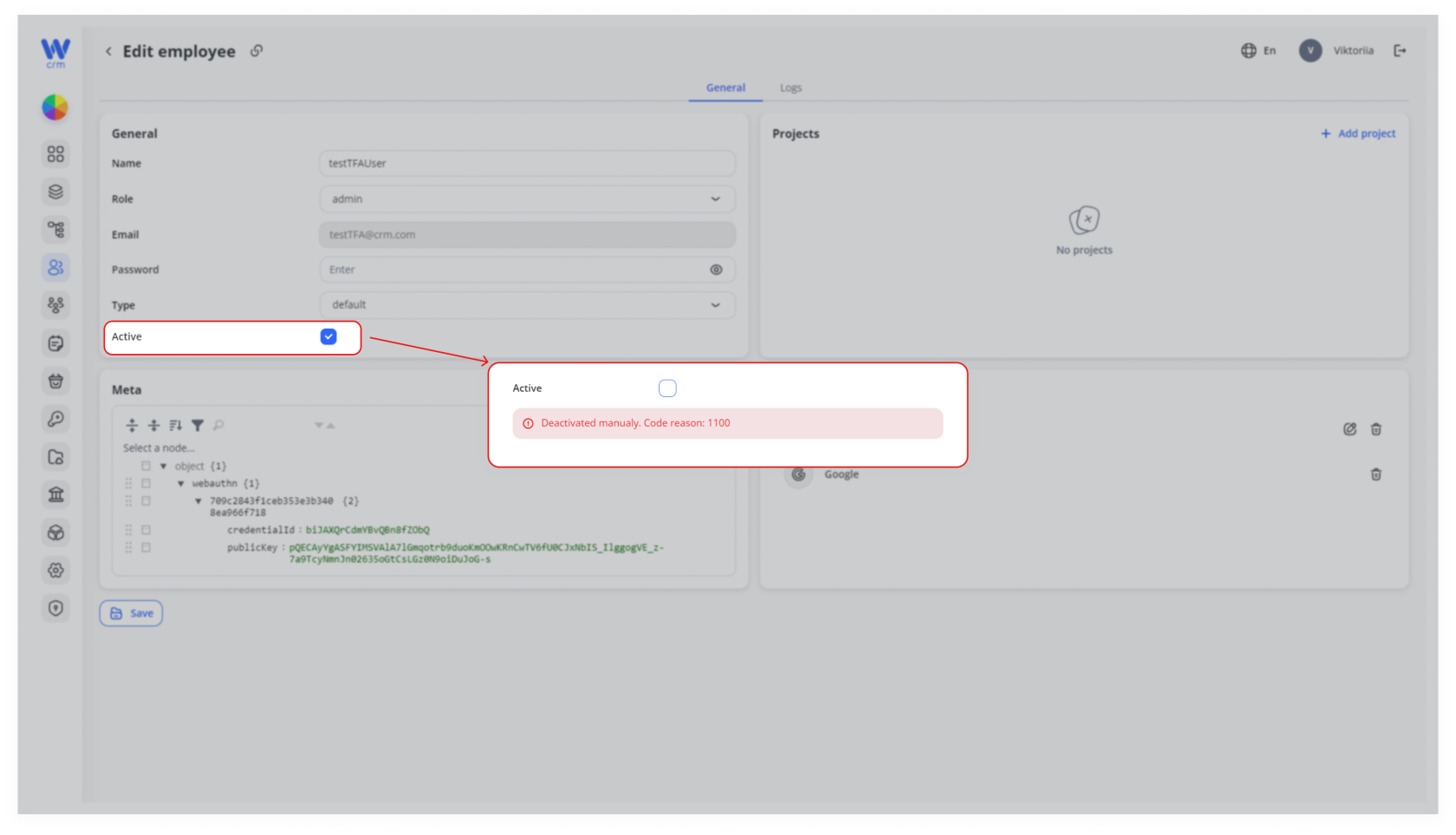
3.Note:ClickYou may see a tooltip like “Deactivated manually. Code reason: 1100” indicating the change was performed by an administrator.
Step 4. Save Your Changes
-
Scroll to the bottom-left of the form and click Save (Step #4).
-
You’ll return to
applythechanges.Employees list; the deactivated user will no longer appear in active workflows or lookup lists.
What Happens Next?
-
The user’s Last login, Tickets, and Calendar events remain intact for reporting and audit.
-
Any open assignments (e.g., tickets, leads) will need re-assignment to active team members.
-
To reactivate later, simply edit their record again and re-check the Active box.
You cannot delete an employee directly from the Employees module. To delete an employee: