6. How to Manage Texts
Long, structured content—such as notifications, email bodies, tooltips, and rich messages—is managed under Settings > Texts. This module lets you centrally edit, clone, and auto-translate entire text objects (often JSON trees) across any active language. By using it you ensure that every notification, onboarding message, or rich UI copy is consistent and localized without touching code.
Why Manage Texts Here?
-
Complex Structures: Handle nested content (titles, subtitles, descriptions) in one place.
-
Rich Formatting: Preserve HTML or Markdown within descriptions.
-
AI-Powered Translation: Leverage built-in “Translate” for bulk localization.
-
Version Control: Lock critical texts to prevent accidental deletion.
Viewing & Searching Texts
To add a translation to any of these texts:
-
-
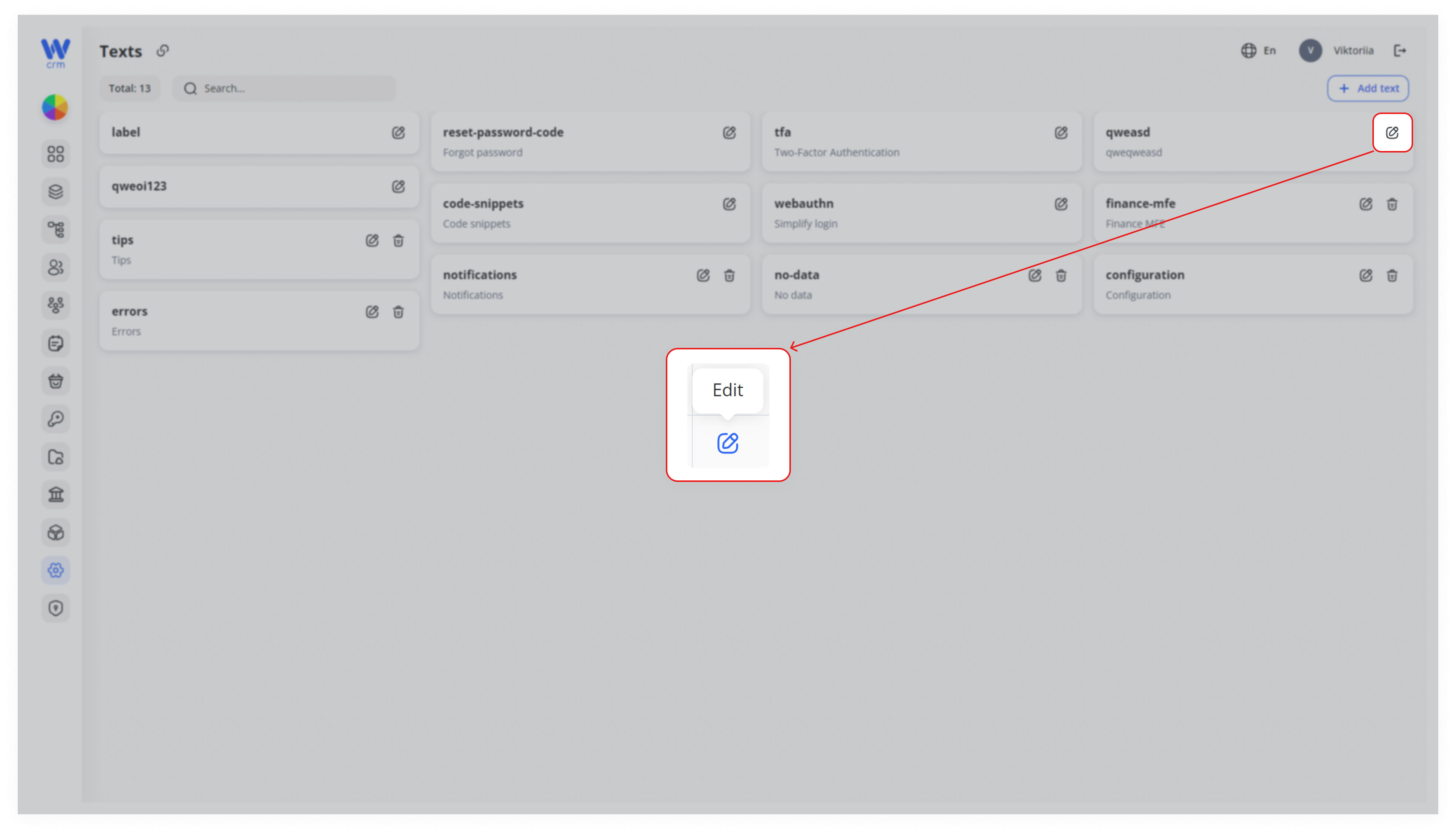
Click the Edit icon next to the corresponding text.
-
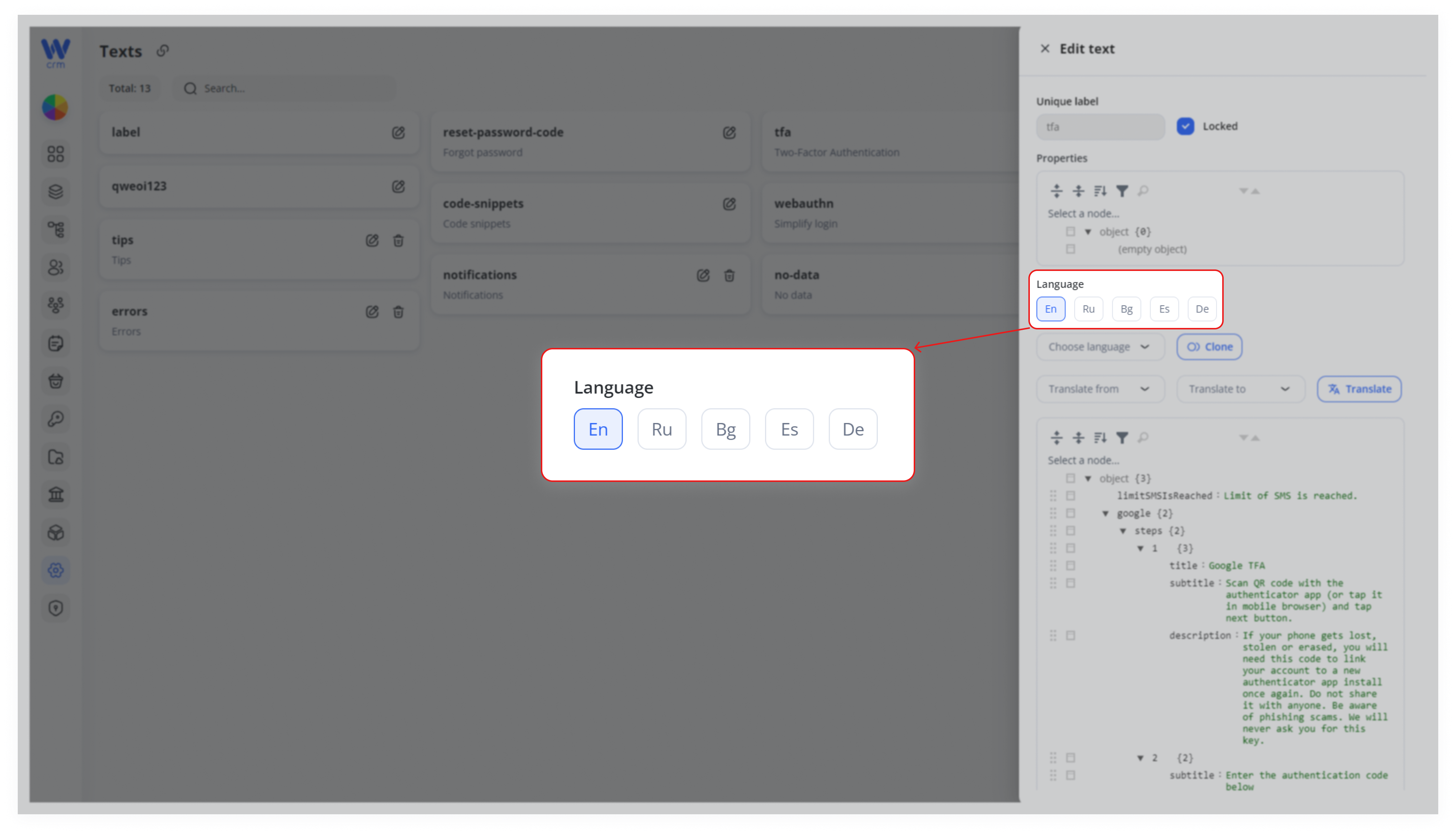
2. In the Language field, select the target language.
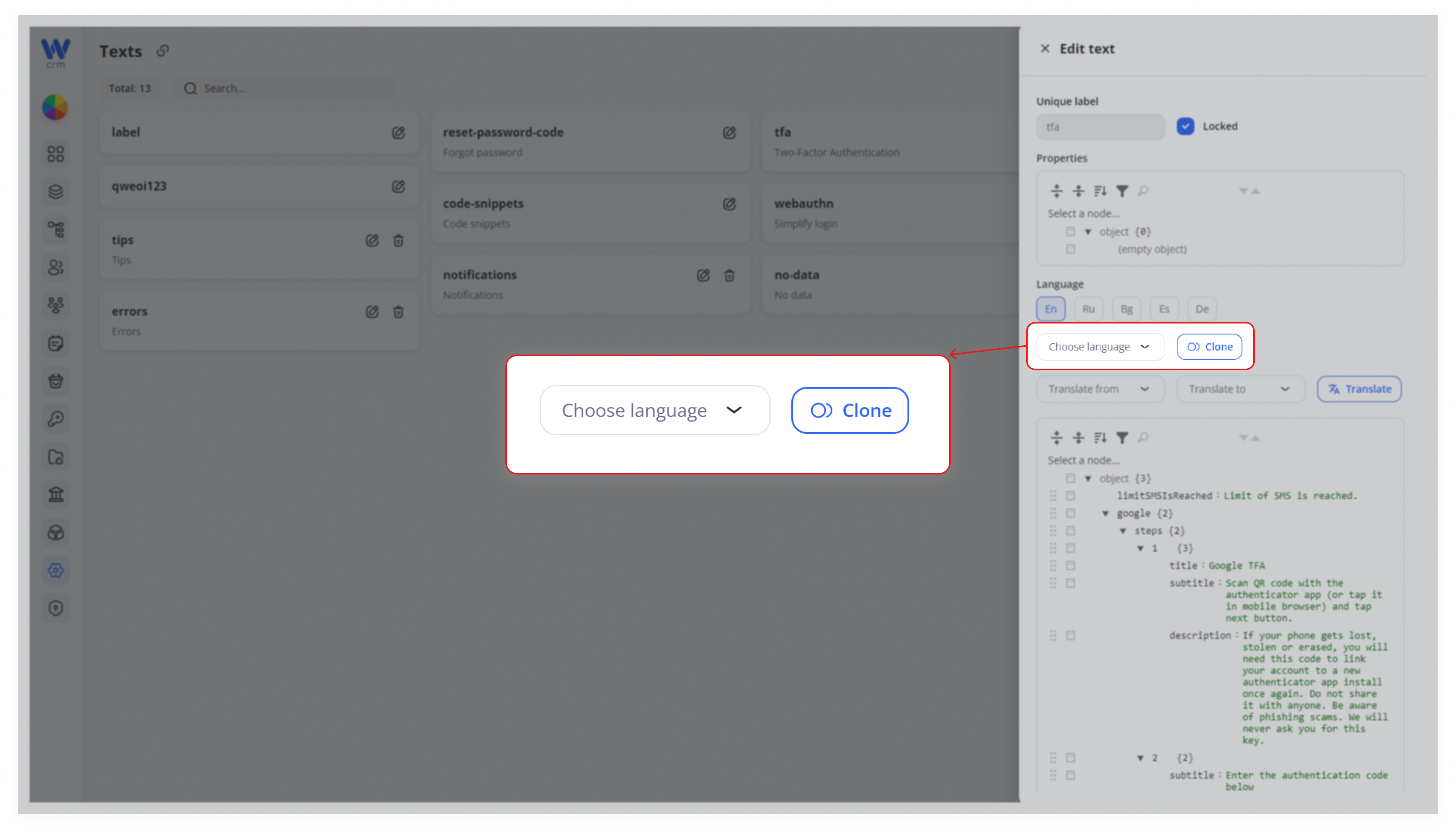
3. To copy data from the original language (for example, English), select it from the drop-down list and click the Clone button.
4. Enter the new values manually, or select the target languages and click Translate for automatic translation with AI.
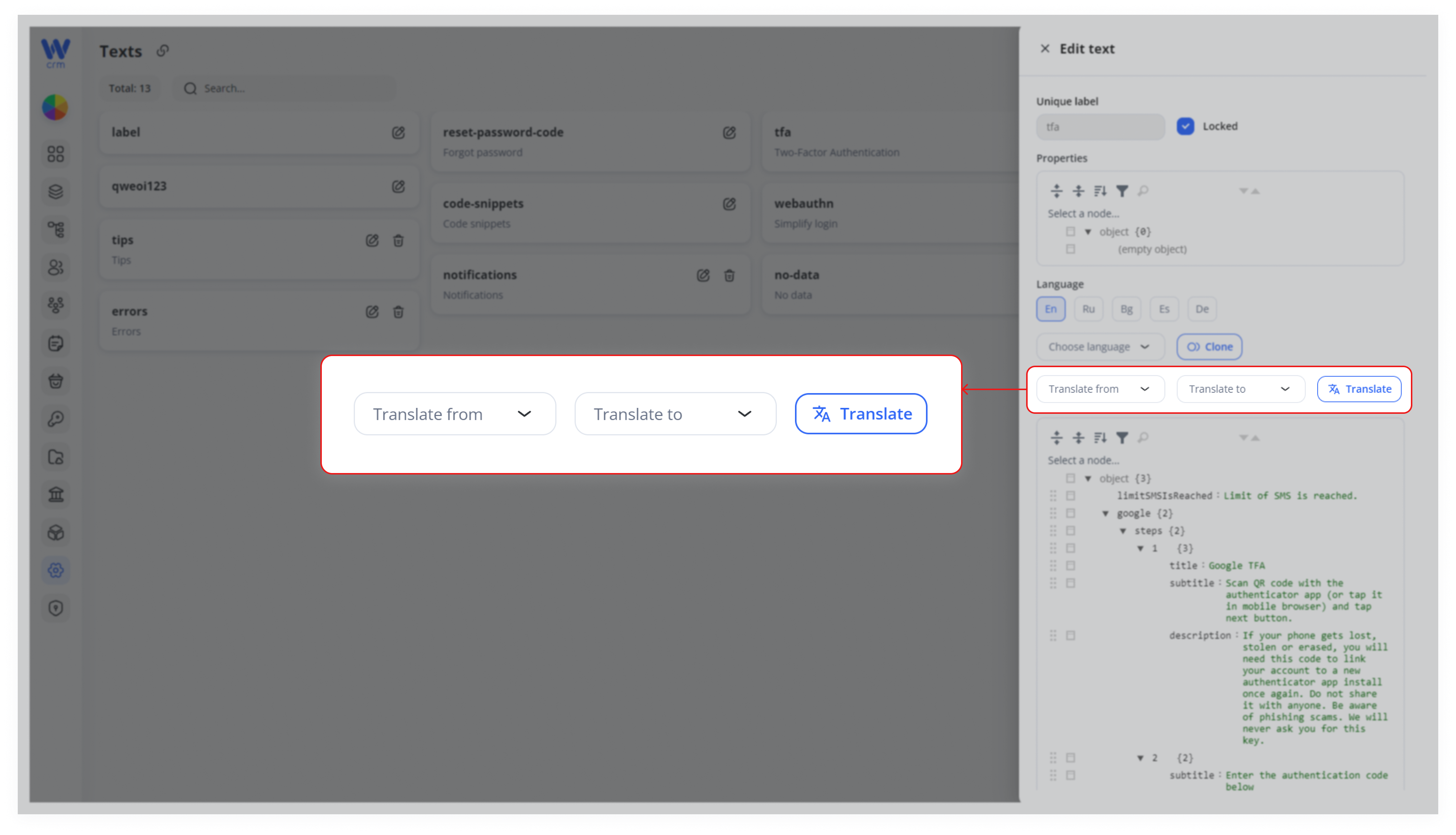
5. Click Save to apply the changes.
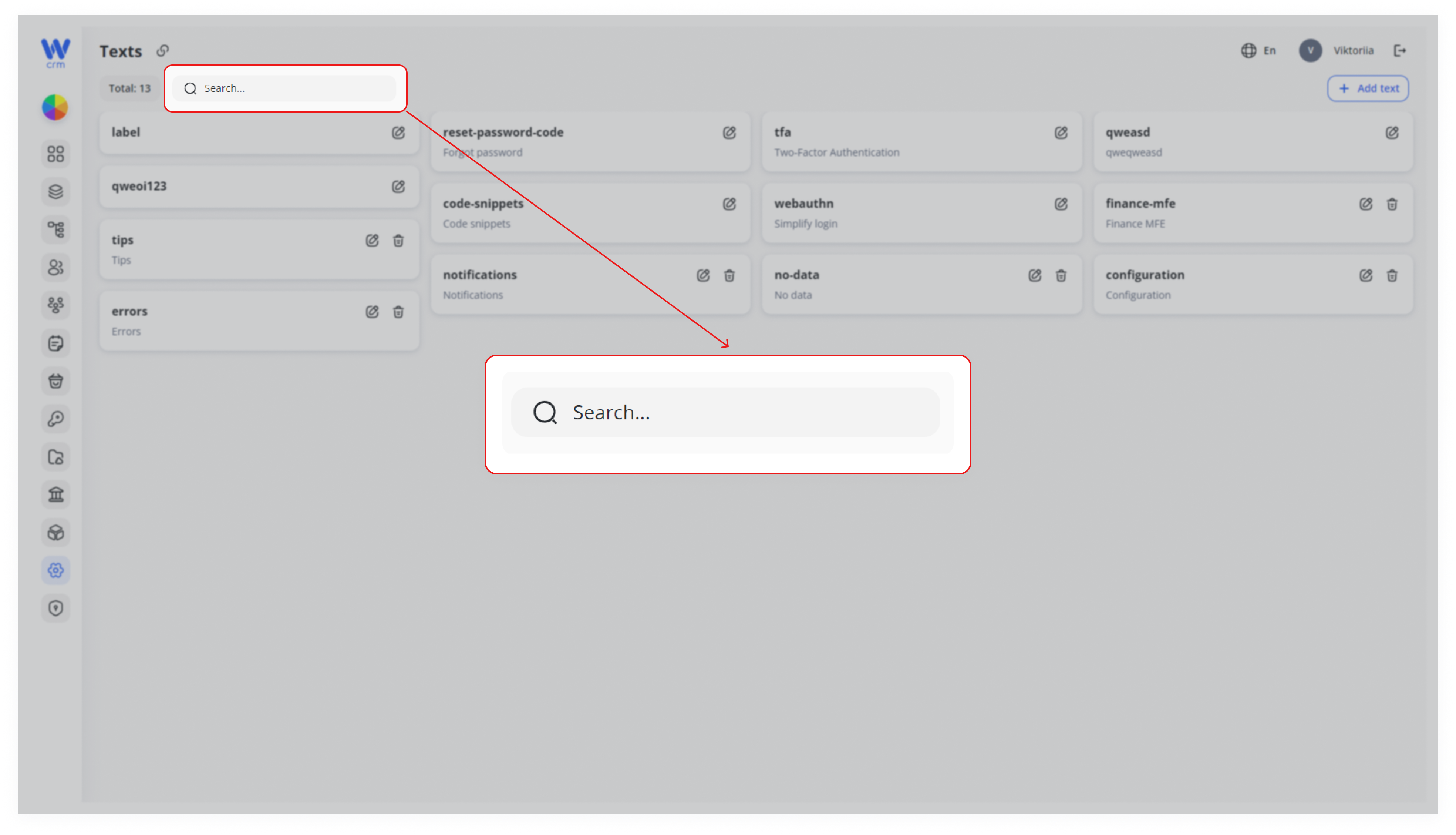
To search for a text:
-
- Start typing its label in the Search field.
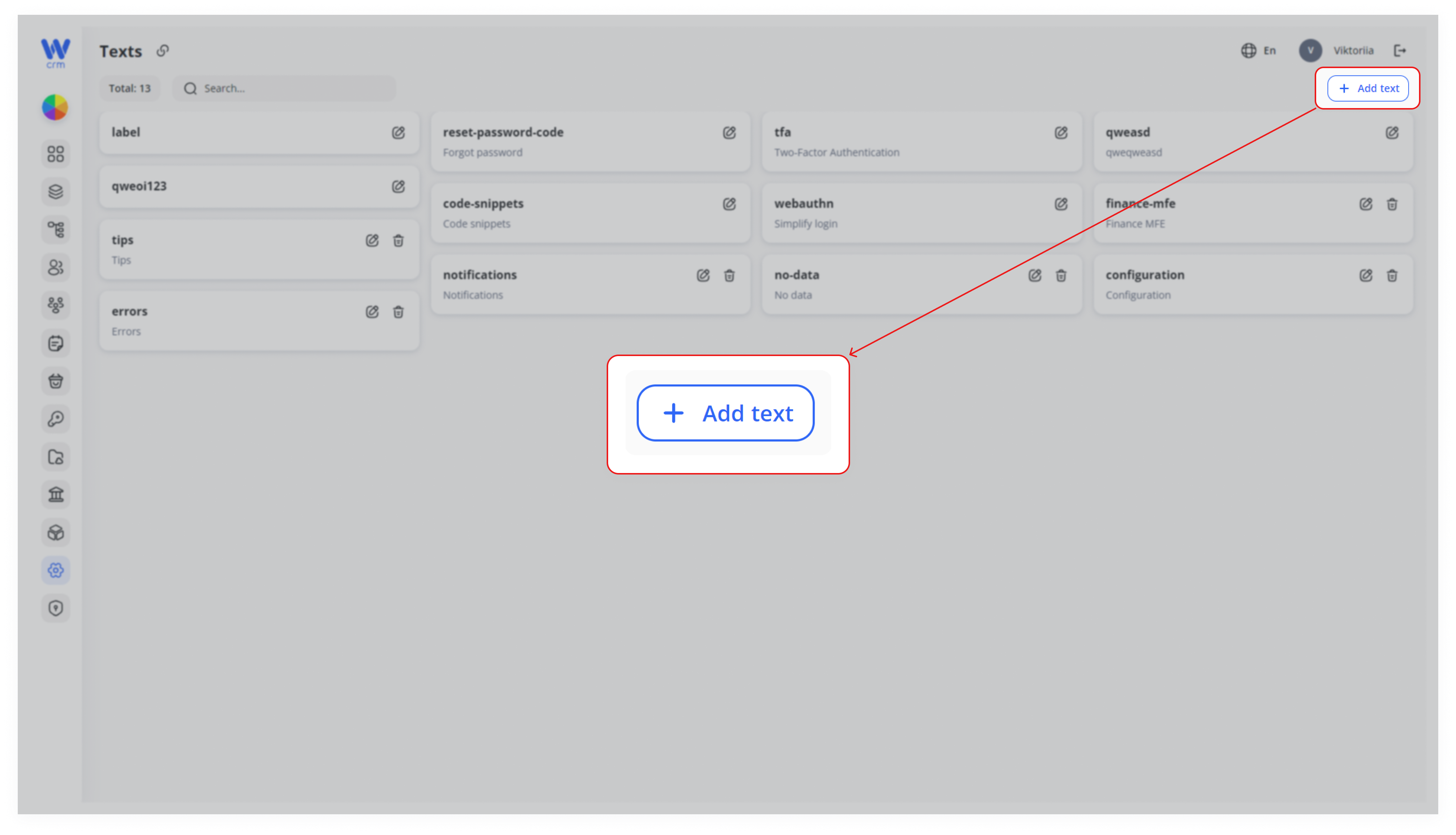
To add a new text and its translations:
1. Click on the Add Text button in the upper right corner.
2. Enter Label and, if necessary, Properties.
3. Select the target language in the Language field and enter Text and Description for it. Add custom fields if necessary.
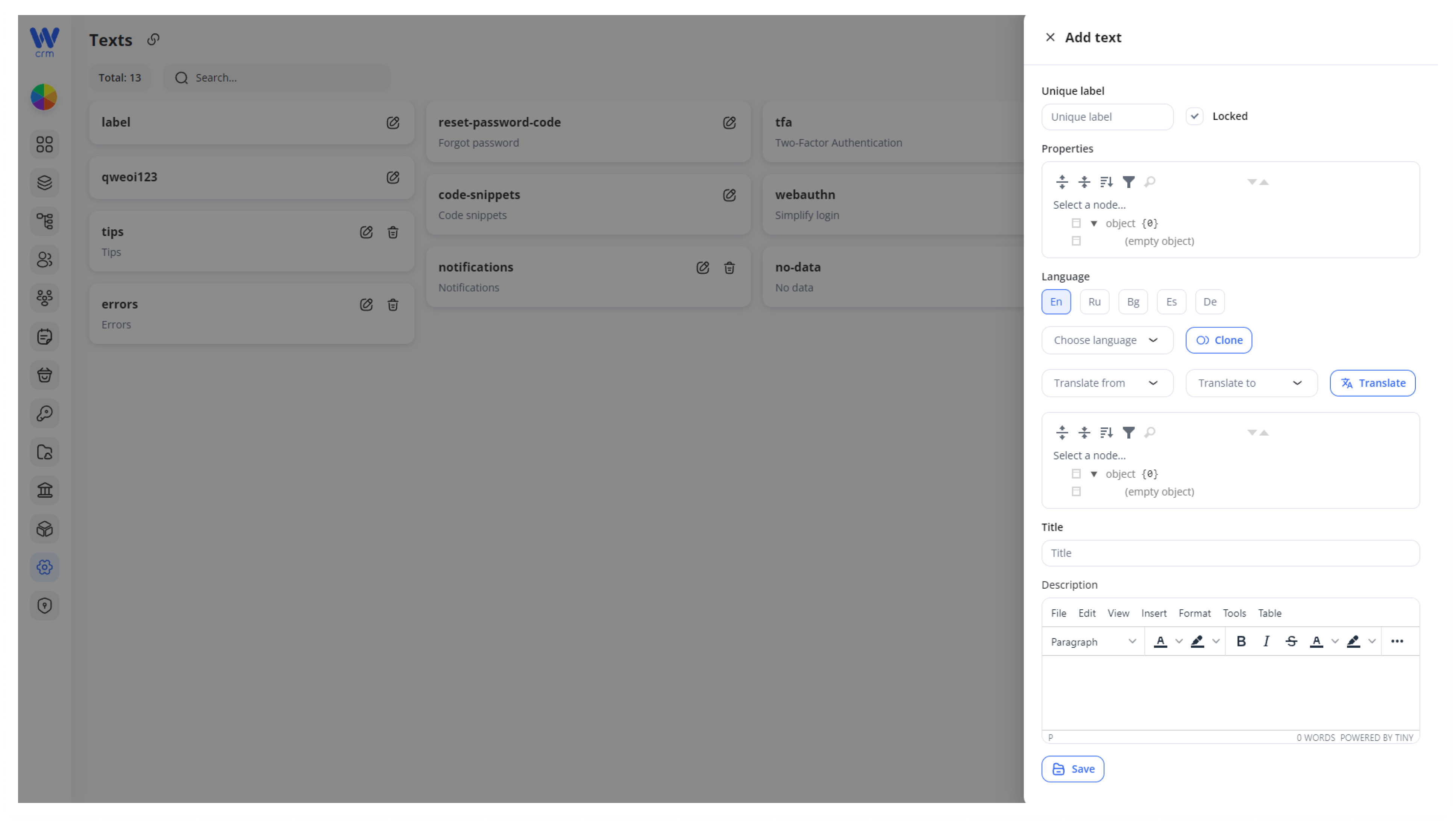
4. Add text translations in the same way as in the previous instructions.
5. Click Save to add the text.
By default, new texts are created as Locked—they cannot be deleted. To unlock a text:
-
-
Go to the text editing tab.
-
Uncheck the Locked checkbox.
-
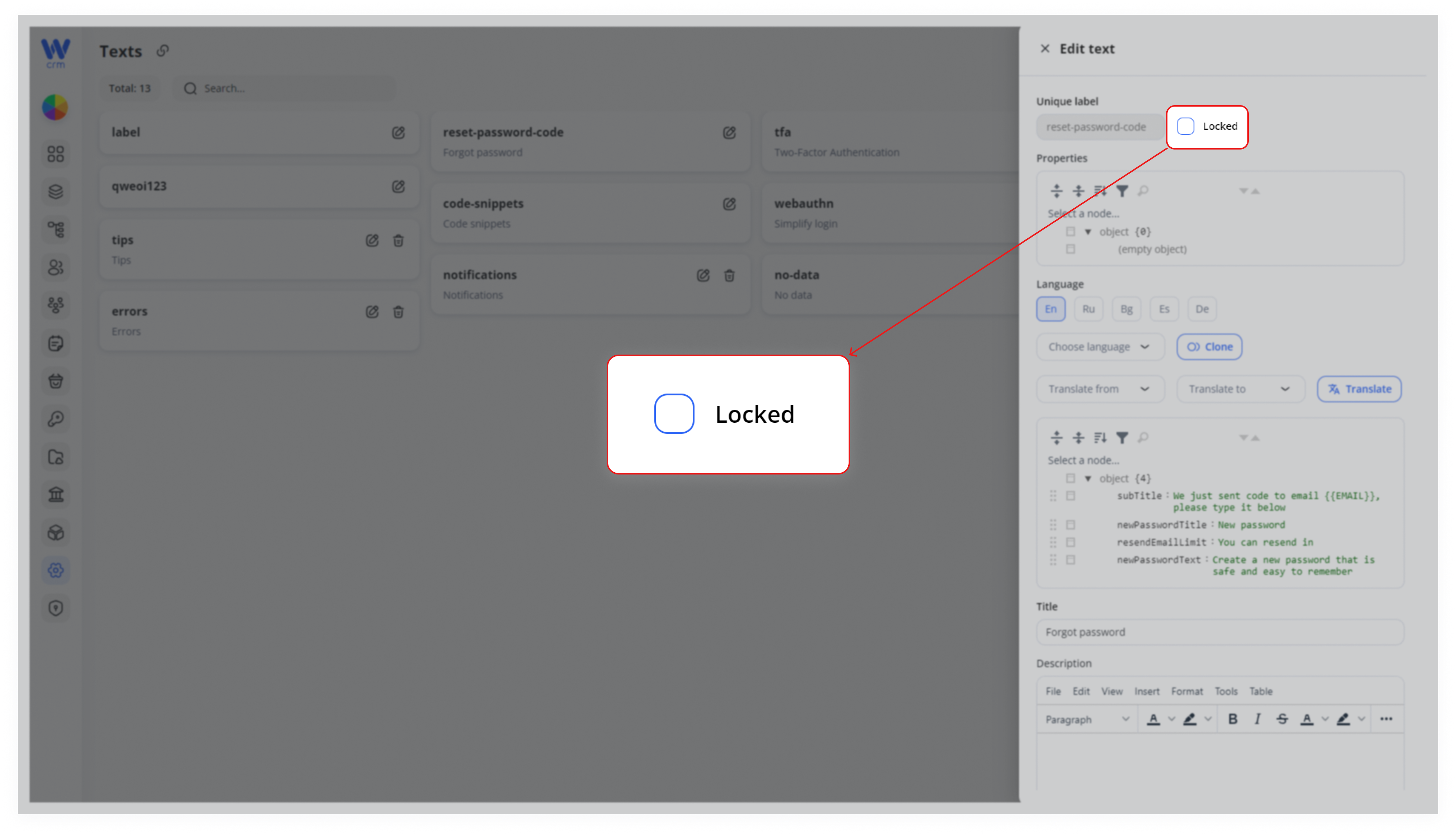
3. Click Save.
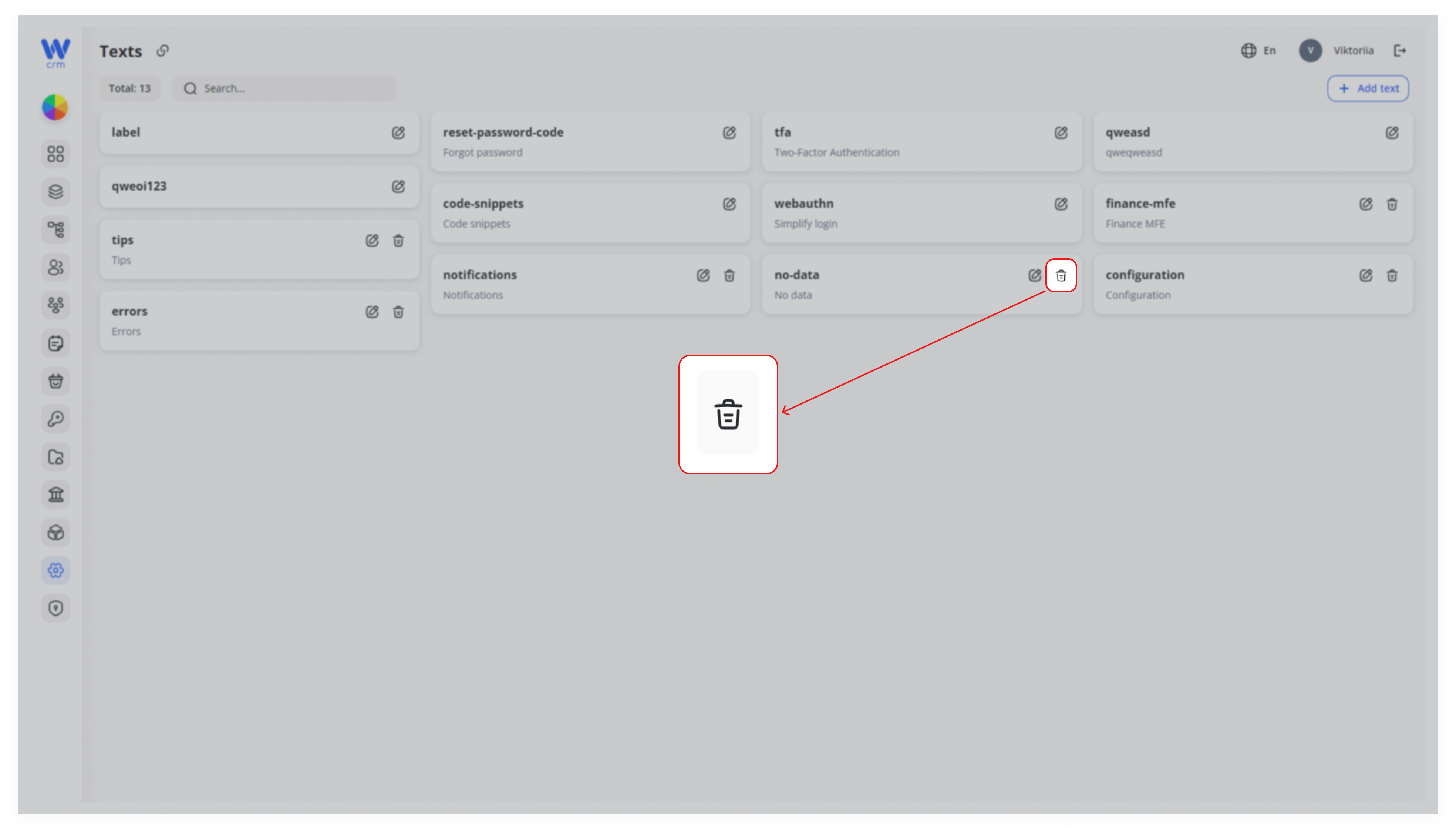
To delete text:
1. Make sure it is not locked.
2. Click the Delete icon next to the corresponding text.