
6. How to Manage Templates
The Templates section islets designedyou tocreate, storeorganize, theand actionsmaintain orreusable informationcommunication assets—email bodies, PDF agreements, push notifications, etc.—that you send to customers,your suchclients. asAll emailtemplate templates,content PDF(Title, agreements,Description, andProperties) othercan communicationbe materials.localized for any active language in your system.
You can perform the following actions with templates:
Add
Search
Edit
Delete
To add a template:
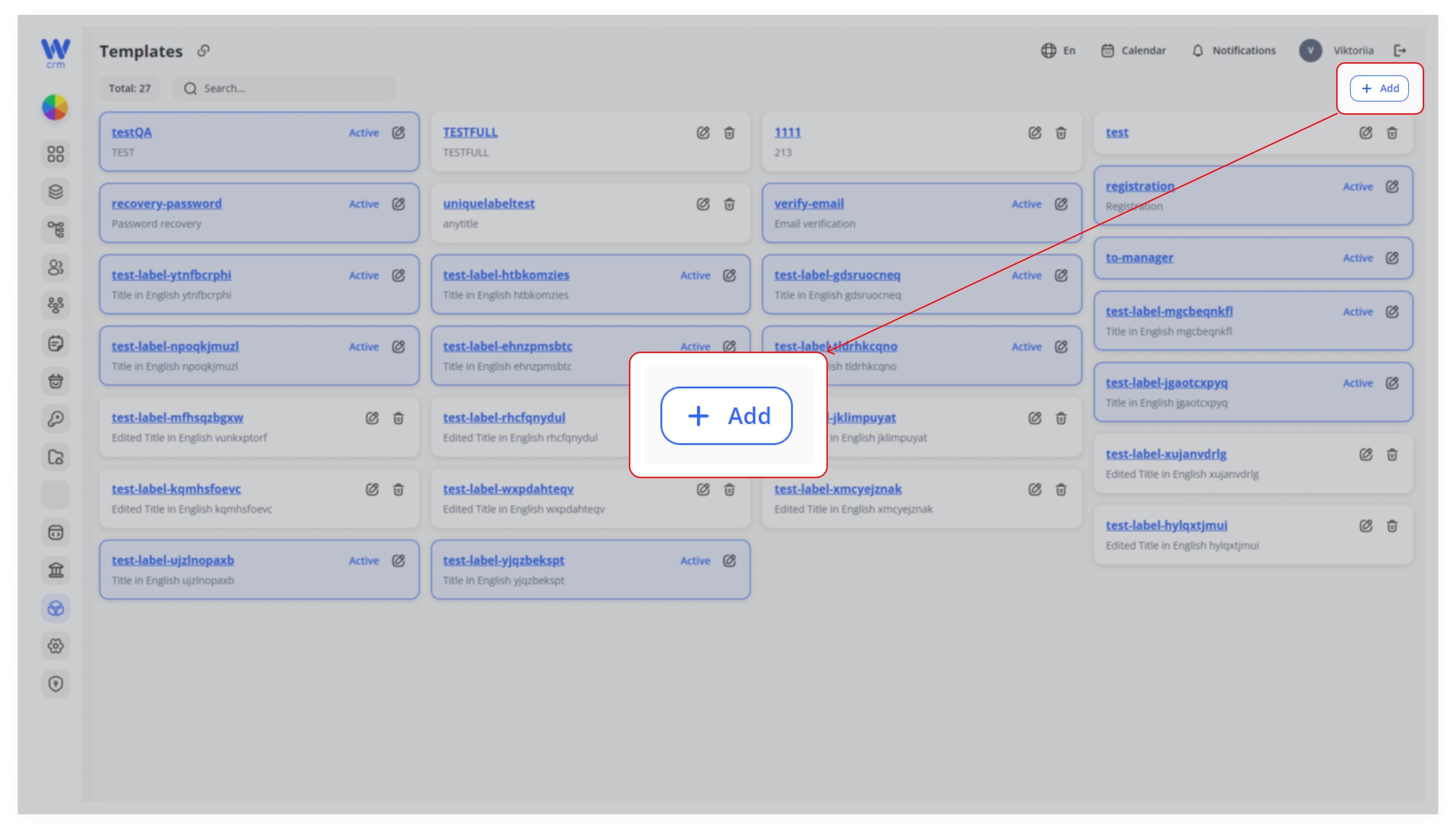
1. Click the the Add button in the upper right-hand corner.
2. EnterFill in the form in the drawer:
-
Unique label: a
uniquemachine-friendly identifier (e.g.user.welcomeEmail). -
LabelActive:and,toggle on ifnecessary,you want this template immediately available for sending. -
Properties: (optional) populate any JSON nodes your UI or API needs.
-
Language tabs (En, Es, Ru, Pl): switch between locales and enter:
-
Title: short summary or subject line (e.g. “Welcome to Our Service!”).
-
3. Provide theTitleandDescription:offullthetemplatetemplate.body (supports rich text, links, placeholders).
-
You can do this for all languages you have set in Configurations.
4. To make the template active after the creation, check the Active checkbox.
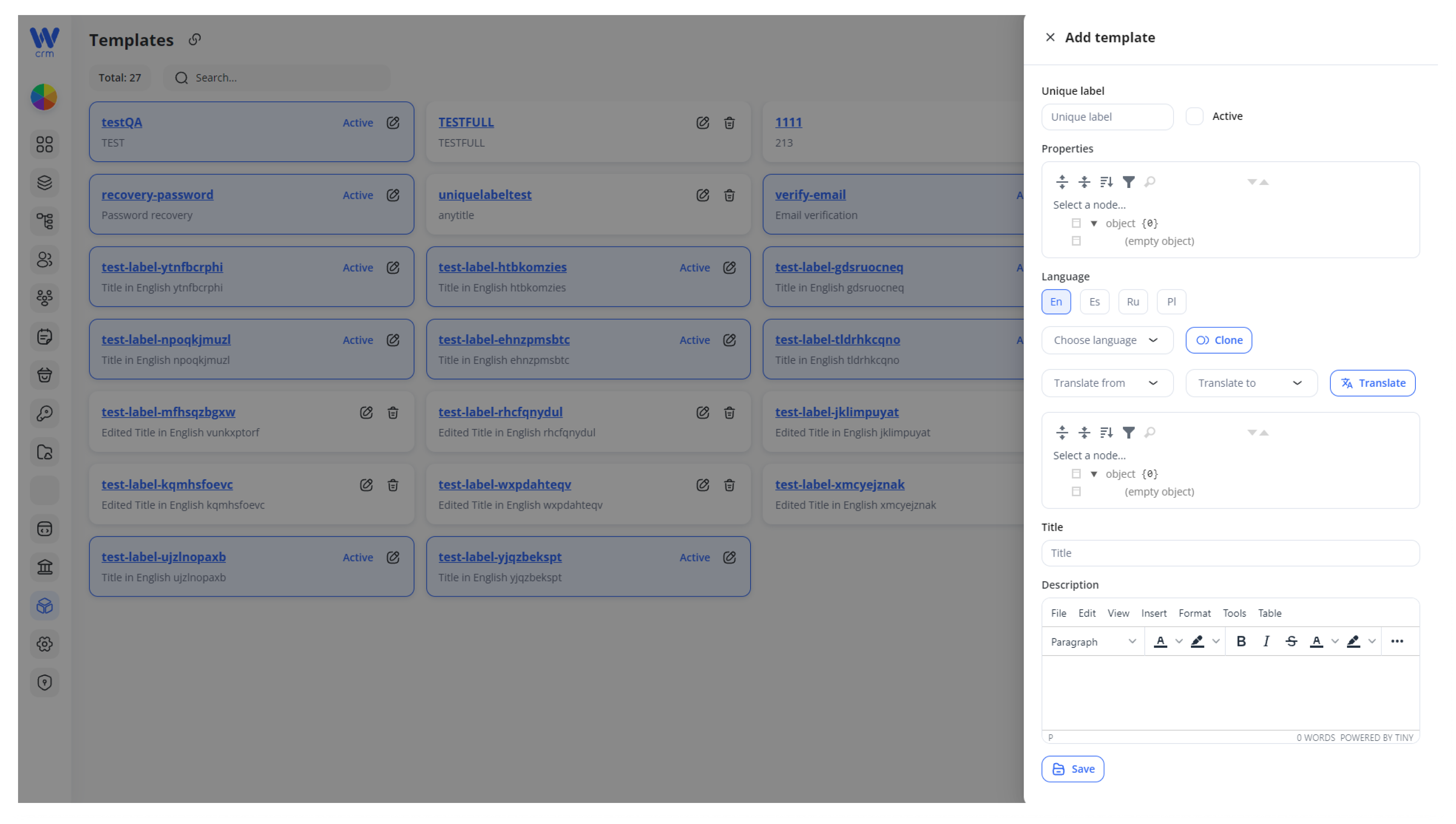
5.3. Click Save to addcreate the template. It now appears as a card in your grid, marked “Active” if you toggled it on.
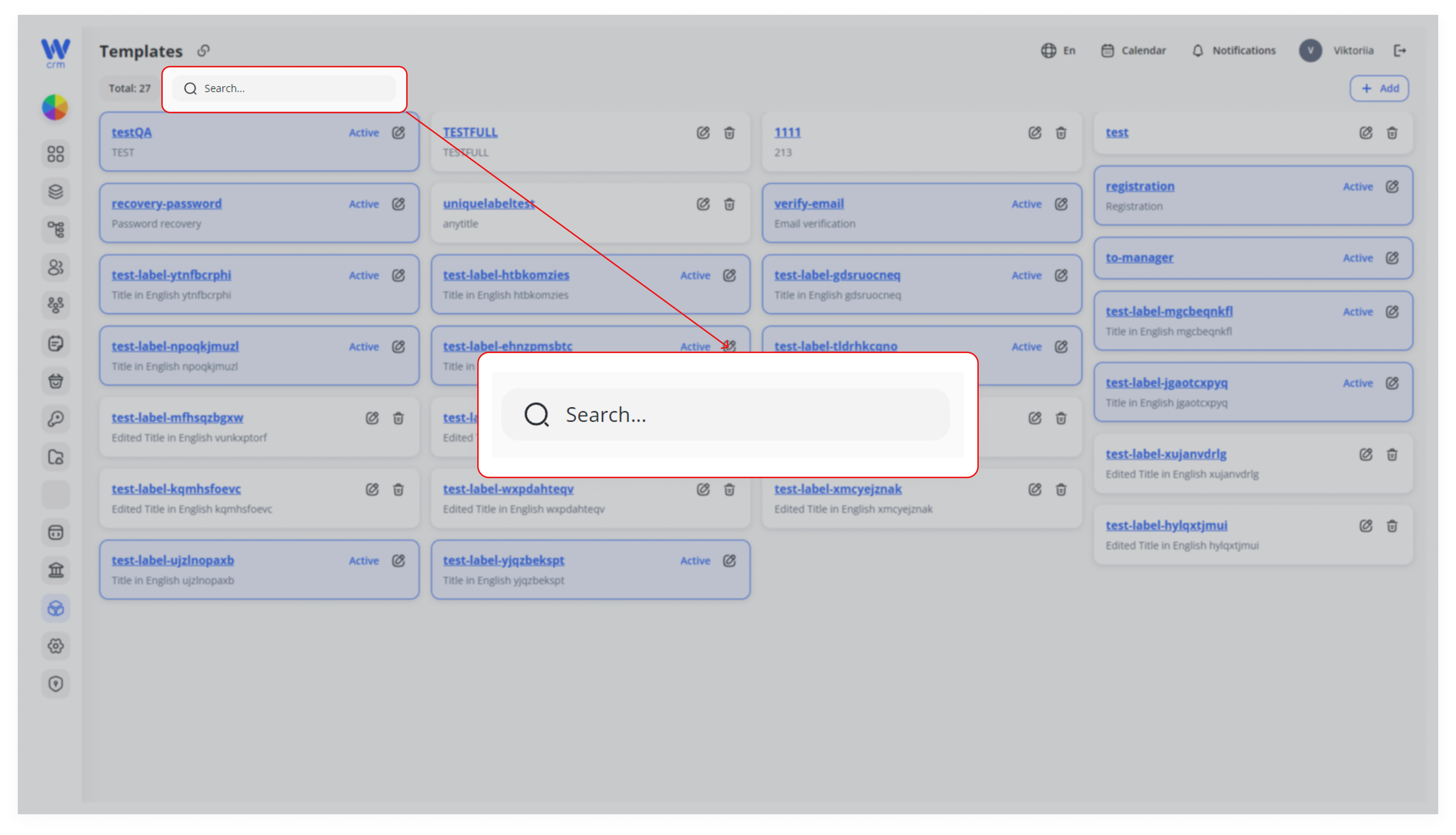
To search for a template:
-
Startthe list by typing
Filter
itspart of the Unique label or Title into the Search… field above the grid. -
Results update in
therealSearchtime,field:making
To edit a template:
1. Click the the ✏️ Edit icon icon next toon the correspondingtemplate template.card.
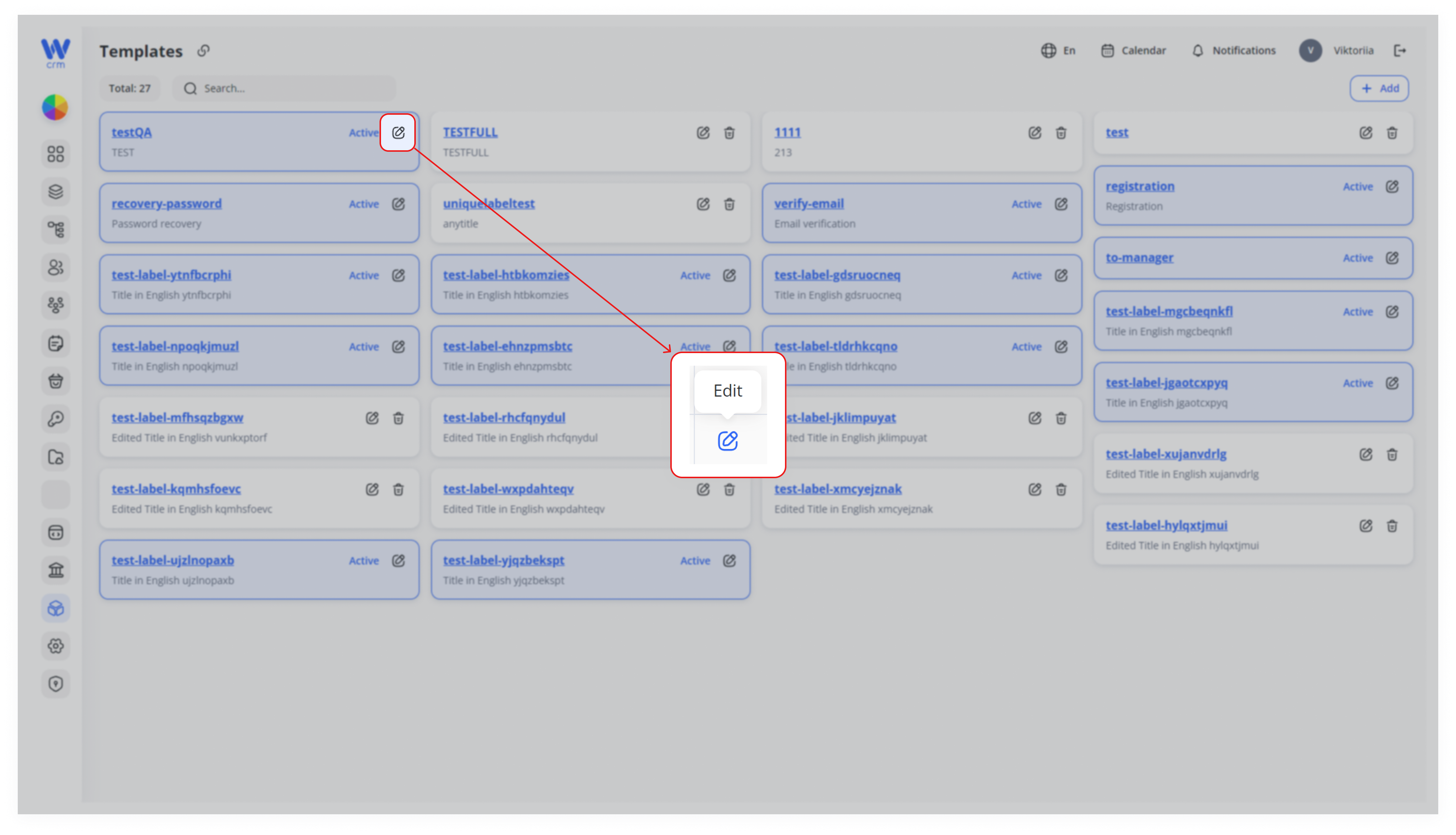
2. YouModify canany changefields anything except the Label ofin the template.drawer—except the Unique label (locked). You can:
-
Toggle Active on/off.
-
Update Properties JSON.
-
Switch languages and edit Title or Description.
-
Use Clone to copy from the default locale, or Translate for AI-assisted localization.
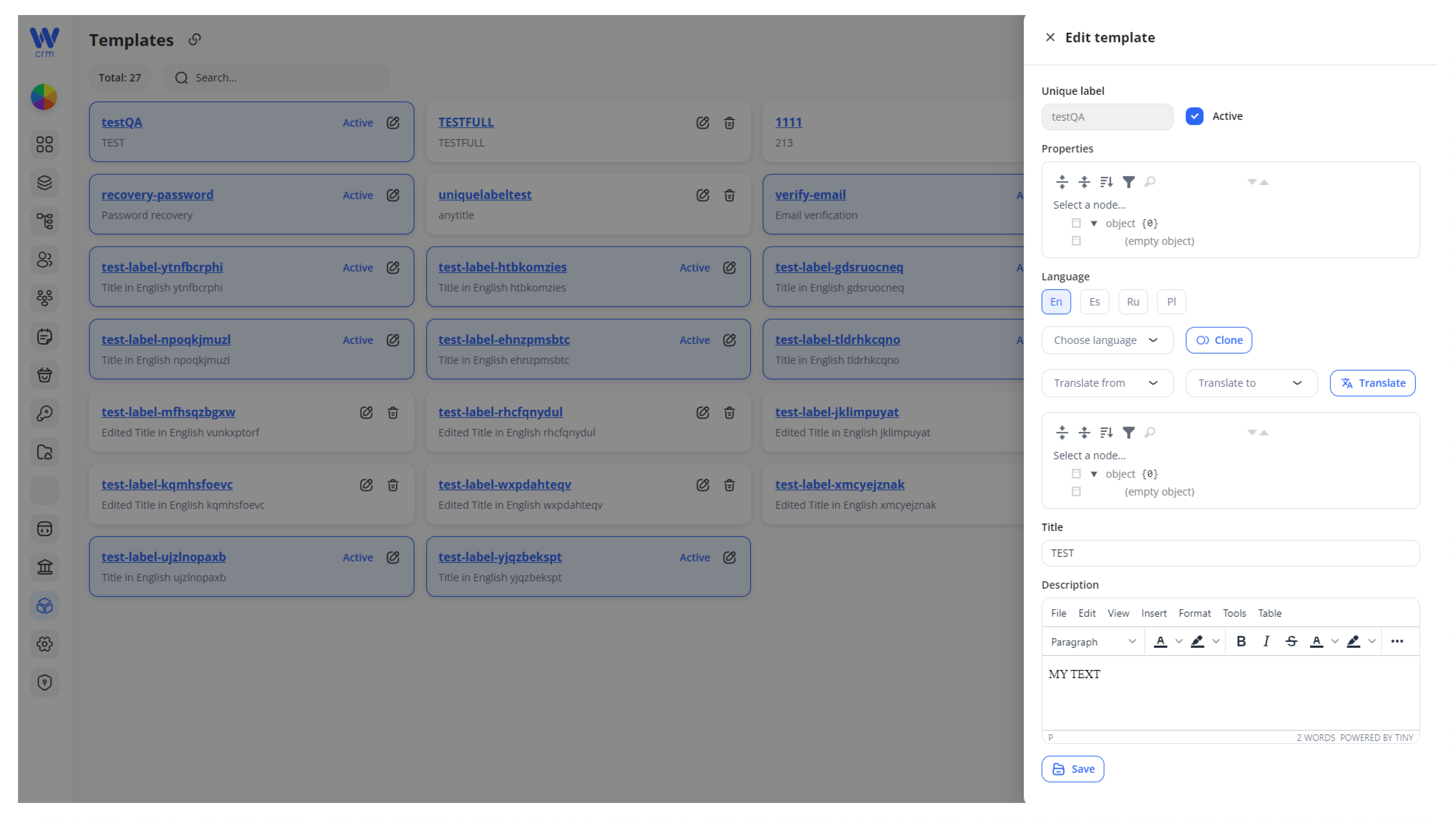
3. Click Click Save to apply the changes.
To delete a template:
1. Ensure the template’s Active toggle is off (via Edit).
- Click the 🗑️ Delete icon
next toon thecorrespondingcard.template.
3.
deletion - Click the 🗑️ Delete icon
2.
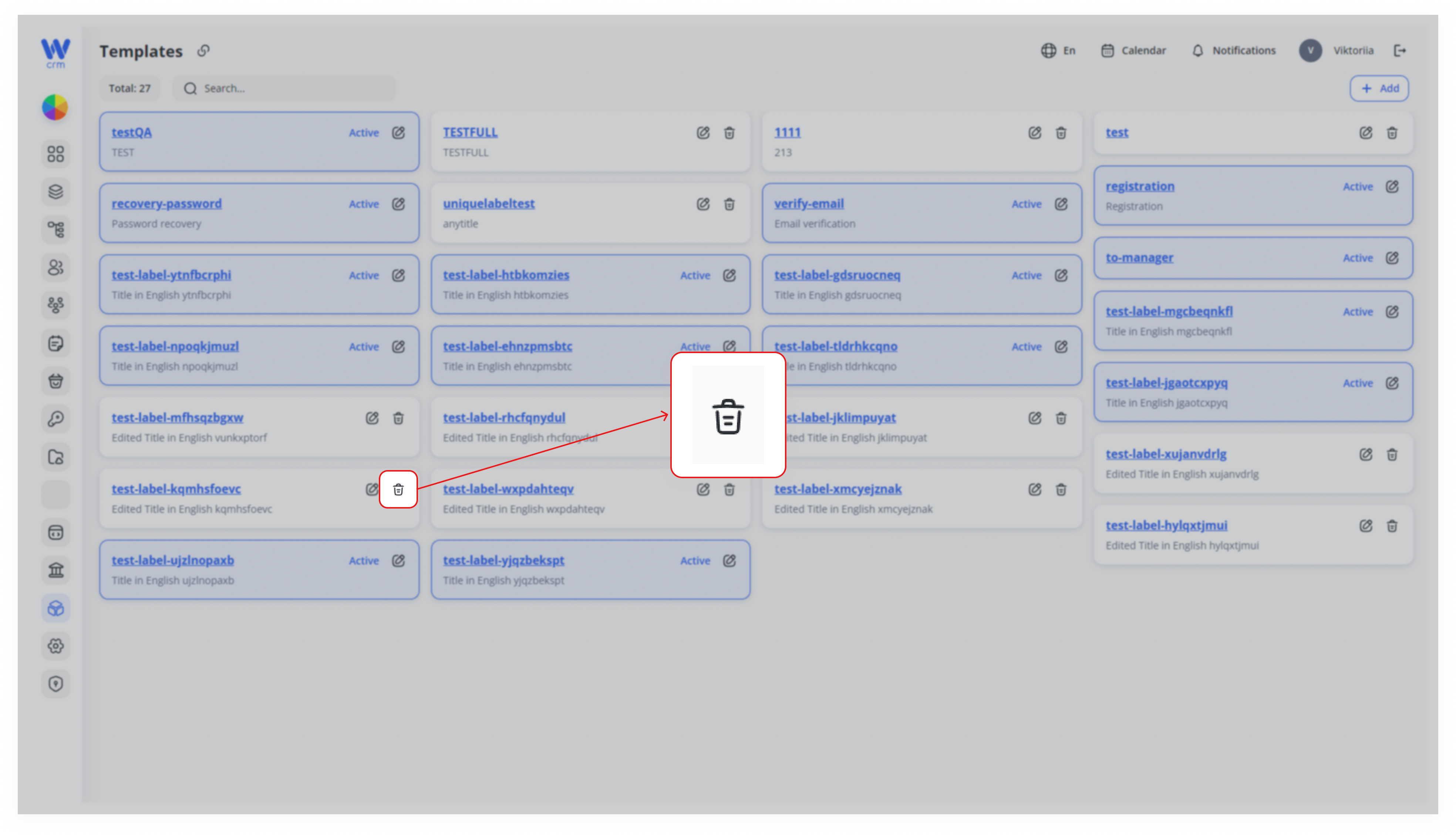
Note: You can only delete templates that are not active.
Best Practices & Tips
-
Consistent Naming: Group similar templates under a shared prefix (e.g.
invoice.*,reminder.*,passwordReset.*). -
Active vs. Inactive: Deactivate (don’t delete) templates you no longer use to preserve history while preventing accidental sends.
-
Localize Early: Add translations as you create the English version to ensure coverage for all target markets.
-
Use Properties Sparingly: Store only metadata your front-end or automation jobs require; keep JSON lean.
-
Version Control: Though you can’t version inside the UI, consider appending timestamps or version numbers to your Unique labels for major overhauls (e.g.
welcome_v2).
By following these steps and guidelines, you’ll maintain a clean, searchable library of communication templates—fully localized and ready for automated or manual dispatch.