
5. How to Manage Templates
The Templates section is designed to store the actions or information you send to customers, such as email templates, PDF agreements, and other communication materials.
You can perform the following actions with templates:
-
-
Add
-
Search
-
Edit
-
Delete
-
To add a template:
1. Click the Add button in the upper right-hand corner.
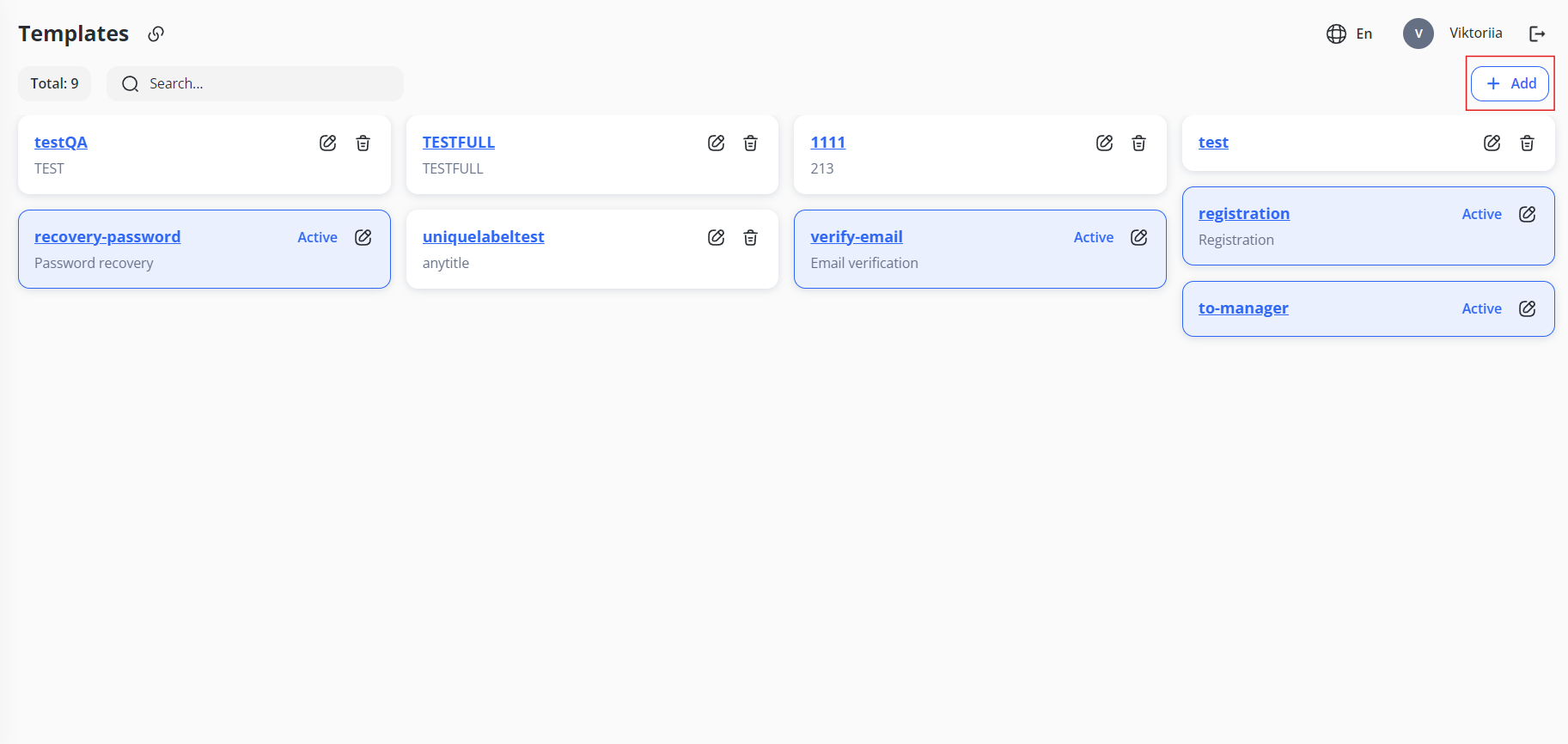
2. Enter a unique Label and, if necessary, Properties.
3. Provide the Title and Description of the template. You can do this for all languages you have set in Configurations.
4. To make the template active after the creation, check the Active checkbox.
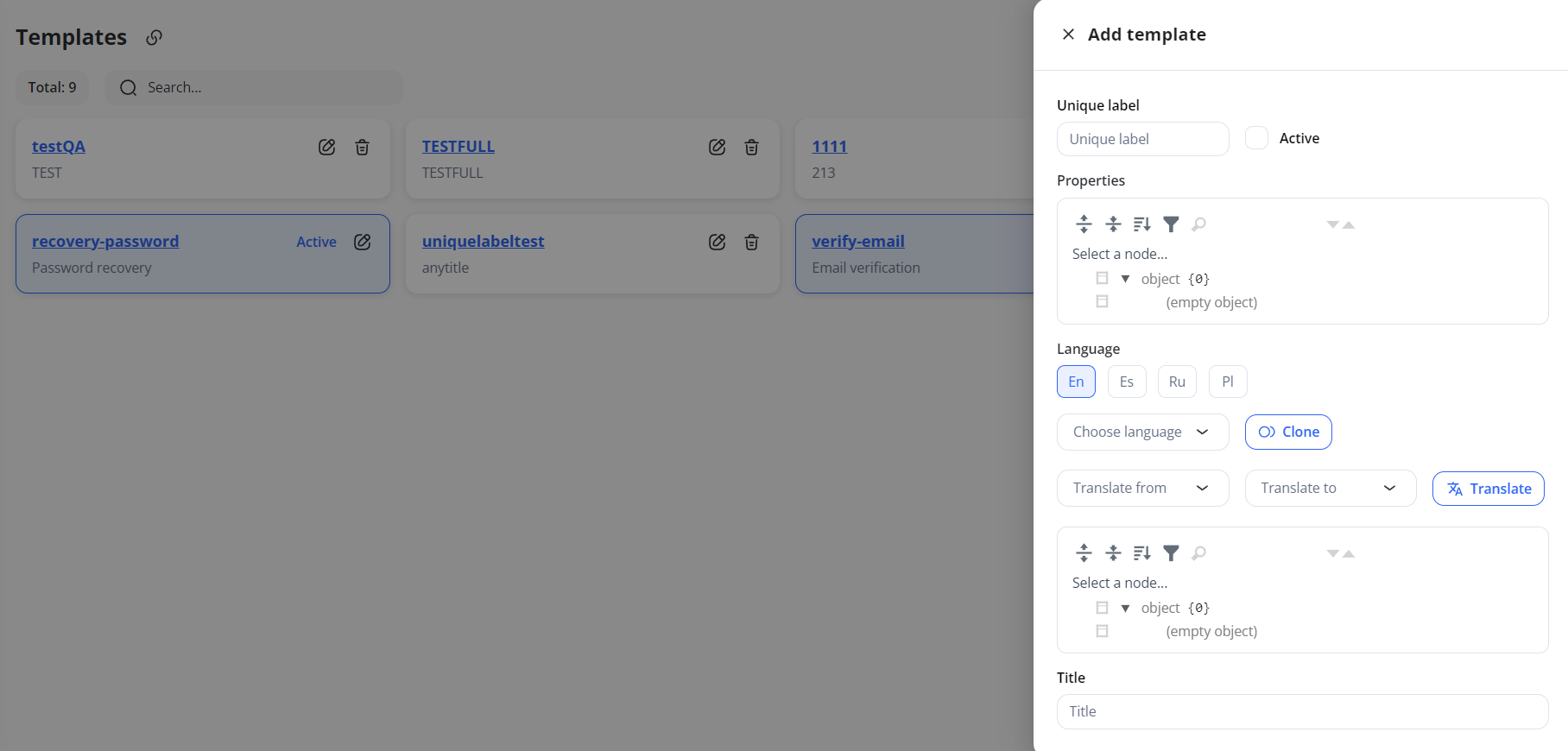
5. Click Save to add the template.
To search for a template:
-
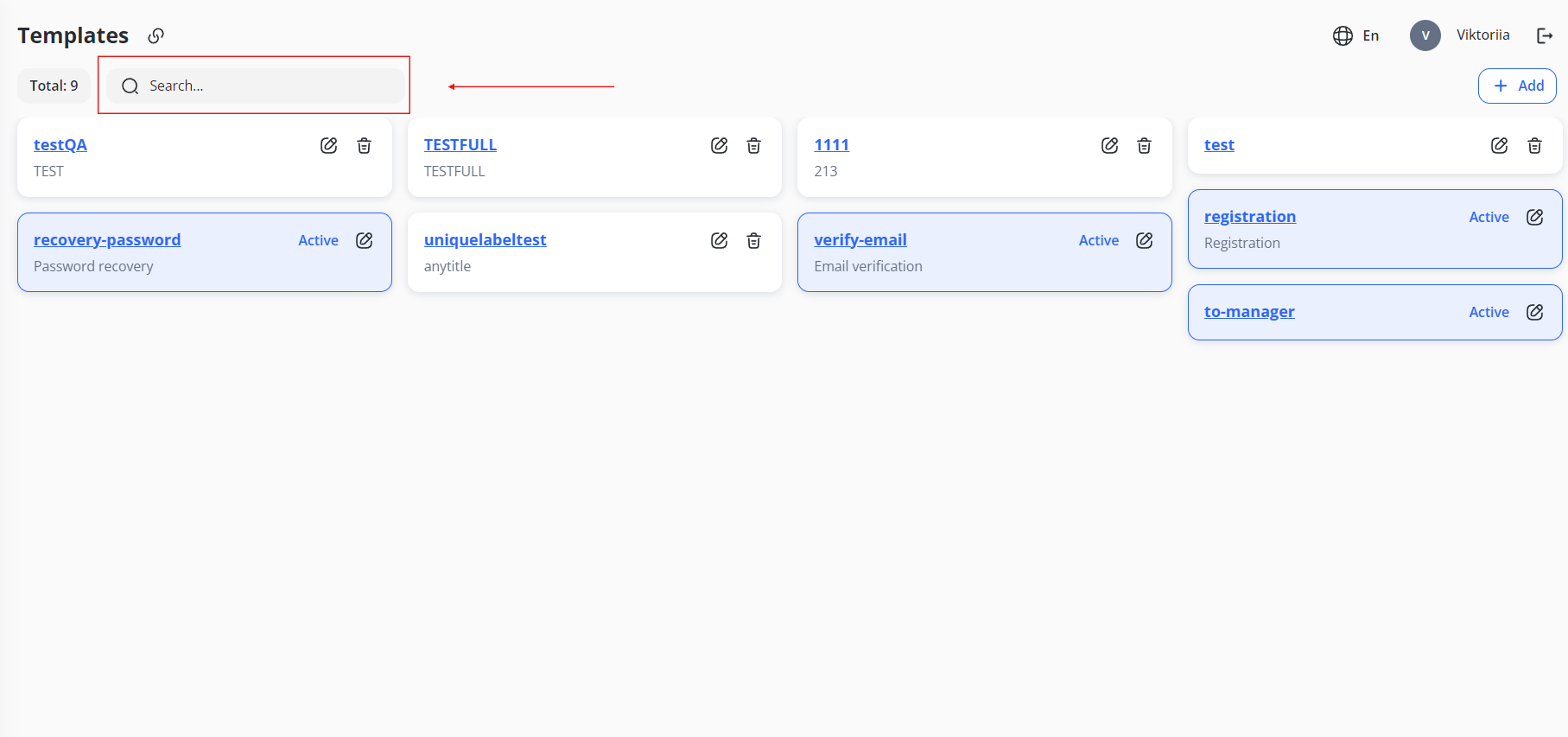
- Start typing its label in the Search field:
To edit a template:
1. Click the Edit icon next to the corresponding template.
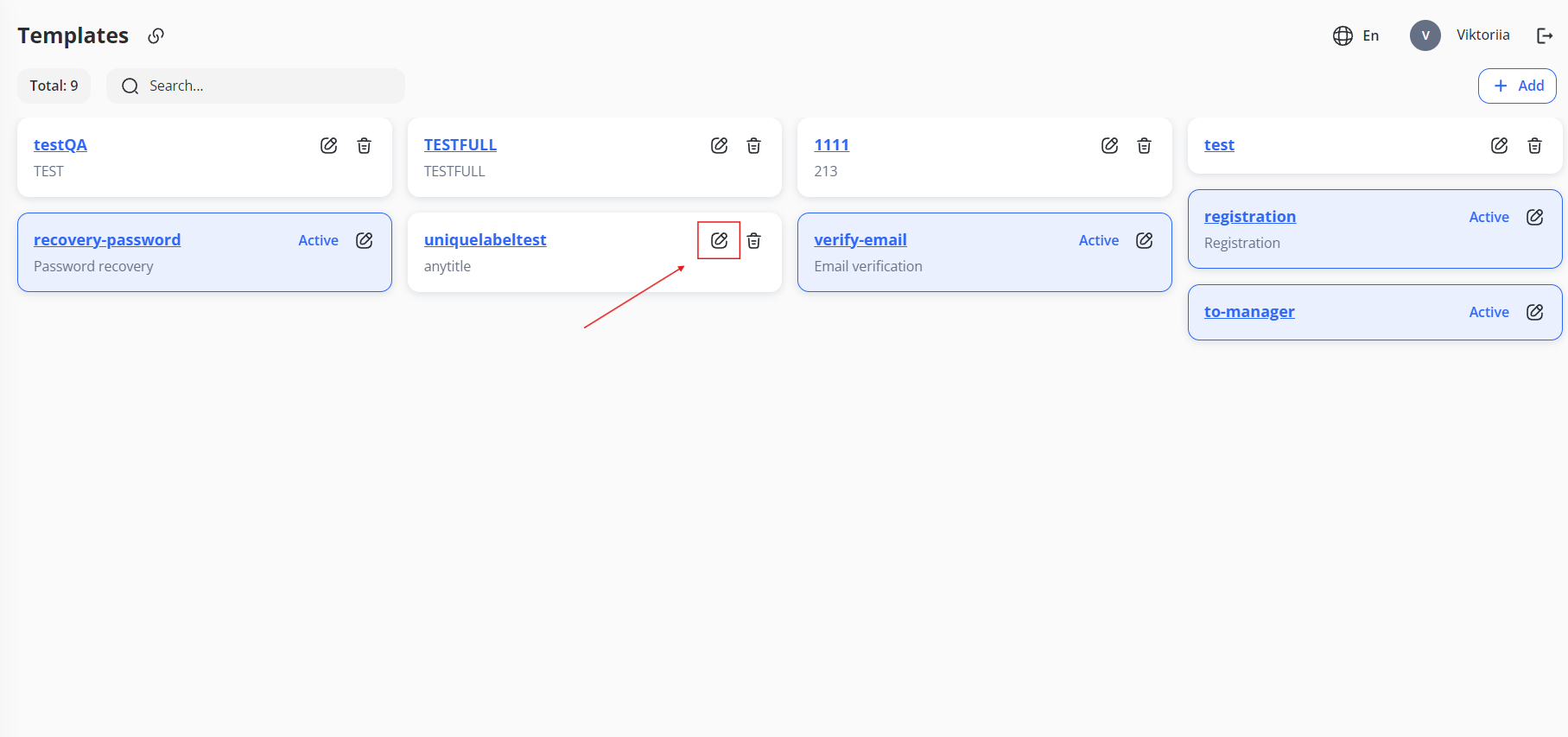
2. You can change anything except the Label of the template.
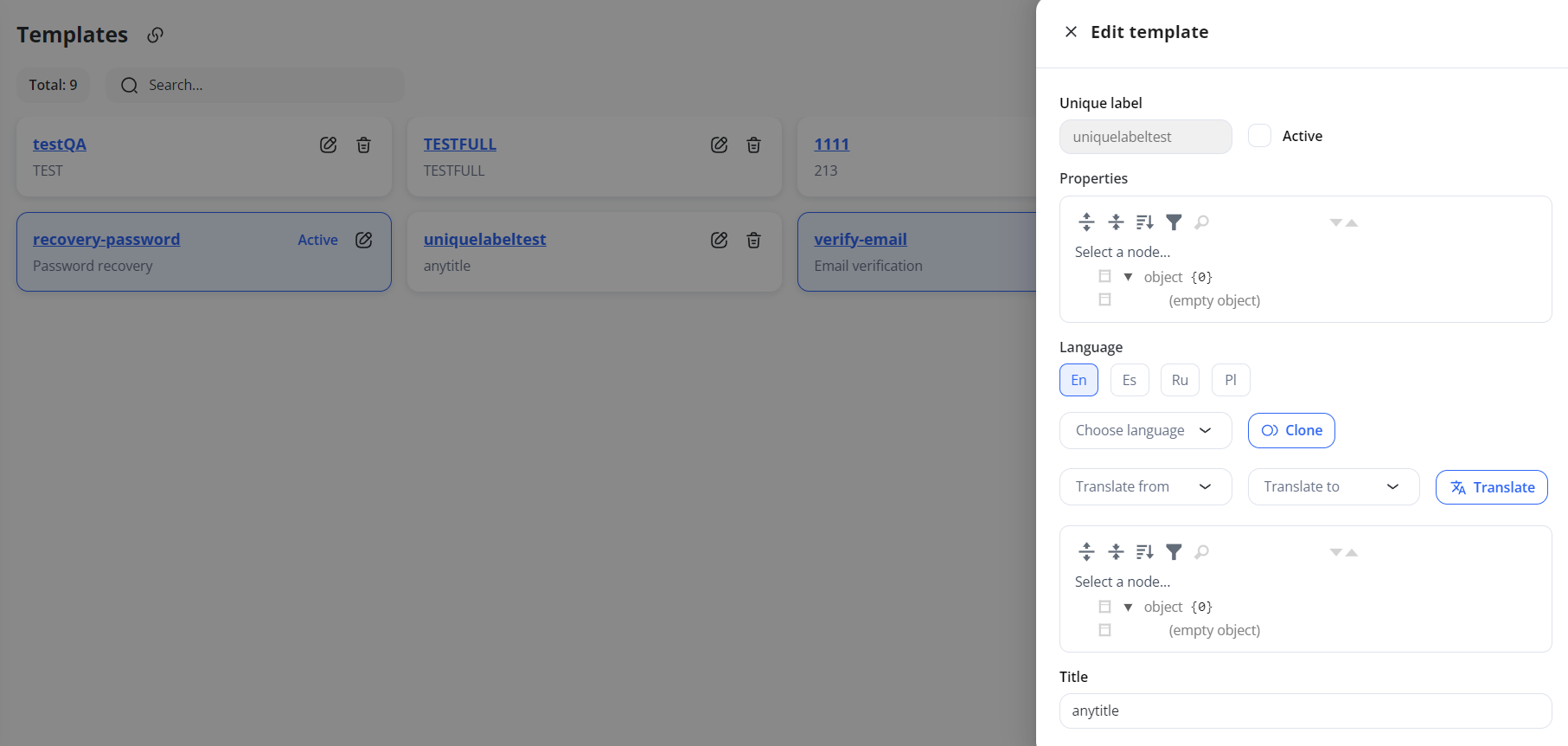
3. Click Save to apply the changes.
To delete a template:
-
- Click the Delete icon next to the corresponding template.
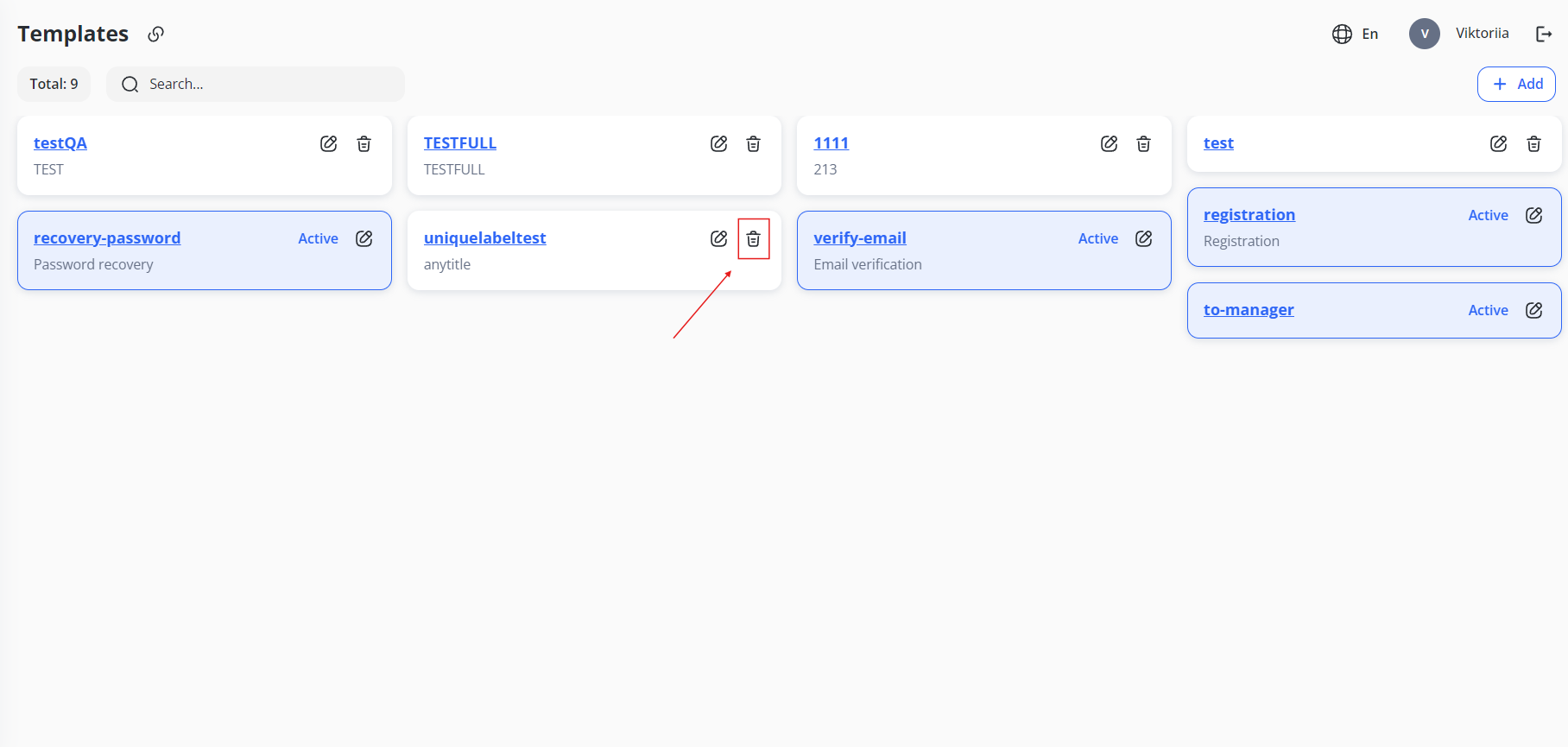
Note: You can only delete templates that are not active.