
6. How to Edit a Role
ToOver edittime, your organization’s needs may evolve: you might need to grant additional permissions to an existing role or tighten access in response to security changes. The Edit Role function lets you fine-tune an existing role’s permissions—adding or removing rights, switching templates, or even upgrading someone’s capabilities—without having to recreate the role from scratch.
Step-by-Step Process
1. Open the Roles Module
You’ll see the full list of roles along with their current modules and access scopes.
2. Locate the Role to Edit
Scroll or search to find the role you wish to modify.
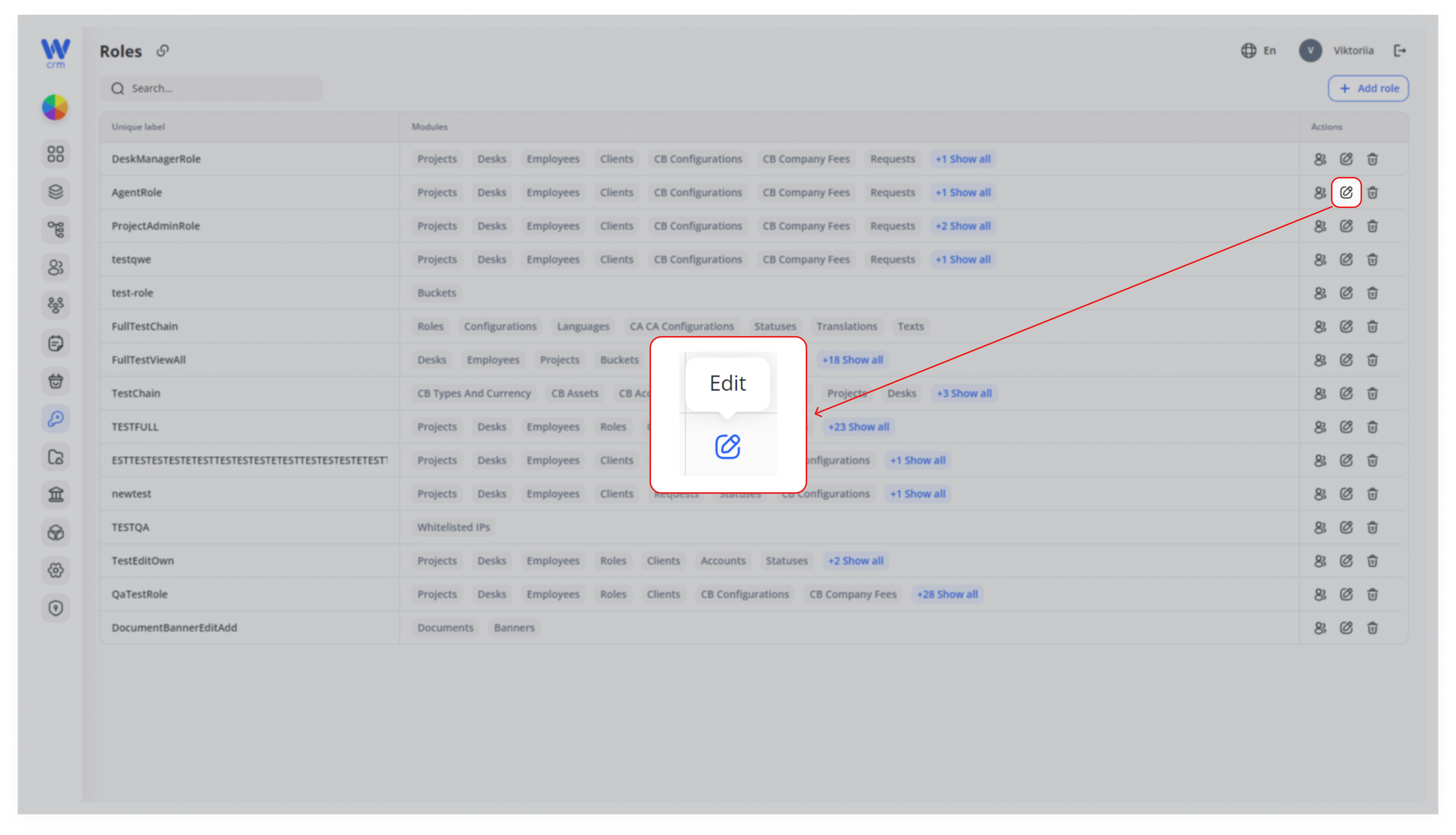
Each row shows the role’s unique label (name) and a role,summary of the modules it can access.
3. Launch the Edit Dialog
In that role’s Actions column, click the Edit icon(pencil) inicon.
The ActionsEdit Role columnpanel ofappears, displaying the role’s row:configuration fields.
The4. Review the Role Name and Template
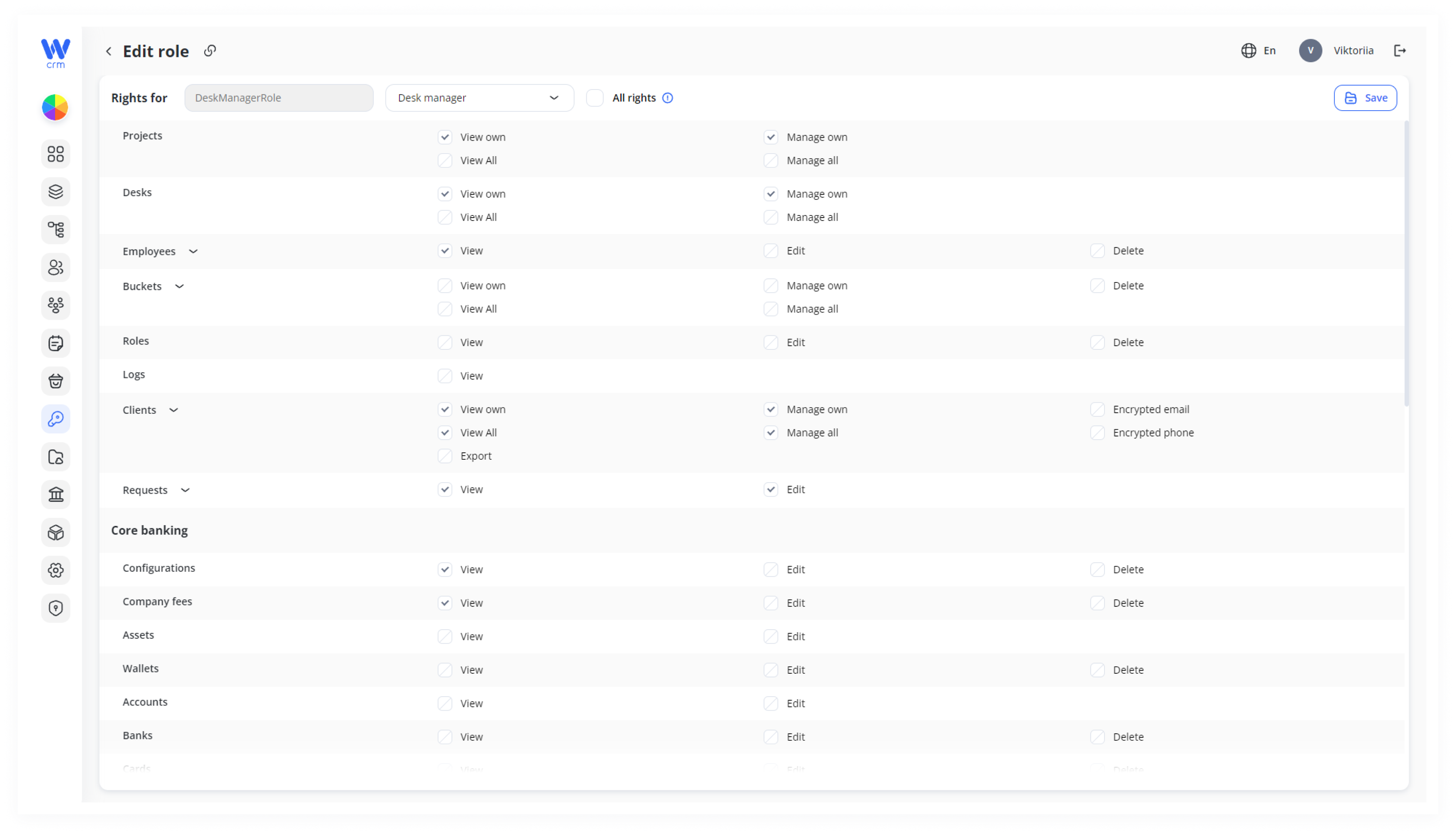
At the top, the EditRole rolename windowfield shows the label you assigned when creating the role. This is read-only and cannot be changed.
Next to it, the Template dropdown lets you reassign a different predefined template (e.g., Agent, Desk manager, Project admin). Changing the template will open:replace the permission matrix with the template’s defaults.
Enabling All rights immediately grants every possible permission across all modules. This is rarely recommended—use only for super-admin or audit roles.
6. Modify View Permissions
In the View column, you’ll see each module (Projects, Desks, Clients, etc.) along the left.
Click checkboxes to grant or revoke “View own” (only records they own) and “View all” (every record) rights.
For nested modules (e.g., under Clients: Export, Import), expand the section to expose sub-permissions.
7. Modify Manage Permissions
In the Manage column, toggle “Manage own” and “Manage all” to allow editing, creating, or deleting records.
Some modules also offer special rights such as “Send a private message” under Clients.
8. Add or Remove Specific Actions
Beyond the view/manage dichotomy, certain modules include granular options:
- Under Employees, you might toggle “Create/Edit” vs. “Delete.”
- Under Settings, you can enable or disable access to languages or verification levels.
9. Save or Cancel Changes
Once you’ve made your adjustments, click Save to apply them immediately.
To abandon your edits, click the back arrow or Cancel—no changes will be saved.
Here, you can delete permissions set during the role creation stage or add new ones. You can also set or change a template for the role.
Note: For roles created or edited based on templates, you can only change the templates later, but not edit the permissions manually.
Restrictions & Best Practices
-
Template-Based Roles: If the role was initially created from a template, you may only switch templates rather than manually editing every permission. This preserves consistency across standard job functions.
-
Module Dependencies: Granting view or manage rights to one module may auto-select related modules (e.g., giving Projects access often requires Desks and Employees access). Double-check dependencies if you see checkboxes automatically toggling.
-
Use Audit: After saving, it’s good practice to test the role by impersonating or reviewing an employee’s session logs to ensure they have neither too many nor too few permissions.
The Edit Role feature lets you keep your permission structures up-to-date as your team grows and business processes change. By carefully balancing view and manage permissions—optionally leveraging templates for common job functions—you maintain tight security controls while empowering employees with exactly the access they need.