6. How to Configure Buckets
The Configurations sectiontab allowswithin each bucket lets you to manage sources,three postbacks,key entities for tracking and snippetsrouting leads:
-
Sources – where your clients originate
-
Postbacks – callback URLs for
yourregistrationadvertisingandchannels.first-trade events -
TheSourceSnippetsentity–tracksembeddablethecodeorigintoofdriveclients.new sign-ups
To add a new source:
3. Click the the New Source button next to the List of sources.
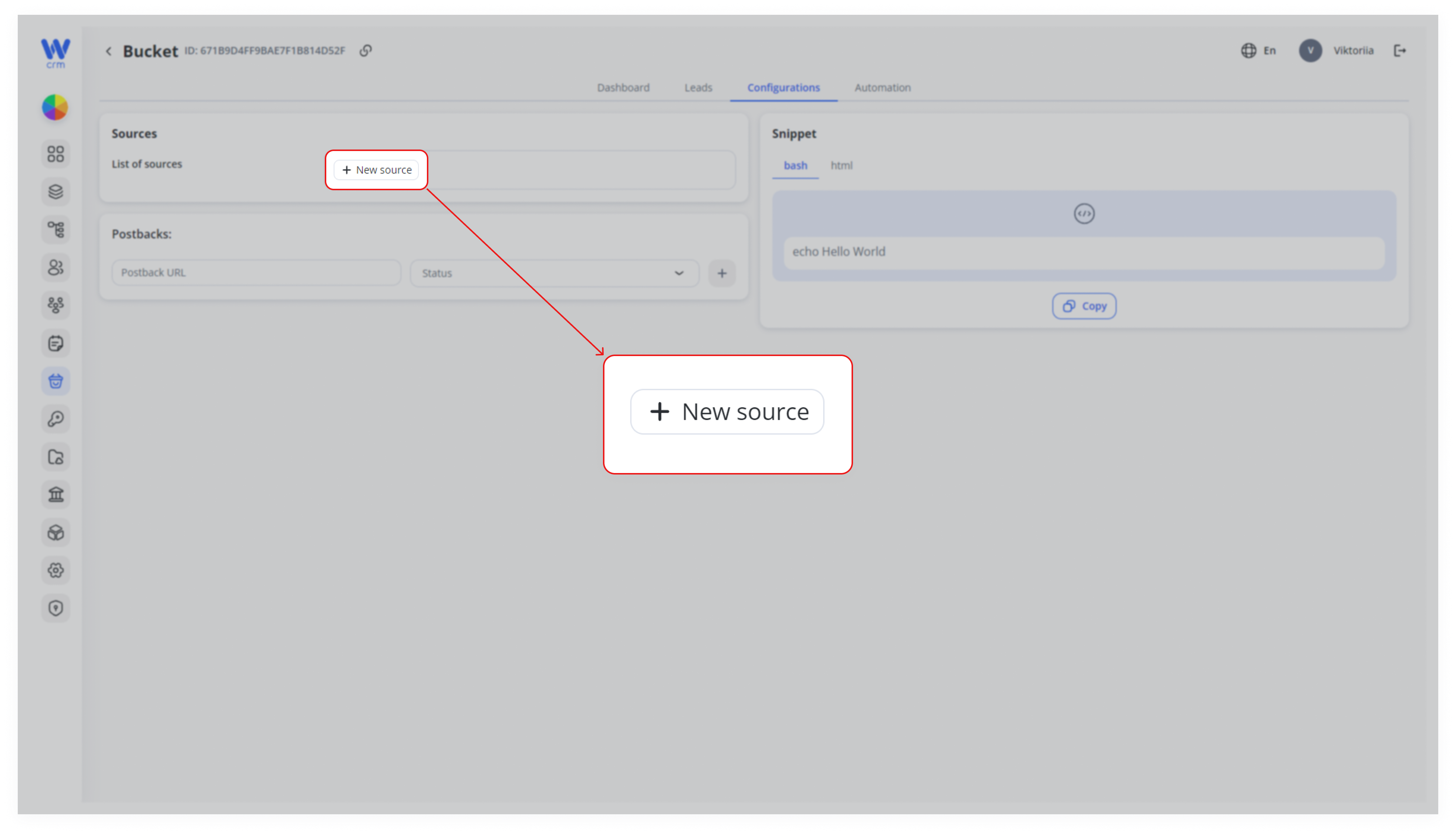
4. Enter the name of the source in the provided field.
5. Press Press Enter or click outside the field to confirm.
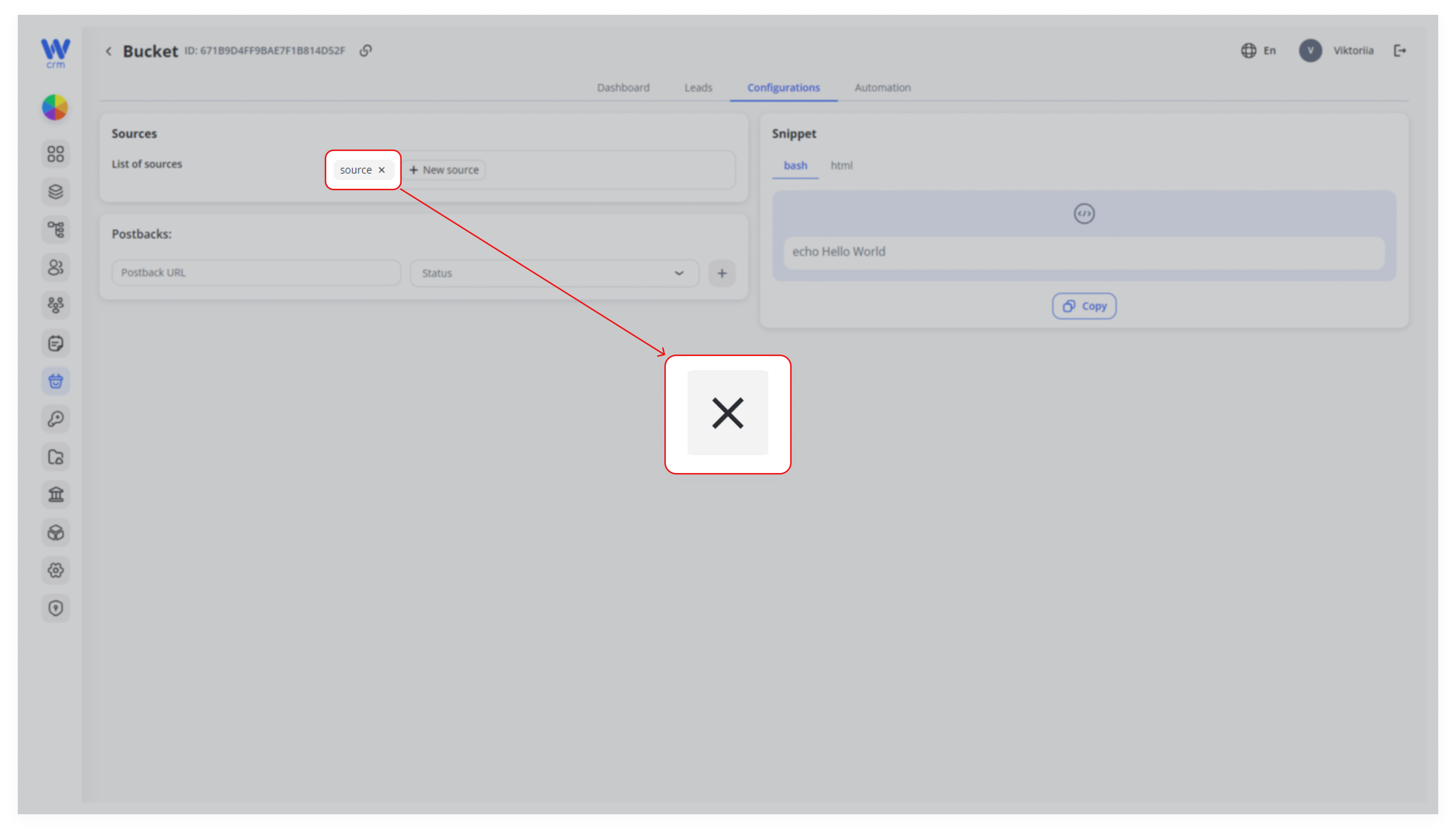
6. To add more sources, repeat steps 2-4.
7. To delete a source, hover over it and click the x icon.
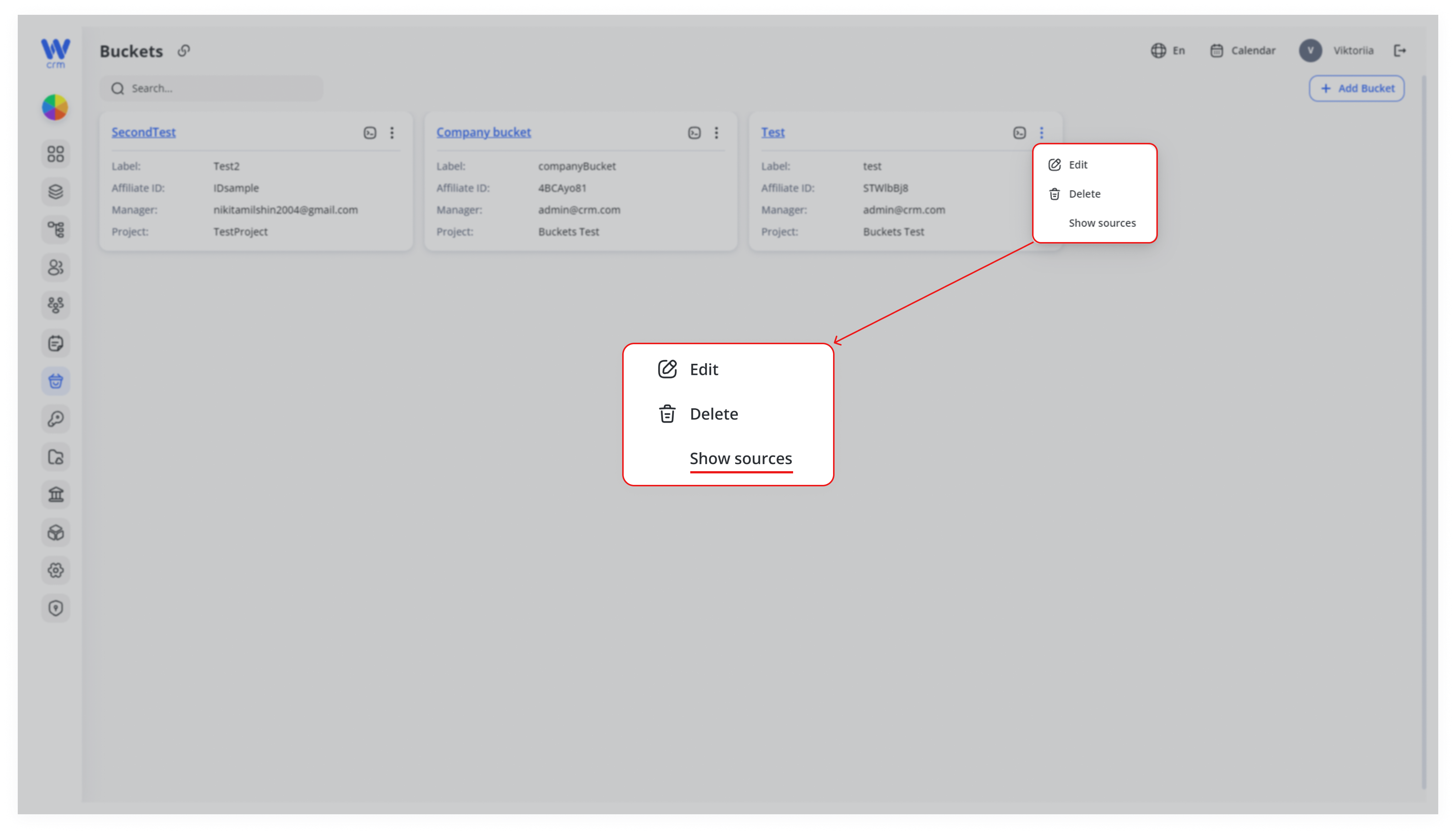
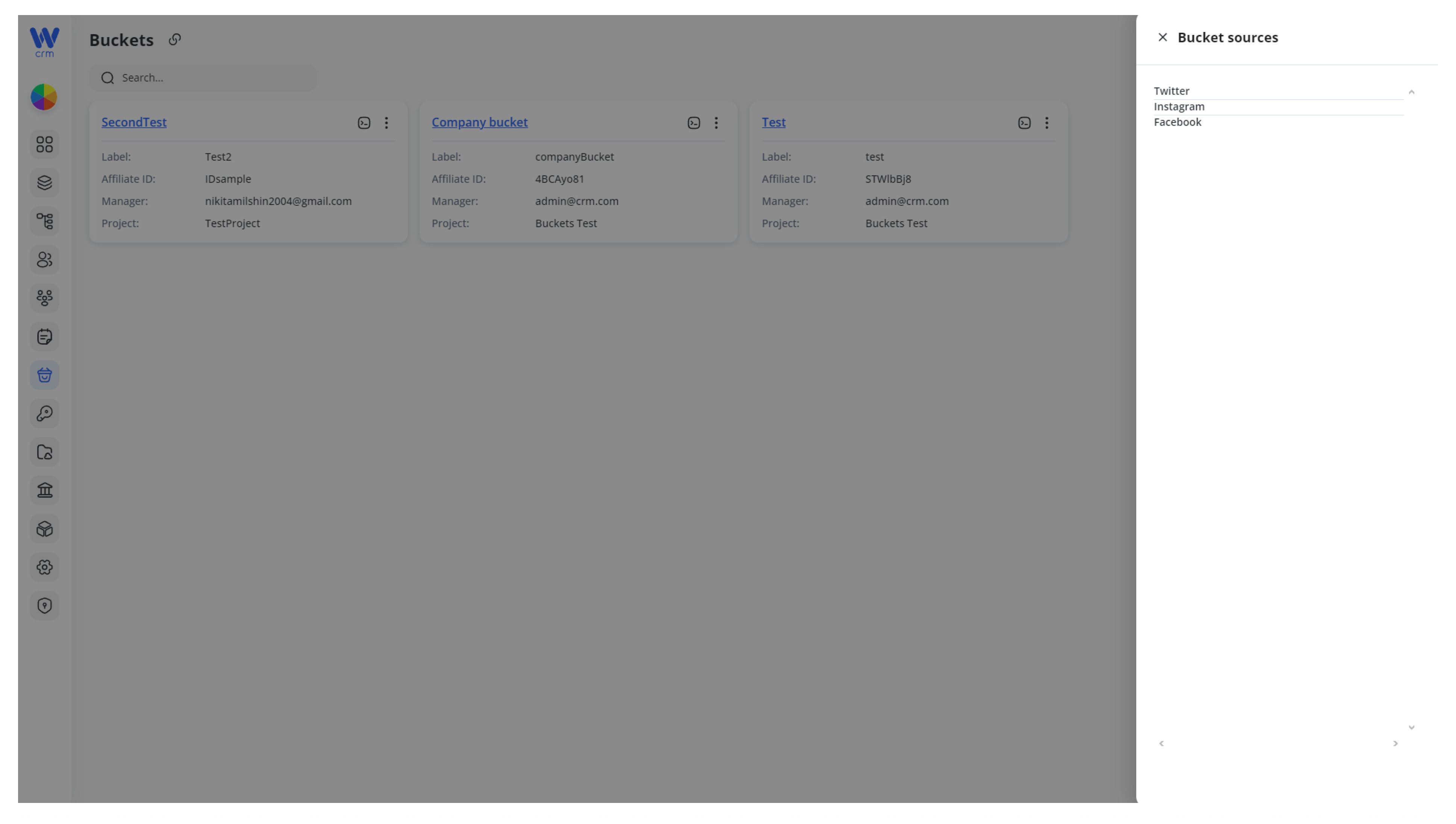
You can view all sources for a specific bucket from the main Buckets page. To do that:
2. Click on the three-dot menu in the upper-right corner of the bucket.
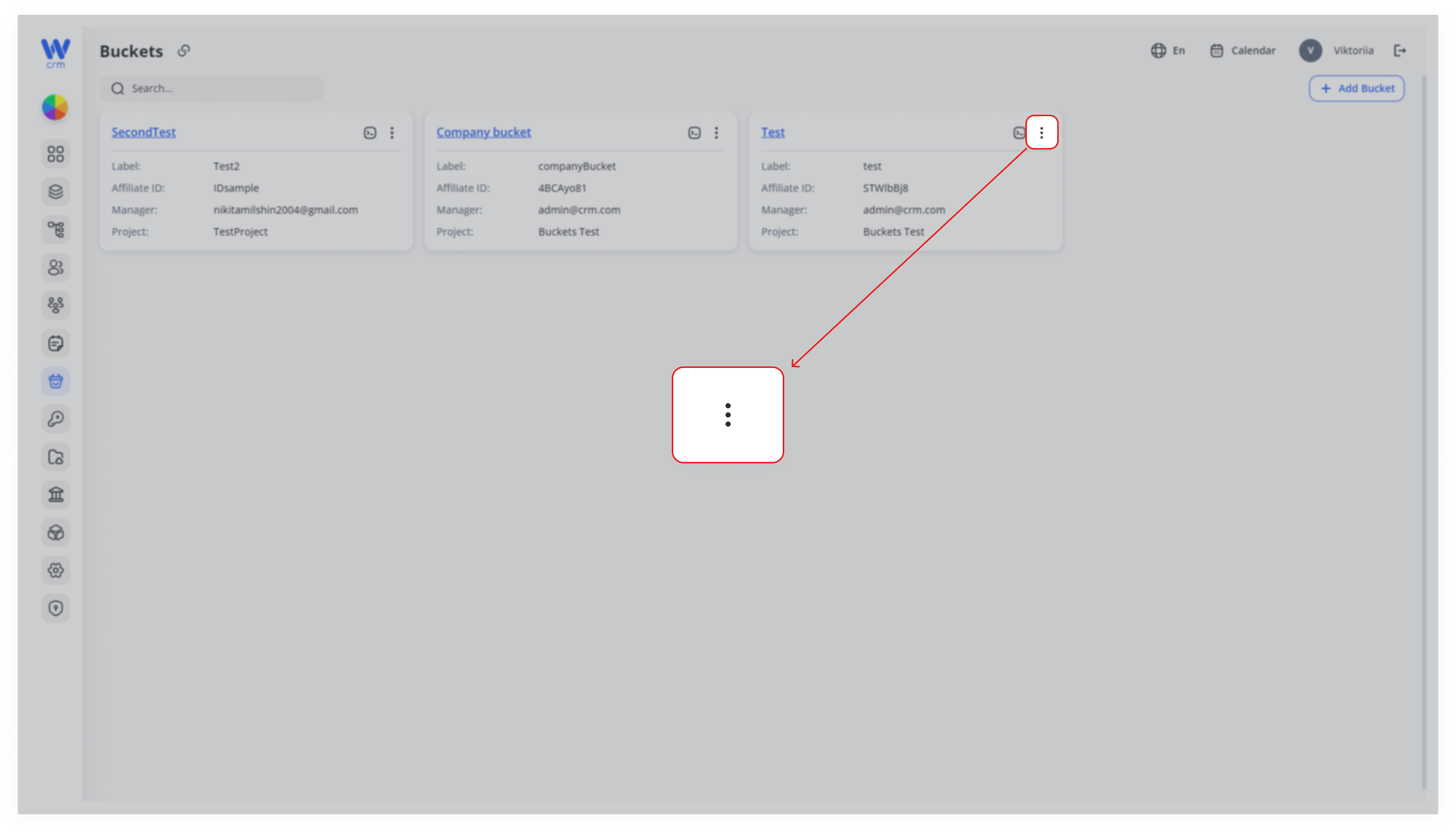
3. Select Select Show sources.
4. A drawer with the list of sources will appear.
The Postbacks entity allows you or your partners to control and track user traffic and activity within our CRM system. Once a user registers in our CRM, a request is sent to the configured postback URL. Similarly, when the user completes their first transaction, a request is also sent to the configured postback URL.
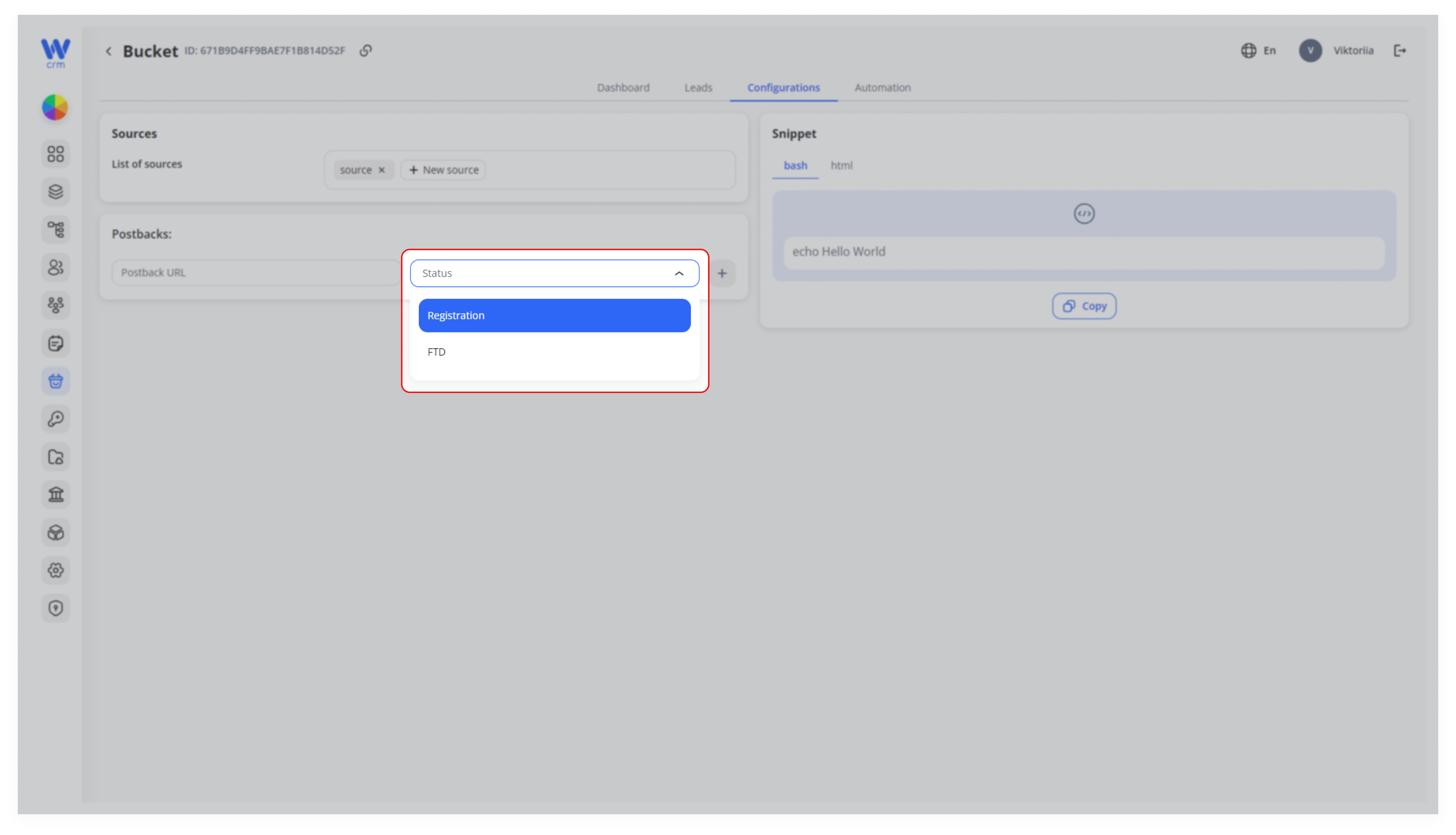
You can add postback URLs for two types of activity:
-
-
FTD (First Transaction)
-
Registration
-
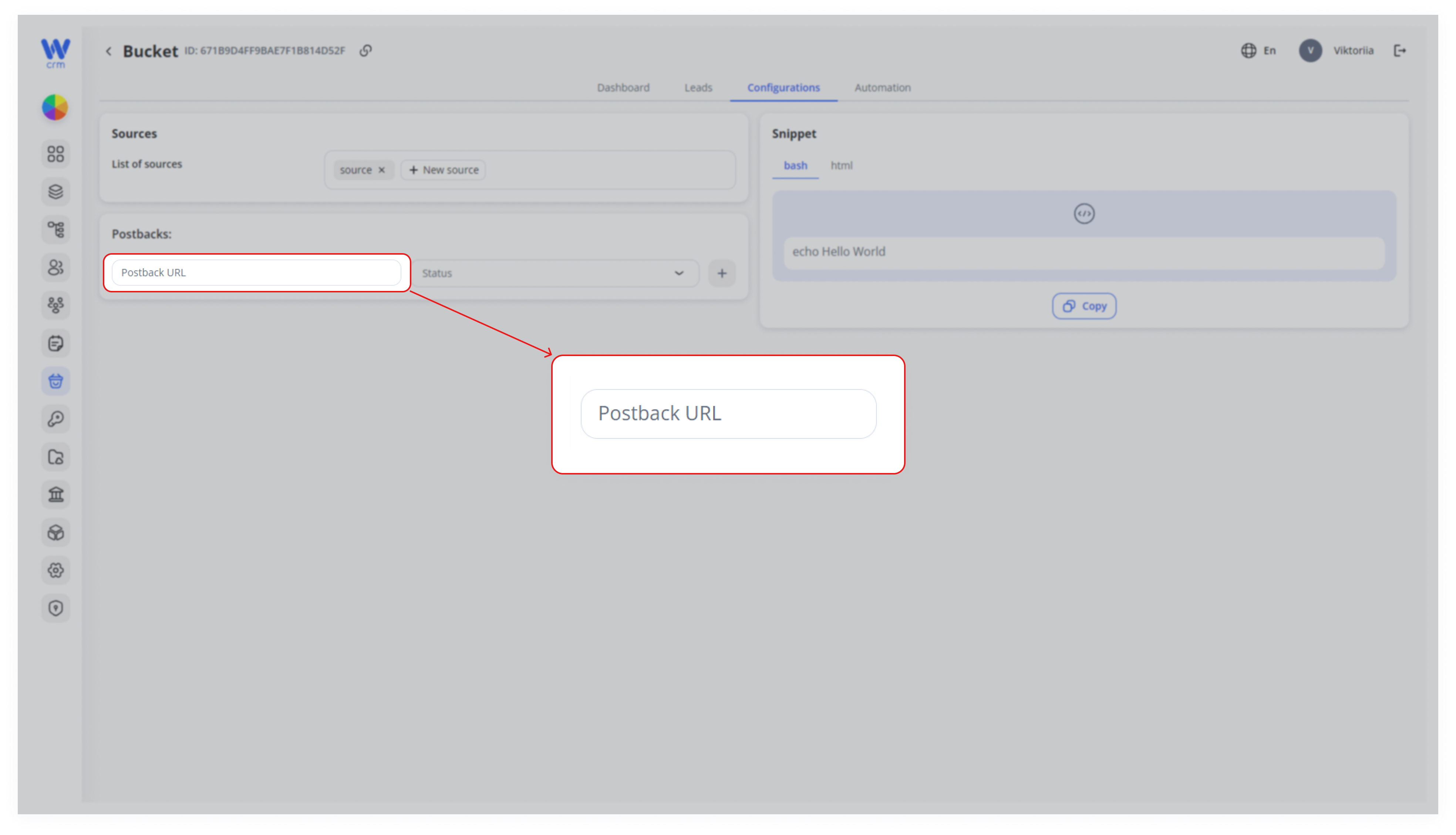
To add a new postback:
1. Enter the Postback URL in the provided field.
2. Select Select Status (FTD or Registration) for that URL from the drop-down list.
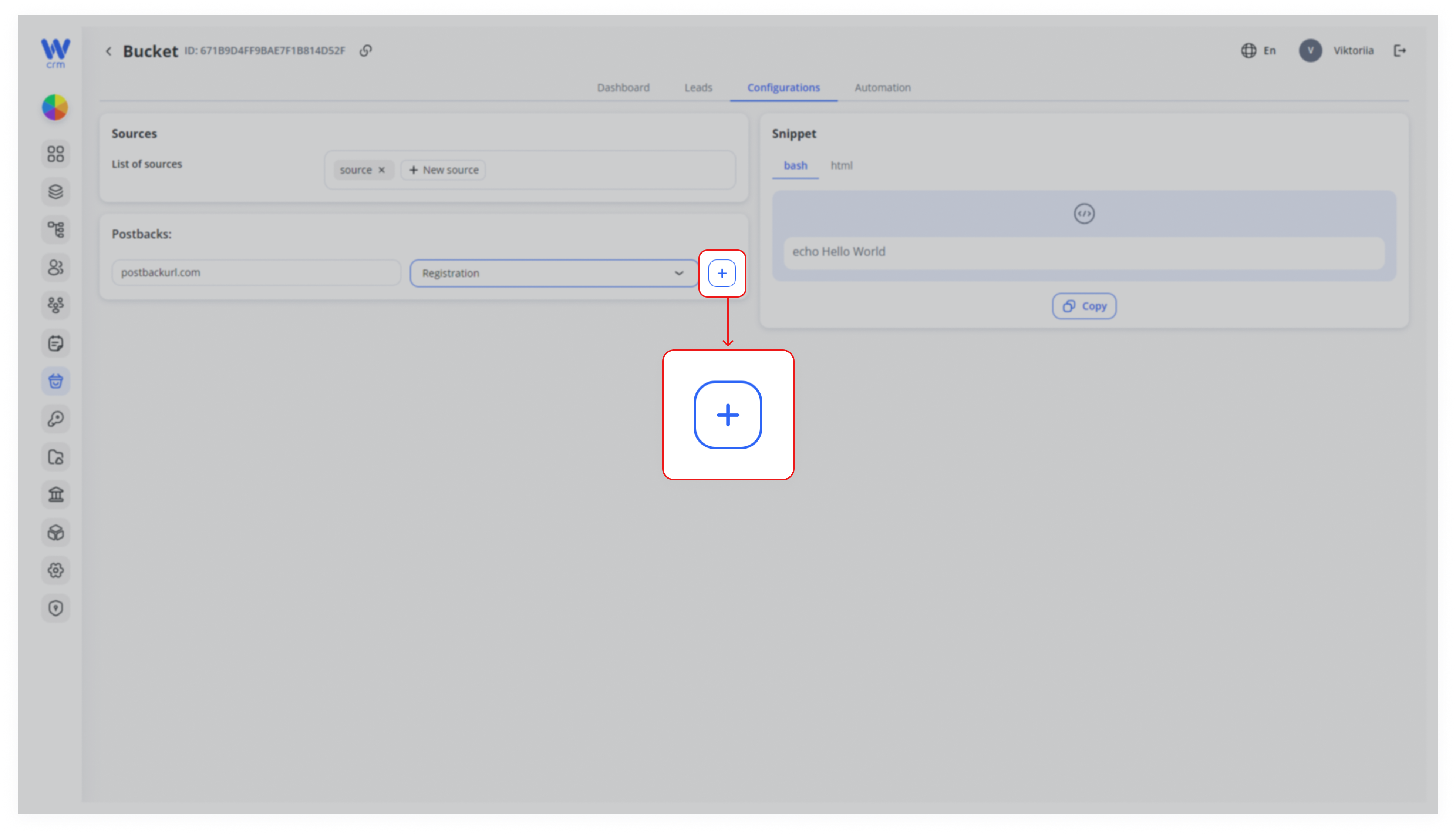
3. Click the plus icon (+) to add the postback.
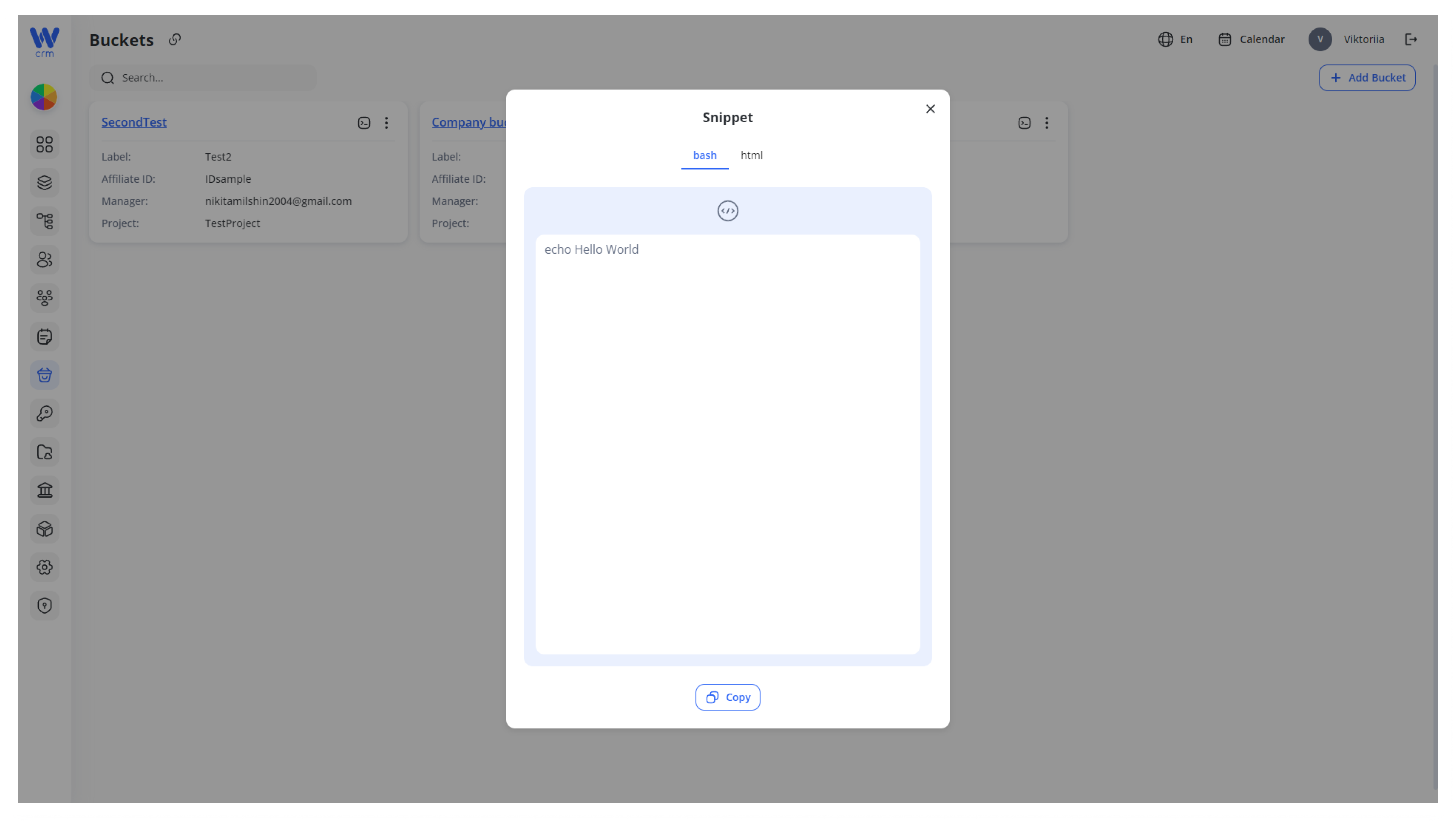
The Snippet entity provides customizable code that you can insert into your website or social media page to attract clients to the platform. You can configure the code in various formats through through Settings > Texts > Code Snippets.
To get a snippet:
-
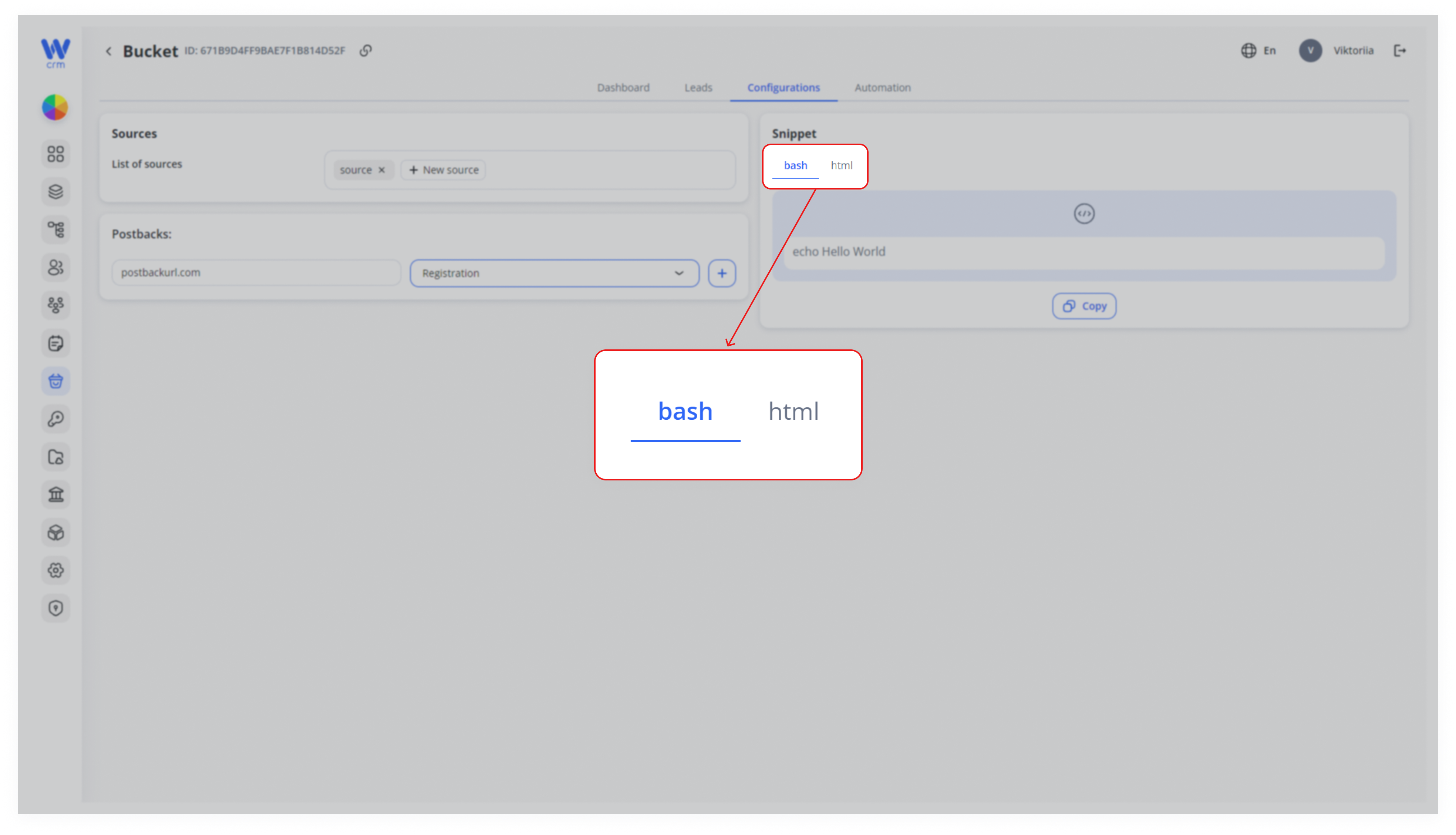
Click on the desired format. Once selected, the format will turn blue.
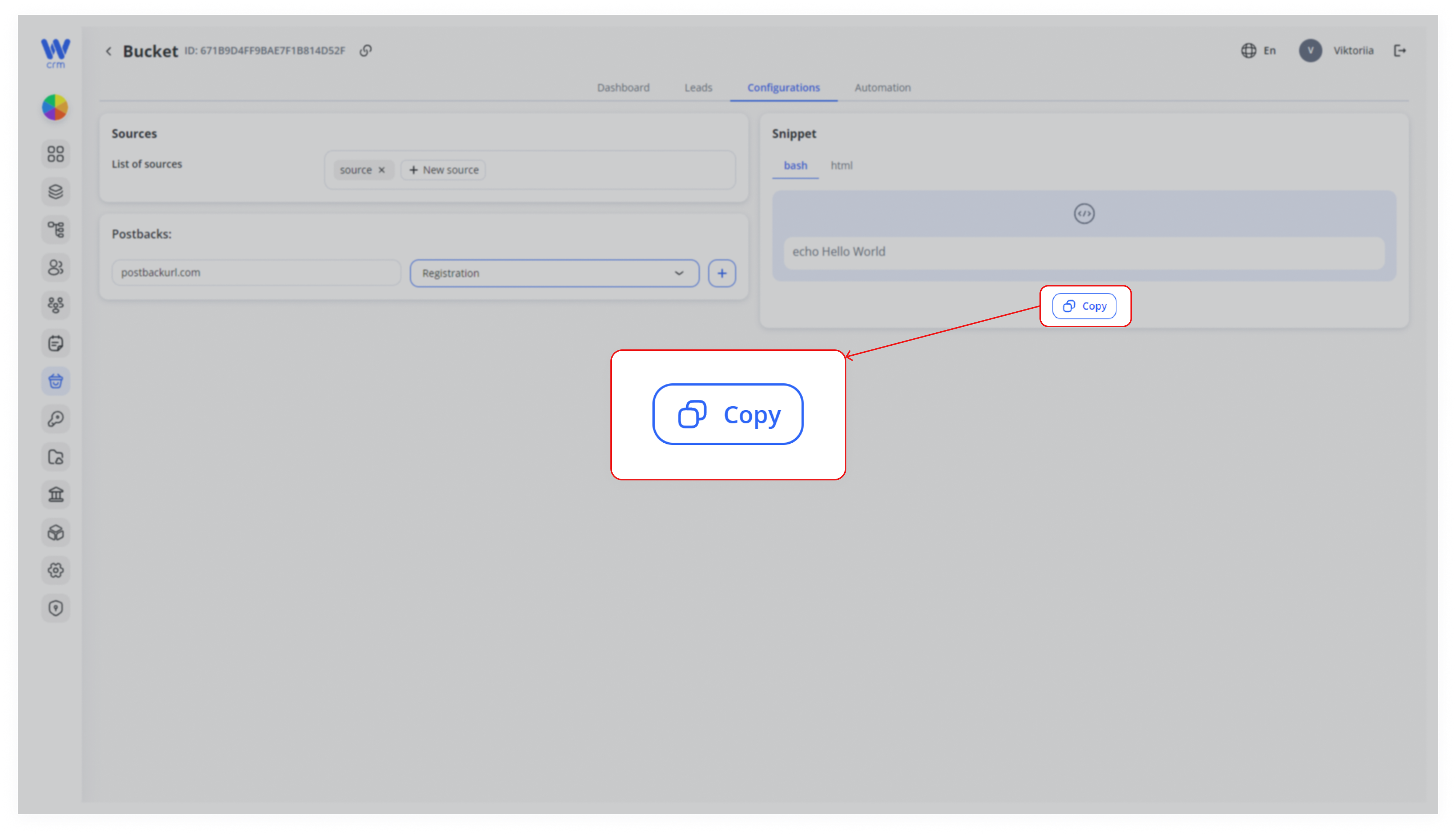
2. Click Copy to save the code to your clipboard.
You can also get a snippet from the main Buckets page. To do that:
2. Click on the Show snippet icon near the specific bucket.
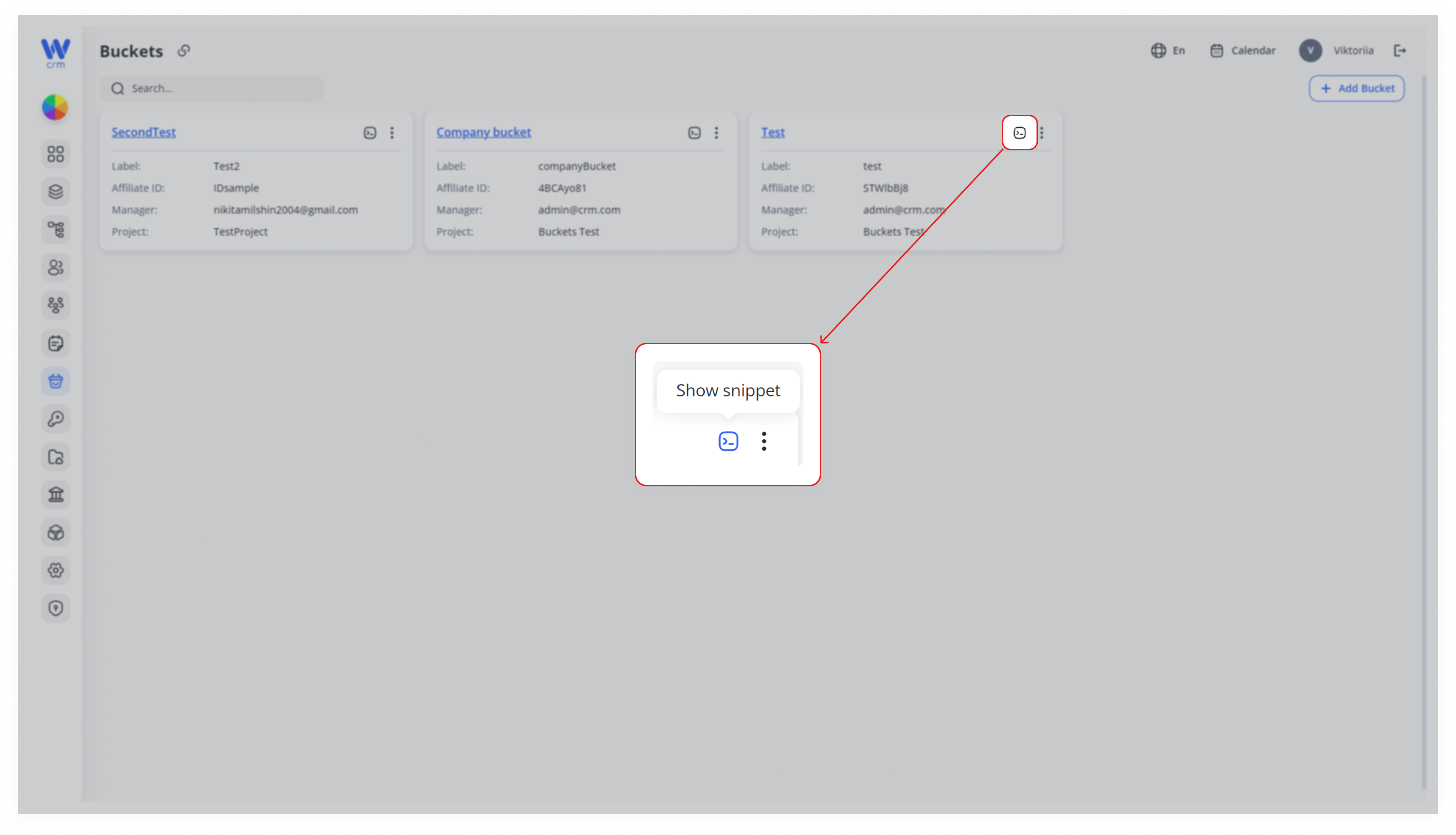
3. A drawer with the snippet will appear.