
5. Trading: Orders
The Orders page is the operational workspace for viewing, filtering, creating, and editing client orders. It surfaces key fields required by risk, pricing, and execution, and enforces margin and trading-calendar rules from Configurations.
The table includes sortable timestamps for creation, execution (UTC), and last update to support audit and operational review.
Finding the Page
Orders Visibility and Permission Enforcement
Order visibility strictly follows role permissions defined in the Roles module.
The Orders page does not apply UI-only hiding.
All visibility rules are enforced server-side.
Only authorized orders are returned by the backend API.
Visibility Rules
An order is visible to a manager only if it satisfies all applicable permission checks:
1. Project Permission
If the role allows:
Projects → View all→ Orders from all projects are visible.
If the role allows:
Projects → View own→ Only orders belonging to projects assigned to the manager are visible.
2. Desk Permission
If the role allows:
Desks → View all→ Orders from all desks are visible.
If the role allows:
Desks → View own→ Only orders linked to desks assigned to the manager are visible.
3. Client Permission
If the role allows:
Clients → View all→ Orders from all clients are visible.
If the role allows:
Clients → View own→ Only orders where the client is assigned to the manager are visible.
Combined Permission Logic (Critical)
An order must pass:
(project visibility)
AND
(desk visibility)
AND
(client visibility)
If any check fails, the order is not returned by the system.
Full-Access Roles
Roles with global permissions (e.g., Admin) are not restricted and can view all orders.
Orders in Client Profile
Inside a client profile (Clients → select client → Orders tab), orders are separated into two tabs:
- Open Orders — displays only active (OPEN) orders for the selected client.
- Close Orders — displays only closed (CLOSE) orders for the selected client.
Behavior:
Orders are automatically filtered by the selected client.
Open Orders is active by default.
Total count reflects only that client’s orders within the selected tab.
All table sorting and timestamp columns remain available.
Page Layout & Controls
-
Total — number of orders in the current view (respects filters).
-
Filter — opens the advanced filter panel.
-
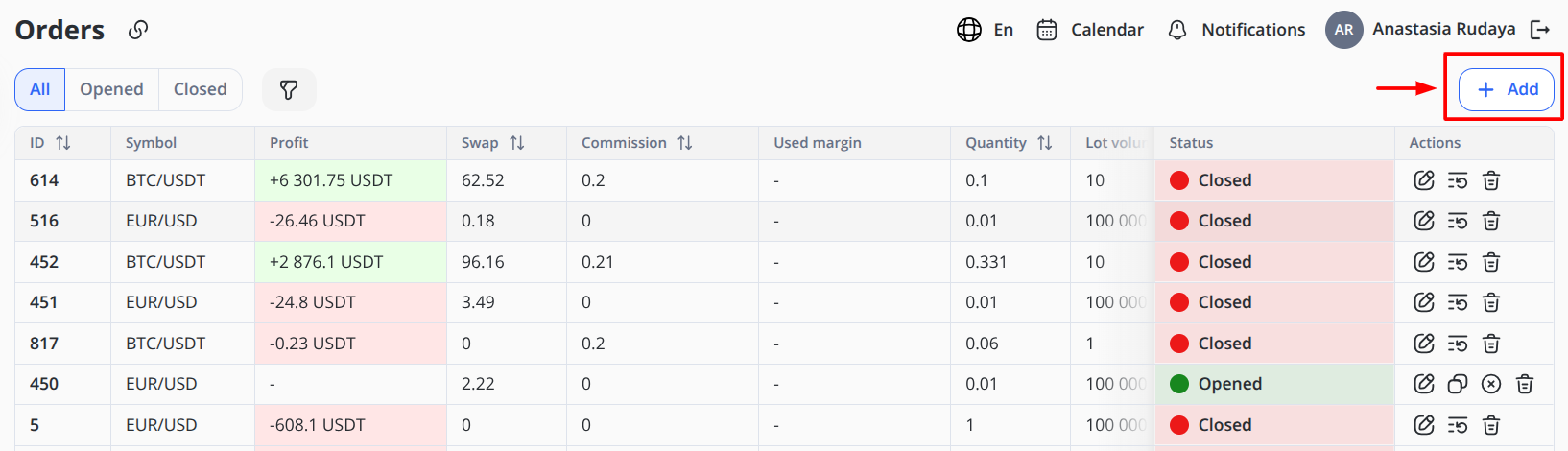
+ Add — opens the create-order form.
-
Table — sortable columns; actions appear on each row.
Column Customization
The Orders table supports dynamic column visibility customization.
Users can choose which columns are visible in the table.
Accessing Column Customization
To do this, in the Filters window, click on Customize columns and choose the required columns.
This opens a dropdown panel listing all available table columns.
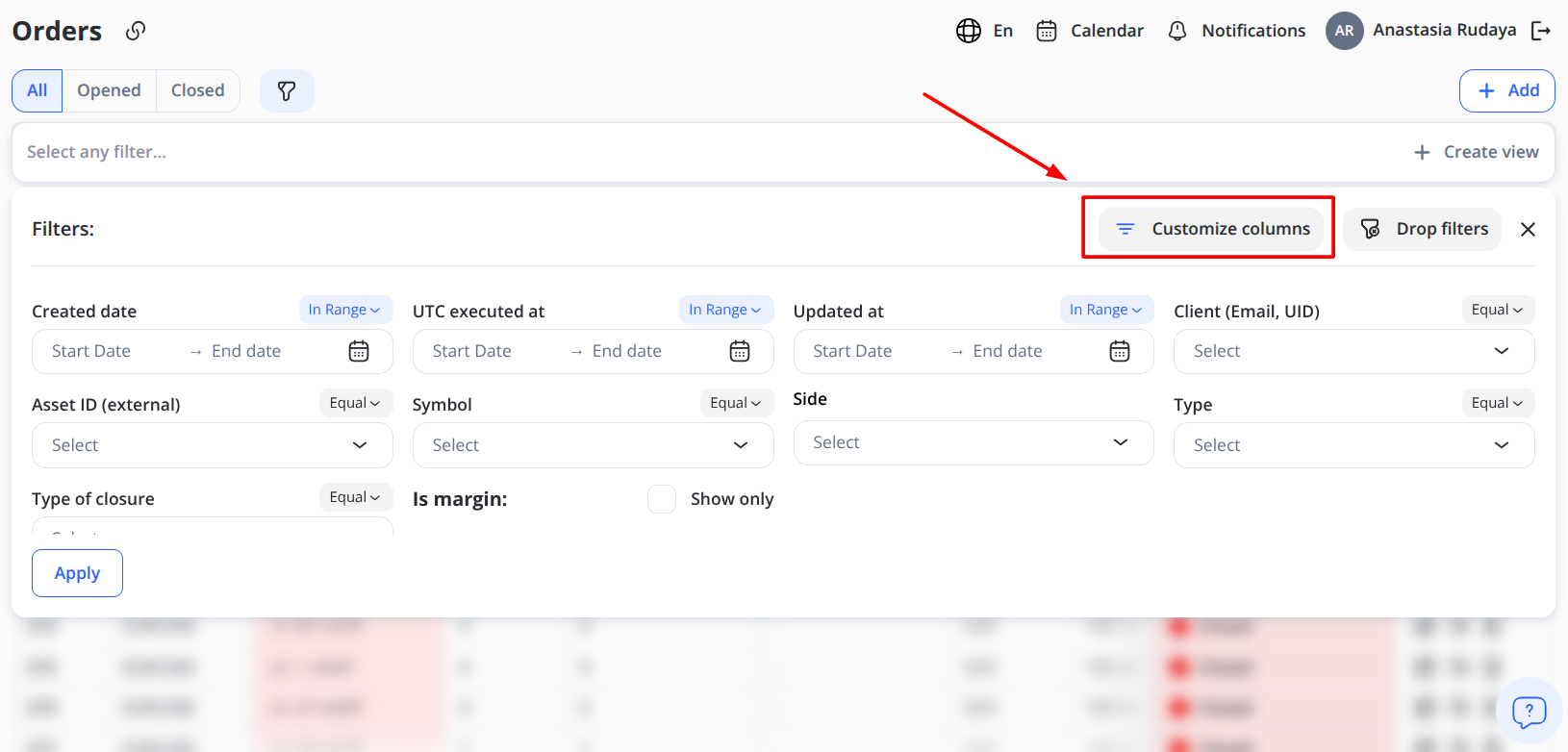
The column list is dynamically derived from the table configuration and always reflects the current implementation.
New columns added in future releases will automatically appear in this list.
Visibility Behavior
When a column is toggled:
-
Visibility updates immediately.
-
No page reload is required.
-
Table re-renders automatically.
-
Sorting and filtering remain functional for visible columns.
-
Are not rendered in the DOM.
-
Do not affect row alignment.
-
Do not break layout or scroll behavior.
Mandatory Column Rule
At least one column must remain visible.
The system prevents hiding all columns.
If mandatory columns are defined (e.g., Actions or ID), their toggle will be disabled.
If no mandatory columns are defined, the system blocks hiding the last visible column.
Persistence
Column visibility preferences:
-
Are saved per user.
-
Persist after page reload.
-
Remain consistent across sessions.
If new columns are introduced in future updates:
They default to visible.
Table Integrity
Column customization does not affect:
-
Pagination
-
Filtering
-
Sorting
-
Row actions
-
Order editing
-
Layout stability
The table layout remains stable when:
-
All columns are visible.
-
Only one column is visible.
-
Many columns are hidden.
Working with Table
The Orders table displays key information about trading orders and may include different columns, depending on the current configuration and enabled system features.
To sort the data, click the header of any sortable column, such as ID, Swap, Commission, Quantity, Status, Price, etc., to sort the table in ascending or descending order.
Row actions (common)
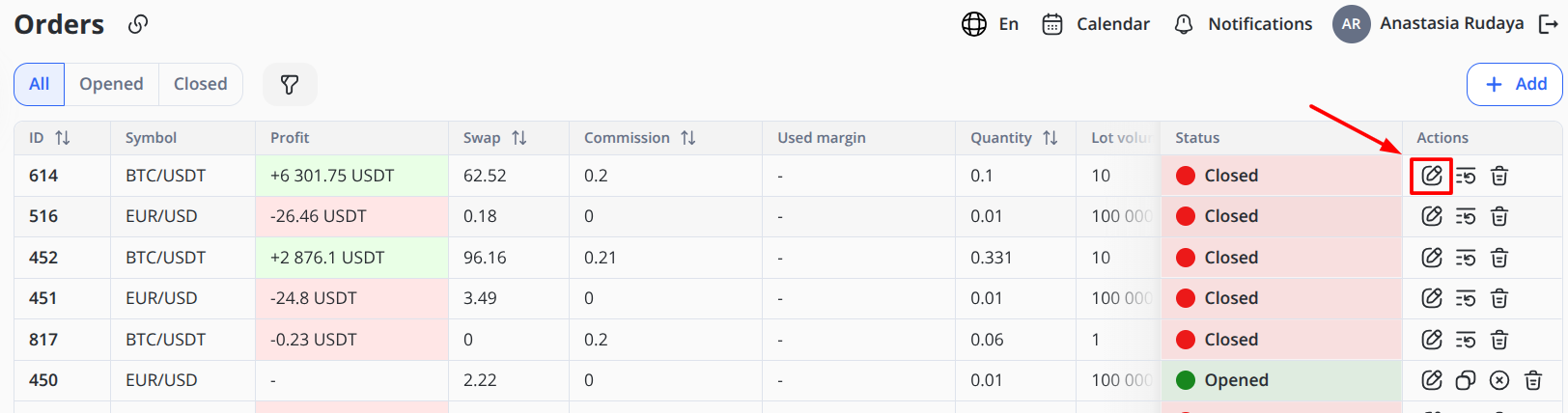
- Edit: Open the edit panel for the selected order. Editing is available for both open and closed orders.
- Clone: Create a new order using the selected order’s details as a prefilled template. All fields are automatically filled with the values from the original order, and the user can change them if needed before creating the new order. This action is available only for open orders.
- Reopen: Reopen a previously closed order as a new active order. A new order ID is assigned, while data from the original order is used as the basis for the new order. Before reopening, the system checks whether the margin requirements are met. This action is available only for closed orders.
- Close/Cancel: Request order closure/cancellation where policy allows (open orders only).
- Delete: Delete the selected order from the list. This action is available for both open and closed orders, not only for non-executed orders. When an order is deleted, the account balance is recalculated and restored based on the order’s reserved margin and profit/loss value.
Filtering & Searching
Open Filter to combine multi-criteria searches. All filters are optional; applying them updates Total and the table.
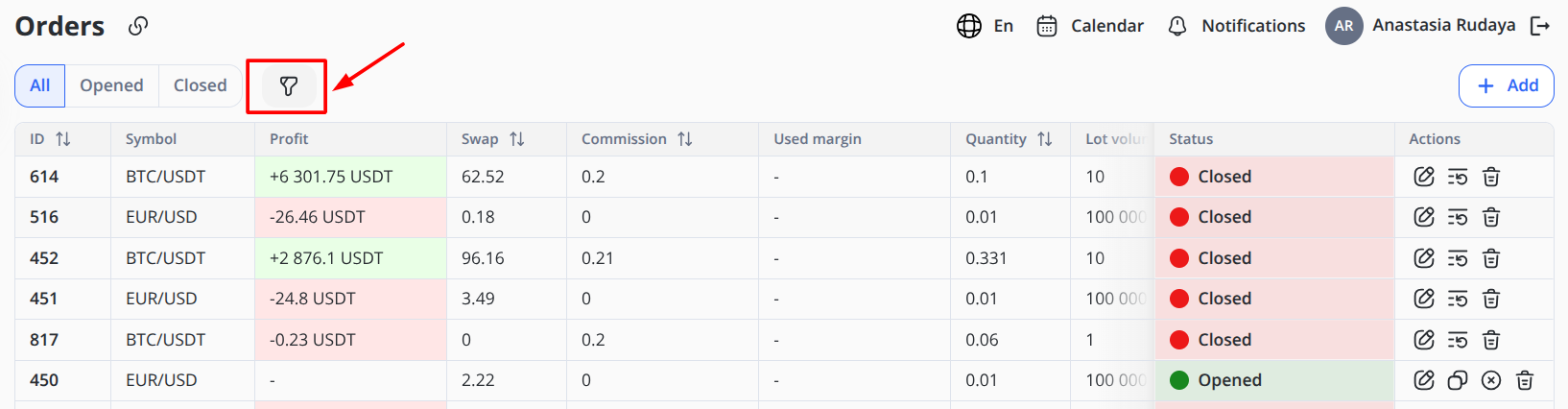
Fields:
-
Created date: Range filter (
Start date→End date) -
Updated date: Range filter (Start date → End date)
-
Executed date (UTC): Range filter based on execution timestamp recorded in UTC
-
Client (Email, UID): Single-select from known clients
-
Asset ID: Narrow by account/portfolio identifier
-
Symbol: Instrument/pair
-
Side —
BUYorSELL -
Type — e.g.,
MARKET(others if configured) -
Type of Closure: Stop, Take profit, Liquidation, Closed by client, Closed by manager
-
Margin: Toggle to show only margin-enabled orders if your instance differentiates
Click Save in the filter panel to apply.
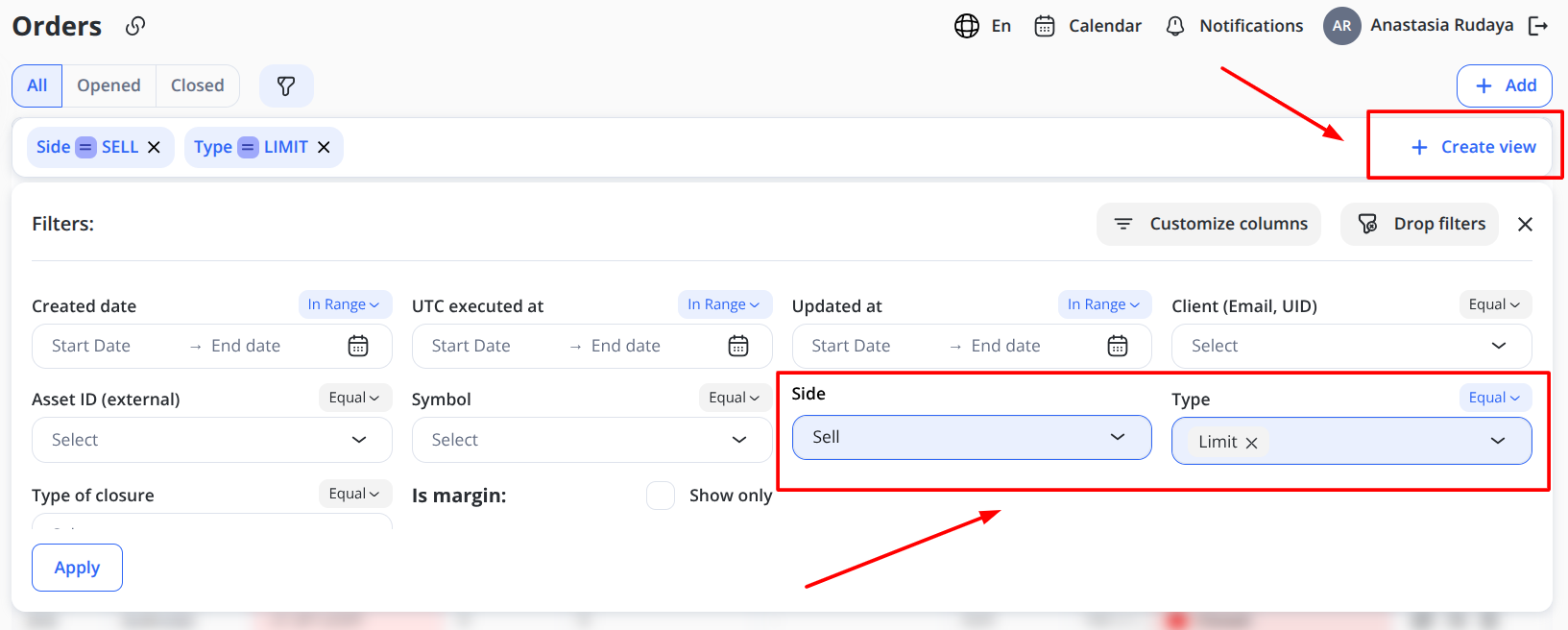
You can also save selected filters and quickly reuse them the next time you open the Orders table. To do this:
-
Select the required filters
-
Click Create view
-
Enter the name
-
Click Submit
Creating an Order
Click + Add to open the form for creating a New order (exact fields vary by enabled order types).
Common fields:
-
Client / Asset ID
-
Symbol
-
Side
-
Volume
-
Limit order
-
Static used margin
-
Commission
-
Accumulated swap
-
Long or Short swap rate
-
Stop loss / Take profit
-
Order in past
After selecting Order in past you have to fill Execution date & time and Opening price.
Business rules at create:
Trading calendar: The system checks the symbol’s trading schedule and time zone before creating an order. If the symbol is in a non-trading window, such as a weekend or holiday, order creation is blocked.
Margin check: The system runs pre-trade margin validation before creating an order:
Margin = Contract Size × Volume × Price / Stored Leverage
Then the account’s free balance must meet or exceed the pair’s Margin requirement (%) of the collateral. If it is insufficient, creation is rejected with an insufficient-margin error. The minimum margin level required to open an order is 40%.
Precision & steps: Price and quantity must align with the pair’s precision/minimum step.
Submit the form to place the order. On success, the order appears in the table.
Editing an Order
Select Edit on a row to open the side panel. Choose Buy or Sell operation, then define the required settings in the editable fields:
-
Volume
-
Limit order
-
Static used margin
-
Commission
-
Accumulated swap
-
Long swap rate
-
Take profit
-
Stop loss
-
Execution date & time
-
Opening price
Click Update the Order to apply all changes.
Managers have extended control over open orders:
Order Price Adjustment – ability to modify the opening price of an order to increase or decrease profitability.
User PnL Overview – aggregate PnL across all open trades for quick monitoring and reaction.
Margin Adjustment – managers can manually add or subtract a static margin value (positive or negative) in the relevant currency, increasing or decreasing the locked margin.
Validation & behavior:
All edits are re-validated against precision, lot size, and margin availability.
If the instrument is in a non-trading window, actions may be restricted.
Saving applies changes immediately; the audit log records before/after values with user and timestamp.
Margin call notifications:
When a trader’s available balance approaches a critical level, the platform sends staged warnings in the trading area. It is a custom setting configurable for each client. For example:
-
At 30% of the required margin, an early warning is sent to the user.
-
If the balance falls below 10%, one or more open positions are liquidated automatically according to platform policy.
Notifications are sent to both the user and the assigned manager. This mechanism helps users take corrective action before forced liquidation.
Closing/Canceling an Order
Close a position from the row actions when the status is OPEN.
Cancel applies to unfilled pending orders (if such types are enabled).
System enforces trading-calendar rules and available liquidity; resulting fills, and residuals are reflected back in the table.
Interaction with Other Trading Settings
-
Configurations → Trading pairs:
Spread,Commission,Swap,Margin requirement (%),Margin ratio,Lot volume, andTimezonedrive order pricing, fees, and margin checks. -
Configurations → Weekends/Holidays: when active for a symbol’s time zone, order creation and execution are blocked.
-
Price deltas: if active for a symbol, orders execute against the adjusted price stream during the delta window.
Quote Storage Optimization
Performance improvements have been implemented to optimize the storage and retrieval of price quotes. These optimizations reduce memory usage and improve throughput during high-frequency trading without altering user-facing workflows.
Audit & Security
Every create, edit, and close/cancel event is written to the audit log with user, time, and before/after payloads.
Permissions are role-based; elevated edits (e.g., manual margin or swap overrides) are restricted to risk/admin roles.
Monitoring, Health Check, and Logging
Comprehensive monitoring and statistics have been added across all trading platform services to ensure stable operations.
-
Health checks provide continuous status indicators for each subsystem.
-
Centralized logging aggregates events and errors into a unified store for faster issue identification.
-
Statistics dashboards support performance analysis and proactive incident detection.
These features strengthen system stability and shorten troubleshooting time without requiring user intervention.
Examples
-
Filter to open market buys for a specific client this week
Set Created date to the current week, Client to the email/UID, Side=BUY, Type=MARKET, Status=OPEN, then Save. -
Create a market buy on BTC/USDT
Choose Client/Asset ID, set Symbol=BTC/USDT, Side=BUY, Type=MARKET, Quantity=1. Submit. The system runs margin checks using the pair’s Margin ratio and Margin requirement (%). -
Adjust stop loss / take profit
Open Edit on the order, set Stop loss and Take profit to desired levels consistent with instrument precision, then Save. Changes are audited.
Glossary (Orders)
-
Market order — executes immediately at the best available price.
-
Limit order — posts at a specified price; fills when price is reached.
-
Swap — overnight fee for carrying a position to the next session (long/short specific).
-
Lot volume — base quantity unit defined per pair.
-
Margin requirement (%) — minimum collateral percent required to open/maintain a position.
-
Margin ratio (leverage) — factor used in the margin formula to compute required collateral.
-
Status —
OPEN(active) orCLOSE(closed/exited).