
5. How to Search for a Role
When your organization has many custom roles, finding the exact one you need can be cumbersome. The search functionality in the Roles module lets you instantly locate any role by name or partial keyword—saving time and reducing errors when assigning permissions or auditing access.
Step-by-Step Instructions
The main panel will display a table listing every role’s unique label (name) and the modules it controls.
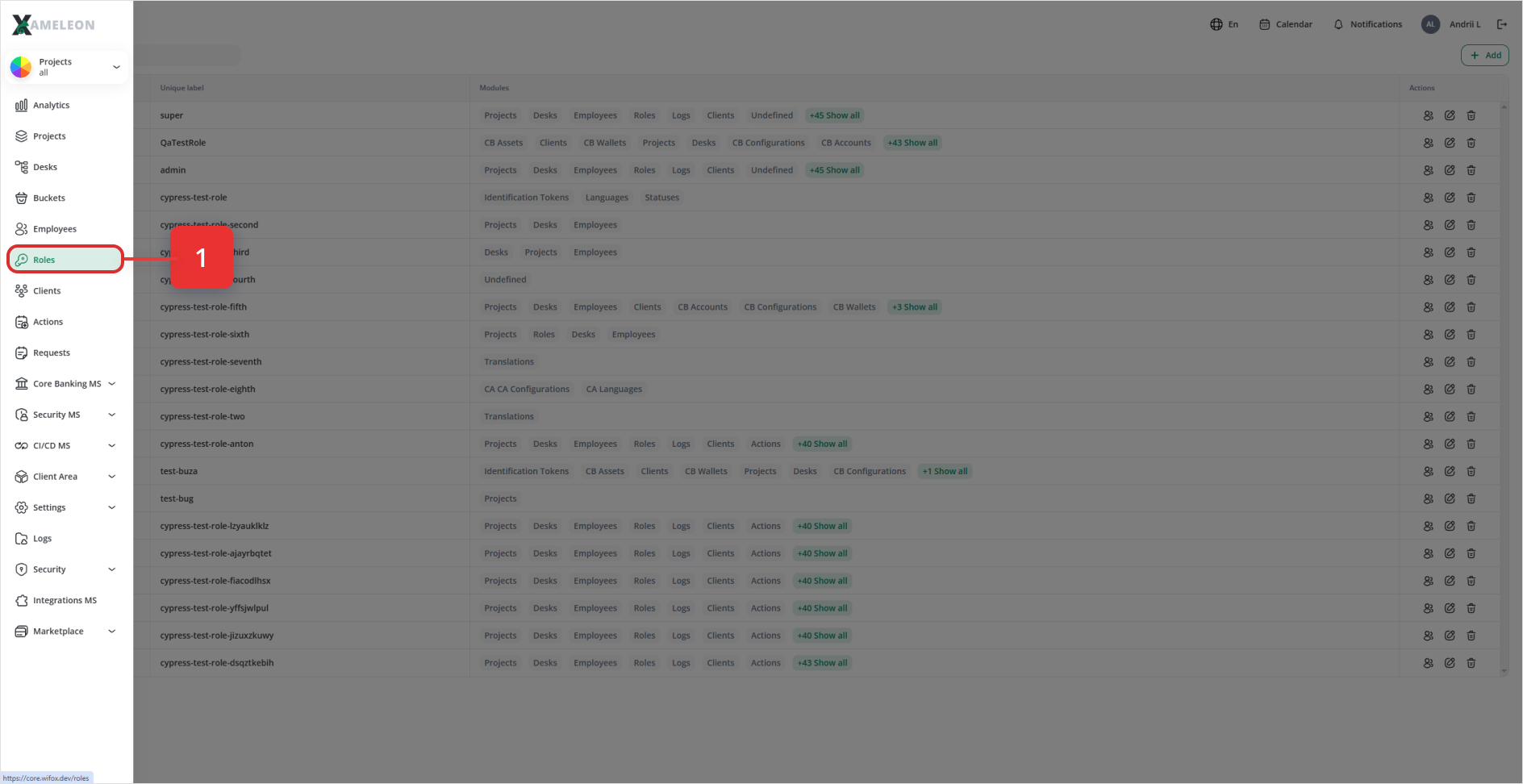
2. Activate the Search Field
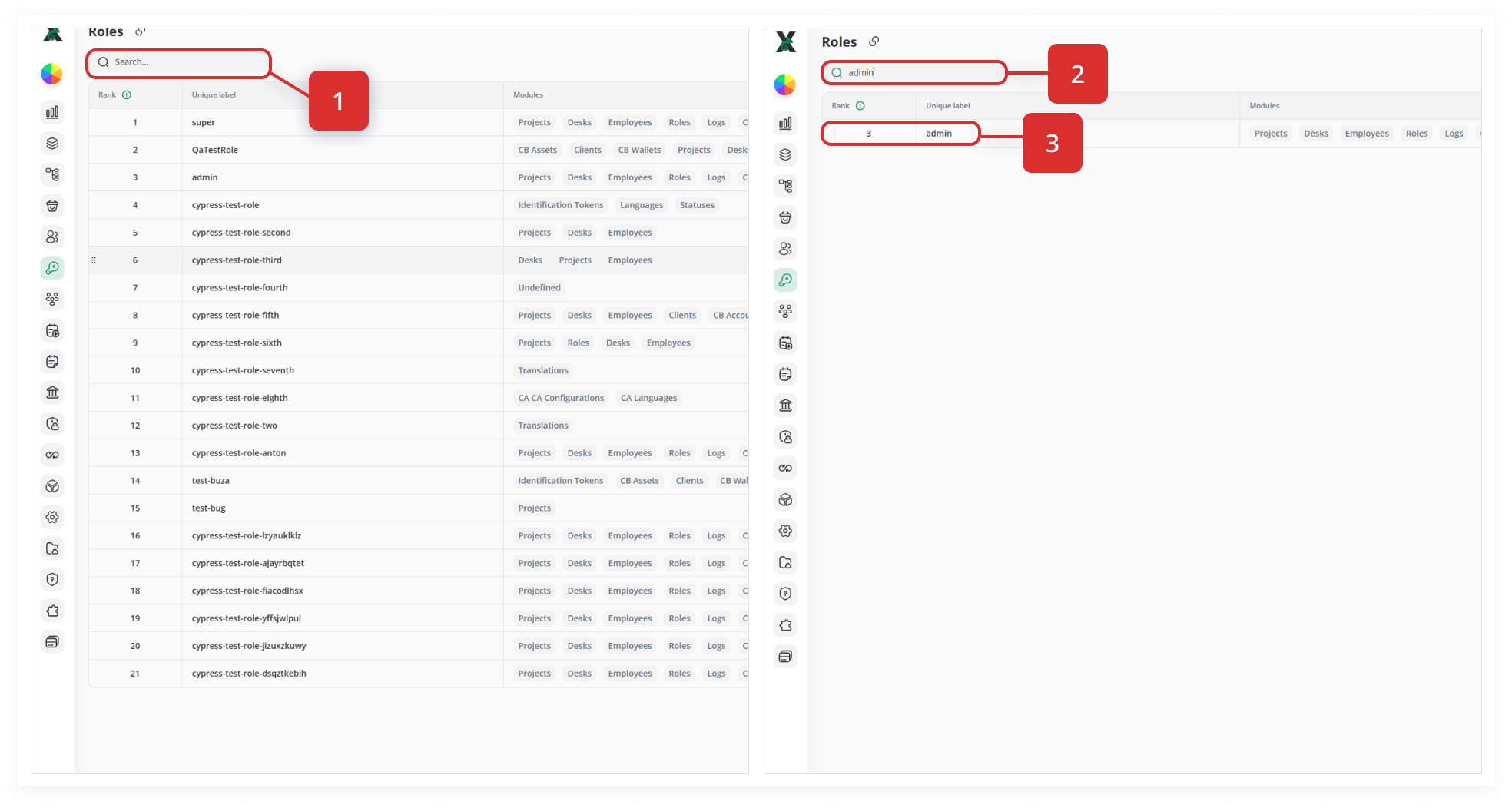
At the top of the Roles list, locate the Search… input box.
Click inside the box to place your cursor there.
3. Enter Your Search Term
-
Type all or part of the role name you’re looking for (e.g.,
admin). The table updates in real time, filtering to show only roles whose labels contain your keyword.
4. Review Matched Results
Confirm the role appears in the filtered list along with its rank and associated modules.
If too many results appear, refine your search by typing a longer or more specific term.
5. Clear or Modify Your Search
To reset the list and view all roles again, clear the text from the Search field (e.g., click the “×” inside the field or press Backspace until it’s empty).
Enter a new keyword to perform another lookup.
Using the search box in the Roles module is the fastest way to pinpoint any role by name—whether you’re verifying permissions, preparing to edit a template, or simply auditing who has what access. Efficient searching helps maintain security hygiene and keeps your permission structure well-organized.