4. How to Manage Texts
To translate lengthy elements (e.g., notifications), navigate to Client Area > Texts. You will find a list of all the available texts in the system.
To add a translation to any of these texts:
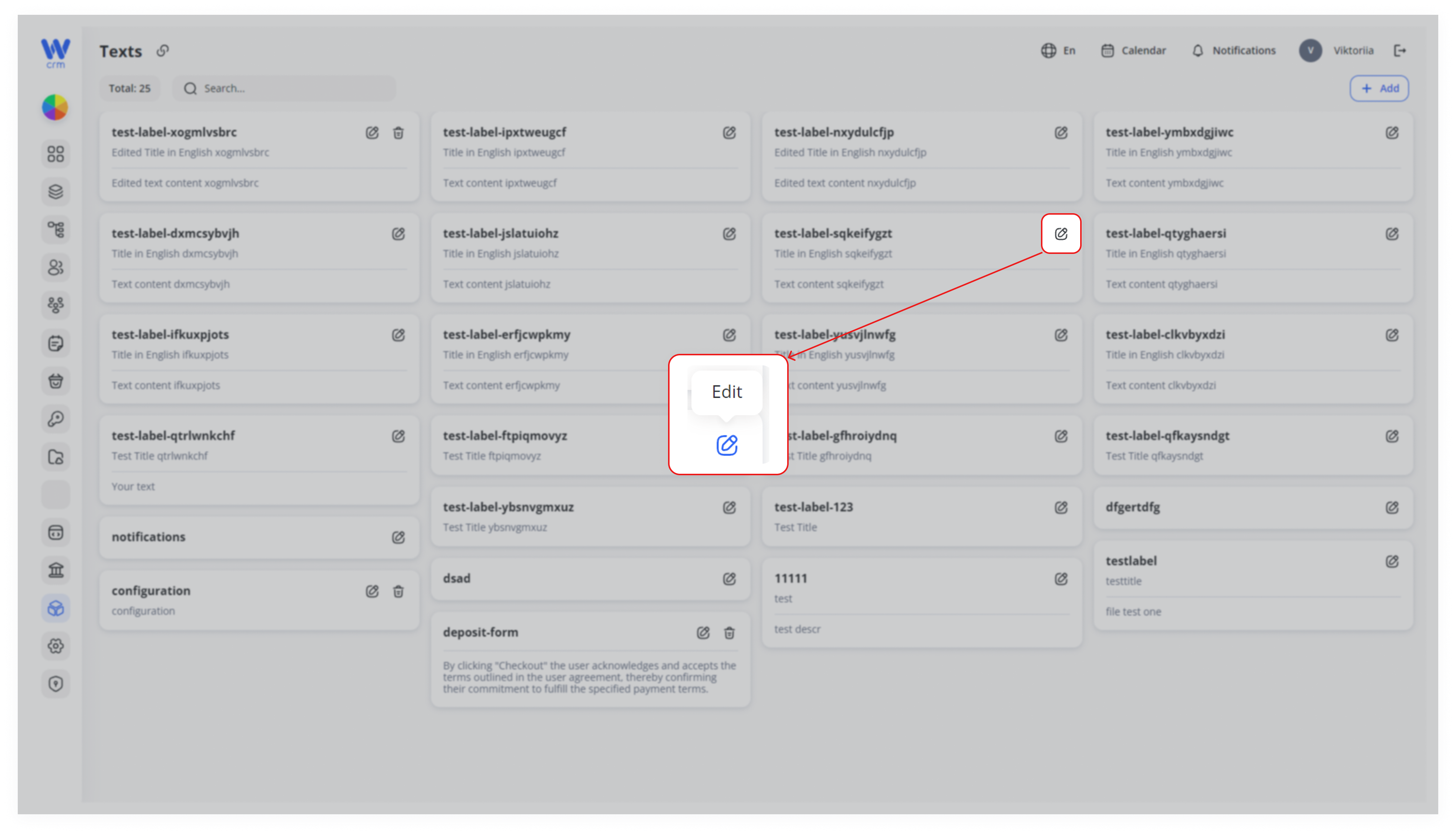
1. Click the Edit icon next to the corresponding text.
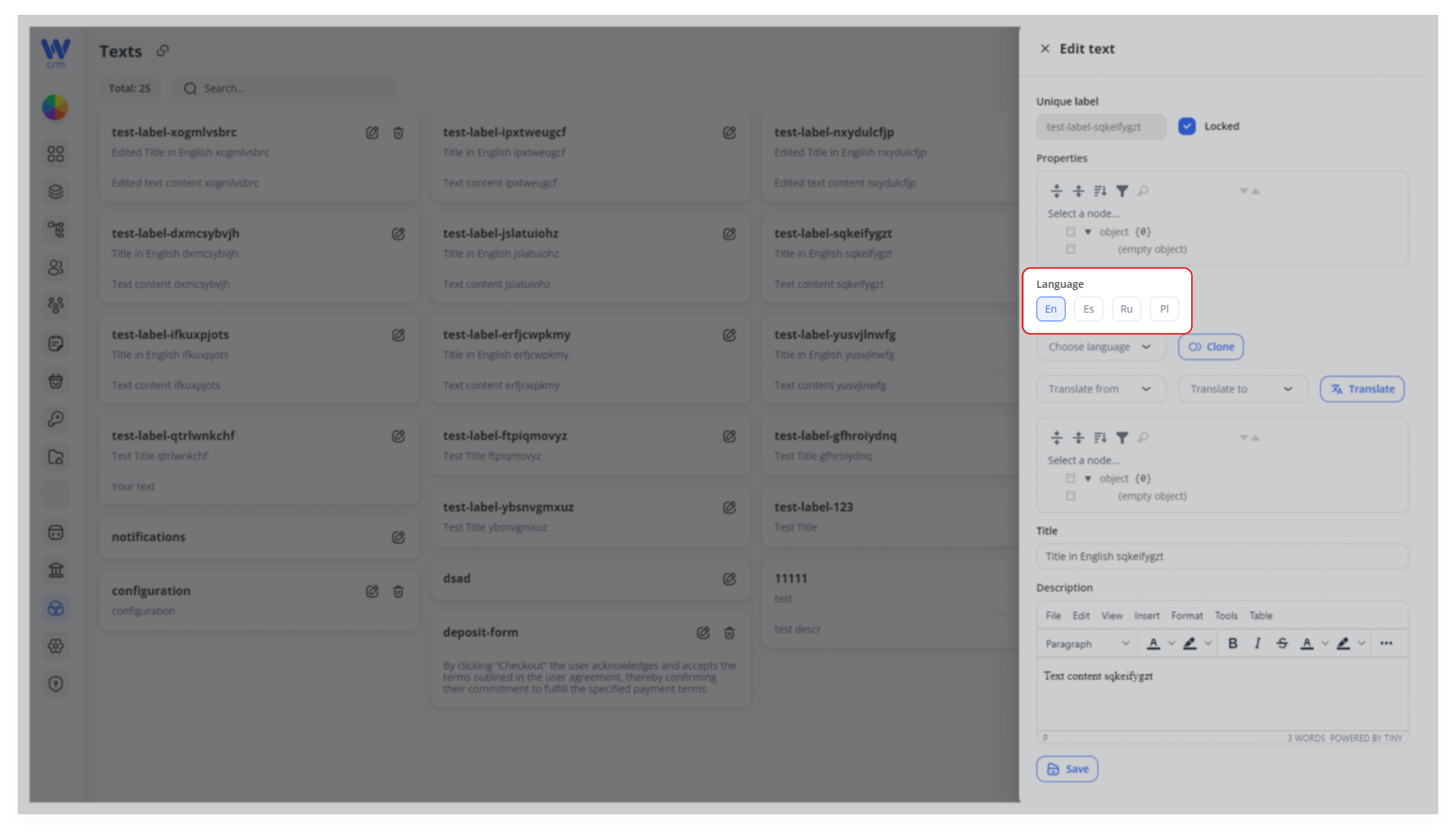
2. In the Language field, select the target language.
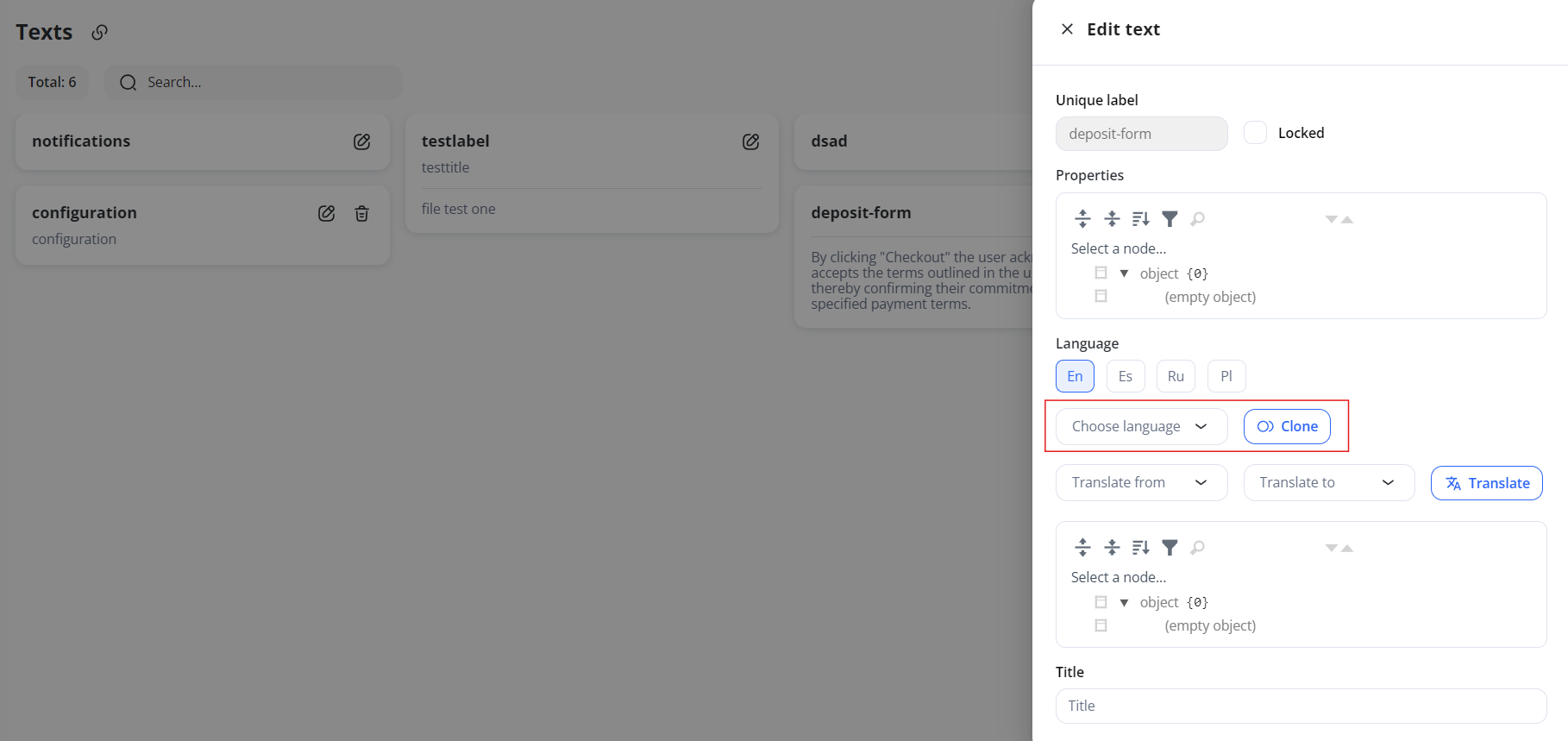
3. To copy data from the original language (for example, English), select it from the drop-down list and click the Clone button.
4. Enter the new values manually, or select the target languages and click Translate for automatic translation with AI.
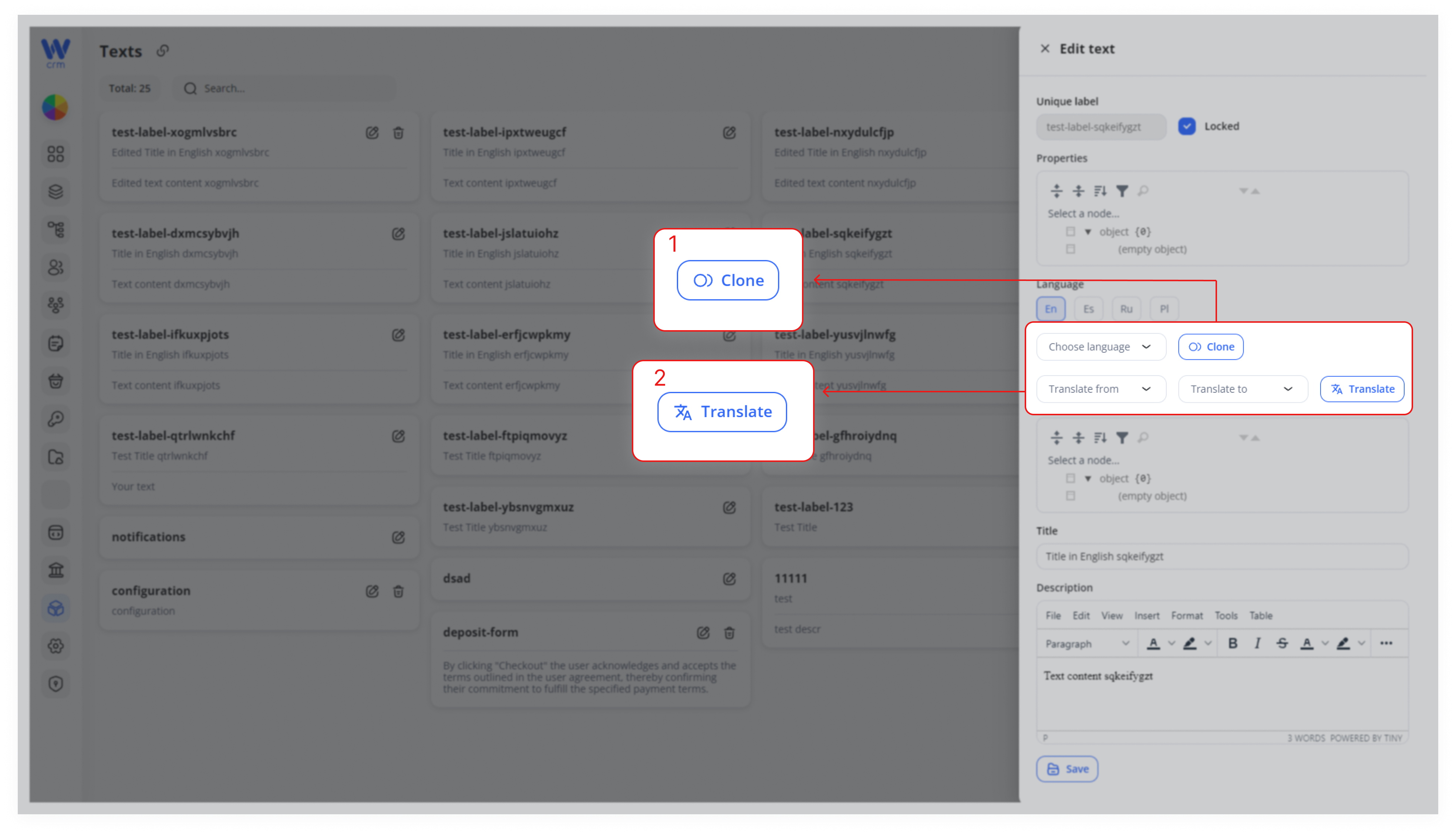
5. Click Save to apply the changes.
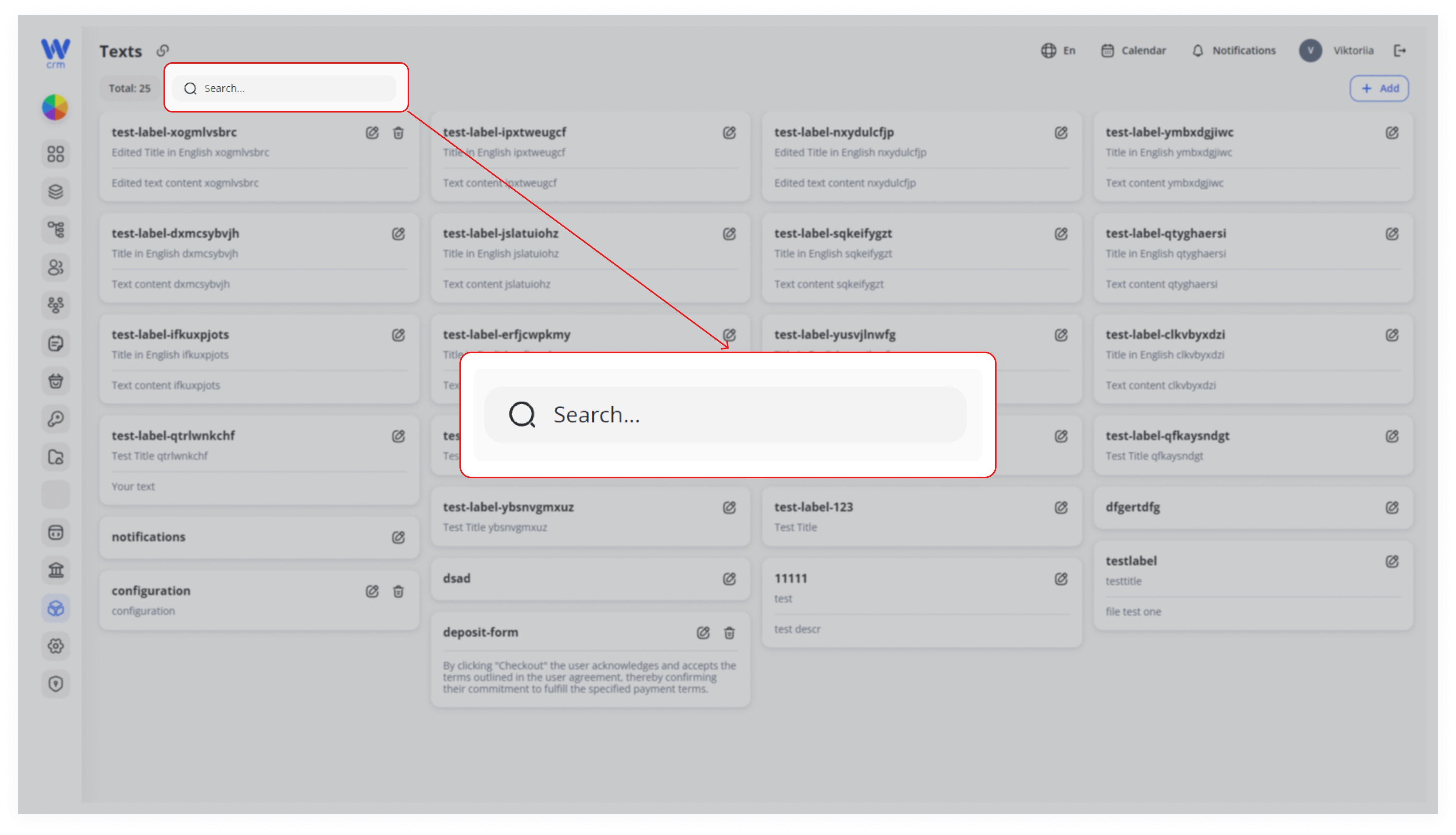
To search for a text:
-
-
Start typing its label in the Search field.
-
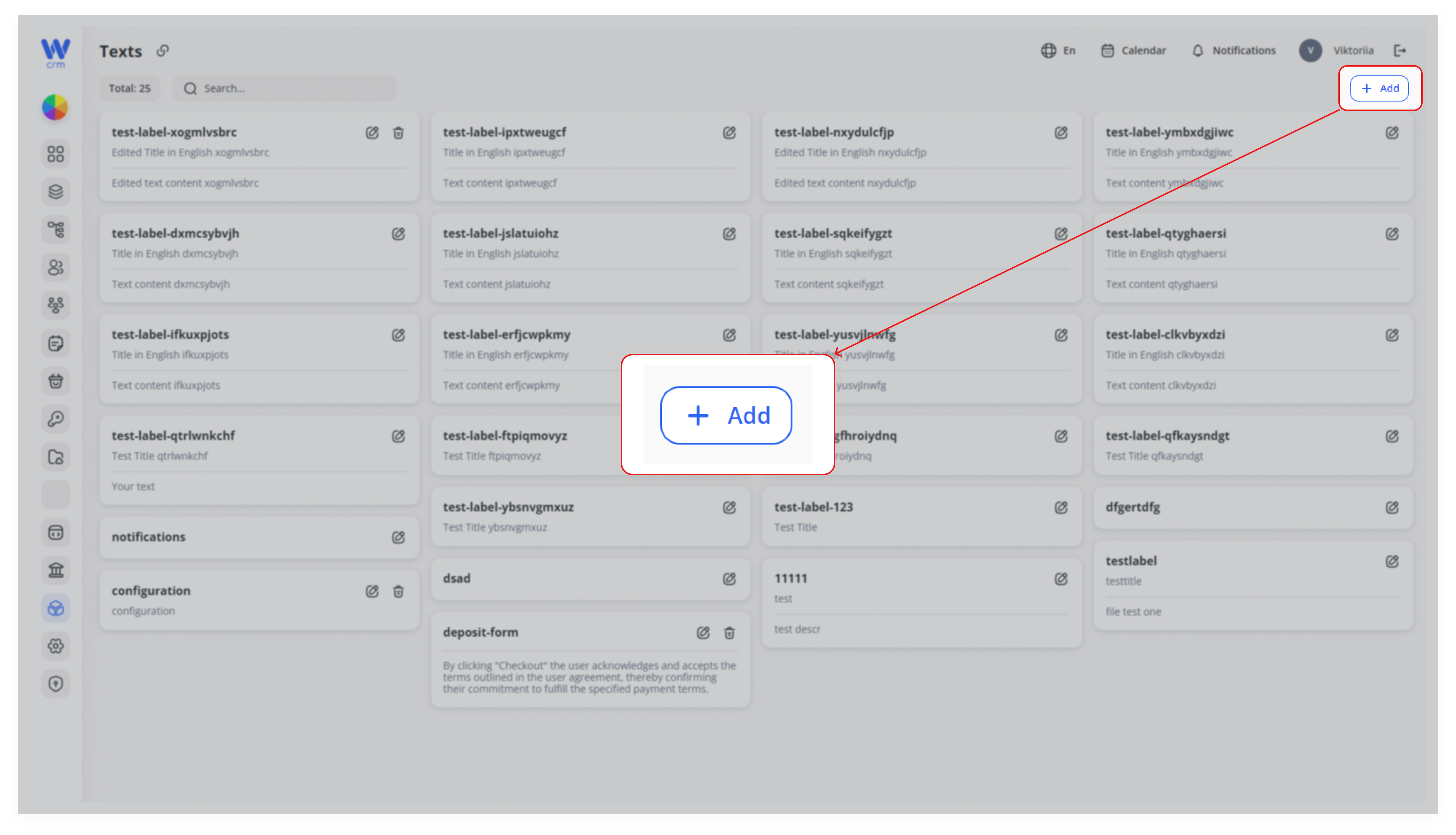
To add a new text and its translations:
1. Click on the Add Text button in the upper right corner.
2. Enter Label and, if necessary, Properties.
3. Select the target language in the Language field and enter Text and Description for it. Add custom fields if necessary.
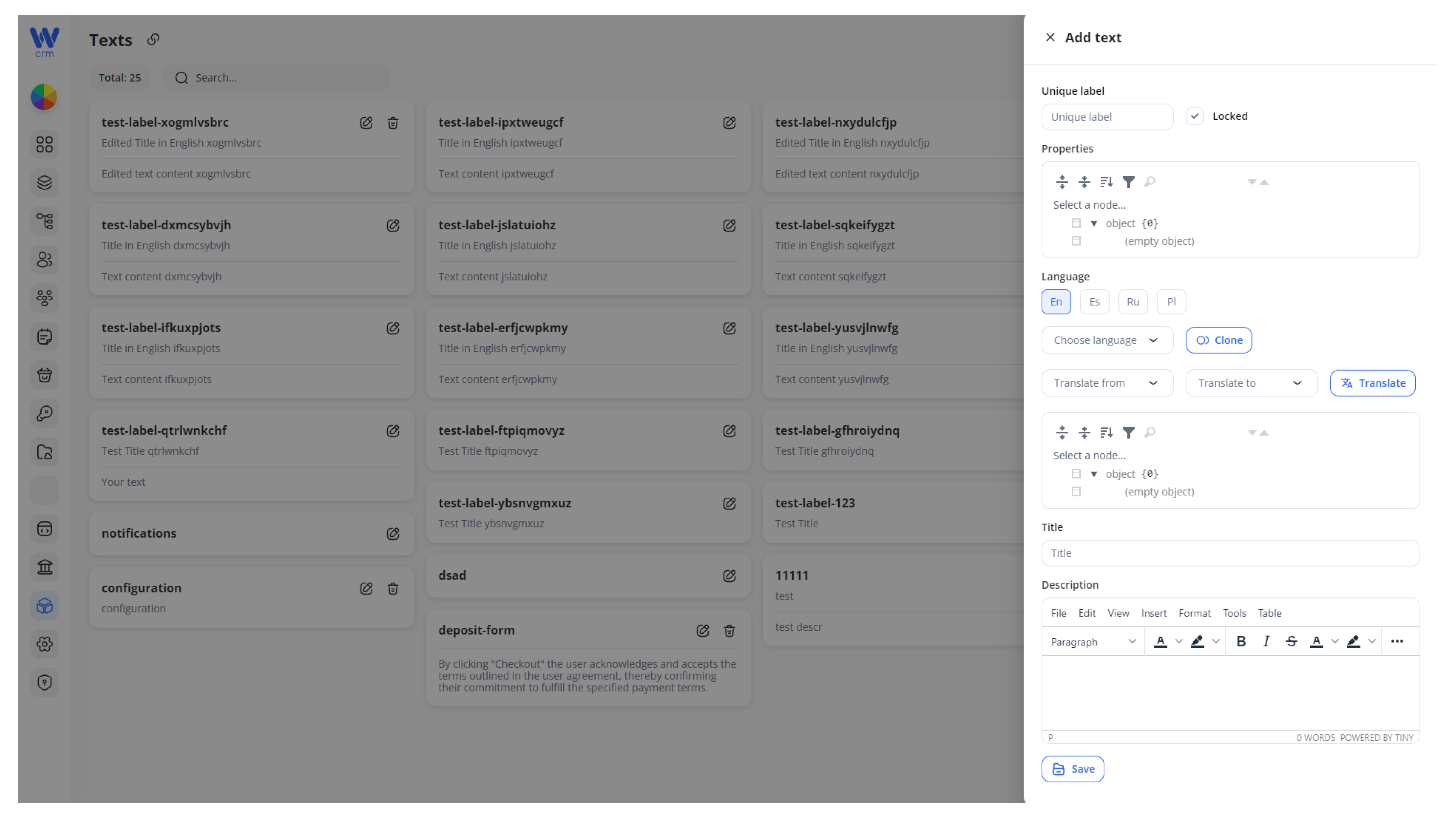
4. Add text translations in the same way as in the previous instructions.
5. Click Save to add the text.
By default, new texts are created as Locked—they cannot be deleted. To unlock a text:
1. Go to the text editing tab.
2. Uncheck the Locked checkbox.
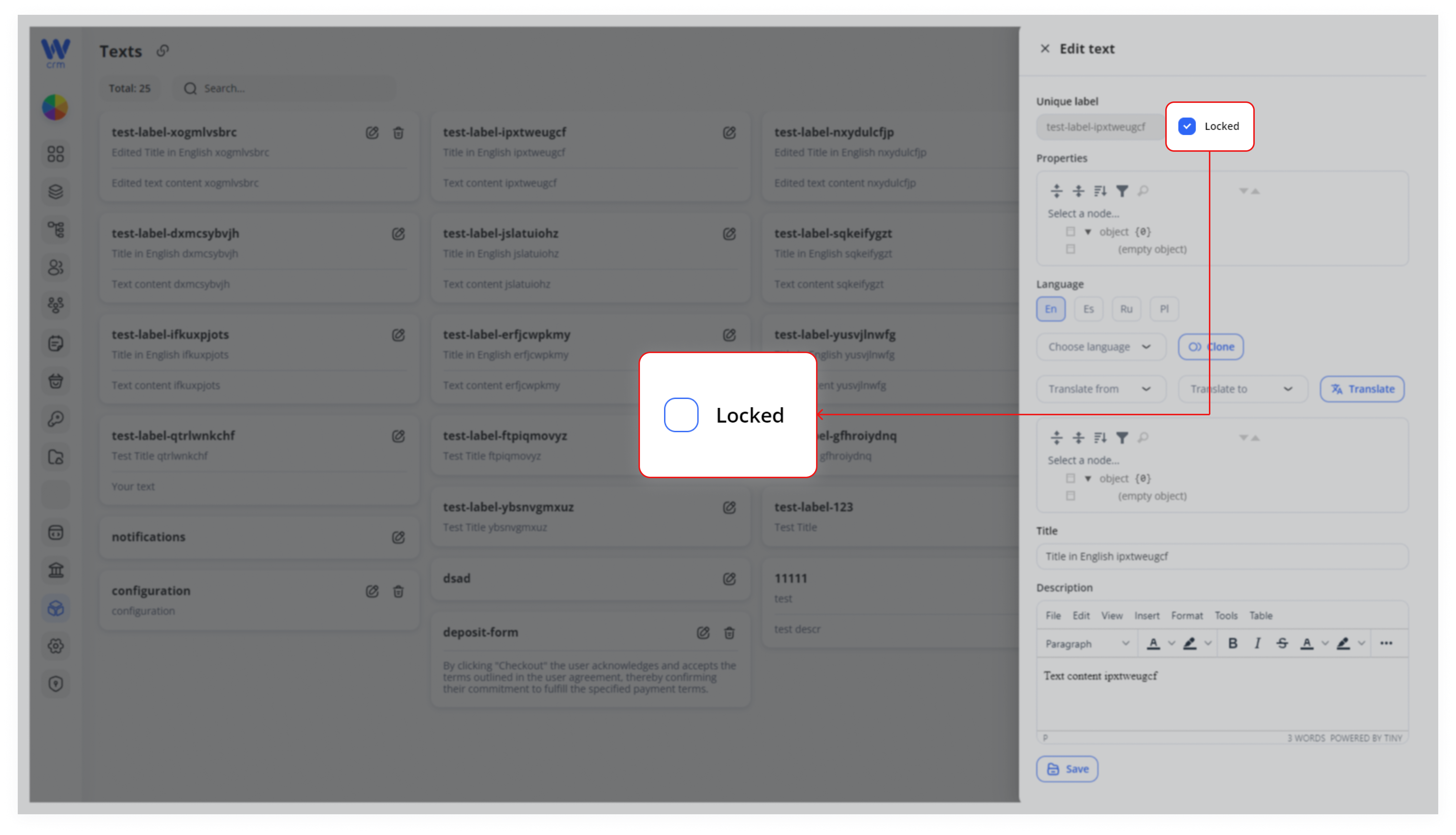
3. Click Save.
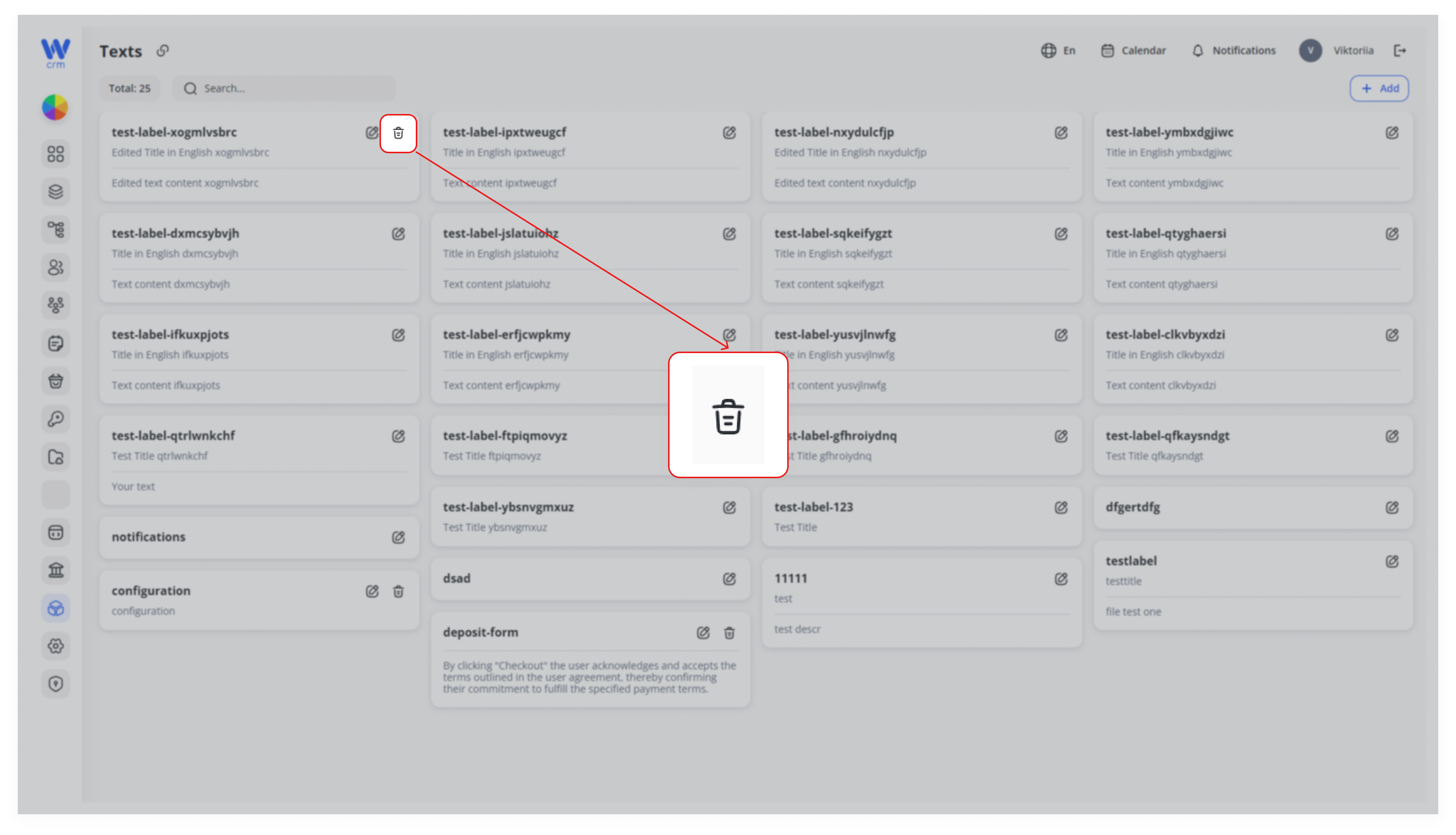
To delete text:
1. Make sure it is not locked.
2. Click the Delete icon next to the corresponding text.