
4. How to Edit an Employee
In the Edit window, you can:
-
Change the name, role, email, and password of the employee.
-
Assign the employee to new projects and desks.
1. Open the Employees list
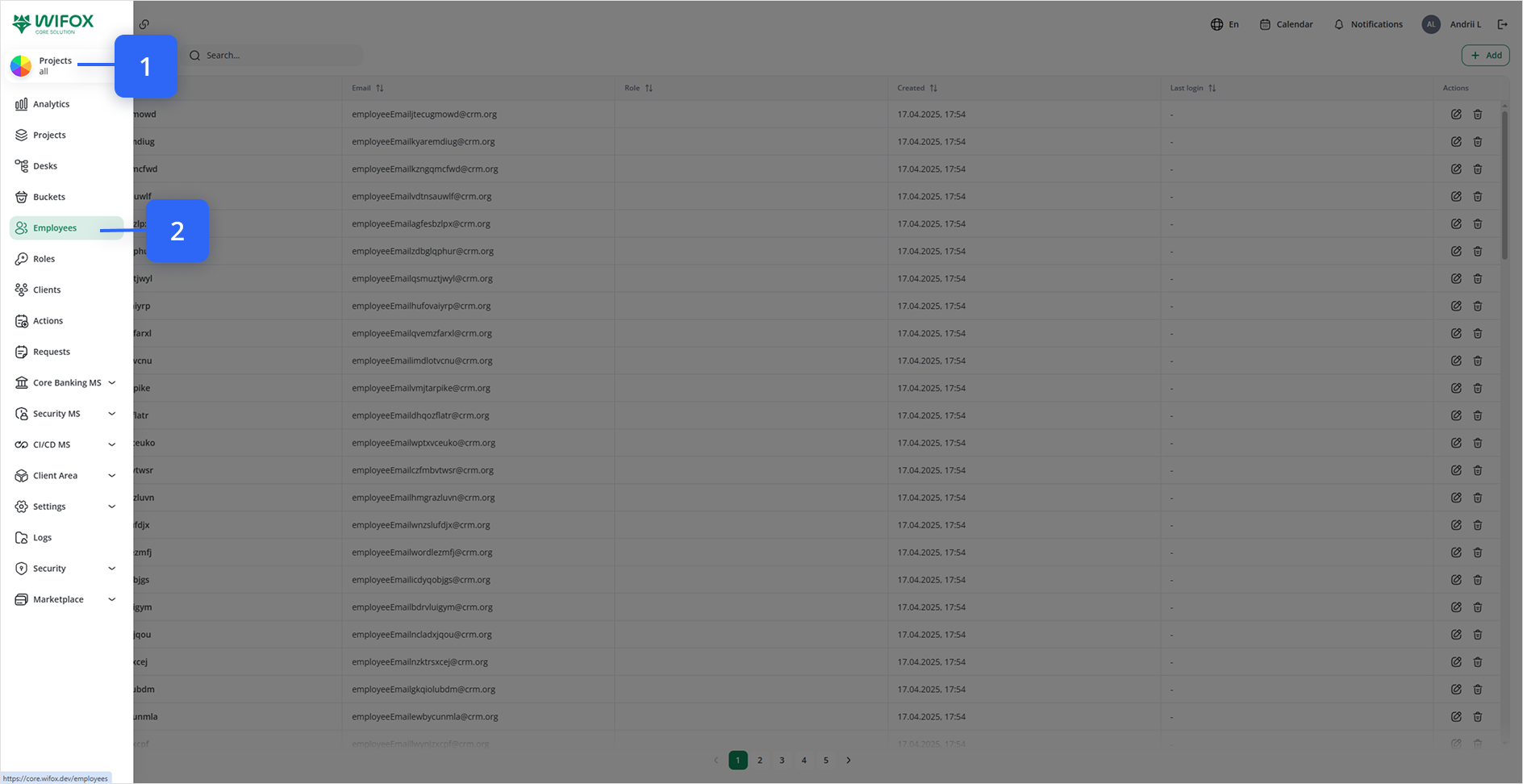
Click Employees in the left-hand navigation.
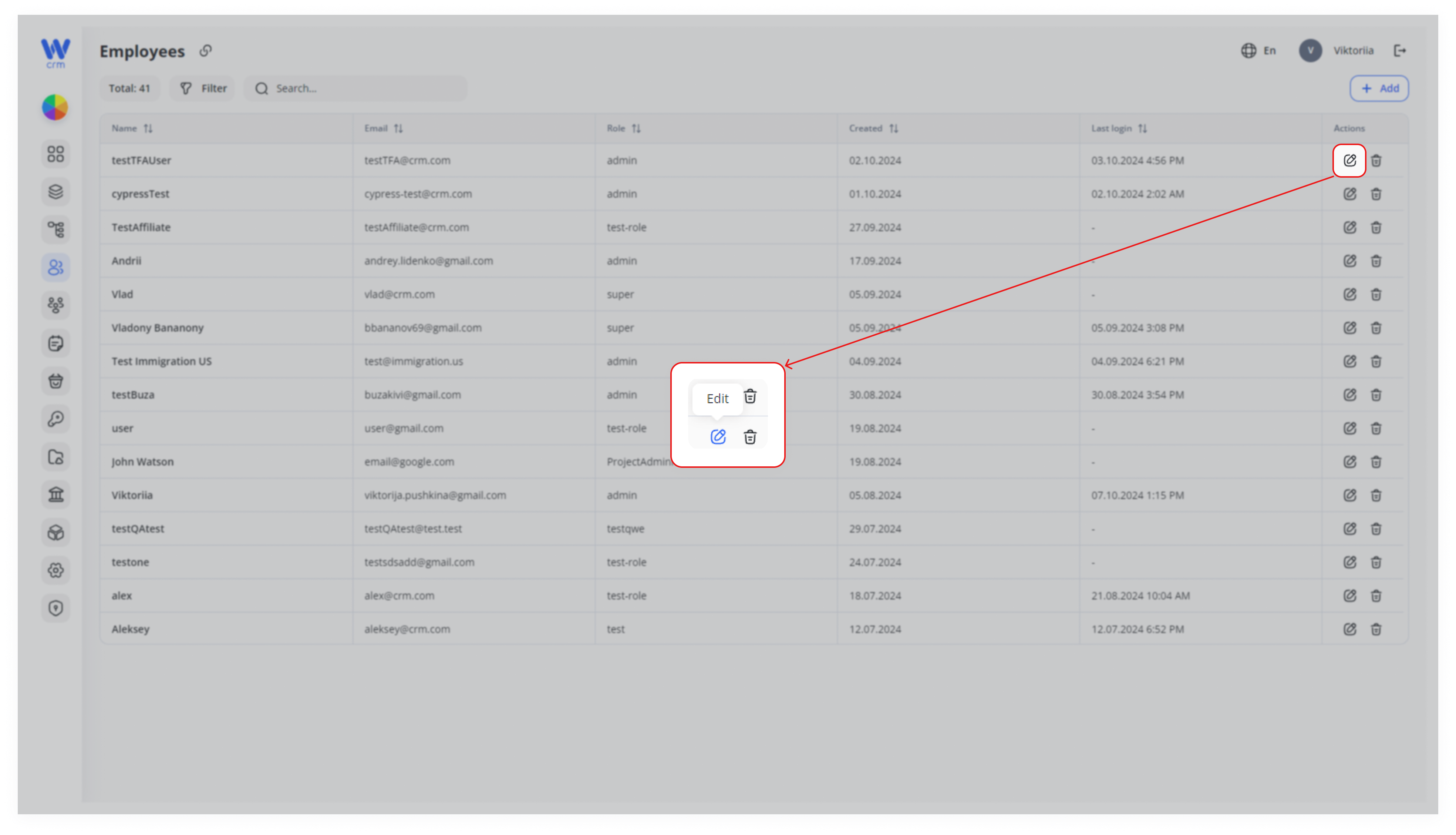
2. Click Edit
In the Actions column of the employee’s row, click the ✏️ Edit icon.
3. Modify General Details
Name: Update the full name
Role: Choose a new system role
Email: (Read-only) shows the login address
Password: Enter a new password—or click ✨ to generate one
Type: Select a new category (Manager, Sales, etc.)
Active: Toggle on/off to activate or deactivate the account
(Optional) Update Metadata
Use the Meta tree picker to add or change any custom tags.
Assign Projects & Desks
In the Projects panel, click + Add project
In the drawer, select one or more Project entries
Optionally limit access by selecting specific Desks
Click Save in the drawer to confirm
Save Your Changes
Click Save at the bottom-left of the Edit employee form.
Note: You cannot remove projects to which an employee has already been assigned. Instead, go to the Projects tab and remove specific members from the project.