
5. How to Delete a Project
Warning: The system’s Default Project cannot be deleted. Deleted projects cannot be restored.
You may remove any non-default Project when it is no longer needed.
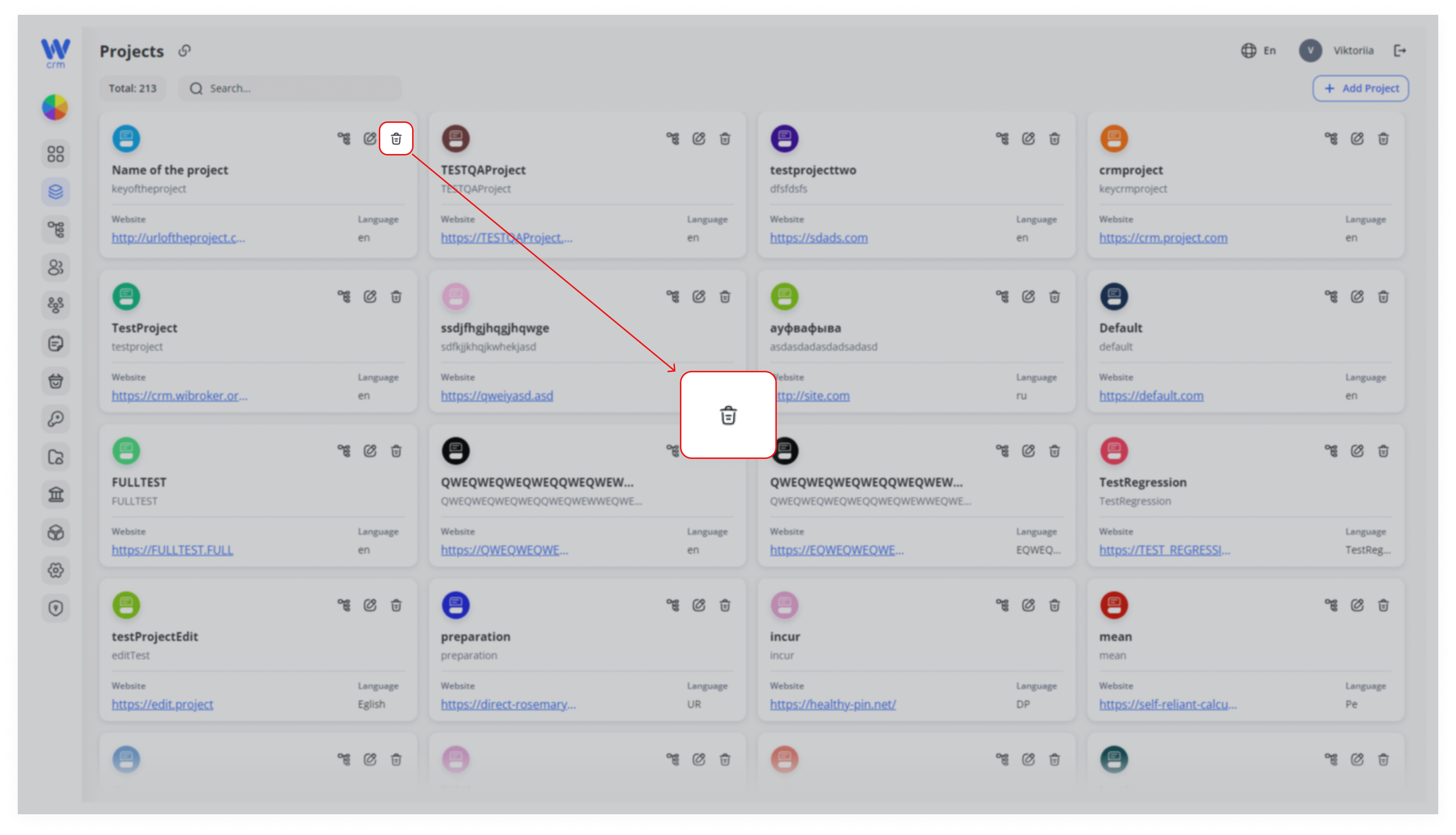
Locate the Project
On the Projects tab, find the card of the Project you wish to delete.
Click the Delete Icon
In the top-right corner of that Project card, click the 🗑️ (trash) icon.
Confirm Deletion
A confirmation prompt will appear. Review the warning and click Confirm to proceed.
Note: you can delete the project’s member only after you’ve deleted them from the desk they have been assigned to. Read more about Desks here.