5. How to Delete a Desk
WE NEED TO DELETE THIS ONE
info HowWhen to Delete a Desk
in https://wiki.wi.services/books/wifox-business-suit/page/4-how-to-edit-and-delete-a-desk
-
You
can delete any desks you have created, but you cannot delete the default desk.Warning: Deleted desks cannot be restored.
pilotTo deleteran adesk:- “Beta
- Test”
DeleteDeskthethatdesk’snevermembers.went live. -
ClickYou permanently closed your “Tokyo Office” Desk.
- Test”
Deletion is permanent: All membership links and any Desk-specific workflows disappear. Only manually created Desks can be deleted; you cannot remove a Project’s Default Desk.
Step 1. Locate the deleteDesk
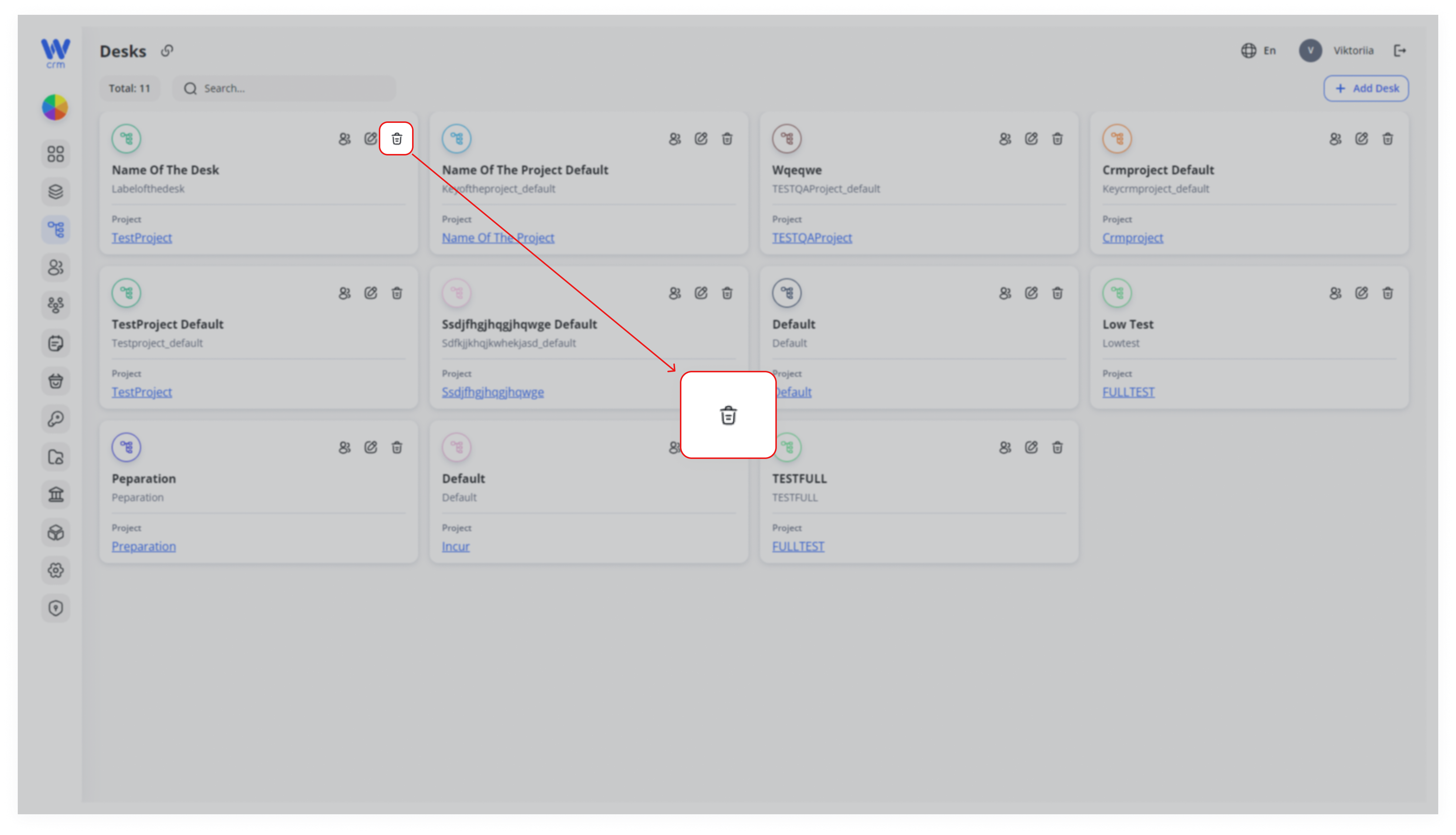
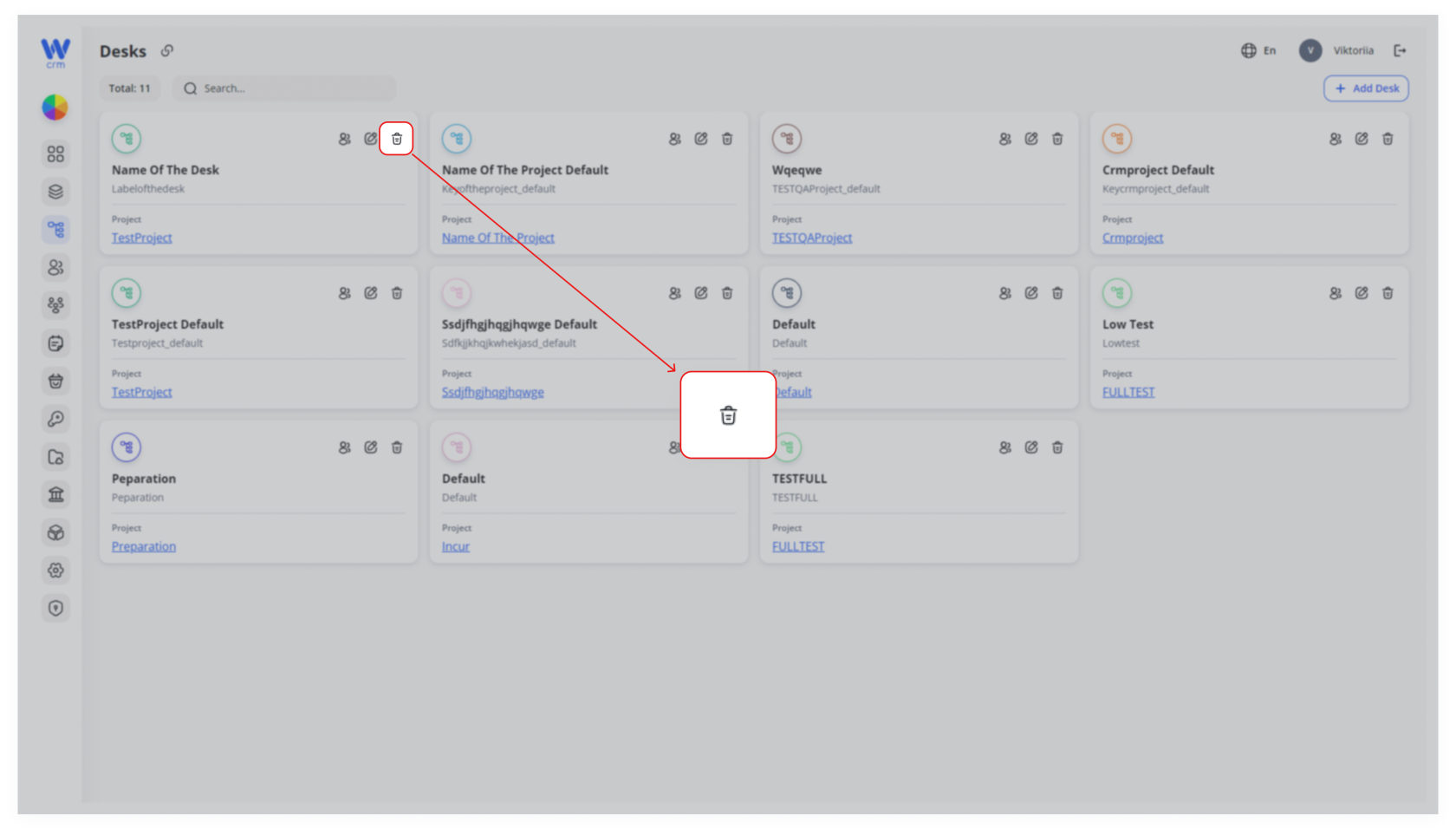
In the Desks module, find the card for the Desk you wish to remove.
Step 2. Initiate Deletion
Hover over that card and click the 🗑️ Delete icon in the upper top-right cornercorner.
Step 3. Confirm Permanently
A modal appears warning you: “Are you sure?”
Click Confirm to proceed, or Cancel to back out.
Step 4. Post-Deletion Cleanup
Any Clients still assigned to that Desk automatically fall back to the specificProject’s deskDefault window.Desk.
Review your Default Desk to reassign those Clients or move them to another active Desk.
Best Practices & Tips
-
Rename vs. Delete: If the Desk’s purpose changes, prefer renaming and updating membership to preserve history.
-
-
Pre-Deletion Reassignment: Before deleting, move high-priority Clients or Requests elsewhere to avoid workflow disruption