
4. Malware Reports
Malware Reports track the output of antivirus or anti‐malware scans on servers. Common tools include:
- ClamAV (open‐source antivirus)
- Rootkit detection scripts
Use Cases
- Detecting Server
MalwareMalware:
A CLAMAV scan detects malware in email attachments. Security isolates the files and marks the report as "In progress" for further analysis.
- Rootkit
DetectionDetection:
A ROOTKIT scan finds hidden malicious processes. Engineers remove the infected files and mark the report as "Resolved".
- Scheduled Security
ChecksChecks:
Weekly malware scans report no issues. Security logs the "Found = false" status and archives the report.
- Emergency Malware
ResponseResponse:
Malware is detected during a live incident. The security team performs an immediate investigation, quarantines infected files, and completes a system clean-up.
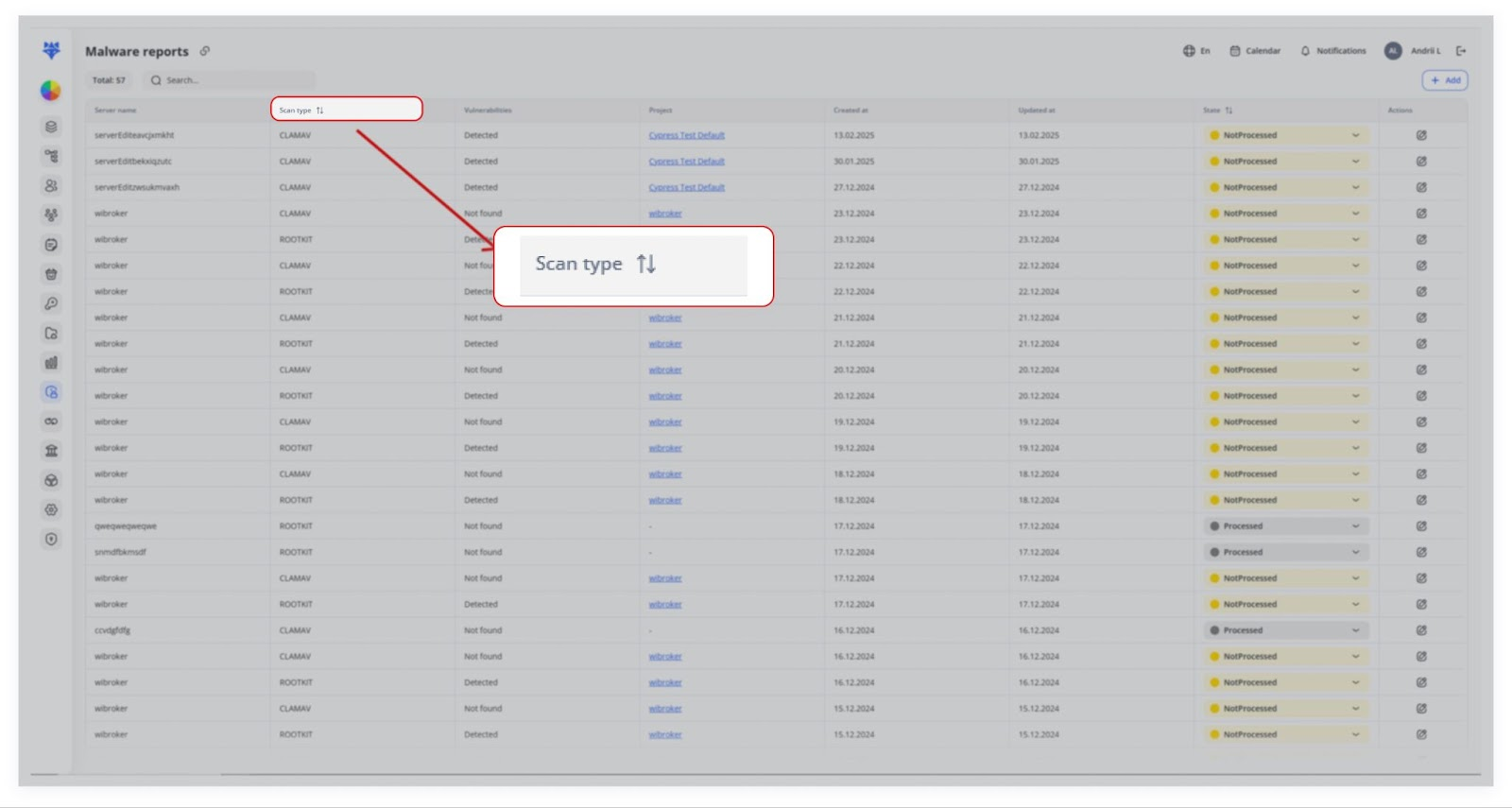
Table View
Total: (top-left) shows how many reports are in your system.
Filter launches a sidebar to narrow your list by:
- Scan type (e.g. CLAMAV, ROOTKIT)
- State (Not processed • In progress • Resolved)
- Project
- Search finds any term in server names or descriptions.
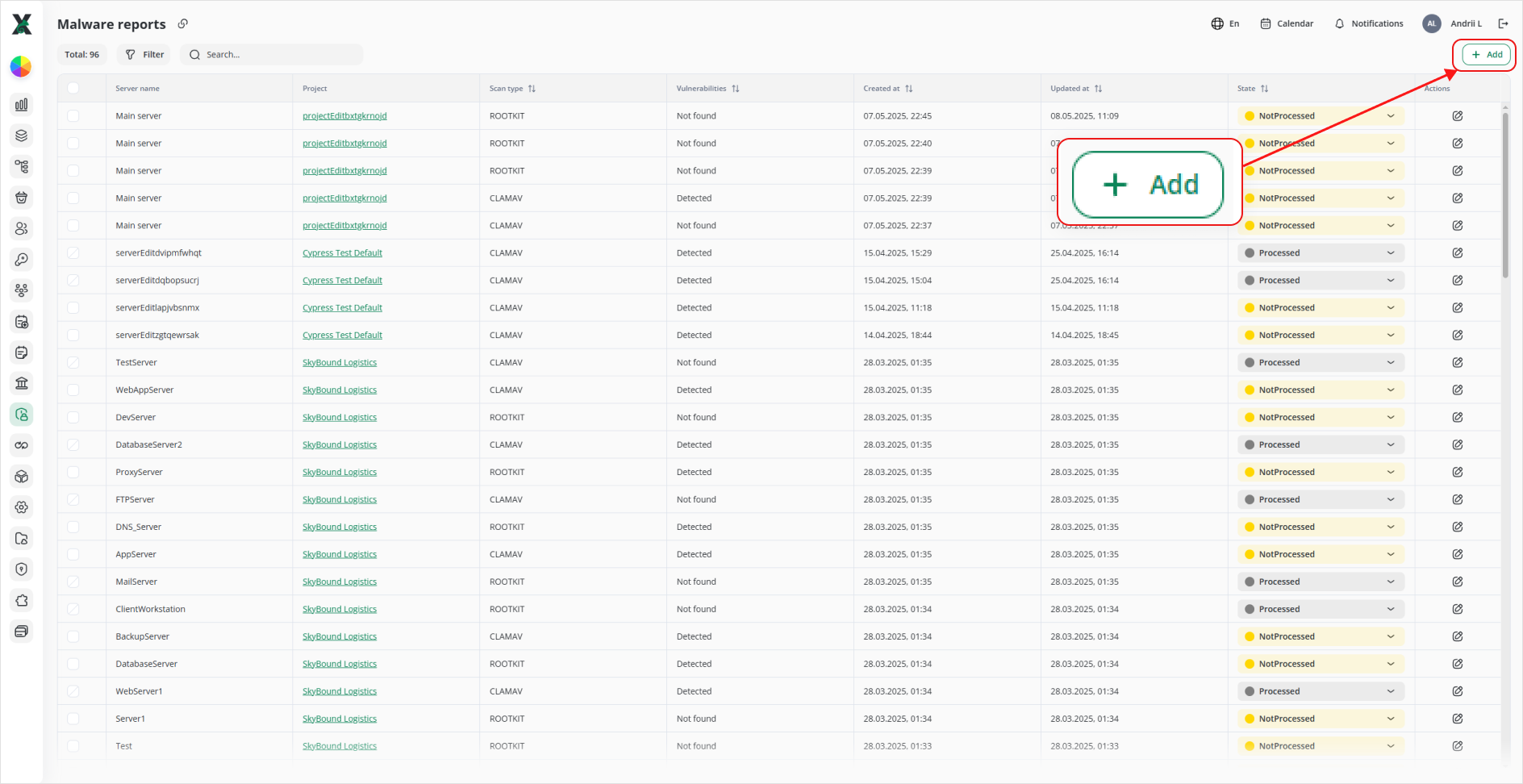
+ Add (top-right) opens the “Add malware report” form.
Columns
| Column Name ⇅ | What It Shows | |
|---|---|---|
| ☑️ | (checkbox) | Select individual rows for bulk actions. |
| 1 | Server name | Hostname or IP address scanned. |
| 2 | Project | Link to the project/environment. |
| 3 | Scan type ⇅ | Which tool ran (CLAMAV, ROOTKIT, etc.). |
| 4 | Vulnerabilities ⇅ | “Detected” or “Not found” based on scan. |
| 5 | Created at ⇅ | When the report was first logged. |
| 6 | Updated at ⇅ | When any field was last changed. |
| 7 | State ⇅ | Processing status (Not processed, etc.). |
| 8 | Actions | • ✏️ Edit • 🗑️ Delete |
Security engineers then mark the report as “In progress” to investigate or “Resolved” if no further action is needed.
Adding a Malware Report
1. Click + Add.
2. In the “Add malware report” form:
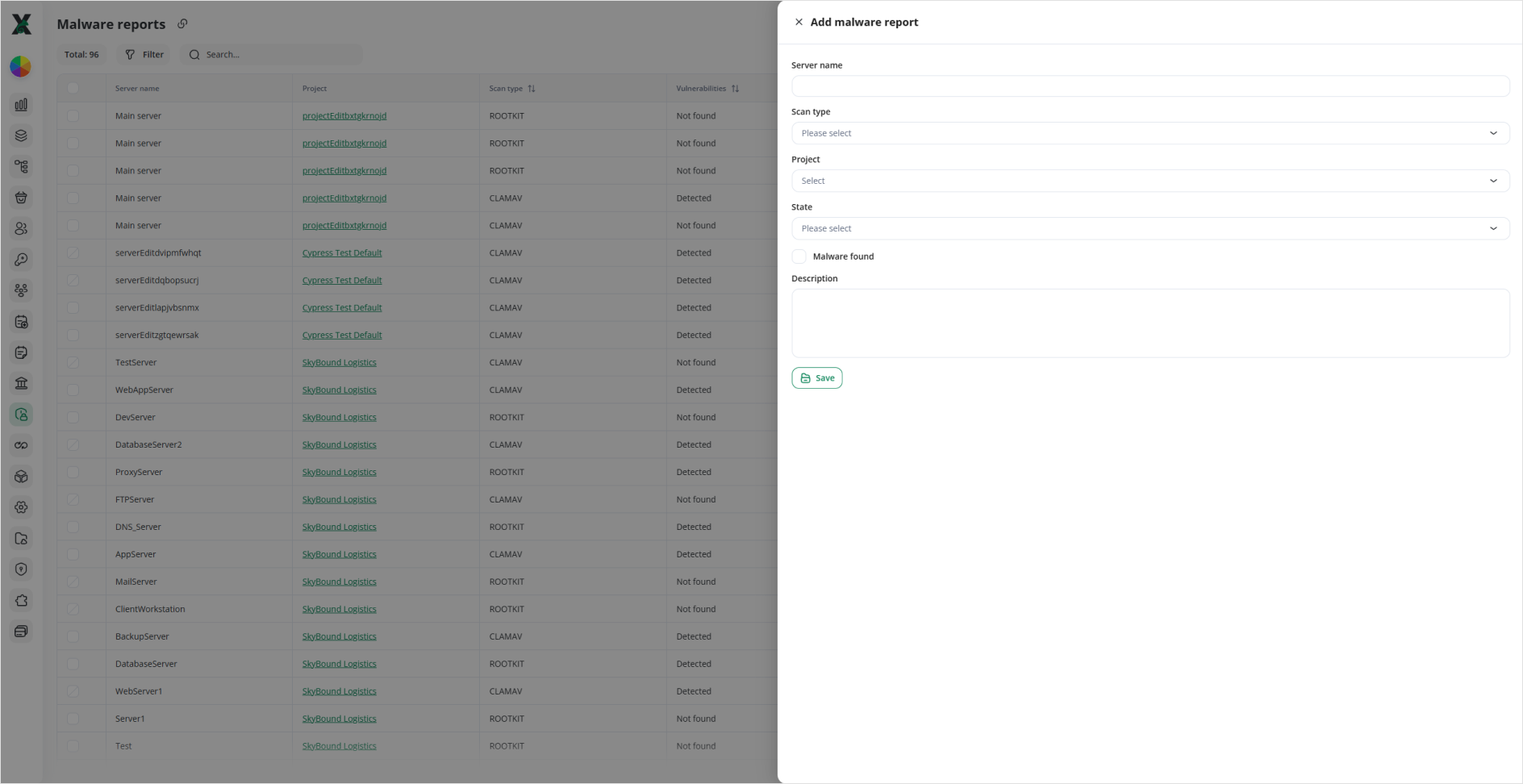
- Server name: Enter the machine’s name or IP.
- Scan type: Choose from your configured tools (ROOTKIT, CLAMAV, etc.).
- Project: Link it to the correct project.
- State: Select “Not processed,” “In progress,” or “Resolved.”
- Malware found: Check this box if the scan flagged any threats (it’ll show “Detected” under Vulnerabilities).
- Description: Summarize any details or remediation steps.
3. Click Save. The new row appears in the table.
Editing Reports
Edit: Click the ✏️ icon in the Actions column to open the side-panel. You can change Server name, Scan type, State, Malware found, or update the Description. Then hit Save.
If action is required, they set the State to “Processed” or “Not Processed.”