
4. Malware Reports
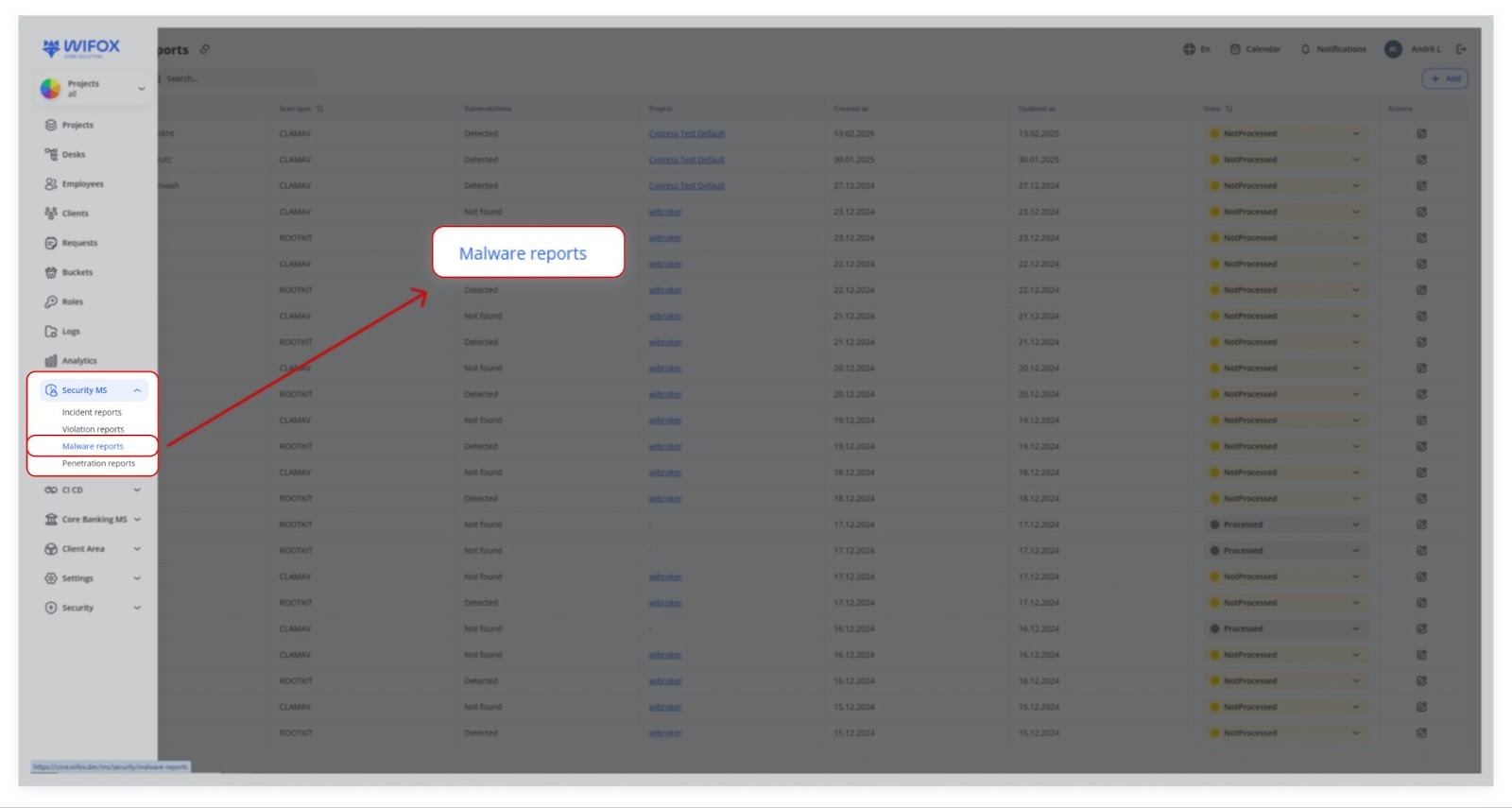
Malware Reports track the output of antivirus or anti‐malware scans on servers. Common tools include:
- ClamAV (open‐source antivirus)
- Rootkit detection scripts
Use Cases
- Detecting Server Malware
A CLAMAV scan detects malware in email attachments. Security isolates the files and marks the report as "In progress" for further analysis.
- Rootkit Detection
A ROOTKIT scan finds hidden malicious processes. Engineers remove the infected files and mark the report as "Resolved".
- Scheduled Security Checks
Weekly malware scans report no issues. Security logs the "Found = false" status and archives the report.
- Emergency Malware Response
Malware is detected during a live incident. The security team performs an immediate investigation, quarantines infected files, and completes a system clean-up.
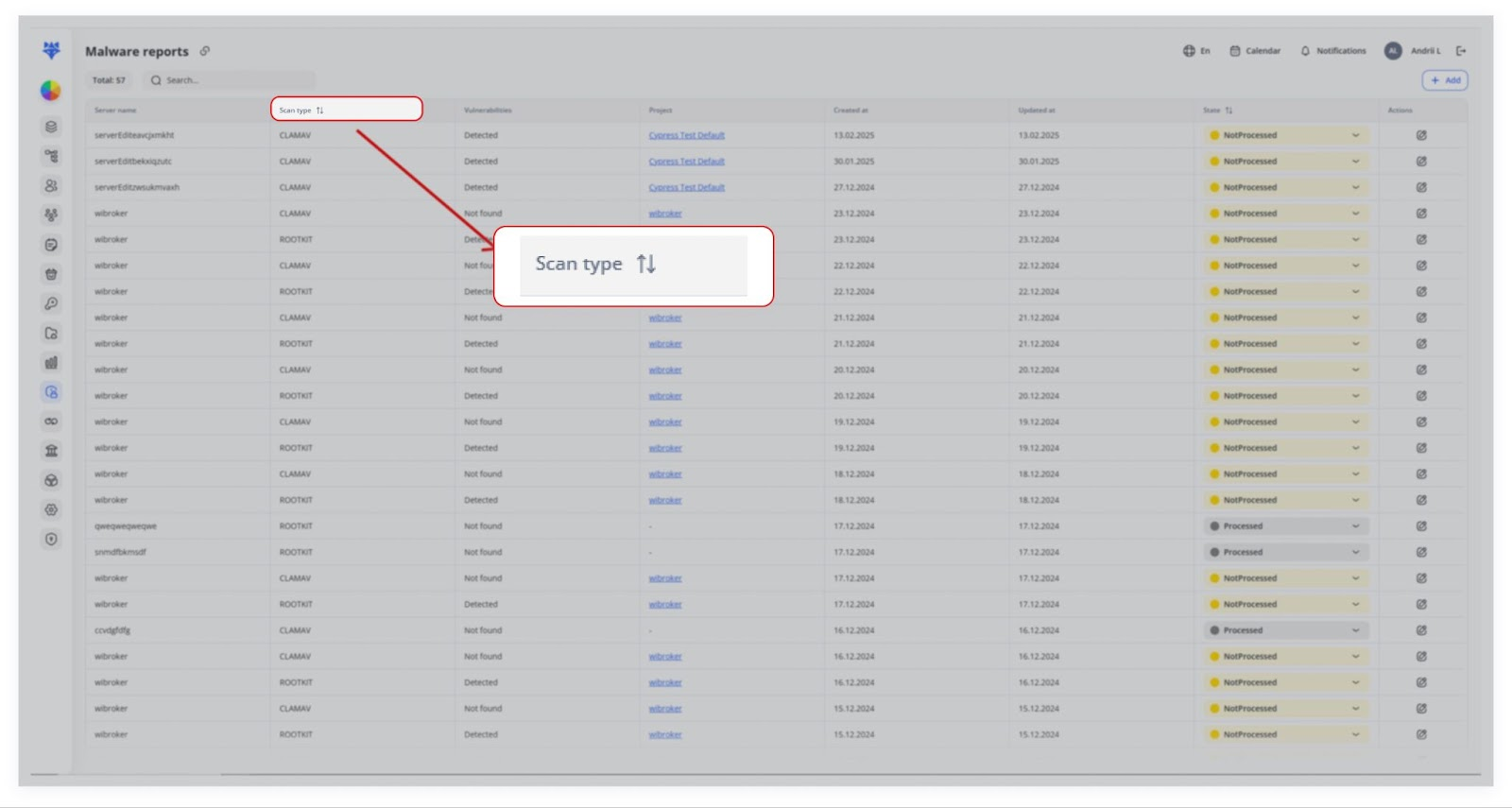
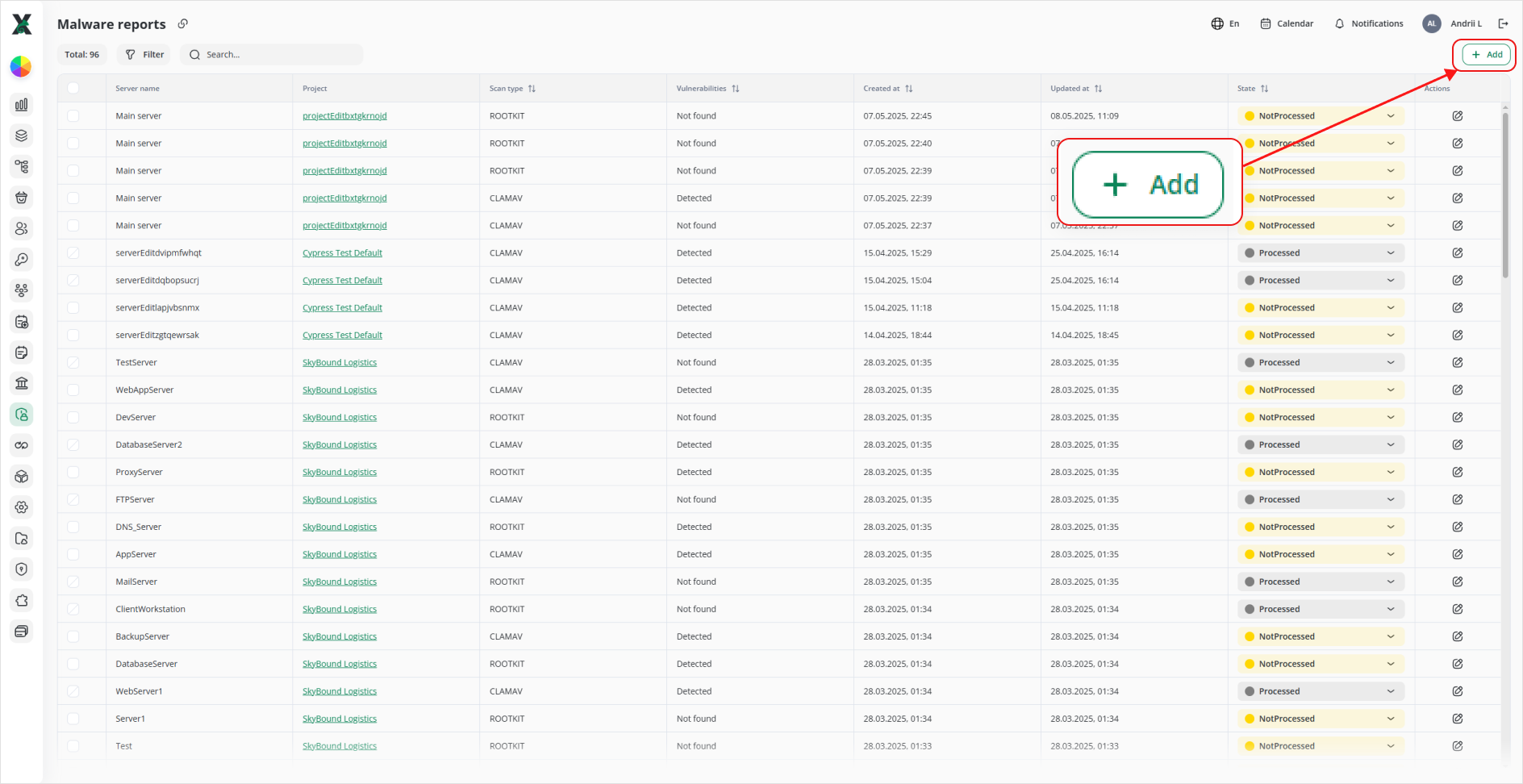
Table View
TheseTotal: scans(top-left) typicallyshows runhow onmany reports are in your system.
Filter launches a schedulesidebar (nightly,to weekly,narrow etc.)your andlist log:
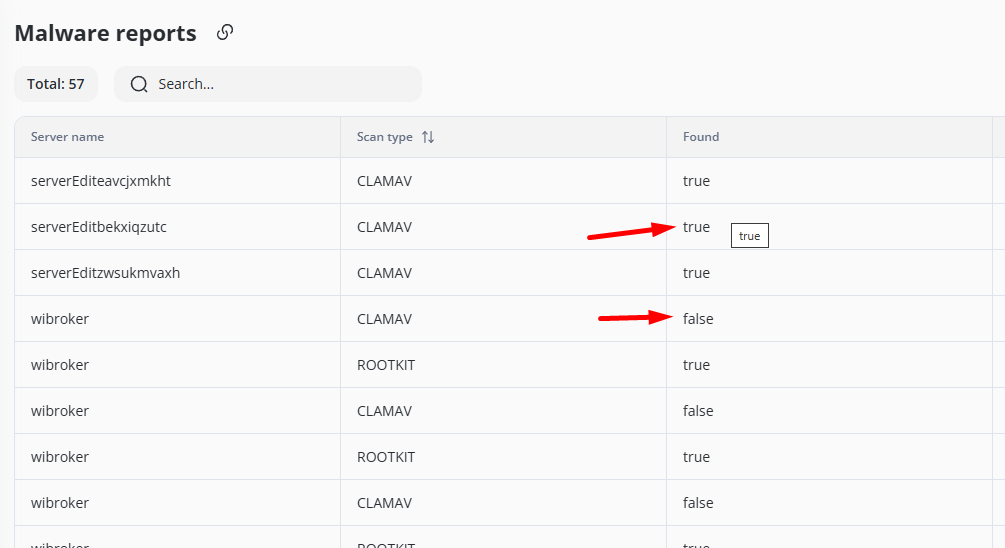
FoundScan=typetrue(e.g.ifCLAMAV,suspicious files are detected.ROOTKIT)FoundState=(Notfalseprocessedif•everythingInisprogressclean.• Resolved)- Project
- Search finds any term in server names or descriptions.
+ Add (top-right) opens the “Add malware report” form.
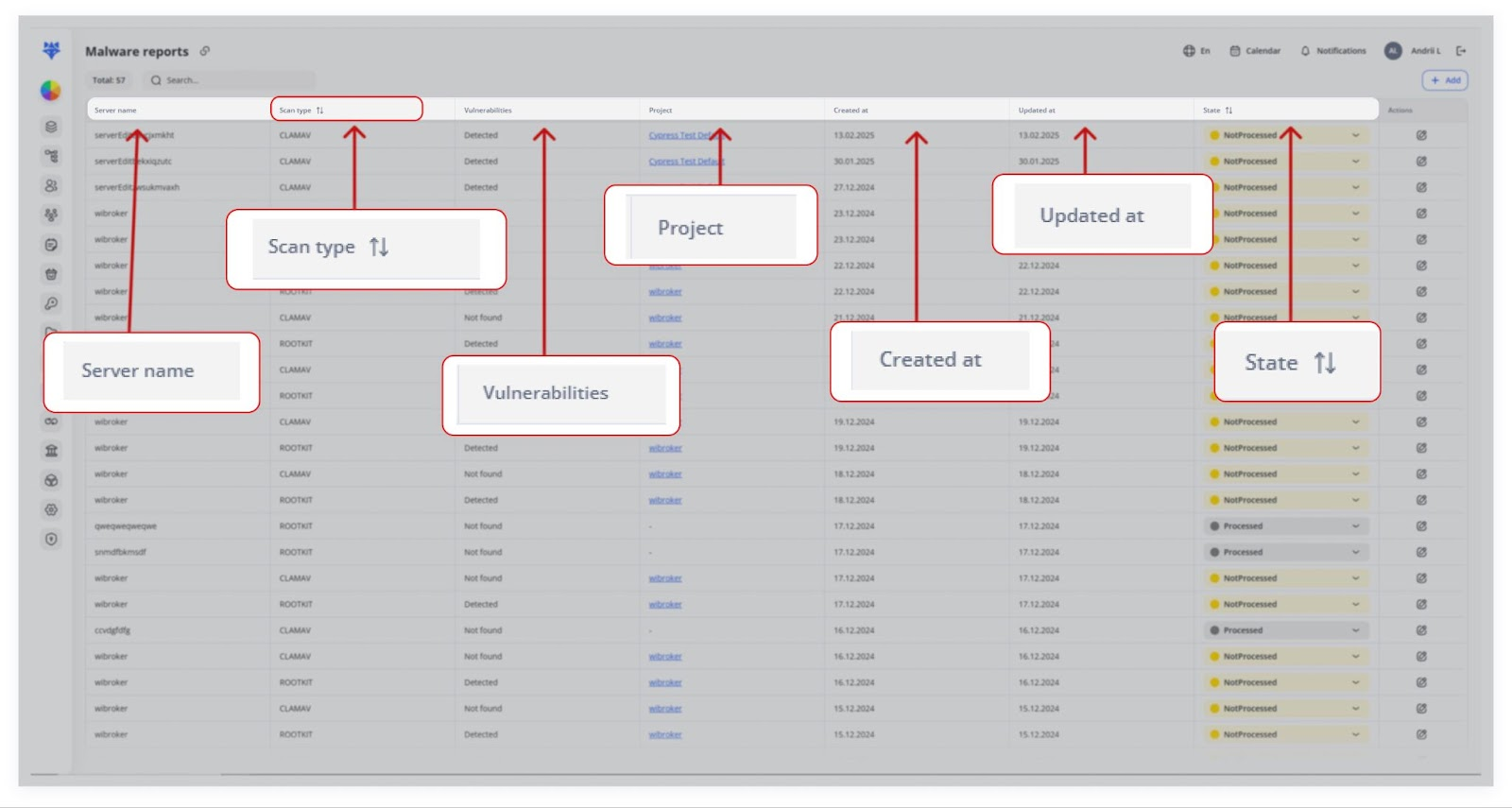
Columns
| Column Name ⇅ | What It Shows | |
|---|---|---|
| ☑️ | (checkbox) | Select individual rows for bulk actions. |
| 1 | Server name | Hostname or IP address scanned. |
| 2 | Project | Link to the project/environment. |
| 3 | Scan type ⇅ | Which tool ran (CLAMAV, ROOTKIT, etc.). |
| 4 | Vulnerabilities ⇅ | “Detected” or “Not found” based on scan. |
| 5 | Created at ⇅ | When the report was first logged. |
| 6 | Updated at ⇅ | When any field was last changed. |
| 7 | State ⇅ | Processing status (Not processed, etc.). |
| 8 | Actions | • ✏️ Edit • 🗑️ Delete |
Security engineers then mark the report as “In progress” to investigate or “Resolved” if no further action is needed.
TypicalAdding Workflowa Malware Report
1. AutomatedClick Anti‐Malware+ ScansAdd.
Tools2. likeIn CLAMAVthe or“Add ROOTKITmalware runreport” on each server.form:
CLAMAV (Clam AntiVirus)
Purpose:CLAMAV is an open-source antivirus engine designed to detect malware, viruses, trojans, and other malicious threats on servers.
Key Features: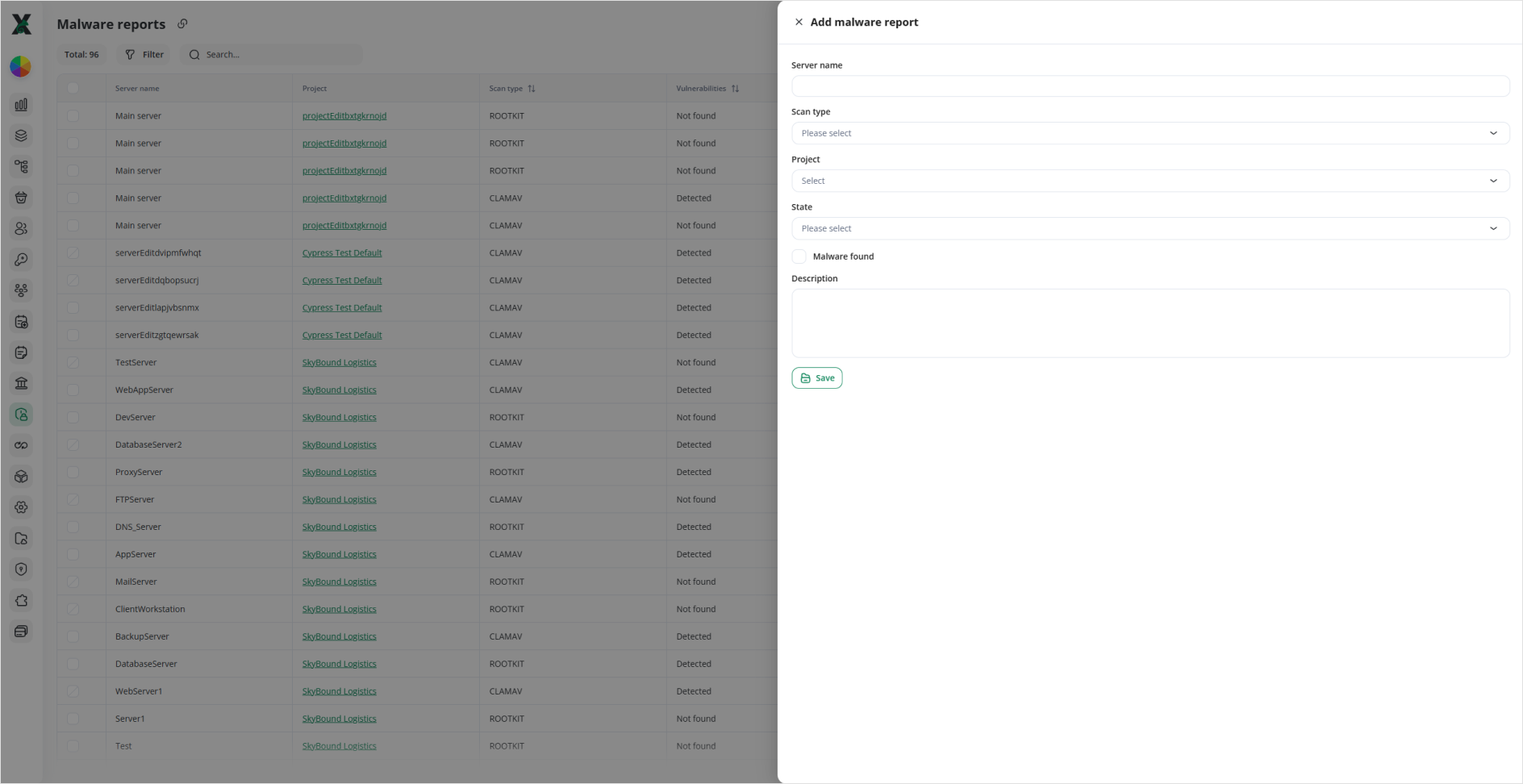
ScansServerfiles,name:emails,Enterandthewebmachine’scontentnamefororthreats.IP.RegularlyScanupdatedtype:virusChoosedatabasesfromforyour configured tools (ROOTKIT, CLAMAV, etc.).- Project: Link it to the
latestcorrectmalware definitions.project. SupportsState:command-line scanning for easy integration into server workflows.
Usage: Commonly used in mail servers and web hosting environments to prevent malware infections and ensure data security.
ROOTKIT (Rootkit Detection Tools)
Purpose:Rootkit detection tools are designed to identify and remove rootkits—malicious software that hides unauthorized access to a system.
Key Features:
Usage: Essential for server security, as rootkits can enable persistent, stealthy access by attackers, compromising data integrity and system control.
They detect potential viruses, rootkits, or other malicious files.
2. Report Details
Server name: Identifies which machine was scanned.
Scan type: Shows which tool or antivirus (e.g.,CLAMAV,ROOTKIT).
Found: Indicates if any suspicious files or malware were detected (true/false).
State:Select “Not processed,” “In progress,” or “Resolved,Resolved.”etc.Malware
Description:found:AChecksummarythisofbox if the scanresultsflagged any threats (e.g.,it’llnumbershowof“Detected”filesunderchecked,Vulnerabilities).suspiciousDescription: files).Summarize any details or remediation steps.
Created at / Updated at: Timestamps for the record’s lifecycle.
3. Follow‐Up
AThe securitynew engineerrow reviews the logsappears in the table.
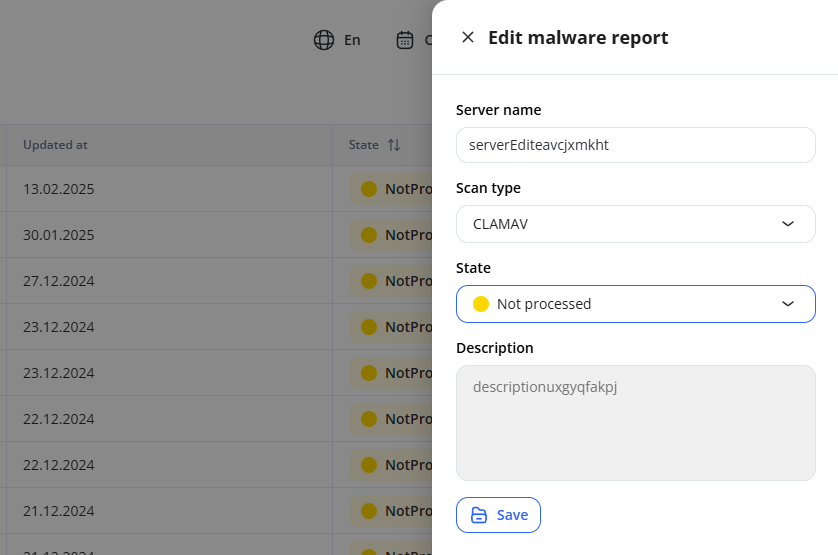
Editing Reports
Edit: Click the ✏️ icon in the Actions column to open the side-panel. You can change Server name, Scan type, State, Malware found, or update the Description. Then hit Save.
If action is required, they set the State to “Processed” or “Not Processed.”