
2. Integrations
Use Cases
-
Accessing Integrations
Navigate to CI/CD → Integrations from the left-hand menu to view a list of configured integrations (e.g., Jenkins). -
Adding or Editing an Integration
Click + Add to create a new integration or select the Edit (pencil) icon to modify an existing one. Enter the name/label, URLs, and credentials (API tokens, usernames, secret keys), then click Save to apply changes. -
Why Integrations Matter
The system uses valid credentials to authenticate with your CI/CD tool (e.g., Jenkins), enabling automated pipeline triggers and monitoring. Incorrect credentials or URLs will prevent successful integration.
1. Accessing Integrations
In the left‐hand menu, expand CI CD and click Integrations.

A list of configured integrations appears (e.g., “Jenkins”).
2. Adding or Editing an Integration
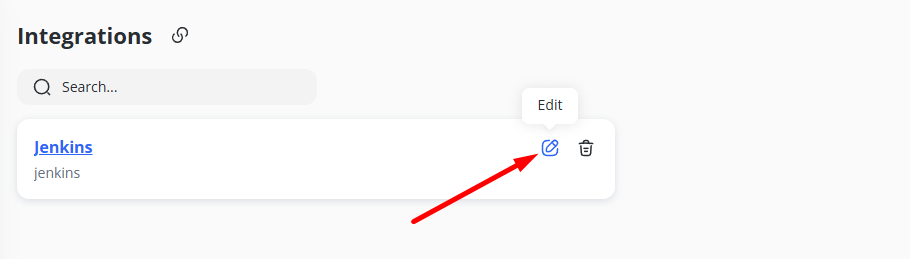
Click + Add (if visible) to create a new integration, or click the Edit (pencil) icon on an existing one.

Name / Label: Provide a friendly name for the integration (e.g., “Jenkins”).
URLs: Add one or more URLs and corresponding keys (e.g., apiUrl: https://...).
Credentials: Input tokens, usernames, secret keys, or other authentication data required by your CI/CD tool.
Click Save to store your changes.
3. Why Integrations Matter
The system can authenticate with your CI/CD tool (e.g., Jenkins) and trigger or monitor pipelines/jobs by entering valid credentials.
Invalid credentials or URLs will prevent successful integration.