
4. How to Set Company Fees
To set Network fees for cryptocurrencies, you can configure them when adding a cryptocurrency in the Configurations section. If you need to set Company fees, navigate to the Company Fees section of the Core Banking module. All specified fees, including network and company fees, will be totaled and applied during transactions.
In the Company Fees section, you can create both static (fixed) or percentage-based fees for different transaction types. You can also group these fees. Fee groups are useful for assigning specific fees to different types of Clients when creating or editing client profiles. For example, you can create a group for developers that is exempt from fees (0% fee).
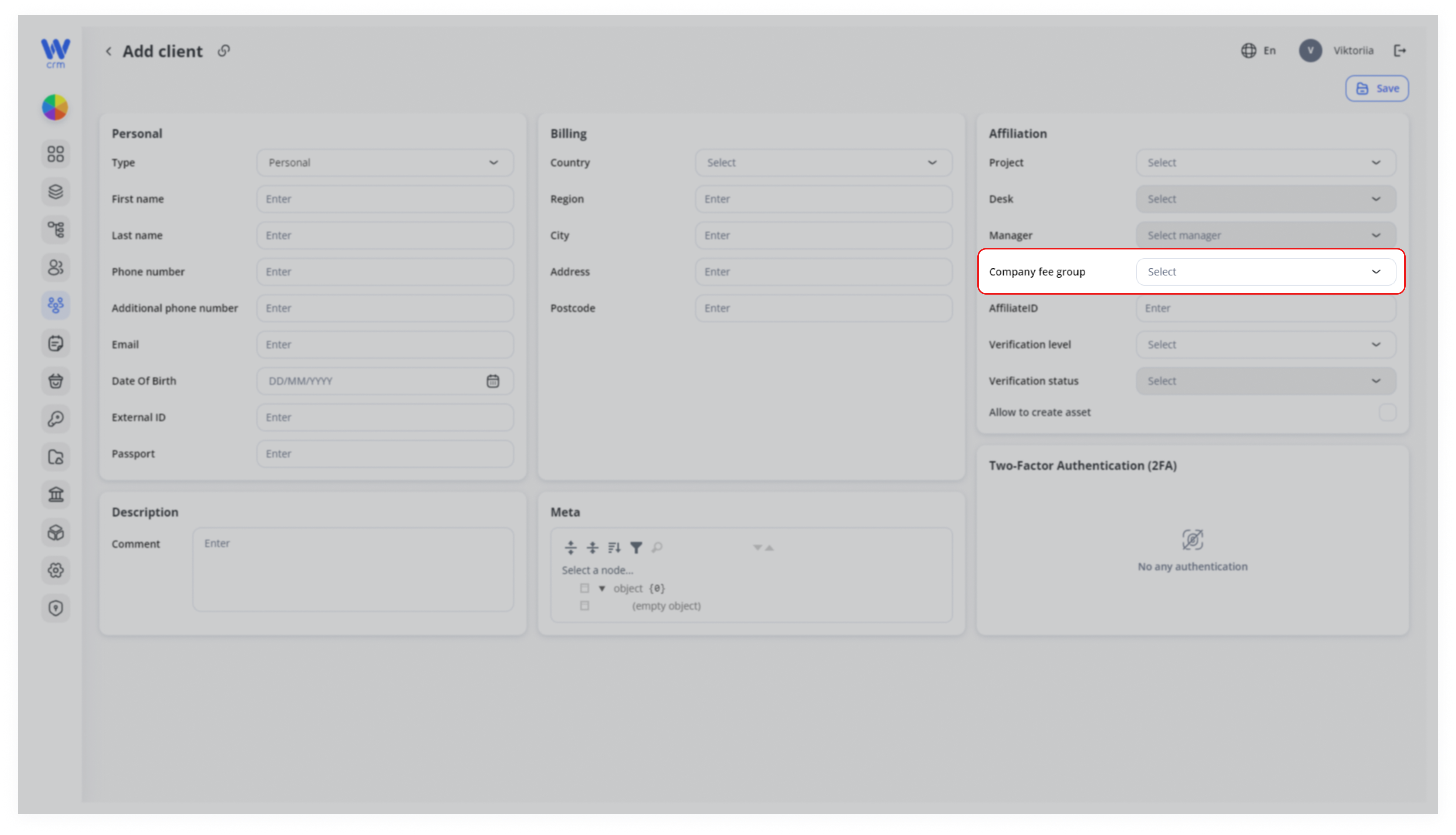
Navigate to the Company Fees Tab
In the left sidebar, click the Bank icon to open Core Banking.
Select Company Fees from the submenu.
You’ll arrive at a table showing your existing fee groups and fees (if any).
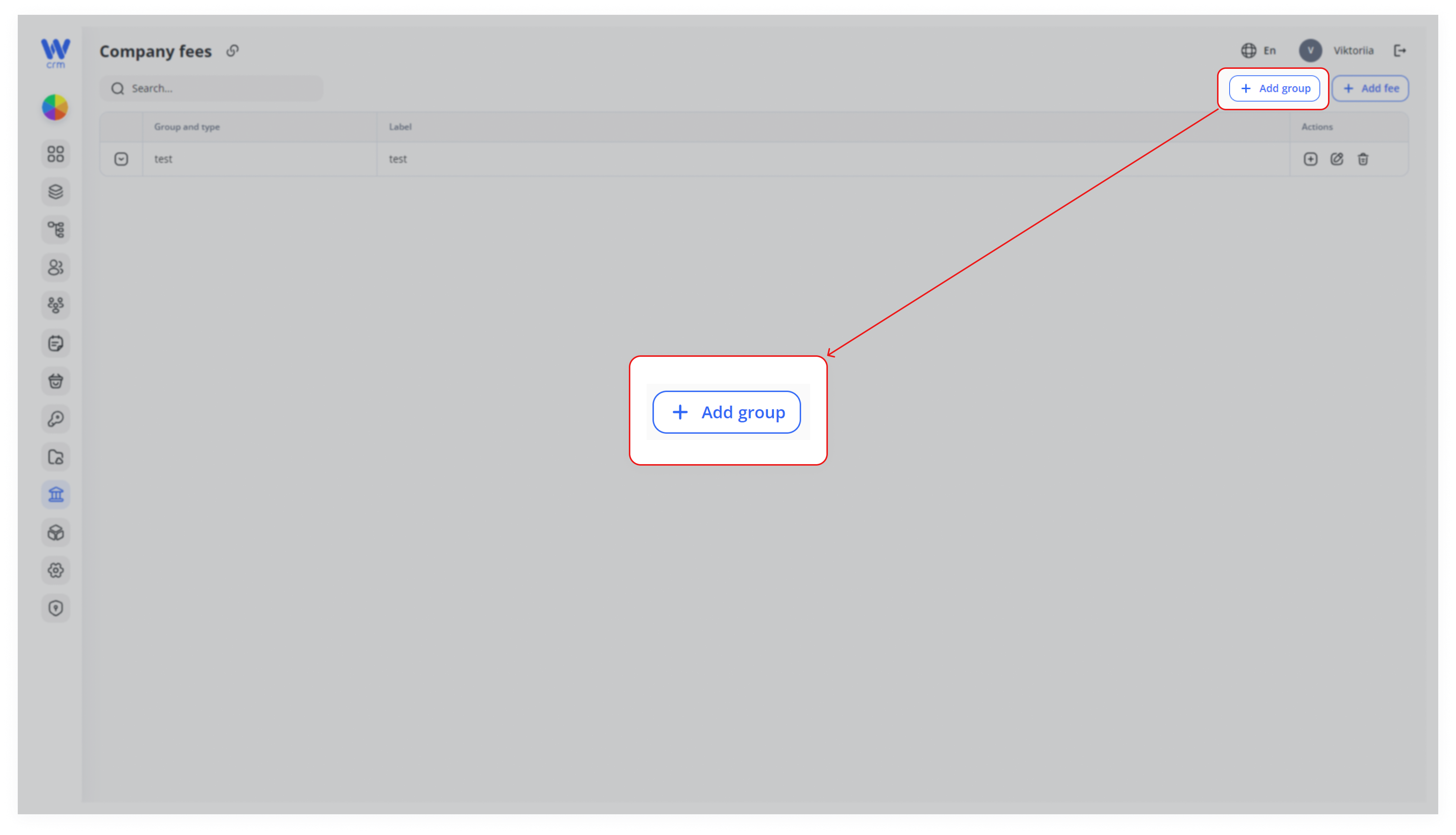
To add a new fee group
1. Click the Add Group button in the top-right corner of the Company Fees tab.
2. In the drawer that appears:
- Label: enter a unique machine-readable ID (e.g.
spot_trading). - Name: enter a human-friendly title (e.g. Spot Trading Fees).
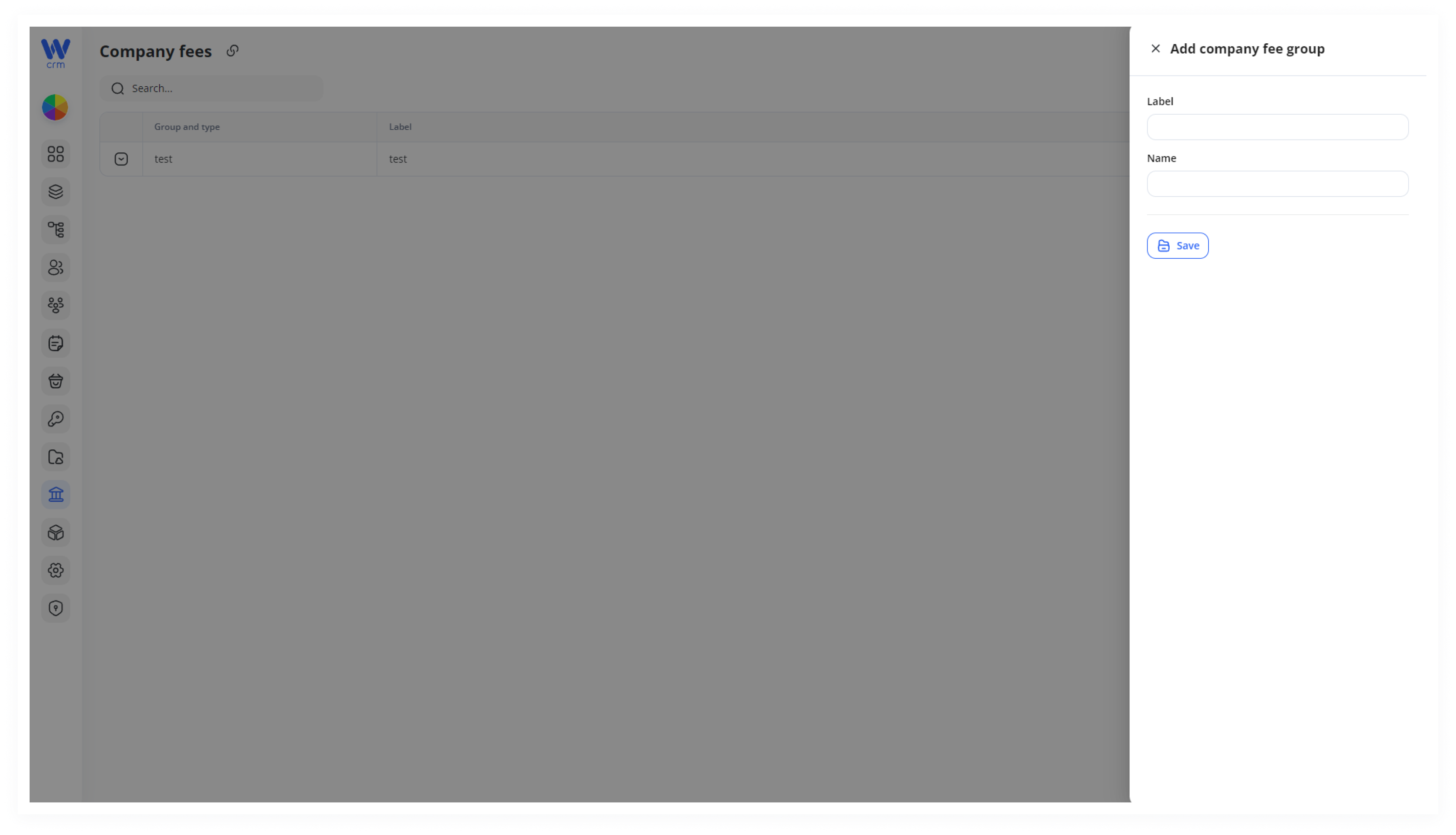
3. Click Save to apply the changes.
4. The new group appears in the table.
To add a new fee
You can add a fee either globally (via the top button) or directly under a specific group.
A. Via the Top-Level Button
1. Click the Add Fee button in the top-right corner of the Company Fees tab.
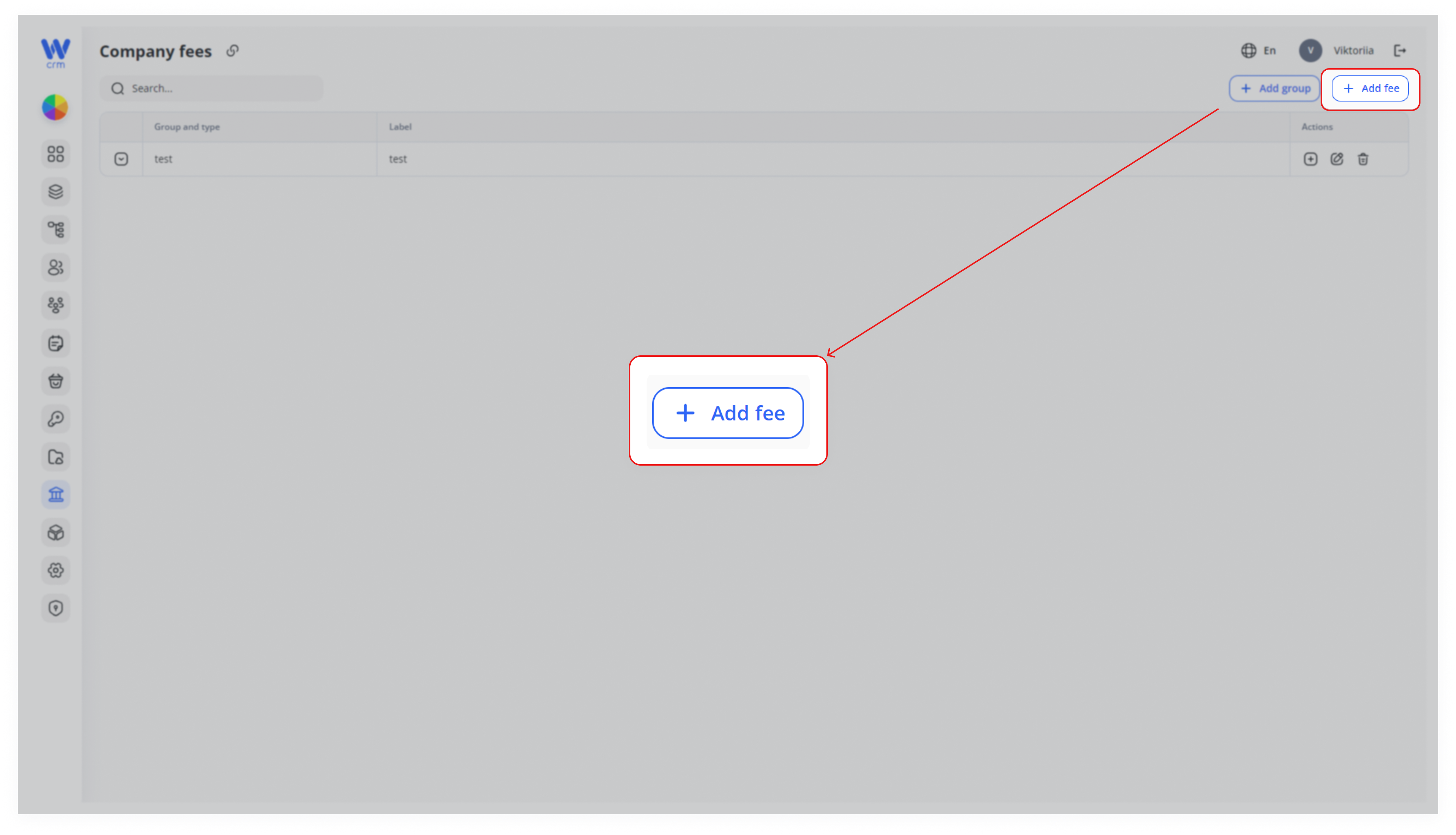
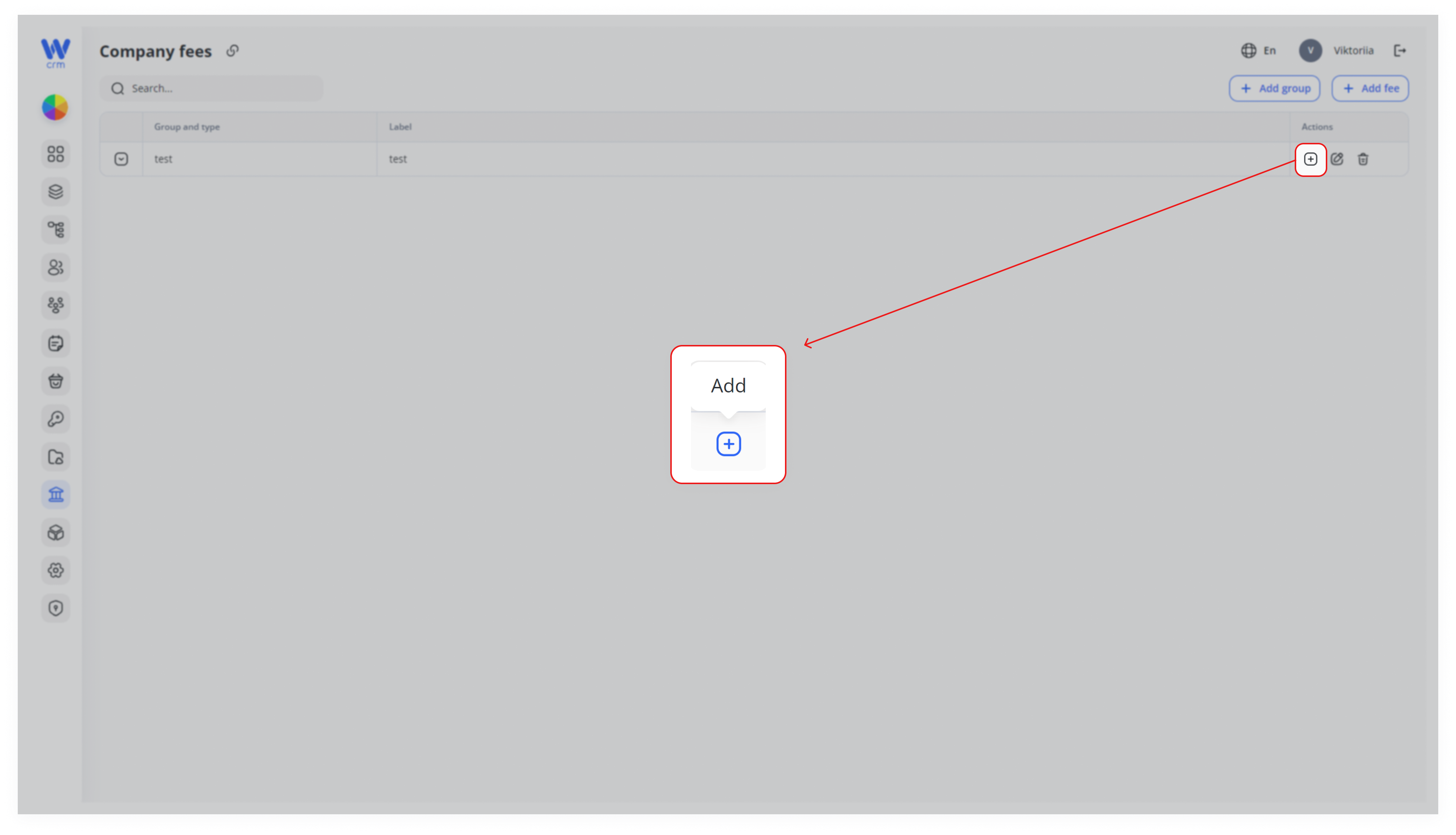
Alternatively, click the plus icon in the relevant group row to add a fee directly to a specific group.
2. Fill in or select the following fields:
- Label: A unique identifier for the fee.
- Company Fee Group: This will be pre-filled if you're adding the fee via a specific group.
- Type of Transaction: If no transaction types are available, go to Core Banking > Configurations to create them.
- Currency: For Exchange transactions, select two currencies (one for In and one for Out). If no currencies are available, go to Core Banking > Configurations to create them. Alternatively, leave this field blank to apply the fee to all currencies.
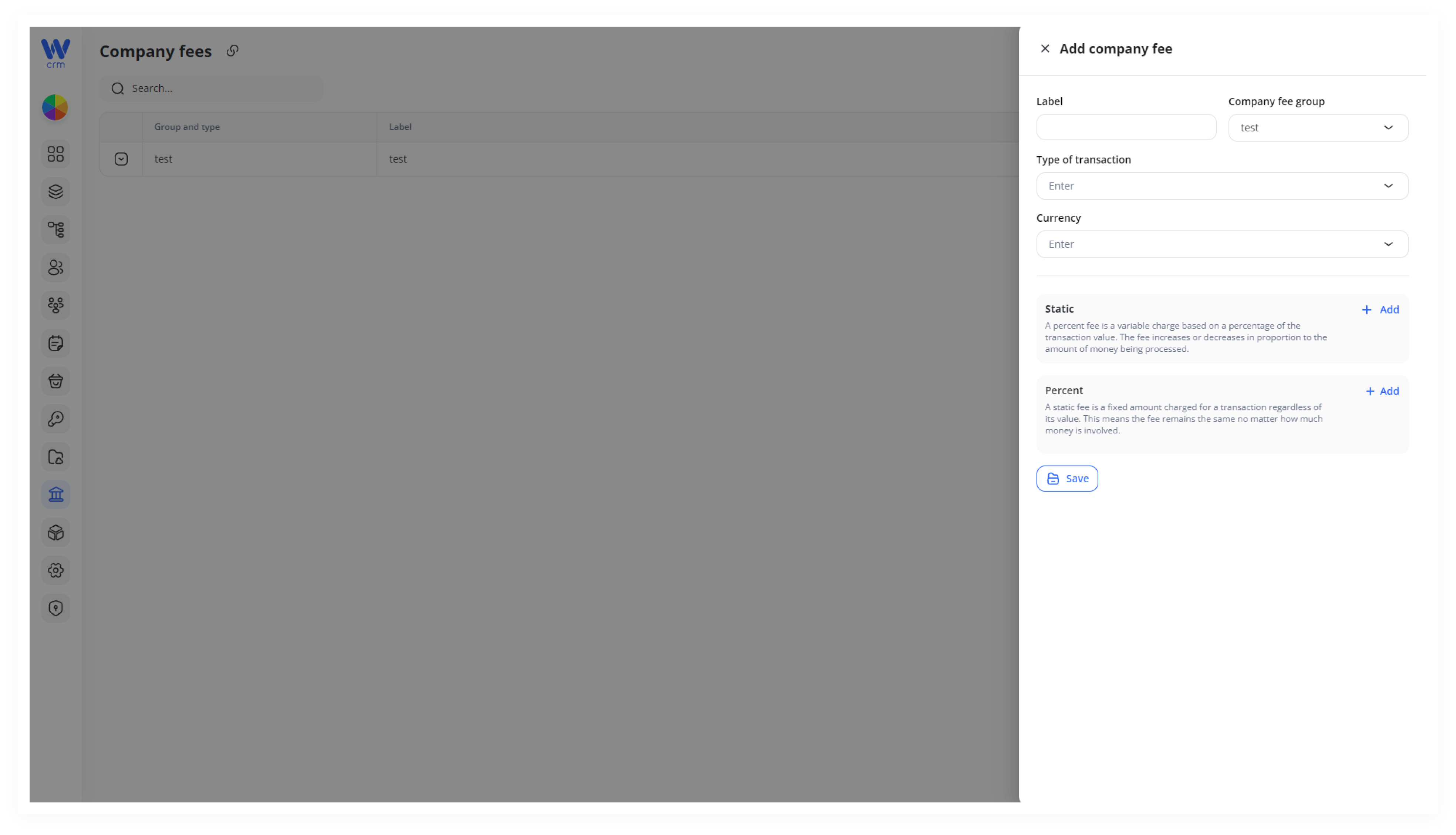
3. Next, select the type of fee:
- Static: A fixed fee amount.
- Percent: A percentage-based fee.
4. Enter the following details:
- Min. Value: The minimum transaction amount to which the fee applies (leave blank for no minimum).
- Max. Value: The maximum transaction amount to which the fee applies (leave blank for no limit).
- Amount: The fixed fee or percentage that will be charged per transaction.
You can add multiple commissions for different thresholds at once. For example:
- For value from 0 to 100: 10%
- From 100 to 1000: 15%
- From 1000 and above: 20%.
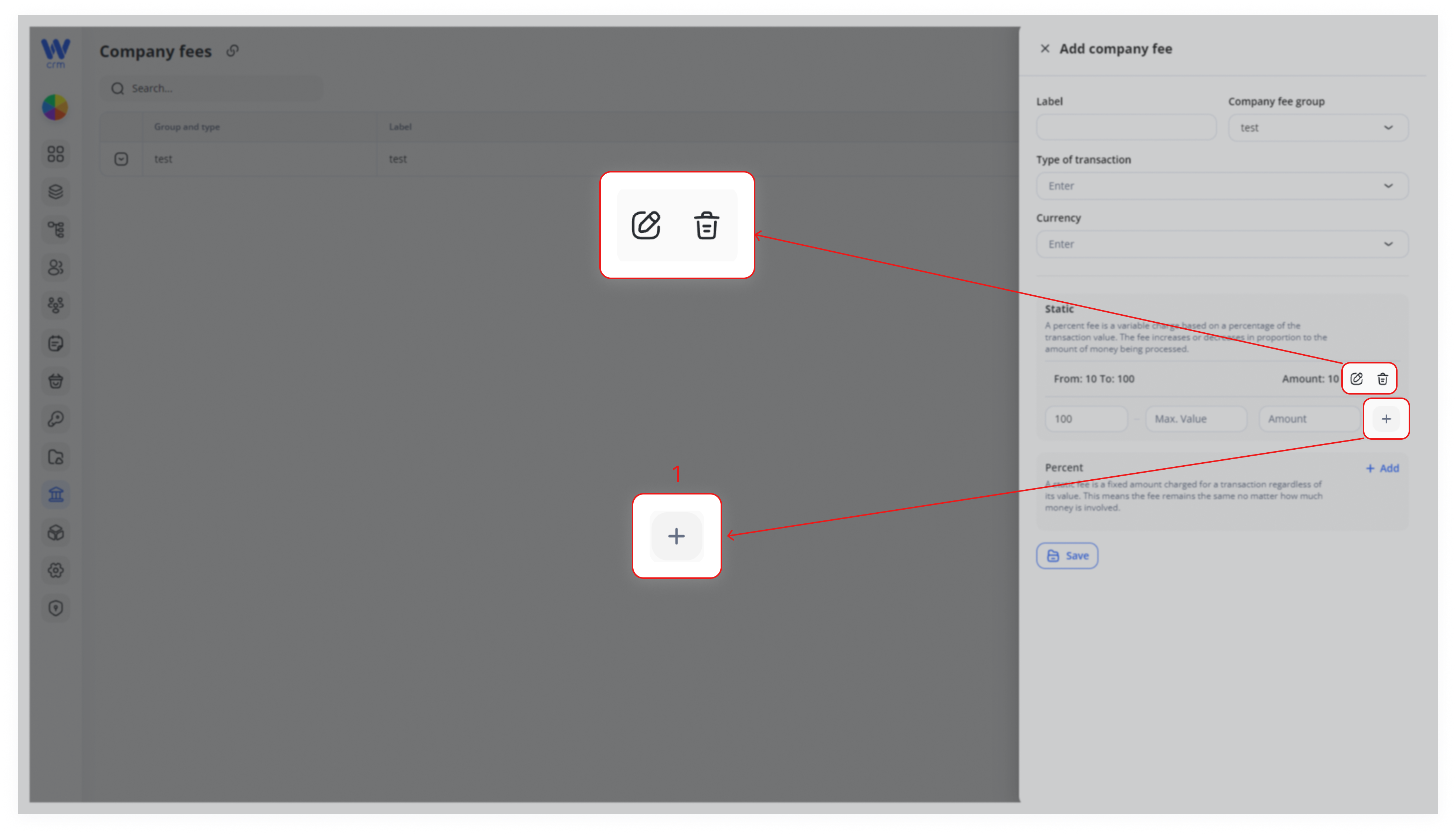
To add additional fees, click the plus icon again after entering the first fee. The next line will appear.
To edit or delete created fees, click on the Edit or Delete icon:
5. Click Save to apply the changes.
B. Directly Under a Group
1. Locate the group’s row in the table.
2. Click the ➕ icon in that row’s Actions column.
3. The same Add company fee drawer opens with the Company fee group pre-selected.
4. Complete steps 2–4 above to define and save the fee.
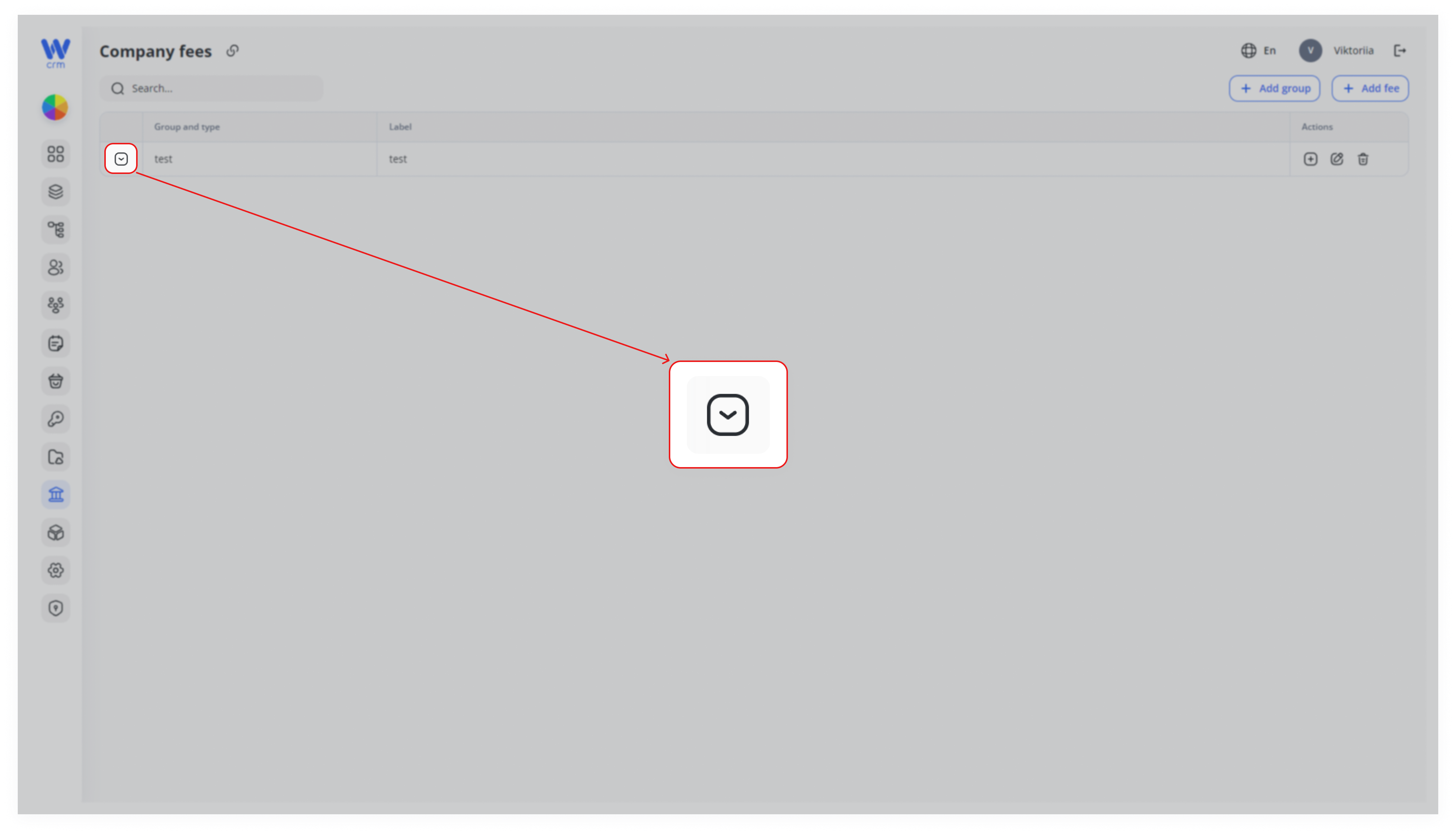
To view all fees associated with a group
Click the Expand icon next to the group:
- To edit a group or fee: Click on the Edit icon in the relevant row.
- To delete a group or fee: Click on the Delete icon in the relevant row.
Warning: Deleting of group is only allowed when no client is assigned to it. Deleting a group will automatically delete all fees associated with it. This action is irreversible.