
10.4. How to Manage Languages and Translate CRM
Languages and translations are managed in CRM through three sections:
-
-
Languages
-
Translations
-
Texts
-
To translate CRM into another language, first go to Languages.
You will see two blocks:
-
-
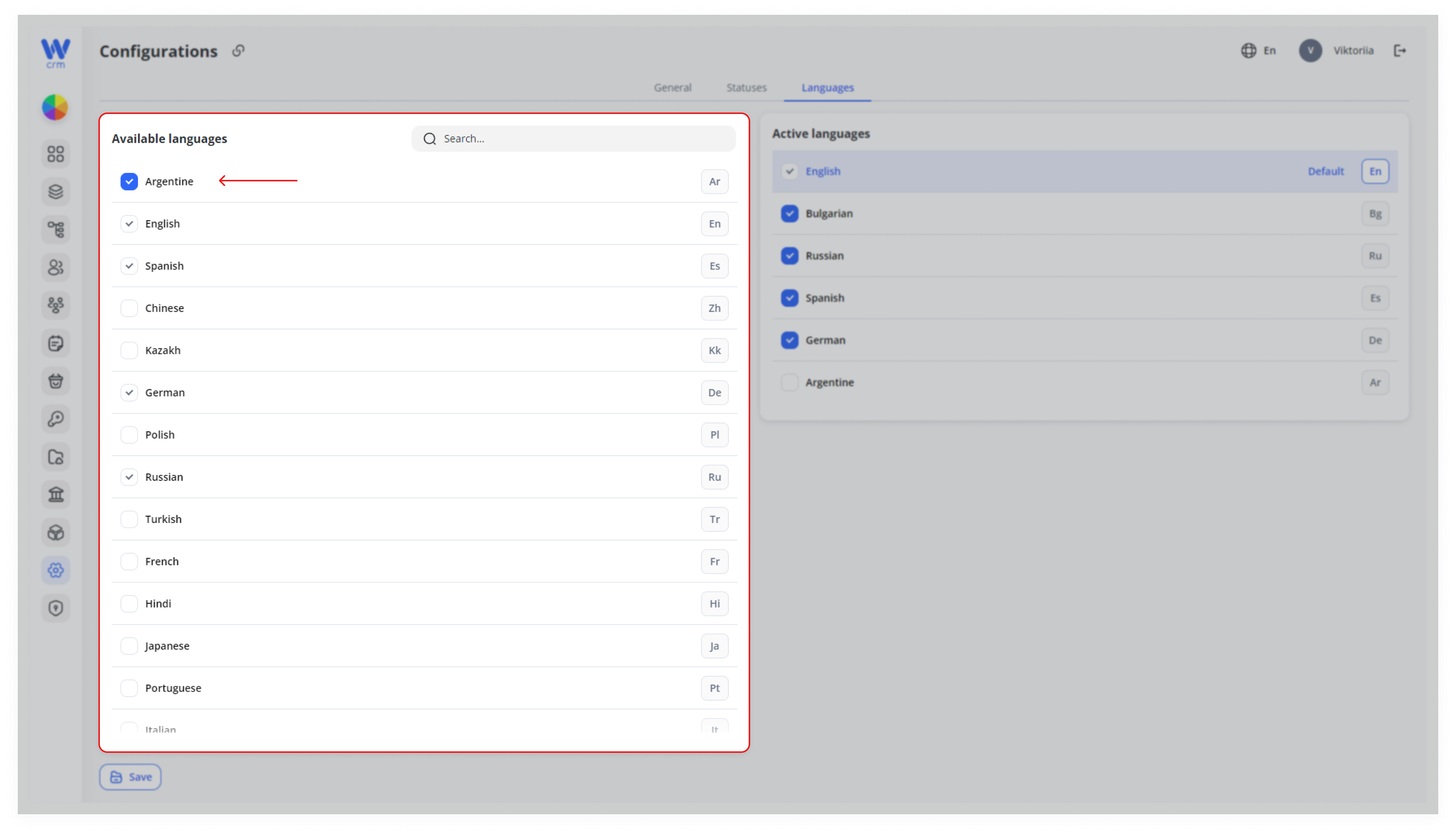
Available Languages: All languages available in our system.
-
Active Languages: Languages that are used in your CRM.
-
To add a language from the list of available languages to the list of active languages:
-
-
In the Available Languages block, select the checkbox next to the language you want to add.
-
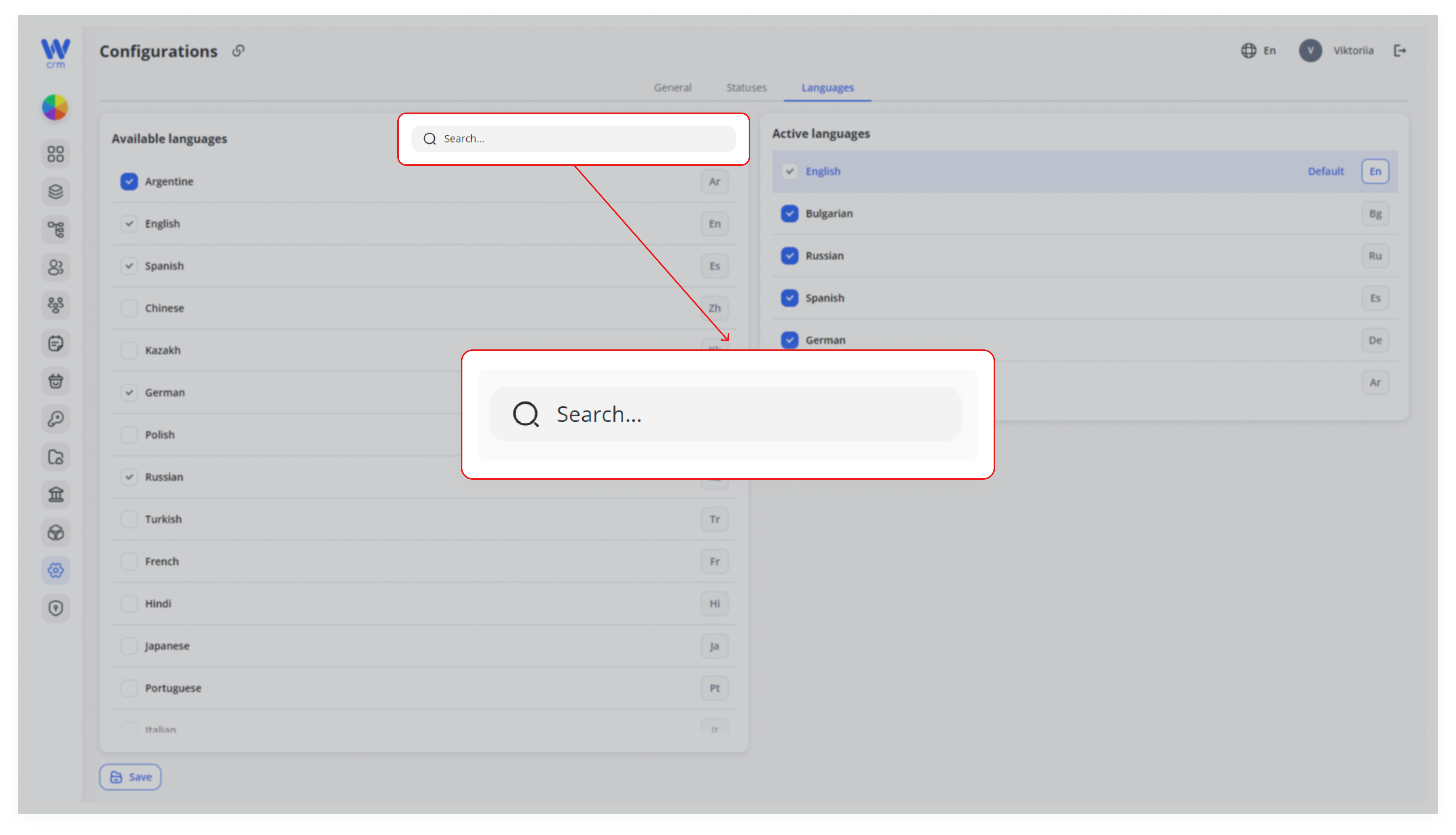
2. To make it easier to find the language you need, use the Search field. Start typing the name of the language, for example, German or Japanese.
3. Click Save to apply the changes.
Note: The language will appear in the list of active languages, but will not yet be available for selection in the new menu. Before adding, it is recommended to translate CRM items into that language. Refer to the [How to Manage Translations] and [How to Manage Texts] for more information.
When you have all the necessary texts and CRM elements translated:
-
-
Go back to Languages.
-
In the Active Languages list, check the box next to the language for which you have added translations.
-
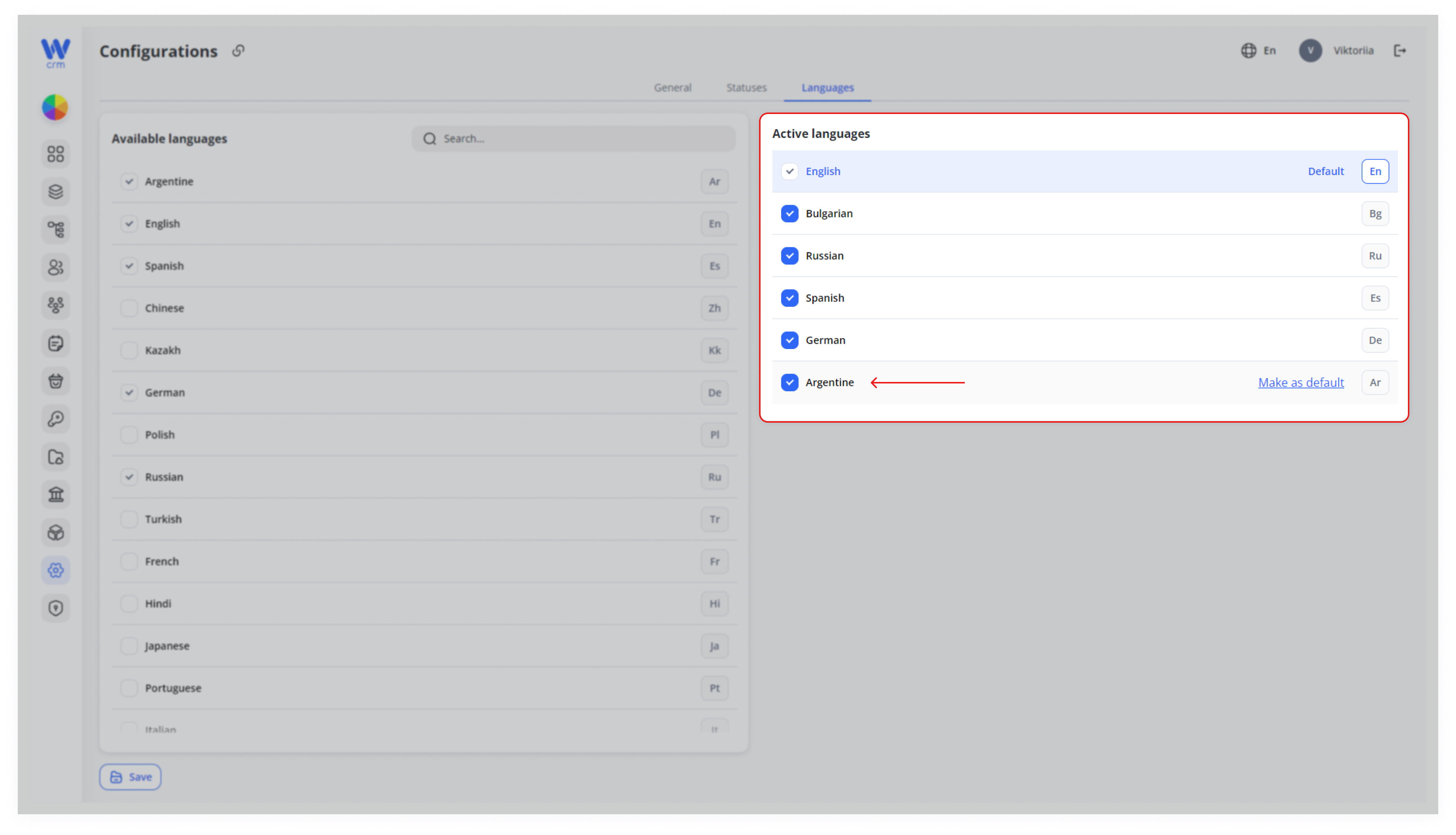
3. Click Save.
4. It will now appear in the top menu and be available for selection by all users.