
4. How to Edit a Project
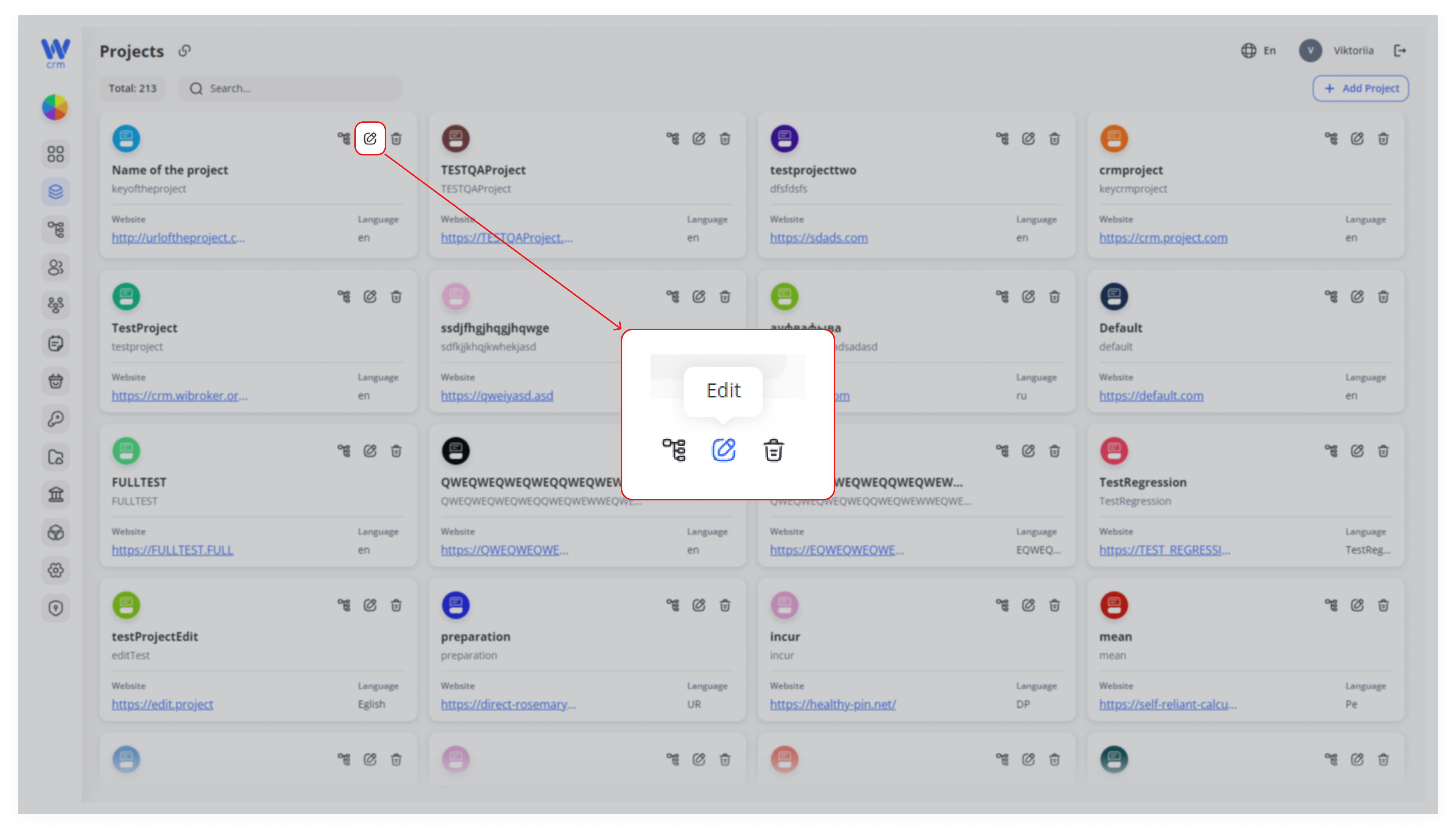
After creating a Project, the editing window will open automatically. To open the edit window from the Projects tab, click on the edit icon in the upper right corner of the specific Project window:
In the Edit window, you can:
-
-
Change the name, language and website of the project.
-
Add or delete members of the project.
-
To add a new member to the project:
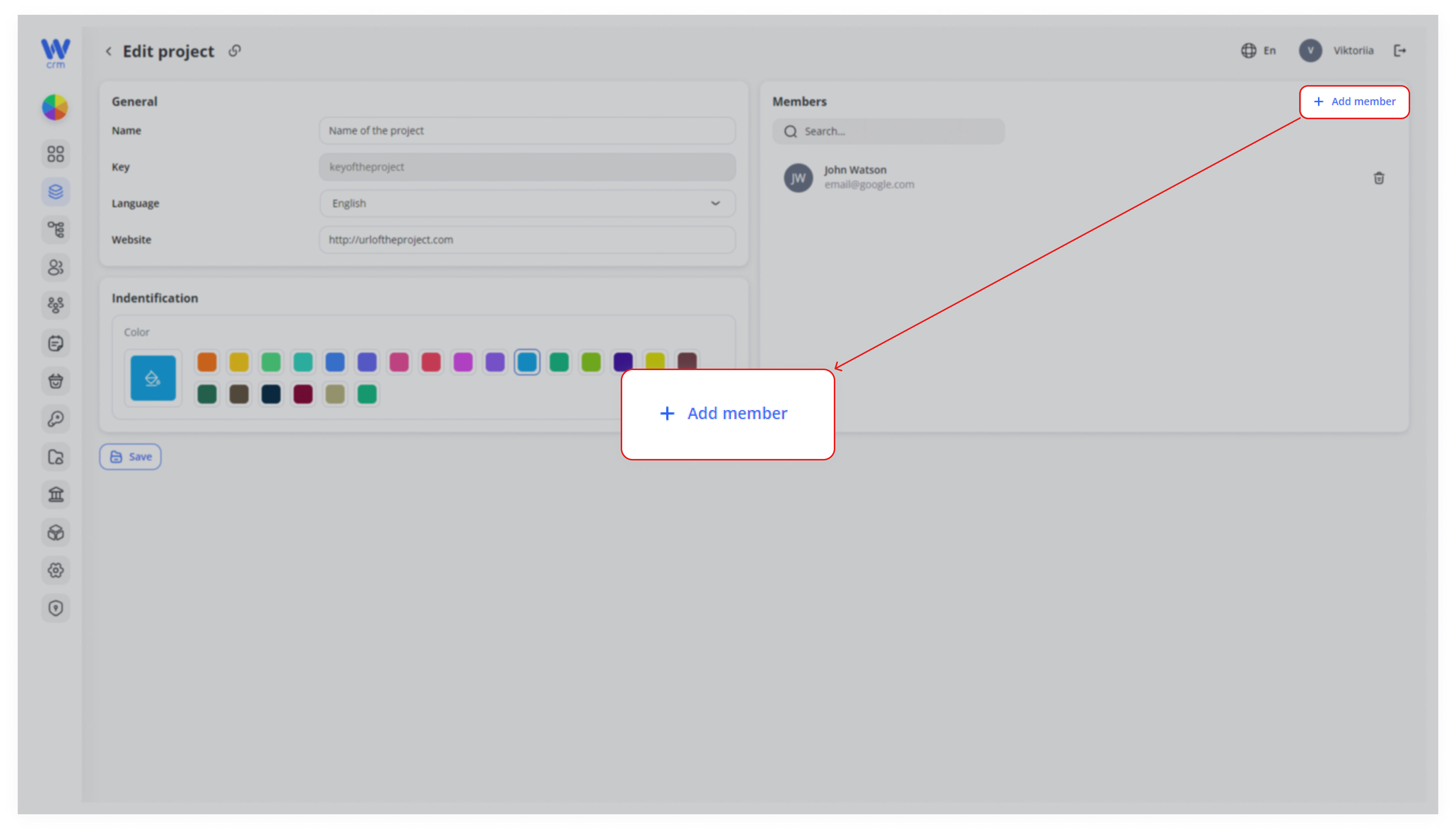
1. Click on the the Add member button in the right top corner of the tab:
2. Choose a member from the list. You can use use Search to find a user via email. The list consists of the employees, you have added before. To add a new user to this list, go to the Employees tab.
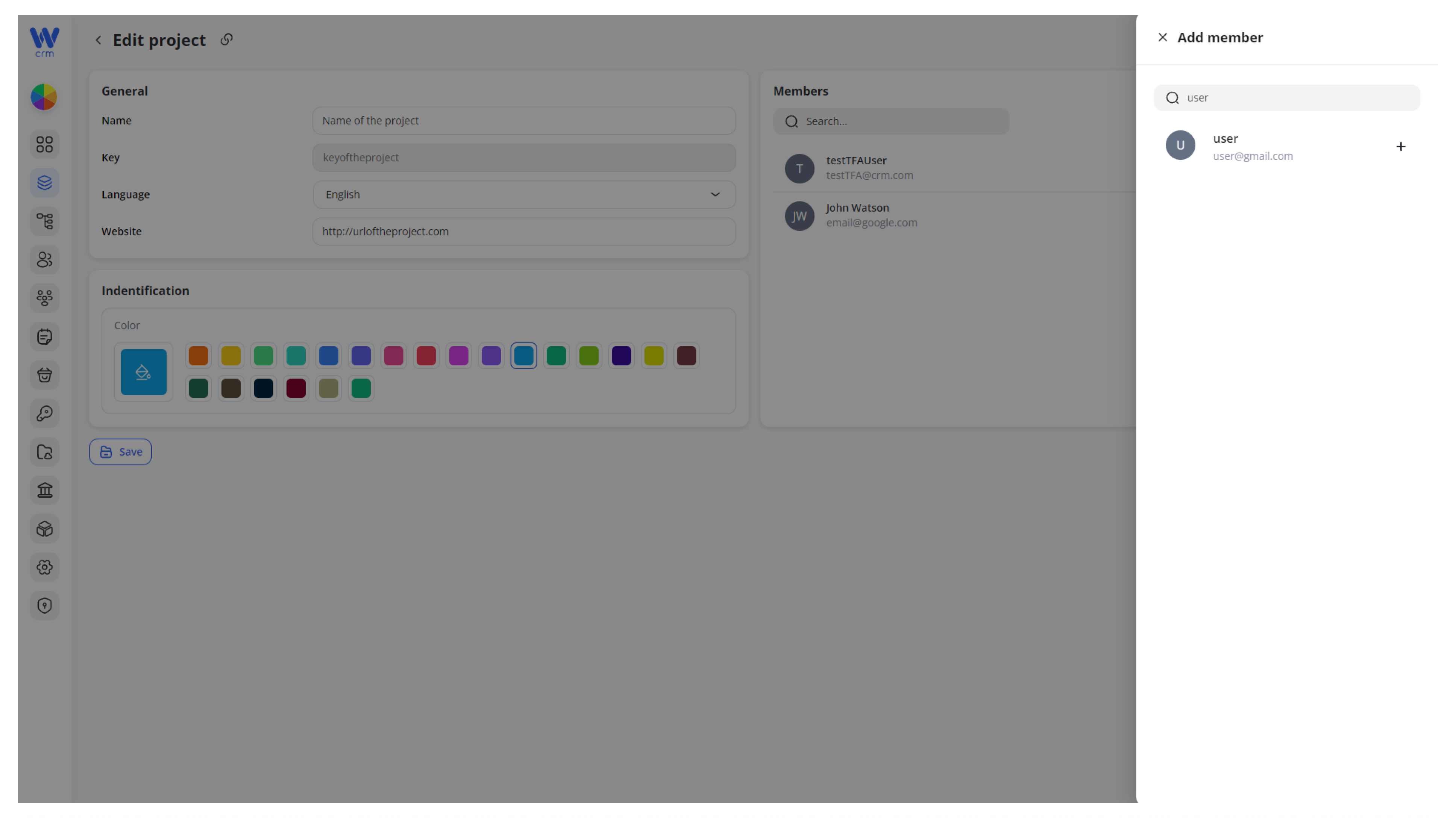
3. Click the plus sign next to the user’s name.
To delete a member:
-
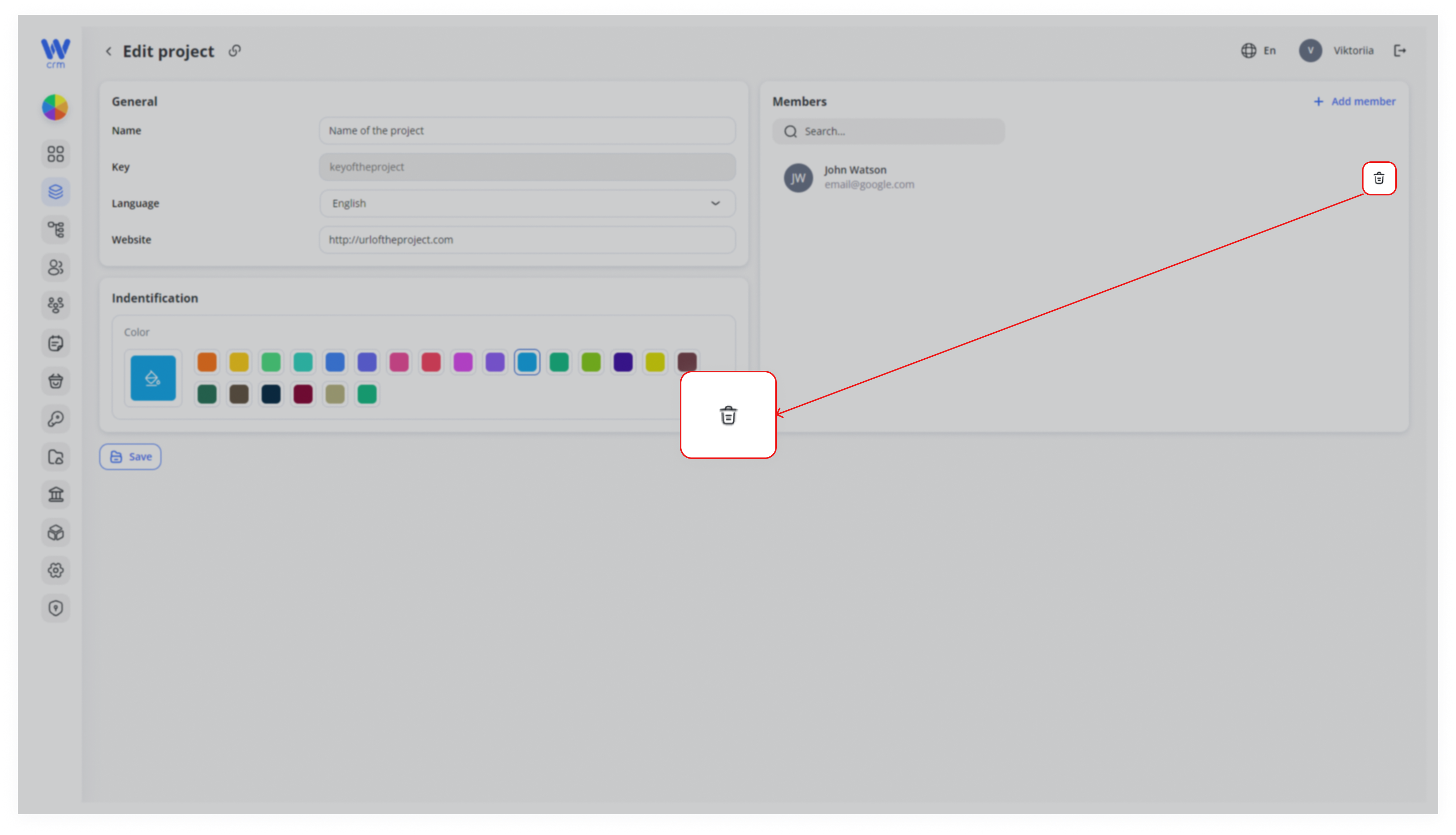
- Click the delete icon next to the member’s name:
Note: you can delete the project’s member only after you’ve deleted them from the desk they have been assigned to. Read more about Desks here.