
4. How to Assign an Employee to the Project and Desk
In Wifox Business Core Solution, employees with restrictive roles (e.g. “View Own”) must be explicitly granted access to each Project and, optionally, to specific Desks. Follow these steps to assign an employee to their workspace:
Note: If you have assigned a role that allows an employee to view all projects in the system, you do not need to assign a specific project and/or desk to that employee. In other cases (roles with viewing only their own projects and desks), it is mandatory to assign a project to an employee.
To1. assignOpen the Employee’s Detail View
After creating or locating the employee in the Employees list, click the ✏️ Edit icon to open their profile form.
2. Launch the “Add Project” Pane
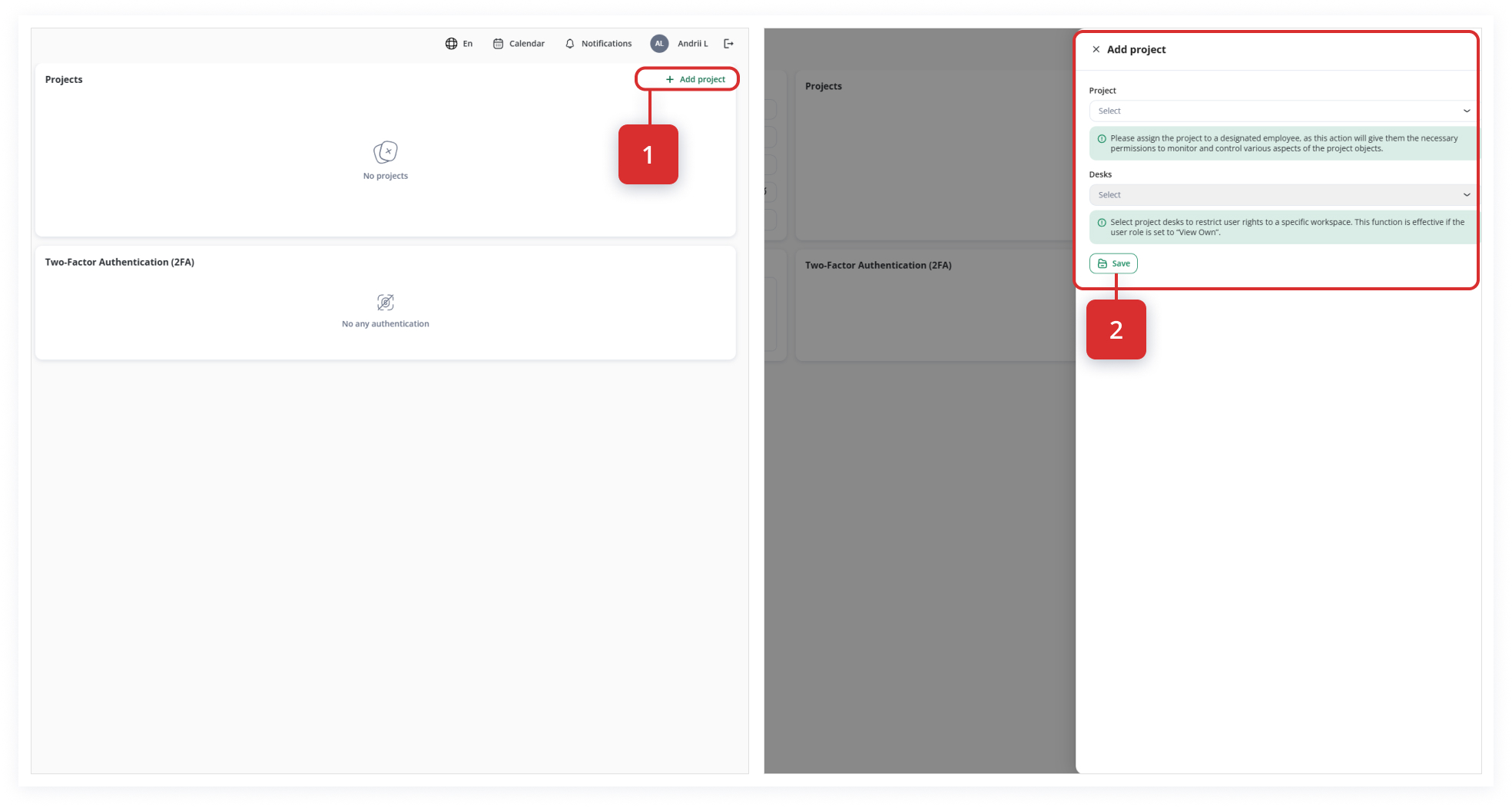
Within the employee’s form, find the Projects panel on the right side. Click + Add project to slide out the assignment pane (Look Step #1 on the screenshot).
3. Select a Project
In the Project dropdown, choose the one Project this user should access.
Tip: Granting more than one Project here is only necessary if the user’s role is scoped to “View Own” on each Project.
4. (Optional) Restrict to a Desk
If you want the employee to see only a specificsubset projectof andthat desk:
1. Clickuse the Add ProjectDesks buttondropdown to pick one or more Desks.
Example: A “Support Agent” role might be restricted to the “Support” desk, while a “Sales Rep” could be limited to “Sales Leads.”
5. Save the Assignment
Click Save at the top rightbottom of the pane (Add employee tab (Look #1 on the image).
2. Choose the project and, if needed, the desk from the drop-down list.
3. Click Save to assign the project and the desk (LookStep #2 on the image)screenshot). The new Project (and any selected Desks) appear immediately in the employee’s Projects panel.
Important:
Employees with broad roles (e.g. “Admin” or “Viewer All”) do not require explicit assignments—those roles inherently grant access to every Project and Desk in the system.
If you leave Desks blank, the user will have visibility into all Desks within the assigned Project.
To remove access later, reopen the “Add project” pane, clear the selection, and save.
By carefully assigning Projects and Desks, you ensure that each employee sees exactly the workspaces they need—and no more—helping maintain clear boundaries and data security across your organization.