
3. Pipelines
Use Cases
-
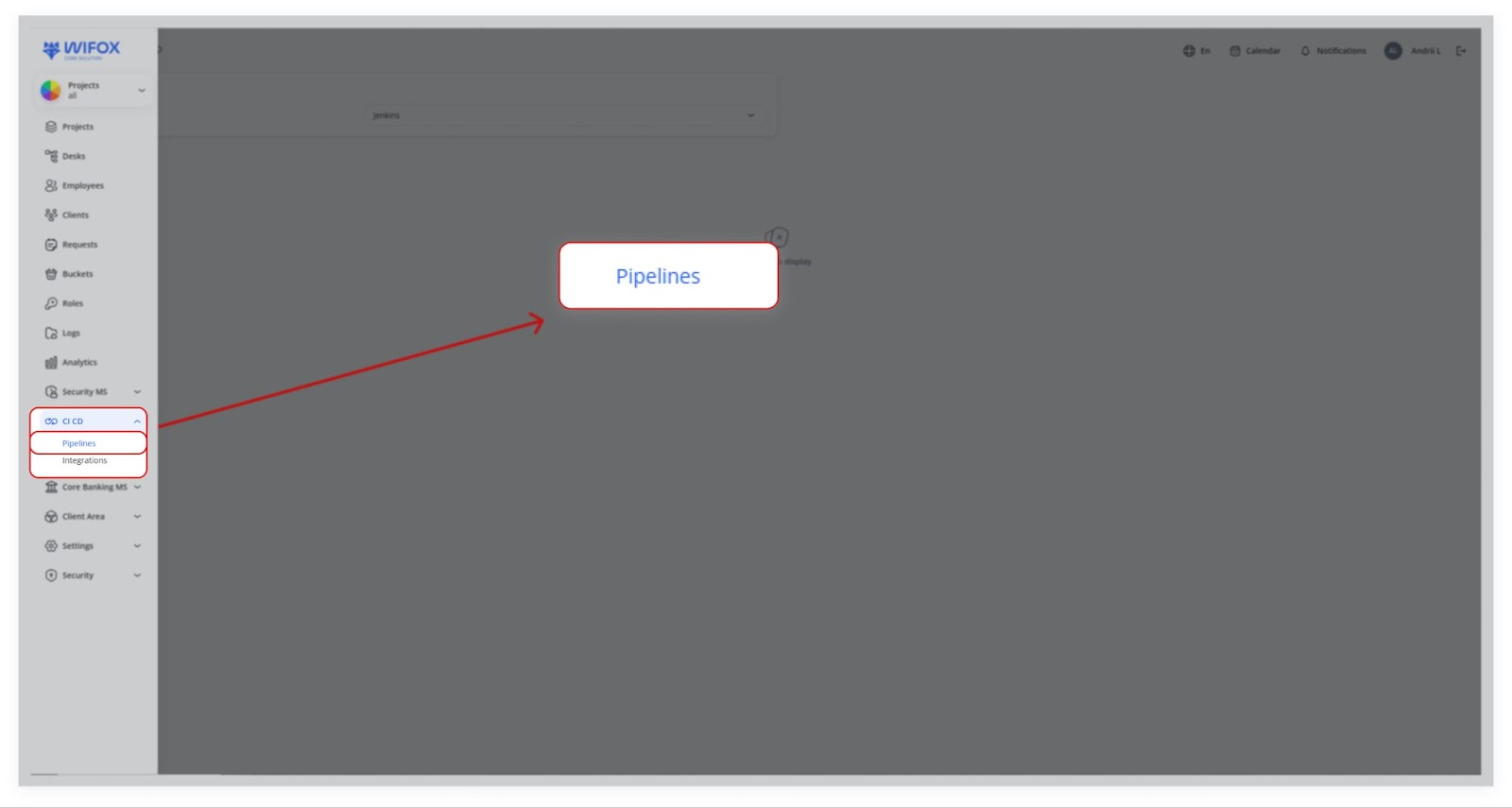
Accessing Pipelines
Navigate to CI/CD → Pipelines from the left menu. Select an existing integration (e.g., Jenkins) from the Automation dropdown to manage builds and workflows. -
Tracking Runs
Once your integration is set up, build runs or jobs from your external CI system (e.g., Jenkins) will appear in Runs, displaying execution history, statuses, and timestamps. -
Future Expansions
If integrating another CI/CD platform (e.g., GitLab CI, Travis CI), simply provide the API keys and URLs to extend platform compatibility and manage builds seamlessly.
1. Accessing Pipelines
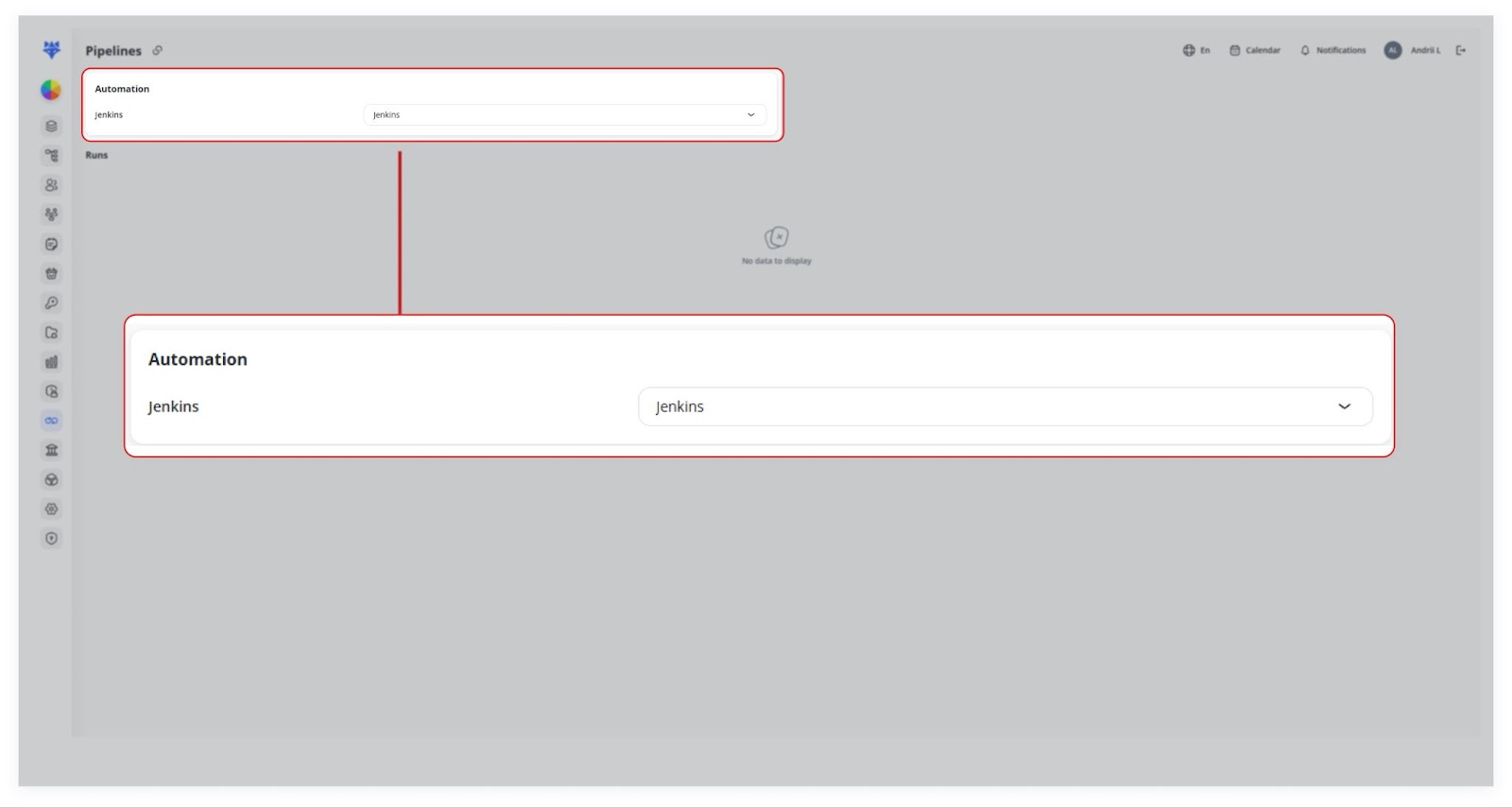
You can choose an existing integration (e.g., Jenkins) from the Automation dropdown.
2. Runs
Once your integration is set up, any build runs or jobs you create in the external CI system (e.g., Jenkins) can appear here.
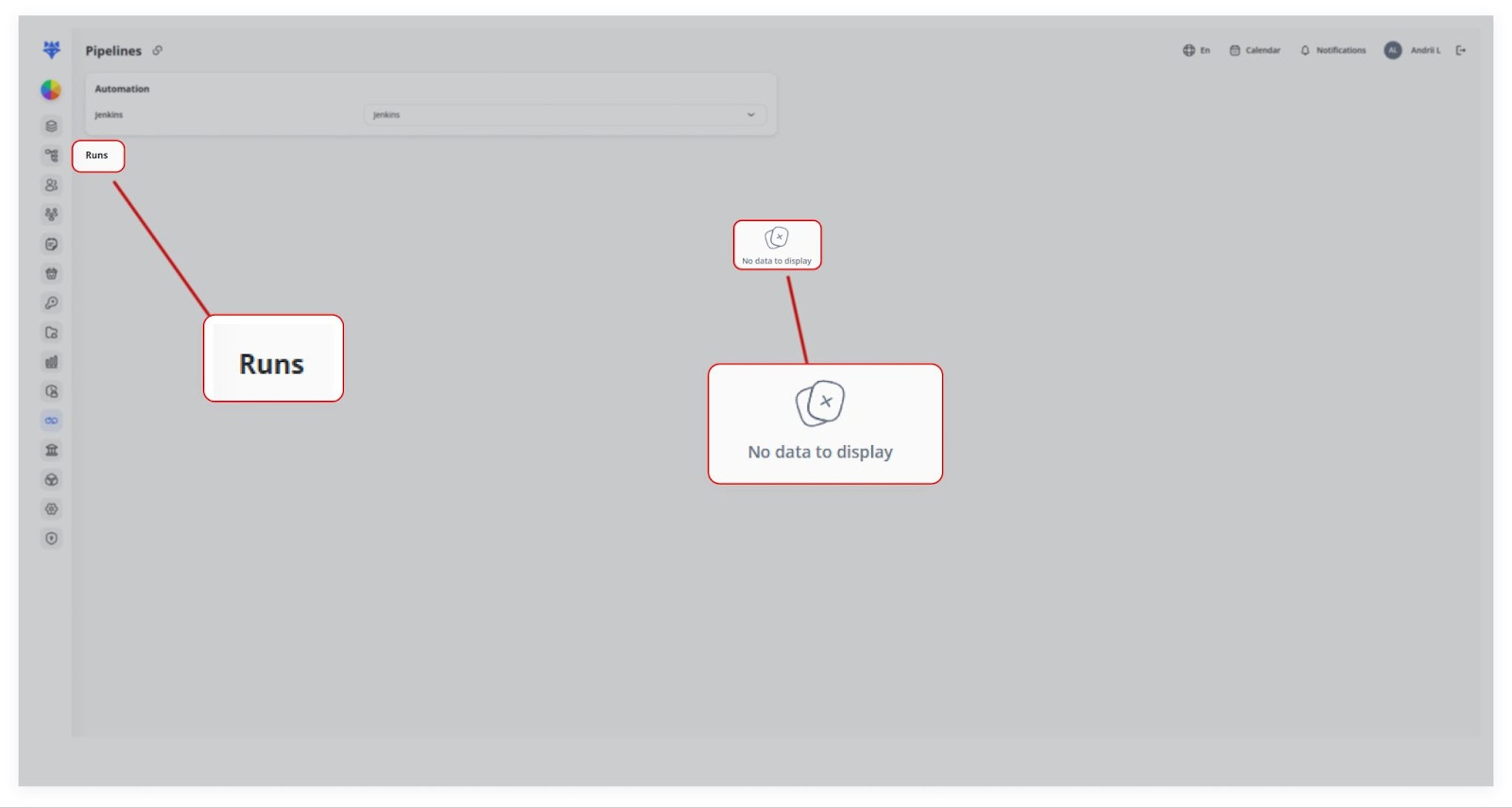
In the provided screenshots, no runs are currently displayed (“No data to display”), but in a real scenario, you’d see a list of pipeline executions, their status, timestamps, and other relevant data.
3. Future Expansions
If you need to integrate a different CI/CD platform (e.g., GitLab CI, Travis CI), our platform can be extended to support it. Just provide the API keys and URLs for that service.