
2. Incident Reports
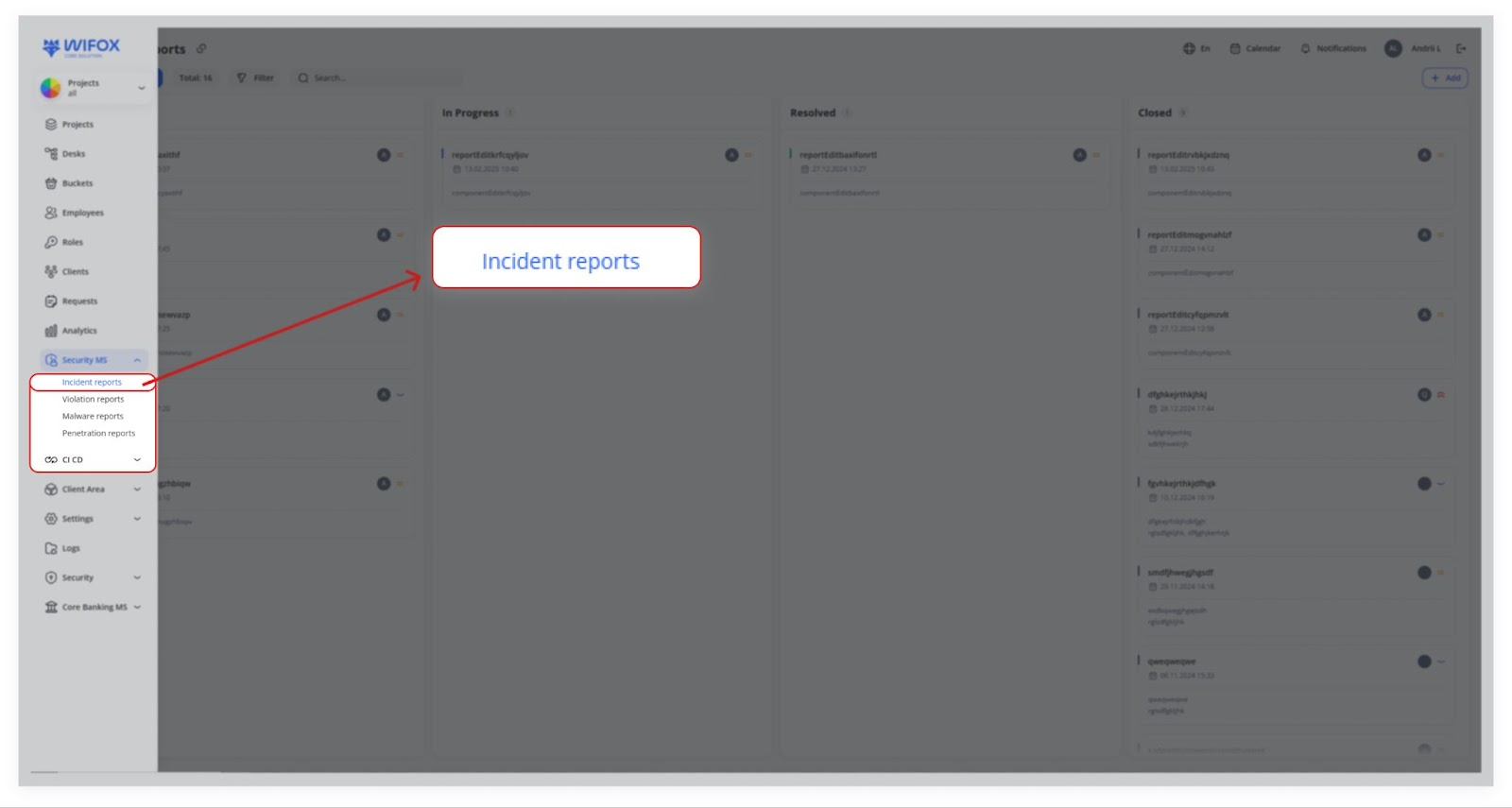
The Incident Reports section in Security MSCore is essential for tracking and managing security-related or general system issues such as bugs, vulnerabilities, and unexpected behavior. It ensures efficient incident resolution, reduces downtime, and strengthens system security by providing structured workflows for issue management.
Use Cases
- Create Incident
A security engineer or developer logs a new issue, ensuring all security concerns are documented. - Assign & Update
The incident is assigned to the relevant person, severity is set, and progress is tracked for accountability. - Track in Board
Team members move the incident card across workflow stages (Open → In Progress → Resolved → Closed) for clear visibility. - Closure
Upon closing, the system collects details on the resolution, supporting files, and lessons learned to prevent future occurrences.
Where to Use Incident Reports
- Software Development: To track bugs and unexpected system behavior during development and deployment.
- Financial Systems: For monitoring and resolving vulnerabilities in transaction processes.
- Web Applications: To manage issues affecting user experience, performance, and security.
- Enterprise IT: For handling system outages, security incidents, and compliance issues across departments.
Key Components of Incident Reports
The Incident Reports Action tracks and manages security‐related or general system issues (e.g., bugs, vulnerabilities, unexpected behavior). It provides two main views (Table and Board), plus the ability to filter, change statuses, and add closure details.
1. Table View
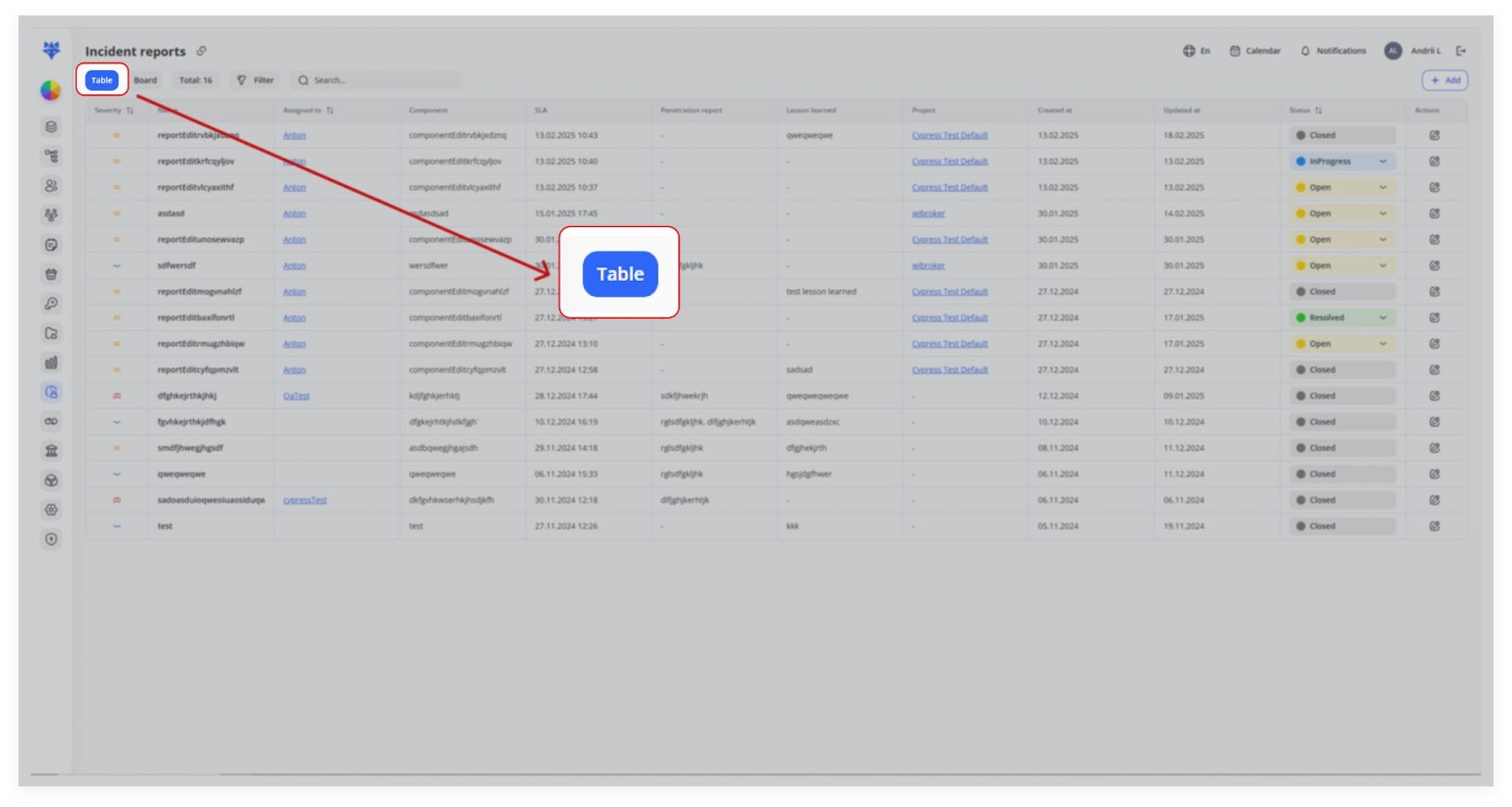
- Table Layout: Displays incidents in rows with columns for Severity, Name, Assigned to, Component, Status, etc.
- Status Control: Select different statuses (Open, In Progress, Resolved, Closed) from a dropdown in each row (see the colored labels in the Actions column).

- Edit Incident: Click the Edit icon to open a side panel where you can update fields (Assigned to, Severity, SLA date/time, etc.).

2. Board View
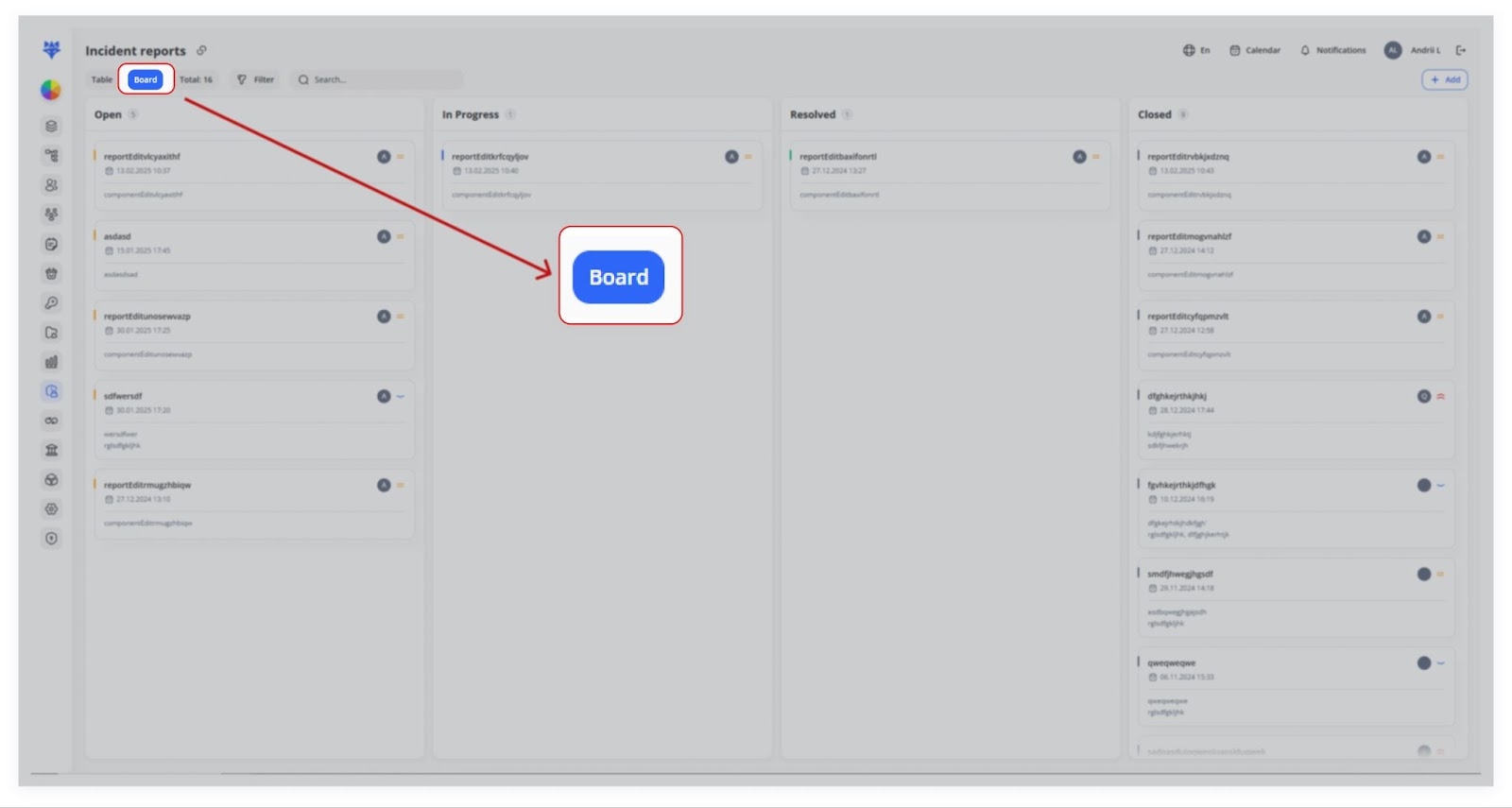
- Kanban‐Style Board: Switch to Board view to see incidents arranged by status column (e.g., Open, In Progress, Resolved, Closed).
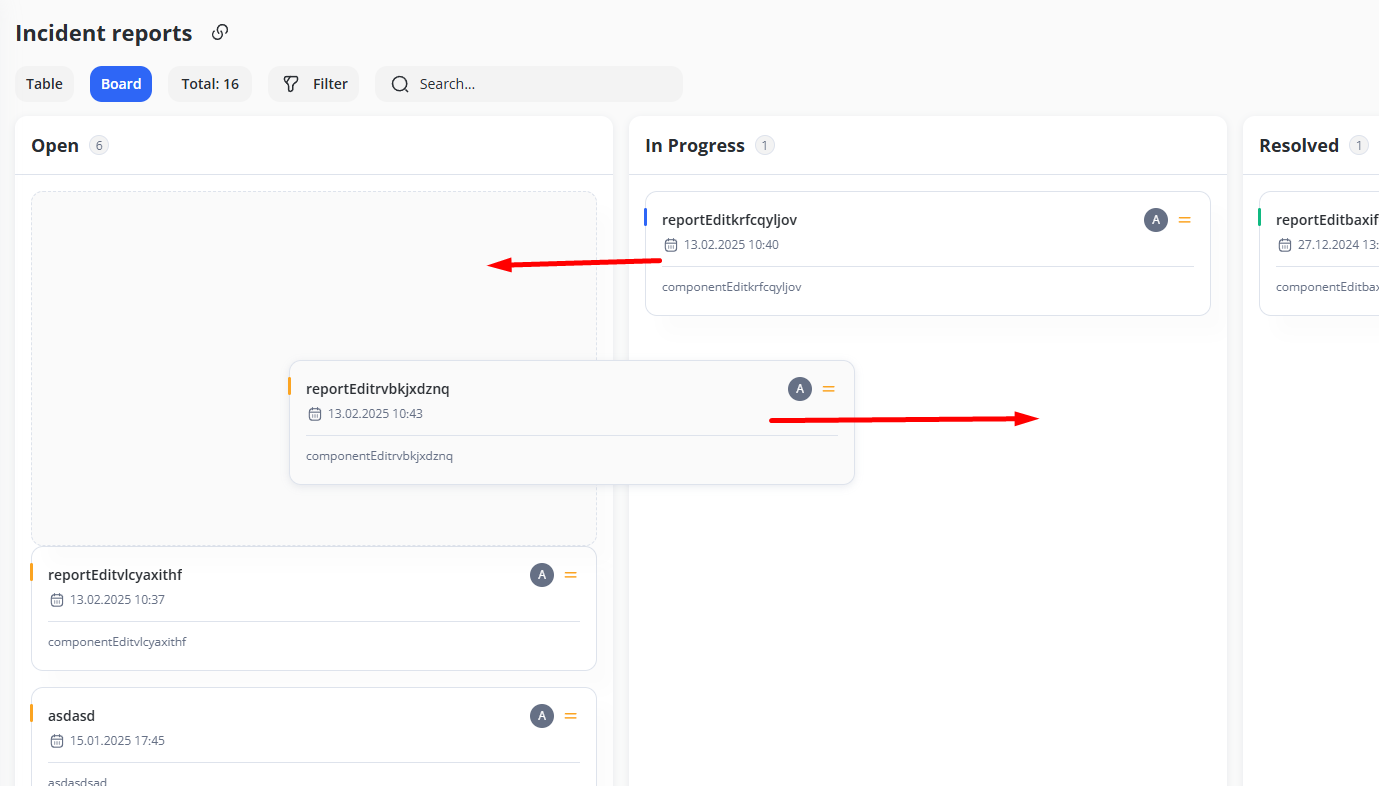
- Drag & Drop: Move incident cards between columns to reflect status changes.
- Closing an Incident: When you move an incident to Closed, a dedicated form may appear (see “Close incident report” panel), prompting you to describe how the issue was fixed, attach any proof or files, and add a root cause analysis or lessons learned.
3. Filtering & Searching
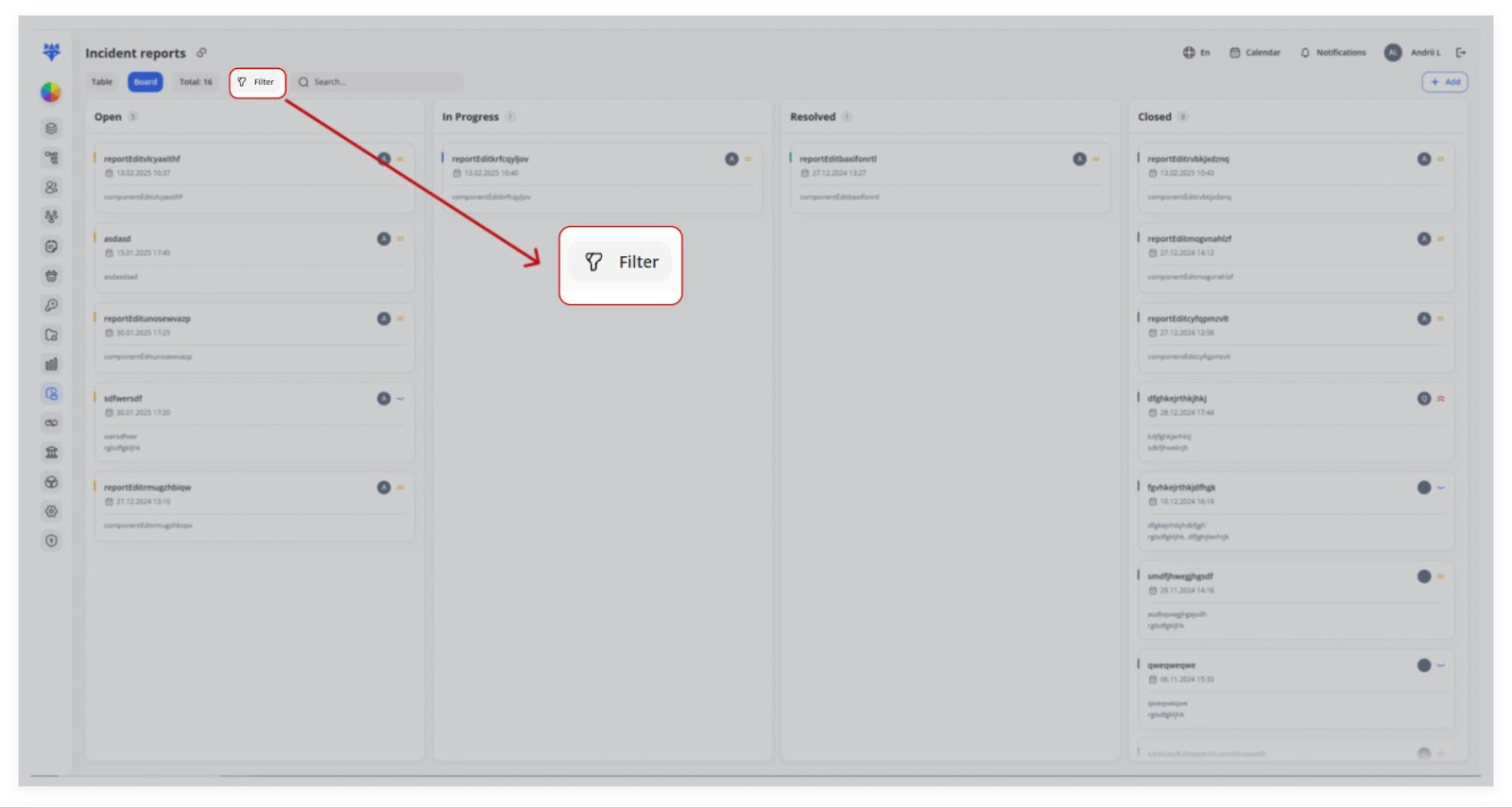

- Filter Panel: Click Filter to narrow incidents by Status, Severity, or Assigned to.
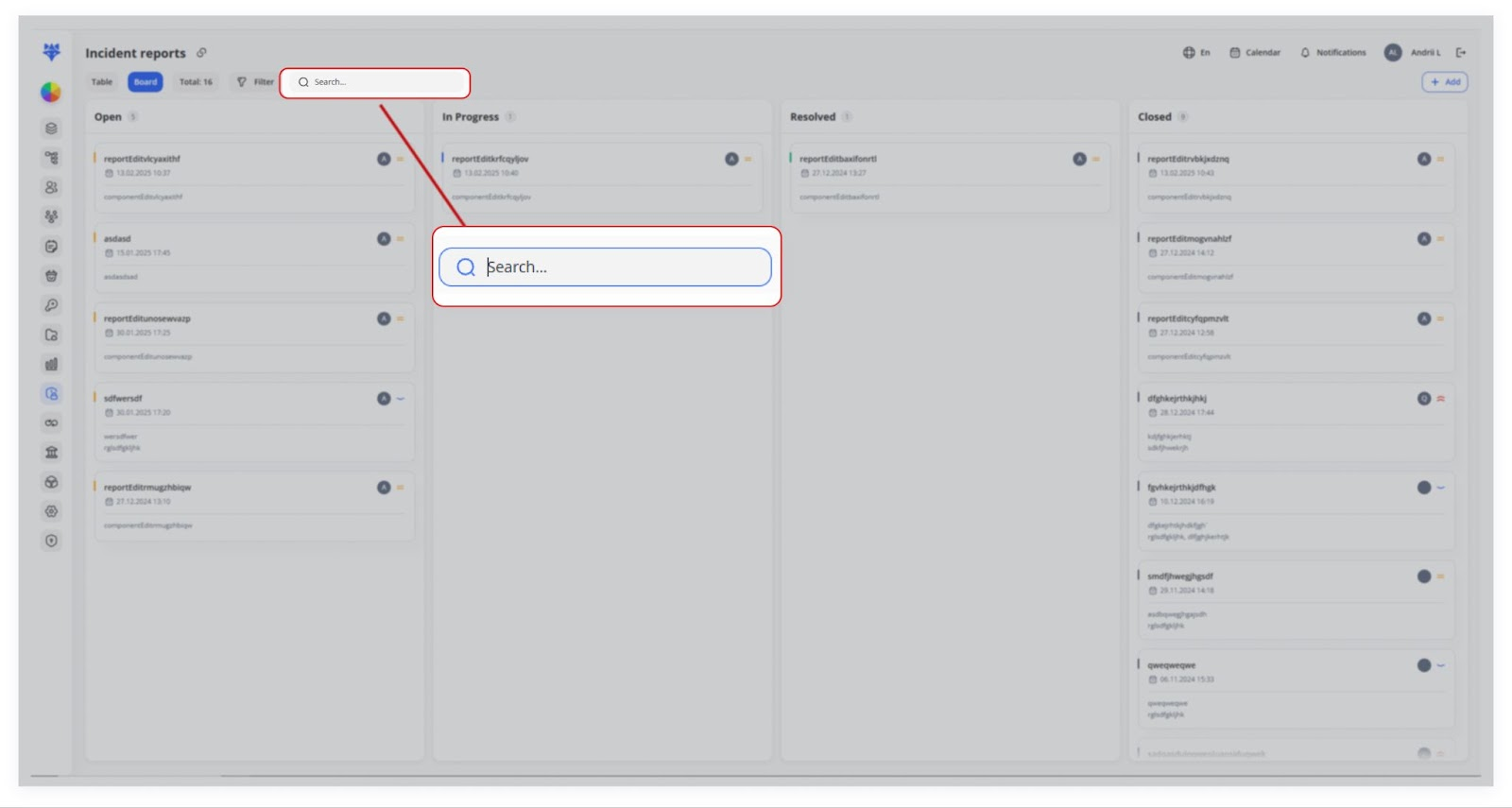
- Search Bar: Type a partial or full keyword (e.g., name) to find specific incidents.