
10.2. How to Configure Security and Authentication
To set login rules and restrictions, go to Configurations > General. This opens a tab with two sections:
-
-
Security
-
Authentication
-
The Security section allows you to restrict logon to a list of available IPs.
To add an IP to the list:
-
-
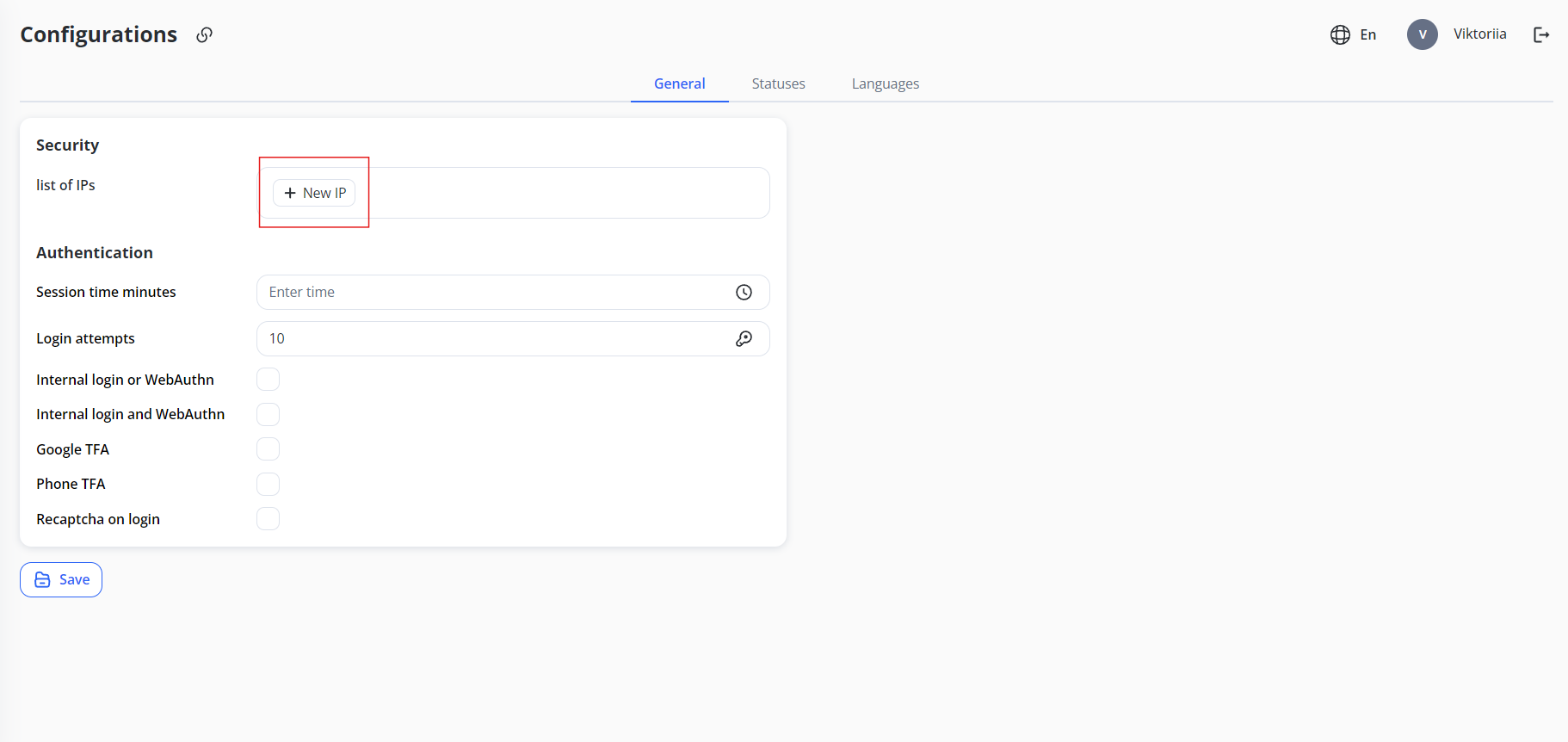
Near the List of IPs field, click the + New IP button.
-
2. In the field that appears, enter the IP address.
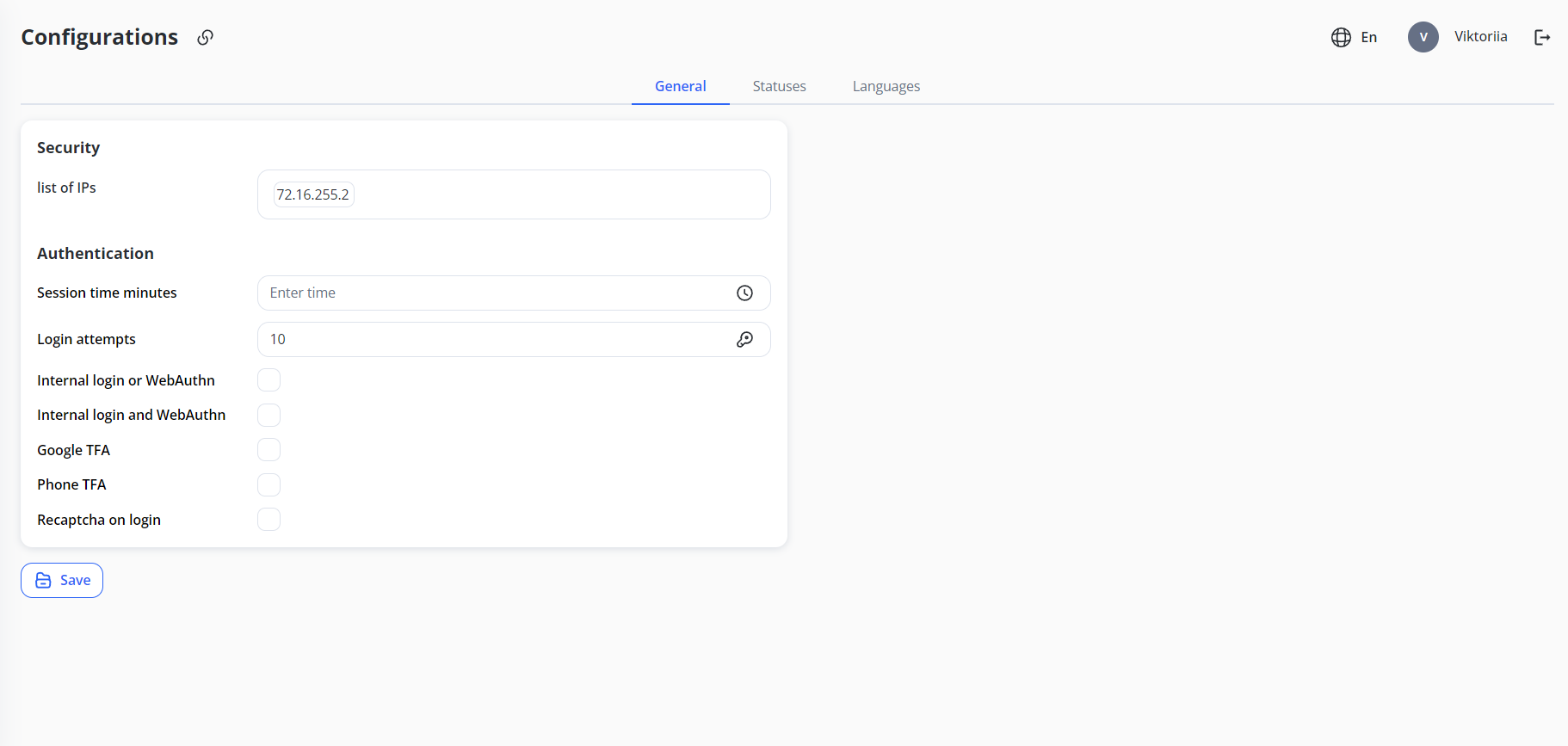
Note: IP addresses are usually expressed in dotted decimal notation as four numbers separated by dots, e.g., 172.16.255.2, or as a set of 16-bit hexadecimals separated by colons, e.g., 2001:0000:130F:0000:0000:09C0:876A:130B If the field turns red, you have entered an invalid IP address.
3. Press Enter to confirm the IP. Repeat steps 1-3 to add more IPs.
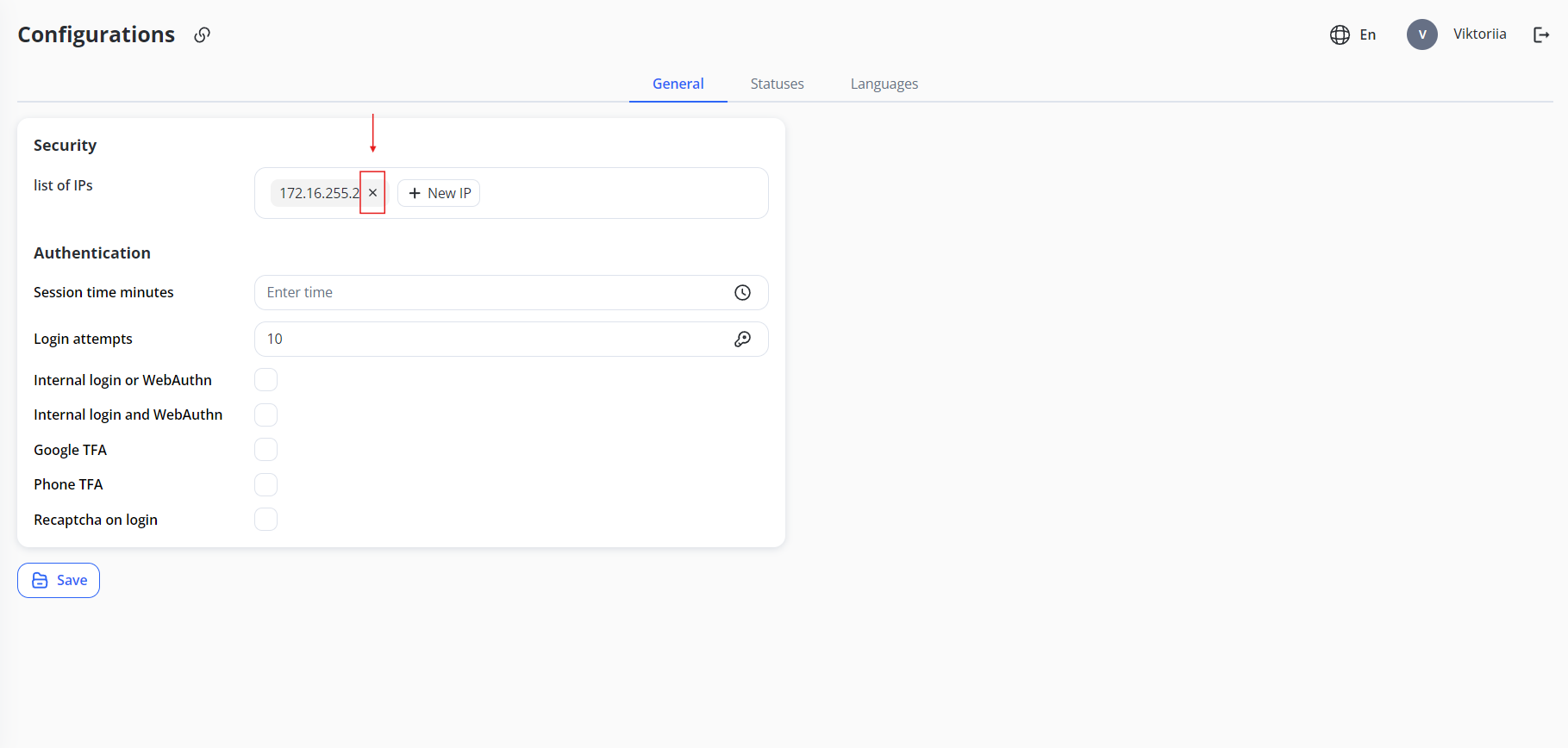
4. To remove an IP from the list, hover over it and click x.
5. Click Save to save the list.
The Authentication section allows you to set logon and usage rules, including limited session times and additional logon checks.
To configure authentication:
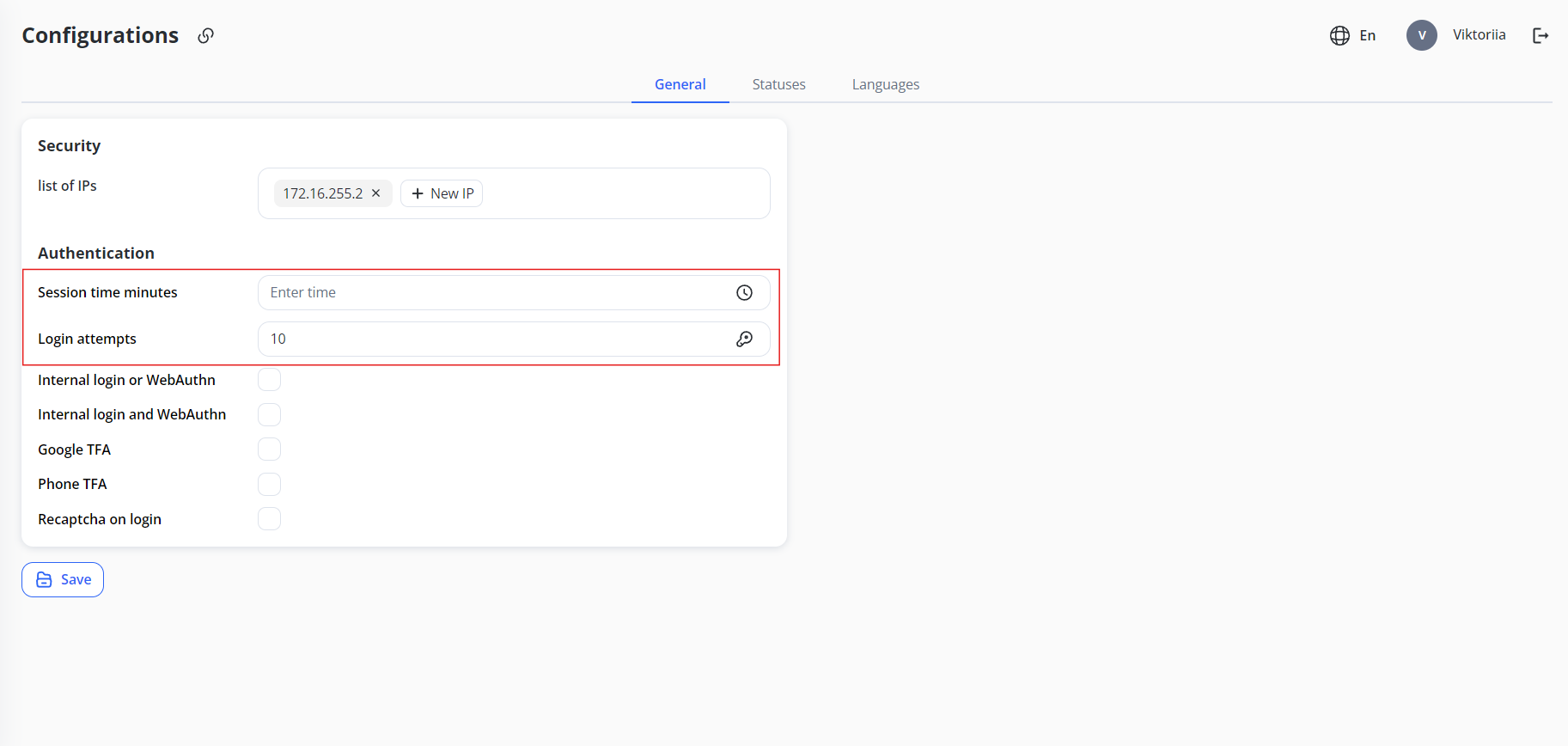
1. Fill in the following fields:
-
-
-
Session time minutes: Enter how many minutes after login the user is automatically unlogged from the system when idle. If the field is left blank, the default value of 60 minutes will be applied.
-
Login attempts: Enter the number of times the user can enter an incorrect password before being temporarily locked out (for one minute). The default is 3.
-
-
2. Check one of the options (or leave them all blank):
-
-
-
Internal login or WebAuthn: If you want the user to use a choice of password or WebAuthn (biometric data) to log in.
-
Internal login and WebAuthn: If you want the user to use both a password and biometrics for additional security to log in.
-
Google TFA: If you want the user to use two-factor authentication through Google for additional security.
-
Phone TFA: If you want the user to use two-factor authentication via phone number for additional security.
-
-
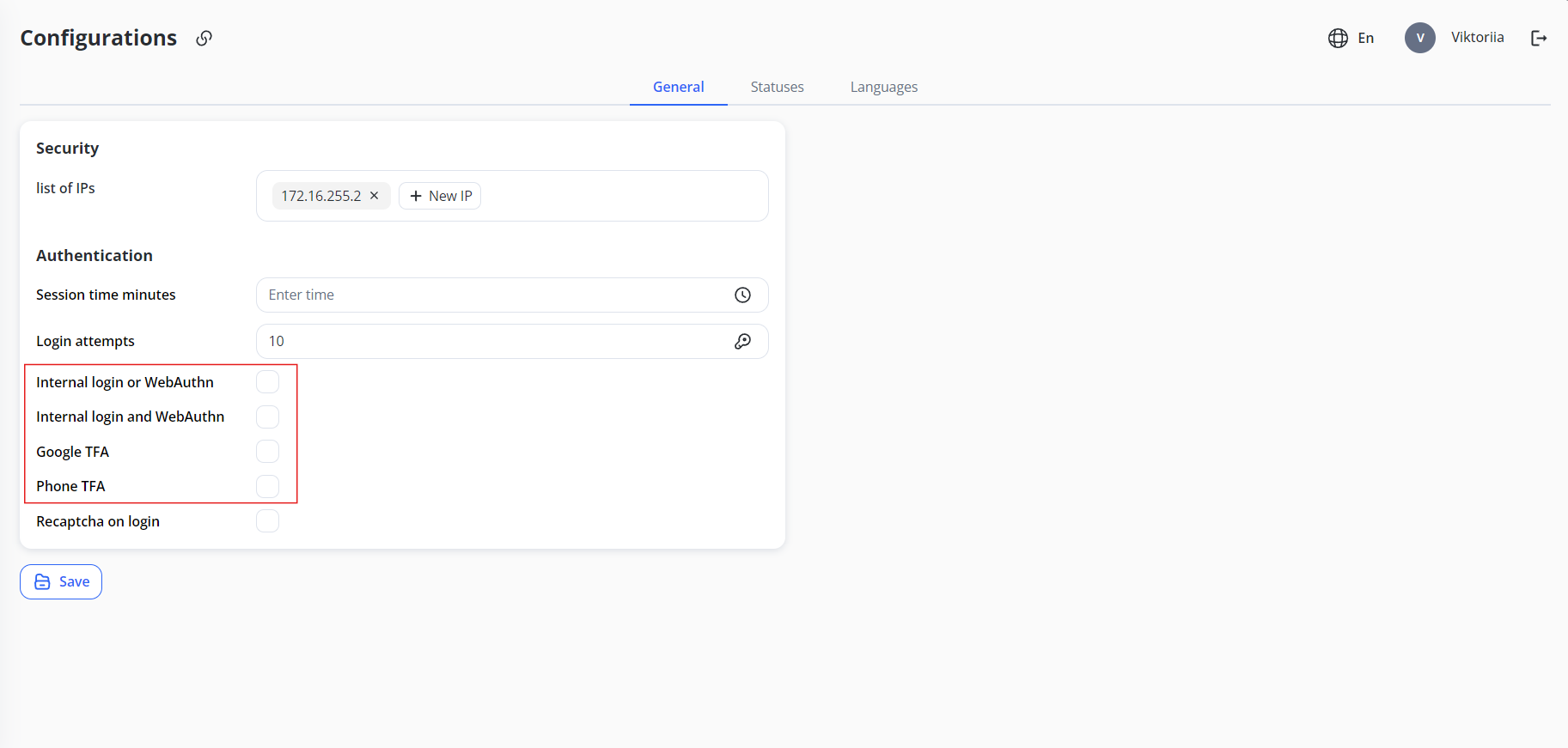
Note: If you select one of the options, the others will be automatically disabled. Uncheck the selected box to enable other authentication options.
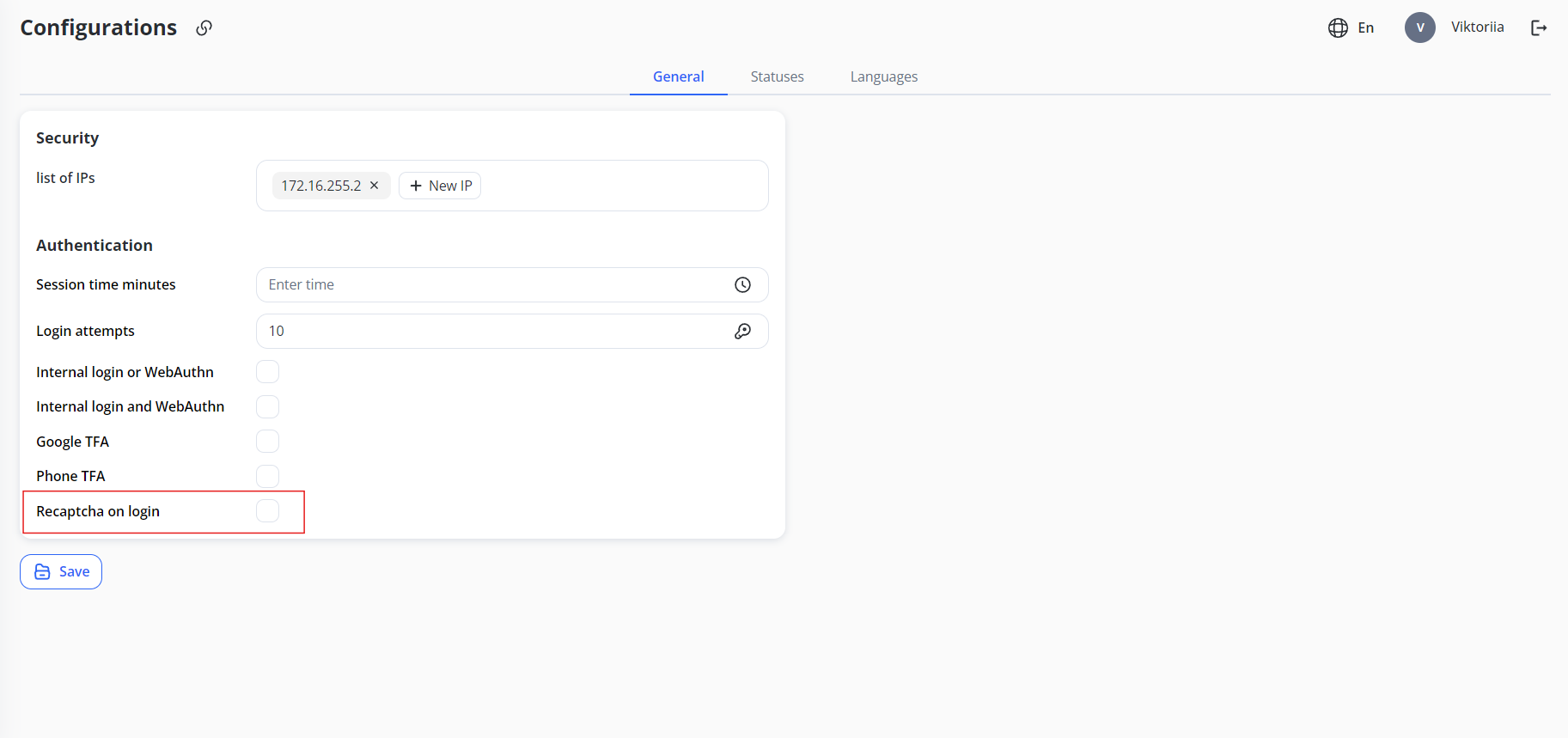
3. Check the box next to Recaptcha on login to use reCAPTCHA. We use reCAPTCHA v3, which means users will not notice this additional check.
4. Click Save to save your settings.