
13. How to Send Messages to Clients
«Send a message» allows you to send a private message from the system directly to a client. The client receives a notification (e.g., via their online cabinet or any integrated notifications system), letting them know you’ve sent them a message.
Messages and notifications can be integrated into the client’s environment via API, so clients see your messages in their portal or other integrated system.
Why Use Cases“Send a Message”?
Why Use Cases“Send a Message”?
Instantly reach out to clients to resolve support issues, confirm details, or share updates without leaving the system,CRM ensuring efficient and seamless interactions.interface.
Through API integration allowsintegration, messages to be displayedappear in any client-facing portalapplication or(web portal, mobile app, enhancingetc.), userincreasing engagement.visibility and reducing “missed” communications.
Only users withgranted the "Send a private message"message permission can access this action,feature. ensuringEvery controlledmessage is logged with sender metadata for compliance, auditing, and secure communication.traceability.
Prerequisites
- User Permissions: Ensure your role includes the Send a private message permission.
- API Integration (Optional): For client-portal notifications, configure the “outgoing message” endpoint in your integration settings.
How It Works
1. Locate the Client
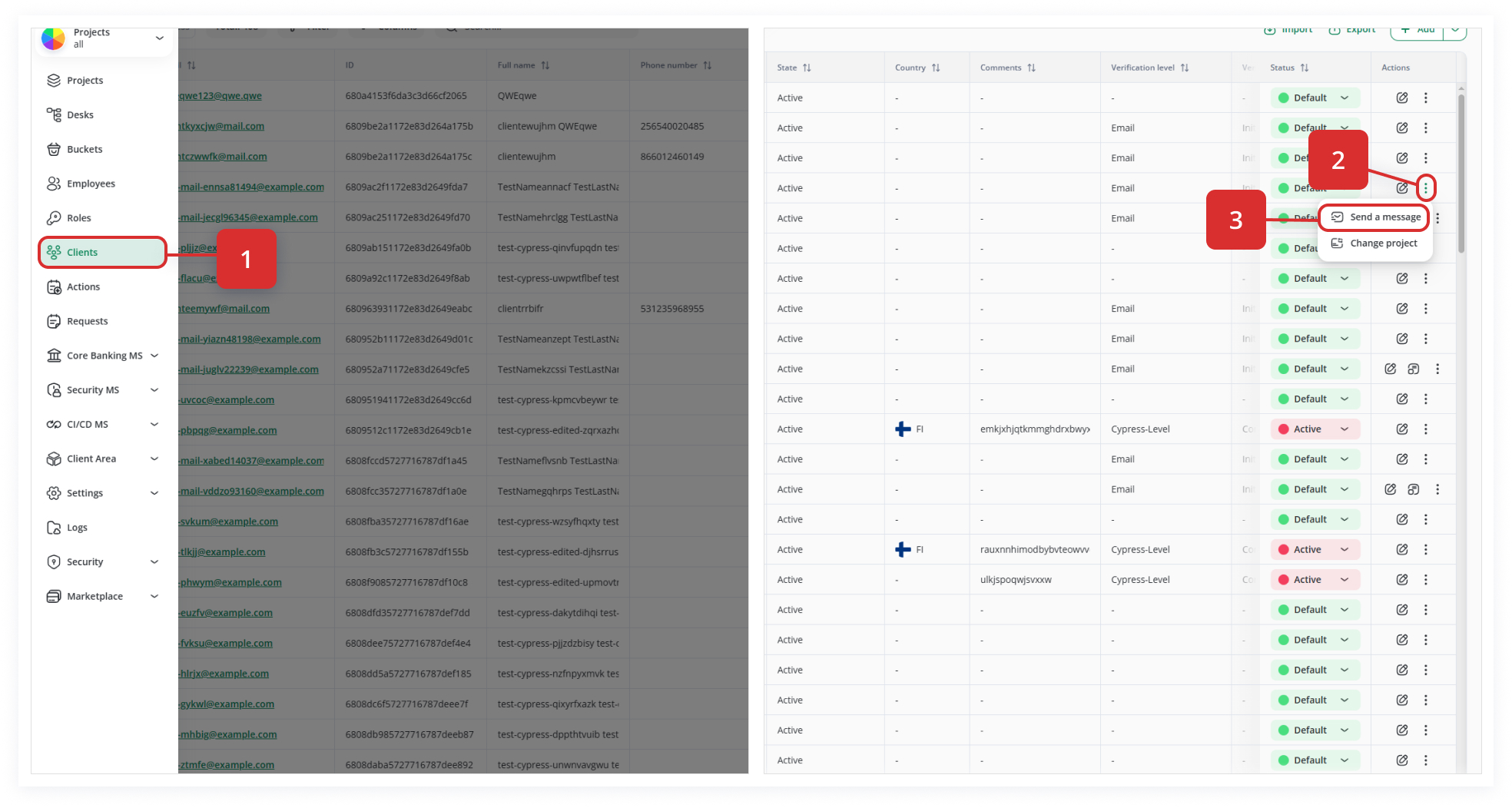
In the Clients list (1), open the Actions menu (the three dots) next to a client’s record (2).
2. Compose Your Message
-
A
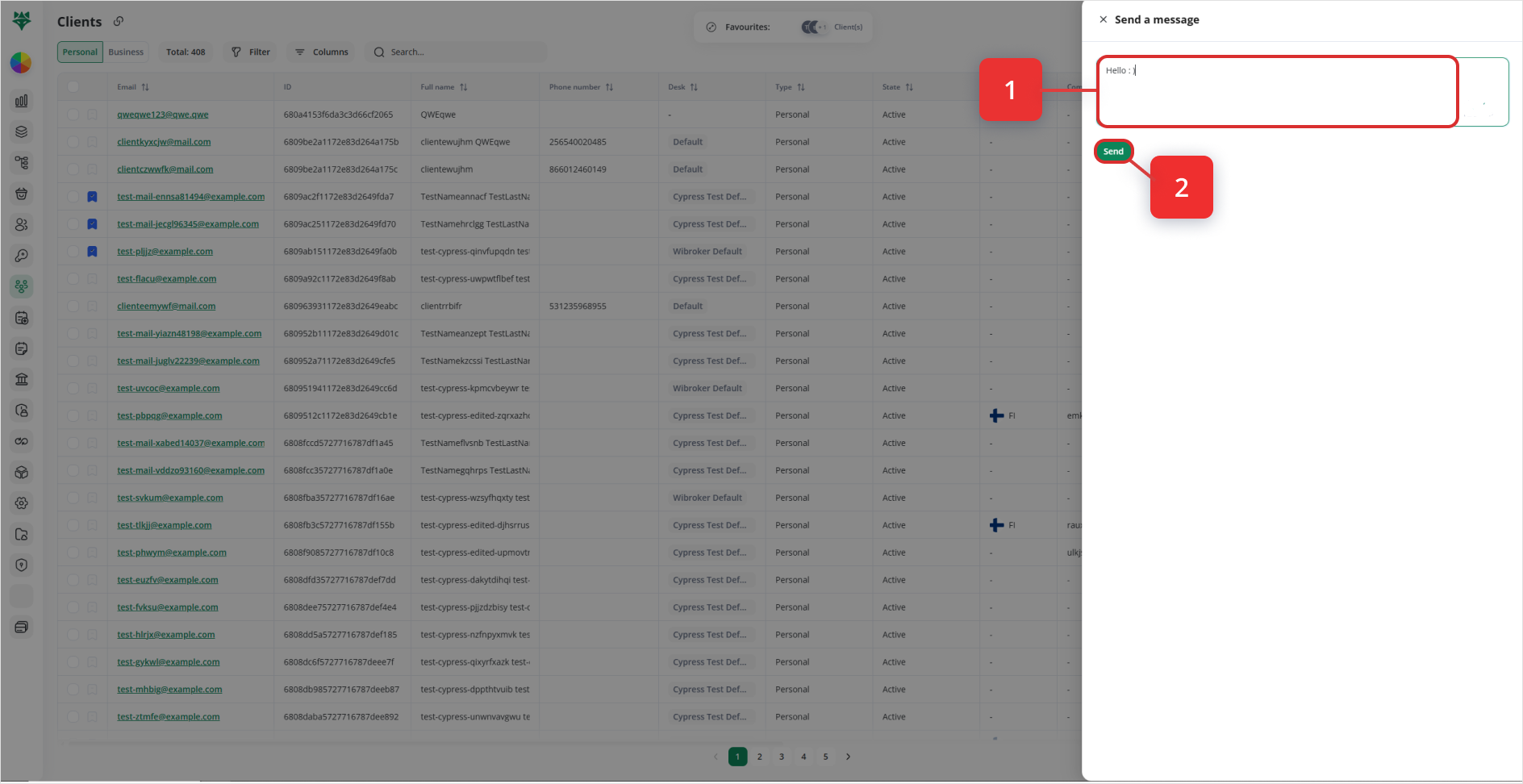
pop‐upslide-out panel orpanelmodalappears.appears on the right side of the screen. -
TypeClickyour message intoinside the text field at the top of this panel (1)it may display a placeholder like “Type your message…”). -
Enter your message—this can be free-form text, variables (e.g.
{{firstName}}), or templates if configured.
3. Send and Notify
-
-
ClickOnce your message is ready, click the green Send button at the bottom of the panel. -
You’ll see a brief loading indicator, then a success toast confirming delivery.
-
Behind the scenes:
- The message is sent via your CRM’s messaging API.
- If your system is integrated, the client receives an in-portal notification (
2).or email/mobile push) notifying them of your message. - All messages are logged in the client’s activity history, attributed to your user account for auditing.
Note: The client is notified (only if this is integrated via API with your business) that a manager or staff member has sent them a message.
The message is attributed to the currently logged‐in user.
In4. short,Verify Delivery & History
5. Permissions & Error Handling
Tip: Keep messages concise and track all important communications in the client’s activity log for full transparency and a complete audit trail.
Best Practices
The Send a Message Actionaction isstreamlines asecure, convenientauditable, wayand integrated client communication—all from within the CRM. By leveraging API integration, it delivers your messages straight into the client’s environment, ensuring high visibility and engagement without switching contexts or tools. Use it to privatelyaccelerate contactsupport, clients,compliance withworkflows, theand optionproactive tooutreach, integratewhile notificationsmaintaining intofull externalcontrol systemsover viapermissions API.and logging.