
12. How to Send Messages to Clients
«Send a message» allows you to send a private message from the system directly to a client. The client receives a notification (e.g., via their online cabinet or any integrated notifications system), letting them know you’ve sent them a message.
Messages and notifications can be integrated into the client’s environment via API, so clients see your messages in their portal or other integrated system.
Use Cases
-
Direct Communication
Instantly reach out to clients without leaving the system, ensuring efficient and seamless interactions. -
Customizable Notifications
API integration allows messages to be displayed in any client-facing portal or app, enhancing user engagement. -
Role-Based Security
Only users with the "Send a private message" permission can access this action, ensuring controlled and secure communication.
How It Works
1. Locate the Client
In the Clients list (1), open the Actions menu (the three dots) next to a client’s record (2).
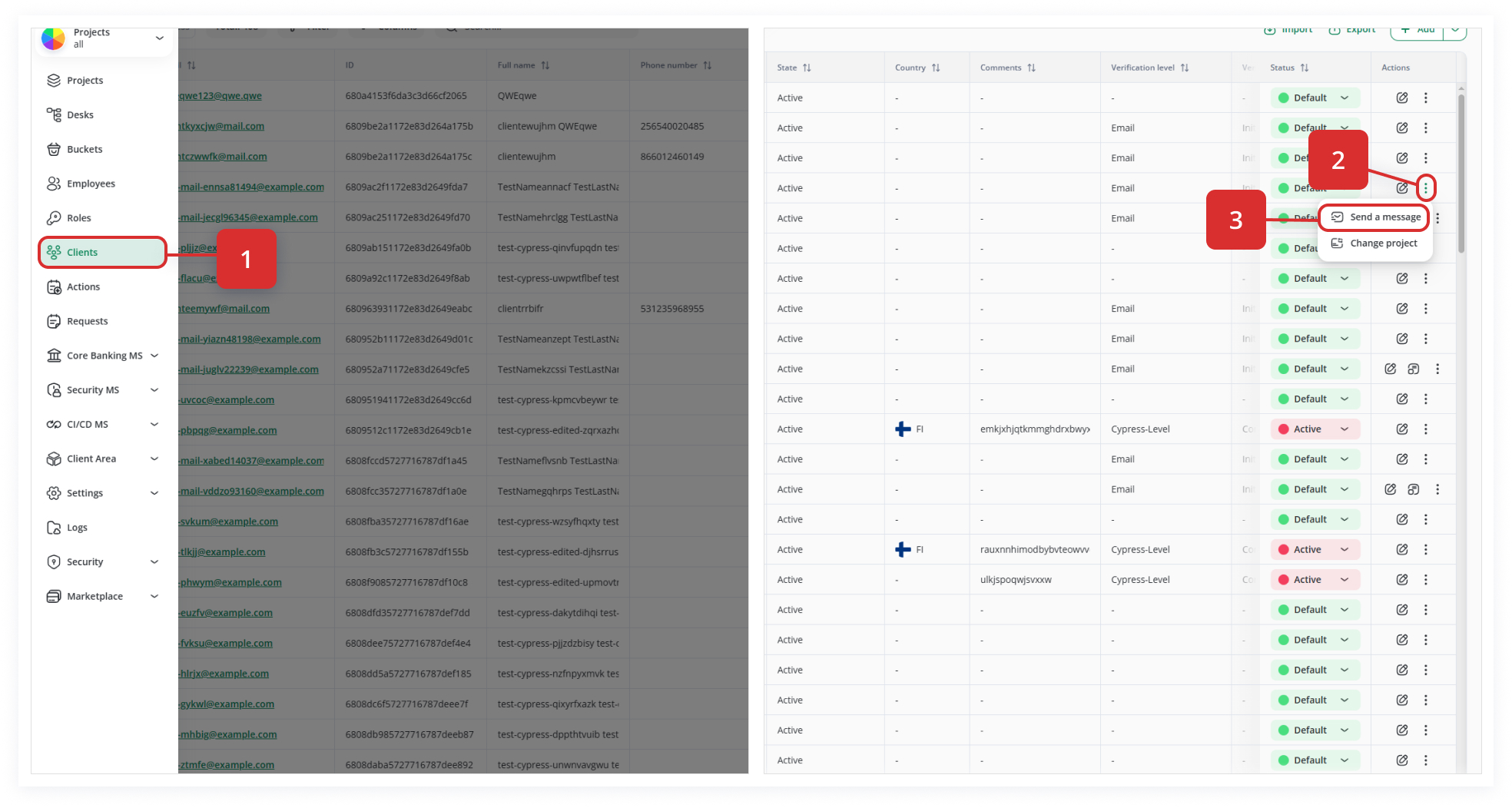
Select “Send a message.” (3)
2. Compose Your Message
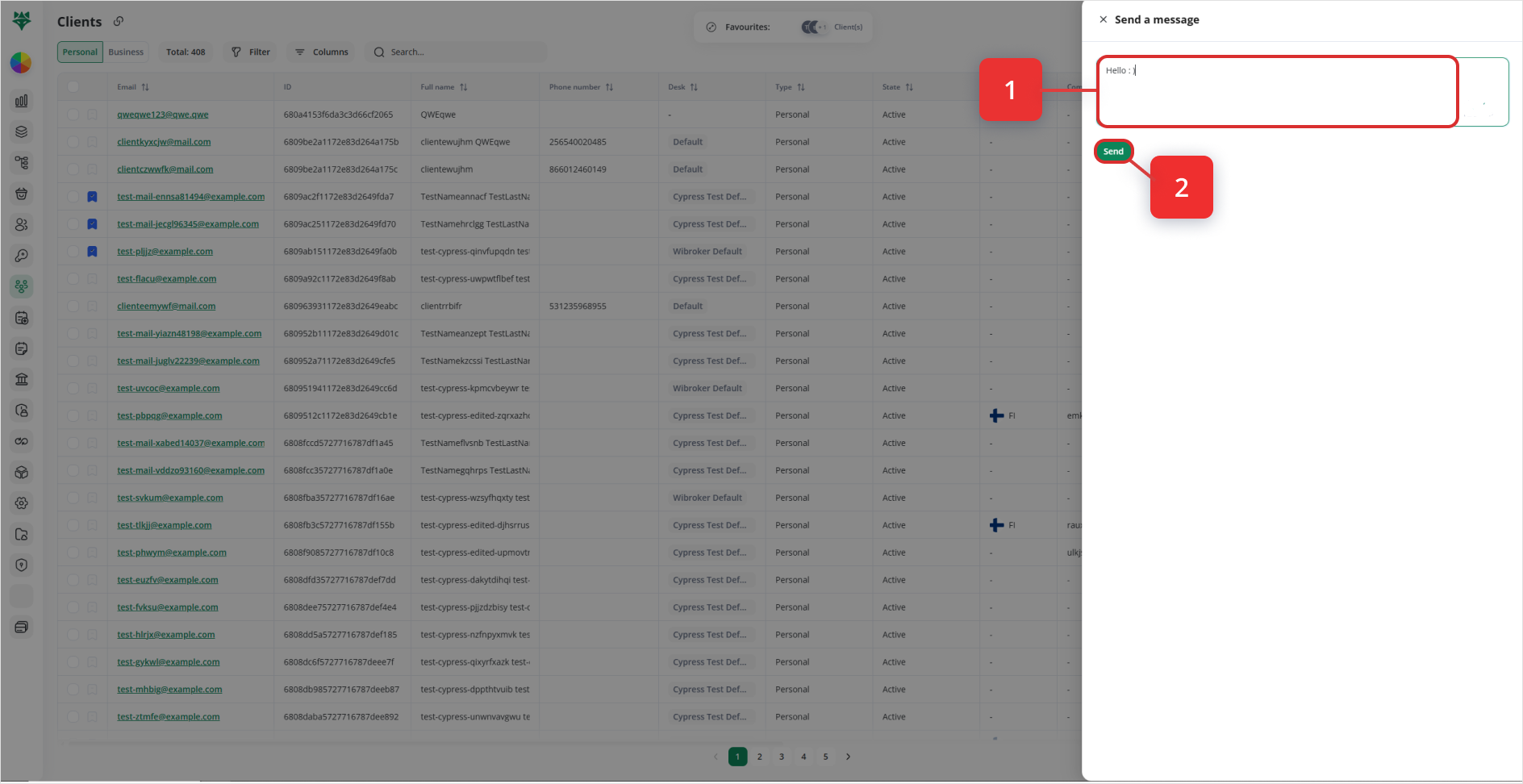
A pop‐up or panel appears.
Type your message into the text field.field (1).
3. Send and Notify
Click Send (2).
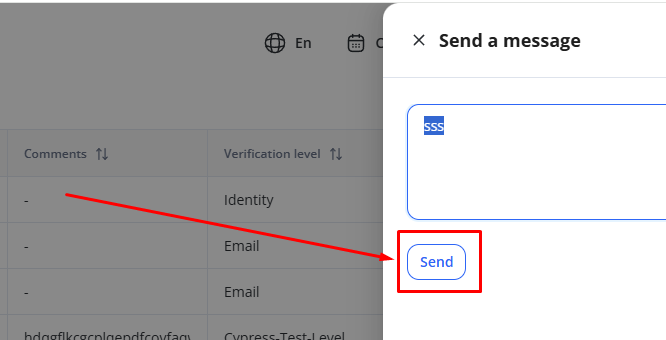
Note: The client is notified (only if this is integrated via API with your business) that a manager or staff member has sent them a message.
The message is attributed to the currently logged‐in user.
In short, the Send a Message Action is a convenient way to privately contact clients, with the option to integrate notifications into external systems via API.