
12. «Send a message» Action
«Send a message» allows you to send a private message from the system directly to a client. The client receives a notification (e.g., via their online cabinet or any integrated notifications system), letting them know you’ve sent them a message.
Messages and notifications can be integrated into the client’s environment via API, so clients see your messages in their portal or other integrated system.
Use Cases
- Direct Communication: Quickly reach out to clients without leaving the system.
- Customizable Notifications: API integration means these messages can appear in any client‐facing portal or app.
- Role‐Based Security: Only users with the “Send a private message” permission can access this action.
How It Works
1. Locate the Client
In the Clients list, open the Actions menu (the three dots) next to a client’s record.
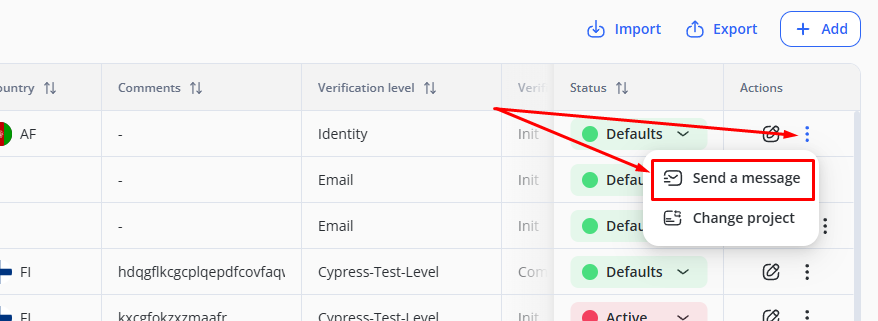
Select “Send a message.”
2. Compose Your Message
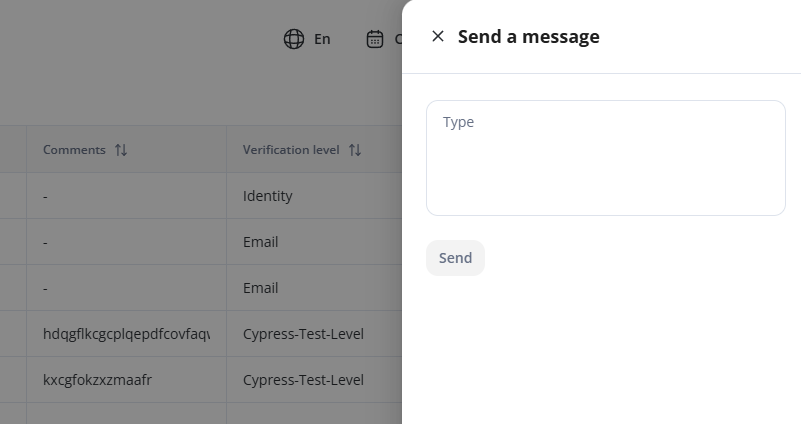
A pop‐up or panel appears.
Type your message into the text field.
3. Send and Notify
Click Send.
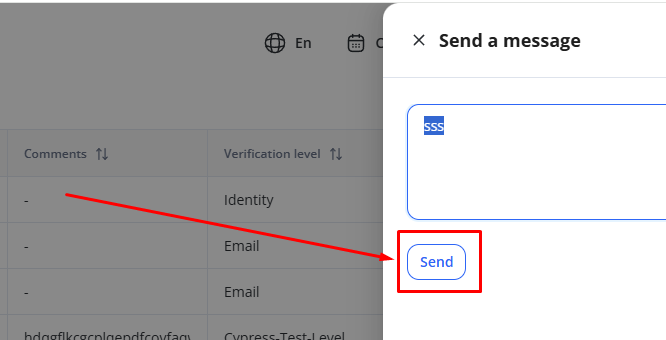
The client is notified (only if this is integrated via API with your business) that a manager or staff member has sent them a message.
The message is attributed to the currently logged‐in user.
In short, the Send a Message Action is a convenient way to privately contact clients, with the option to integrate notifications into external systems via API.