
12. Project-Based Configurations
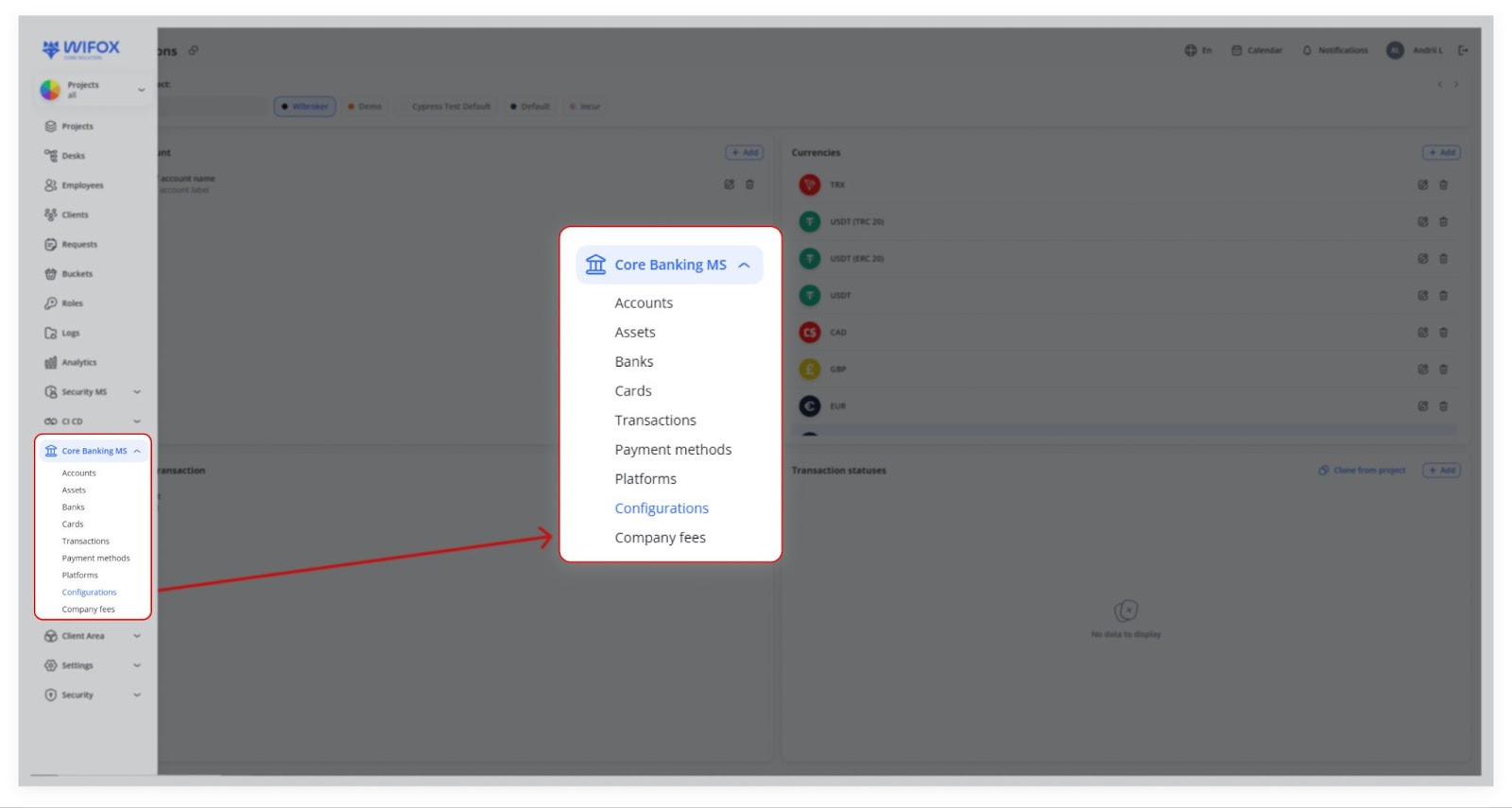
The Configurations module in Core Banking allows managing project-specific settings. Unlike a global configuration affecting all projects simultaneously, this system ensures that each project has its own independent settings. This modular approach enables better organization, customization, and scalability.
Use Cases
- Switching Between Projects
Users can quickly switch between projects, with the system displaying configurations specific to the selected project. If no settings are defined, the section shows "No data to display" until configurations are added.
- Cloning Configurations for New Projects
When creating a new project, users can use the "Clone from project" feature to copy configurations (e.g., currencies, transaction sub-types, or account types) from an existing project, saving time and ensuring consistency.
- Cloning Currency Configurations
Users cloning currency settings (e.g., USD,USD, EUR,EUR, USDT,USDT, TRX)TRX) from one project (e.g., Wibroker)Wibroker) to another (e.g., Incur)Incur) avoid manual currency additions, enabling faster project setup.
Accessing the Configurations Module
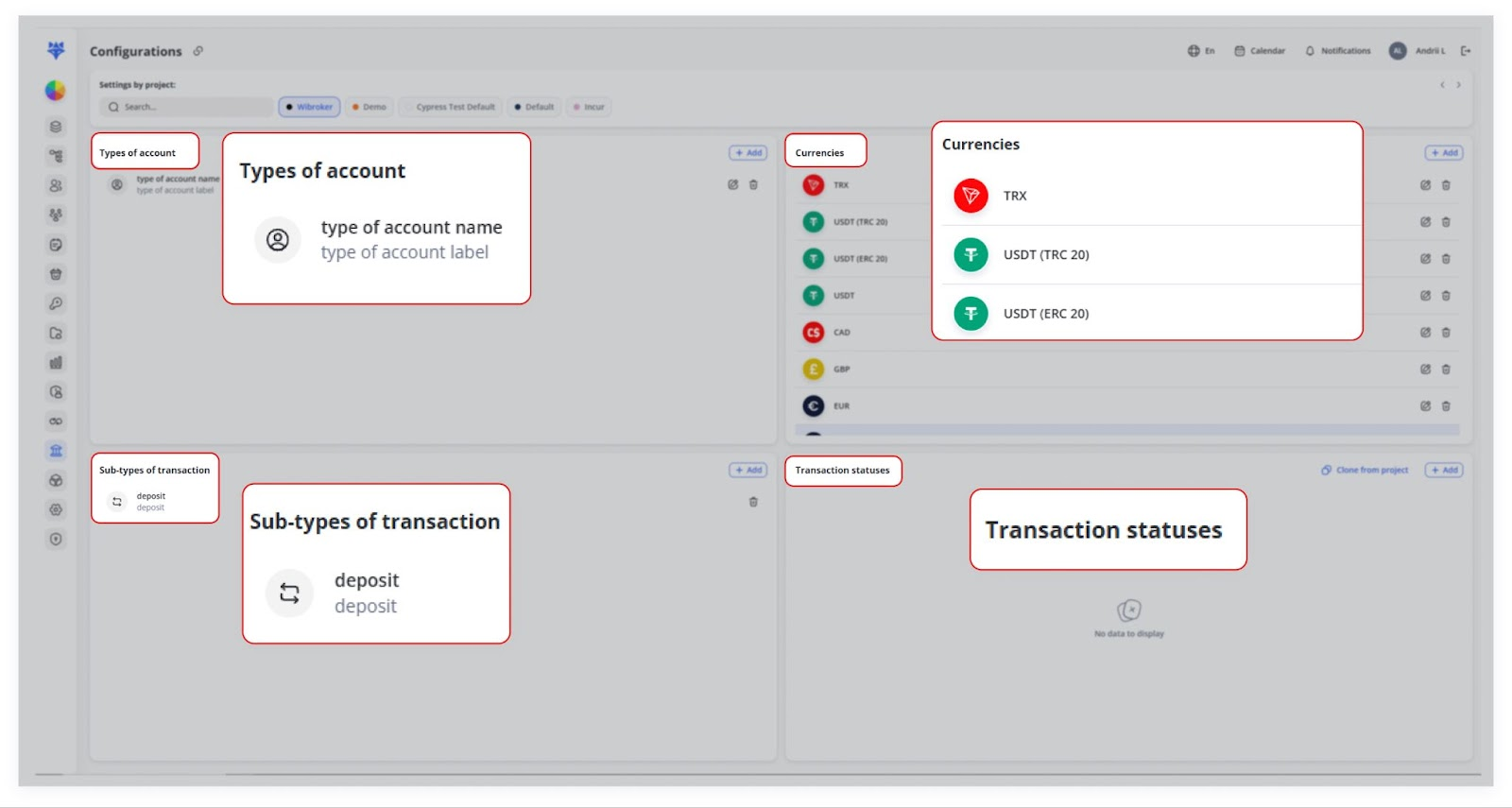
Configurations Dashboard Overview
Each project can have specific settingssettings. for:Once inside, you’ll see four panels:
Panel Purpose Types of accountsaccountDefine labels for different account categories (e.g. Personal, Business). Currencies Pick which currencies the project supports (e.g. USD, EUR, USDT). Sub-types of transactionstransactionAdd custom transaction sub-types (e.g. Deposit, Fee). Transaction statuses List possible statuses (e.g. Pending, Completed, Canceled). -
Click the project pill or type in the search field to pick a project.
-
All four panels update to show that project’s configurations.
-
Edit: Click ✏️ next to an item, update its fields, then Save.
-
Delete: Click 🗑️ and confirm.
For instance, the user clones
Sub-types of transaction from Cypress Test Default intoIncur.Incur.
Once cloned, the configurations instantly appear under the selected project.
This modularity helps businesses handle multiple projects with ease, allowing them to customize financial settings for each project separately.
1. Switching Between Projects
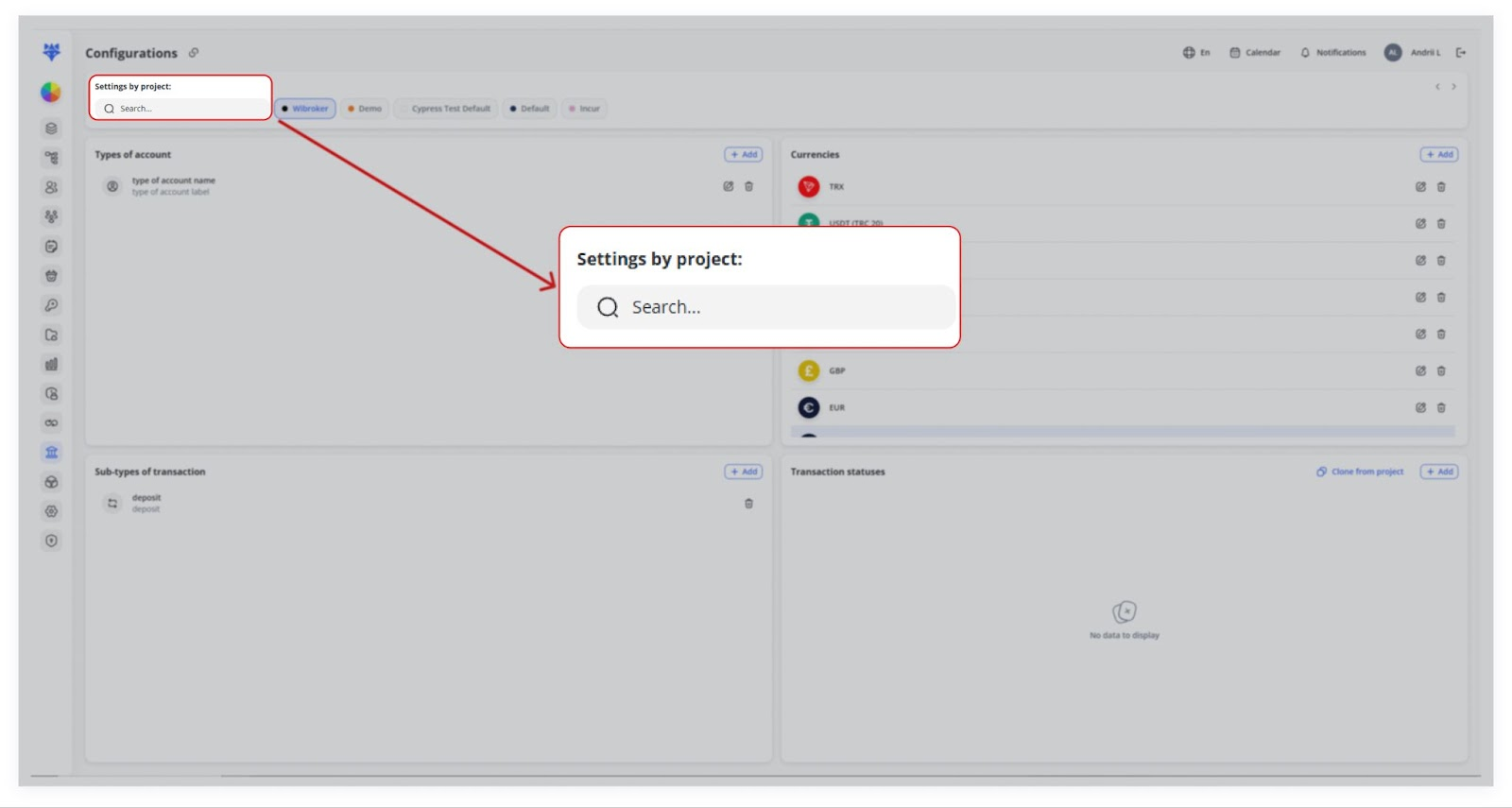
At the top is Settings by project:
Each project can have unique configurations. When selecting a project, the system updates the displayed settings specific to that project.
If a project doesn’t have any settings defined yet, it will show “No data to display” for its sections.
2. Cloning Configurations from Another Project
To make configuration setup easier, the system includes a Clone from Project functionality.
How It Works
1. The user selects a section, such as Currencies,Currencies, Sub-types of Transactions, or Types of Accounts.
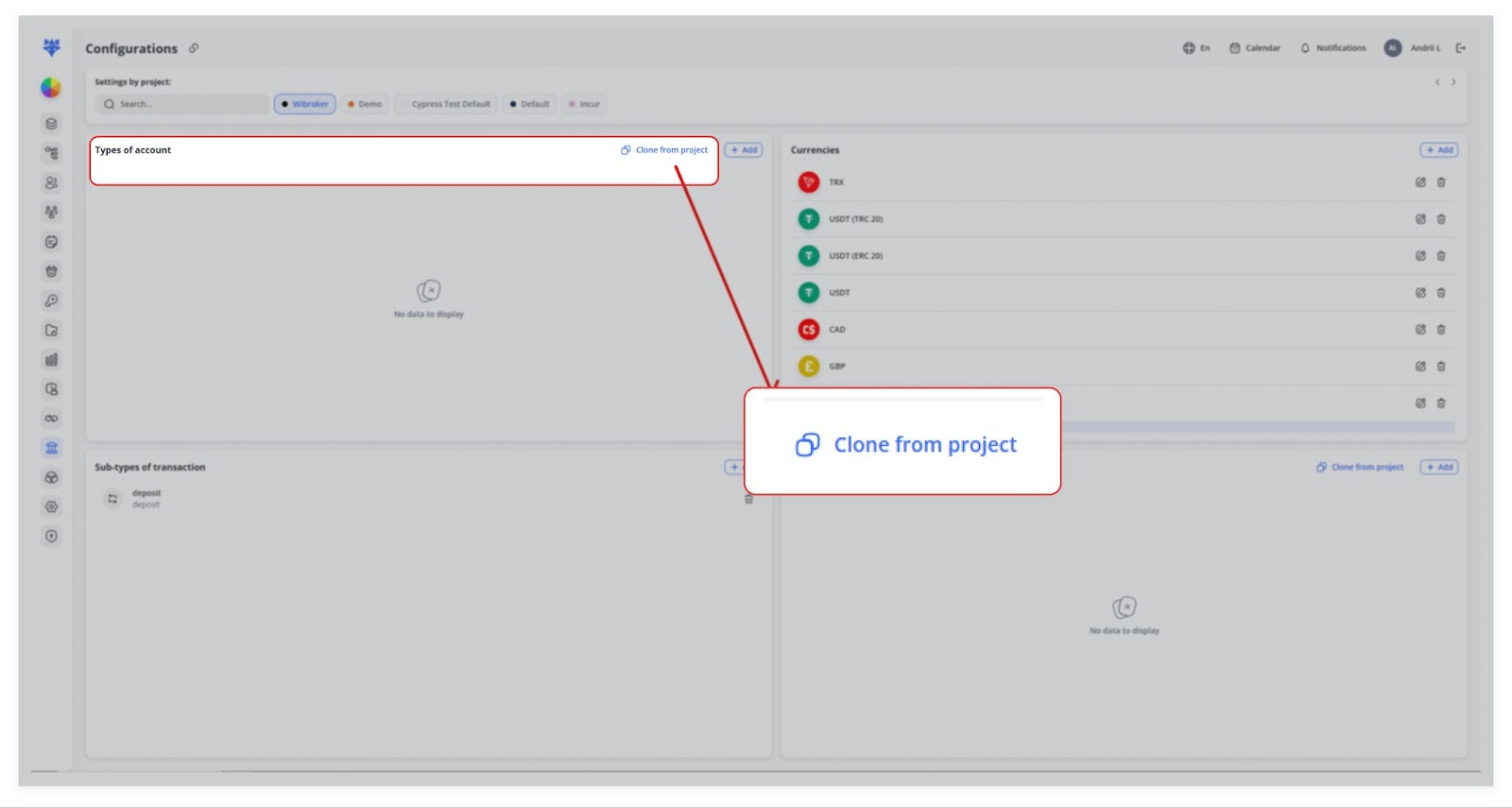
2. Click “Clone from project”project” in that section.

3. A popup appears where the user selects a project from which they want to clone data.
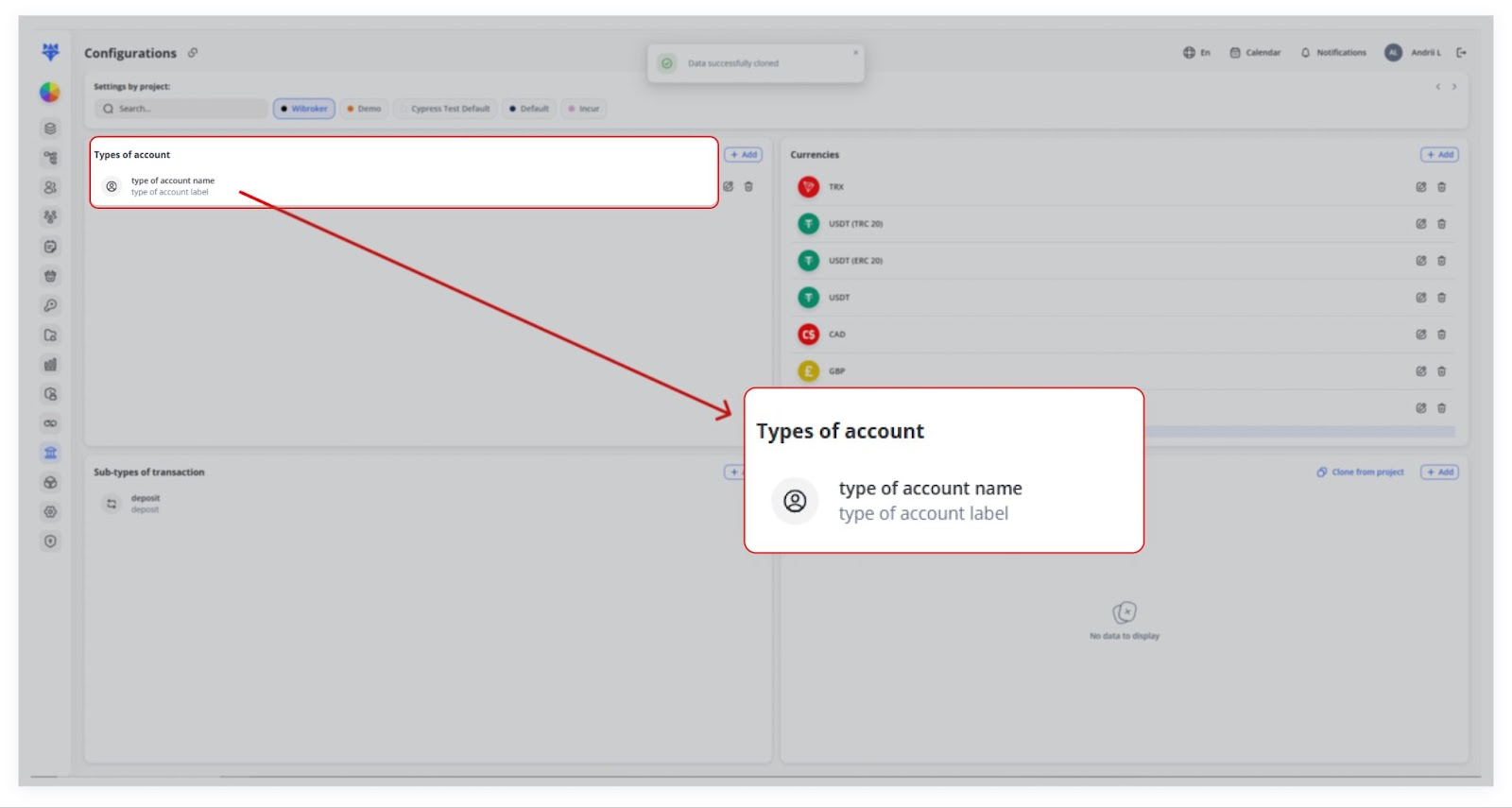
4. Clicking “Clone” copies all configurations from the selected project to the current project.
If data has already been cloned (or created manually), the Clone button disappears to prevent duplication.
3. Cloning Example: Currencies
For example, the user clones currency configurations from Wibroker into the Incur project.
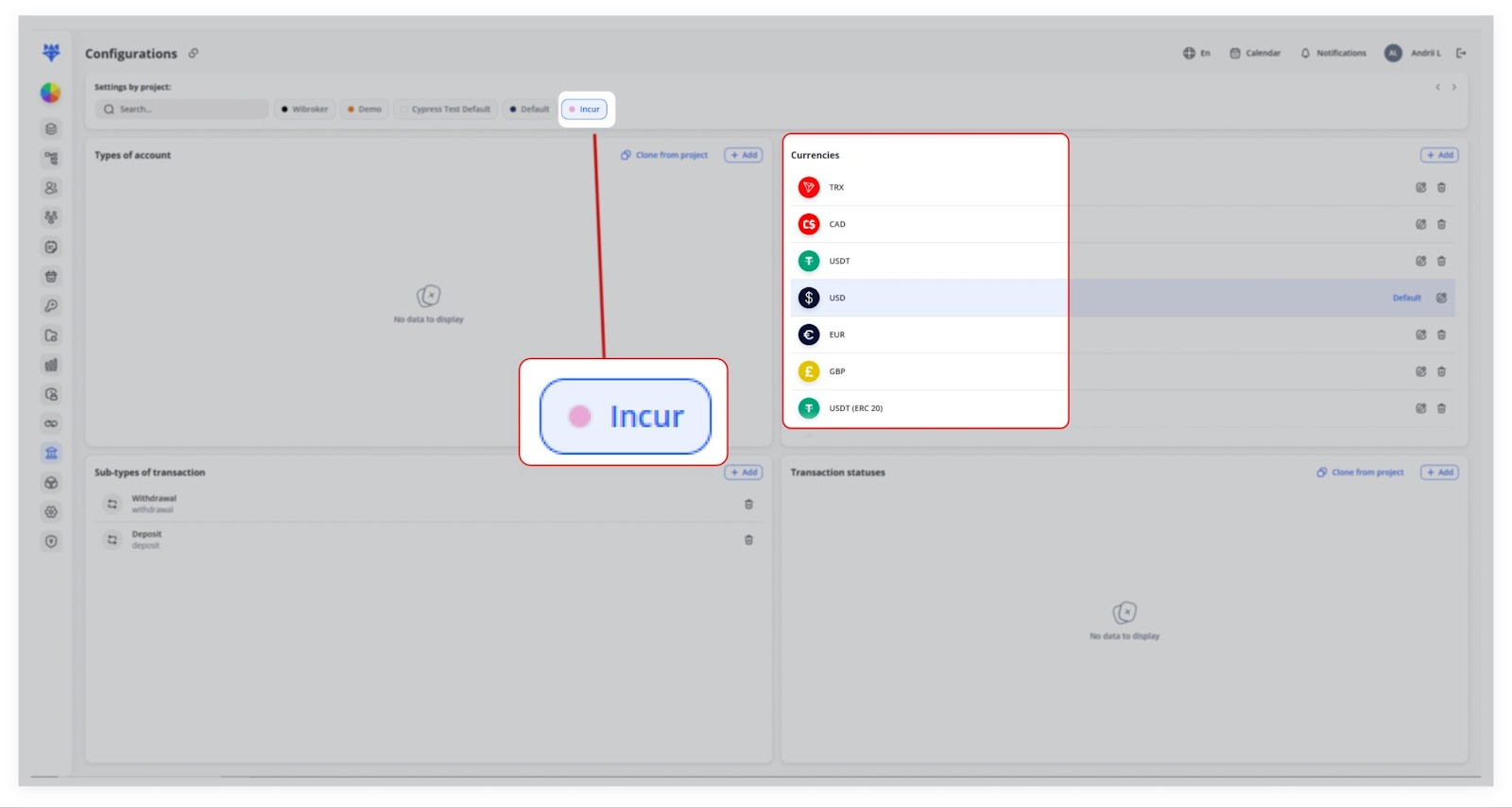
Once cloned, the system automatically displays the available currencies (e.g., USD, EUR, USDT,
TRX)TRX).This prevents the need to add each currency for new projects manually.
4.Editing Cloning& OtherDeleting ConfigurationsEntries
Warning: Deletions are permanent and cannot be undone.
Cloning Other Configurations
The same cloning process applies to Sub-types of Transactions and Types of Accounts.Accounts.
This saves time and ensures consistency across projects while allowing each one to operate independently.
Best Practices & Tips
-
Clone all panels when launching a new project to maintain consistency.
-
Customize statuses per project (e.g. “Held,” “Reconciled”).
-
Use clear naming conventions for account types (e.g. “Demo,” “Live”).
-
Regularly review and prune unused currencies or statuses to keep the UI clean.
This project-based approach ensures each environment has tailored financial settings, speeds up onboarding of new projects, and prevents cross-project configuration conflicts.