
10. Managing Favourite Clients
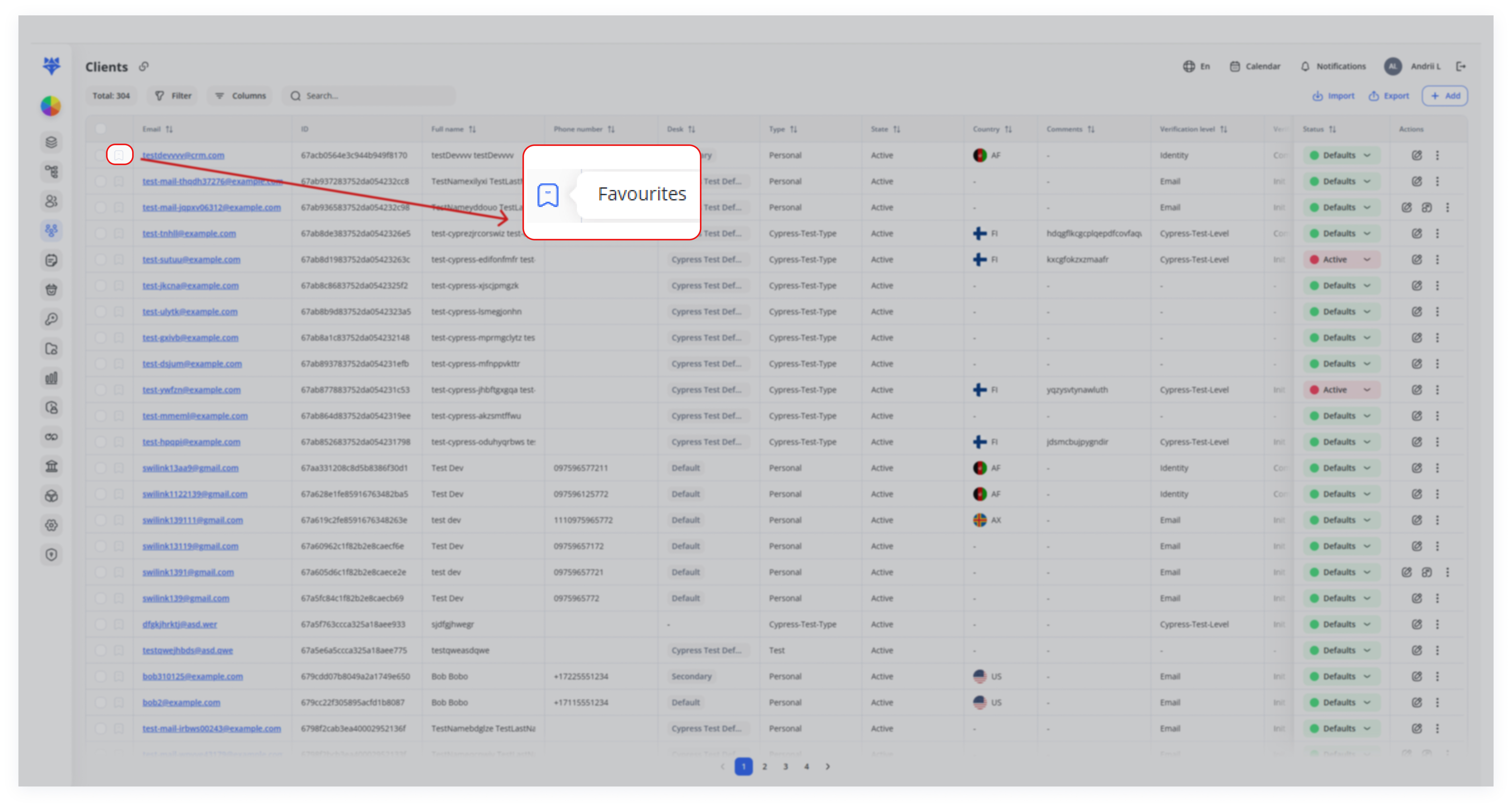
Managing Favourite Clients lets you quickly bookmark important clients. Once added, those clients appear in a separate, moveable panel for instant access—even after you log back in. This is especially useful for managers or teams who frequently interact with certain clients and don’t want to lose track of them.
Use Cases
- Quick Access to Key Clients
Bookmark high-priority clients for instant access via a moveable panel. Favorites stay saved across sessions for seamless follow-ups. - Managing Active Projects
Track ongoing projects by marking relevant clients as favorites. Reposition the panel for easy project monitoring. - Prioritizing Client Follow-Ups
Keep urgent cases visible for quick support resolution. Remove clients from favorites after resolving issues. - Campaign Client Grouping
Temporarily group clients for marketing campaigns.
Warning: Close All will permanently delete favourites—save details first.
How It Works
1. Mark Clients as Favourites
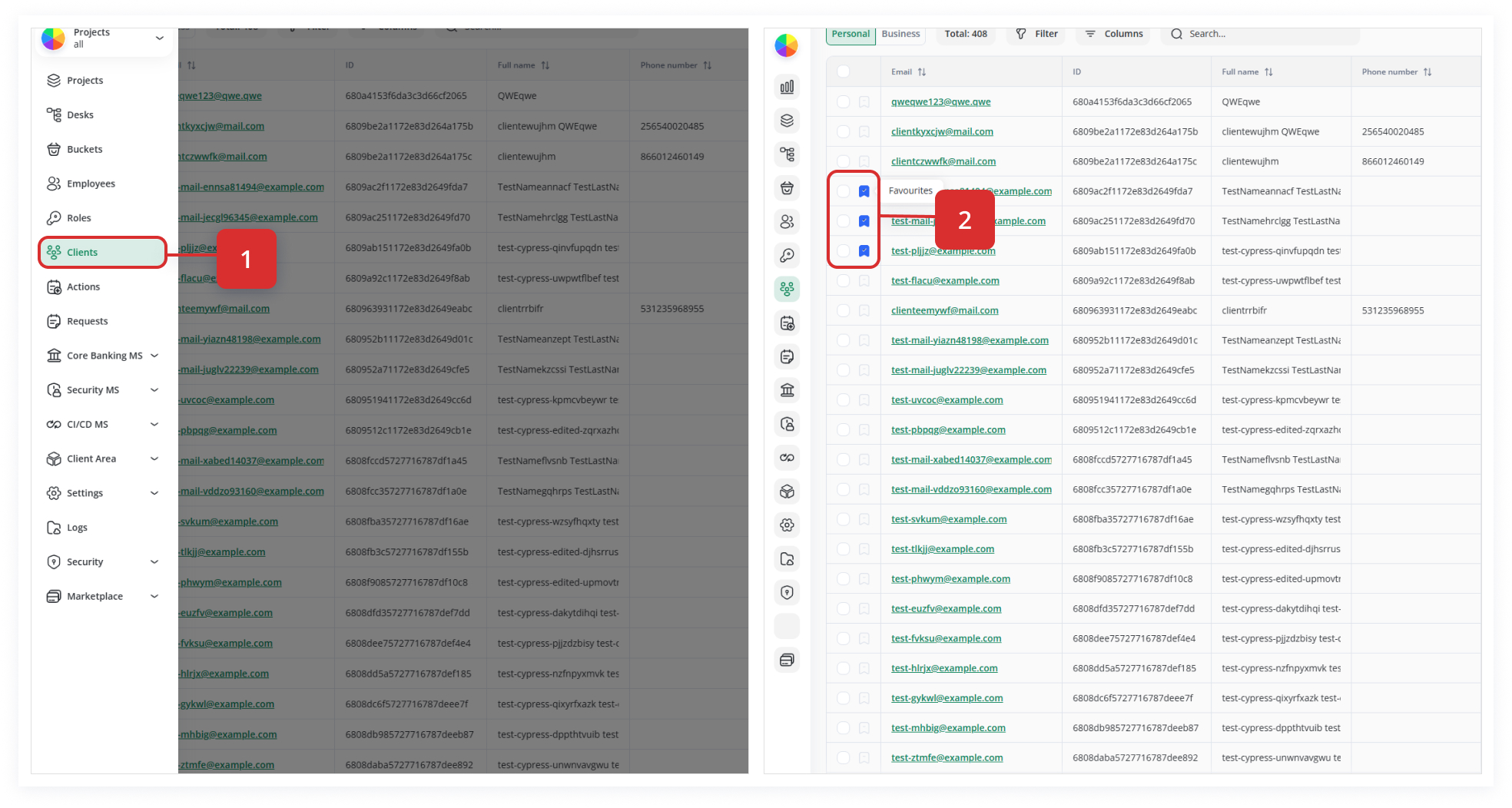
-
Locate the bookmark icon in the first (leftmost) column of any client row.
-
Click the icon to toggle it on—turning it blue/filled indicates that client is now a favourite.
-
You can favourite as many clients as needed; each click adds another to your list.
Tip: You can also keyboard-navigate to focus on the bookmark icon and hit Enter to toggle.
2. Open the Favourites Panel
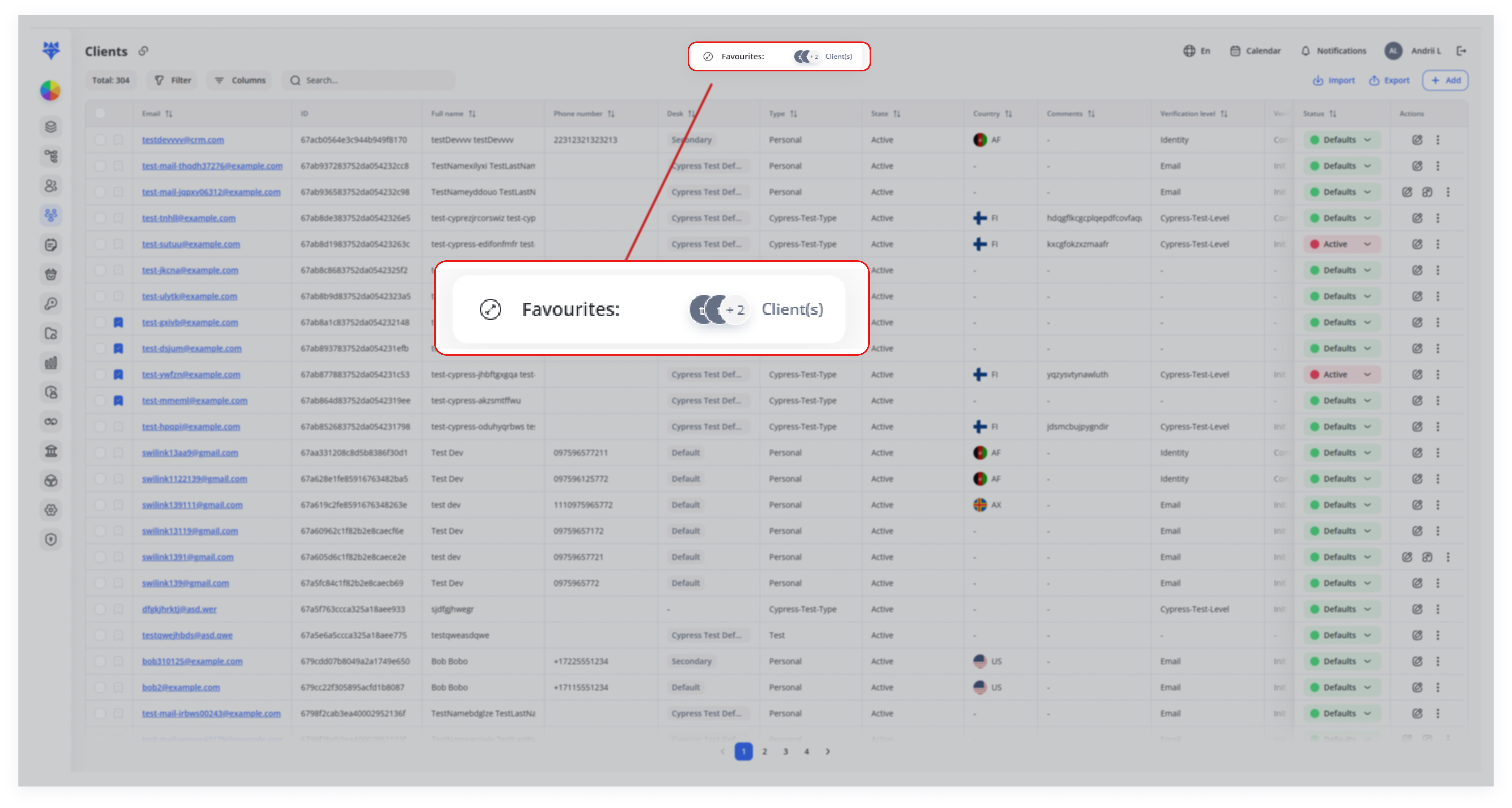
As soon as you mark two or more clients, a compact Favourites panel slides into view. It hovers over the table and shows:
-
Header with a “Favourites:” label
-
Count bubble indicating how many clients are bookmarked
-
List area with each favourite’s name, email (grayed if truncated), and status badge
This panel displays a list (or tiles) of your favorite clients, including status (e.g., Active, Defaults) and essential details like email addresses.
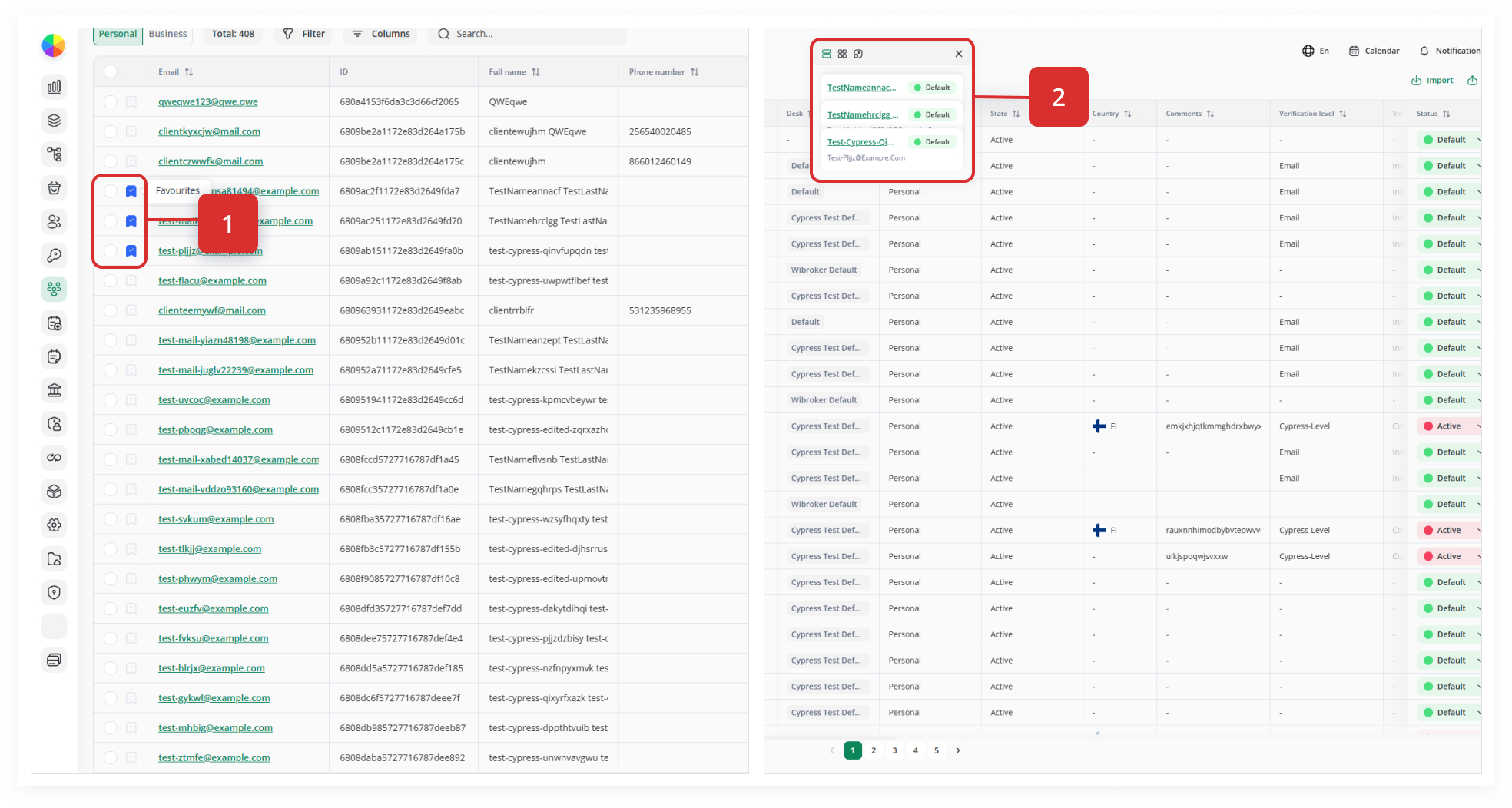
3. Interact with Favourites
Switch between List and Grid Views
At the top of the panel, three icons let you toggle layouts:
-
☰ List View: Vertical list with compact rows
-
⧉ Grid View: Horizontal cards for visual scanning
-
⎘ Focus View: Enlarged single-card focus
Click an icon to instantly switch.
View Full Client Details
-
Click a client’s name in the panel to open their Client Drawer on the right side of the screen.
-
The drawer shows all profile fields, actions, documents, and logs—no need to hunt back in the main table.
Remove an Individual Favourite
-
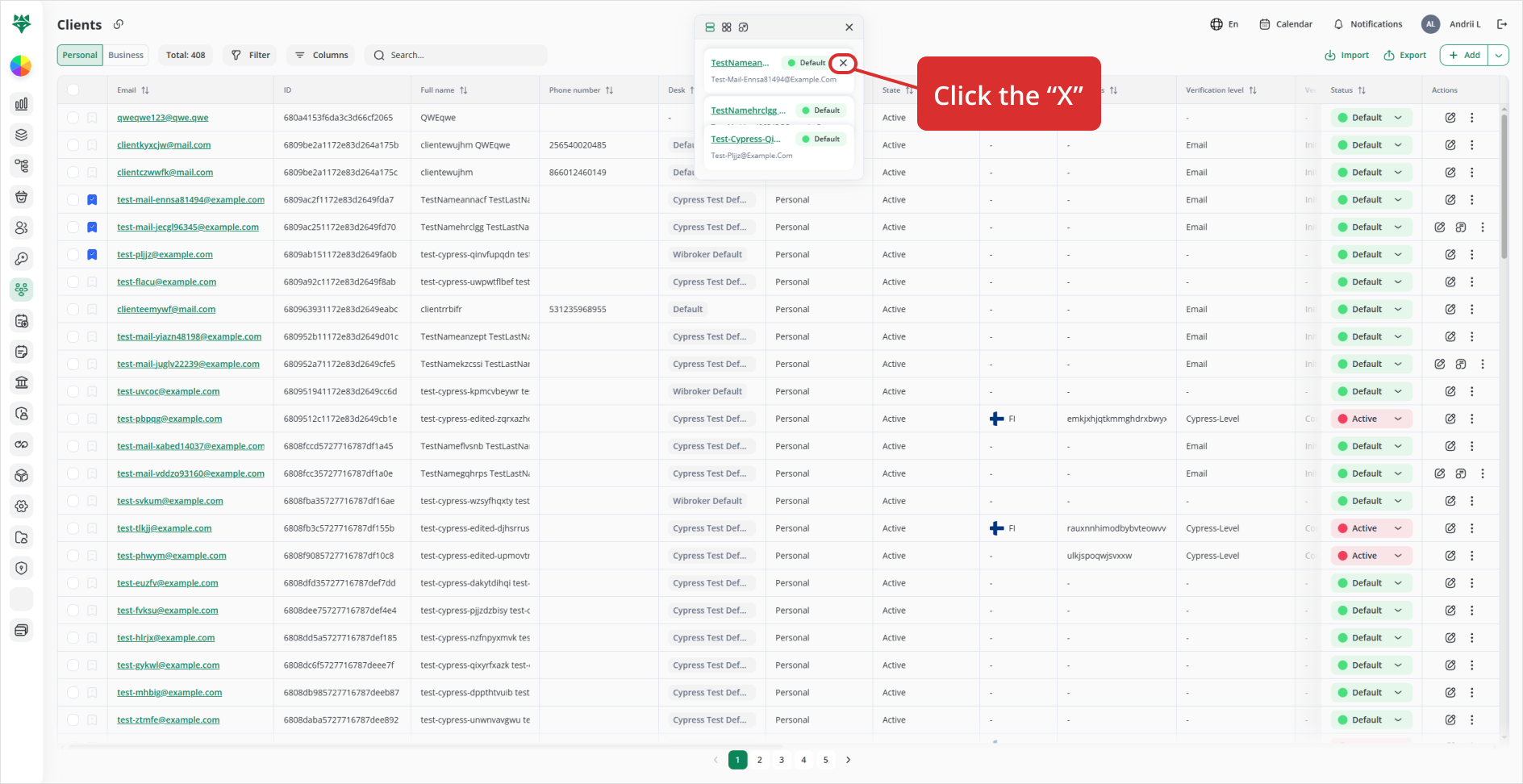
Hover over a favourite in the panel: an “X” remove icon appears.
-
Click X to un-favourite that client; the panel and count update immediately.
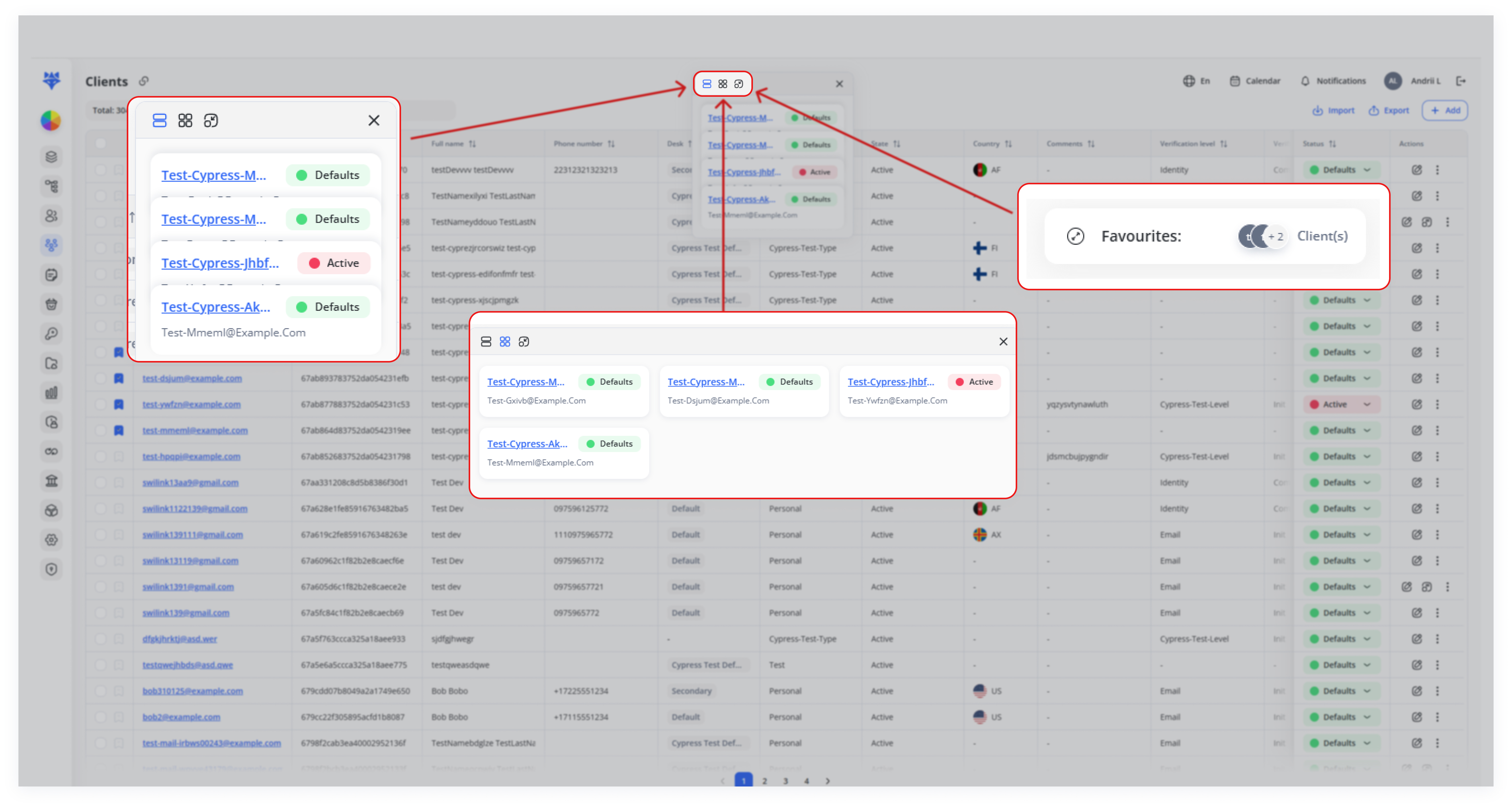
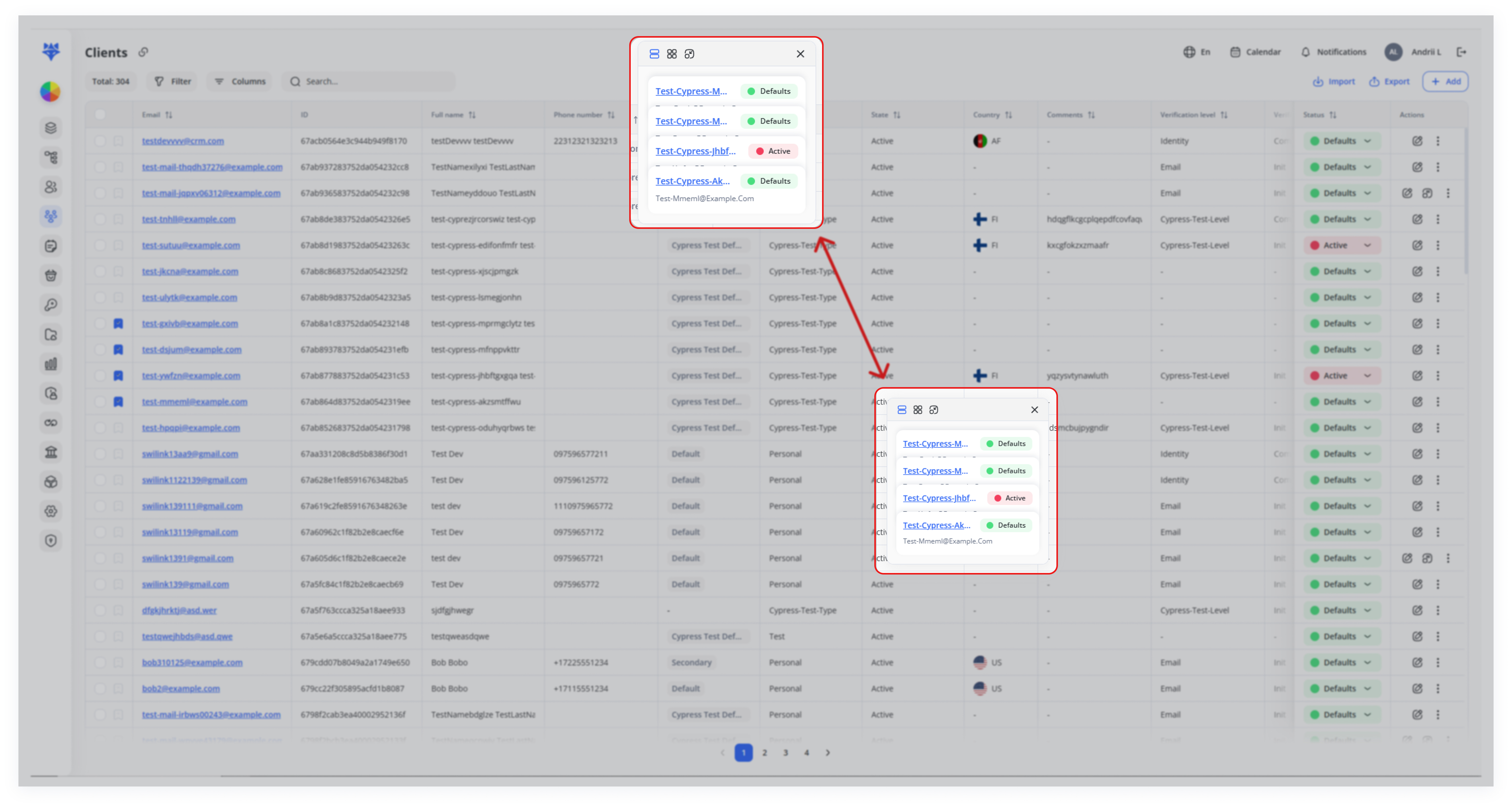
Reposition Panel: Drag the panel anywhere on your screen to keep it accessible and out of the way. Use the grid icon or layout switchers (seen at the top of the panel) to change how favorites are displayed.
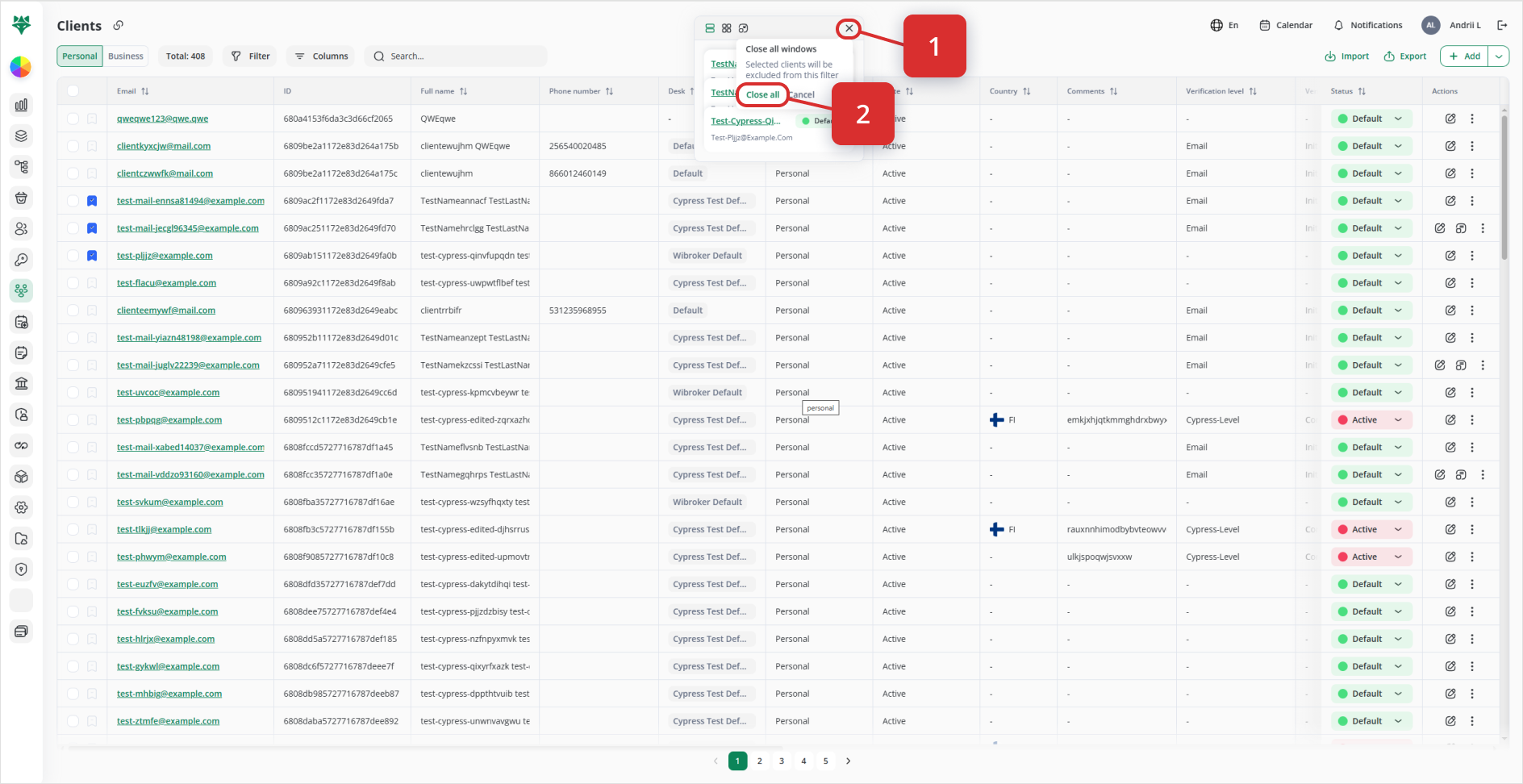
4. Click “X” to Clear All Favourites - see screenshot below
-
Click the panel’s top-right “X” (close button)—this does not remove a single favourite but triggers a Clear All prompt.
-
In the confirmation dialog, click Close All to un-favourite every client.
Warning: Ensure you have saved any important client details elsewhere before proceeding.
5. Login Persistence
Your favourite selections are saved to your user profile:
-
Session-independent: Log out or close your browser; favourites reappear when you next log in.
-
Cross-device: Sign in on another machine, and your Favourites panel will sync up.
Conclusion
Harnessing Favourites transforms your Clients page into a personalized dashboard:
-
Speed: One-click access to VIPs and urgent cases
-
Clarity: Separate, moveable panel keeps your focus
-
Flexibility: List/grid layouts and persistence across sessions
Bookmark once—benefit every day. Your most important clients are now always just a click away.