
10. Managing Favourite Clients
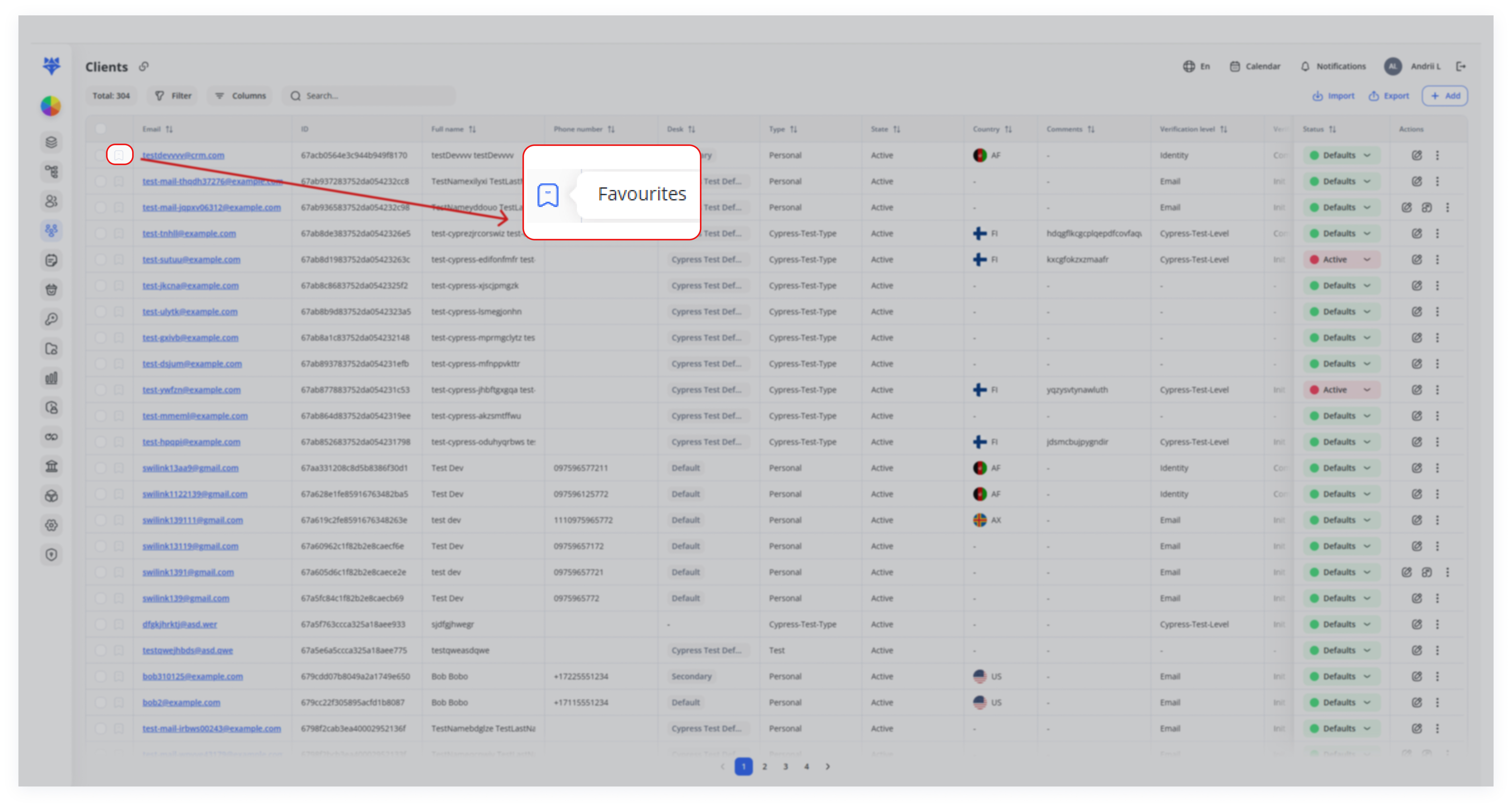
FavouritesManaging functionalityFavourite Clients lets you quickly bookmark important clients. Once added, those clients appear in a separate, moveable panel for instant access—even after you log back in. This is especially useful for managers or teams who frequently interact with certain clients and don’t want to lose track of them.
Use Cases
- Quick Access to Key Clients
Bookmark high-priority clients for instant access via a moveable panel. Favourites stay saved across sessions for seamless follow-ups.
- Managing Active Projects
Track ongoing projects by marking relevant clients as favourites. Reposition the panel for easy project monitoring.
- Prioritizing Client Follow-Ups
Keep urgent cases visible for quick support resolution. Remove clients from favourites after resolving issues.
- Campaign Client Grouping
Temporarily group clients for marketing campaigns. Warning: Close All will permanently delete favourites—save details first.
How It Works
1. Mark Clients as Favourites
In the Clients list, click the bookmark icon (shown with a red arrow in the screenshots) next to each client’s row.
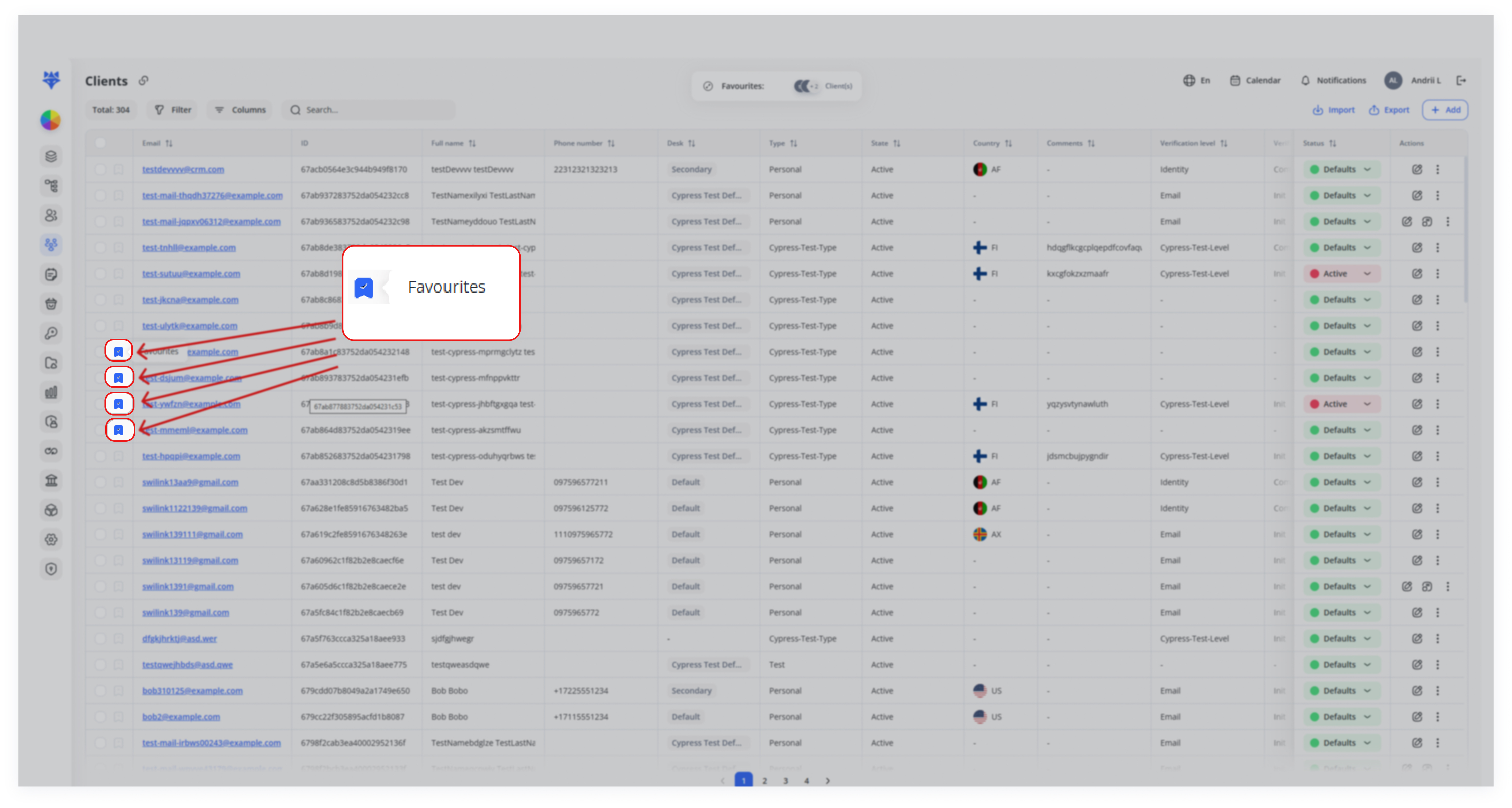
Once clicked, the icon turns blue (or filled in), indicating that client is now a favorite.
2. Open the Favourites Panel
When you select multiple favorites, a small panel appears.
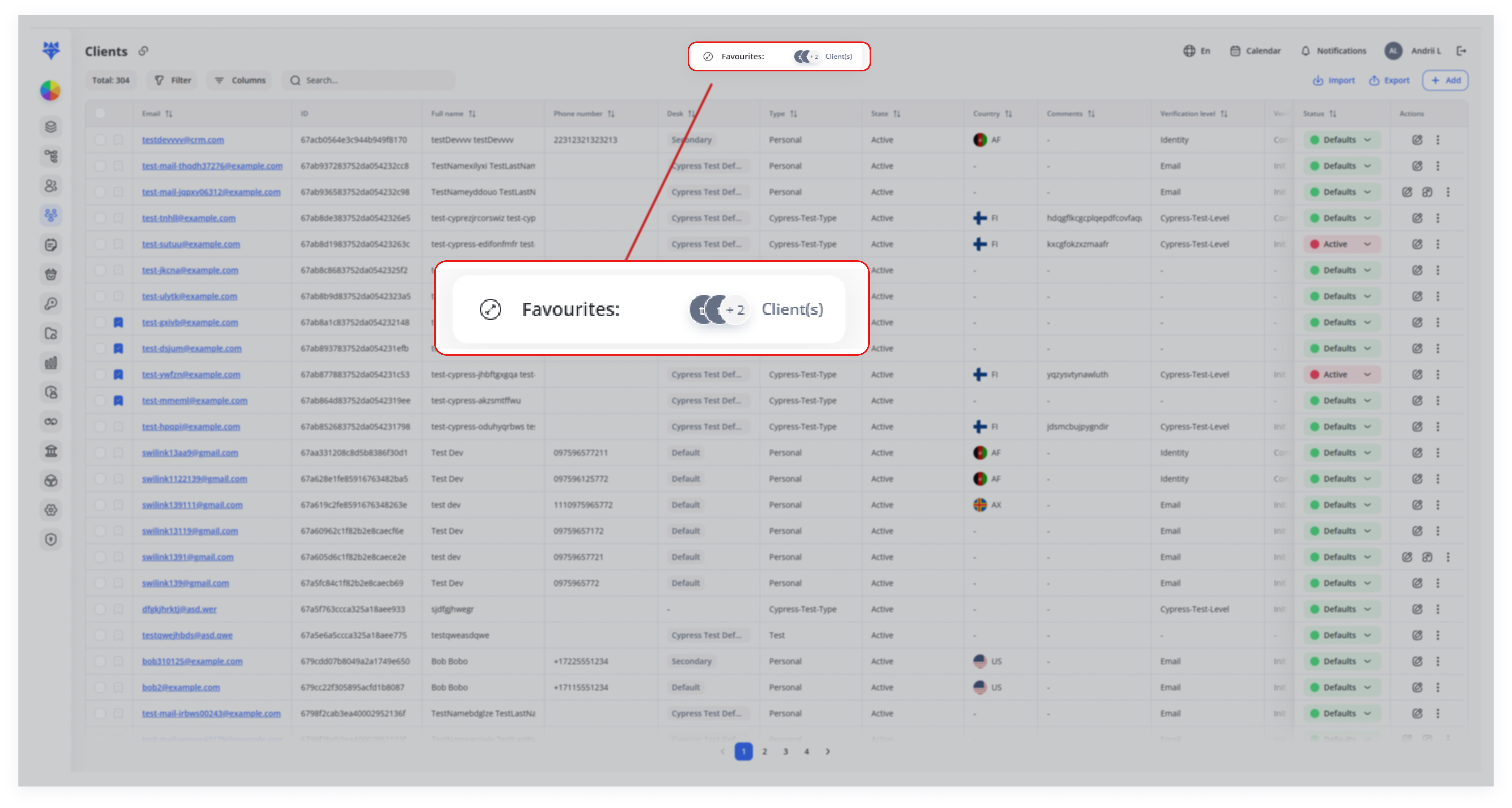
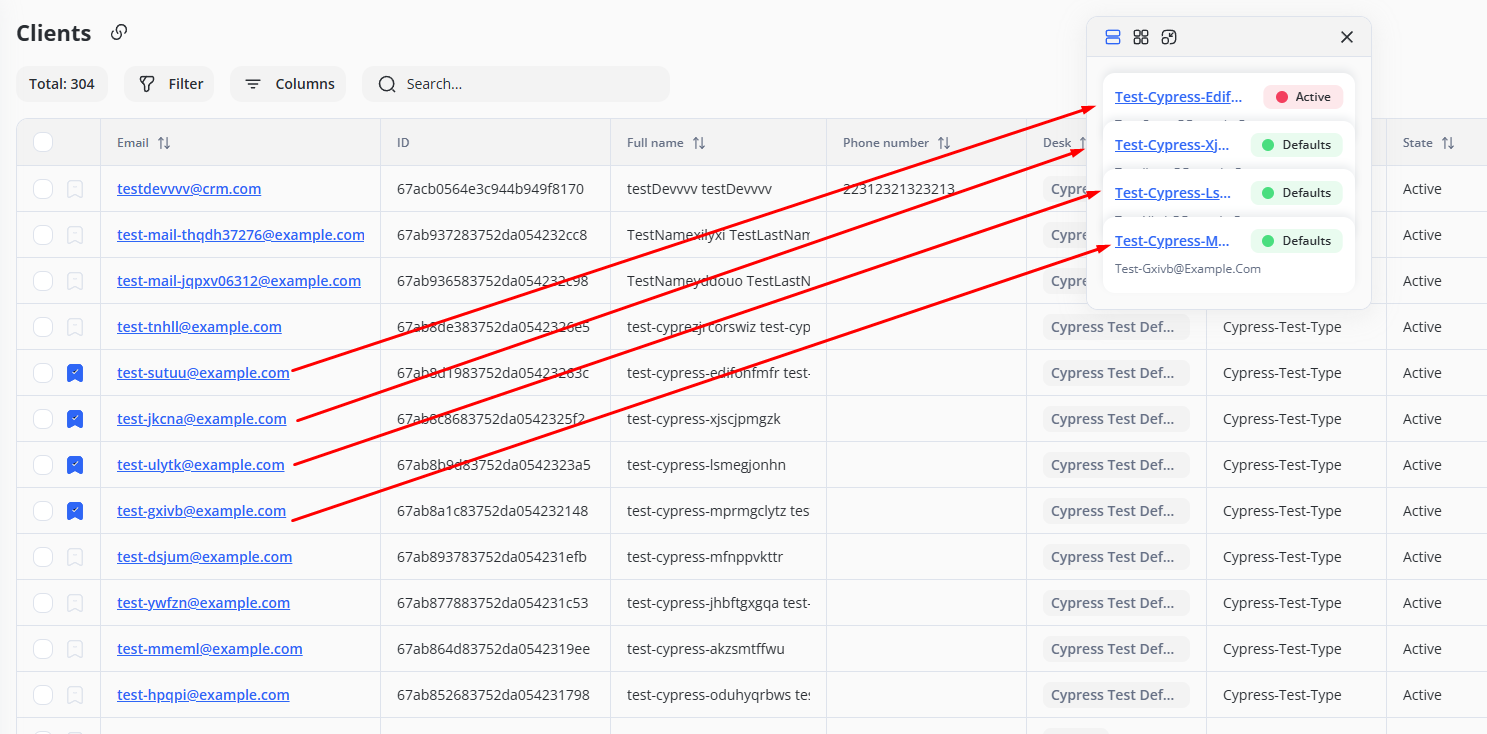
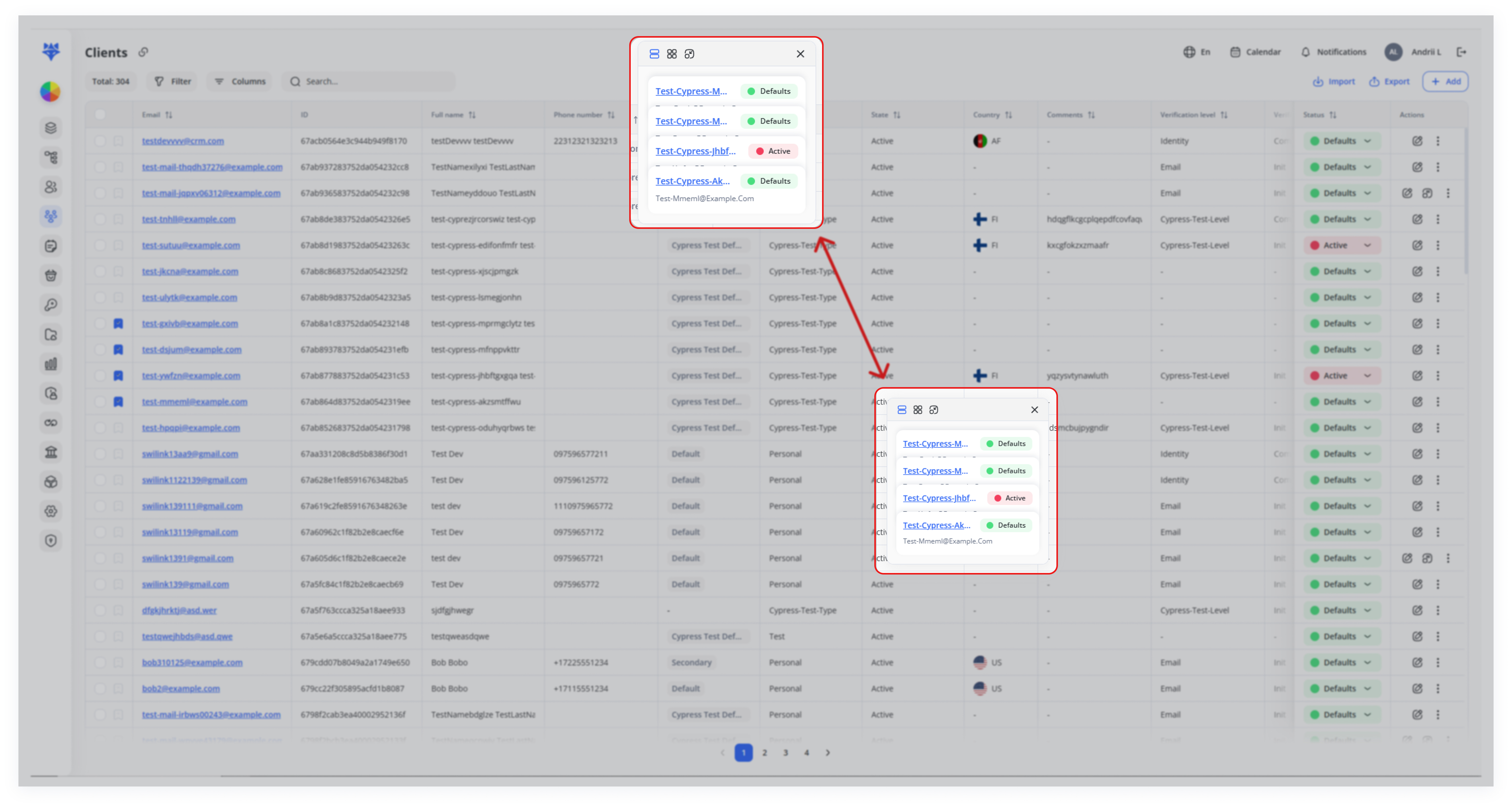
This panel displays a list (or tiles) of your favorite clients, including status (e.g., Active, Defaults) and essential details like email addresses.
3. Interact with Favourites
View Details: Click on a favorite’s name to open a drawer with more in‐depth client information.
Remove from Favourites: Click the “X” or remove icon next to a favorite’s name if you no longer need quick access.
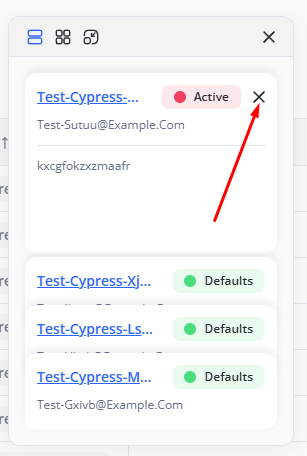
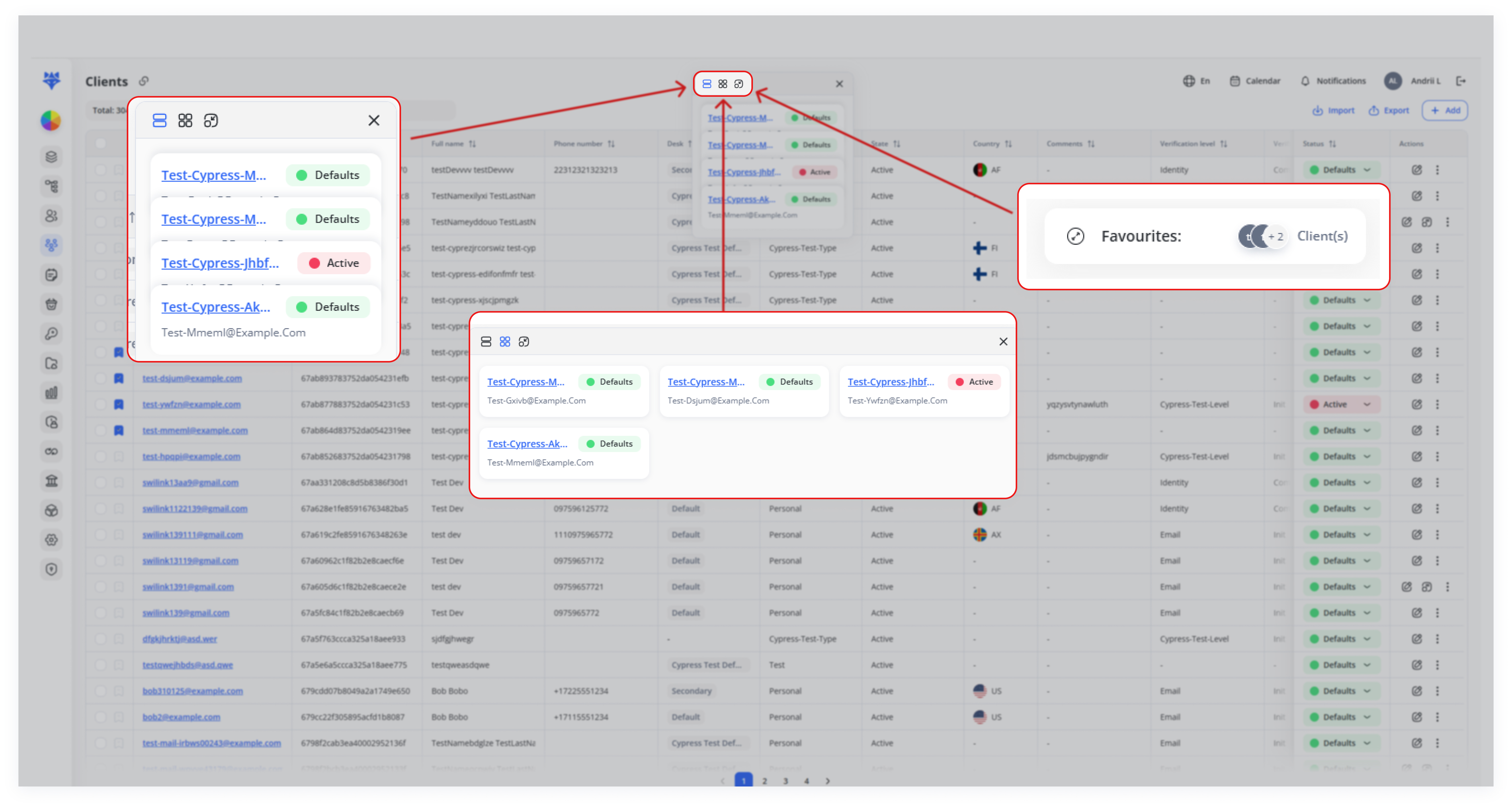
Reposition Panel: Drag the panel anywhere on your screen to keep it accessible and out of the way. Use the grid icon or layout switchers (seen at the top of the panel) to change how favorites are displayed.
4. Close or Clear All Favourites

If you choose the Close All option to remove all favourites, all favourite clients will be permanently deleted from this list. This action cannot be undone.
Warning: Ensure you have saved any important client details elsewhere before proceeding.
5. Login Persistence
Even if you log out (or your session times out) and then log back in, any favorites remain saved until you manually remove them.