
8.10. How to Manage Cards
The Cards section stores information about the details of the cards in use. This section is directly related to Accounts, Assets, and Banks. You can create a card for a client and connect it through the account to a fiat and crypto asset at the same time (or to one of that asset). All this is done when adding a new card to the CRM.
To add a card:
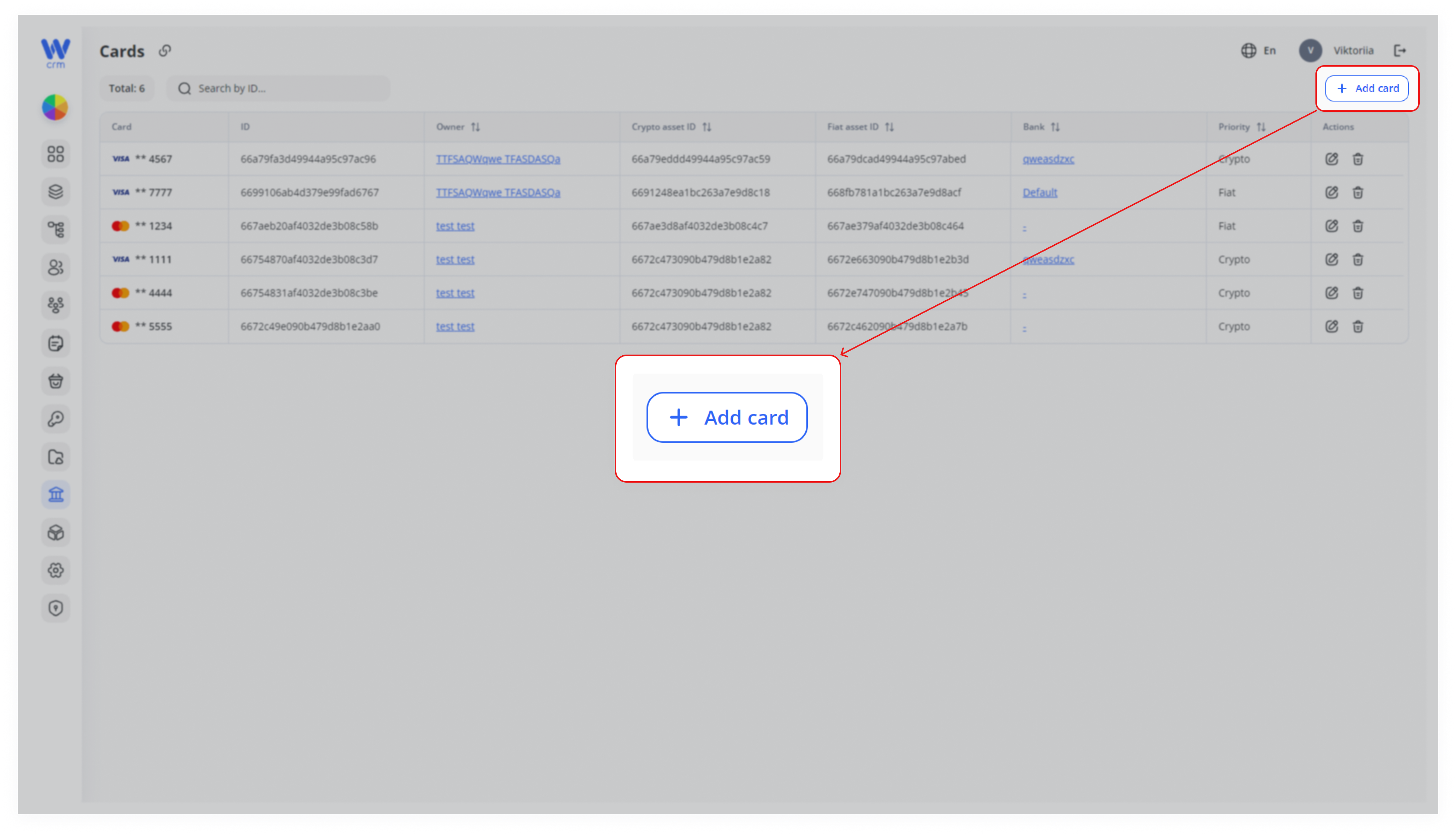
1. Click the the Add card button in the upper right corner of the tab.
2. Enter Card number.
3. Then step-by-step add:
-
-
-
Owner of the card: from the list of Clients.
-
Account ID: from the list of the client’s accounts.
-
Crypto asset ID and/or Fiat asset ID: from the lists of the account’s assets.
-
-
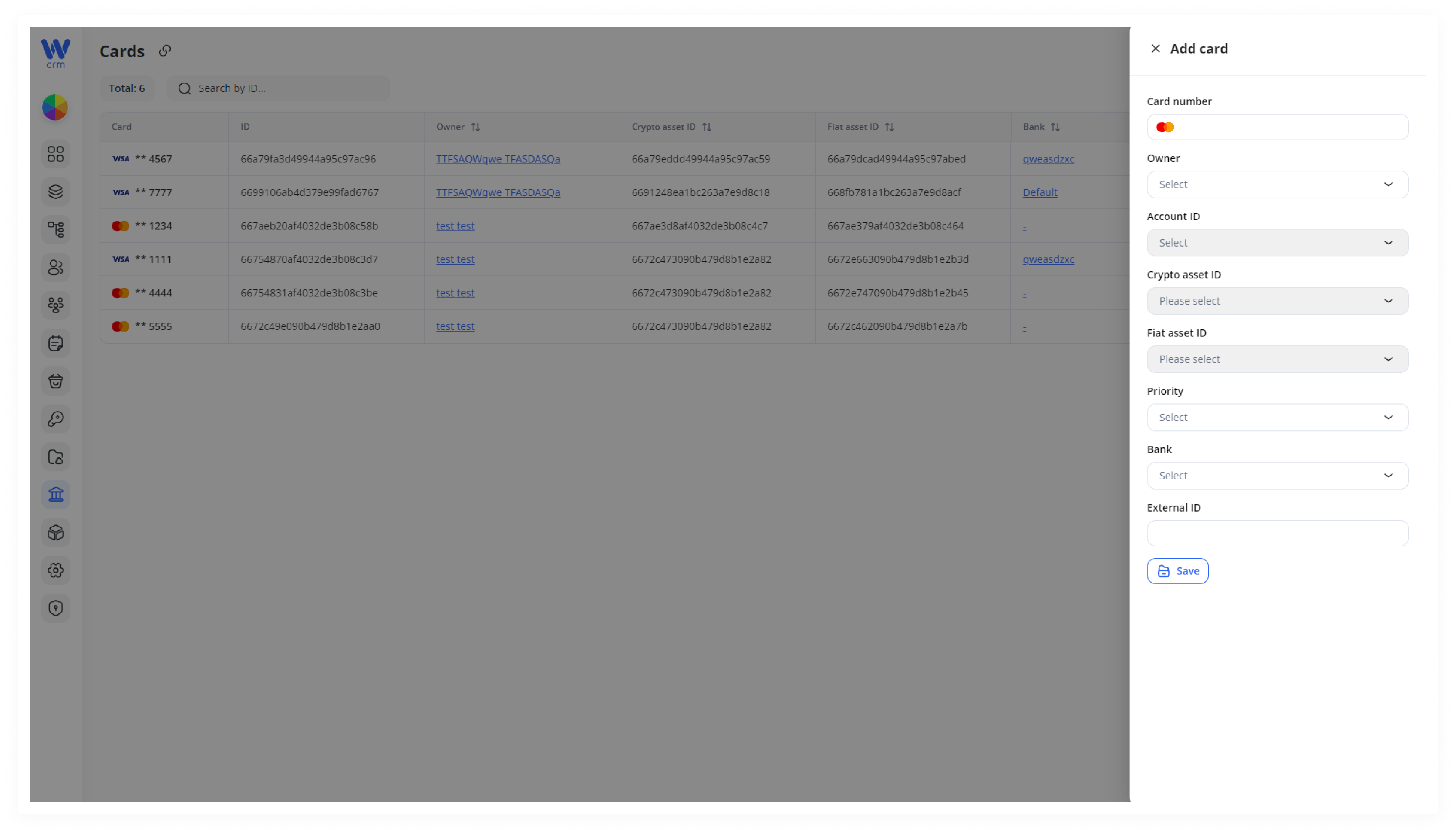
4. In case you select both crypto and fiat asset, select the priority for the asset.
5. Select from the drop-down list Bank.
6. Optionally enter enter External ID for third-party integration.
7. Click Click Save to apply the changes.
You can do following actions with all created cards:
-
-
Searching
-
Editing
-
Deletion
-
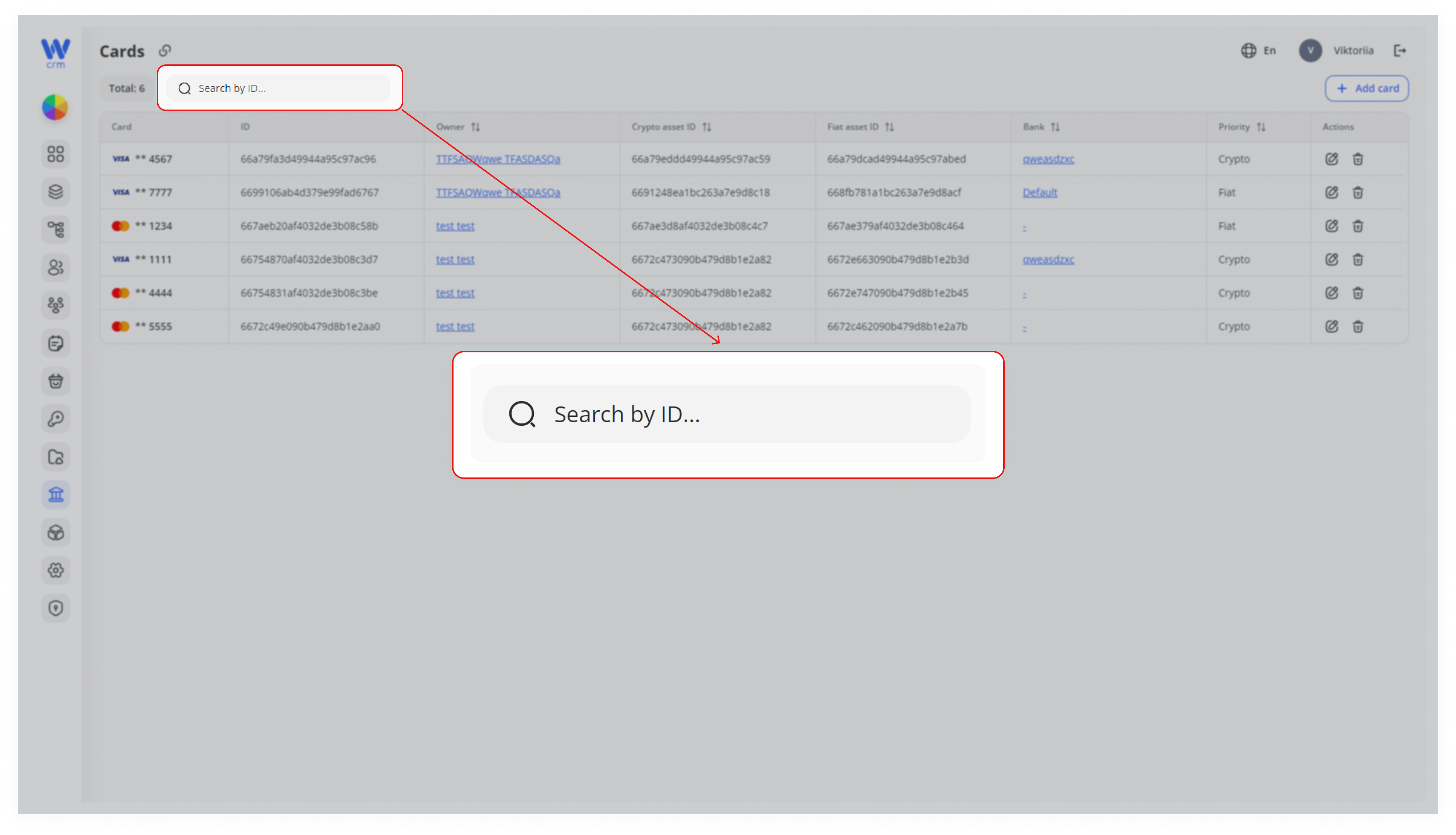
To search for a card:
-
- Start typing its ID in the Search field:
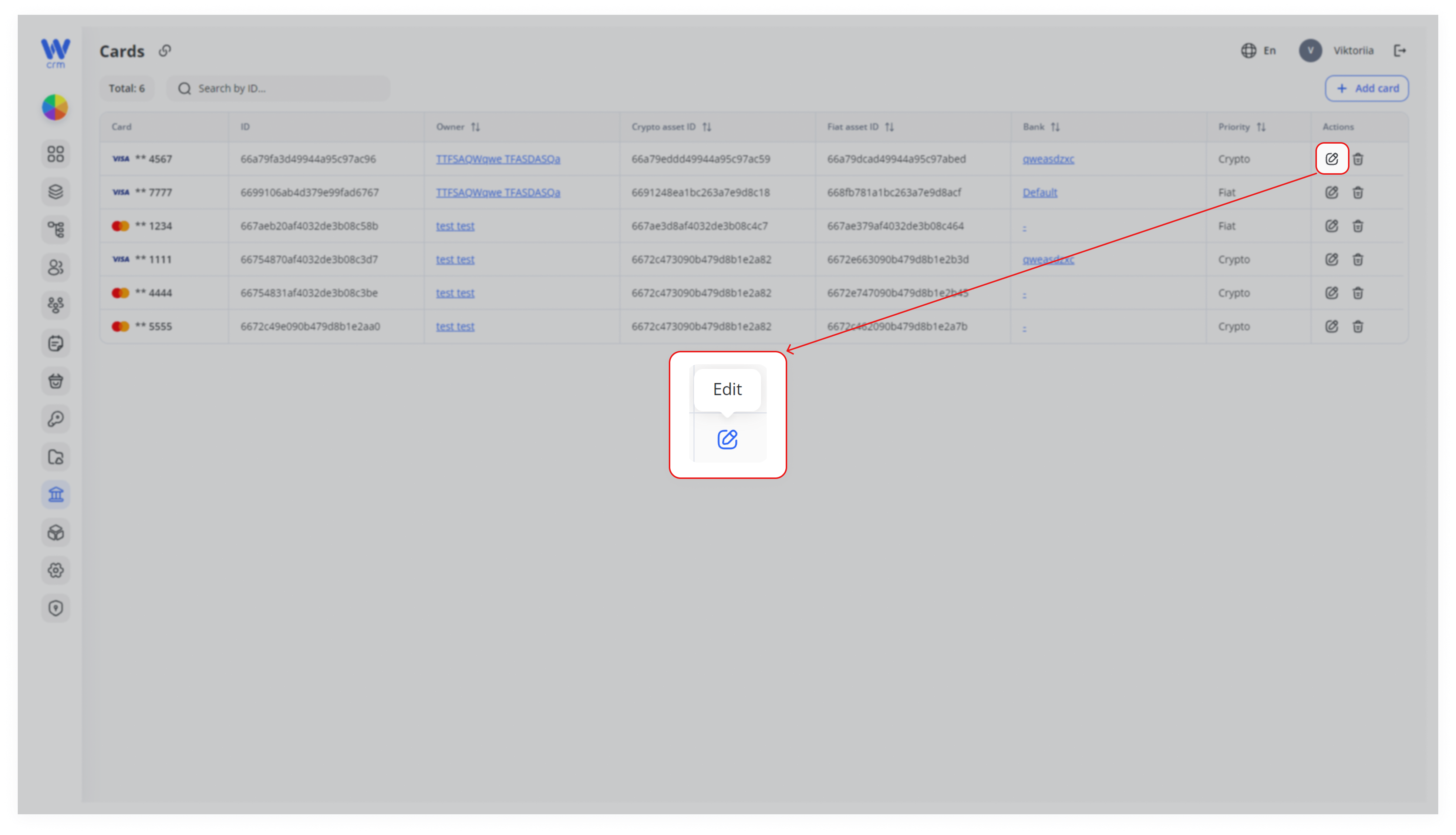
To edit a card:
1. Click the the Edit icon in the corresponding row:
2. All field in the opened window, except the Owner, are changeable.
To delete a card:
-
- Click the Delete icon in the corresponding row.
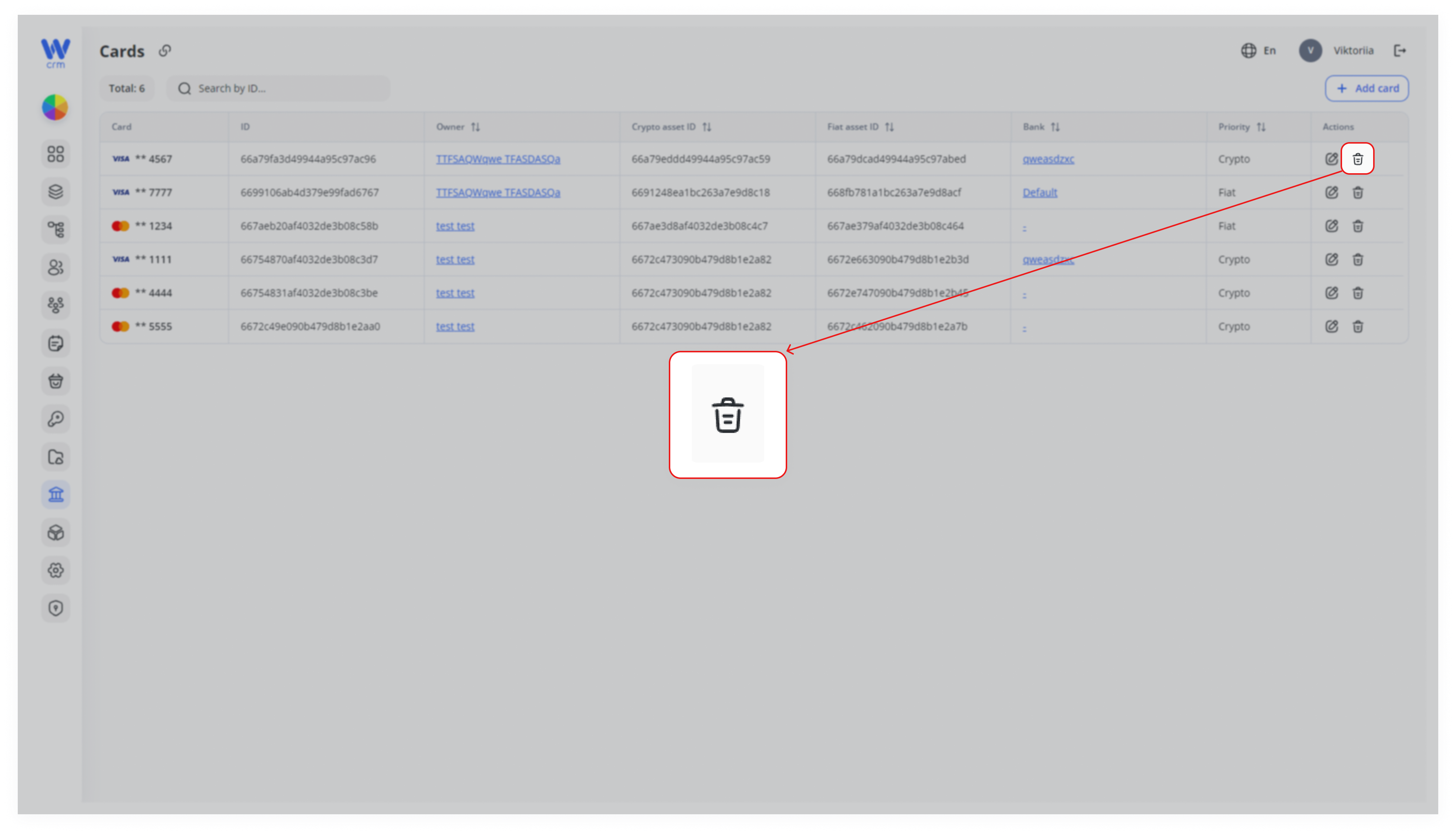
Warning: Deleted cards are not restored.