# 5. How to Edit a Text Entry

[![10,01 (11).jpg](https://wiki.wi.services/uploads/images/gallery/2025-04/scaled-1680-/GtQ1001-11.jpg)](https://wiki.wi.services/uploads/images/gallery/2025-04/GtQ1001-11.jpg)
<span id="bkmrk--2" style="font-weight: normal; color: rgb(161, 163, 165);"></span>

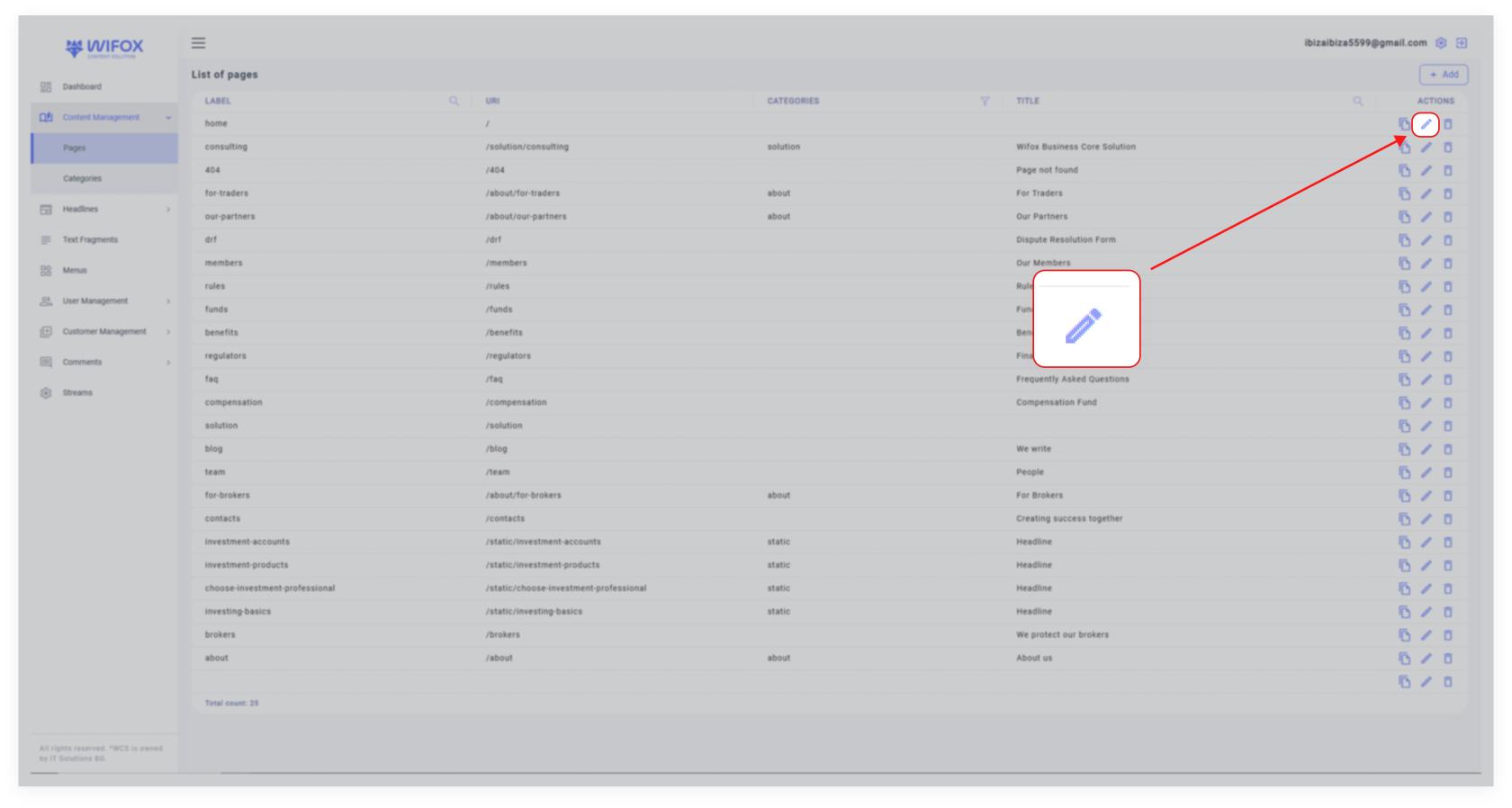
<span style="font-size: 12pt; font-family: Arial, sans-serif; color: rgb(161, 163, 165); background-color: transparent; font-weight: 400; font-style: normal; font-variant: normal; text-decoration: none; vertical-align: baseline; white-space: pre-wrap;">1. Locate the text entry in the list view.</span>

<span style="color: rgb(161, 163, 165);"><span style="font-size: 12pt; font-family: Arial, sans-serif; background-color: transparent; font-weight: 400; font-style: normal; font-variant: normal; text-decoration: none; vertical-align: baseline; white-space: pre-wrap;">2. Click the </span><span style="font-size: 12pt; font-family: Arial, sans-serif; background-color: transparent; font-weight: bold; font-style: normal; font-variant: normal; text-decoration: none; vertical-align: baseline; white-space: pre-wrap;">Edit Icon</span><span style="font-size: 12pt; font-family: Arial, sans-serif; background-color: transparent; font-weight: 400; font-style: normal; font-variant: normal; text-decoration: none; vertical-align: baseline; white-space: pre-wrap;"> next to the desired entry.</span></span>

<span style="color: rgb(161, 163, 165);"><span style="font-size: 12pt; font-family: Arial, sans-serif; background-color: transparent; font-weight: 400; font-style: normal; font-variant: normal; text-decoration: none; vertical-align: baseline; white-space: pre-wrap;">3. Modify the </span><span style="font-size: 12pt; font-family: Arial, sans-serif; background-color: transparent; font-weight: bold; font-style: normal; font-variant: normal; text-decoration: none; vertical-align: baseline; white-space: pre-wrap;">Label</span><span style="font-size: 12pt; font-family: Arial, sans-serif; background-color: transparent; font-weight: 400; font-style: normal; font-variant: normal; text-decoration: none; vertical-align: baseline; white-space: pre-wrap;">, </span><span style="font-size: 12pt; font-family: Arial, sans-serif; background-color: transparent; font-weight: bold; font-style: normal; font-variant: normal; text-decoration: none; vertical-align: baseline; white-space: pre-wrap;">Title</span><span style="font-size: 12pt; font-family: Arial, sans-serif; background-color: transparent; font-weight: 400; font-style: normal; font-variant: normal; text-decoration: none; vertical-align: baseline; white-space: pre-wrap;">, or </span><span style="font-size: 12pt; font-family: Arial, sans-serif; background-color: transparent; font-weight: bold; font-style: normal; font-variant: normal; text-decoration: none; vertical-align: baseline; white-space: pre-wrap;">Content</span><span style="font-size: 12pt; font-family: Arial, sans-serif; background-color: transparent; font-weight: 400; font-style: normal; font-variant: normal; text-decoration: none; vertical-align: baseline; white-space: pre-wrap;"> as needed.</span></span>

<span style="color: rgb(161, 163, 165);"><span style="font-size: 12pt; font-family: Arial, sans-serif; background-color: transparent; font-weight: 400; font-style: normal; font-variant: normal; text-decoration: none; vertical-align: baseline; white-space: pre-wrap;">4. Click </span><span style="font-size: 12pt; font-family: Arial, sans-serif; background-color: transparent; font-weight: bold; font-style: normal; font-variant: normal; text-decoration: none; vertical-align: baseline; white-space: pre-wrap;">Save</span><span style="font-size: 12pt; font-family: Arial, sans-serif; background-color: transparent; font-weight: 400; font-style: normal; font-variant: normal; text-decoration: none; vertical-align: baseline; white-space: pre-wrap;"> to apply the changes.</span></span>