Streams Section
1. Streams Section: Overview
The Streams feature in Wifox Business Content Solution allows administrators to integrate and manage event streams from external databases or admin panels using specified endpoints and join keys. This functionality is particularly useful for pulling event data into a centralized system for further actions like copying or language-specific adjustments.
Benefits
- Centralized Integration: Streamlines data management by importing events from various external sources.
- Language-Specific Adaptation: Allows copying and editing content for different language settings.
- Simplified Management: Enables quick editing and deletion of streams directly within the interface.
This section ensures that administrators can efficiently handle event data across multiple platforms, providing a seamless workflow for integrating external content into Wifox Business Content Solution.
Key Features
1. Adding a Stream
Use the Add Stream button to create a new stream.

Fill in the required fields:
- Stream Name: Use lowercase alphabets only for naming (e.g., "investments").
- Endpoint: Specify the URL where the events will be pulled from.
- Join Key: Paste the unique key provided by the external admin system.
Click Submit to save the stream.
2. Managing Stream Data
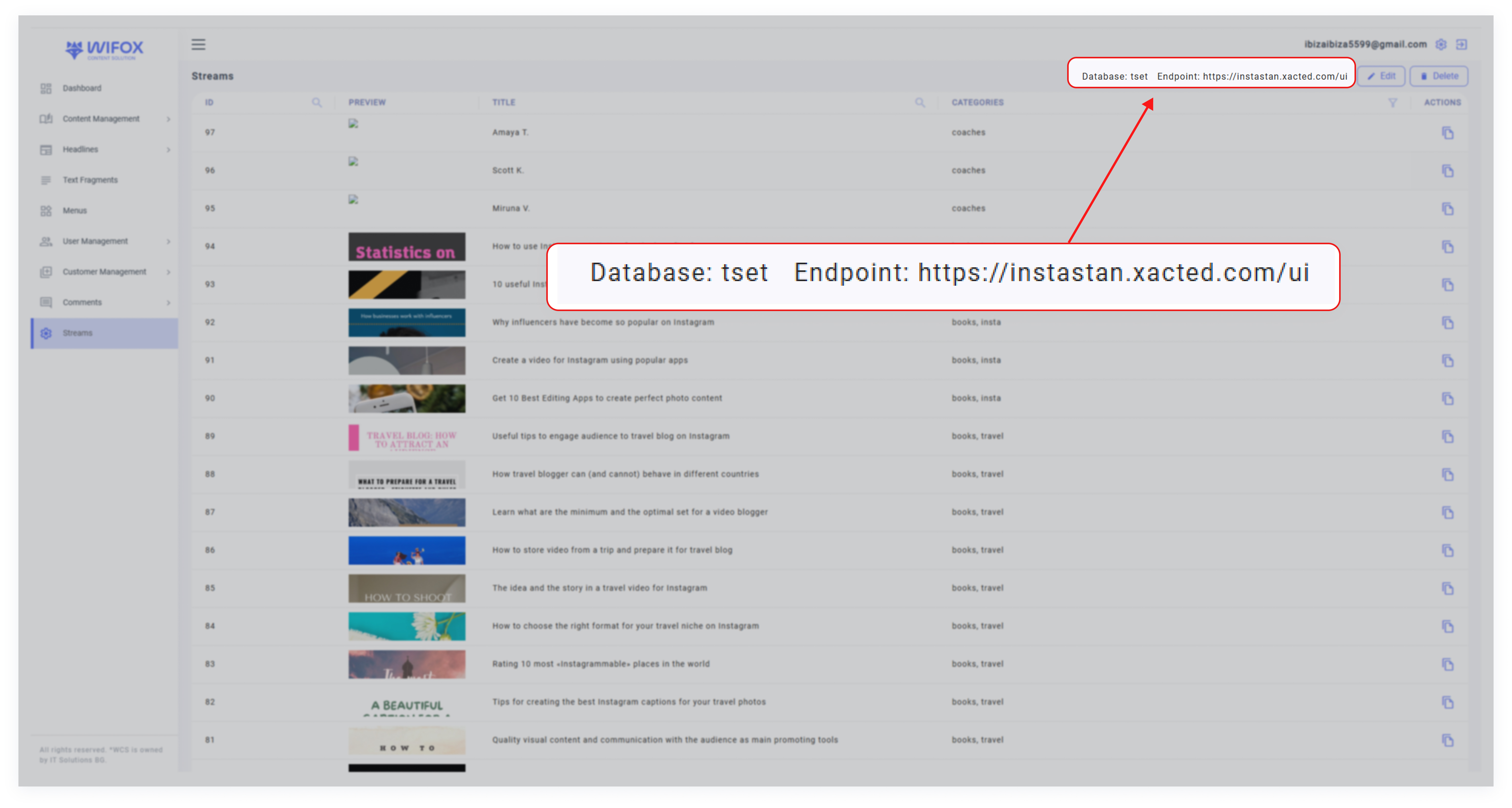
Streams automatically display data like event titles, categories, and IDs once linked.
You can only copy existing data; modifications must occur in the original database.
3. Editing a Stream
Click Edit to update the endpoint or stream settings.
Save changes to refresh the stream's connection and data.
4. Deleting a Stream
Click Delete to remove an unnecessary stream from the list.
5. Cloning Stream Data
Choose specific languages (e.g., EN) for data duplication.

Preview the content, including associated images.
Click Clone to duplicate data into the desired language.
Modify and save content as needed in the newly cloned stream.