# Sites: API Keys Management


# 1. Sites: Overview

The Sites section in Wifox Business Content Solution is dedicated to managing API keys. These keys act as secure tokens that allow access to specific API endpoints, which are not public. API keys are essential for interacting with protected APIs and ensuring only authorized access to the system's data and functionalities. Wifox Business Content Solution has its own API, and to access its non-public endpoints, users must first create a site key within this module.

##### **Key Features of API Key Management**

1. Secure Access

API keys are used to authenticate requests to protected API endpoints, ensuring only authorized users or systems can access them.

2. Domain Binding

API keys are tied to a specific domain, restricting their use to the designated site for enhanced security.

3. Role Assignment

Each API key is associated with a specific role. The role defines the permissions granted to the key, such as viewing pages, editing content, or deleting entries.

4. Customizable Permissions

By assigning a role to an API key, you control exactly what the key can access, aligning it with your system's security and functionality needs.

##### **Example Use Case**

A developer wants to use the API to fetch pages from a website. They create an API key with the following details:

- Domain: example.com
- Full Site URL: https://www.example.com
- Role: A role with permissions to view Pages.

The Sites section in Wifox Business Content Solution is dedicated to managing API keys, which serve as secure tokens granting access to restricted API endpoints. These keys are essential for interacting with protected APIs, ensuring that only authorized users can access system data and functionalities. Wifox Business Content Solution has its own API, and to access its non-public endpoints, users must first create a site key within this module.

<p class="callout info">**When making API requests using site keys, it is necessary to include the following headers:**</p>

<p class="callout info">"x-access-type" = "site"</p>

<p class="callout info">"x-access-token" = (token from site key)</p>

The developer then uses this API key in their application to securely access the page data. By binding the key to a domain and assigning a role with precise permissions, the system ensures secure and authorized access to the required functionality.

The Sites section simplifies the creation and management of API keys while providing robust security through domain binding and role-based access, ensuring that API interactions are both flexible and secure.

# 2. How to Add a New API Key

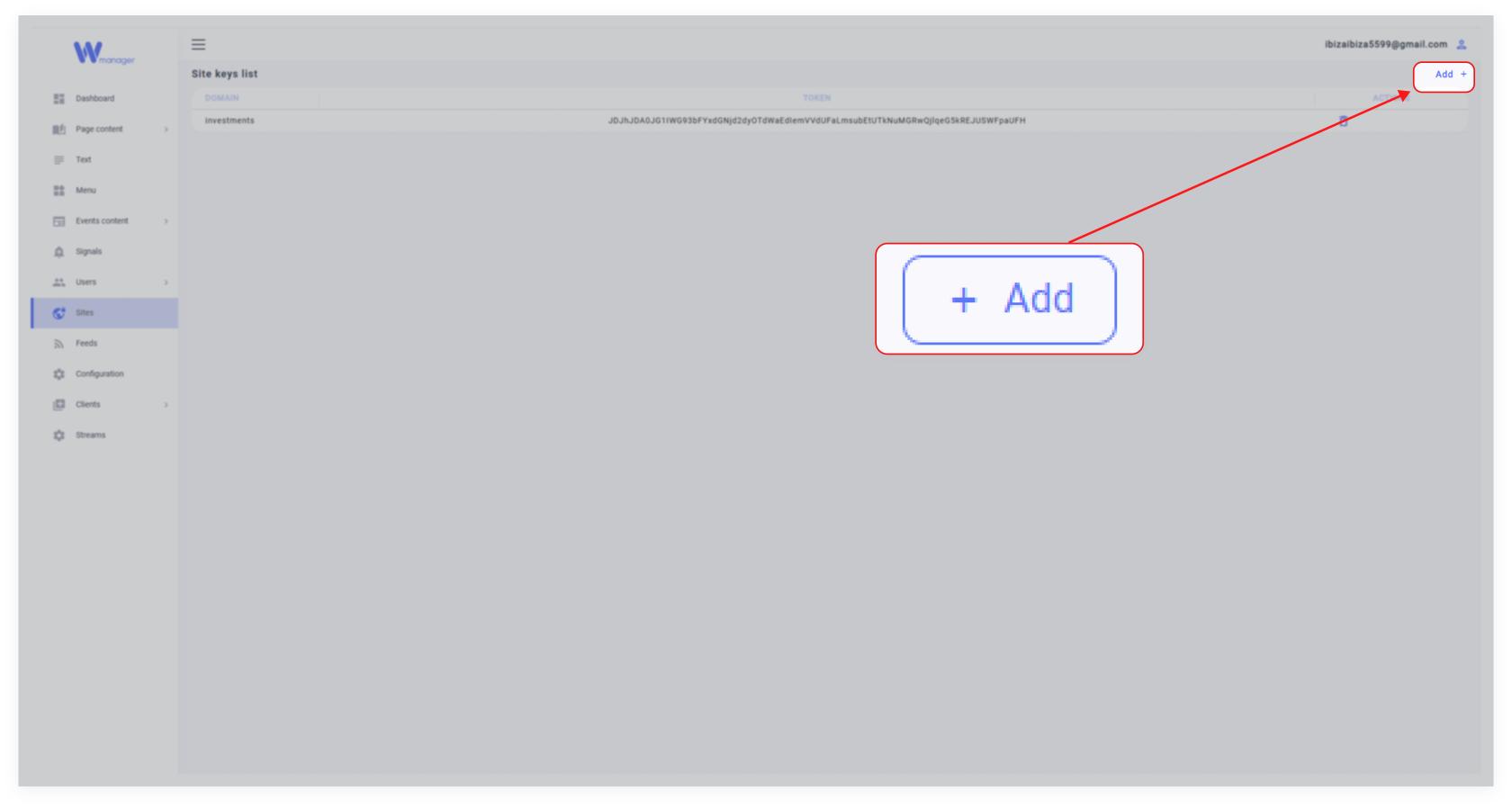
<span style="font-size: 12pt; font-family: Arial, sans-serif; color: rgb(161, 163, 165); background-color: transparent; font-weight: bold; font-style: normal; font-variant: normal; text-decoration: none; vertical-align: baseline; white-space: pre-wrap;">1. Click Add</span>

<span style="color: rgb(161, 163, 165);"><span style="font-size: 12pt; font-family: Arial, sans-serif; background-color: transparent; font-weight: 400; font-style: normal; font-variant: normal; text-decoration: none; vertical-align: baseline; white-space: pre-wrap;">In the </span><span style="font-size: 12pt; font-family: Arial, sans-serif; background-color: transparent; font-weight: bold; font-style: normal; font-variant: normal; text-decoration: none; vertical-align: baseline; white-space: pre-wrap;">Sites</span><span style="font-size: 12pt; font-family: Arial, sans-serif; background-color: transparent; font-weight: 400; font-style: normal; font-variant: normal; text-decoration: none; vertical-align: baseline; white-space: pre-wrap;"> section, click the </span><span style="font-size: 12pt; font-family: Arial, sans-serif; background-color: transparent; font-weight: bold; font-style: normal; font-variant: normal; text-decoration: none; vertical-align: baseline; white-space: pre-wrap;">Add</span><span style="font-size: 12pt; font-family: Arial, sans-serif; background-color: transparent; font-weight: 400; font-style: normal; font-variant: normal; text-decoration: none; vertical-align: baseline; white-space: pre-wrap;"> button to create a new API key.</span></span>

[![10,01 (36).jpg](https://wiki.wi.services/uploads/images/gallery/2025-04/scaled-1680-/1001-36.jpg)](https://wiki.wi.services/uploads/images/gallery/2025-04/1001-36.jpg)

<span style="font-size: 12pt; font-family: Arial, sans-serif; color: rgb(161, 163, 165); background-color: transparent; font-weight: bold; font-style: normal; font-variant: normal; text-decoration: none; vertical-align: baseline; white-space: pre-wrap;">2. Fill in the Details</span>

<span style="font-size: 12pt; font-family: Arial, sans-serif; color: rgb(161, 163, 165); background-color: transparent; font-weight: bold; font-style: normal; font-variant: normal; text-decoration: none; vertical-align: baseline; white-space: pre-wrap;"><span style="border: none; display: inline-block; overflow: hidden; width: 432px; height: 539px;">![](https://lh7-rt.googleusercontent.com/docsz/AD_4nXfItKNStGTJePlvIiEFkBU9uWHjkkpITXxXVIbNO-xq8ApwZWvY7PKQfwfOb-QzAgq9pSMxzMiTqKo5oxReflHCOTRLZ-hV6ohtdPtykCgpKAym4ItB9hU-7lNl2CeLaV_bpB3-?key=0gy6H2urLwUKcuJX_5Q8Ycab)</span></span>

<span style="color: rgb(161, 163, 165);"><span style="font-size: 12pt; font-family: Arial, sans-serif; background-color: transparent; font-weight: bold; font-style: normal; font-variant: normal; text-decoration: none; vertical-align: baseline; white-space: pre-wrap;">Domain</span><span style="font-size: 12pt; font-family: Arial, sans-serif; background-color: transparent; font-weight: 400; font-style: normal; font-variant: normal; text-decoration: none; vertical-align: baseline; white-space: pre-wrap;">: Enter the domain where the API key will be used (e.g., </span><span style="font-size: 12pt; font-family: Arial, sans-serif; background-color: transparent; font-weight: 400; font-style: normal; font-variant: normal; text-decoration: none; vertical-align: baseline; white-space: pre-wrap;">example.com</span><span style="font-size: 12pt; font-family: Arial, sans-serif; background-color: transparent; font-weight: 400; font-style: normal; font-variant: normal; text-decoration: none; vertical-align: baseline; white-space: pre-wrap;">).</span></span>

<span style="color: rgb(161, 163, 165);"><span style="font-size: 12pt; font-family: Arial, sans-serif; background-color: transparent; font-weight: bold; font-style: normal; font-variant: normal; text-decoration: none; vertical-align: baseline; white-space: pre-wrap;">Full Site URL</span><span style="font-size: 12pt; font-family: Arial, sans-serif; background-color: transparent; font-weight: 400; font-style: normal; font-variant: normal; text-decoration: none; vertical-align: baseline; white-space: pre-wrap;">: Provide the full URL of the site (e.g., </span><span style="font-size: 12pt; font-family: Arial, sans-serif; background-color: transparent; font-weight: 400; font-style: normal; font-variant: normal; text-decoration: none; vertical-align: baseline; white-space: pre-wrap;">https://www.example.com</span><span style="font-size: 12pt; font-family: Arial, sans-serif; background-color: transparent; font-weight: 400; font-style: normal; font-variant: normal; text-decoration: none; vertical-align: baseline; white-space: pre-wrap;">).</span></span>

<span style="color: rgb(161, 163, 165);"><span style="font-size: 12pt; font-family: Arial, sans-serif; background-color: transparent; font-weight: bold; font-style: normal; font-variant: normal; text-decoration: none; vertical-align: baseline; white-space: pre-wrap;">Role</span><span style="font-size: 12pt; font-family: Arial, sans-serif; background-color: transparent; font-weight: 400; font-style: normal; font-variant: normal; text-decoration: none; vertical-align: baseline; white-space: pre-wrap;">: Select a role from the dropdown menu. This role determines the permissions tied to the API key, such as access to specific modules like Pages or others.</span></span>

<span style="font-size: 12pt; font-family: Arial, sans-serif; color: rgb(161, 163, 165); background-color: transparent; font-weight: bold; font-style: normal; font-variant: normal; text-decoration: none; vertical-align: baseline; white-space: pre-wrap;">3. Save the API Key</span>

<span id="bkmrk--3" style="font-weight: normal; color: rgb(161, 163, 165);"></span>

<span style="color: rgb(161, 163, 165);"><span style="font-size: 12pt; font-family: Arial, sans-serif; background-color: transparent; font-weight: 400; font-style: normal; font-variant: normal; text-decoration: none; vertical-align: baseline; white-space: pre-wrap;">Click </span><span style="font-size: 12pt; font-family: Arial, sans-serif; background-color: transparent; font-weight: bold; font-style: normal; font-variant: normal; text-decoration: none; vertical-align: baseline; white-space: pre-wrap;">Submit</span><span style="font-size: 12pt; font-family: Arial, sans-serif; background-color: transparent; font-weight: 400; font-style: normal; font-variant: normal; text-decoration: none; vertical-align: baseline; white-space: pre-wrap;"> to generate the API key. Once created, this key can be used to authenticate API requests for the specified domain and role.</span></span>

# 3. How to Edit an API Key

**1. Select the API Key**

Locate the API key in the Sites list and click the pencil icon to open the editing menu.

**2. Update the Details**

Modify the domain, full site URL, or assigned role as needed.

**3. Save Changes**

Click Submit to save the updates.

# 4. How to Delete an API Key

<span style="font-size: 12pt; font-family: Arial, sans-serif; color: rgb(161, 163, 165); background-color: transparent; font-weight: bold; font-style: normal; font-variant: normal; text-decoration: none; vertical-align: baseline; white-space: pre-wrap;">1. Locate the API Key</span>

<span style="color: rgb(161, 163, 165);"><span style="font-size: 12pt; font-family: Arial, sans-serif; background-color: transparent; font-weight: 400; font-style: normal; font-variant: normal; text-decoration: none; vertical-align: baseline; white-space: pre-wrap;">Find the API key in the </span><span style="font-size: 12pt; font-family: Arial, sans-serif; background-color: transparent; font-weight: bold; font-style: normal; font-variant: normal; text-decoration: none; vertical-align: baseline; white-space: pre-wrap;">Sites</span><span style="font-size: 12pt; font-family: Arial, sans-serif; background-color: transparent; font-weight: 400; font-style: normal; font-variant: normal; text-decoration: none; vertical-align: baseline; white-space: pre-wrap;"> list.</span></span>

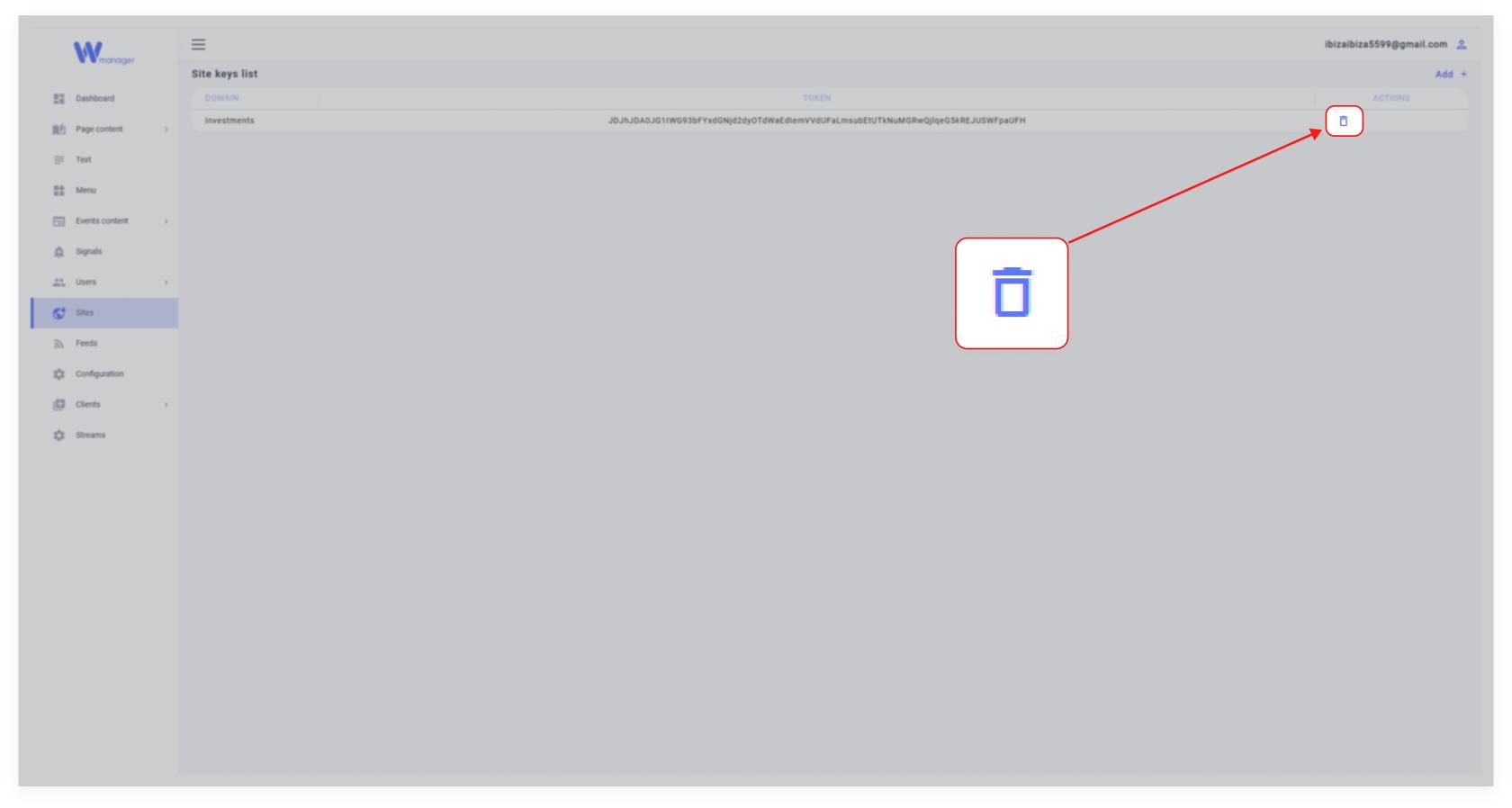
<span style="font-size: 12pt; font-family: Arial, sans-serif; color: rgb(161, 163, 165); background-color: transparent; font-weight: bold; font-style: normal; font-variant: normal; text-decoration: none; vertical-align: baseline; white-space: pre-wrap;">2. Delete the Key</span>

[![10,01 (37).jpg](https://wiki.wi.services/uploads/images/gallery/2025-04/scaled-1680-/1001-37.jpg)](https://wiki.wi.services/uploads/images/gallery/2025-04/1001-37.jpg)

<span style="color: rgb(161, 163, 165);"><span style="font-size: 12pt; font-family: Arial, sans-serif; background-color: transparent; font-weight: 400; font-style: normal; font-variant: normal; text-decoration: none; vertical-align: baseline; white-space: pre-wrap;">Click the </span><span style="font-size: 12pt; font-family: Arial, sans-serif; background-color: transparent; font-weight: bold; font-style: normal; font-variant: normal; text-decoration: none; vertical-align: baseline; white-space: pre-wrap;">trash icon</span><span style="font-size: 12pt; font-family: Arial, sans-serif; background-color: transparent; font-weight: 400; font-style: normal; font-variant: normal; text-decoration: none; vertical-align: baseline; white-space: pre-wrap;"> next to the key and confirm the deletion. The API key will be permanently removed.</span></span>

<span id="bkmrk--2" style="font-weight: normal; color: rgb(161, 163, 165);"></span>