Menus
- 1. Menu Section: Overview
- 2. Use Cases
- 3. How to Add a New Menu or Menu Item
- 4. How to Edit or Delete a Menu Item
1. Menu Section: Overview
Key Features of the Menu Section
- Tree View Structure:
Displays menus in a tree format, allowing users to visualize the hierarchy of menu items and their submenus.

- Save and Add Options:
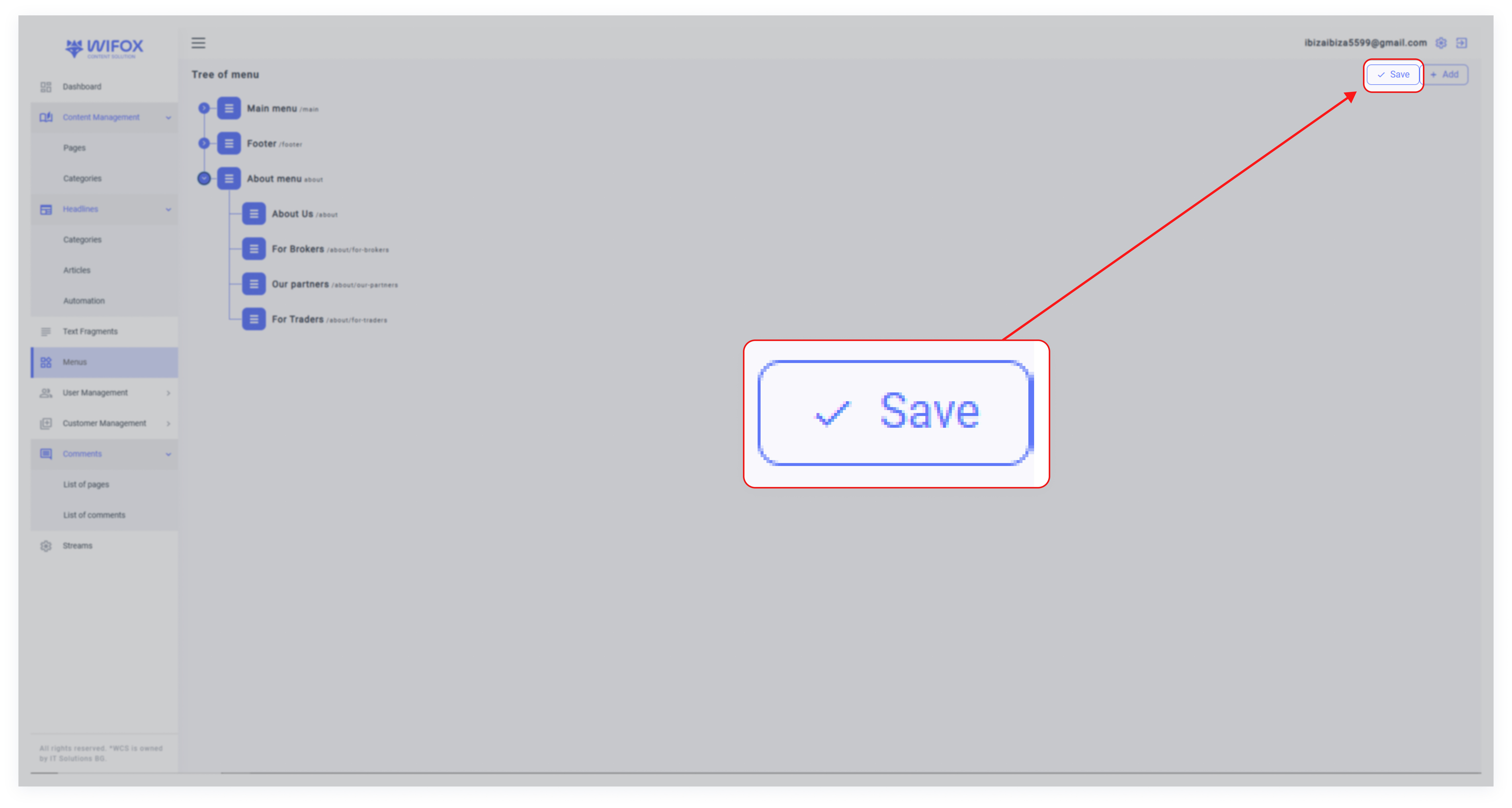
1. Save: Finalize changes made to the menu.
Hierarchical Organization: Each menu can contain multiple sections, like About, Explore, and Legal & Policies, which further include submenus linked to specific pages.
2. Use Cases
1. For Website Menus (Header, Footer, Additional Menus)
-
Use Case #1: Structuring the Main Menu
Businesses can organize their header navigation with primary categories such as Home, Services, Products, and Contact.
For e-commerce websites, group options like "Shop by Category," "New Arrivals," and "Sales" under dropdowns to streamline the shopping experience.
Example: A travel agency might include "Destinations," "Tours," and "Travel Tips" in its main menu.
-
Use Case #2: Customizing Footer Menus
Add links to secondary content, such as Terms & Conditions, Privacy Policy, Careers, and FAQ, in the footer menu.
This keeps the main navigation clean while ensuring users can still find crucial resources.
Example: A tech company could include "Investor Relations" and "Press Releases" in the footer.
-
Use Case #3: Organizing Additional Menus
Example: A non-profit organization might create an “About Menu” with links like "Our Mission," "Leadership," and "Impact Stories."
2. For Shop Categories and Breadcrumbs
-
Use Case #4: Creating Shop Categories
Categorize products by type, purpose, or brand using menus that integrate seamlessly with e-commerce platforms.
Example: A fashion retailer could group products under "Men's Wear," "Women's Wear," and "Accessories."
-
Use Case #5: Managing Breadcrumb Navigation
Use hierarchical menus to auto-generate breadcrumbs for better user navigation and SEO benefits.
Example: In an electronics store, breadcrumbs might display: Home > Electronics > Smartphones > Brand Name.
3. For User-Specific Navigation
-
Use Case #6: Personalized Menus for Different User Groups
Example: A financial service platform can have separate menus for "Individual Investors" and "Corporate Clients," each featuring tailored resources.
-
Use Case #7: Supporting Multilingual Websites
Example: A global news website might offer menus in English, Spanish, and French, each localized for regional content.
3. How to Add a New Menu or Menu Item
1. Click Add: Click the "+" button at the top-right of the Menu section.

2. Enter Details:

- Label: Provide a label for the menu or item (e.g., "Contact Us").
- URL: Enter the URL where the menu item should link (e.g., /contact-us).
- Parent Menu: If adding a submenu, select the parent menu (e.g., add "Contact Us" under "Legal & Policies").
3. Save: Click Submit to apply changes.
4. How to Edit or Delete a Menu Item
2. Edit: Click the Edit Icon (Pencil) to update the label or URL of the menu item.

3. Delete: Click the Delete Icon to remove the menu or submenu.