Headlines
- 1. Headlines: Overview
- 2. Key Features of the Headlines Section
- 3. Use Cases
- 4. How to Add a New Event
- 5. How to Edit an Event
- 6. How to Delete an Event
- 7. Tree of Event Categories: Overview
- 8. Adding a New Event Category
- 9. Editing an Event Category
- 10. Deleting an Event Category
1. Headlines: Overview
The Headlines section in Wifox Business Content Solution is designed for managing and organizing events. This section provides a list of all events, categorized for easy filtering and management. Each event has associated details like a title, category, and unique ID, along with actions to duplicate, edit, or delete entries.
This section is ideal for maintaining a record of company events, regulatory updates, licenses, or industry news, ensuring that event-related information is organized and accessible.
The following actions are available in the Headlines module:
- Adding a New Event
- Editing an Event
- Deletion of Event
- Adding a New Event Category
- Editing an Event Category
- Deletion of Event Category
2. Key Features of the Headlines Section
1. Add New Events:
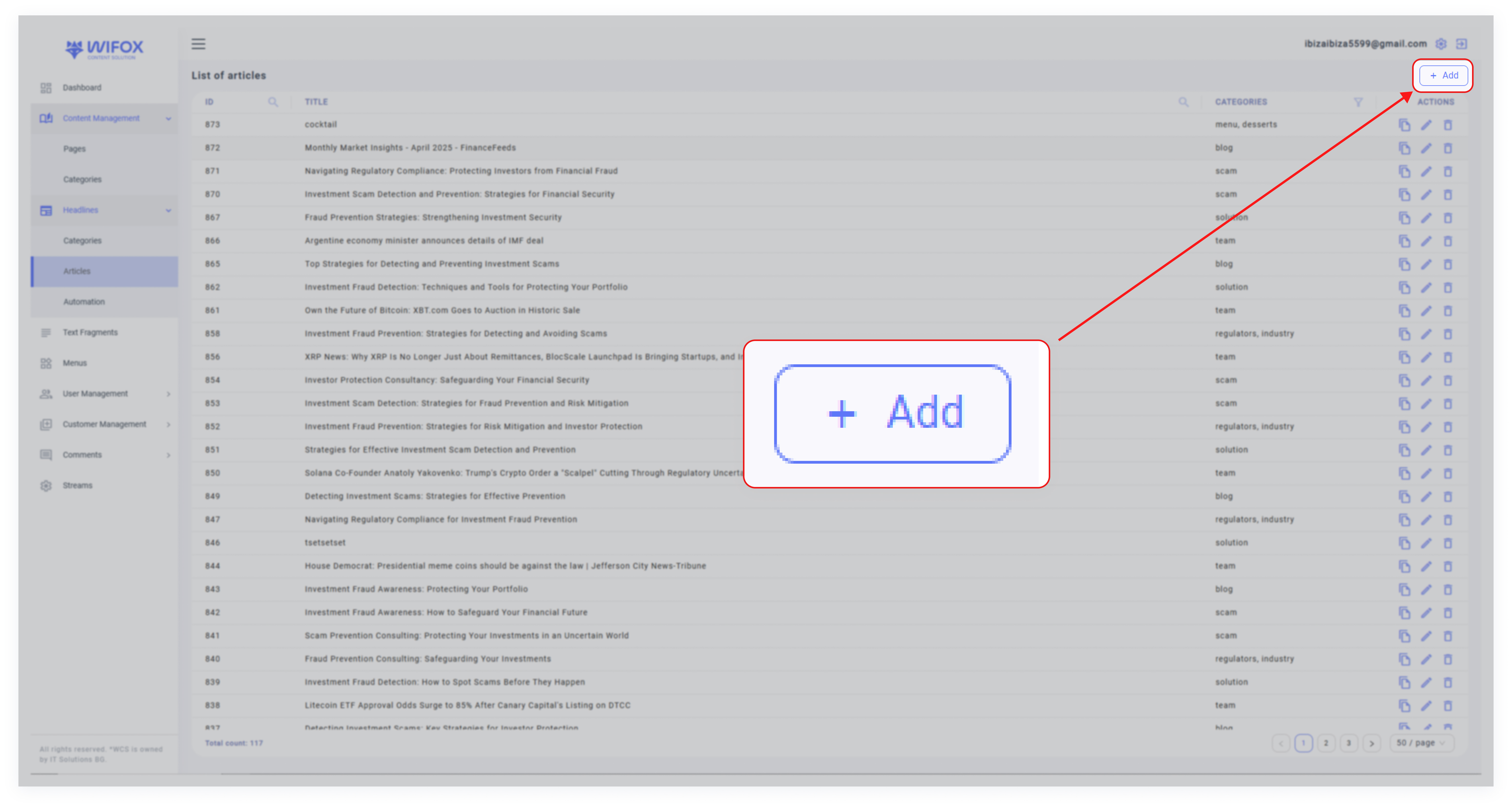
- Click the "Add" button to create a new event.
- Add details such as the event title, category, and any additional attributes.
2. Search and Filter Options:
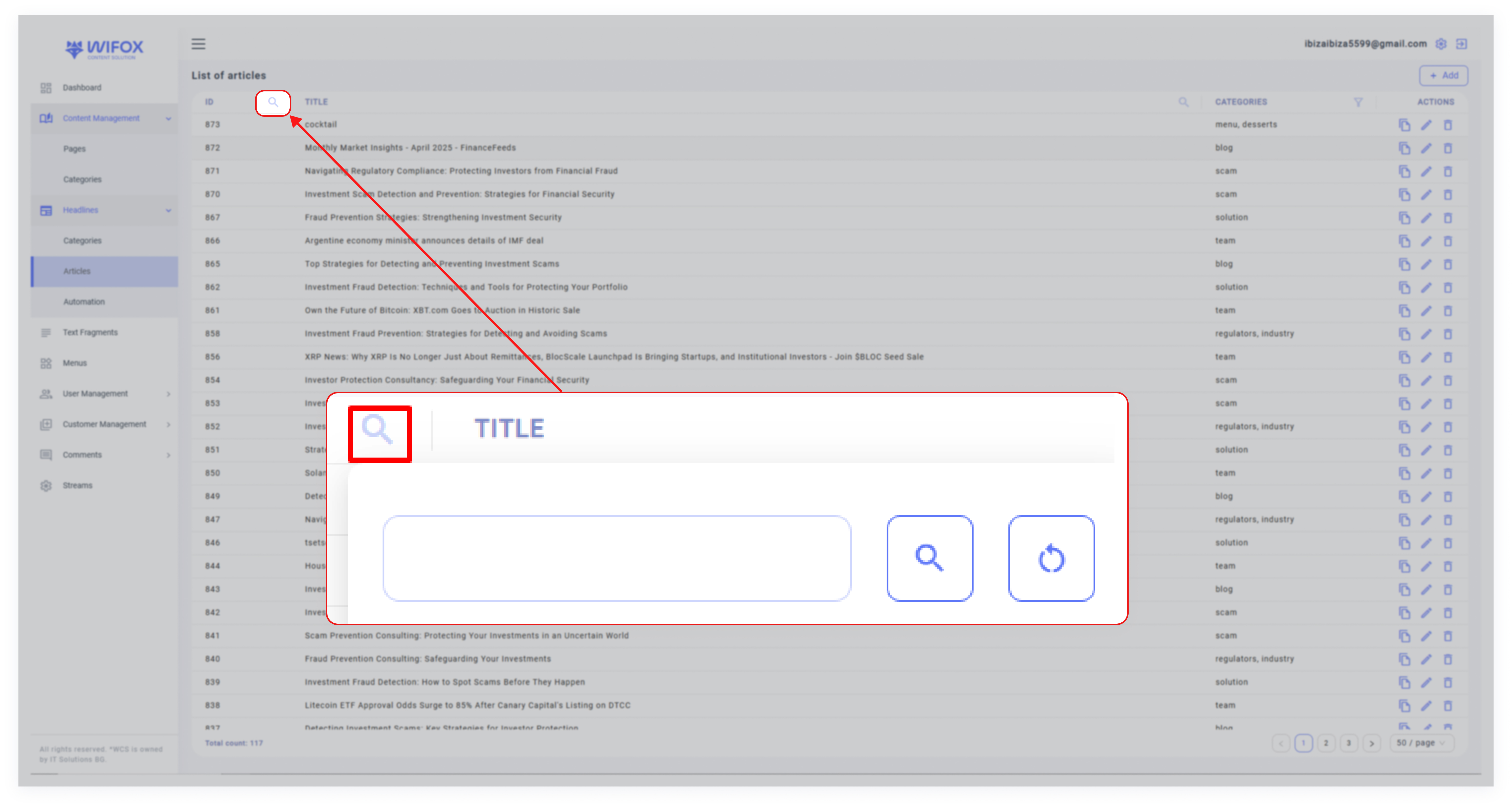
- Search by ID: Quickly locate events using their unique ID.
- Search by Title: Find events by their titles, such as "Regulator 16".
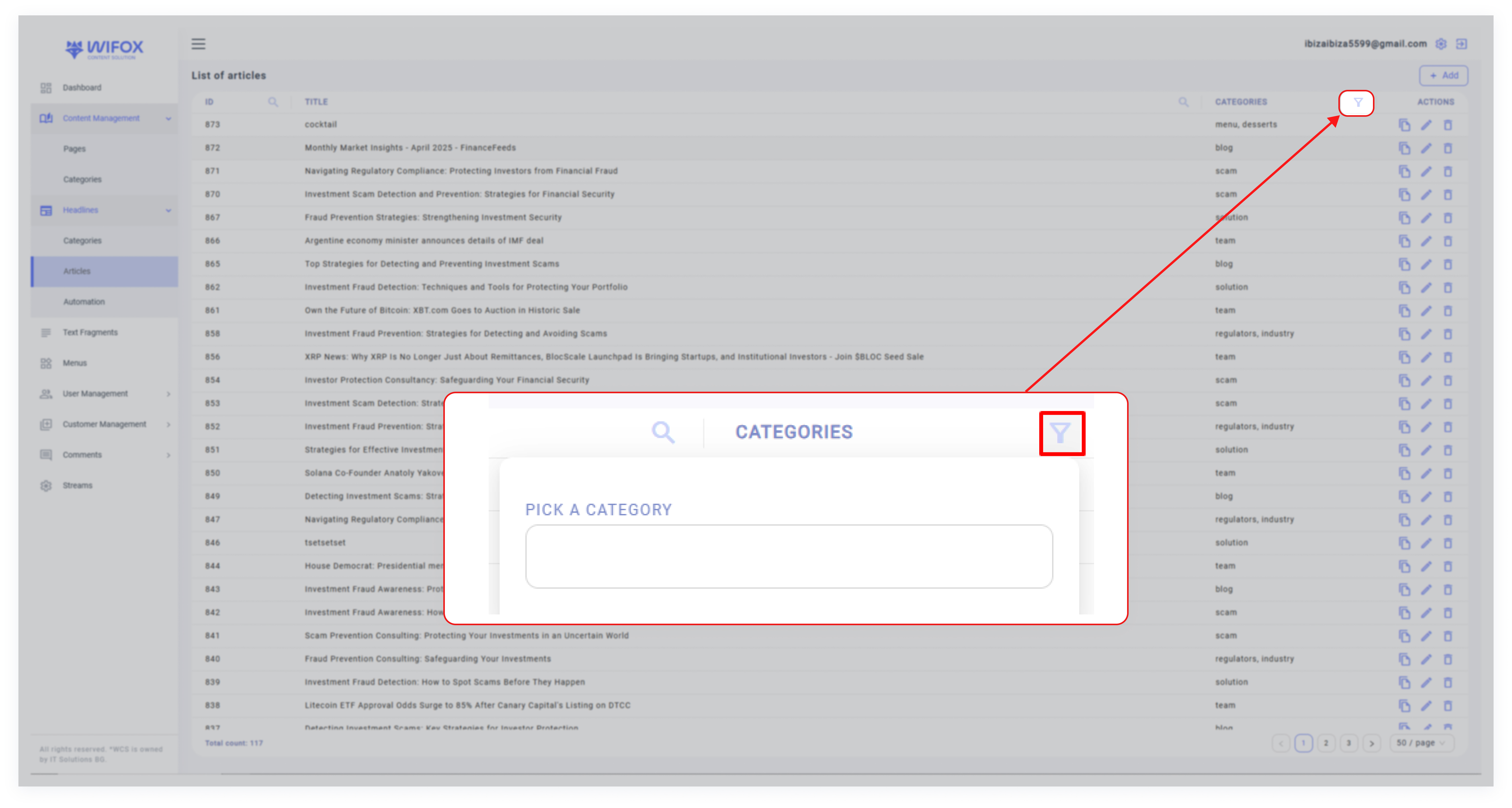
- Filter by Category: Use the category filter to display specific types of events, such as Regulators, Team, Industry, Scam, or License.
3. Event Details:
- ID: A unique identifier for each event (e.g., ID 39 for "Regulator 16").
- Title: The name or description of the event (e.g., "Regulator 16,").
- Category: Categorization of events for organization and relevance:
4. Actions for Each Event:
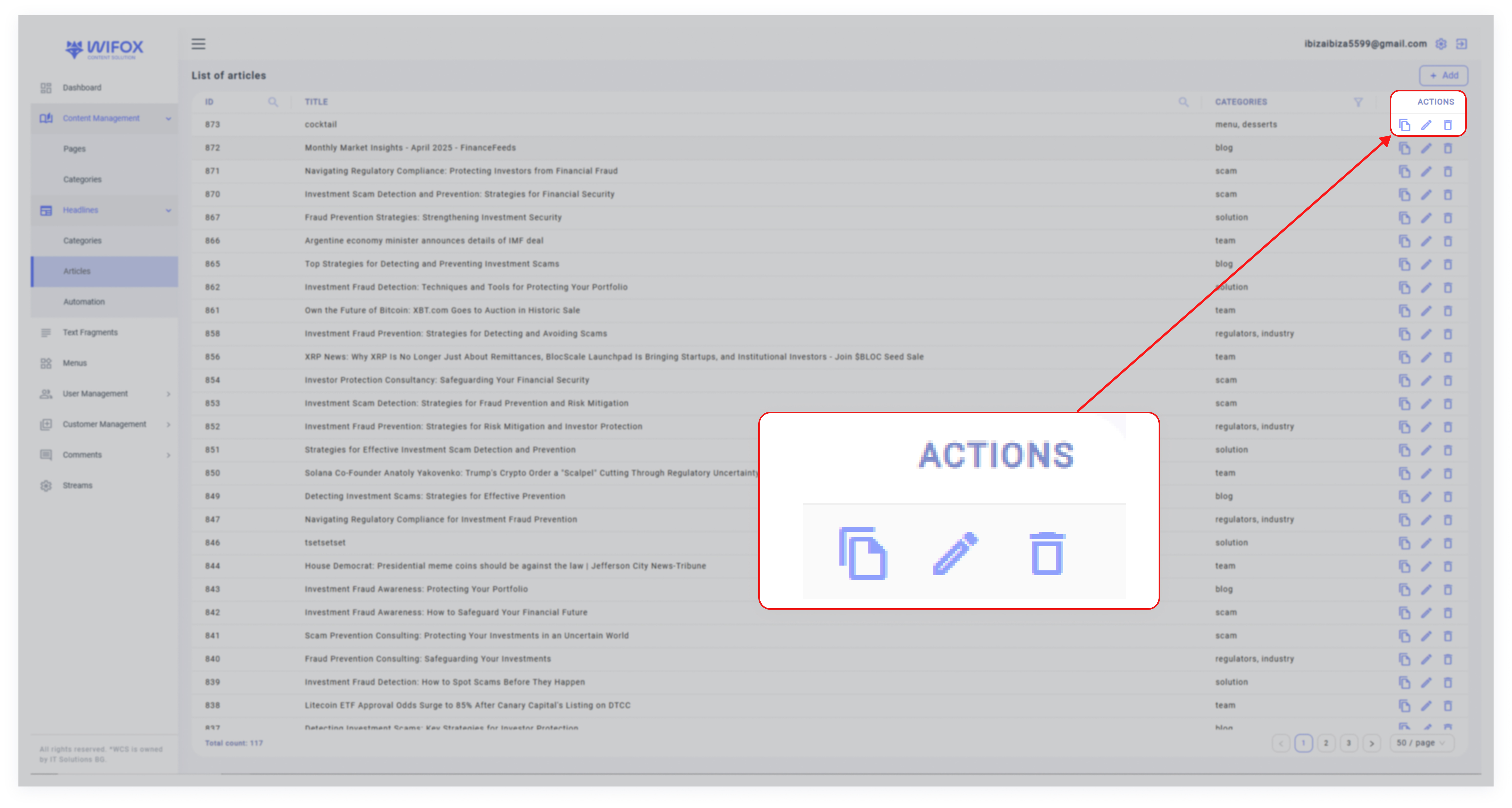
- Copy: Duplicate the event to create a similar entry.
- Edit: Modify the event's title, category, or details.
- Delete: Permanently remove the event from the system.
3. Use Cases
Use Case #1: Regulatory Updates
Track updates from regulators like "Regulator 16" and organize them under the "Regulators" category for easy reference. This ensures compliance-related information is readily available.
Use Case #2: Managing Licensing Events
Events such as "Baxia" and "AMarkets2" under the "License" category can help track new or updated licenses and related processes.
Use Case #3: Team Announcements
Use the "Team" category to highlight individual or group achievements, such as "Brendan Rice" or "Anthony Bulanovs."
Use Case #4: Scam Alerts
Create events under the "Scam" category to notify users about potential frauds or scams, such as "Lorem ipsum odor amet."
4. How to Add a New Event
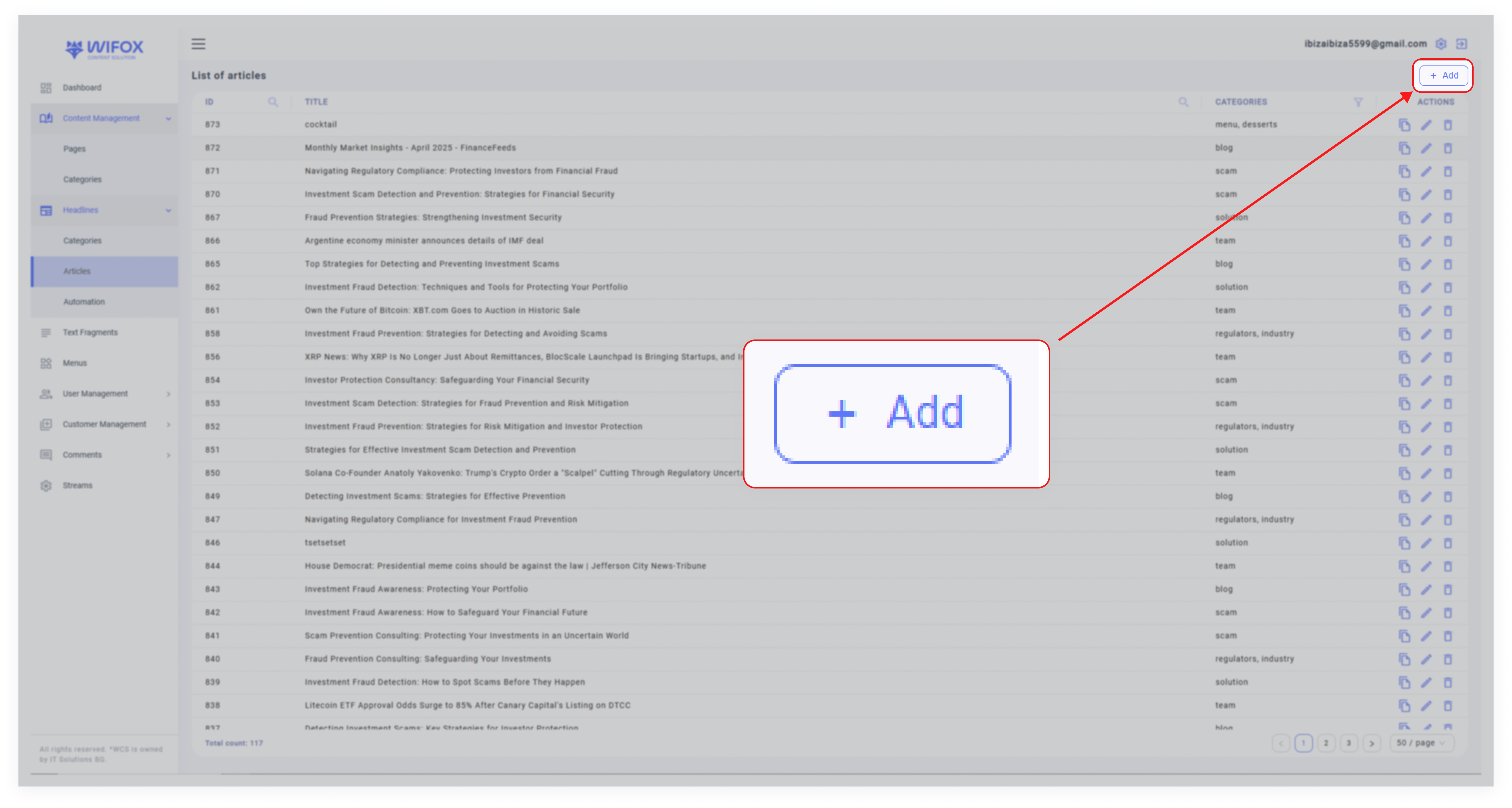
2. Enter Event Details: Fill in the following fields:
- Title: The name of the event (e.g., "Regulator 18").
- Category: Select the appropriate category for the event.
- Additional Attributes: Add any extra details related to the event.
3. Save: Click Submit to finalize the new event entry.
5. How to Edit an Event
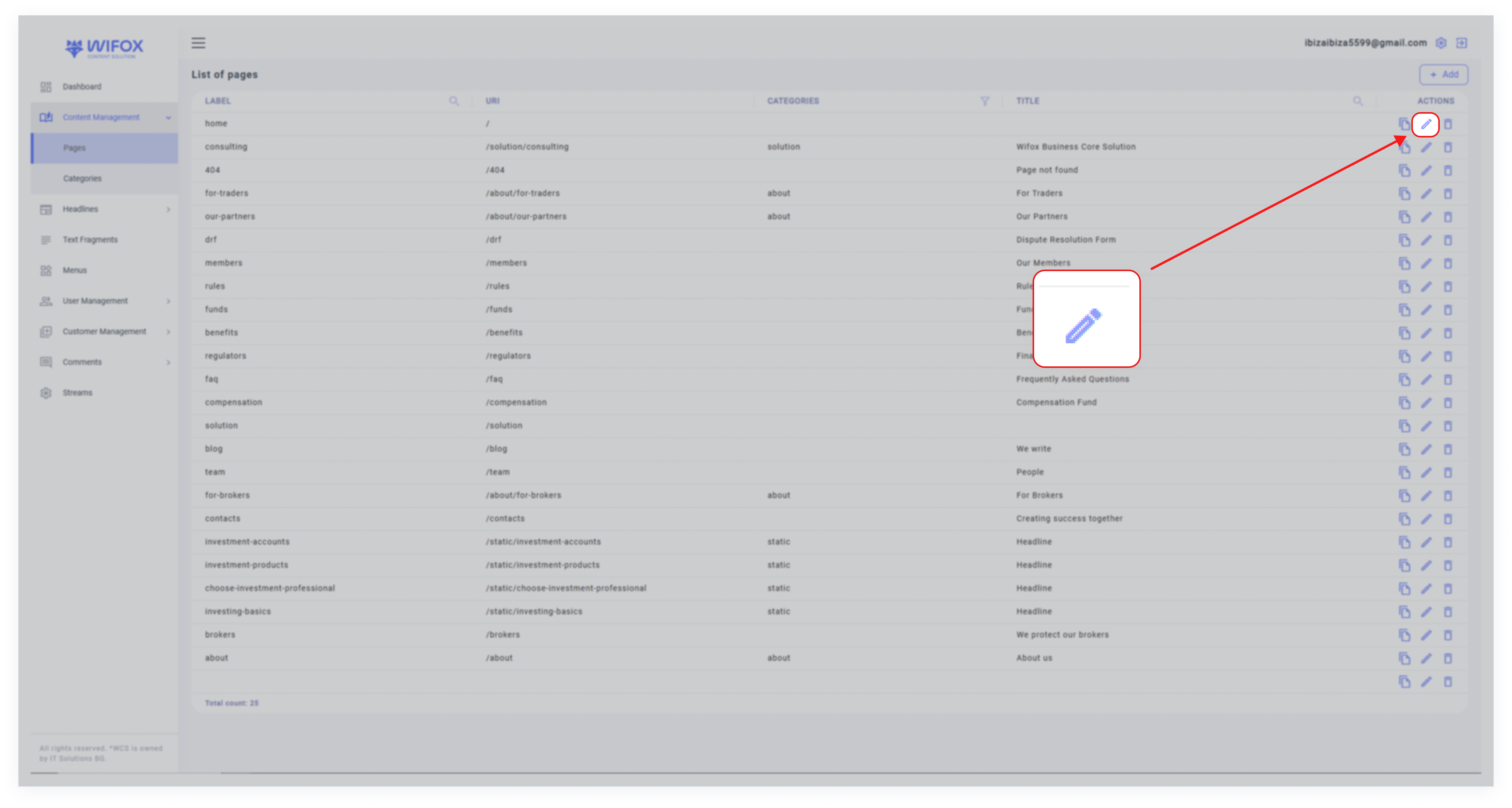
1. Locate the event in the list.
2. Click the Edit Icon next to the desired event.
3. Update the title, category, or other event details as needed.
4. Save the changes.
6. How to Delete an Event
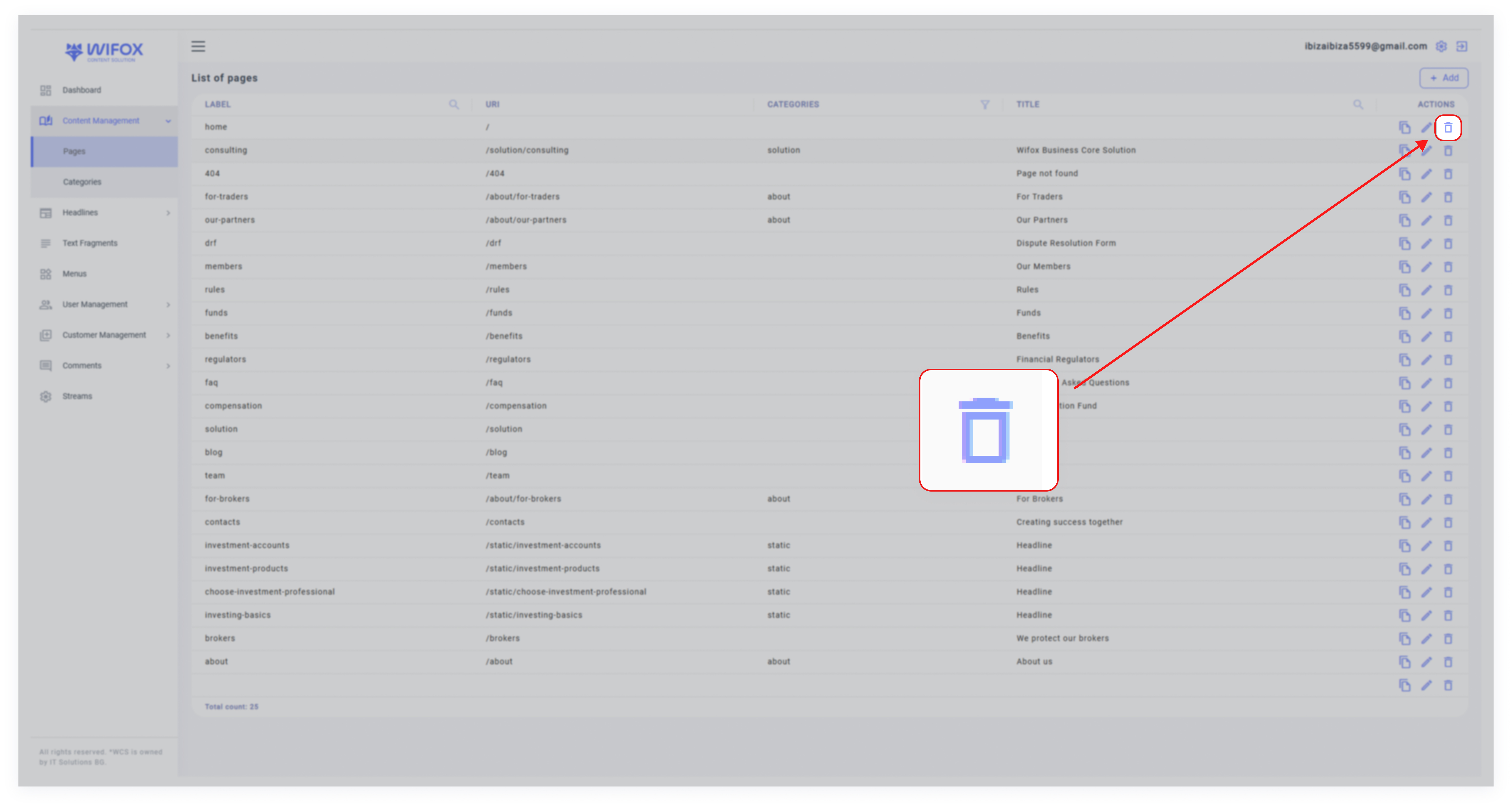
1. Locate the event in the list.
2. Click the Delete Icon in the "Actions" column.
3. Confirm the deletion.
Note: Deleted events cannot be recovered.
7. Tree of Event Categories: Overview
The Tree of Event Categories section in Wifox Business Content Solution is designed to help users efficiently organize and manage event categories. This structure provides a clear hierarchy, ensuring that all event-related information is easily accessible and well-organized.
Key Features of the Tree of Event Categories
1. View Categories
Displays a structured view of event categories, such as "Regulators," "Industry," or "Scam," along with their corresponding URLs.
The tree view helps users understand the categorization of events at a glance.
2. Add Categories
3. Edit Categories
Click the pencil icon to modify an existing category’s name, URL, or other details.
4. Delete Categories
Remove unnecessary categories by clicking the trash icon, keeping the structure relevant and concise.
8. Adding a New Event Category
1. Click the Add Button
In the Tree of Event Categories, click the + button to open the "Add Event Category" form.

2. Fill in Details
Provide the following information:
- Label: The name of the event category (e.g., "Licenses").
- URL: The category’s unique path for organizational purposes.
- Translation: Choose a preferred language (e.g., EN, PL, or DE) and either clone or translate content for multilingual support.
- Name: Add an optional name for further clarification.

3. Submit
After completing the form, click Submit to add the new category to the tree.
9. Editing an Event Category
1. Select the Category
Find the category in the tree and click the pencil icon to open the editing menu.

2. Update Information
Modify fields such as the label, URL, or language options.

3. Save Changes
Confirm the changes to update the category instantly.

10. Deleting an Event Category
1. Identify the Category
Locate the category you want to remove, such as "Industry," in the tree.

2. Delete the Category
Click the trash icon, confirm the action, and the category will be deleted from the tree.
