Customer Management
- 1. Customers: Overview
- 2. Customers: Use Cases
- 3. How to Add a New Customer
- 4. How to Edit a Customer
- 5. How to Delete a Customer
- 6. Publishings: Overview
1. Customers: Overview
The Clients section in Wifox Business Content Solution is designed for managing client data efficiently. This feature allows administrators to create, edit, and delete client profiles, which can be used to store important information or dynamic data for clients. It is particularly useful for organizations that want to use the system as a client management tool.
Key Features of the Customer Section
1. Client Creation
Add a new client by specifying details such as:
- Password
- Name
- Phone Number
Optionally, you can set dynamic data in the Properties section for additional customization.
2. Edit Client Details
Modify existing client information, such as their email, name, or phone number.
Update the Password or Active status as required.
Add comments or adjust the Properties field for dynamic data storage.
3. Delete Clients
Remove a client profile when it is no longer needed.
4. View and Manage Properties
Use the Properties section to append or modify dynamic data related to a client.
2. Customers: Use Cases
Use Case 1: Managing External Partners
An organization uses the Clients section to manage external partners by creating profiles for each partner company. They store contact details, access credentials, and custom dynamic fields (e.g., partnership type, contract status) in the Properties section. This enables quick reference and efficient communication.
Use Case 2: Custom Data Storage for Client Projects
A project-based business stores project-specific data (like project ID, start/end dates, or assigned teams) in the Properties field of each client. This allows administrators to manage client projects directly within the system without needing an external tool.
Use Case 3: Secure Access for VIP Clients
The admin creates client profiles for VIP users who need access to certain modules or content. These profiles are password-protected, and the Active toggle is used to enable or suspend access as needed, maintaining tight security.
Use Case 4: Notes and History Tracking
Support teams use the Comments field to log key interactions or notes about client requests and feedback. This gives the team a quick overview of past communication without switching systems.
Use Case 5: Cleanup and Data Maintenance
Periodically, the admin reviews inactive or outdated client profiles and uses the Delete feature to remove them, keeping the database clean and focused only on current clients.
3. How to Add a New Customer
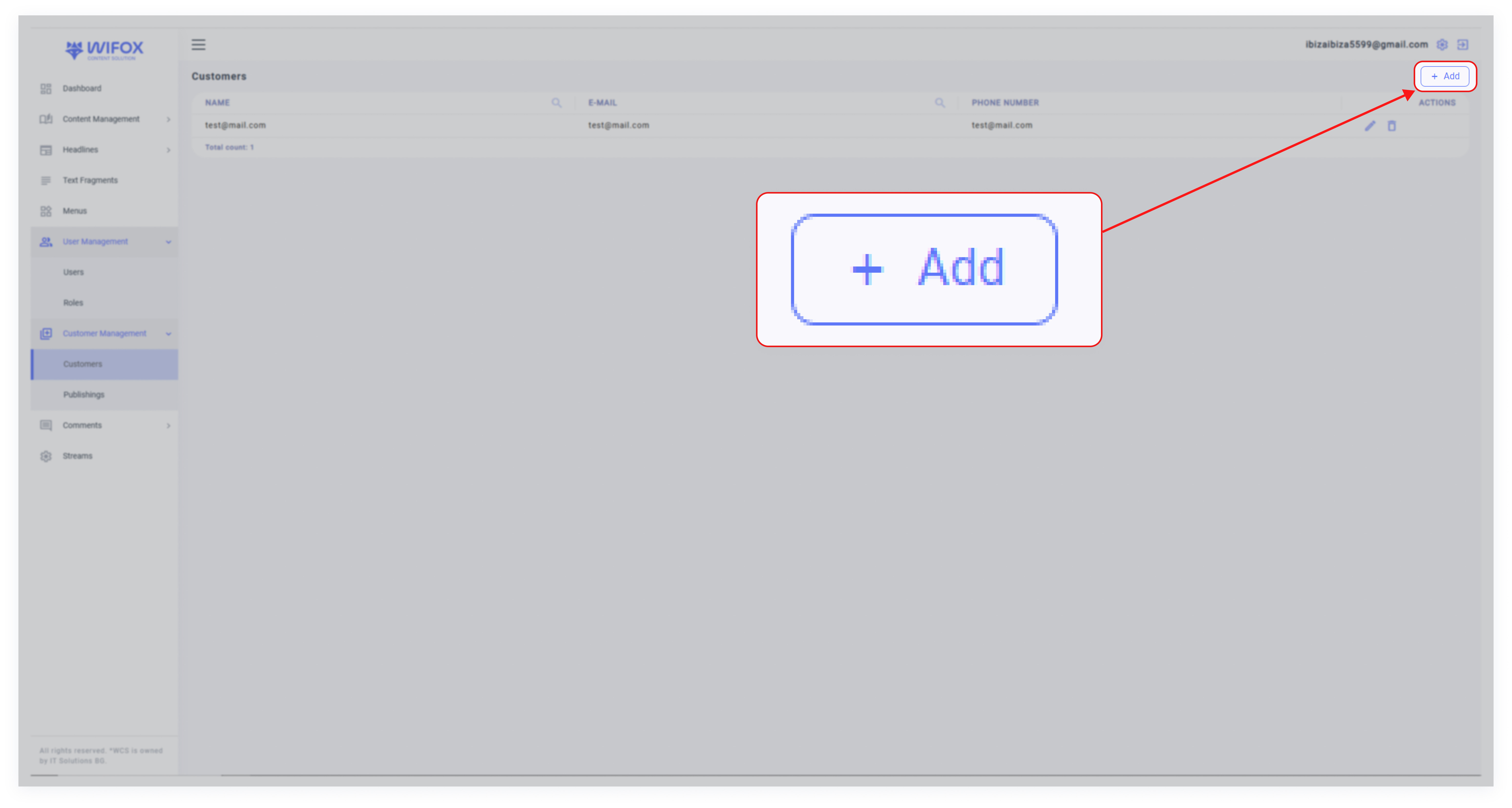
1. Click Add
2. Fill in Details
- Email: Enter the client’s email address.
- Password: Set a secure password.
- Name: Provide the client’s name.
- Phone: Add the phone number, if applicable.
- Comments: Write any notes related to the client.
- Active: Check this box to activate the client profile.
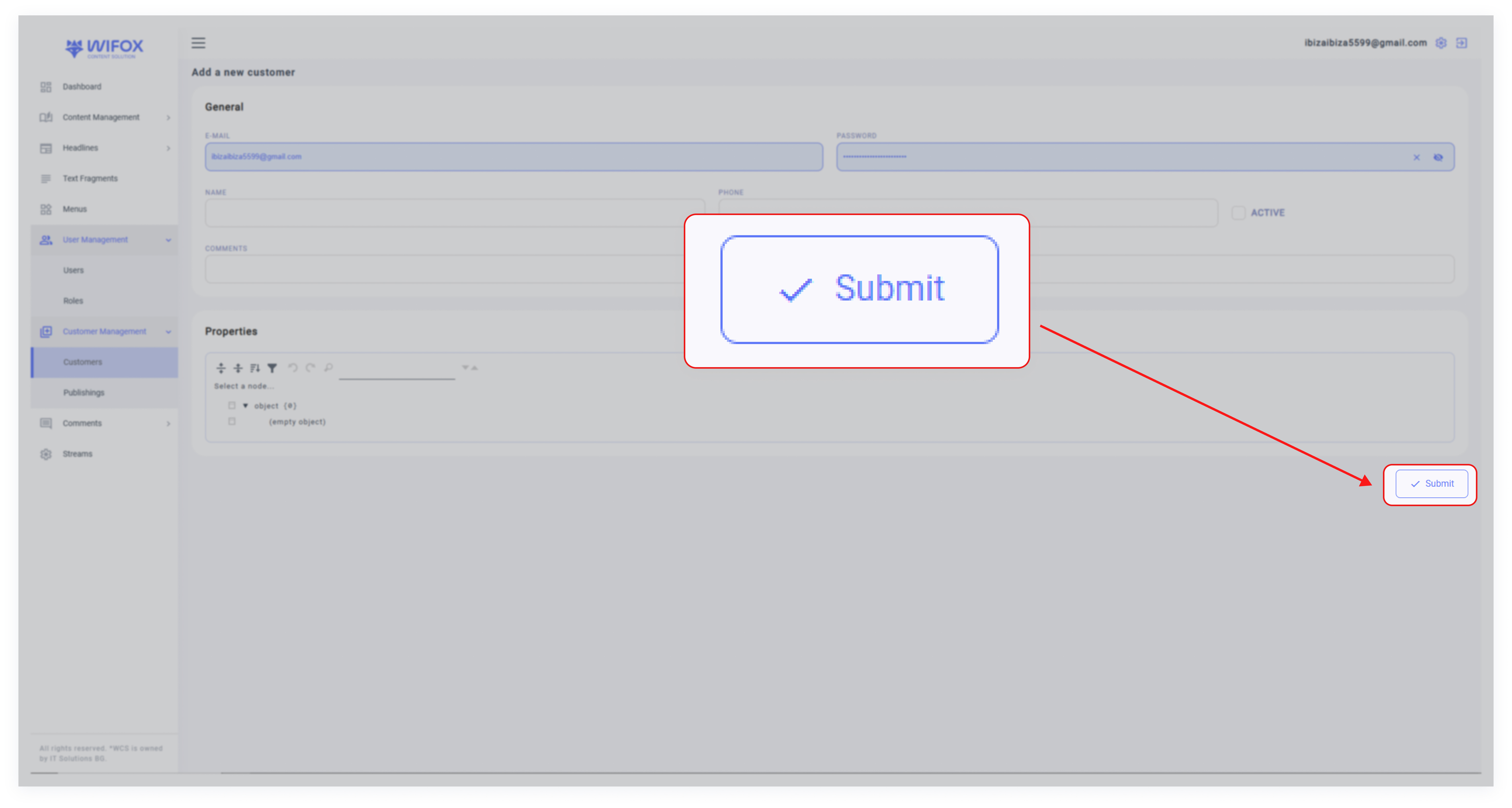
3. Submit
Click Submit to save the client profile.
4. How to Edit a Customer
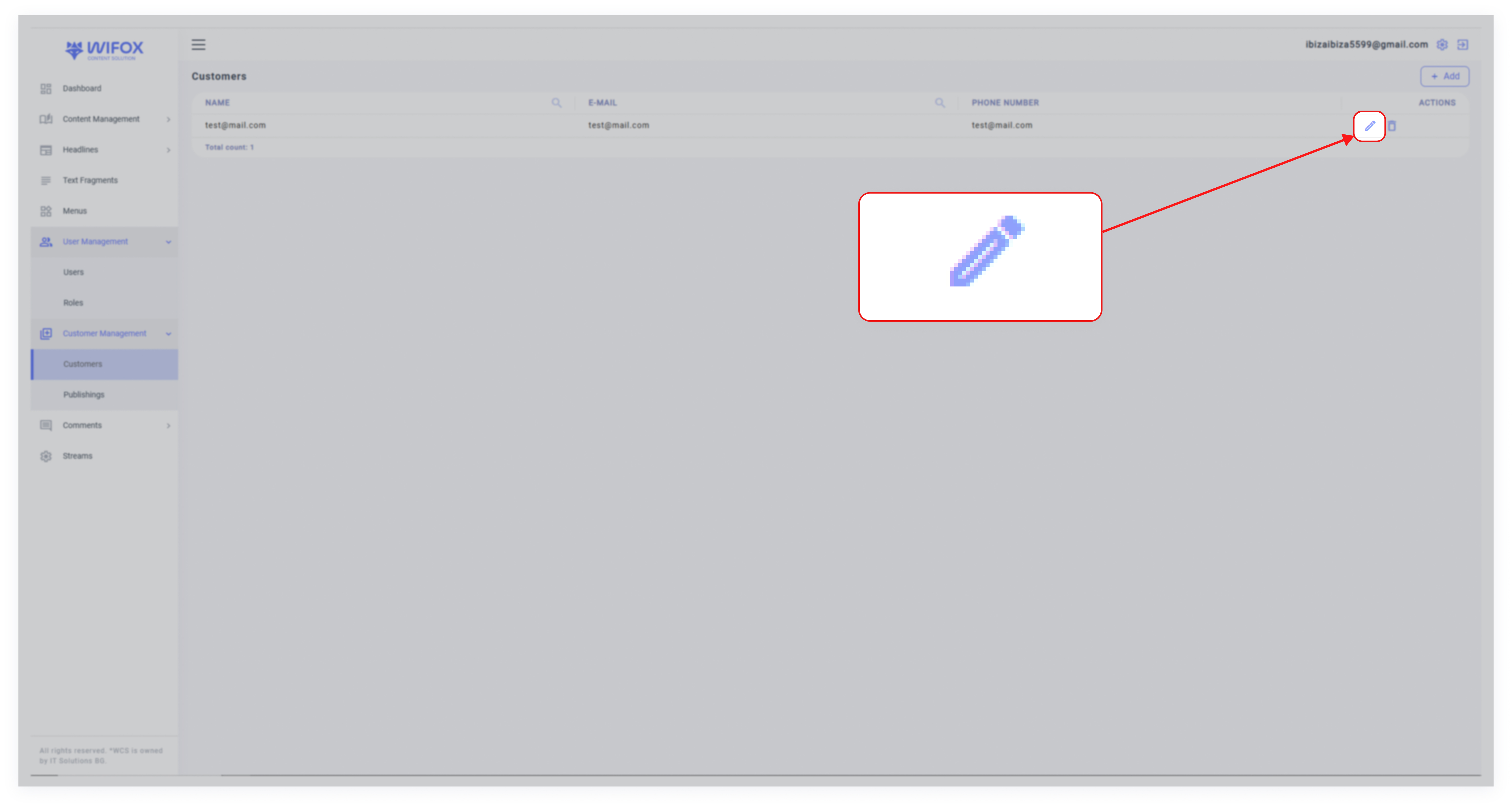
1. Select the Client
Locate the client in the Clients list and click the pencil icon.
2. Update Details
Modify any required fields, such as email, password, or comments.
Adjust or append dynamic data in the Properties section.

3. Save Changes
Click Submit to apply the changes.
5. How to Delete a Customer
1. Locate the Client
Find the client in the Clients list.
2. Delete the Profile
Click the trash icon next to the client’s name.
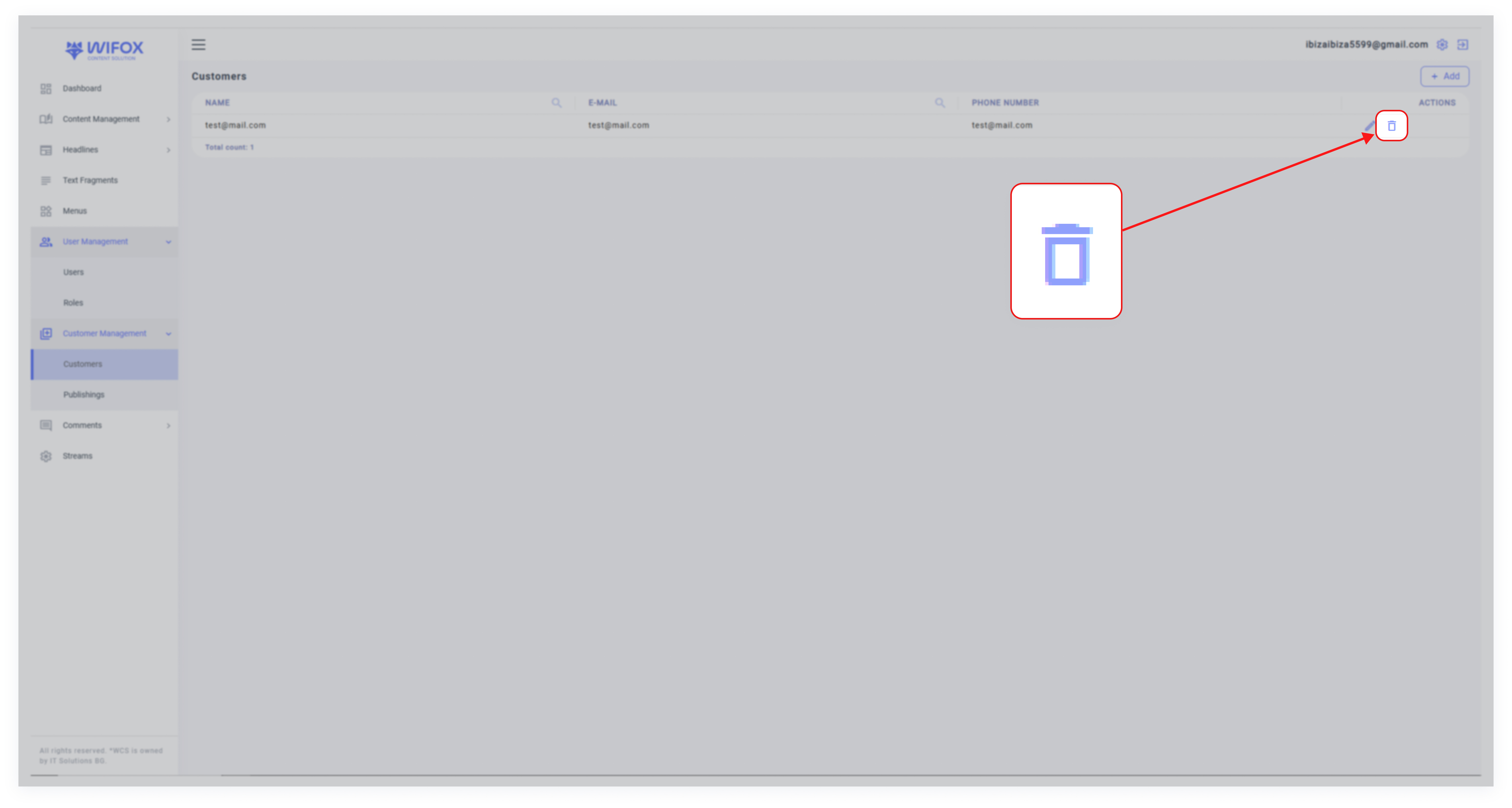
3. Confirm Deletion
Confirm the action by clicking OK.
6. Publishings: Overview
The Publishings section in Wifox Business Content Solution is specifically designed for API-based functionalities, serving as a repository for client-generated posts or templates. This feature allows client users to create and manage their submissions or drafts within their own client portals. These entries are stored as Publishings and are accessible only through API endpoints, not through the admin interface.
Key Features of Publishings
1. Client-Specific Submissions
Clients or their users can create content such as requests, templates, or personal drafts directly within their client portal.
These items are stored as Publishings, keeping them private and user-specific.
2. API-Only Access
Publishings are exclusively managed via API.
Admins cannot create or edit these entries directly within the admin panel, ensuring they remain within the client’s control.
3. Flexible Use Cases
Clients can use Publishings for saving templates, submitting internal requests, or any other custom content designed for their workflows.
How It Works
- Client Portals: Users access their portal and create drafts, requests, or templates as needed.
- API Integration: The system interacts with Publishings exclusively through API calls, allowing seamless integration into client-specific workflows.
- Admin Role: Administrators have oversight but no direct access to creating or modifying Publishings via the admin panel.
Example Use Case
A client user logs into their portal and creates a draft for a service request using a template. This draft is saved as a Publishing within the system and can only be retrieved or updated via API endpoints. The admin oversees the system but cannot directly interact with or modify the publishing.