Trading
- 1. Trading: Overview
- 2. Trading: Use Cases
- 3. Trading: Configurations
- 4. Trading: Price Deltas
- 5. Trading: Orders
- 6. Trading: Trading Groups
1. Trading: Overview
The Trading section is the control center for configuring tradable instruments and running day-to-day trading operations. It provides the baseline market calendar, price/fee/margin parameters, operational price adjustments, order management, and client-level overrides—so risk, pricing, and execution behave consistently across the platform.
What it includes
-
Configurations – Define instrument families and trading pairs: active state, spread (pips), swaps, commission, margin requirement, leverage (margin ratio), lot volume, price precision, timezone; manage weekends/holidays and bulk import/export.
-
Price deltas – Schedule temporary price offsets (in pips) for a symbol/pair over a time window; the adjusted price is published and used for execution during the window.
-
Orders – View, filter, create, edit, and close client orders; enforce trading calendar and margin checks; adjust price/quantity, stop-loss, take-profit, and (where allowed) swap overrides.
-
Trading groups – Create client segments (e.g., VIP, Watchlist) with parameter overrides at family or symbol level (commission, swaps, margin ratio, etc.); assign and order groups per client with inheritance and fallback to base pair configuration.
2. Trading: Use Cases
Use Case #1: Launching a New Trading Pair
Ops adds a new instrument under Trading → Configurations. They pick the symbols group (e.g., Crypto), click + Add symbol, and set Active, Spread (pips), Commission (pips), Margin requirement (%), Margin ratio (leverage), Lot volume, Price precision, and Timezone. From that moment, margin checks, pricing, and calendar rules apply consistently to the pair, and it becomes available to Orders.
Use Case #2: Scheduling Market Closures (Weekends/Holidays)
Risk defines a recurring non-trading window under Weekends. They choose a base timestamp, set Repeat (week/month/year), and optional work hours. For instruments with their own Timezone, the closure is evaluated in that zone. During the window no ticks are published and no orders are accepted for the affected instruments.
Use Case #3: Running a Controlled Price Simulation
For a short demo or QA scenario, an admin opens Price deltas and clicks + Add. They select a symbol, set From/To, and enter a Pips offset (positive to push price up, negative to pull it down). While active, the venue shows and executes at the adjusted price. Chaining minute-long deltas produces stepwise ramps without touching fees or spreads.
Use Case #4: Risk-Adjusting a Live Order
A risk manager filters Orders to a client’s open market positions, opens Edit, and updates Stop loss and Take profit (and, if policy allows, Price/Quantity). On save, validations enforce precision/step and re-check margin using the pair’s effective parameters (including any Trading Group overrides). The audit log records before/after values and the user.
Use Case #5: VIP Segmentation with Trading Groups
A client starts trading high notional daily. Ops goes to Trading groups to create a VIP group with Commission=0 and a higher Margin ratio, then assigns it to the client on Clients → Trading Groups. If the client later also needs a Watchlist group, ops adds it and drags the groups to set precedence. Resolution applies settings from the first group; missing fields cascade to the next group, then to the base pair configuration.
3. Trading: Configurations
The Configurations page defines market availability and all instrument/pair parameters used by pricing, margin checks, execution, and risk. It is the primary setup area for symbols in Crypto, Commodities, Forex, Stocks, Indices.
Who uses this: Admins and Risk Managers (edit); Traders and Read-only users (view).
Key actions: Add weekends/holidays, add time zones, add/edit symbols and pair parameters, import/export settings.
Finding the page
You’ll see:
-
Settings by symbols group: Settings by symbols group: group chips (Crypto, Commodities, Forex, Stocks, Indices) + Search.
-
Weekends panel with + Add weekend.
-
A toolbar on the right: Import, Export, + Add symbol, + Add timezone.
-
A table of trading pairs with status and parameters.
Group switcher & search
The All tab displays all trading symbols across every group in a single view.
The All tab is selected by default when opening the page.
Group chips filter the table to a specific symbols family (e.g., Crypto).
Search… finds symbols/pairs and names:
– In All tab: across the full symbols list.
– In a specific group: only within that group.
Weekends
This block holds non-trading windows (regular weekends or recurring holidays). When a weekend rule applies, the platform does not stream ticks and does not accept orders for the target instruments.
Toolbar (right side)
-
Import: bulk upload of symbol/pair parameters (see §5).
-
Export: download current table as CSV/JSON for auditing or migration.
-
+ Add symbol: create a new tradable pair entry (see §3.2).
-
+ Add timezone: register a trading time zone selectable by symbols (see §3.3).
Trading pairs table
Columns include:
| Column | Meaning |
|---|---|
| Active | On/Off toggle for trading the pair. |
| Symbol | Pair code (e.g., BTC/USDT). |
| Name | Human-readable display name. |
| Trading hours | Time period when the pair is available for trading. |
| Spread | Bid/Ask difference in pips (controls minimum price advantage). |
| Price precision | Number of decimal places the price uses/rounds to. |
| Lot volume | Base unit size for the pair (e.g., 1; in FX a “lot” may map to 100,000). |
| Created at / Updated at | Audit timestamps. |
|
Minimum volume |
Minimum allowed trade volume for the pair. |
| Actions | ✏️ Edit, ⛭ other pair-level tools if enabled. |
How to work with the table:
-
Click a column header where it is possible to sort table data in ascending or descending order.
-
Select symbols using checkboxes in the table, including the header checkbox to select all rows, and apply bulk updates to Lot Size and Min Volume for multiple symbols at once.
-
Tick the star icon near the symbol to mark it as Top and add it to favorites.
-
Use the edit button to change settings for the specific symbol.
Dialogs and forms
Add weekend (non-trading rule)
Opens from + Add weekend.
Fields:
- Timestamp: base date/time (UTC storage; UI presents local or selected TZ).
- Repeat:
week,month, oryear(recurring weekend/holiday). - Work from / Work to: intraday window that is allowed to trade on the repeated date; outside of it, the market is closed.
Typical weekend rule: set a timestamp on the target weekend day, Repeat=week, and leave Work from/to empty to block the full day(s); or specify partial work hours for special sessions.
Validation & rules
-
The defined window applies to instruments in the current group or (if your instance supports targeting) to selected symbols/pairs.
-
Overlapping rules are permitted; the most restrictive outcome wins.
-
When a pair has its own Timezone, the engine evaluates the “closed” period in that TZ.
Add symbol (create trading pair)
Opens from + Add symbol.
Fields:
-
Symbol (select) – required (e.g.,
BTC/USDT). -
Active (toggle) – enable trading.
-
Name – display name (e.g., “Bitcoin vs USDT”).
-
Swap long / Swap short – overnight fee long/short (pips).
-
Order calculation type – present in UI, do not use (per transcript).
-
Spread – bid/ask difference (pips).
-
Margin requirement (%) – collateral percent required.
-
Commission – per-order fee (pips).
-
Margin ratio – leverage; used in margin formula.
-
Lot volume (per symbol) – lot size is configured separately for each symbol. This makes it possible to calibrate trade volume efficiency across instruments. Use larger lots for Forex pairs or other low-volatility instruments so user trade quantities remain meaningful.
-
Symbol configuration enhancements:
Name — a human-readable label for the trading pair, also used for text-based search.
Minimal Lot Volume — ensures users cannot trade with volumes below a defined threshold, validated asuser_quantity * lot_volume >= minimal_lot_volume. -
Timezone – select IANA TZ (affects weekends).
Validation:
Numeric fields must be non-negative; Margin ratio > 0; Lot volume > 0.
Keep Spread/Swap/Commission consistent with the pair’s minimum price step/precision.
Name 1–64 chars.
Save to add the pair to the table.
Edit symbol
Click ✏️ Edit in Actions. All fields as above are editable.
Changes apply immediately for pricing/margin checks.
Add timezone
Opens from + Add timezone.
Timezone: selectable list of IANA zones (e.g., Africa/Abidjan).
Usage: Once added, the time zone becomes available in the Timezone selector for symbols/pairs.
User configuration groups
Configuration groups bundle parameters such as swap, commission, and margin, and may apply either to specific pairs or to entire trading groups.
Groups can then be assigned directly to users. When a user belongs to multiple groups, the system applies the groups in the defined priority order.
This enables flexible business policies, such as:
-
Creating VIP groups with minimal commissions and enhanced leverage.
-
Assigning Watchlist groups with extremely high commissions or stricter margin settings for accounts suspected of cheating or arbitrage.
Groups are maintained and edited by Admins and Risk Managers. Traders and read-only users cannot change group assignments.
Margin logic
Used by pre-trade checks to ensure account collateral is sufficient.
Formula:
lot — number of units/lots requested by the order.price — current price of the instrument.margin_ratio — leverage factor (e.g., 1000).
The platform then enforces Margin requirement (%) against this collateral.
If available balance is less than required, order creation is blocked.
Notes:
Commission and spread are accounted for by pricing/risk components.
Rounding follows Price precision and pair’s minimal step.
Import / Export
Import lets you bulk create/update pairs.
-
Format: CSV or JSON (project-standard schema).
-
Mode: Validate only (dry run) or Upsert (create new + update existing).
-
CSV replace behavior: trading configurations for symbols can now be imported and exported in CSV format. If a configuration already exists for a symbol, the imported row will replace the existing configuration. This simplifies migration and setup processes.
-
Mapping: Source columns → fields (
Symbol,Active,Name,Swap long,Swap short,Spread,Margin requirement,Commission,Margin ratio,Lot volume,Timezone, optionalPrice precision). -
Report: A per-row success/error log after the run.
Export downloads the current, filtered table (CSV/JSON) including audit timestamps (Created at, Updated at). Useful for versioning and reviews.
Operational notes & best practices
-
Do not document or rely on “Order calculation type”—it’s a placeholder.
-
Spread and Swap are configured in pips; ensure Price precision matches your minimum step so UI and risk math align.
-
Lot volume calibrates user-visible quantities to meaningful exposure (e.g., FX often defines 1 lot = 100,000; in crypto/equities, use pair-specific units).
-
Timezone at pair level controls how the weekend/holiday rules apply for that instrument (U.S. equities vs. crypto, etc.).
-
If you need to simulate market shapes for testing, use Price deltas (separate page) in short intervals to create stepwise up/down patterns; Configurations simply defines the baseline parameters and trading calendar.
Audit & security
Every create/update/delete in Configurations is written to the audit log with user, timestamp, and before/after values (reflected by Created at / Updated at columns).
Only users with Admin/Risk Manager roles can change pair parameters and weekends; others are read-only.
Glossary
-
Pip (Point) — minimal price increment used for spreads, swaps, commissions.
-
Spread —
Ask − Bid, quoted in pips. -
Swap — overnight fee for carrying positions to the next session.
-
Margin requirement (%) — minimum collateral percent that must be free to open a trade.
-
Margin ratio (Leverage) — factor controlling exposure vs. collateral.
-
Lot volume — base unit size for quantity on the pair.
-
Price precision — number of decimals used for price display and rounding.
-
Weekend/Holiday rule — non-trading window; blocks ticks and order intake for targets.
4. Trading: Price Deltas
The Price deltas module schedules temporary price offsets (in pips) for a chosen Symbol/Pair over a defined time window. While a delta is active, the platform publishes the adjusted price and executes orders against it. All users see and trade on the shifted price for that symbol during the window.
Typical uses
Finding the page
Left navigation → Trading → Price deltas.
Page layout & controls
Table columns
Columns support sorting where indicated.
Creating a delta
Click + Add to open the form.
Fields
Symbol Display Format
In the Symbol dropdown, instruments are displayed using a two-line format for clarity and consistency across the platform.
Each option shows:
Line 1 — Symbol code (e.g., EURUSD, BTC/USDT)
Line 2 — Human-readable instrument name (e.g., Euro vs US Dollar, Bitcoin / US Dollar)
Example:
EURUSD
Euro vs US DollarBTC/USDT
Bitcoin / US Dollar
This format matches the display behavior used in:
-
Orders → Add Order
-
Trading Groups
-
Trading → Configurations
The two-line format improves readability and reduces symbol selection errors.
Creating a delta → Fields:
Offset value and interval — you can specify a positive or negative price offset for a chosen pair. The minimum supported interval is 1 minute, ensuring precise short-term adjustments.
Creating a delta → Behavior:
Offsets apply to the full candle within the defined window. This includes short 1-minute bars, allowing fine-grained control.
Note: Chaining multiple 1-minute windows with small positive or negative offsets creates smooth shifts, visible ramps, or even “pump-and-dump” patterns for testing and demonstrations.
Behavior:
When the current time is within [From, To), the system adds the delta to the symbol’s price stream and trades at the adjusted price.
Example: market 905; +1000 pips → 915; −1000 pips → 895.
The offset applies to the whole bar (full candle) within the window.
Chaining short windows (e.g., 1-minute intervals) with modest pips produces visible step patterns.
Validation:
Overlaps & priority: Multiple deltas may overlap for the same symbol. Platform policy is last applied wins, unless your instance defines an explicit priority rule. Prefer non-overlapping windows for deterministic behavior.
Save to persist the rule.
Managing deltas
Delete: removes the rule immediately. If it was active, price reverts to the unadjusted stream.
Audit: creating and deleting deltas are logged with user, timestamp, and parameters.
Interaction with other Trading settings
Spread, Commission, Swaps from Configurations still apply after the delta; the delta shifts the base price, not fees.
Weekends/Holidays: if a non-trading window closes the market, deltas have no effect during the closure; they resume if still within time when trading reopens.
Timezone: deltas are stored/evaluated in UTC; coordinate any time conversions with the symbol’s trading hours if needed.
Best practices
Examples
Limitations & notes
Deltas affect only the targeted symbol; crosses or synthetics require their own deltas.
Historical OHLC may reflect adjusted prices for “as-traded” storage; confirm your data policy.
Monitoring is recommended for unusually large or long-lived deltas.
Candle data and historical OHLC records are stored per broker. Changes in price or trading settings for one broker do not affect others. Historical as-traded data reflects only the broker’s own feed.
5. Trading: Orders
The Orders page is the operational workspace for viewing, filtering, creating, and editing client orders. It surfaces key fields required by risk, pricing, and execution, and enforces margin and trading-calendar rules from Configurations.
The table includes sortable timestamps for creation, execution (UTC), and last update to support audit and operational review.
Finding the Page
Orders Visibility and Permission Enforcement
Order visibility strictly follows role permissions defined in the Roles module.
The Orders page does not apply UI-only hiding.
All visibility rules are enforced server-side.
Only authorized orders are returned by the backend API.
Visibility Rules
An order is visible to a manager only if it satisfies all applicable permission checks:
1. Project Permission
If the role allows:
Projects → View all→ Orders from all projects are visible.
If the role allows:
Projects → View own→ Only orders belonging to projects assigned to the manager are visible.
2. Desk Permission
If the role allows:
Desks → View all→ Orders from all desks are visible.
If the role allows:
Desks → View own→ Only orders linked to desks assigned to the manager are visible.
3. Client Permission
If the role allows:
Clients → View all→ Orders from all clients are visible.
If the role allows:
Clients → View own→ Only orders where the client is assigned to the manager are visible.
Combined Permission Logic (Critical)
An order must pass:
(project visibility)
AND
(desk visibility)
AND
(client visibility)
If any check fails, the order is not returned by the system.
Full-Access Roles
Roles with global permissions (e.g., Admin) are not restricted and can view all orders.
Orders in Client Profile
Inside a client profile (Clients → select client → Orders tab), orders are separated into two tabs:
- Open Orders — displays only active (OPEN) orders for the selected client.
- Close Orders — displays only closed (CLOSE) orders for the selected client.
Behavior:
Orders are automatically filtered by the selected client.
Open Orders is active by default.
Total count reflects only that client’s orders within the selected tab.
All table sorting and timestamp columns remain available.
Page Layout & Controls
-
Total — number of orders in the current view (respects filters).
-
Filter — opens the advanced filter panel.
-
+ Add — opens the create-order form.
-
Table — sortable columns; actions appear on each row.
Column Customization
The Orders table supports dynamic column visibility customization.
Users can choose which columns are visible in the table.
Accessing Column Customization
To do this, in the Filters window, click on Customize columns and choose the required columns.
This opens a dropdown panel listing all available table columns.
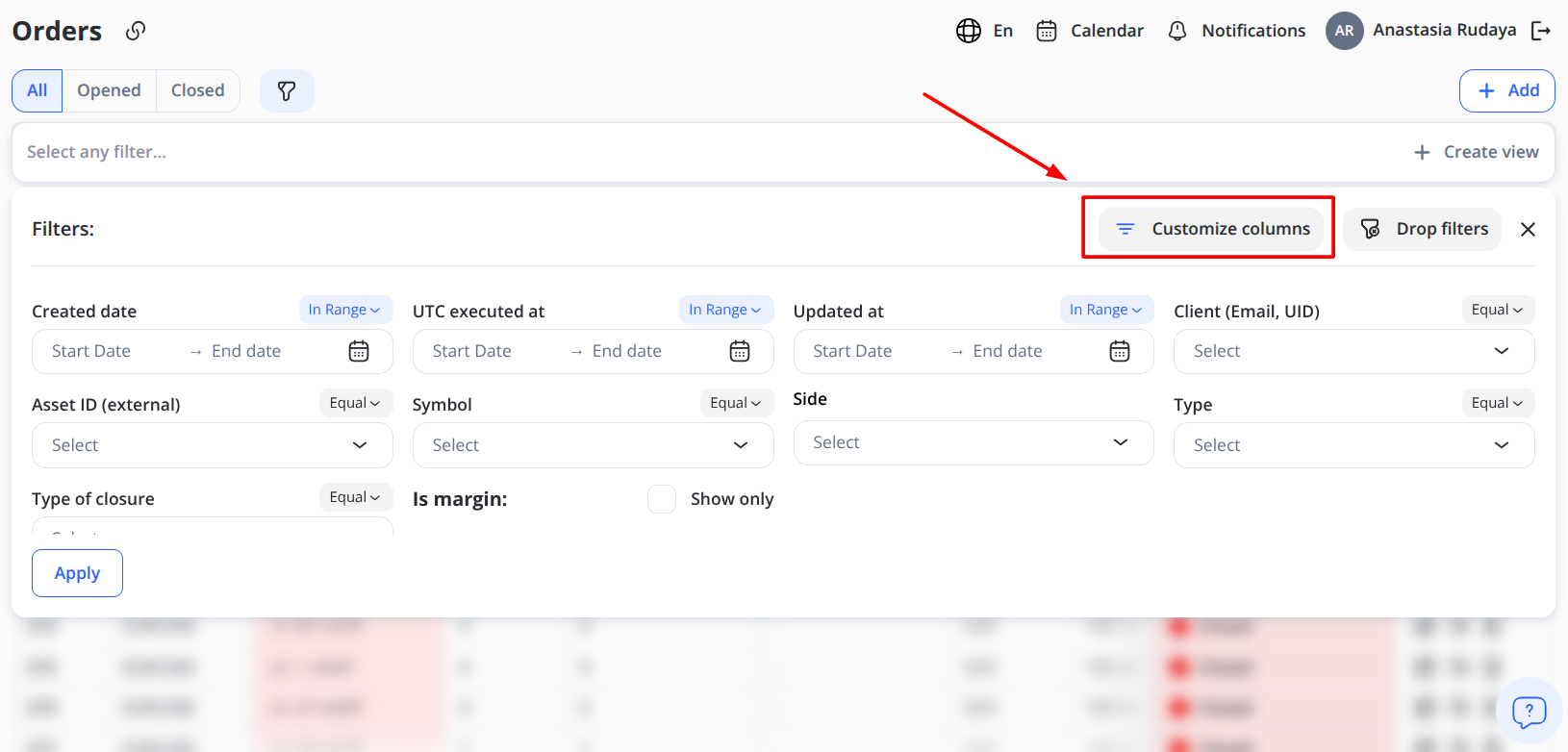
The column list is dynamically derived from the table configuration and always reflects the current implementation.
New columns added in future releases will automatically appear in this list.
Visibility Behavior
When a column is toggled:
-
Visibility updates immediately.
-
No page reload is required.
-
Table re-renders automatically.
-
Sorting and filtering remain functional for visible columns.
-
Are not rendered in the DOM.
-
Do not affect row alignment.
-
Do not break layout or scroll behavior.
Mandatory Column Rule
At least one column must remain visible.
The system prevents hiding all columns.
If mandatory columns are defined (e.g., Actions or ID), their toggle will be disabled.
If no mandatory columns are defined, the system blocks hiding the last visible column.
Persistence
Column visibility preferences:
-
Are saved per user.
-
Persist after page reload.
-
Remain consistent across sessions.
If new columns are introduced in future updates:
They default to visible.
Table Integrity
Column customization does not affect:
-
Pagination
-
Filtering
-
Sorting
-
Row actions
-
Order editing
-
Layout stability
The table layout remains stable when:
-
All columns are visible.
-
Only one column is visible.
-
Many columns are hidden.
Working with Table
The Orders table displays key information about trading orders and may include different columns, depending on the current configuration and enabled system features.
To sort the data, click the header of any sortable column, such as ID, Swap, Commission, Quantity, Status, Price, etc., to sort the table in ascending or descending order.
Row actions (common)
- Edit: Open the edit panel for the selected order. Editing is available for both open and closed orders.
- Clone: Create a new order using the selected order’s details as a prefilled template. All fields are automatically filled with the values from the original order, and the user can change them if needed before creating the new order. This action is available only for open orders.
- Reopen: Reopen a previously closed order as a new active order. A new order ID is assigned, while data from the original order is used as the basis for the new order. Before reopening, the system checks whether the margin requirements are met. This action is available only for closed orders.
- Close/Cancel: Request order closure/cancellation where policy allows (open orders only).
- Delete: Delete the selected order from the list. This action is available for both open and closed orders, not only for non-executed orders. When an order is deleted, the account balance is recalculated and restored based on the order’s reserved margin and profit/loss value.
Filtering & Searching
Open Filter to combine multi-criteria searches. All filters are optional; applying them updates Total and the table.
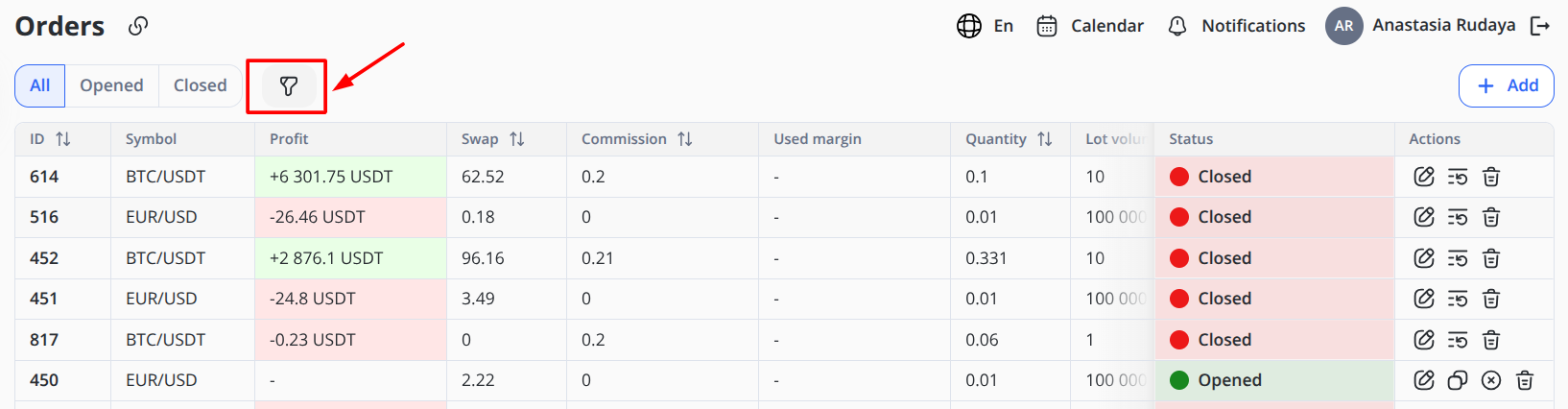
Fields:
-
Created date: Range filter (
Start date→End date) -
Updated date: Range filter (Start date → End date)
-
Executed date (UTC): Range filter based on execution timestamp recorded in UTC
-
Client (Email, UID): Single-select from known clients
-
Asset ID: Narrow by account/portfolio identifier
-
Symbol: Instrument/pair
-
Side —
BUYorSELL -
Type — e.g.,
MARKET(others if configured) -
Type of Closure: Stop, Take profit, Liquidation, Closed by client, Closed by manager
-
Margin: Toggle to show only margin-enabled orders if your instance differentiates
Click Save in the filter panel to apply.
You can also save selected filters and quickly reuse them the next time you open the Orders table. To do this:
-
Select the required filters
-
Click Create view
-
Enter the name
-
Click Submit
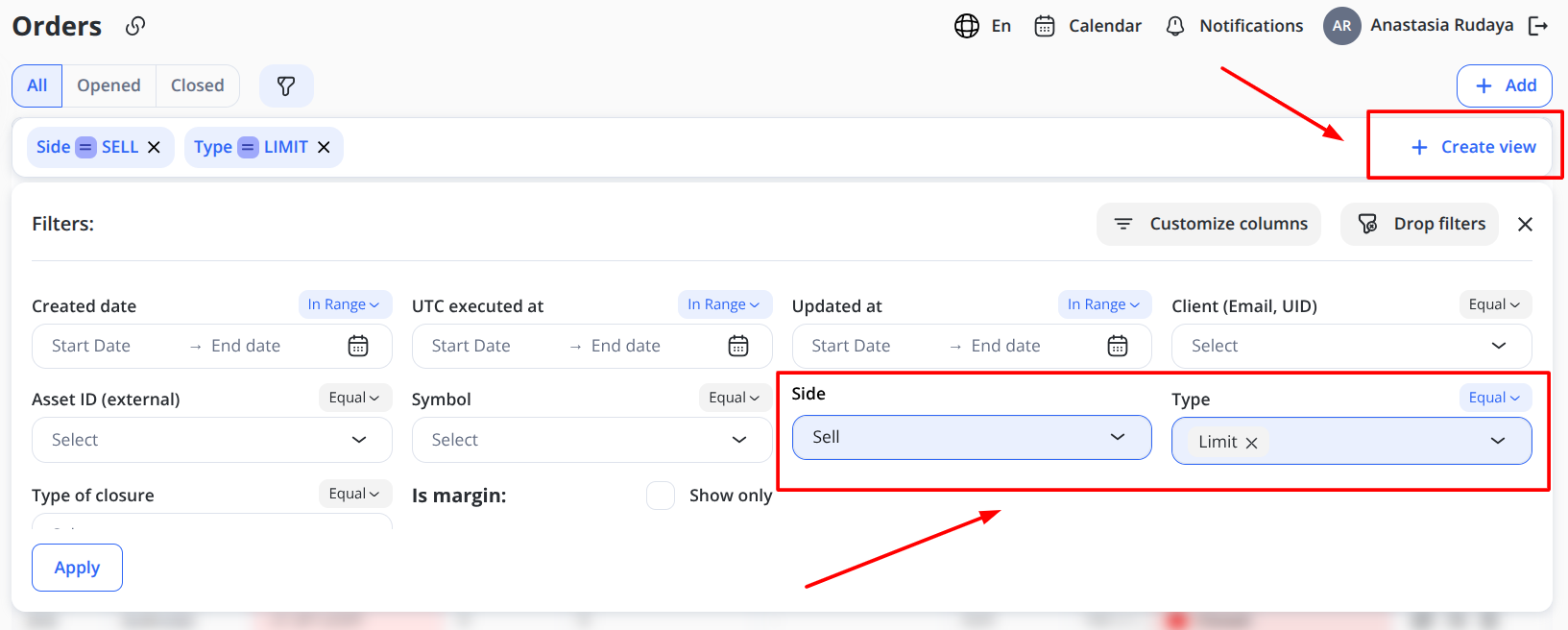
Creating an Order
Click + Add to open the form for creating a New order (exact fields vary by enabled order types).
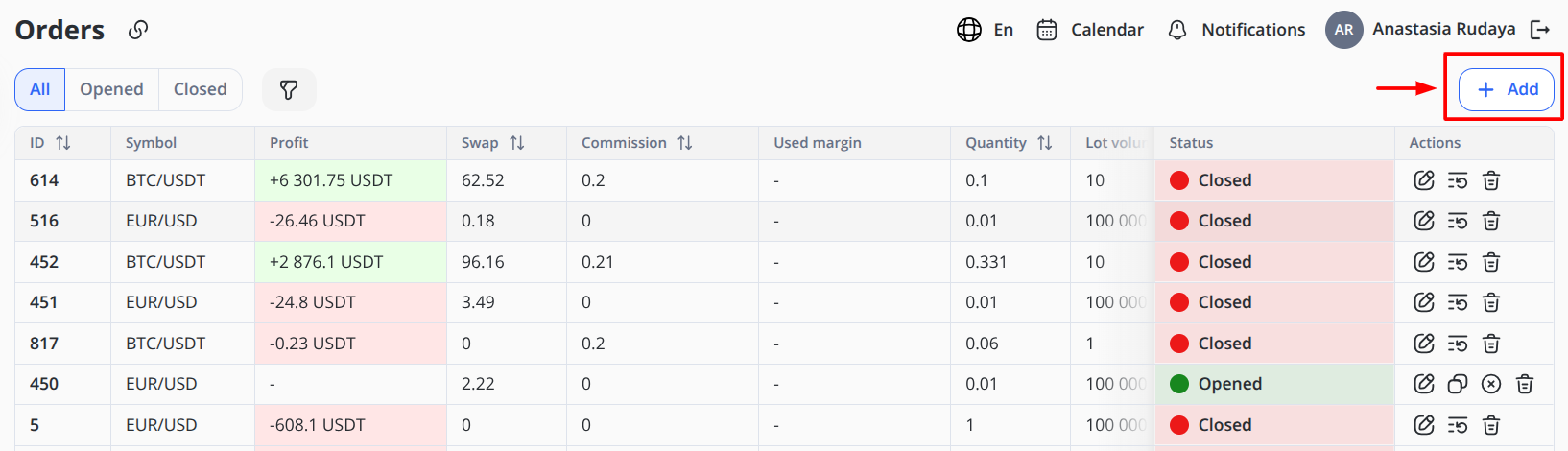
Common fields:
-
Client / Asset ID
-
Symbol
-
Side
-
Volume
-
Limit order
-
Static used margin
-
Commission
-
Accumulated swap
-
Long or Short swap rate
-
Stop loss / Take profit
-
Order in past
After selecting Order in past you have to fill Execution date & time and Opening price.
In the Buy/Sell modal, the system also displays the trading conditions (Calculation type, Lot size, Leverage) and the working hours for the selected trading pair. These hours are based on the trading schedule configured for the symbol.
Business rules at create:
Trading calendar: The system checks the symbol’s trading schedule and time zone before creating an order. If the symbol is in a non-trading window, such as a weekend or holiday, order creation is blocked.
Margin check: The system runs pre-trade margin validation before creating an order:
Margin = Contract Size × Volume × Price / Stored Leverage
Then the account’s free balance must meet or exceed the pair’s Margin requirement (%) of the collateral. If it is insufficient, creation is rejected with an insufficient-margin error. The minimum margin level required to open an order is 40%.
Precision & steps: Price and quantity must align with the pair’s precision/minimum step.
Submit the form to place the order. On success, the order appears in the table.
Editing an Order
Select Edit on a row to open the side panel. Choose Buy or Sell operation, then define the required settings in the editable fields:
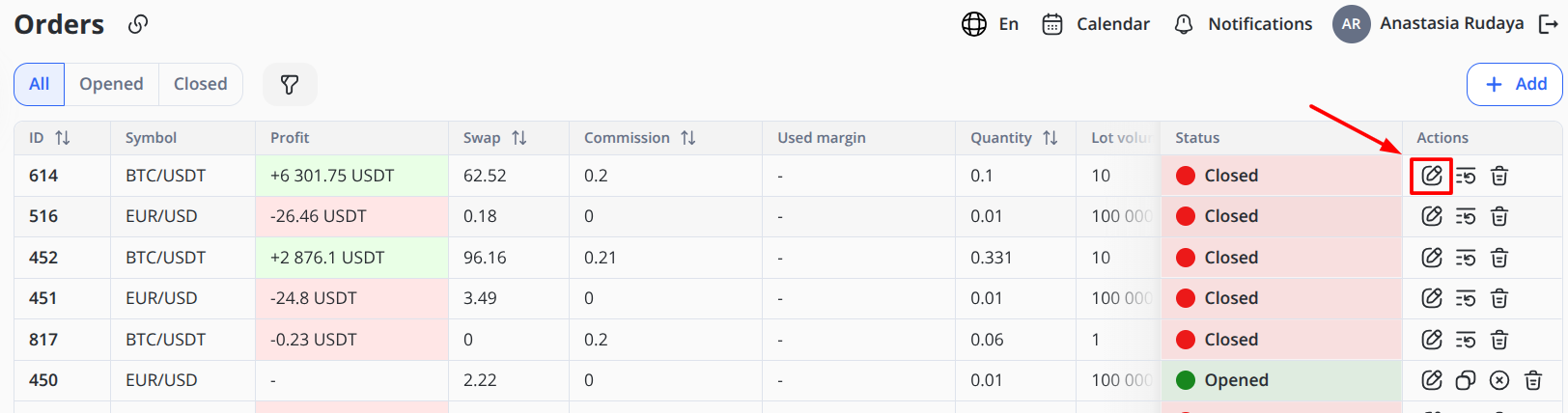
-
Volume
-
Limit order
-
Static used margin
-
Commission
-
Accumulated swap
-
Long swap rate
-
Take profit
-
Stop loss
-
Execution date & time
-
Opening price
Click Update the Order to apply all changes.
Managers have extended control over open orders:
Order Price Adjustment – ability to modify the opening price of an order to increase or decrease profitability.
User PnL Overview – aggregate PnL across all open trades for quick monitoring and reaction.
Margin Adjustment – managers can manually add or subtract a static margin value (positive or negative) in the relevant currency, increasing or decreasing the locked margin.
Validation & behavior:
All edits are re-validated against precision, lot size, and margin availability.
If the instrument is in a non-trading window, actions may be restricted.
Saving applies changes immediately; the audit log records before/after values with user and timestamp.
Margin call and Stop out notifications:
When a trader’s available balance approaches a critical level, the platform sends staged warnings. It is a custom setting configurable for each client. For example:
-
At 30% of the required margin, an early warning is sent to the user.
-
If the balance falls below 10%, one or more open positions are liquidated automatically according to platform policy.
Notifications are sent to both the user and the assigned manager. This mechanism helps users take corrective action before forced liquidation.
Closing/Canceling an Order
Close a position from the row actions when the status is OPEN.
Cancel applies to unfilled pending orders (if such types are enabled).
System enforces trading-calendar rules and available liquidity; resulting fills, and residuals are reflected back in the table.
Interaction with Other Trading Settings
-
Configurations → Trading pairs:
Spread,Commission,Swap,Margin requirement (%),Margin ratio,Lot volume, andTimezonedrive order pricing, fees, and margin checks. -
Configurations → Weekends/Holidays: when active for a symbol’s time zone, order creation and execution are blocked.
-
Price deltas: if active for a symbol, orders execute against the adjusted price stream during the delta window.
Quote Storage Optimization
Performance improvements have been implemented to optimize the storage and retrieval of price quotes. These optimizations reduce memory usage and improve throughput during high-frequency trading without altering user-facing workflows.
Audit & Security
Every create, edit, and close/cancel event is written to the audit log with user, time, and before/after payloads.
Permissions are role-based; elevated edits (e.g., manual margin or swap overrides) are restricted to risk/admin roles.
Monitoring, Health Check, and Logging
Comprehensive monitoring and statistics have been added across all trading platform services to ensure stable operations.
-
Health checks provide continuous status indicators for each subsystem.
-
Centralized logging aggregates events and errors into a unified store for faster issue identification.
-
Statistics dashboards support performance analysis and proactive incident detection.
These features strengthen system stability and shorten troubleshooting time without requiring user intervention.
Examples
-
Filter to open market buys for a specific client this week
Set Created date to the current week, Client to the email/UID, Side=BUY, Type=MARKET, Status=OPEN, then Save. -
Create a market buy on BTC/USDT
Choose Client/Asset ID, set Symbol=BTC/USDT, Side=BUY, Type=MARKET, Quantity=1. Submit. The system runs margin checks using the pair’s Margin ratio and Margin requirement (%). -
Adjust stop loss / take profit
Open Edit on the order, set Stop loss and Take profit to desired levels consistent with instrument precision, then Save. Changes are audited.
Glossary (Orders)
-
Market order — executes immediately at the best available price.
-
Limit order — posts at a specified price; fills when price is reached.
-
Swap — overnight fee for carrying a position to the next session (long/short specific).
-
Lot volume — base quantity unit defined per pair.
-
Margin requirement (%) — minimum collateral percent required to open/maintain a position.
-
Margin ratio (leverage) — factor used in the margin formula to compute required collateral.
-
Status —
OPEN(active) orCLOSE(closed/exited).
6. Trading: Trading Groups
Trading Groups define leverage and trading parameter overrides for clients registered within the system.
Trading Groups are the single source of truth for leverage.
Symbols and Trading Pairs do not define or influence leverage in any margin, execution, or risk calculation.
Finding the Page
Page Layout & Controls
+ Add — Opens the Add Trading Group form.
Search Field — Allows users to search for trading groups by entering relevant keywords or identifiers.
Total — Shows the number of trading groups displayed in the table.
Locked Leverage Groups
The system includes 5 predefined, locked Trading Groups:
-
Leverage 1:10
-
Leverage 1:100
-
Leverage 1:200
-
Leverage 1:400
-
Leverage 1:500
These groups:
-
Can be modified or deleted
-
Can define category-level overrides
-
Are available for assignment to any client
On account creation: The system automatically assigns a trading group, which is marked as default.
Creating a Trading Group
Click + Add
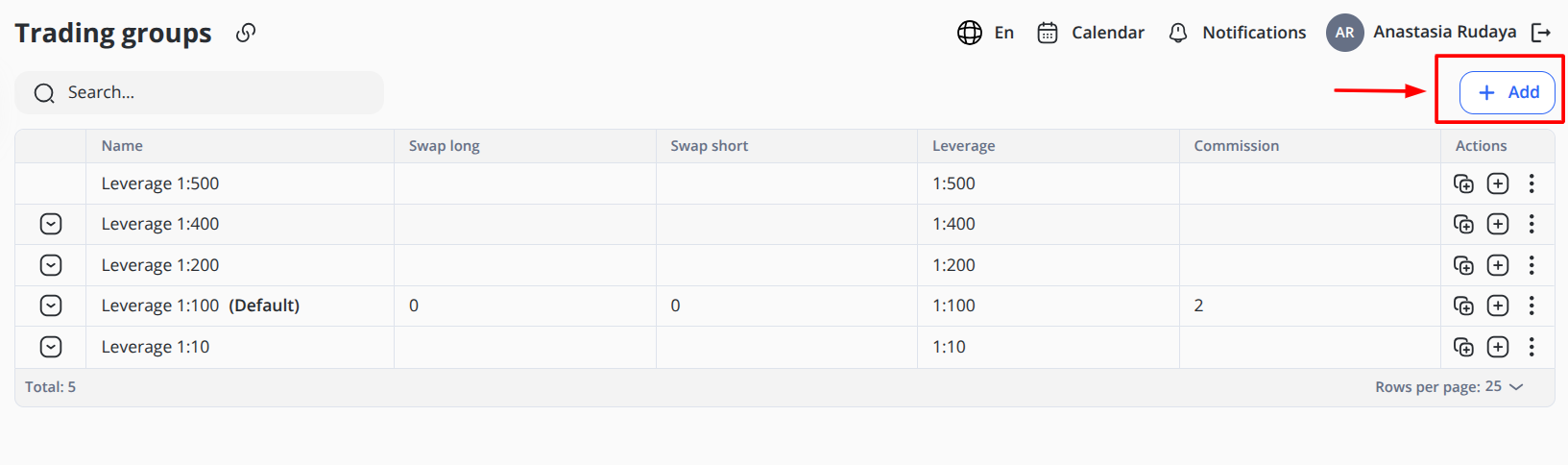
General Section
- Name: Full descriptive name
- Leverage: Defines the base leverage for the group
Example:
1:10
1:100
1:400
- Swap Long: Defines the swap value applied to long positions
- Swap Short: Defines the swap value applied to short positions
- Commission: Commission value applied to trades
- Active (toggle): If disabled, the group remains stored but cannot be used for new assignments.
Click Save
Group Configuration Overrides
To add specific values for Symbols and Symbol groups for the trading group, select the group from the Trading groups table and choose one of the actions you need: add Symbol or Symbol group.
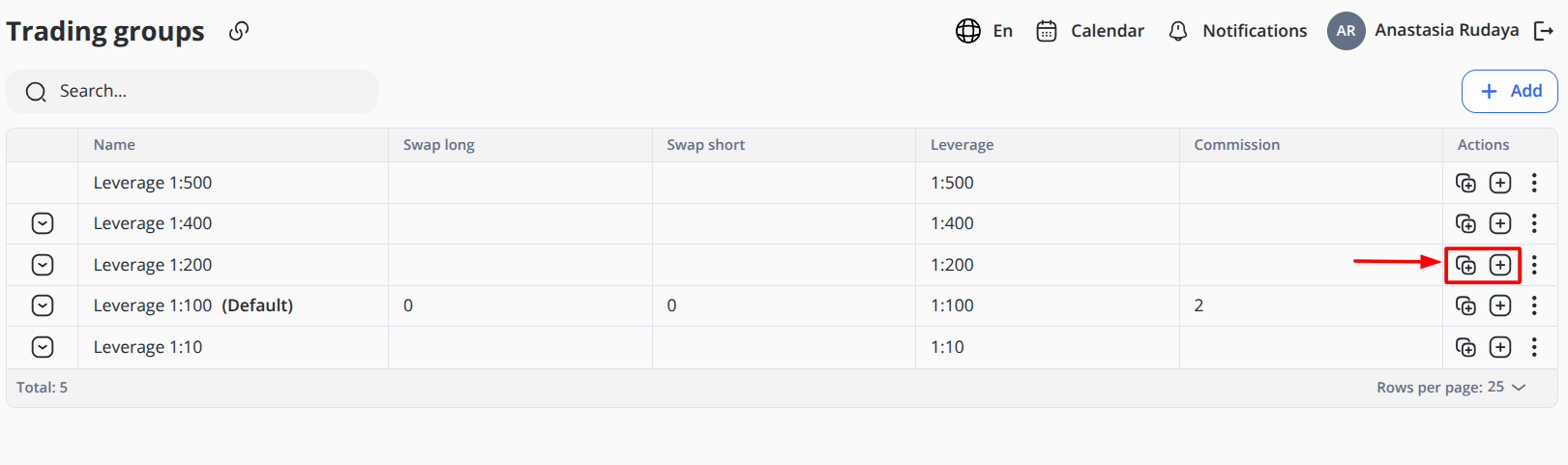
You may define overrides for the following Symbol groups:
-
Forex
-
Crypto
-
Commodities
-
Stocks
-
Indices
Example:
- Group: Forex
- Swap Long: -3.5
- Swap Short: 1.2
- Leverage 1:200
- Commission: 0.05
*Example values are provided for demonstration purposes only
To define configurations for specific Symbols (trading pairs) like BTC/USDT, ETH/BTC, or NEO/USDT, set configurations for each field:
Example:
- Symbol: BTC/USDT
- Swap Long: -0.16
- Swap Short: 0.5
- Leverage 1:200
- Commission: 0.05
*Example values are provided for demonstration purposes only.
If no override exists, the group applies the default configurations.
What Trading Groups Can Override
Trading Groups may override:
-
Commission
-
Swap long
-
Swap short
-
Category-level leverage
They do NOT override:
-
Price feeds
-
Tick size
-
Contract size
-
Trading hours
-
Weekend rules
-
Price deltas
The following is no longer supported:
-
Margin ratio defined on Symbols
-
Leverage defined in Trading → Configurations
-
Multiple group stacking for leverage resolution
Leverage resolution is strictly: Account → Trading Group → Category Override → Effective Leverage
Assigning Trading Group to an Account
When a new client is created inside our system, it automatically assigns the trading group marked as default.
This group serves as the initial trading configuration for all newly registered accounts and defines leverage, swaps, and commission settings. Values for specific Symbols or Symbol Groups are not defined by default.
The assigned Trading Group can be changed manually later if the client requires different trading conditions.
To change the Default group:
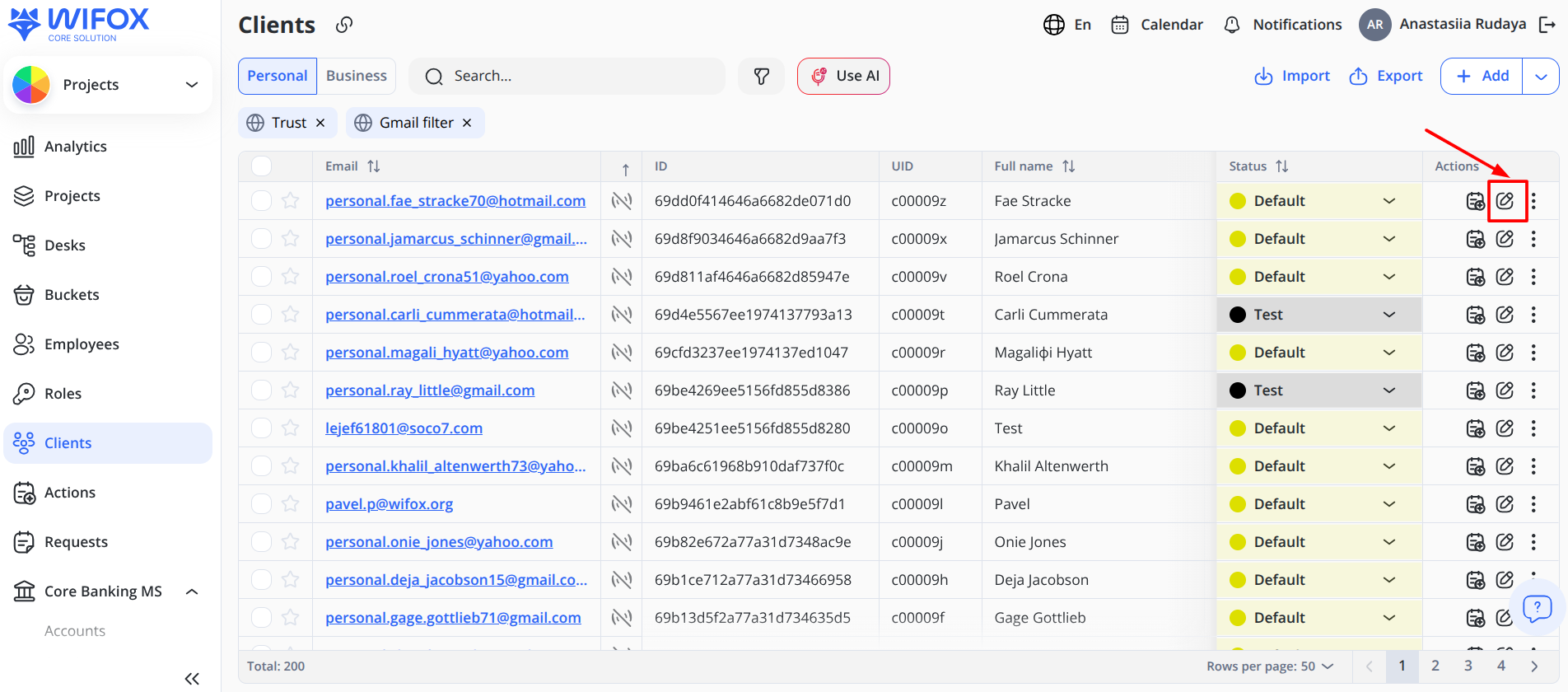
1. Choose the client in the Clients module that requires changes
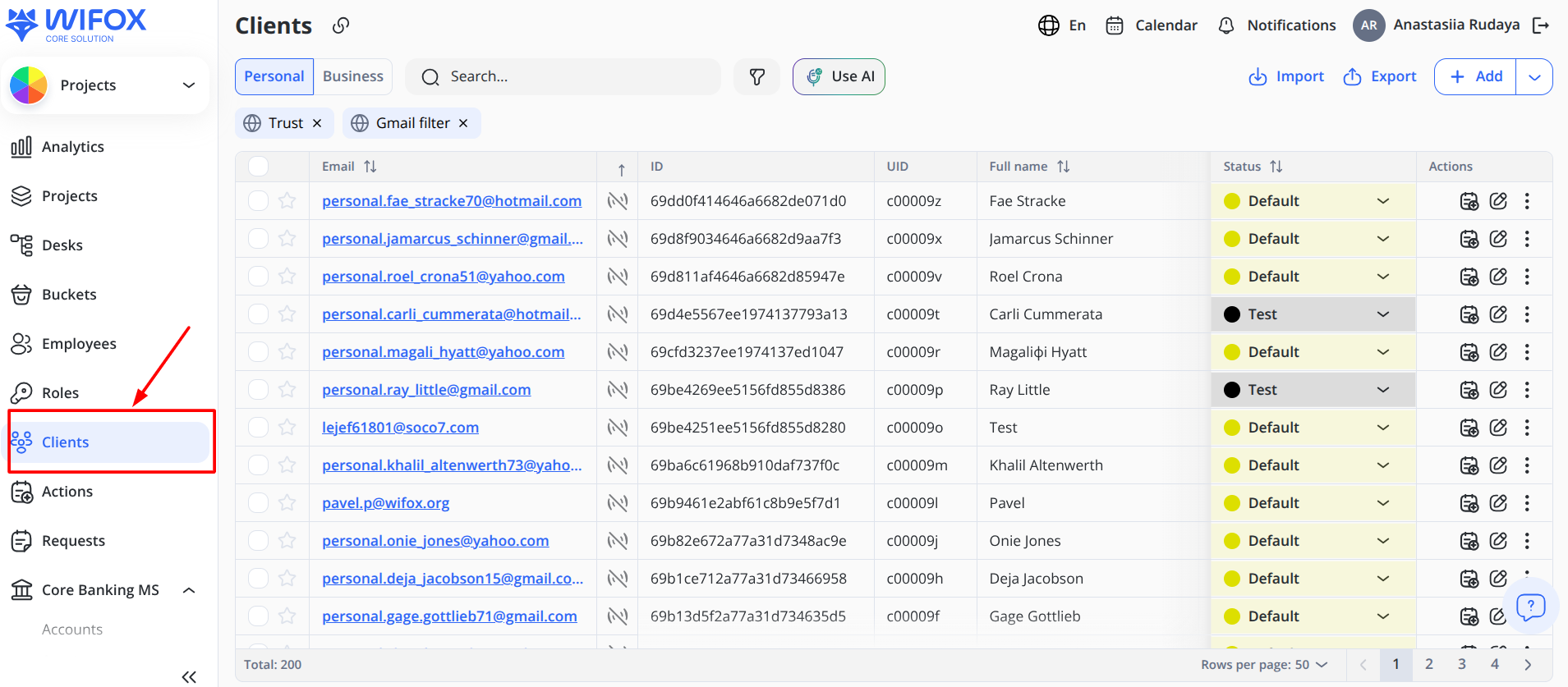
2. Click Edit on the right side of the table
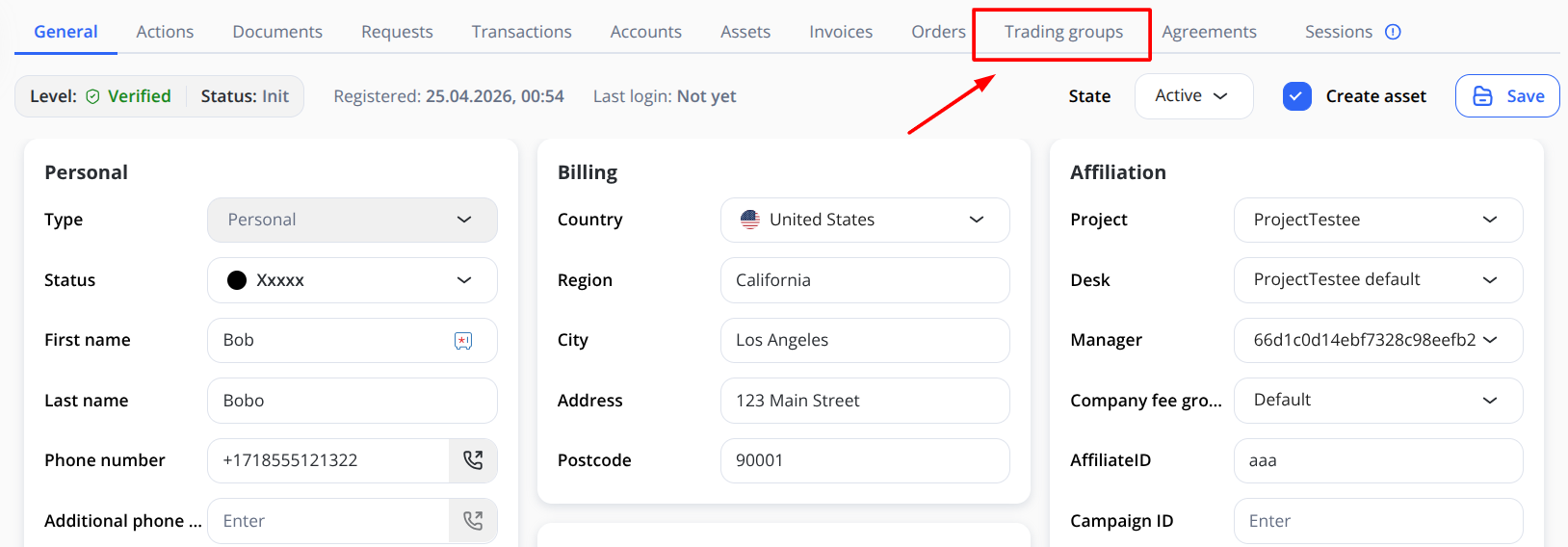
3. Select Trading Groups in the table header
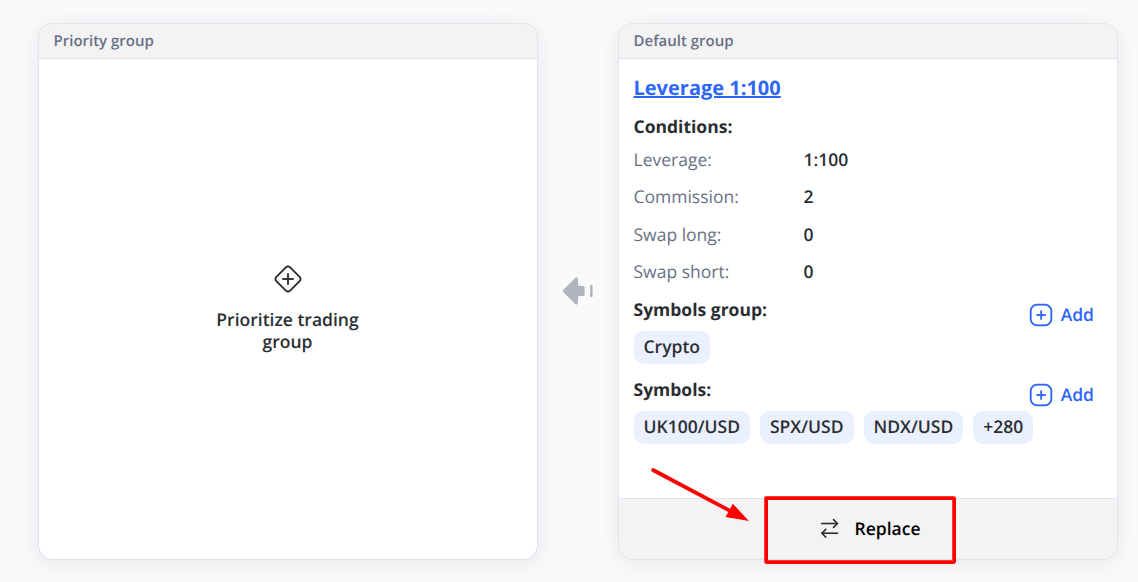
4. Click Replace and select the required option from the drop-down list
5. Click Save
You can also add values for specific Symbols or Symbol Groups within this Default group. For example, if you need to add custom values for crypto trades, open the window with the current values for the Default group and click Add to configure settings.
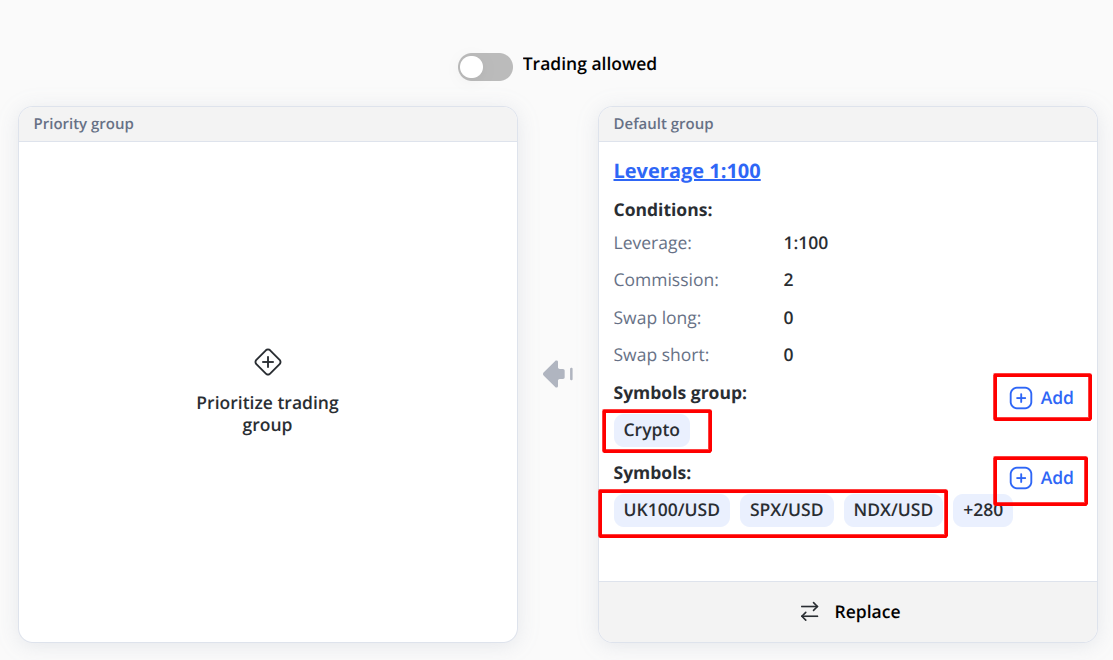
Then:
-
In the window that opens, select the required category from the drop-down menu.
-
Assign values for Swap Long, Swap Short, Leverage, and Commission.
-
Save the changes.
In this way, you can define all required specific settings.
Hierarchy of Values
When the client initiates a buy or sell trade, the system determines which value configuration to use as follows:
-
First, it checks whether specific values are predefined at the Symbol level.
-
If no Symbol-level values are defined, the system checks the Symbol Group level.
-
If no specific values are configured at either the Symbol or Symbol Group level, the system applies the default settings from the assigned Trading Group.
This creates the following hierarchy for applying value configurations:
Symbol → Symbol Group → Trading Group
Changing the Default group to the Priority group
If your client requires specific configurations for Symbols or Symbol Groups, you can change their default Trading Group to the Priority Group.
Follow these steps:
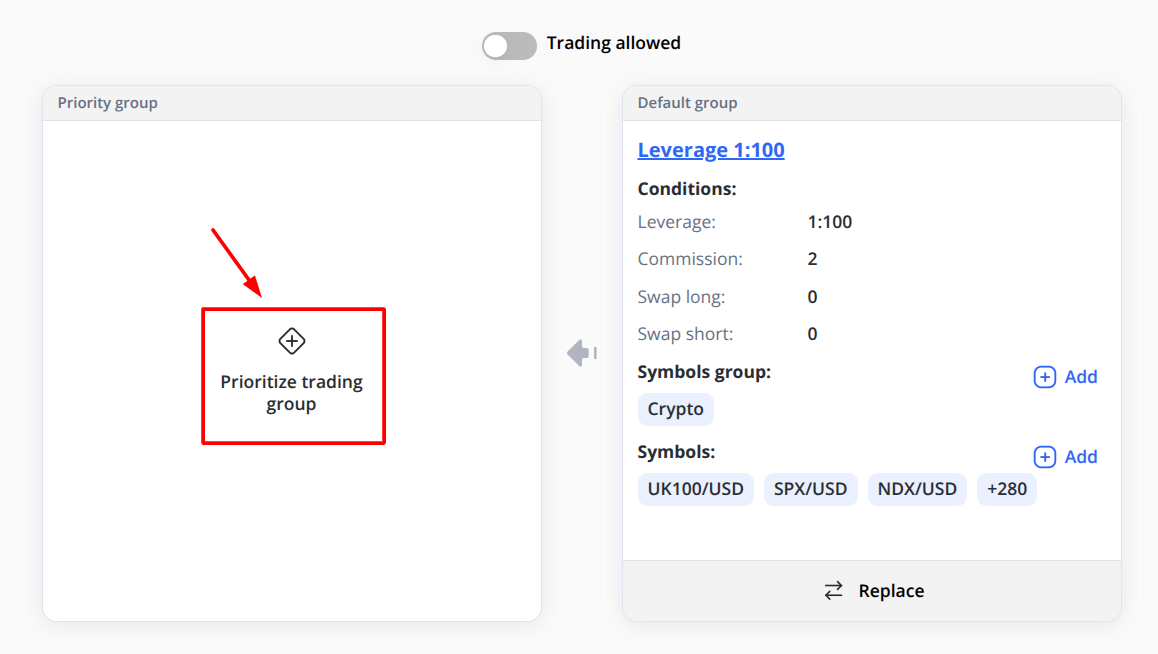
-
Choose the client in the Clients module that requires changes
-
Click Edit on the right side of the table
-
Select Trading Groups in the table header
-
Click + Prioritize Trading Group and select the required option from the drop-down list
-
Click Save
-
In the Priority Group Settings window, choose a specific Symbol Group or Symbol and set the required values
In this case, the hierarchy for applying configurations will be as follows:
-
Symbols in the Priority Group
-
Symbol Groups in the Priority Group
-
Symbols in the Default Group
-
Symbol Groups in the Default Group
-
Default configurations of the Trading Group
The system must always have one active Trading Group assigned to each client before trading is allowed.
Multiple group ordering logic is no longer used for leverage.
Specifics of Changing Trading Group
If the account has open positions, a modal appears:
Recalculate margin for current open positions?
Yes / No
If "Yes" Selected
-
All open positions are recalculated using new effective leverage
-
Margin requirement updates immediately
-
Liquidation levels adjust accordingly
If "No" Selected
-
Existing positions keep original leverage and margin
-
New orders use the new Trading Group leverage
-
Stored leverage on positions remains unchanged
Position Leverage Storage
At order execution:
-
Effective leverage is calculated
-
That leverage is stored on the Position
-
It becomes immutable
Stored leverage is used for:
-
Margin maintenance
-
Liquidation checks
-
Risk monitoring
-
PnL exposure logic
If Trading Group changes later and "No recalculation" was selected:
Existing positions continue using stored leverage.
Leverage Architecture
Core Principle
Leverage is resolved exclusively through Trading Groups.
Symbols and Trading Pairs never define leverage.
Effective Leverage Resolution
When an order is placed:
-
System reads the account’s Trading Group
-
System checks for an instrument category override
-
If override exists → use override leverage
-
If no override exists → use group default leverage
Effective Leverage =
Category Override (if exists)
else Group Default Leverage
The effective leverage is:
-
Applied during margin validation
-
Stored on the Position at execution
-
Used later for liquidation and risk logic
Margin Calculation
Margin is calculated using stored leverage on the position:
Margin = Contract Size × Volume × Price / Stored Leverage
For example:
-
Contract Size = 100,000
-
Volume = 0.1 lot
-
Price = 1.1000
-
Stored Leverage = 100
Calculation:
- Margin = 100,000 × 0.1 × 1.1000 / 100
- Margin = 110
- So, the required margin is 110.
The system does not read leverage from:
-
Symbol
-
Trading pair configuration
-
Historical group values
Only stored leverage is authoritative.
Editing & Deleting Groups
Edit
Open the form → Modify values → Save.
Changes affect:
-
New orders immediately
-
Existing positions only if recalculation was selected
Delete
Deleting a group:
-
Removes it from availability
-
Does not delete historical stored leverage on positions
Locked default groups cannot be deleted.
Interaction With Trading Configuration
Trading → Configurations remains baseline for:
-
Symbol setup
-
Contract size
-
Trading hours
-
Swap defaults (if not overridden)
-
Commission defaults (if not overridden)
Leverage is never read from Trading pairs.
Best Practices
-
Use predefined leverage groups whenever possible.
-
Avoid excessive category overrides unless required by risk policy.
-
Review open positions before changing leverage for large accounts.
-
Use clear and descriptive Names. Label is generated automatically.
-
Document internal criteria for assigning leverage tiers.
Glossary
Trading Group
Container defining leverage and trading parameter overrides for clients.
Default Leverage
Base leverage defined at group level.
Category Override
Optional leverage rule for instrument family.
Effective Leverage
Leverage resolved at order execution.
Stored Leverage
Immutable leverage saved on a Position at creation time.